Top best password managers for seniors in 2026


As of October 2026, NordPass, Keeper, and 1Password are the best password managers for seniors I've tested.
- NordPass is the easiest password manager for seniors to use, pairing a clean, simple interface with biometric login and strong XChaCha20 encryption.
- Keeper stands out for seniors who want extra peace of mind, backed by Security Audit, Emergency Access, and phone support alongside live chat.
- 1Password keeps things clear and easy to navigate, with Watchtower flagging weak passwords automatically and Travel Mode adding extra protection for seniors who travel.
More of daily life has moved online than ever before, and keeping track of dozens of accounts and passwords along with it gets harder every year. Reusing the same password everywhere, or writing them down on paper where anyone could find them, only adds to the risk of an account getting compromised.
This is exactly where a password manager helps the most, especially for seniors. It creates strong passwords, stores them securely, and fills them in automatically, so there's far less to remember or type out by hand.
Finding the right one isn't as straightforward as it sounds, though. I tested a range of password managers throughout 2026, with ease of use as the top priority, to land on the options that actually work well for seniors rather than just claiming to.
How to choose a password manager for seniors
Ease of use and security should come first when picking a password manager for a senior in your life. Most providers offer a free trial, and letting them actually try it out for themselves before committing is one of the best ways to know if it's genuinely a fit. Beyond that, it's worth weighing security, price, how well it syncs across devices, and the quality of customer support.
Here's what to look at before choosing one:
- Ease-of-use. Look for a clean and simple interface that’s easy to navigate for seniors. Accessing the vault, autofill, and password sharing should be straightforward and require only a few clicks at most.
- Top-tier security. Just because you’re looking for a simple tool, doesn’t mean it should lag behind in security. Make sure your pick is built on zero-knowledge architecture, uses advanced encryption, and has been independently audited.
- Pricing. Since most seniors are looking for a basic password management tool, the price should be relatively low. Most password managers cost somewhere between $1 to $3 per month.
- Cross-device syncing. This ensures that your passwords are available on all of your devices. Super important for seniors who are using multiple devices, such as a smartphone, tablet, or laptop.
- Customer support. Seniors are more likely to run into issues, especially if they’re not tech-savvy. Having customer support agents available 24/7 can ease the onboarding process for seniors and give them peace of mind that there’s someone to help. Bonus points if there’s phone support.
Best password managers for seniors in 2026
Working alongside the research team, I went through more than a dozen password managers to narrow the field down to five genuinely strong options for seniors. From there, I spent extra time putting each one through hands-on testing, paying close attention to how easy it actually is to use and how well it holds up against the everyday needs of older users.
| NordPass | Keeper | 1Password | |
| ⭐ Rating: | |||
| 🥇 Overall rank: | #1 out of #20 | #4 out of #20 | #2 out of #20 |
| 🔥 Coupons: | NordPass coupon 56% OFF | Limited-Time offer! Keeper coupon 50% OFF | 1Password coupon 50% OFF |
| 💵 Price: | From $1.29/month | From $1.79/month | From $2.99/month |
| ✂️ Free version: | Yes | Yes | 14-day trial |
| 🔒 Encryption: | XChaCha20 | AES-256 | AES-256 |
| 🖥️ Platforms: | Windows, macOS, Linux, Android, iOS | Windows, macOS, Linux, Android, iOS | Windows, macOS, Linux, Android, iOS |
| 🌐 Browser extensions: | Chrome, Edge, Firefox, Opera, Safari, Brave, Vivaldi | Chrome, Firefox, Safari, Opera, Edge, Brave | Chrome, Firefox, Edge, Brave, Safari |
1. NordPass – best password manager for seniors in 2026

| Ease-of-use level: | Easy |
| Password generator: | ✅ Yes |
| Biometric authentication: | ✅ Yes (face, fingerprint) |
| Free version: | ✅ Yes (one active session at a time) |
| Emergency access: | ✅ Yes, paid version |
| Current deal: | Get NordPass, now with 56% OFF |
NordPass is my top recommendation for seniors looking for a password manager. Security holds up throughout, the interface never buries you under buttons you don't need, and the price delivers real value for what you get.
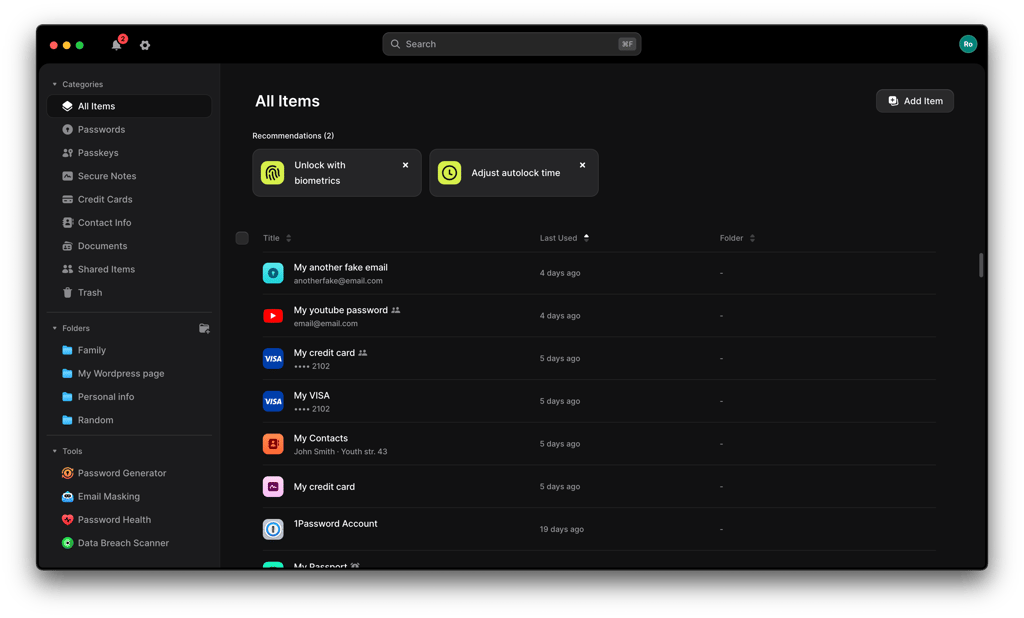
NordPass’ design is clean and consistent across both desktop and mobile apps. They’re not cluttered and are easy to navigate, with your password vault and all the features only a click away. The mobile apps felt especially smooth. I didn’t encounter any scrolling or responsiveness issues during my trials. Plus, it offers biometric authentication, making logging in easier by allowing you to use your fingerprint or face to unlock the password vault.
When it comes to security, NordPass uses a strong security architecture to protect stored credentials. NordPass combines XChaCha20 encryption with a zero-knowledge architecture designed to keep your vault data private.”
The premium plan starts at $1.29/month and includes useful extras that seniors would appreciate. A Password Health feature that highlights weak, reused, and outdated passwords in your vault; a Data Breach Scanner that scans for leaked credentials across leaked databases; and an Email Masking tool to generate alias email addresses linked to your primary inbox, letting you register for websites without ever handing over your actual email address.
2. Keeper – senior-friendly password manager with secure messaging

| Ease-of-use level: | Easy |
| Password generator: | ✅ Yes |
| Biometric authentication: | ✅ Yes (face, fingerprint) |
| Free version: | ✅ Yes |
| Emergency access: | ✅ Yes |
| Current deal: | Limited-Time offer! Get 50% OFF Keeper Personal and Family plans |
Keeper is a strong password manager for seniors who want extra protection beyond the basics, with tools like Security Audit, biometric login, Emergency Access, and optional BreachWatch monitoring. Together, these features deliver serious security without making the experience feel complicated.
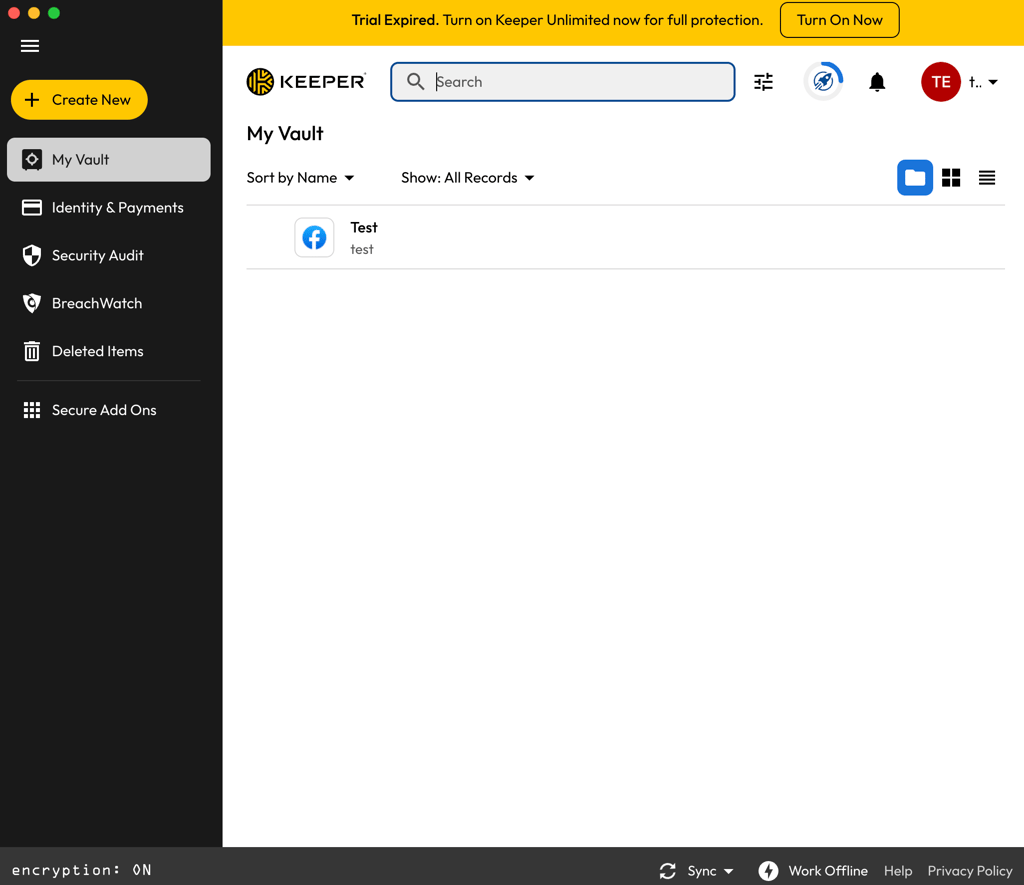
Keeper supports all major desktop and mobile platforms, with apps for Windows, macOS, Linux, Android, and iOS. However, compared to NordPass, the navigation and app consistency could use improvement. For example, some features and interface elements differ between Keeper's desktop and mobile apps. Despite that, the interface is intuitive and customizable, meaning you can tailor Keeper to your preferences, from the length and character types of passwords it generates to your experience with the browser extension.
Keeper also stands out for its strong security architecture. Keeper's zero-knowledge architecture means Keeper can't access or decrypt the information stored in your vault.
Keeper’s plans start at $1.79/month, which is quite an average price. For the entry price, Keeper covers the core password-management features, while extras such as BreachWatch are available separately.
3. 1Password – password manager for seniors with Travel Mode

| Ease-of-use level: | Moderate |
| Password generator: | ✅ Yes |
| Biometric authentication: | ✅ Yes (face, fingerprint, iris) |
| Free version: | ❌ No |
| Emergency access: | ✅ Yes |
| Current deal: | Get 1Password, now up to 50% OFF |
1Password works well for seniors because it keeps the interface uncluttered and easy to follow. The layout stays clear, text is easy to read, and key options are never hard to find. On top of that, extras like Travel Mode add another layer of protection while abroad.
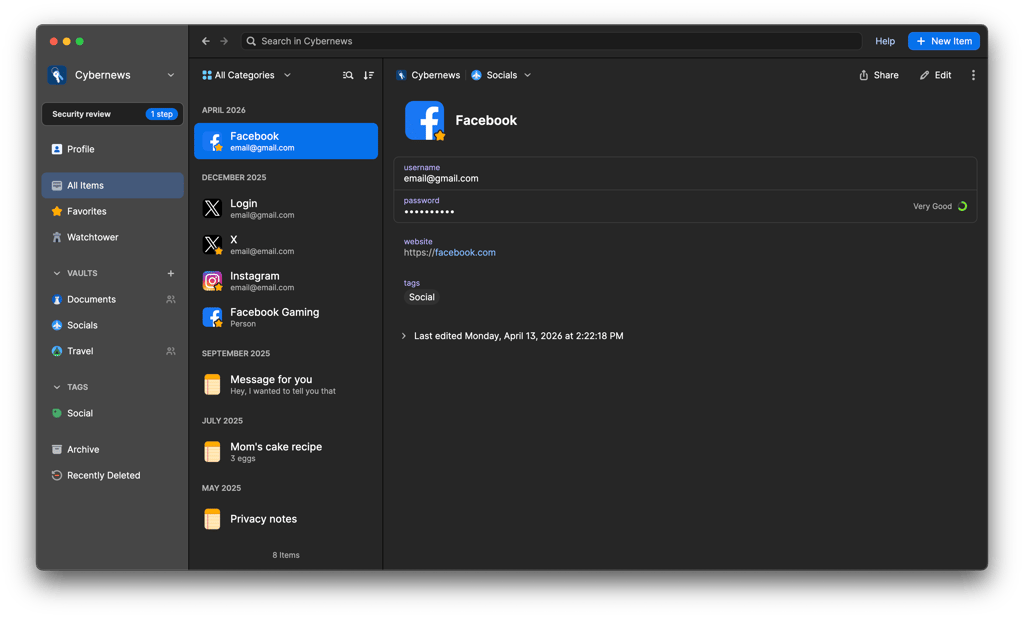
The overall experience of using 1Password is similar to NordPass. It’s intuitive and easy to navigate across different devices. Your passwords and other sensitive information are securely stored in encrypted vaults. Also, instead of remembering a different password for every account, you mainly need to remember your 1Password account password, while the app stores and autofills the rest.
In terms of security, 1Password adheres to a high standard. It uses a strict zero-knowledge architecture, AES-256 encryption, and has a solid track record confirmed by independent audits. Additionally, it offers a variety of advanced security features.
However, for some users, the biggest downside could be 1Password’s price. At $2.99/month, it’s one of the pricier password managers I’ve tested. Also, it doesn’t have a free plan. Yet, it offers a wide range of convenient features, including Travel Mode for extra protection while traveling, and WatchTower, which alerts you to compromised, weak, and reused passwords and other security issues, all of which are worth the higher price.
4. RoboForm – most affordable password manager for seniors

| Ease-of-use level: | Easy |
| Password generator: | ✅ Yes |
| Biometric authentication: | ✅ Yes (face, fingerprint, iris) |
| Free version: | ✅ Yes |
| Emergency access: | ✅ Yes, paid version |
| Current deal: | Get RoboForm, save up to 60% |
RoboForm stands out as one of the cheapest password managers on this list. That makes it a practical pick for seniors or family members who want solid protection without a big financial commitment.
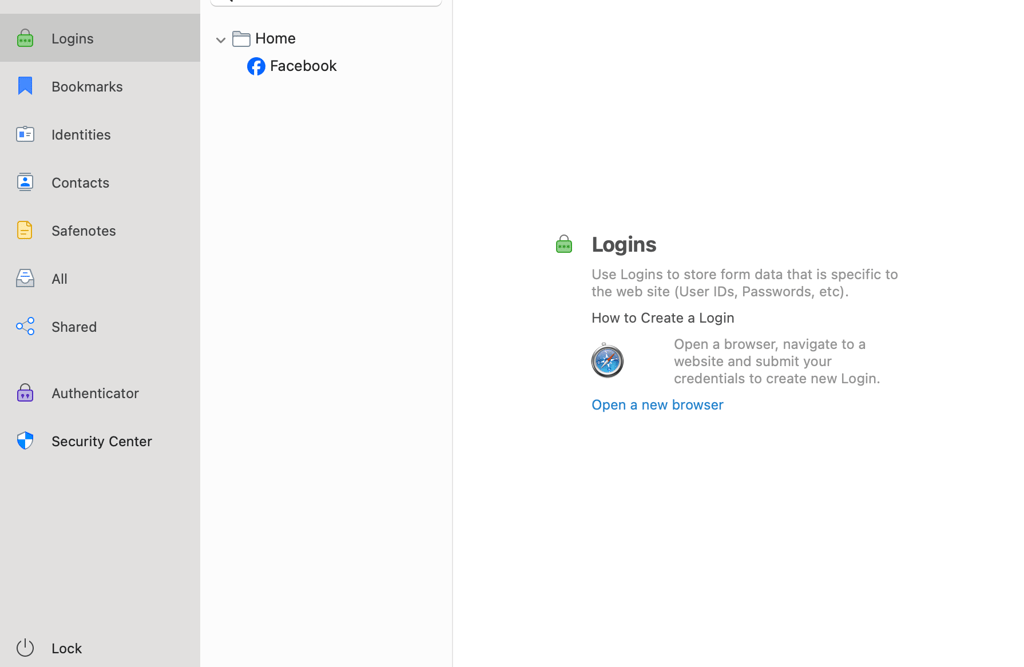
RoboForm’s interface is more traditional than NordPass or 1Password, but it’s still simple once you get used to it. RoboForm works across all major devices and covers the essentials seniors actually need, like generating strong passwords, checking password strength, and safely sharing logins with trusted family members. What’s special about RoboForm is how incredibly easy it is to set up. Once installed, all passwords and notes are immediately accessible.
Its simplicity-based approach is also applied to security. RoboForm uses industry-standard security measures, such as a zero-knowledge architecture and AES-256 encryption, which you can read more about in our RoboForm review.
RoboForm’s paid plans start at only $0.99/month and include all core password manager functionality. For this price, RoboForm offers secure sharing, local only mode, Emergency Access, and priority customer support. It’s a simple password manager, making it an optimal choice for seniors who only need basic functionality.
5. Proton Pass – password manager for seniors with a great free version

| Ease-of-use level: | Easy |
| Password generator: | ✅ Yes |
| Biometric authentication: | ✅ Yes (face, fingerprint) |
| Free version: | ✅ Yes |
| Emergency access: | ✅ Yes |
| Current deal: | Get ProtonPass, now up to 50% OFF! |
Proton Pass is a solid pick for seniors who want to keep their passwords organized without paying a cent. It also backs that up with useful security tools like Emergency Access, so a trusted contact can safely step in and help when it's actually needed.
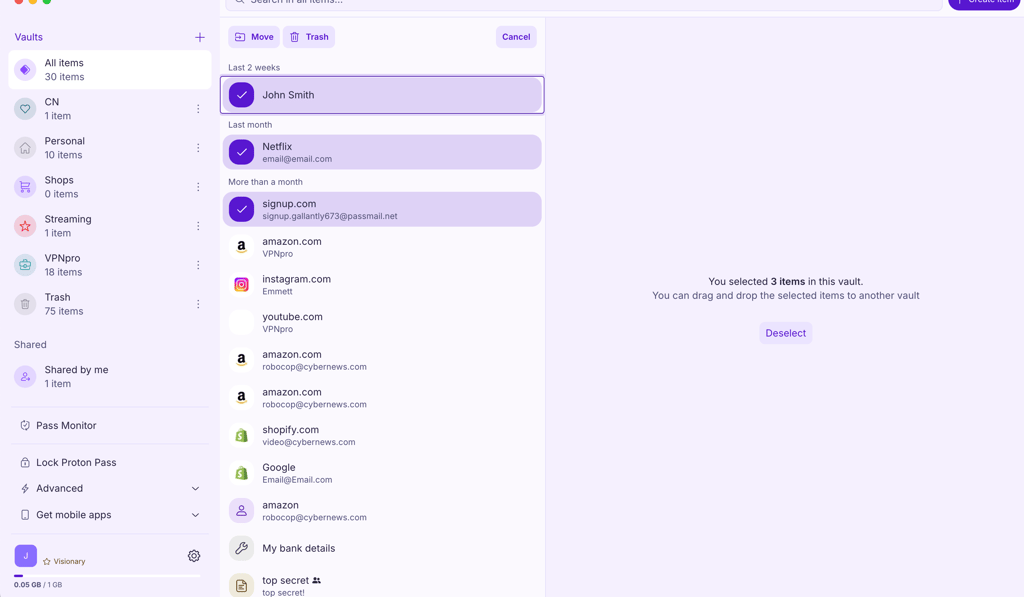
Proton Pass’ interface is intuitive, and features like autofill, password health checks, and email aliases help reduce everyday friction when signing in. It also supports passkeys on both browsers and mobile devices, which makes logging in simpler and lets you sign in without typing a password on supported services.
Security runs quietly in the background, protecting everything without a complicated setup. Proton Pass uses an industry-standard AES-256 encryption, employs end-to-end encryption, is fully open-source, and has been independently audited. Its open-source approach and independent security audits add transparency to its security claims.
Proton Pass is one of the best free password managers, which includes unlimited devices, unlimited storage for passwords, notes, and personal details, and email alias to mask your email, so there’s no pressure to upgrade. However, paid plans are pricey (from $2.49/month) and ideal for more tech-savvy seniors who want the highest level of privacy.
How we tested and rated the best password managers for seniors
I tested 20 password managers on September 25, 2026, using Windows, macOS, Android, iOS, and browser extensions to see how each one actually held up for an older user, not just a tech-savvy one. Beyond the standard checks (security protocols, app design, additional features), I paid particular attention to things that trip up less experienced users specifically: how many taps it takes to autofill a password, whether the text and buttons are large enough to read comfortably, and how confusing the recovery process is if a senior forgets their master password.
From there, I scored each provider across four categories:
- User experience (40%). This carried the most weight alongside security, since a password manager that's technically excellent does no good if it's confusing to use. I looked for interfaces that stayed consistent across desktop and mobile, required as few steps as possible to save and autofill a password, and didn't bury essential features behind multiple settings menus. Providers also needed responsive customer support, ideally including phone support, since seniors are more likely to need a human to walk them through an issue than to troubleshoot it themselves.
- Security (40%). Every provider on this list uses end-to-end encryption, is built on a zero-knowledge architecture, and has passed at least one independent security audit, since none of that is negotiable regardless of who's using the product. I also specifically checked how each provider handles account recovery, since losing access to a master password is a genuine risk for this audience, and a recovery process that's either too weak (a security risk) or too complicated (a usability risk) both counted against a provider here.
- Features (10%). I looked for extras that specifically help seniors stay safer, not just anyone. Emergency access lets a trusted family member step in if something happens to the account owner, which matters more here than for a younger user. Data breach scanning and email masking both reduce the chances of a senior falling for a scam tied to leaked or overexposed personal information, and Travel Mode is a bonus for anyone visiting family or traveling with sensitive data on their device.
- Pricing (10%). I compared each provider's monthly cost against what a senior actually needs, since most don't require advanced business features or unlimited storage tiers. Providers priced between $1 and $3 a month for core password management scored well here, while anything charging significantly more for features seniors are unlikely to use was marked down.
Final thoughts
Choosing a password manager for a senior isn't the challenge it once was, since most modern options are now genuinely built around everyday ease of use. Out of everything I tested, NordPass came out on top overall in 2026. Its layout stays simple without sacrificing what matters, autofill, a password generator, and secure sharing all work without adding extra steps or confusion.
That said, the right pick still depends on what you're looking for. 1Password suits anyone who wants a more polished, feature-rich experience, RoboForm keeps costs to a minimum, and Keeper is worth a look if extra security tools matter most. And if price is the deciding factor, Proton Pass's free plan, with unlimited password storage, holds up well for long-term everyday use.
FAQ
What is the easiest and safest password manager?
In my opinion, NordPass is the easiest password manager to use. It offers a simple setup process and an intuitive interface that makes navigation a breeze.
What is the safest password manager?
NordPass is one of the safest password managers. It uses advanced encryption and a zero-knowledge framework to secure your passwords.
What is the best way to store passwords for seniors?
The best way for seniors to organize their passwords and other important but sensitive information is to use a password manager. A password manager app such as NordPass will keep all your passwords secure and safe from scammers, malicious hackers, and offer seamless and easy access to all your accounts with an autofill function.
Which password manager has never been hacked?
NordPass is one of the few major password managers that has never been hacked. It uses zero-knowledge architecture and advanced XChaCha20 encryption to keep user data protected even if servers are compromised.
What is the downside of using a password manager?
One downside of using a password manager is that access to all your saved credentials depends heavily on protecting your main account credentials. However, reputable password managers provide recovery safeguards. For example, NordPass gives you a 24-character Recovery Code that can be used to reset a forgotten Master Password. If you lose both your Master Password and Recovery Code and can't recover access through biometrics, resetting the account may be necessary – and a full reset deletes the items stored in your vault.