Best password managers for 2026:

As of October 2026, the NordPass, Keeper, and 1Password are the best password managers I've tested.
- NordPass – delivers the overall best price-to-value ratio on the market in 2026
- Keeper – strongest business-oriented password managers with deep administrative controls.
- 1Password – password manager with great extra features and polished user experience.
Managing digital credentials today is notoriously difficult. Between online banking, remote work software, and endless streaming platforms, credential sprawl often pushes people toward dangerous habits, like reusing the same weak login everywhere. Unfortunately, this means a single compromised website can leave your entire digital identity vulnerable to credential-stuffing attacks and data breaches.
Password managers eliminate this risk entirely. By generating cryptographically strong, unique passwords for every single account, locking them inside a zero-knowledge encrypted vault, and seamlessly autofilling them across your devices, they remove the burden of memory from your cybersecurity strategy.
To help you cut through the marketing noise, I spent a few weeks hands-on testing 7 of the industry's most popular password managers. Below, I rank them based on real-world security infrastructure, cross-platform compatibility, everyday usability, and long-term value, helping you lock down the perfect tool for your personal or professional setup.
Best password managers for 2026 – full list
Alongside the Cybernews research team, I went hands-on with the biggest password managers available today. We purchased the top-tier plans for every provider to evaluate what they truly offer in daily use. By rigorously testing their encryption standards, core functionality, and extra perks, we weighed exactly how much value you get for your money.
| Password manager | Rating | Best for | Free version | Premium plan price | Multi-factor authentication | Secure password sharing | Password health reports | Compatibility |
| 1. NordPass | Best price-to-value password manager | ✅ Yes | From $1.29/month | ✅ Yes | ✅ Yes | ✅ Yes | Windows, macOS, Linux, Android, iOS | |
| 2. Keeper | Best macOS and iOS integrations and business controls | ✅ Yes | From $1.79/month | ✅ Yes | ✅ Yes | ✅ Yes | Windows, macOS, Linux, Android, iOS | |
| 3. 1Password | Best for users looking for a premium experience | ❌ No | From $2.99/month | ✅ Yes | ✅ Yes | ✅ Yes | Windows, macOS, Linux, Android, iOS | |
| 4. RoboForm | Best for budget-conscious users | ✅ Yes | From $0.99/month | ✅ Yes | ✅ Yes | ✅ Yes | Windows, macOS, Linux, ChromeOS, Android, and iOS | |
| 5. Proton Pass | Best cybersecurity suite | ✅ Yes | From $2.49/month | ✅ Yes | ✅ Yes | ✅ Yes | Windows, macOS, Linux, Android, iOS | |
| 6. Dashlane | Password manager with a VPN included | ❌ No | From $4.06/month | ✅ Yes | ✅ Yes | ✅ Yes | Web app/browser extension, macOS, Android, iOS | |
| 7. Bitwarden | Affordable open-source solution | ✅ Yes | From $1.65/month | ✅ Yes | ✅ Yes | ✅ Yes | Windows, macOS, Linux, Android, iOS |
1. NordPass

| Encryption: | XChaCha20 |
| Zero-knowledge architecture: | ✅ Yes |
| Cross-device sync: | Windows, macOS, Linux, Android, iOS |
| Discount coupons: | NordPass coupon codes |
| Premium plan price starts: | From $1.29/month |
NordPass stands out as the most well-rounded password manager of 2026, combining top-tier security with a sleek, intuitive design for individuals, families, and businesses, all at an affordable price.
It nails all the basics you would expect from a password manager: it generates strong passwords, flawlessly autofills login details and forms, and allows for quick and secure sharing between family members or colleagues. In addition to the basics, NordPass includes several useful extras.
One of the most notable is Dark Web Monitoring, which scans breach databases and alerts you if your email or login details appear in leaked data. It also offers Email Masking, which lets you create alias email addresses to protect your real inbox and reduce spam, tracking, and exposure. For more information about NordPass’ specs, refer to our full NordPass review.
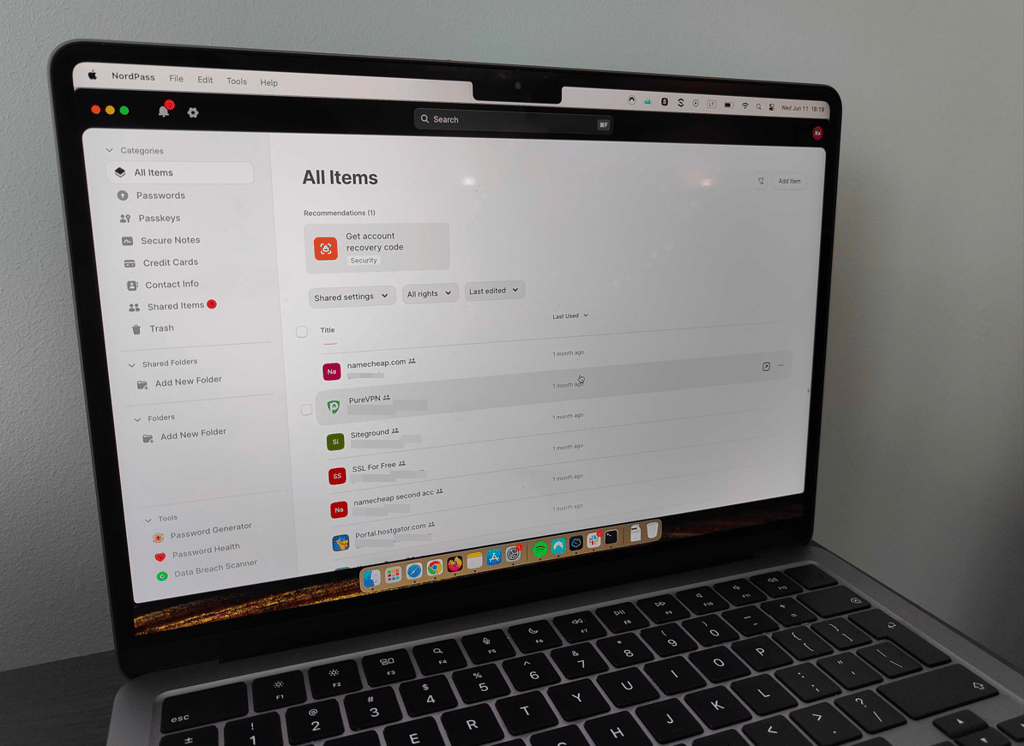
NordPass is compatible with all major platforms such as macOS, iOS, Windows, Linux, and Android and offers a consistent user experience across all of them.
Coming from NordSecurity, the same company that created NordVPN, it’s one of the most secure password managers out there. NordPass employs xChaCha20 encryption and a zero-knowledge architecture to secure your passwords, and it also supports multi-factor authentication for an extra layer of account security. Its security practices have been audited 6 times by third parties.
NordPass pricing begins with a free tier making it one of the best free password managers for password management on a single device. The Premium plan starts at $1.29/month if subscribed to a 2-year term, Family plan at $2.32/month, and Business plan at $3.59/month. All plans come with 24/7 support and a 30-day money-back guarantee.
2. Keeper

| Encryption: | AES-256 |
| Zero-knowledge architecture: | ✅ Yes |
| Cross-device sync: | Windows, macOS, Linux, Android, iOS |
| Discount coupons: | Keeper coupon codes |
| Premium plan price starts: | From $1.79/month |
Keeper is a business-first password manager at its core, making it an ideal fit for organizations that need strict control over who can access what. It still easily handles personal and family needs by generating strong passwords and autofilling them from a secure vault, but its true strengths undeniably lie in team collaboration and enterprise security.
This tool’s admin console lets you create roles, assign permissions, and grant or revoke access for employees and guests with just a few clicks. On top of standard vault sharing, you also get tools like Secrets Manager for protecting infrastructure credentials and Keeper Connection Manager for secure remote access, making it easier to enforce good security practices across an organization. To explore other Keeper’s features and specs, visit our full Keeper review.
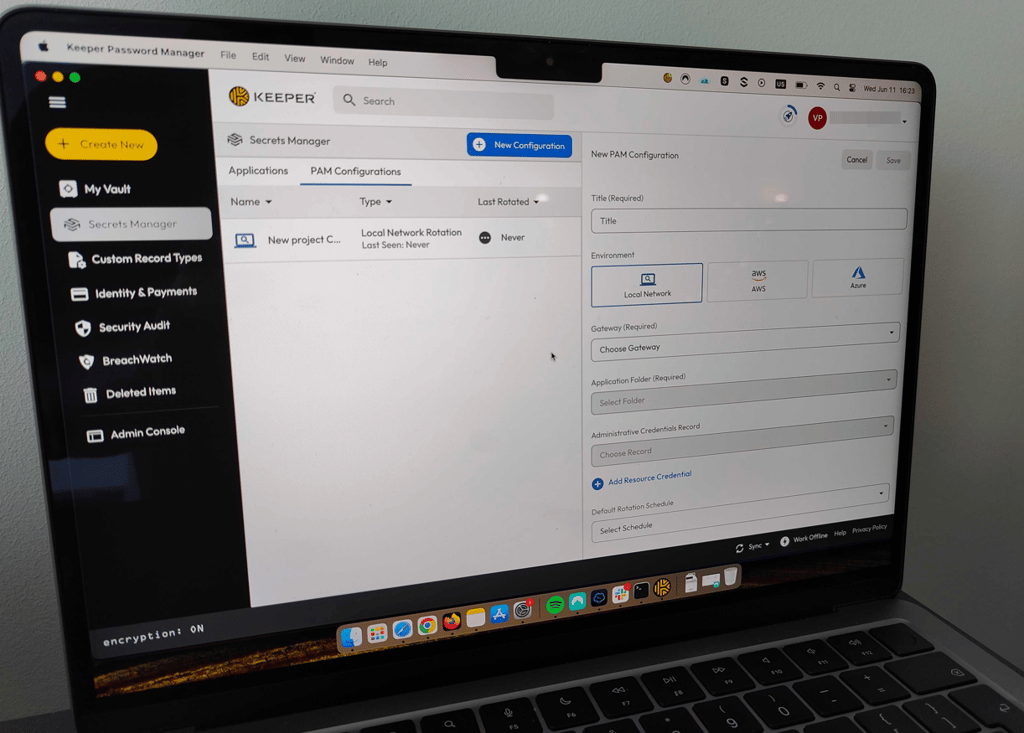
Keeper uses AES‑256 encryption and a zero‑knowledge architecture and supports multi‑factor authentication. The apps are polished and generally consistent across platforms, with macOS and iOS feeling slightly more refined, but you also get support for Windows, Android, Linux, and major browsers for full cross‑device coverage.
Keeper pricing sits right in the middle. Personal packages start at around $1.79/month, while the Family plan begins at about $3.83/month and covers up to 5 users. Business plans start at $7.00/month, and a notable perk is that each Business user gets a complimentary Family subscription, which is a nice bonus for employee security at home as well as at work.
3. 1Password

| Encryption: | AES-256 |
| Zero-knowledge architecture: | ✅ Yes |
| Cross-device sync: | Windows, macOS, Linux, Android, iOS |
| Discount coupons: | 1Password coupon codes |
| Premium plan price starts: | From $2.99/month |
1Password is a premium password manager defined by its expansive set of extra features and polished design. It provides individuals and families with maximum convenience, maintaining strict protection and flexibility across all your devices.
It comfortably covers all the must-have basics of a modern password manager: generates strong passwords, securely stores them in an encrypted vault, autofills logins and forms, and lets you share items safely with others.
The reason why I put 1Password high up on the list is its advanced toolset. Watchtower acts as your security dashboard, monitoring password health, spotting weak or reused credentials, and flagging accounts without 2FA. Features such as Travel Mode, Privacy Cards, and the Secret Key give you granular control when you’re traveling, paying online, or signing in from new devices, adding extra layers of privacy and security.

From a security standpoint, 1Password uses AES‑256 encryption and a zero‑knowledge architecture and supports multi‑factor authentication, so your encrypted data can only be decrypted with your account password and Secret Key.
In our 1Password review, we noted how straightforward the setup process was, especially when it comes to setting up recovery methods. Its apps are clean, minimalistic, and easy to navigate, with particularly polished integrations on macOS and iOS, but it’s also available on Windows, Android, Linux, and major browsers for a consistent experience across your devices.
1Password pricing starts at $2.99/month for the Individual plan (annual billing), while the Families plan starts at $4.49/month and includes 5 accounts with shared vaults and simple admin controls. There’s no permanent free tier, but you can try the service with a 14‑day free trial to see if the extra features and overall experience are worth the price.
4. RoboForm

| Encryption: | AES-256 |
| Zero-knowledge architecture: | ✅ Yes |
| Cross-device sync: | Windows, macOS, Linux, Android, iOS |
| Discount coupons: | RoboForm coupon codes |
| Premium plan price starts: | From $0.99/month |
RoboForm is one of the most budget-friendly password managers available in 2026, proving you do not have to overspend for solid security. Despite the low price, it easily handles all the essentials, generating strong credentials, securing them in an encrypted vault, flawlessly autofilling forms, and allowing you to securely share items or folders.
Aside from affordability, what makes RoboForm unique is its form-filling and built-in extras. Its long-standing strength is accurate autofill for complex forms, which makes online shopping and sign‑ups much faster. On top of that, you get a Security Overview dashboard to check password health, Data Breach Monitoring to spot compromised credentials, and an integrated TOTP authenticator so you can manage 2FA codes without a separate app.

As for security, RoboForm follows industry best practices, including AES‑256 encryption, a zero‑knowledge model, and support for two‑factor authentication. The interface is minimal and a bit dated on desktop, but the browser extensions are straightforward and receive more frequent updates. This means you get a smoother day‑to‑day experience on major platforms like Windows, macOS, Android, iOS, and Linux. You can check our in-depth RoboForm review for more insights on this password manager.
RoboForm’s pricing is a major selling point. There’s a free tier for basic, single‑user password management, while the Premium plan starts at around $0.99/month on long‑term subscriptions. The Family plan begins at $1.59/month and covers up to 5 users with shared folders and full device syncing. Basically, RoboForm gives you one of the cheapest ways to secure an entire household with a paid password manager.
5. Proton Pass

| Encryption: | AES-256-GCM |
| Zero-knowledge architecture: | ✅ Yes |
| Cross-device sync: | Windows, macOS, Linux, Android, iOS |
| Premium plan price starts: | From $2.49/month |
Proton Pass stands out as our top privacy-centric password manager. Developed by the renowned security team behind Proton Mail and Proton VPN, this completely open-source tool leverages Switzerland's strict privacy laws to guarantee your data stays out of the wrong hands.
Beyond simple password storage, it offers Pass Monitor and dark web monitoring, email aliases (Hide‑my‑email) to shield your real address and reduce spam, and integrated 2FA and Proton Sentinel protections on paid plans, giving you a more complete privacy toolkit than most standalone managers.
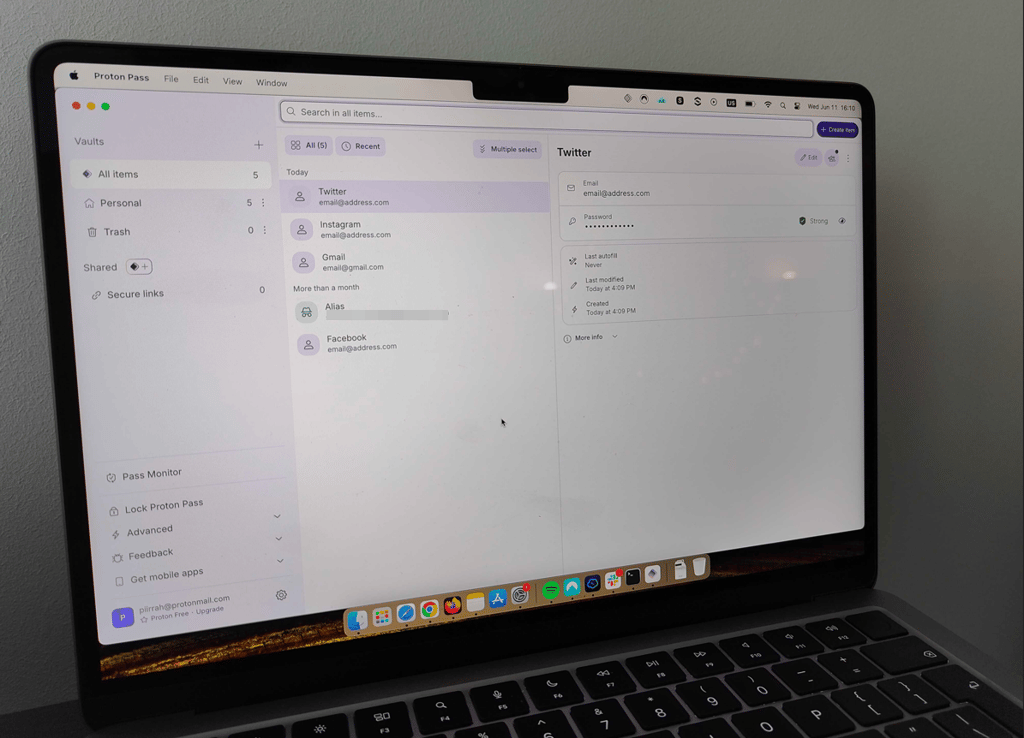
Proton Pass uses AES‑256-GCM encryption and a zero‑knowledge architecture, so even Proton can’t see what’s in your vault. It supports multi‑factor authentication and works across all major platforms, including Windows, macOS, Linux, Android, iOS, and popular browsers.
In terms of daily user experience, the apps feel smooth and intuitive, with autosave, autofill, and password generation prompts appearing exactly when you need them, so you rarely have to copy‑paste credentials yourself. If you want to explore more of the Proton Pass’ interface and customer support, refer to our full Proton Pass review.
Proton Pass offers a generous free tier with unlimited passwords and basic features for unlimited devices. The Pass Plus plan starts at $2.49/month, while Pass Family costs $4.19/month and covers up to 6 users with shared management. Proton Unlimited starts at $9.99/month and bundles Proton Mail, VPN, Drive, Wallet, and Calendar – a fully encrypted protection suite.
6. Dashlane

| Encryption: | AES-256 |
| Zero-knowledge architecture: | ✅ Yes |
| Cross-device sync: | Windows, macOS, Linux, Android, iOS |
| Discount coupons: | Dashlane coupon codes |
| Premium plan price starts: | From $4.06/month |
Dashlane is an intuitive password manager that's especially well suited for larger households or friend groups. Its Friends & Family plan can cover up to 10 people under a single subscription while handling all the core tasks of a reliable password manager.
Beyond the basics, Dashlane leans heavily into security extras. You get a password health dashboard and dark web monitoring, which alerts you if your credentials appear in data breaches. You also get real-time phishing alerts and a built-in authenticator so you can manage 2FA codes without needing another app. Premium plans offer a VPN powered by Hotspot Shield – it’s decent for extra encryption and casual browsing but not the strongest option for streaming or heavy VPN use. Read our full Dashlane review to see if this password manager is a good choice for you.
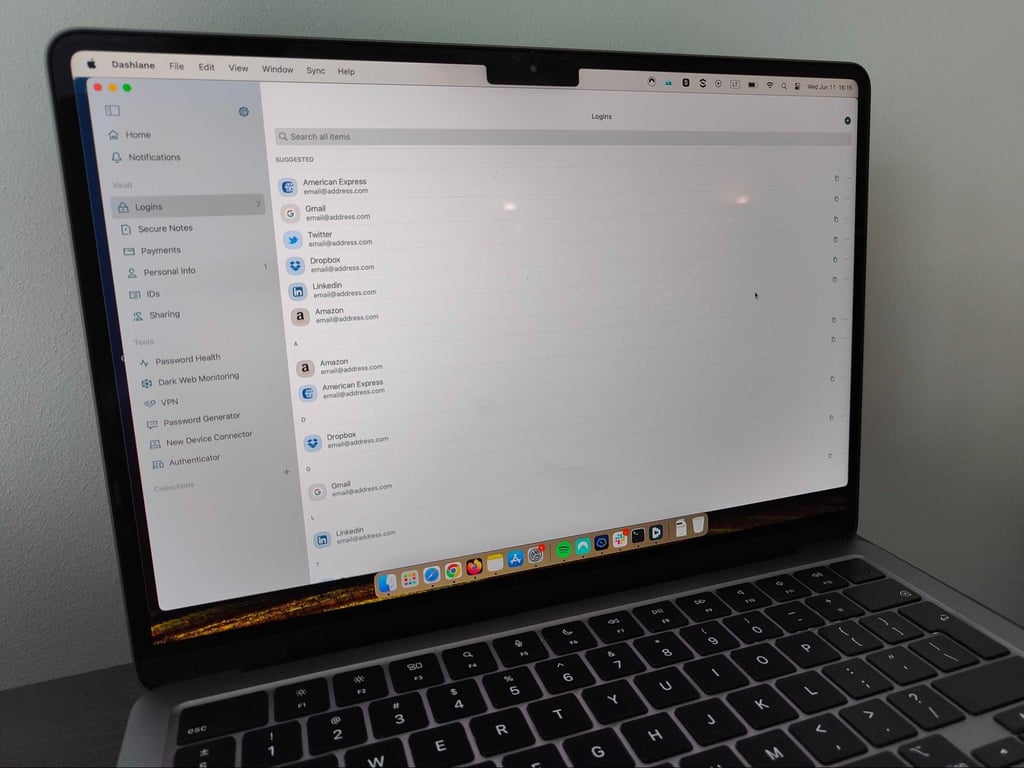
Dashlane runs entirely through a web app and browser extensions rather than a traditional desktop app. It features a clean, modern interface that’s easy to navigate on Chrome, Firefox, Edge, and other Chromium-based browsers, as well as on Android and iOS. Autofill works reliably, especially for common login and payment forms.
The main downside is price. As of September 2025, Dashlane discontinued its free plan, while Premium starts at around $4.06/month, making it the most expensive password manager on this list. The Friends & Family plan is the best value in the lineup: for about $8.00/month, you can protect up to 10 users, which makes it attractive if you want a password manager to share with your family and friends. Check out the complete Dashlane pricing.
7. Bitwarden

| Encryption: | AES-256 with HMAC-SHA256 |
| Zero-knowledge architecture: | ✅ Yes |
| Cross-device sync: | Windows, macOS, Linux, Android, iOS |
| Discount coupons: | Bitwarden coupon codes |
| Premium plan price starts: | $1.65/month |
Bitwarden is a highly affordable, open-source password manager designed for users who prioritize maximum transparency on a budget. It nails all the essentials—generating secure credentials, autofilling complex forms, and syncing your vault across unlimited devices, a perk notably included even on its generous free tier.
Bitwarden’s code is fully open‑source and independently audited, and it supports advanced options like hardware security keys (YubiKey, FIDO2), Organizations for shared vaults, and an integrated TOTP authenticator on paid plans. Bitwarden also includes a free Data Breach report, while more advanced vault health reports are part of Premium.
The interface looks modern but can feel confusing at first, especially around vault organization and sharing, so it may not be the best fit for less tech‑savvy users. For more details about the Bitwarden user experience, visit our Bitwarden review.
On the security side, Bitwarden uses AES‑256-CBC encryption with HMAC-SHA256, a zero‑knowledge architecture, and strong multi‑factor authentication options. It runs on all major platforms, including Windows, macOS, Linux, Android, iOS, and browsers.

Bitwarden’s pricing is quite appealing: the free plan is generous, with unlimited passwords and devices for a single user. Premium starts at about $1.65/month and adds features like the built‑in authenticator, 1GB of encrypted file attachments, Data Breach Reports, emergency access, and priority support. The Families plan costs around $3.99/month and covers up to 6 users, each with their own vaults, shared collections, and 5GB of encrypted storage.
What is a password manager?
A password manager is an app where you can store your login credentials and other sensitive information. You can unlock it with a master password and retrieve whatever it is that you store in it at any time. Think of the password manager as a safe and the master password as a key.

How do password managers work?
Storing your passwords in a password manager is not just for convenience – it’s for security. Once you store them in your vault, your passwords are end-to-end encrypted or scrambled into unreadable code that can be decrypted with your master password. The encryption process is always done locally, on your device, before being sent off to the cloud. Cloud storage enables cross-sync, allowing you to access your passwords on any device.

Explaining zero-knowledge architecture
If you’ve ever tried to research password managers, I’m sure you’ve seen the term zero-knowledge architecture – it’s become a buzzword around the topic. Simply put, zero knowledge is what ensures that the password manager itself can’t access your vault. How? When a password manager is built on zero knowledge, it encrypts all of the items (email, password, notes, and even file attachments) in your vault before sending them off to the password manager’s servers. Since only you have the key to decrypt the vault, all the password manager sees is gibberish.

Are all password managers totally safe?
While password managers are highly secure, they aren’t immune to data breaches. One of the most notable data breaches was in 2022, when LastPass, a well-established password manager, was compromised with a simple keylogger. However, the passwords were end-to-end encrypted, so even though the malicious hackers gained access to this information, it was all unreadable to the human eye.
All in all, a password manager is much more secure than storing your login credentials in your notes app or reusing the same password across all of your accounts. You should always stay cautious by creating a strong master password and setting up 2FA not only for your password manager but also other sensitive accounts.
Video review
If you want to see a different take on the best password managers, check out our team's video review.
Password manager buying guide: key things to consider
The password manager market is crowded, with tools for nearly every need and preference. With so many options claiming to be the ultimate solution, it’s easy to feel overwhelmed about where to start.
Here’s a list of things you should look out for when choosing a password manager:
- Strong encryption. Password managers use encryption algorithms to turn your sensitive data into random code. Select a password manager that uses industry-standard encryption, like AES-256 or the new-gen XChaCha20.
- Zero-knowledge architecture. One of the most important aspects to look for, zero-knowledge ensures that the password manager itself can’t access any of your passwords. All of the password managers on our list are built on a zero-knowledge architecture.
- Password generator. Password managers let you use strong passwords for every one of your accounts. Instead of having to come up with them yourself, every password manager has a password generator that randomly generates long, unique, and complex passwords that you can copy.
- Password health monitoring. Your password manager should also help you maintain strong passwords by monitoring your password habits and notifying you about weak, reused, and compromised passwords.
- Autofill that actually works. If you’re using strong passwords, it can be a real hassle to enter them yourself every time. Autofill is a core password manager function that lets you log in with one click, and it’s a complete must.
- Secure password sharing. Instead of sending your password through a messenger that can be intercepted, you can securely share your login credentials via a secure link provided by the password manager. Bonus points if you can set an expiration date and other settings.
- Cross-platform sync. Your passwords should be easily accessible, no matter where you go. Cross-syncing ensures your vault is accessible and up-to-date on major operating systems like Windows, macOS, Android, and iOS.
- A variety of authentication methods. You’ll use a master password to unlock your vault. That can be a bit of a hassle since the master password is usually long and complex. That’s why I appreciate password managers that support biometric authentication like Face or Touch ID, which simplify accessing your vault for day-to-day tasks.
Final verdict
Password managers simplify everyday browsing while dramatically reducing your risk of account getting compromised. By securing all your credentials behind one encrypted master password, you no longer have to sacrifice security for convenience.
While different platforms excel at specific niches, from open-source code and deep family controls to business-grade sharing, every password manager highlighted in this guide far outperforms native browser password storage.
For the ultimate combination of value, speed, and privacy, NordPass stands out as my top overall recommendation. It packs premium features like email masking, dark web monitoring, and reliable autofill into an affordable, user-friendly package that works seamlessly across all your devices.
FAQ
Which password manager has never been hacked?
According to publicly available records, as of September 2026, the following password managers haven’t been mentioned in breaches exposing user data: NordPass, RoboForm, Proton Pass, Keeper, and Bitwarden.
Is a password manager actually safe?
Yes, password managers are safe. While they’re not completely invulnerable to outside threats, they store your passwords in end-to-end encrypted vaults and are secured using a zero-knowledge framework, meaning that only the password manager holder (you) can access it.
Which password manager is the most secure?
There are many password managers on the market, but NordPass, 1Password, and Keeper are consistently on the best password manager lists. They’re popular because of advanced encryption and zero-knowledge architecture. Plus, these password managers are regularly audited, showing their commitment to user security and privacy.
Do security experts recommend password managers?
Yes, security experts often recommend using third-party password managers for individuals and businesses, as they offer robust security features, strong encryption, and additional features that significantly improve online security.
Do password managers work with apps?
Yes, most password managers have both mobile and desktop applications. When choosing the right password manager for you, make sure the provider can seamlessly sync between multiple devices. You should have no problem using your password manager on any device anytime.