Best PDF Editor for Windows 10_11_ Chosen from 10+ Tools

 Follow us
Editing and creating PDFs, whether it is filling out forms, signing contracts, saving research articles, or managing work documents, is a daily requirement.
- So, you’ll need the best PDF Editor for Windows 10/11 for these tasks.
- But lots of editors are either expensive or contain additional features that you will never have any need for.
However, I have selected the top 3 PDF Editors from among 10+ options that are compatible with Windows 10/11. Find out their key features, what they’re best for, and my own experience behind choosing each!
Part 1: The Best PDF Editor For Windows 10/11 Overview
| Tool Name | Best For | Key Features | Special Note |
| Tenorshare PDNob | All-in-one professional PDF editing on Windows and Mac. | Offers advanced editing tools, 99% accurate OCR, an AI summarizer, 30+ file type conversions, 200+ annotation options, image editing, batch processing, strong security, and multilingual support. | It’s ideal for professionals, students, and researchers who need powerful editing, conversion, and summarizing features in one tool. |
| Microsoft Print to PDF | Creating PDFs instantly from any printable application. | Supports all apps that have a “Print” option, quick PDF creation, supports layout adjustments (orientation, margins, paper size, scale), and is built into Windows 10/11. | A lightweight, no-setup solution for anyone who needs a fast, clean PDF creation without extra software. |
| Microsoft Edge | Quick annotations, reading, and organizing PDFs or web content. | It’s a built-in PDF editor for highlighting, typing, drawing, and signing, Read Aloud with natural voices, Immersive Reader for distraction-free reading, and Web Capture for screenshots and markups. | It’s great for users who want reading, note-taking, and content organization in one seamless workflow. |
Part 2: Best PDF Editor For Windows 10/11
Here are the 3 best PDF Editor for Windows 11/10 users with their key features, reasons to choose them, and what they’re best for:
#1 Tenorshare PDNob — Best For All-in-One Professional PDF Editing
Tenorshare PDNob is the best PDF Editor for Windows and Mac, offering advanced PDF editing, OCR, an AI Summarizer, and multilingual support. The tool is free to use for editing and also offers numerous PDF management features.
Who It’s For:
Tenorshare PDNob is for users who want an all-in-one PDF editor with advanced editing, conversion, OCR, an AI Summarizer, batch processing, and multilingual support.
Features:
- High OCR Accuracy: With a 99% accuracy, it transforms scanned PDFs into editable and searchable documents.
- 100+ Text Edits: PDFs can be edited with 100+ editing tools for text, image, etc.
- 200+ Annotations: There are 200+ tools available to add highlights, shapes, stamps, notes, etc.
- 30+ Formats Conversion: Change your PDF to dozens of formats like Word, Excel, PPT, images, EPUB, and PDF/A.
- AI Assistance: The site tool uses GPT-5 to summarize, provide insights, and answer from extensive PDFs.
- Security: These include passwords, encryption, and digital signatures.
- Batch Processing: Users can process up to 1 million files at once.
- Screenshot Capability: One can capture screenshots when editing to save the process.
- Multilingual Support: This tool supports 20+ languages such as English, Arabic, Chinese, French, and many more.
- Reactive Customer Support: User problems are resolved in the shortest time by rapid tech support.
- Platform Compatibility: This tool supports all Windows and Mac versions.
Reason to Choose It:
I chose Tenorshare PDNob because it’s free and easy to use for advanced and professional PDF editing. The tool also offers accurate OCR, supports PDF conversion, encryption, batch processing, and an AI summarizer. It has no file size limits and runs on both Windows and Mac. Here’s how to use Tenorshare PDNob to edit a PDF document:
-
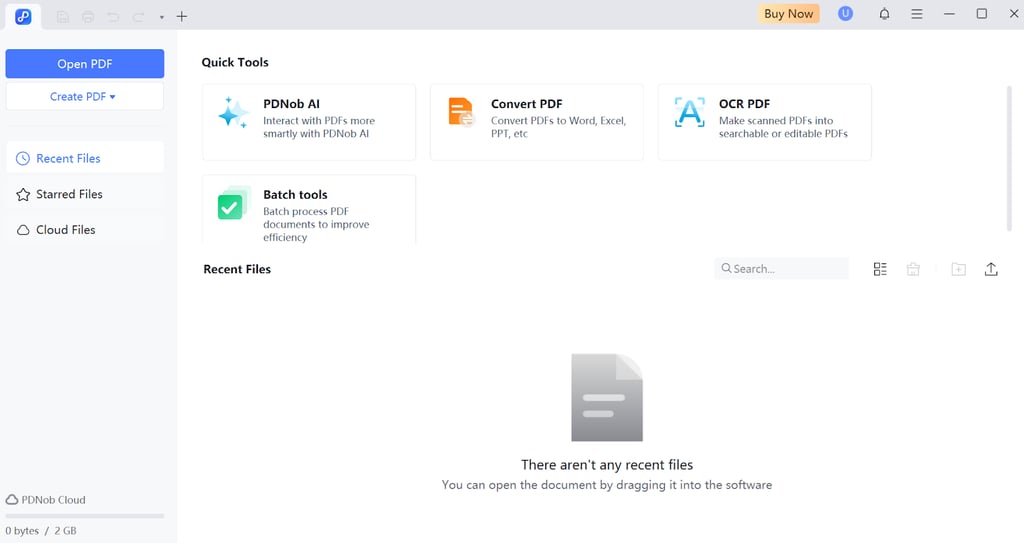
Step: Execute Tenorshare PDNob on your Windows or Mac. Then, choose “Open PDF” to add a PDF document for editing.
-
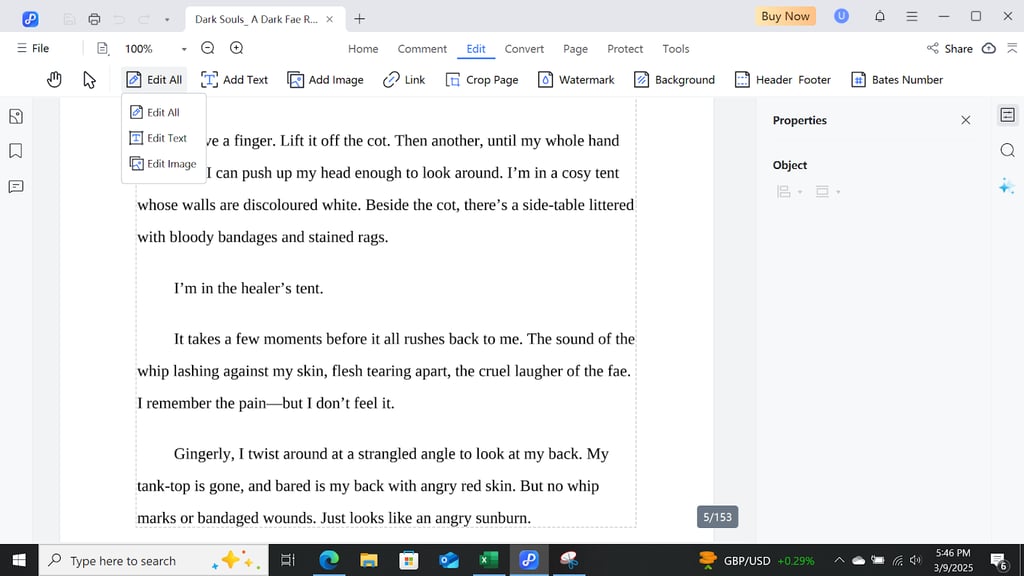
Step: Head to “Edit.” Then, choose an editing tool to modify text, images, etc. If you want to annotate or highlight, head to “Comments” and pick your desired tool.
-
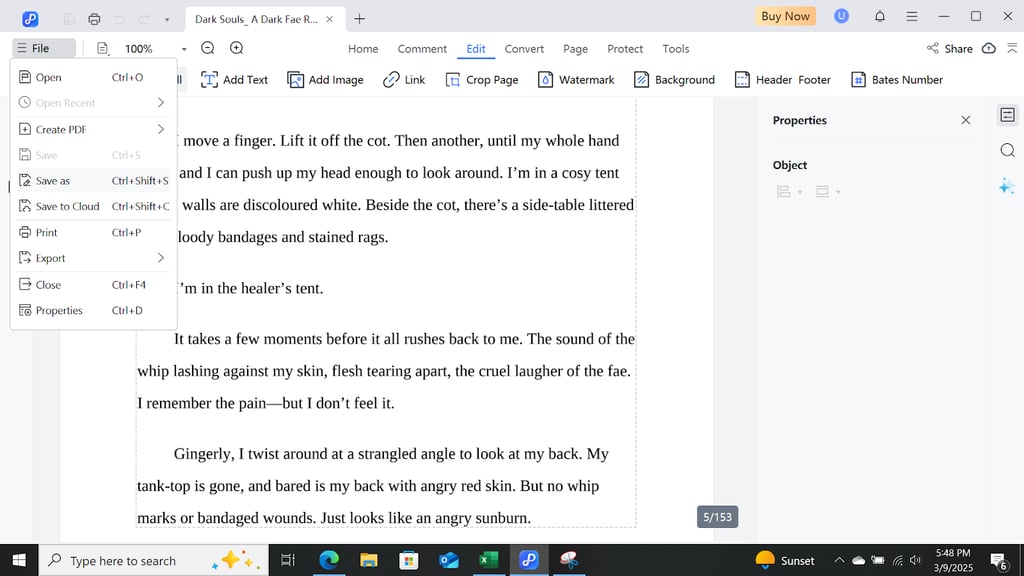
Step: Head to “File.” Then, click “Save as” to save and export the modified PDF to your computer.
#2 Print to PDF — Best For Creating PDFs Instantly
Microsoft Print to PDF is the best free PDF Editor for Windows 11/10 that acts as a virtual. Instead of submitting your document to a real printer, it stores it as a clean and easy-to-share PDF file on your computer.
Who It’s For:
Microsoft Print to PDF is a built-in, best free PDF Editor for PC for everyone who wants to read or create a PDF for free from any printable app or web page.
Features:
- Supports any Windows app that has a “Print” option (Word, Chrome, Excel, Photoshop, email, etc.)
- Uses the regular print dialog to choose “Microsoft Print to PDF” and save in PDF form.
- Allows you to adjust basics like orientation, paper size, and margins before saving.
- Creates PDFs in seconds.
- Already built into Windows 10 and 11, so no extra download is needed.
Reason to Choose It:
It’s built into Windows, so you don’t need extra downloads. With just the print option, you can instantly save documents, emails, or web pages as PDFs—making it a quick and reliable choice for everyday use.

#3 Microsoft Edge — Best for Quick Annotations and Reading
Microsoft Edge browser acts as the best PDF Reader and Editor for Windows 11/10, Mac, and mobile users. The tool is free to use and offers numerous features for reading, editing, capturing, and organizing PDFs. All edits save directly into the file and sync across devices. When finished, you can print or share, and others will see your changes in any viewer.
Who It’s For:
Microsoft Edge is the best PDF Editor for Windows 10/11, Mac, and mobile users who deal with PDFs and want multi-step tasks in one place.
Features:
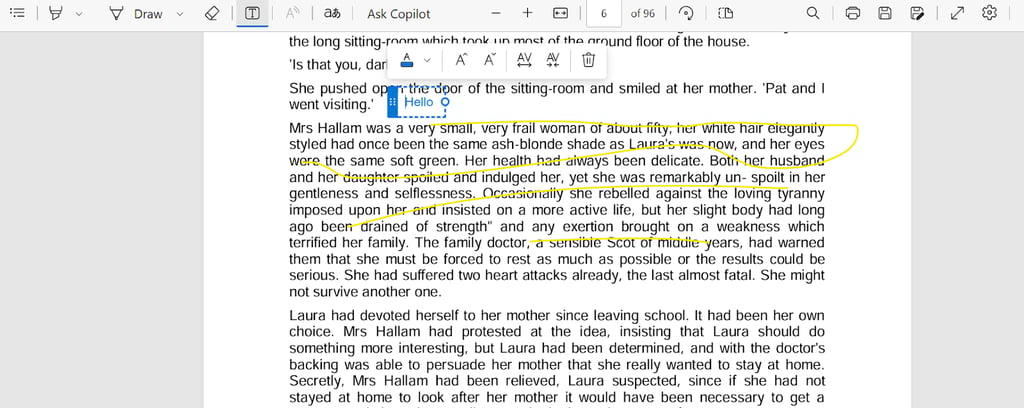
- Built-in PDF editor lets you highlight, add text, draw, fill forms, and sign documents.
- Uses Copilot for summarizing PDF.
- Web Capture lets you snip and mark up parts of a webpage.
- Immersive Reader removes ads and clutter from a webpage for distraction-free reading.
- Read Aloud uses natural voices to read articles aloud.
Reason to Choose It:
Edge combines reading and annotation in one place. With features like highlighting, form filling, and Read Aloud, it’s a handy choice for handling PDFs quickly and staying productive across devices.
FAQs For Best PDF Editor For Windows 10/11
How can I quickly sign a PDF document without printing and scanning it?
You can sign a PDF in Windows using Microsoft Edge. Open the file. Use the Draw tool to sign with your mouse or touchscreen. Your changes save automatically in the PDF, ready to share.
How do I combine multiple files, like images and documents, into a single PDF?
In File Explorer, select the files (like images or Word docs). Right-click. Then, choose Print. Make sure Microsoft Print to PDF is selected. Next, confirm the order. Windows will combine them into a single PDF you can name and save.
Can I edit the actual text within a scanned PDF?
Editing text in a scanned PDF requires OCR (Optical Character Recognition) to turn the image into editable text. For this, you need an advanced PDF editor like Tenorshare PDNob that offers up to 99% OCR accuracy.
Final Thoughts
Tenorshare PDNob, Microsoft Print to PDF, and Microsoft Edge are all excellent PDF tools for Windows 10/11 users. Print to PDF is perfect for quick file saving, and Edge makes reading and annotating simple. But for full professional editing with OCR, AI, and advanced features, Tenorshare PDNob is the best PDF Editor for Windows 10/11 and Mac users.