Android users getting bombarded by ads after every call: new fraud trend uncovered
Deceptive utility apps, disguised as alarms, calendars, and other everyday tools on the Google Play Store, are covertly cashing in on intrusive ads.

Image by Cybernews.

 Follow us
- Malicious apps exploit “Appear on top” permissions to display intrusive ads after each call.
- Deceptive apps mimic legitimate utility and alarm clock tools.
- These apps often remove themselves from the “Recent Apps” list to evade detection and hinder uninstallation.
Android users are complaining they can’t get rid of ads after every call, and researchers are warning of a new, seemingly fraudulent scheme. The culprit is the same. An alarm clock app that wakes you up refreshed. A messenger app that is super fast. Or a calendar app that transforms the way you plan your day.
“I get a pop-up ad when I end a call,” one of the recent complaints reads, this one on the Samsung Community pages.
“I have tried all my settings. I read somewhere online that it could be one of the applications that I downloaded. But it's been like this since new, before I downloaded any apps onto my phone.”
Similar complaints about “What is this post-call screen all of a sudden?” can be found on Reddit and other social media platforms.






Users often suspect that it’s their default calling apps are egregiously displaying the ads, or it was hacked – but it's not.
It’s another nasty app, simply downloaded from the Google Play Store, that covertly displays the ad on top of other apps after each call.


Stay updated with our latest stories and follow us on social media
Be the first to discover new stories, ideas, and updates from our team.
DoubleVerify's Fraud Lab flags the practice as a new ad fraud trend, enabling deceitful developers to profit from millions of ads shown. The lab says it has witnessed a significant and suspicious spike in “out-of-content” apps using a simple delivery mechanism.
“We call such ads ‘AfterCall’ ads. They appear at the end of a phone call, outside the app’s normal context,” said Nir Danon, Cyber Researcher at DoubleVerify Engineering.
Picture this: you visit your mom, and she asks you to help her with her phone. … You take a look, check her recent apps, scan for shady-looking ones, and review her browsing and download history. Nothing suspicious, but the ads keep coming.”
The offender apps have a fairly simple fraudulent flow. This often pushes users to install additional dubious cleaners or antivirus apps that claim to fix the problem but end up making matters worse.
Check out the instructions below on how to remove the guilty app.

Check if your data was exposed
Find out if your email and related personal information have appeared in known data breaches.
How does AfterCall ad fraud work?
Normally, apps can’t take over the entire phone screen to display what they want. First, fraudsters need to deceive users into granting this permission. But it’s not as hard as you might think.
SYSTEM_ALERT_WINDOW is a restricted Android permission that enables an app to appear on top of others. Unlike other permissions, it can’t be granted in the usual pop-up dialog after installing the app.
The app developers have to redirect users to the Settings to make the deliberate decision manually.
“Malicious developers still manage to work around this safeguard by manipulating the user journey,” Danon said.
In one example, the alarm app explains that it needs to go off even when the phone is locked – without granting permission, alarms might not appear correctly. Another app, a calendar, doesn’t even leave users a choice – it simply closes, unless they grant the permission.
“Most non-technical users simply tap through, unaware of the consequences.”
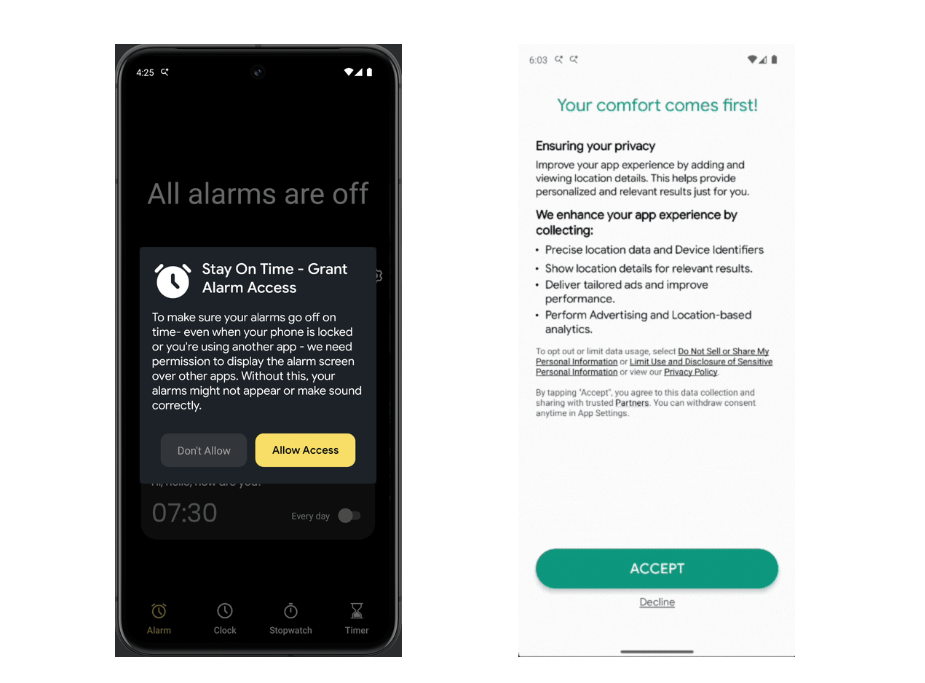
The report didn’t specify the apps, but Cybernews found them still available on the Google Play Store, one with over 100,000 installs. They even acquire USE_FULL_SCREEN_INTENT permission that displays notifications as full-screen activities on locked devices.
Once the app tricks the user into granting the permission, then it hooks into the system and listens for system events.
Android apps communicate through a feature called Intents – small messages describing events. Apps use Broadcast Receivers to listen for these Intents, and act accordingly.
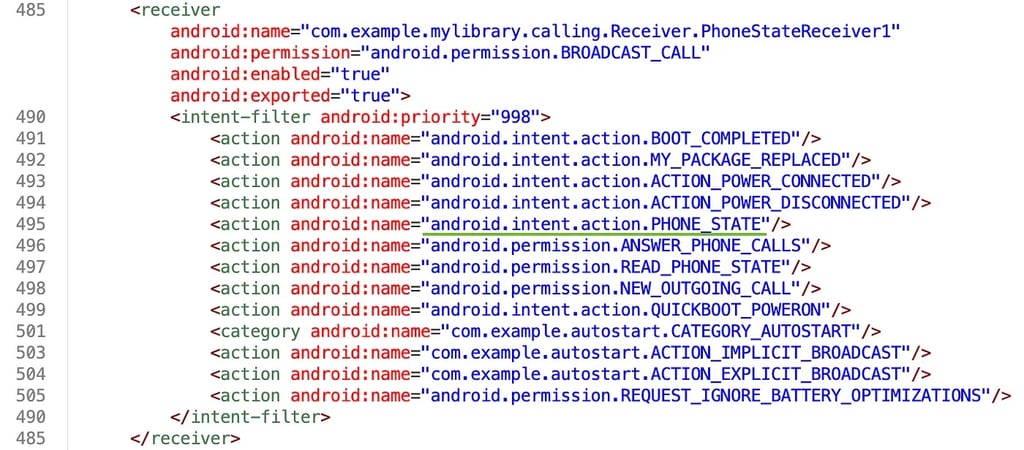
The AfterCall apps listen for ACTION_PHONE_STATE_CHANGED events: first “ringing,” and “idle” later – this signals that the call is over, and the app fires an ad.
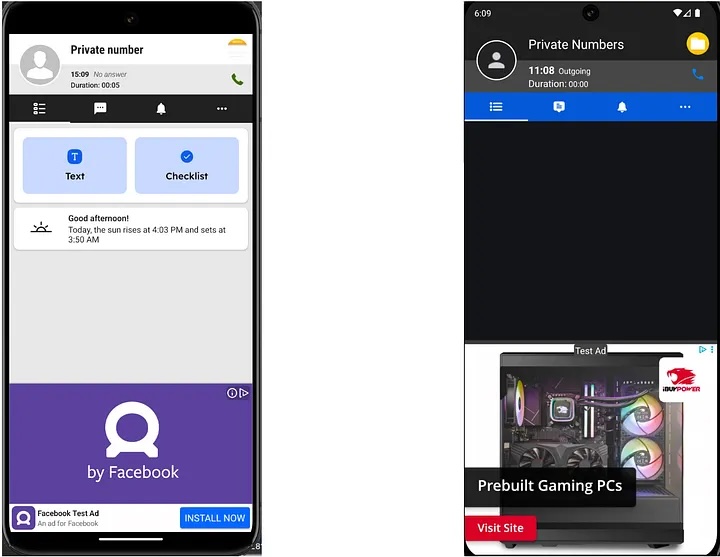
“They all have the same design: call details, a facade about how it relates to the app, a “profile picture,” and always an ad placed underneath,” the researcher notes.
But it’s not over. To hide its tracks, the shady app will remove itself from the recent apps list, making identification harder and reducing the rate of uninstalls.
While all platforms try to fight such apps, they slip through the cracks of pre-installation scans.
“DV FraudLab uncovers dozens of these apps every month, collectively responsible for hundreds of millions of impressions,” the report reads.
How to remove such an app?
Apps abusing the ability to display on top of other apps can be identified by this specific permission. You can find apps that use this permission in settings.
I.e., on Samsung devices, go to “Settings,” select “Apps,” go to “More options,” tap “Special Access,” and then “Appear on top.”
Review the list of apps that can appear on top, and the guilty app may be an obvious choice – downloaded apps usually don’t use this ability.
Beware that fraudulent apps try to mimic everyday utilities, such as a clock, notes, or a calendar. Their icons may also appear completely harmless.
Turn off this permission for any suspected apps. Beware, that next time the call ends, the fraudulent app is likely to ask for permission to be enabled again – delete it.
Google provides a general guide to removing unwanted ads, pop-ups, and malware. It suggests entering safe mode to remove problematic apps.