Best free parental control apps for Android in 2026
Being behind major reports like The Mother of All Breaches and RockYou2024, our in-house cybersecurity experts and journalists provide unbiased, real-world testing and in-depth analysis.
We maintain complete transparency by openly sharing our testing methodologies with our audience.
Learn more
A 2025 report by Common Sense Media shows that kids aged 8 or younger, average 2.5 hours of screen time per day. However, smartphones come with their risks, including cyberbullying, exposure to inappropriate content, and online predators.
Therefore, this guide should help parents find the best free or free-trial parental control apps for Android. I, together with the Cybernews research team, reviewed official documentation, feature sets, and aggregated user feedback for the seven best free parental control apps for Android.
While some apps, like Aura Parental Control, Qustodio, Bark, Norton Family, and FamiSafe offer free trials, others like Google Family Link and Microsoft Family Safety are entirely free. Below, you’ll see what features are actually free, how trial apps compare to Google Family Link’s truly free offering, and which app fits which type of family.
7 best free parental control apps for Android – shortlist
- Aura Parental Control – best free parental control app for Android
- Qustodio – best for using premium features
- Bark – best for unlimited devices
- Norton Family – best for in-depth monitoring
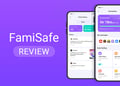
- FamiSafe – best for geo-fencing
- Google Family Link – best entirely free monitoring app
- Microsoft Family Safety – best for filtering searches
Free parental control apps for Android compared
Before diving into individual reviews, I decided to compare the 7 best parental control apps for Android side by side. In the comparison table below, you’ll see the differences in features, price, and suitability:
| Parental control app | Free trial/money-back guarantee | Premium plan (starting price) | Web filtering | Time limits | Can monitor | Number of devices | Best for |
| Aura Parental Control | Yes, 60-day money-back guarantee | $9.99/month | Yes | Yes | Yes | Unlimited | Comprehensive monitoring of kids’ devices |
| Qustodio | Yes, 30-day money-back guarantee | $5/month | Yes | Yes | Yes | 1 | Managing your kids’ online activities |
| Bark | Yes, 60-day money-back guarantee | $5/month | Yes | Yes | Yes | Unlimited | Monitoring unlimited number of devices |
| Norton Family | Yes, 14-day money-back guarantee | $49.99/year | Yes | Yes | Yes | Unlimited | Filtering inappropriate content |
| FamiSafe | Yes, 7-day money-back guarantee | $4.99/month | Yes | Yes | Yes | Up to 10 devices | Scanning 30+ social media apps |
| Google Family Link | None | Entirely free | Yes | Yes | Yes | Unlimited | Completely free screen time management |
| Microsoft Family Safety | None | Free | Yes | Yes | Yes | Up to 5 devices per user | Content filtering for young kids |
Best free parental control apps for Android – our detailed list
Below, you’ll learn more about the best free parental control apps for Android. You’ll see the features and benefits both entirely free and free-trial apps offer.
1. Aura Parental Control – best free parental control app for Android in 2026

| Free trial/money-back guarantee: | Yes, 60-day money-back guarantee |
| Premium plan (starting price): | $9.99/month |
| Web filtering: | Yes |
| Number of devices: | Unlimited |
| Best for: | Comprehensive monitoring of kids’ devices |
The Aura Parental Control is my #1 pick if you want comprehensive monitoring of your kids’ devices. But the main reason I selected it was that all of its premium features are available with the 14-day free trial.
By going for this app, you can benefit from parental controls, such as blocking apps and websites, pausing the internet, setting screen time limits, get real-time insights, and even receive risk signals for when your kid is engaging in a high-risk conversation. Plus, the free trial is available for unlimited devices and accounts.
2. Qustodio – best feature-rich free parental control app

| Free trial/money-back guarantee: | Yes, 30-day money-back guarantee |
| Premium plan (starting price): | $5/month |
| Web filtering: | Yes |
| Number of devices: | 1 |
| Best for: | Managing your kids’ online activities |
Qustodio is ideal if you want to manage the online activities of your kids and keep them safe at all times. Plus, its free plan monitors a wide range of platforms, including iOS, Android, Windows, macOS, Chromebook, and Kindle.
Qustodio has one of the best free parental control plans in 2026 because you get essential parental control features. These include filtering content and apps, monitoring activity in real-time, setting time limits and custom routines, and geofencing.
3. Bark – best free parental control app for unlimited devices

| Free trial/money-back guarantee: | Yes, 60-day money-back guarantee |
| Premium plan (starting price): | $5/month |
| Web filtering: | Yes |
| Number of devices: | Unlimited |
| Best for: | Monitoring unlimited number of devices |
Bark is another parental control app if you want to monitor an unlimited number of devices. One of the things that stood out to me the most was that it scans texts, emails, and 30+ of the most popular apps and social media platforms for issues like bullying, online predators, suicidal ideation, sexual content, and more.
You can also block apps, manage screen time, monitor web searches, saved photos, and videos, and keep up with your kids’ location. Another unique feature that other parental controls lack is that you can learn how to address issues with child-psychologist advice and tips.
4. Norton Family – best free parental control app for comprehensive monitoring

| Free trial/money-back guarantee: | Yes, 14-day money-back guarantee |
| Premium plan (starting price): | $49.99/year |
| Web filtering: | Yes |
| Number of devices: | Unlimited |
| Best for: | Filtering inappropriate content |
If you’re looking for a parental control app that will help you filter the content your kids can access, then you shouldn’t miss out on Norton Family. With this app, you can easily supervise the app and web use to help your loved ones explore the internet safely.
Norton Family lets you monitor your kids’ internet usage, set time limits, gain insights, and even locate your children’s devices.
5. FamiSafe – best free parental control app for tracking location

| Free trial/money-back guarantee: | Yes, 7-day money-back guarantee |
| Premium plan (starting price): | $4.99/month |
| Web filtering: | Yes |
| Number of devices: | Up to 10 |
| Best for: | Scanning 30+ social media apps |
FamiSafe is a reliable parental control app, with a strong focus on social media monitoring. One of the best things is that you can also monitor call logs and text messages to detect potential risks or inappropriate content.
Aside from these features, FamiSafe’s free trial also lets you set screen time limits, view your child’s screen, block specific apps, listen to the surroundings of your kids, access YouTube and TikTok watch history, and receive SOS alerts.
6. Google Family Link – best free parental control app for time management

| Free trial/money-back guarantee: | None |
| Premium plan (starting price): | Free |
| Web filtering: | Yes |
| Number of devices: | Unlimited |
| Best for: | Completely free screen time management |
Google Family Link got its place on my list as one of the entirely free parental control apps. You won’t need a subscription to protect your kids, and you’ll still enjoy basic features.
Thanks to Google Family Link’s tools, you’ll be able to understand how your child is spending time on their device, share location, manage privacy settings, set time limits, filter content, and get a notification any time your kid arrives or leaves a certain location.
7. Microsoft Family Safety – best free parental control app for content filtering

| Free trial/money-back guarantee: | None |
| Premium plan (starting price): | Free |
| Web filtering: | Yes |
| Number of devices: | Up to 5 devices per user |
| Best for: | Content filtering for young kids |
Last but not least is the Microsoft Family Safety. Just like Google Family Link, this parental control app is free and doesn’t require you to pay for your kids to be safe. Its strong side is the content filtering.
You can apply screen time limits, block inappropriate apps and games, and limit browsing on all websites that your kids access through Microsoft Edge on Xbox, Windows, and Android.
Our methodology
Keep in mind that the detailed reviews of the seven best free parental control apps are according to my research-based evaluation. Although there’s no direct hands-on testing, I followed a crucial criteria that helped me compile my list. The most crucial factors are:
- Content filtering and blocking accuracy (25%). First, I checked whether each of my choices offers content filtering and web or app blocking. I also focused on how effectively they block the content you select and whether there’s a way for your kids to bypass the restrictions.
- Screen time management (20%). Another thing I evaluated was the availability of setting time limits. I went a step further, and made sure that you can create custom routines.
- Ease of setup and daily use (20%). I also focused on the ease of use and setup. I carefully reviewed whether you can navigate smoothly through the parental control app.
- Android-specific compatibility and feature depth (15%). Of course, my focus was on whether the apps I choose work with Android devices. Also, I explored the available features and their functionality depth.
- Privacy and data practices (10%). The next thing I evaluated was the privacy of each parental control app and their data practices, such as whether they store your kids’ information.
- Value on free/trial plan (10%). Ultimately, I evaluated the value of the free trials by checking whether you’ll enjoy the same perks as if you would when you’d pay.
Note that “free” applies both to permanently free apps (Google Family Link, Microsoft Family Safety) and apps offering a meaningful free trial. Apps were assessed specifically for Android.
Truly free vs free trial: what’s the difference?
Nowadays, you can find a lot of parental controls advertised as free. However, there’s a huge difference between truly free and free trial apps.
On the one hand, truly free parental control apps, such as Google Family Link and Microsoft Family Safety, come with a permanent free plan without any subscription required. However, they have more limited features on Android
On the other hand, apps like Aura, Qustodio, Bark, Norton Family, and FamiSafe offer free trials. Usually, the length of the trial is between 7 and 30 days. During this period, you have a full or near-full feature access, but then, you must pay for a subscription.
Regardless of which one you’ll choose, you should be prepared for a trade-off. Truly free apps lack social monitoring, SMS monitoring, and granular filtering, while free trial apps unlock premium features but require a budget after the trial.
Key features to look for in an Android parental control app
When choosing one of the best parental control apps, you need to look for key features that will enhance your experience. The most prominent ones include:
- Web and content filtering. This feature lets you block categories and specific sites. However, it may be harder to enforce this on Android’s open ecosystem than iOS.
- App blocking. With this feature, you’ll be able to prevent access to specific apps or categories, such as social media and games. Therefore, your kid won’t be able to access inappropriate content.
- Screen time limits and scheduling. You should also look for time limits and scheduling tools, such as daily budgets, bedtime locks, school mode, and more. Make sure that you can set this per app or device wide.
- Location tracking and geofencing. Search for real-time GPS and alerts when your child leaves a defined zone. This will help you keep up with their location at all times.
- Social media and message monitoring. As this is largely a paid/premium feature, you may not be able to find it available through a free plan. Luckily, Qustodio and Bark are strongest on Android, as they let you monitor even your kids’ social media platforms.
- Activity reports and alerts. Make sure the app you pick provides you with detailed reports and alerts. Some parental controls offer full usage logs, while others have alert-only approaches, such as Bark. Still, this distinction is useful for different parenting styles.
- Bypass resistance. Last but not least, check how hard it is for a kid to disable the app. Make sure that even if they use a VPN or switch browsers on Android’s open system the parental control will stay in place.
Can kids bypass parental controls on Android?
As Android has an open ecosystem, you must be worried whether your kid can bypass the best free parental controls. That’s why I decided to cover the main bypass methods and how apps handle them:
- Switching browsers. Android allows any browser. Therefore, apps without VPN-based filtering can be bypassed by opening a non-monitored browser. Luckily, Qustodio and Bark let you block unsupported browsers, preventing your kids from bypassing the restrictions.
- Using a VPN. While using a VPN is one way to get around the parental control restrictions, apps with their own VPN layer, like Bark and Qustodio, resist this. However, Google Family Link is more vulnerable.
- Uninstalling the app. Deleting an app is much easier on Android than iOS. However, Qustodio, Bark, Aura, and Google Family Link have uninstall protection. In order for your kid to remove them, they’ll need to enter a password that you’ve set.
- Secondary Google accounts. Creating a second account can bypass Family Link. Therefore, you’ll need to pick an app that has strong bypassing protection.
- Age 13 opt-out. Some parental controls, like Google Family Link supervision can be ended by the child at 13. So, make sure the one you pick doesn’t come with such limitations.
No parental control is completely bypass-proof on Android. However, the goal is to make circumvention difficult and to be alerted when it is attempted.
How to choose the right parental control app for your family
Choosing the right parental control app for your family depends on your needs and preferences. That’s why I decided to cover some of the most common scenarios.
Choose a truly free app (Google Family Link, Microsoft Family Safety) if:
- Budget is the priority and basic filtering and screen time is enough.
- Your child is young (under 10) and you mainly need app and Play Store controls.
Choose a free-trial app if:
- You want to test premium features, like the ones Aura Parental Control offers, before committing to a subscription.
- Your child is older and needs social media or SMS monitoring.
- Bypass resistance matters.
Choose by child's age:
- Under 10: Google Family Link or Norton Family
- Tweens (10-13): Qustodio or Aura (more customization and filtering depth)
- Teenagers (13+): Bark (targeted alerts without invasive full-log monitoring for teenagers)
- Teen drivers: FamiSafe (driving safety monitoring is a clear differentiator)
Note that Qustodio is the strongest app on this list for Android-specific call and SMS monitoring.
Bottom line: which free parental control app for Android is the best?
Based on my research with the Cybernews team, choosing the best free parental control app for Android depends on your needs and preferences. That said, I recommend using each of the apps in a different scenario:
- Google Family Link: best zero-cost option for young children on Android.
- Microsoft Family Safety: best free cross-device option for Windows/Xbox households.
- Qustodio: best free trial (30 days, no credit card, most comprehensive Android feature set).
- Bark: best for parents of teens wanting targeted alerts without reading every message.
- Aura: best all-round trial for families wanting solid filtering and scheduling.
- Norton Family: best trial for existing Norton users; reliable filtering + location.
- FamiSafe: best for parents who need driving safety monitoring alongside digital controls.
Whether you’re looking for the best parental control app for Android or you’re just looking for a generally reliable option for any device, consider what your goals are, compare the best options, and make your choice.
FAQ
Is Google Family Link really free or is there a catch?
Yes, Google Family Link is really free. The only catch may be the lack of advanced monitoring, as this parental control app offers basic features.
Can I use a parental control app without my child knowing?
Yes, you can use a parental control app without your child knowing. There are many apps that offer stealth mode, meaning your kid won’t know you’ve downloaded it on their device.
What is the best parental control app for Android without a subscription?
The best parental control for Android without a subscription is Google Family Link. It offers content filtering, setting time limits, location tracking, and managing privacy settings, which is not very common for entirely free apps.
Do parental control apps work if my child uses a VPN on Android?
While parental control apps may continue working if your child uses a VPN on Android, they’ll be significantly weaker. The VPN usage masks the web traffic, which can overcome content filters, website or app blocks, and even activity logs.
At what age should I stop using parental controls?
Although there’s no strict age at which you should stop using parental controls, it’s recommended to start reducing their usage at around 16-17.