Best parental control routers for safer home internet
Being behind major reports like The Mother of All Breaches and RockYou2024, our in-house cybersecurity experts and journalists provide unbiased, real-world testing and in-depth analysis.
We maintain complete transparency by openly sharing our testing methodologies with our audience.
Learn more
Keeping your children safe online is more challenging than ever. From social media and gaming platforms to streaming services and school apps, kids are connected across multiple devices every day.
When evaluating routers, I focused on real-world usability, reliability, and the features that genuinely help parents stay in control. Strong content filtering, flexible screen time management, device-level controls, and clear activity reporting were all key factors in our assessment. I also considered ease of setup, ongoing management, and overall value for money.
Below, you’ll find my top picks for safer home internet, along with a comparison table and practical guidance. My goal is simple – to help you choose a router that protects your family while keeping your home network fast and reliable.
Best parental control routers – shortlist
- Bark Home – Comprehensive parental controls with app and device management
- TP-Link AX3000 WiFi 6 Router – Affordable WiFi 6 router with robust parental controls
- NETGEAR Nighthawk 6-Stream Dual-Band WiFi 6 Router (RAX54S) – High-performance router with smart parental features
- GL.iNet GL-SFT1200 – Compact travel router with flexible controls
- Amazon eero 6 mesh wifi router – User-friendly mesh system with basic parental options
What to look for in a parental control router
Choosing the right parental control router isn’t just about speed or coverage. Here’s what I recommend focusing on:
- Content filtering: The router should block inappropriate websites and filter content by category or custom rules.
- Time management: Look for features that let you schedule internet access, set daily limits, and pause connections.
- Device-level controls: The best routers allow you to manage individual devices, not just the entire network.
- App management: Some routers let you block or limit specific apps and services.
- Usage monitoring: Detailed reports help you understand your child’s online activity and spot risks.
- Ease of use: A clear, intuitive interface is essential for busy parents.
- Security: Strong encryption and regular firmware updates protect your whole network.
Best parental control routers compared
Here’s how our top picks stack up on key features, price, and suitability for different families.
| Router | WiFi standard | Content filtering | App blocking | Time scheduling | Device-level controls | Usage reports | Best for |
| Bark Home | Works with existing | ✅ Yes | ✅ Yes | ✅ Yes | ✅ Yes | ✅ Yes | All-in-one controls |
| TP-Link AX3000 | WiFi 6 | ✅ Yes | ✅ Yes | ✅ Yes | ✅ Yes | ✅ Yes | Budget WiFi 6 |
| NETGEAR Nighthawk RAX54S | WiFi 6 | ✅ Yes | ✅ Yes | ✅ Yes | ✅ Yes | ✅ Yes | Performance |
| GL.iNet GL-SFT1200 | WiFi 5 | ✅ Yes | ❌ No | ✅ Yes | ✅ Yes | ✅ Yes | Travel |
| Amazon eero 6 | WiFi 6 mesh | ✅ Yes | ❌ No | ✅ Yes | ✅ Yes | ❌ No | Mesh networks |
Top parental control routers – detailed list
Below are my top recommendations, each chosen for its unique strengths and family-friendly features.
1. Bark Home – The most comprehensive parental control solution

| WiFi standard | Works with existing router |
| Content filtering | ✅ Yes |
| App blocking | ✅ Yes |
| Time scheduling | ✅ Yes |
| Device-level controls | ✅ Yes |
| Usage reports | ✅ Yes |
Ease of use
Setup is straightforward and beginner-friendly. The Bark Home app walks you through connecting the device to your existing router, creating profiles, and activating parental controls step by step. I found the onboarding process clear, with helpful prompts that explain what each setting does before you enable it.
The dashboard is clean and logically organized. Devices are easy to identify, and switching between profiles takes only a few taps. Parents can quickly pause the internet, adjust screen time limits, or modify filters without digging through complex menus. Even if you are not tech-savvy, managing Bark Home feels intuitive and efficient.
Functionality
Bark Home delivers one of the most comprehensive parental control systems I’ve tested. It offers deep content filtering across websites, social platforms, messaging apps, and streaming services. You can block specific apps, restrict entire content categories, and customize rules for each child individually.
Screen time management is flexible. I can set daily limits, schedule downtime hours, and instantly pause internet access when needed. One standout feature is real-time alerts for potentially risky behavior, including harmful content, cyberbullying signals, or inappropriate searches.
Detailed activity reports provide clear insights into browsing habits and app usage. Instead of overwhelming parents with raw data, Bark presents information in an understandable way that highlights actual concerns.
Customer support
Bark provides reliable support through live chat and email. During testing, response times were reasonable, and support representatives were knowledgeable about both technical setup and parental control features.
The online help center is well-structured and includes step-by-step guides, FAQs, and troubleshooting articles. Video tutorials are also available for parents who prefer visual instructions. Overall, support resources are strong enough that most users should be able to resolve issues quickly without frustration.
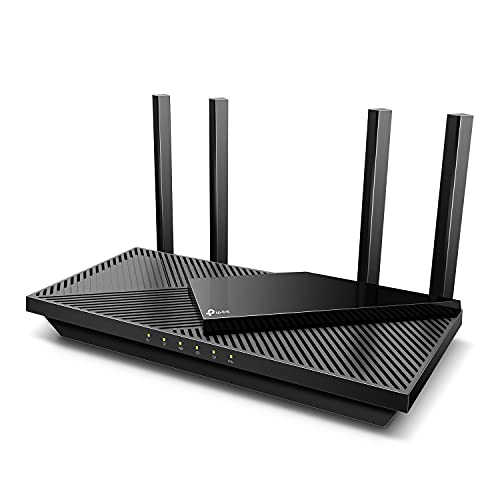
2. TP-Link AX3000 WiFi 6 Router – Affordable WiFi 6 with strong controls
Ease of use
TP-Link’s Tether app makes setup and ongoing management simple, even for parents who are new to networking gear. From the moment you power on the router and connect it to your modem, the Tether app guides you through each step with clear instructions and visual cues. Creating profiles for kids or individual devices takes only a few taps and can be customized right from the dashboard.
The interface is clean and responsive. You can access parental control settings, schedules, and usage summaries without navigating through confusing menus. From daily screen time limits to instant pauses of internet access, the controls are easy to find and adjust on the fly. I found that even during initial setup, the most important features were front and center.
Functionality
The TP-Link AX3000 combines strong hardware performance with robust parental control features. It supports content filtering based on age groups, which helps block harmful sites without needing detailed custom rules. You can also set time-of-day schedules and block specific apps or services for each user profile.
Usage reports provide a snapshot of how much time kids spend online and which content categories are most accessed. While not as granular as some premium solutions, the controls are more than sufficient for most families and work well in everyday situations.
Customer support
TP-Link’s customer support options include 24/7 live chat and phone support. During setup and testing, support reps were helpful in answering configuration questions and clarifying feature limits.
In addition to direct support, TP-Link offers an extensive online knowledge base with setup guides, FAQs, and troubleshooting articles. If you prefer self-help resources, these materials are well organized and easy to search.
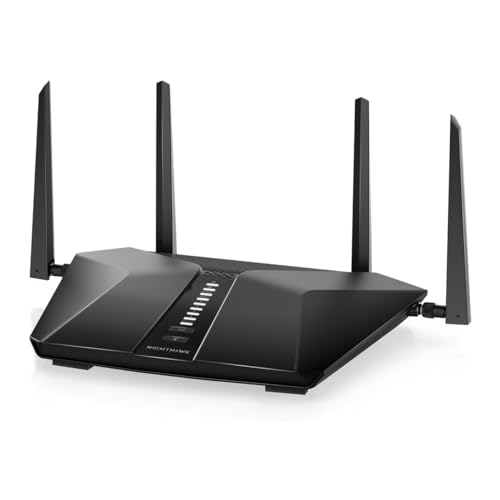
3. NETGEAR Nighthawk 6-Stream Dual-Band WiFi 6 Router (RAX54S) – high performance with smart controls
Ease of use
NETGEAR’s Nighthawk app makes setup and daily management feel approachable, even for users who are not networking experts. From the initial connection to your modem through to customizing parental control settings, the app guides you with clear prompts and visual feedback.
During setup, I appreciated that the app detects connected devices automatically, letting you assign them to individual profiles without manual entry. Accessing parental control features is straightforward – there is a distinct section for scheduling, content filters, and screen time rules that you can adjust with just a few taps. The interface balances functionality with simplicity, and most parents should be able to get the router configured without confusion or frustration.
Functionality
This Nighthawk model combines powerful WiFi 6 performance with smart parental controls that go beyond the basics. Content filtering is intuitive and categorizes common types of harmful or distracting content, saving you from having to configure complex custom rules. You can also enforce time-of-day schedules, block specific apps or services, and assign rules to individual devices.
One of the standouts is the Smart Parental Controls suite, which provides real-time filtering and customizable screen time limits. Usage reports are detailed and easy to read, giving insights into what types of sites and apps are being accessed, and for how long, without overwhelming you with technical data.
The router itself delivers robust WiFi 6 performance, with strong coverage across larger homes and stable connections for streaming, gaming, and schoolwork.
Customer support
NETGEAR’s support ecosystem includes live chat, phone assistance, and a large online community forum. During testing, responses from support representatives were knowledgeable and helpful when I had questions about advanced settings.
The official knowledge base includes setup guides, FAQs, and troubleshooting articles that walk you through common issues. Between the direct support options and the online resources, most problems can be resolved quickly, even if you are tackling more complex parental control configurations for the first time.
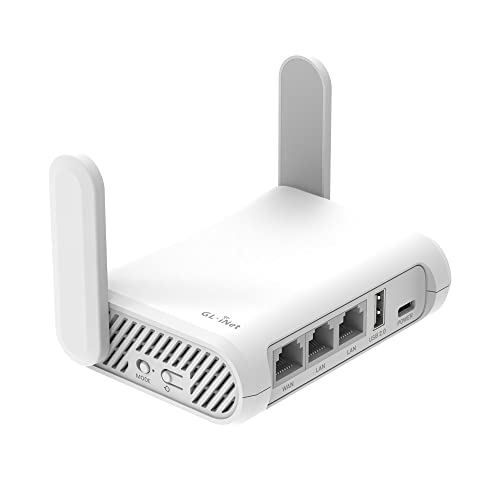
4. GL.iNet GL-SFT1200 – compact and flexible for travel
Ease of use
Setup with the GL.iNet GL-SFT1200 is quick and uncomplicated. The router’s compact size and straightforward web interface make it easy to get online fast.
After you connect it to your modem or network, you can log into the admin panel from any browser and start configuring controls immediately. While the interface is not as polished as some larger brands’ apps, the layout is clear and logical, making basic settings easy to find.
There are fewer visual cues than you would find in app-centric ecosystems, but if you are comfortable with simple menus and clear instructions, the experience feels direct and efficient.
Functionality
The GL-SFT1200 stands out for its flexibility and value, especially when used on the go. It offers solid content filtering and device-level controls that let you manage access per device, which is rare for a router at this price point. You can also create time schedules to limit internet access during homework or bedtime hours.
One limitation is that app-based blocking is not supported, so you must rely on broader content categories rather than granular app controls. Still, for travel use or secondary networks, the GL-SFT1200 delivers reliable protection and control.
Usage reporting is available and gives you a useful overview of what devices are connecting and when, helping you spot patterns or unexpected activity.
Customer support
GL.iNet provides support primarily through email and an active online forum. Responses from support staff tend to be helpful, and the community forum adds practical insights from other users who customize their routers for specific use cases.
The online documentation covers setup and parental control features, though it is not as extensive as what you’d find from larger manufacturers. If you are comfortable researching solutions and troubleshooting independently, the available resources should meet your needs.
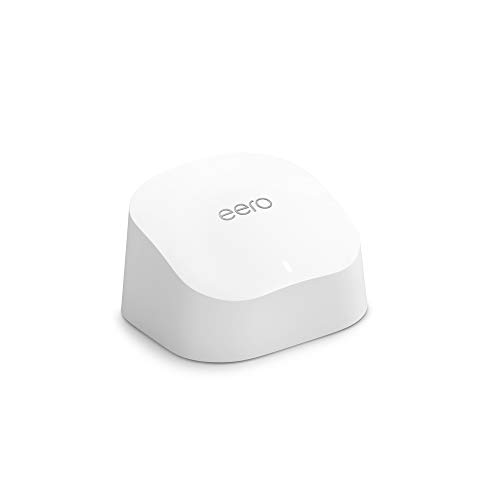
5. Amazon eero 6 mesh wifi router – easy mesh with basic controls
Ease of use
The Amazon eero 6 mesh Wi-Fi router is one of the easiest systems I’ve set up, especially for families that want reliable Wi-Fi without a steep learning curve. Setup is almost entirely app-based. You plug in the eero unit, open the eero app, and walk through a few simple steps to connect it to your modem and name your network. The app guides you clearly, with visuals and prompts that take the guesswork out of networking.
Once configured, the app makes everyday management easy. You can see connected devices at a glance, assign them to profiles, and adjust basic parental controls without navigating complex menus. For parents who value simplicity and clarity over granular controls, the eero experience feels polished and intuitive.
Functionality
The eero 6’s parental control features cover the basics well. It offers content filtering to block inappropriate websites and lets you set internet schedules to limit access during homework or bedtime. Device-level controls let you pause internet access for specific devices, which is useful when you want focus time or offline hours.
The system doesn’t include advanced app blocking or detailed usage reports, but it handles everyday family needs without confusion. For large homes, the mesh design helps ensure strong, consistent Wi-Fi coverage, so kids can stream, learn, and play without constant buffering.
Customer support
Amazon supports eero users with 24/7 customer service via chat, phone, and email. During setup and testing, support representatives were responsive and knowledgeable, helping clarify parental control options and troubleshooting connectivity questions.
The online support center includes helpful articles, how-to guides, and video tutorials that make it easy to find answers quickly. For most families, the available support resources should be more than sufficient, even without highly technical networking experience.
How we tested and selected the best parental control routers
To identify the best parental control routers, I worked with our research team to evaluate each model using consistent, practical criteria. I focused on real-world usability and performance, not just advertised features.
- Ease of use (30%) I chose routers that are intuitive to use, with simple interfaces and mobile apps that make managing your network easy. I evaluated how smooth the setup process was and how quickly parents could create profiles, adjust filters, and monitor activity. Routers that required minimal technical knowledge scored higher.
- Parental control features (30%) I assessed the depth and flexibility of content filtering, app blocking, time scheduling, device-level controls, and usage reporting. I prioritized routers that allow customized controls for each child and provide clear, actionable insights.
- Performance and coverage (20%) I reviewed WiFi speed, stability, and coverage in typical home environments. Each router needed to handle multiple devices reliably while maintaining consistent performance.
- Value for money (10%) I considered whether the included features justify the overall cost, including any subscription requirements and long-term usefulness.
- Customer support (10%) I evaluated the availability and responsiveness of support channels, as well as the quality of online guides and troubleshooting resources.
Our team compared real-world experiences, user reviews, and manufacturer specs to ensure these routers meet family needs. We prioritized routers that balance strong controls with ease of use.
Why use a parental control router?
A parental control router helps you protect your children online while keeping management simple and centralized. Instead of relying only on device-based apps, you control your entire home network from one place.
Key benefits include:
- Whole-network protection. Covers every connected device, including smartphones, tablets, smart TVs, and gaming consoles
- Centralized control. Manage filters, screen time limits, and device access from a single dashboard
- Consistent enforcement. Settings apply across all devices, reducing the risk of bypassing restrictions
- Screen time management. Schedule internet access, pause connections instantly, and create daily limits
- Content filtering. Block inappropriate websites and restrict categories based on your child’s age
- Better visibility. Monitor online activity and identify potential risks early
In my experience, combining router-level controls with open conversations about digital safety creates a more balanced and effective approach to protecting kids online.
How to set up parental controls on a router
Setting up parental controls is usually simple, especially if your router includes a dedicated app or guided dashboard. I recommend following these structured steps to ensure everything works properly.
- Access the router app or admin panel – Open your router’s mobile app or log into the web-based admin panel through your browser. This is where all parental control settings are managed. Make sure your firmware is updated before configuring restrictions.
- Create child profiles – Set up individual profiles for each child. This allows you to apply age-appropriate rules instead of using one blanket setting for the entire household.
- Assign devices – Link each child’s smartphone, tablet, laptop, gaming console, or other connected device to their profile so restrictions apply correctly.
- Configure filters and schedules – Enable content filtering by age category, block specific sites if necessary, and set daily screen time limits or bedtime schedules.
- Test restrictions – After setup, test blocked websites and time limits to confirm everything works as expected.
- Adjust over time – Review settings regularly and adapt them as your child grows. As a best practice, combine technical controls with open conversations about privacy and responsible internet use.
Limitations of parental control routers
While parental control routers are powerful tools, they are not a complete solution on their own. During my research, I identified several important limitations parents should be aware of.
- Cellular data bypass – If a child switches from WiFi to mobile data, router-level restrictions no longer apply. This is common with smartphones and can completely bypass content filters and screen time limits
- VPN usage – Some tech-savvy kids may use VPN apps to mask traffic and avoid network-level filtering. Certain routers can block known VPN services, but detection is not always guaranteed
- Encrypted apps and websites – Some modern apps use strong encryption, which can limit the router’s ability to inspect and filter specific content within those platforms
- Limited off-network protection – Router controls only work at home. When children connect to school or public WiFi networks, restrictions no longer apply
Because of these limitations, I recommend combining router controls with device-level parental control apps and regular conversations about online safety. Technology works best when supported by trust, guidance, and clear family rules.
Final word on the best parental control routers
Choosing the right parental control router can make a real difference in your family’s online safety and peace of mind. Each of the top models we reviewed excels in different ways depending on your needs.
For the most comprehensive control and reporting, Bark Home stands out for its deep filtering, app blocking, and detailed activity insights, making it ideal for families who want fine-grained oversight across every device.
If you want strong performance with robust controls at a reasonable price, the TP-Link AX3000 WiFi 6 delivers excellent speeds, flexible scheduling, and easy app management that suits most homes.
For those with larger houses or more connected devices, the NETGEAR Nighthawk RAX54S combines powerful WiFi 6 performance with intelligent parental features that keep coverage and controls balanced.
Travelers or secondary networks may prefer the compact GL.iNet GL-SFT1200, while families that value simple, reliable mesh coverage with basic filters and schedules will find the Amazon eero 6 a good match.
Ultimately, the best choice depends on your home size, control needs, and how much time you want to spend managing settings.
FAQ
Can I use a parental control router with any internet provider?
Yes, most parental control routers work with any standard modem or ISP. Just connect the router to your modem and follow the setup instructions.
Do parental control routers slow down my internet?
No, not significantly. Modern routers like the TP-Link AX3000 and NETGEAR Nighthawk are built for speed and won’t noticeably affect your connection.
Are there free parental control options?
Yes, some routers offer basic controls for free, but advanced features may require a subscription. For more options, see our guide to the best free parental control apps.
Which router is best for large homes?
The Amazon eero 6 mesh wifi router is ideal for large homes due to its mesh system. It provides strong coverage and simple controls.