Incognito mode vs VPN: why you should use both
Being behind major reports like The Mother of All Breaches and RockYou2024, our in-house cybersecurity experts and journalists provide unbiased, real-world testing and in-depth analysis.
We maintain complete transparency by openly sharing our testing methodologies with our audience.
Learn more

When people want to browse discreetly, their first reflex is to open an Incognito mode or a Private Browsing window. However, assuming you’re completely invulnerable while going incognito is misleading and may be risky.
To truly protect your online activity, you need a more reliable and fundamentally different technology – a virtual private network (VPN). I recommend combining it with Incognito mode.
I crafted this guide to help you understand the difference between Incognito mode and a VPN. Discover how Incognito and VPN function, what information is concealed (and tracked), and why you should use both to reclaim your online privacy.
What is Incognito mode?
Incognito mode is a privacy feature that hides your online activity at the device level. When in private mode, the browser creates an isolated, blank browsing session that still collects site cookies and data for loading the websites. However, all of this data is automatically deleted as soon as you close the private window, rather than being saved to your device.
How to use Incognito mode
Incognito mode is a free, built-in feature, and launching it on all browsers is very straightforward. Here is how to do it on different browsers and devices:
On Windows and macOS (Chrome, Edge, Firefox, Brave)
- Open your browser
- Open the browser menu (click the three dots or three lines menu in the top-right corner)
- Select New Incognito window (Chrome, Brave), New InPrivate window (Edge), or New Private Window (Firefox, Safari)
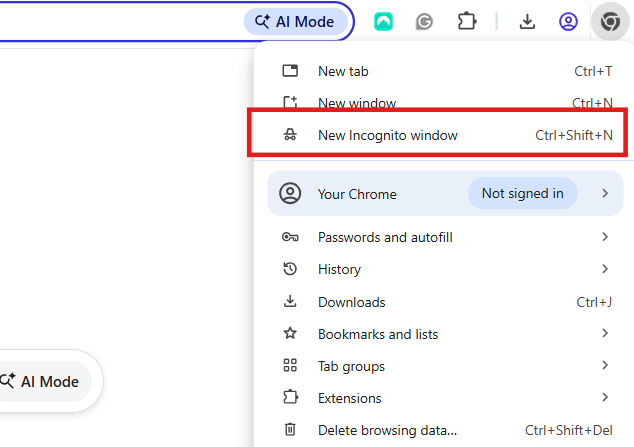
You can also use keyboard shortcuts:
- Windows/Linux. Open the browser and press Ctrl+Shift+N (Chrome, Edge, Brave) or Ctrl+Shift+P (Firefox)
- macOS. Press Cmd+Shift+N (Chrome, Brave, Safari) or Cmd+Shift+P (Firefox).
On iPhone and Android (Google Chrome)
- Open the Chrome app
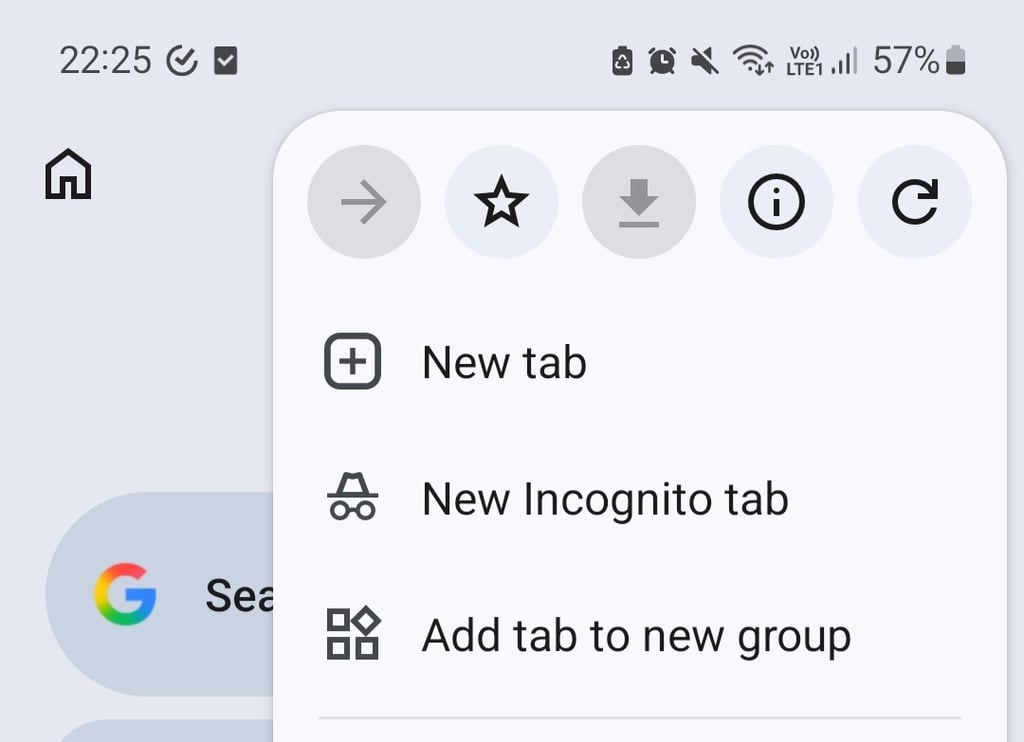
- Open the Chrome menu by tapping the three dots (top-right on Android, bottom-right on iPhone)
- Tap New Incognito tab
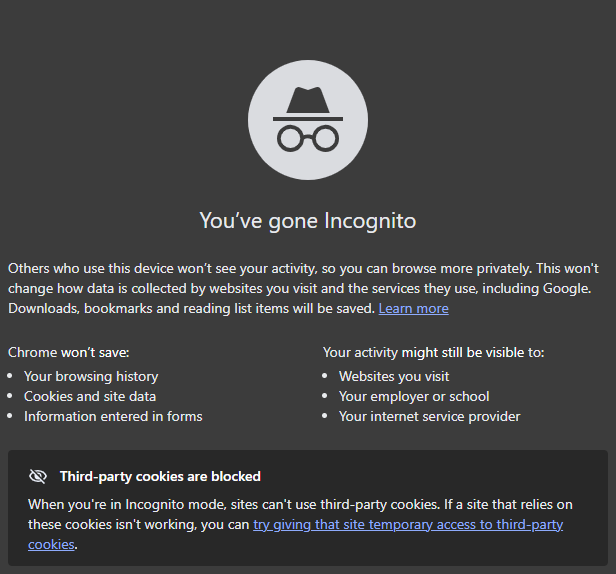
When you open an Incognito window, an icon with a fedora and glasses appears with a prompt explaining that your online activity won’t be saved on the device you’re using. Also, it confirms that your browsing history, data entered, and cookies won’t be stored locally.
Benefits of using Incognito mode
Despite its limitations, Incognito mode has several advantages for your device hygiene and browsing management. Here are the core benefits of using Incognito mode:
- No cache. In Incognito mode, sites can't recognize you based on previously stored cookies.
- Isolated sessions. You can use a public device in Incognito mode knowing it won’t store your online activity locally.
- Extension restriction. Browser extensions are disabled while in private mode, minimizing tracking through them.
What Incognito mode leaves exposed
Incognito mode provides zero privacy beyond your computer screen. Once you close Incognito mode, all the autofill data, cache, and site cookies of that specific session vanish from your browser history.
However, during the entire browsing session, your web searches, physical location, and identity remain visible to your network administrator, internet service provider (ISP), visited websites, and search engines.
Moreover, the websites you visit can still track you. Passwords and personal information you input are exposed to cybercriminals lurking in public Wi-Fi connections. Hence, private browsing becomes useless for complete online anonymity.
What is a VPN?
While Incognito mode wipes your browser history from a device, a VPN creates an encrypted tunnel between your device and the internet, so that no one can spy on your online activity.
How to use a VPN
Setting up a VPN takes a few minutes, whether you’re on a computer or a smart device. Follow these steps:
- Choose a trustworthy provider. Compare and select a reputable VPN service with a strict no-logs policy.
-
Install the app. Download the official app directly from the provider's website (for Windows or Mac) or your device's official app store (Google Play Store or Apple App Store).
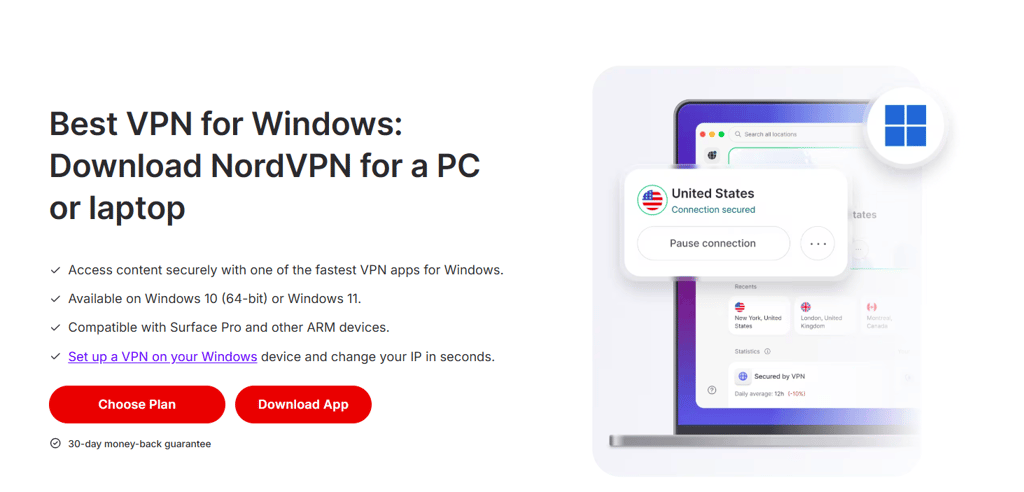
Downloading and setting up NordVPN for Windows PCs and laptops -
Sign in to your account. Open the application and log in using your credentials.
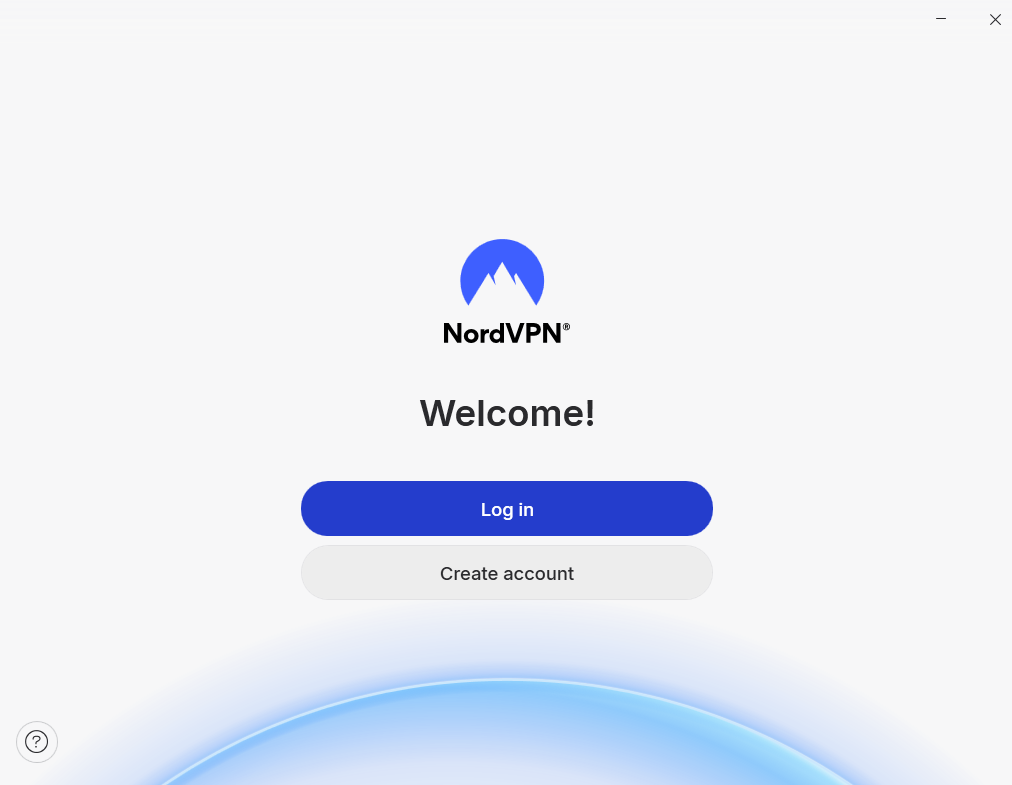
Logging in or creating an account in the NordVPN app -
Select a server location. Click the Secure my connection button to automatically connect to the fastest IP server.
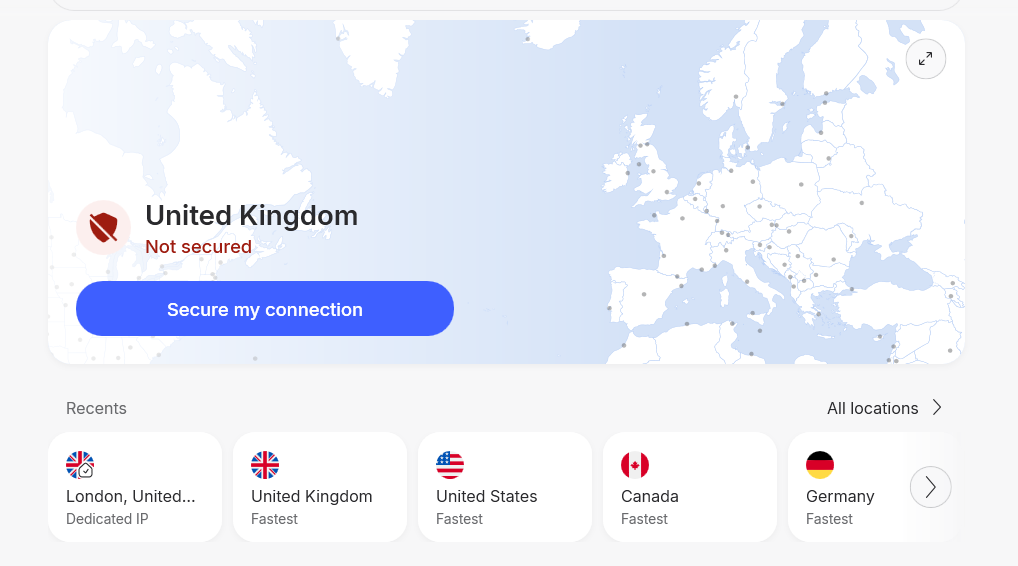
Selecting a server location in the NordVPN app dashboard -
Verify your connection. If you want to make sure your VPN works, visit an IP lookup tool like ipleak.net or whatismyipaddress.com in your browser to verify that your real IP address and location are successfully masked.
Benefits of using a VPN
Whether you rely on public Wi-Fi frequently or simply want stronger online security, a VPN can provide an additional layer of protection. Here's how it can keep your data safe:
- Encrypted network traffic. Conceals your web history, incoming or outgoing information, and server connections from third parties.
- IP masking. Blocks websites from obtaining your real location and breaks device fingerprinting patterns, making you look like a new, unrecognizable user.
- Network-level security. Prevents cybercriminals from obtaining your data by redirecting you to fake websites (DNS spoofing) or stealing unencrypted logins and credentials (MITM attacks).
- Cyberattack prevention. Because your actual location is hidden and only the IP address of a VPN server is visible, network eavesdroppers and packet sniffers can’t read your online activity.
What a VPN leaves exposed
While a VPN cloaks your data in transit, it keeps the web history on your local device. This means anyone using your device will see your full browsing activity.
While a VPN offers masked online activity, it won’t prevent malware from infecting your device if you follow a malicious link. However, many top-rated VPNs offer antivirus to cover that gap in cyber protection.
It’s important to remember that a VPN won’t cover your identity if you log in to your personal accounts using your credentials. No matter which VPN server you use, that website will know who you are and track your device through browser fingerprinting.
Unless you have a dedicated IP address when using a VPN, you’re sharing the same server IP address with hundreds of other users. Security-sensitive websites like banks, streaming platforms, and anti-fraud systems read this high traffic from one IP address as bot activity. Thus, you may be required to go through a CAPTCHA verification or be temporarily restricted from certain websites.
I recommend using a reputable VPN provider. Although free VPNs might tempt you with zero-cost protection, they may collect your browsing activity and personal data and sell it to advertisers.
Function comparison of Incognito mode vs VPN
The combination of Incognito mode and a VPN can provide both on-device privacy and network-level security benefits. Below, I compare each browsing mode and how they secure your online privacy when used together.
| Feature | Regular browsing | Incognito mode | VPN | Incognito + VPN |
| Encrypts traffic | ❌ No | ❌ No | ✅ Yes | ✅ Yes |
| Hides IP address and geolocation | ❌ No | ❌ No | ✅ Yes | ✅ Yes |
| Wipes browsing history upon exit | ❌ No | ✅ Yes | ❌ No | ✅ Yes |
| Hides activity from ISP and network admins | ❌ No | ❌ No | ✅ Yes | ✅ Yes |
| Blocks extension fingerprinting | ❌ No | ✅ Yes | ❌ No | ✅ Yes |
| Prevents DNS snooping and MITM attacks | ❌ No | ❌ No | ✅ Yes | ✅ Yes |
| Blocks cross-session cookies | ❌ No | ✅ Yes | ❌ No | ✅ Yes |
| Masks logged-in identity | ❌ No | ❌ No | ❌ No | ❌ No |
Why should you combine Incognito mode and a VPN?
Incognito mode and a VPN aren’t competing tools, but rather security measures that complement each other. Each has blind spots that the other is designed to protect.
Incognito mode wipes the browsing history at the device level, but leaves your location, IP address, and visited websites exposed to ISPs and cybercriminals. Conversely, a VPN encrypts your online traffic and masks your IP address and actual geolocation, while leaving the browsing history untouched on your device. By combining both tools, you address all these vulnerabilities.
Moreover, browser fingerprinting and device tracking rely on connecting multiple data points across your sessions. Removing your real IP address with your stored cookies disrupts those patterns, making your device substantially harder to identify.
Here are examples of practical scenarios when you should use a VPN or Incognito mode, and when you should combine them.
Incognito mode alone:
- Public device. When you are using a PC in a public library and need to make sure no browsing information is left on the device.
- Using multiple accounts. Since Incognito mode works like an isolated browser, it allows you to log into the same website on a different account simultaneously.
- Checking prices or tickets. Some websites may increase prices for returning customers. Incognito mode doesn’t rely on stored cookies, meaning a website won’t be able to recognize a returning customer.
VPN alone:
- Whenever possible. A VPN provides privacy and security, so it should be used whenever possible.
- Bypassing geo-restrictions. A VPN changes your IP address so you can use it to access geo-restricted content.
- Public networks. A VPN can prevent cyberattacks caused by possible snoopers or man-in-the-middle setups in Wi-Fi or other public networks.
- Censorship prevention. Network-level content blocks can be bypassed with a VPN connection.
Combine a VPN and Incognito mode:
- Working remotely. Encrypt company traffic across public Wi-Fi while ensuring company and client data, session cookies, and temporary credentials are instantly wiped from the browser.
- Researching sensitive topics. VPN shields you from ISP and network surveillance while searching for medical conditions, financial debt, or debatable political topics, and Incognito prevents your browser from saving local history and tracking cookies.
FAQ
Should I turn on the VPN before or after opening an Incognito window?
Turn on your VPN before opening an Incognito window. This way, you ensure your data and online activity are untraceable.
Does Incognito mode hide my IP address and location?
No. Your actual location and IP address are still visible to your ISP, network administrators, and the websites you visit.
Should I always use Incognito and a VPN together?
It’s advisable to use a VPN and Incognito mode together for double-layer cybersecurity when dealing with sensitive content research, using a public device and Wi-Fi, and to prevent total surveillance of your browsing.
Is Incognito 100% private?
No. Incognito mode prevents browsing history and cookies from being stored on your device. Your IP address and online activity are exposed to your ISP and websites all the time.
Is using a VPN better than Incognito mode?
In general, a VPN is a better cybersecurity measure. But Incognito and a VPN are two different tools serving different purposes, and one cannot replace the other.