How to check if a link is safe before you click it: expert guide

Most people assume a malicious link can be detected from a glance: sloppy design, broken English, perhaps a strange-looking domain. However, malicious links have evolved to the point where they don’t even raise suspicion.
In 2026, a well-built malicious link is indistinguishable from a legitimate one. It’s designed to look like the exact page, email, or text you were already expecting. Truthfully, it only has to hold up for the few seconds it takes you to click. According to Verizon’s 2024 Data Breach Investigations Report, the median time between someone opening a phishing message and clicking the link inside it is just 21 seconds. That means most people aren’t evaluating the link at all, they’re just reacting to it.
So, how do you identify dangerous links before you click them? In this guide, I break down exactly what to look for, where these links show up most often, and the tools that can check it for you.

The real reason a malicious link fools you
Most scammers build malicious links to pass a quick glance, and a quick glance is usually all anyone gives a link before clicking it. Plus, most malicious spam now relies on embedded links instead of attachments, because links are easier to disguise and harder for basic spam filters to catch than a suspicious file.
On top of that, a lot of malicious links use open redirects. The link you see points to a trusted domain first – a marketing platform, a URL shortener, or an email-tracking service – before forwarding you to the real, malicious destination once you click. So, the domain you glance at isn’t always the domain you actually land on.
Therefore, the idea that a professional-looking email or a legitimate-seeming site is safe doesn’t hold up anymore. A well-built fake page can copy real branding, real layout, and real copy almost perfectly. What it can’t fake as easily is the URL structure underneath it, and that’s exactly where checking a link must start.
Signs a link might be malicious
A malicious link usually gives itself away somewhere, you just have to know where to look. In my opinion, here are the most common warning signs that a link is malicious:
- Mismatched or misspelled domains. A single swapped letter, an extra word, or a domain that almost matches the real one (i.e., usps-tracking[.]com instead of usps.com) is one of the most common tells.
- Unnecessary subdomains or paths. A link like paypal.com.secure-verify[.]net isn’t a PayPal subdomain, it’s a secure-verify.net address dressed up to look like one. The real domain is always the part directly before the final .com, .net, or other variations.
- Shortened links from unknown senders. Shorteners like Bit.ly or TinyURL hide the real destination entirely, which is exactly why scammers employ them most often.
- Urgency paired with a link. Scammers use phrases like “verify now,” “your account will be suspended,” or “confirm within 24 hours” to get you to click before you check.
- Link that doesn’t match its label. Hyperlinked text can say anything, like click here or track your package, or even show a full readable URL, while pointing somewhere completely different underneath.
How to check a link without clicking it
Checking a link without clicking on it doesn’t require any real technical know-how. The trick is doing these checks every single time you come across a link, not just on ones that already feel a little suspicious.
Here’s what I personally do before tapping anything:
- Hover over the link first. On desktop devices, hover your mouse over a link without clicking to see the actual destination URL. You can usually see it in the bottom corner of your browser or email client. If that URL doesn’t match what the link claims to be, stop immediately.
- Long-press the link on mobile. Since you can’t hover on a phone, press and hold the link instead. Most mobile browsers and messaging apps show a preview of the real URL before you open it.
- Read the domain right to left. Start at the first slash and work backward to find the actual domain, ignoring everything that comes before it. This is the fastest way to catch a fake subdomain trick.
- Expand shortened links before opening them. Paste the shortened URL into a link-expander tool like CheckShortURL to see the real destination first.
- Copy the link instead of clicking it. Right-click or long-press to copy the link address, then paste it into a search engine or a URL scanner instead of opening it directly in your browser.
- Check the domain’s age. Tools like Google’s Safe Browsing site status checker or a WHOIS lookup can tell you whether a domain was registered days ago. The younger the domain’s age, the stronger the signal for a scam site, since legitimate businesses rarely operate on brand-new domains.
Should you trust a link from someone you know?
In my experience, you shouldn’t automatically trust a link from someone you know. One of the trickiest cases is a link from a contact, friend, or coworker whose account has been compromised.
Because the sender is someone you know, the usual suspicion never kicks in, which is exactly why hijacked accounts are often used to spread a malicious link. I’d say a few things are still worth checking even when a link comes from someone you trust:
- Look at whether the message actually sounds like them, rather than being oddly generic, urgent, or out of character
- Consider whether it’s something they’d normally send unprompted, like a random link with no other context attached
- Check whether that same contact has sent a similar link to other people around the same time
- Check with the same person through a separate channel, a text or a call, before opening whatever they sent
Where malicious links actually show up
When I first started looking into this, I expected email to still be the main culprit, since that’s the picture most of us have in our heads by default. But the more I dug in, the clearer it became that email is just one entry point among several now, and not even the busiest one anymore. Malicious links have spread across every place you’d click without thinking twice.
So, where do they actually show up? Based on what I’ve seen testing and researching, it’s rarely the place you’d expect to be on guard. Here’s a quick reference I’d keep on hand.
| Location | Why it’s a common vector |
| Emails | Still the original and prominent vector. Phishing emails dress malicious links up as invoices, shipping updates, or account alerts. These rely on you trusting the sender’s name more than the actual link. |
| Search engine results | Malicious sites can and do rank in search results, so a link showing up in Google or DuckDuckGo isn’t proof it’s safe. |
| Text messages | Smishing links rely on the fact that most people are less suspicious of texts than emails. Plus, mobile browsers make it harder to preview a link before tapping. |
| Social media direct messages and comments | Compromised accounts you already trust can send out malicious links without the account owner even knowing. |
| QR codes | Scanning a QR code skips the step of seeing the URL at all until after your phone has already opened it, and QR code phishing has risen sharply as a result. |
| Ads and sponsored results | A malicious link can appear as a paid ad above legitimate search results, which many people assume are more vetted than they actually are. |
Checking a link is also just harder on a phone than on a desktop. Without a cursor to hover with and smaller screens, a long or disguised URL gets cut off before you see the part that matters.
That gap is a big part of why mobile scams like smishing and QR code phishing have grown as fast as they have. The long-press-to-preview habit matters more on mobile, precisely because it’s the one step that’s easiest to skip when you’re moving fast on a small screen.
Damage control: what to do if you already clicked
If you clicked on a malicious link but didn’t enter anything, act anyway. Close the page immediately without interacting with it further, and run a malware scan on your device as a precaution. Keep in mind that some malicious pages attempt background installs just from being visited.
If you entered any information at all – a password, payment details, anything personal – treat that data as compromised, not a possibility of being compromised. Here’s what you should do:
- Change the affected account password – start with your email account if you reused that password anywhere
- Enable multi-factor authentication if it isn’t already on
- Monitor the affected account, or your bank statements, for anything unfamiliar over the following weeks
- Use a trusted dark web monitoring service to see if any of your information appears online
If you clicked on a malicious link, speed matters. Don’t wait to be sure something bad happened before you act. By the time you’re sure, it’s usually already too late to prevent it. Report what you clicked, especially if it arrived by text or email. Reporting the sending number or domain gets it flagged for others before they run into the exact same link.
How Bitdefender helps you catch a bad link before you click it
Realistically, checking every single link isn’t sustainable. You run into thousands of them a day, across search results, texts, emails, and DMs, and no one is going to manually verify each one before clicking. That’s where automating the process actually earns its keep.
I’ve spent the past couple of months testing the Bitdefender Premium Security plan, which includes Scam Protection Pro built to catch malicious links in the background rather than leaving it to you. At $79.99/year, it covers 5 devices, so the same protection follows you across your phone, laptop, and whatever else you’re clicking links on.
The first thing I noticed was the Web Scam Protection feature from Bitdefender Premium Security. It runs through Bitdefender Web Sage and it doesn’t wait until you’ve clicked through to a page to do anything. While running a search on DuckDuckGo, one of the results on my page came back flagged directly in the search listing itself, marked with a red icon.
What I liked most about this is the timing: Bitdefender Web Sage’s Search Advisor caught the link at the exact point where most people are deciding which result to click, not after the fact.
I also intentionally clicked through to a page I already knew was flagged as dangerous, just to see what happens if the first layer gets missed. Bitdefender Web Scam Protection fully blocked the page from loading, replacing it with a screen that explained why. In this case, it was a page attempting to install harmful software.
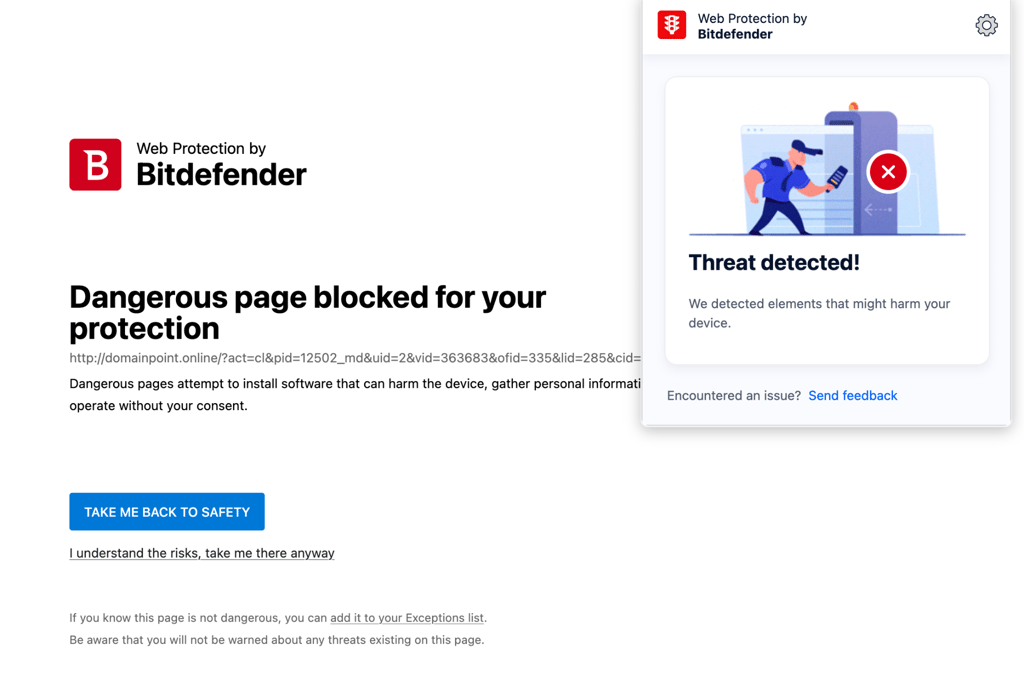
Under the hood, Bitdefender Web Scam Protection runs on Web Sage, currently available for Chrome and Edge. Checking my own setup in the Bitdefender app, the dashboard showed which browsers the extension was actively installed and enabled on.
The last thing I tested was my email inbox. Bitdefender’s Email Protection tags every message as either safe or dangerous directly in the inbox view, before I even open the email.
What I liked most here is that it kills the guesswork at a glance. I don’t have to open a suspicious-looking email to find out whether the links inside it are safe – the label is already sitting right there.
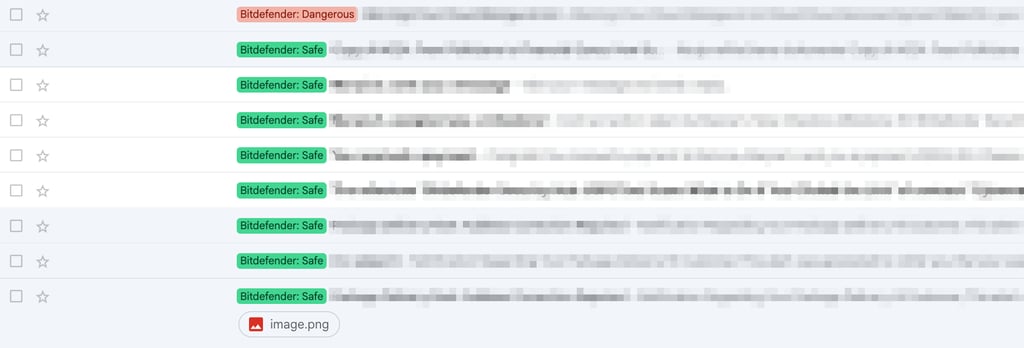
Overall, what stood out to me most across all tests was that link-checking wasn’t left to one point of failure. Between search results, the browser, and email, a link had to slip past three separate checks to actually reach me unflagged. Plus, none of those checks required me to do anything differently than I already do day to day, no extra app to open, and no separate scan to remember to run.
Final word
A malicious link only works if you act before you check, and every design choice behind it exists to make that gap as small as possible. That’s why the solutions that actually work aren’t complicated: hover before you tap, read the domain right to left starting from the first slash, and treat urgency as a reason to slow down. None of these tips require high-tech expertise, just doing it consistently enough that it becomes automatic instead of optional.
Even so, manual checking has its limits. You’re not going to scrutinize every link across every search result, text, and inbox you touch in a day, and scammers are counting on exactly that fatigue. That’s exactly why I recommend Bitdefender Scam Protection Pro, available on the Bitdefender Premium Security plan for $6.66/month (or $79.99/year for the first year). It handles the volume that manual checking can’t by flagging dangerous links before you’re ever in the position of deciding whether to click it – across search results, email, and chat at once.
FAQ
How can I check if a link is safe without clicking it?
To check if a link is safe without clicking on it, hover over the link on desktop, or long-press it on mobile. This allows you to preview the real destination URL before opening it. If the domain shown doesn’t match what the link claims to be, don’t open it.
What’s the safest way to check a shortened link?
Paste it into a link-expander tool or a URL scanner instead of opening it directly to check a shortened link. This reveals the actual destination without exposing your device to it.
Are links in search results always safe?
No, links in search results aren’t always safe. Malicious sites can appear in search results, particularly for less common search terms. So, ranking on a search engine isn’t proof that a link is safe on its own.
I clicked a link and nothing seemed to happen. Am I still at risk?
Yes, you should treat it like a risk if you clicked on a malicious link. Immediately close the page and run a malware scan as a precaution, since some malicious pages attempt background installs just from being visited, even if nothing appears to happen on screen.
Can antivirus software actually stop a malicious link before I click it?
Yes. Bitdefender Premium Security can help catch malicious links before you click them. Bitdefender Web Sage flags risky search results and blocks dangerous pages, Scam Protection Pro’s Email Protection marks emails as safe or unsafe, and Chat Protection detects scams in messaging apps.