How to block a website on any device: easy methods that work

When you block a website, you stop your device or network from loading it altogether. You can do this by filtering requests at different levels, including browser, operating system, DNS, and router. Some block websites to control what kids are exposed to, others want to reduce distractions while working or studying. You may also block websites for security purposes, especially when using shared devices.
If you want to learn how to block a website, you have plenty of options to consider. From installing browser extensions to setting up router rules. Just keep in mind that many blocks can be bypassed. All you have to do is use a different browser, switch to mobile data, or enable a VPN. That said, there are ways to introduce stricter controls.
In this guide, I review 6 ways to block a website on desktop and mobile devices, browsers, routers, and using DNS filtering. Finally, I address what you should know before blocking a site, how to unblock websites, and a few other commonly asked questions.
What to know before blocking a website
Before you go on to blocking websites, consider what it is you’re actually trying to achieve. If you use one single web browser, and you’re aiming to block specific websites on that browser, an extension might do the job. A few notable examples include uBlock, BlockSite, and StayFocusd. These were the names that Reddit users frequently referred to when I was researching the topic.
If you want to block websites on all browsers on the same device, an extension won’t do much for you. You will need to introduce device-level controls instead. Windows and macOS users can block websites using the hosts file. This requires some knowledge of the operating system, but it is not a technically challenging option if you can follow basic instructions.
Some users also choose the route of using parental controls, like Screen Time, which is built into macOS and iOS devices instead. They enable filtering content and creating custom ‘block’ and ‘allow’ lists.
Now, if you want to take it all up a notch and cover every device connected to your home Wi‑Fi network, you will need to set router or DNS-based rules. This is the most technically challenging option, but it offers the most control.
Once you know what level of control you want when it comes to blocking websites, there are a few other things you should consider:
- Many methods block the exact domains. It might not be enough to just add example.com if you don’t want www.example.com or sub.example.com to load either. You may need to list all variants separately.
- Some website blocking tools block by category rather than by individual URL. On one hand, you have less manual work; on the other, you might lack customization.
- Administrator access is usually required when you edit the hosts file, change router settings, or adjust system parental controls. It’s a safety mechanism that prevents unauthorized website unblocking.
- Browser extensions are the easiest to set up and reverse, so if you want stricter control, you might need to take the router/DNS controls route.
Common website blocking methods: comparison
If you’re not yet sure what level of website blocking you’re leaning towards, I created this comparison table of the most common website blocking methods. You can assess the difficulty level, the scope of the method, who it’s best suited for, and what limitations you should consider.
| Method | Difficulty level | Scope | Best for | Limitations |
| Browser extension | Easy | One browser | Personal productivity | Easy to bypass by switching browsers, using private mode, or another device |
| VPN/app-based content filtering | Easy | Devices that have the VPN app installed | Users who want to take advantage of other VPN benefits | Only works when the VPN is active and configured |
| Parental controls | Easy | One device (sometimes multiple via family accounts) | Parents with kids who use the internet | Settings vary by OS; can be circumvented by using another device |
| DNS filtering | Moderate | One device or the entire network | Category-based filtering and centralized blocklists | Users can change DNS settings |
| Hosts file | Moderate | One device (including all browsers) | Tech‑savvy users who want simple, local blocking | Affects only one device; easy to edit the file to reverse blocks |
| Router blocking/URL filtering | Moderate | All devices on the same Wi‑Fi network | Household‑wide coverage | Doesn’t apply on mobile data or other networks |
Once you consider all available methods and choose the one that seems to cover the most bases for you, you can then take action. If you choose an extension or an app (e.g., a VPN app or a dedicated parental controls app), you can simply download it and configure any relevant settings before blocking your first website.
If you choose a different method, the setup process may be a bit more involved. I created full guides for the 6 most common ways to block a site on different devices:
- How to block a website on Windows and macOS using the hosts file
- How to block a website in a browser
- How to block a website on iPhone and Android
- How to block a website on your router
- How to block websites with DNS filtering
- How to block a website with a VPN
1. How to block a website on Windows and macOS using the hosts file
Before we jump into the guides, let’s get on the same page about what a hosts file is. In technical jargon, a hosts file is a system file that maps hostnames to IP addresses. In simple terms, it’s a file that tells your device where to look when you type a website address.
Here’s how to edit the file on Windows and macOS devices.
- Tap Windows+X keys and select Terminal (Admin)
-
Enter the command Notepad.exe C:\Windows\System32\Drivers\etc\hosts to open the hosts file

-
At the bottom of the file, enter the loopback IP address (always 127.0.0.1 or 0.0.0.0) followed by the domain you want to block (e.g., 127.0.0.1 example.com) – you can add as many lines here as you wish
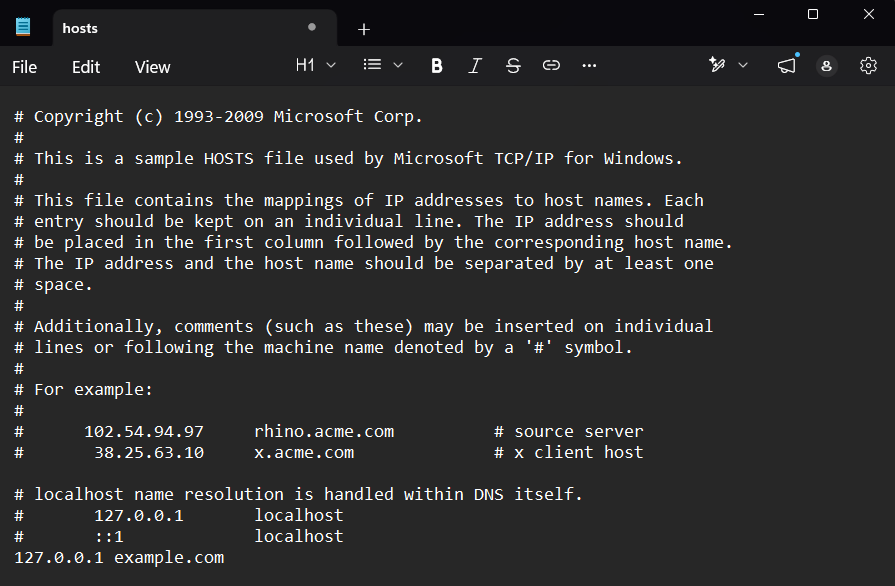
- Click File at the top and then Save or tap Ctrl+S (User Account Control may prompt to confirm the admin change at this step)
- If you can still access the site after blocking it, enter cmd into Windows Search, right-click Command Prompt, and select Run as administrator
-
Type ipconfig /flushdns into Command Prompt and hit Enter to flush the DNS cache – this makes sure that the changes take effect immediately

- Open the Terminal app (via Finder)
-
Enter sudo nano /etc/hosts and provide your password

-
At the bottom of the file, enter the loopback IP address (always 127.0.0.1 or 0.0.0.0) followed by the domain you want to block (e.g., 127.0.0.1 example.com) – you can add as many lines here as you wish
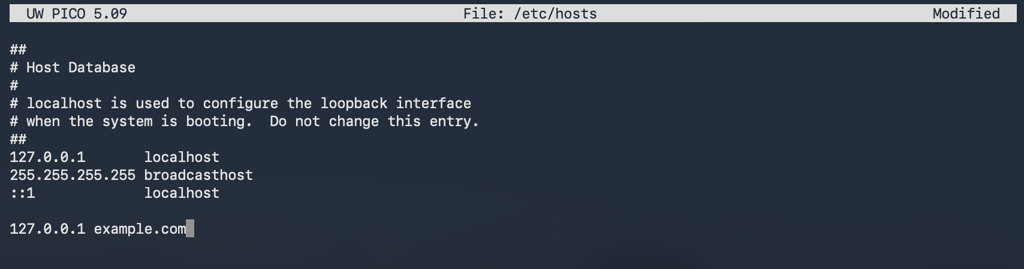
- Press Control+O to save, enter to confirm, and then Control+X to exit the file
- Finally, flush the DNS cache by entering sudo dscacheutil -flushcache; sudo killall -HUP mDNSResponder
When you edit the hosts file, the entered website will be blocked on that one device. Restart the computer before you test whether or not the setup was successful – this way, you will avoid DNS cache issues.
If you ever decide to remove domains from the hosts file, you can use the same instructions. During step 3, simply remove the added lines and save. Don’t forget to flush DNS afterward, too.
2. How to block a website in a browser
When it comes to browser-level website blocking, users usually opt for downloading extensions or apps. These are specifically designed to help you create simple lists of blocked and allowed websites. Let’s see how you can block websites on different web browsers.
On Chrome and Firefox, I recommend downloading a legitimate and trusted browser extension to block unwanted websites:
- Launch your browser and go to the extensions/add-ons store
- Add a website blocker extension of your choosing
- Open the extension’s settings and add the domains you want to block (e.g., example.com and www.example.com)
If the extension allows it, you can configure schedules for when the chosen sites will be blocked.
On Apple devices, you have the Screen Time feature that allows restricting access to specific websites via Safari. Here’s how to set it up:
- Open the Apple menu in the top-left corner and click System Settings
- Click Screen Time in the panel on the left and toggle it ON
- Go to Content & Privacy and toggle it ON too
-
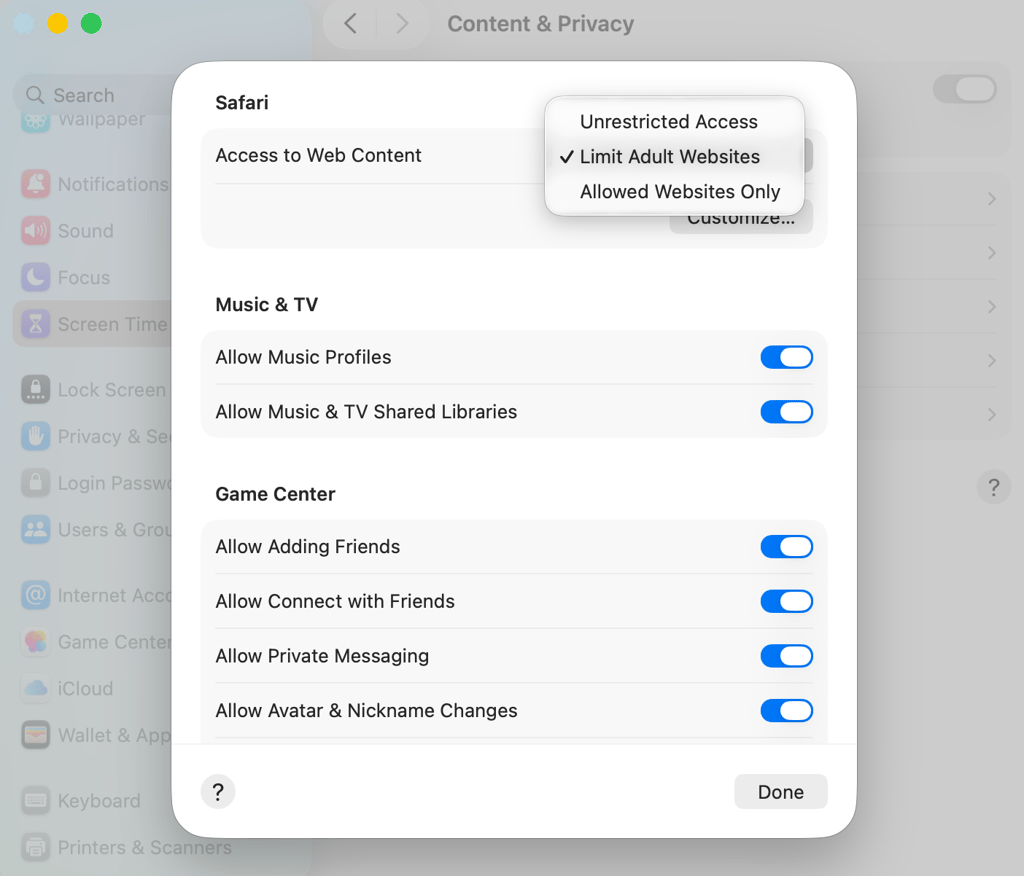
Go to App Store, Media, Web, & Games and in Access to Web Content, select Limit adult websites
-
Click Customize and then + under Restricted
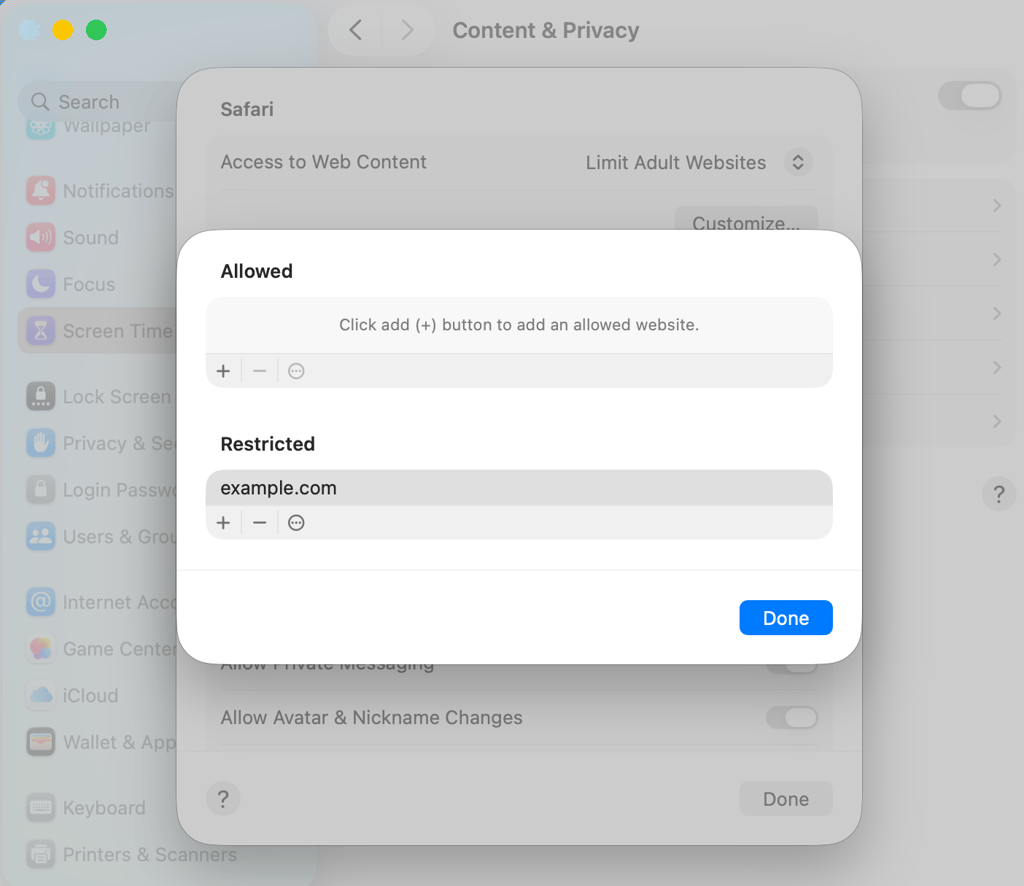
-
Type the URL of the website you want to block and click Done to save
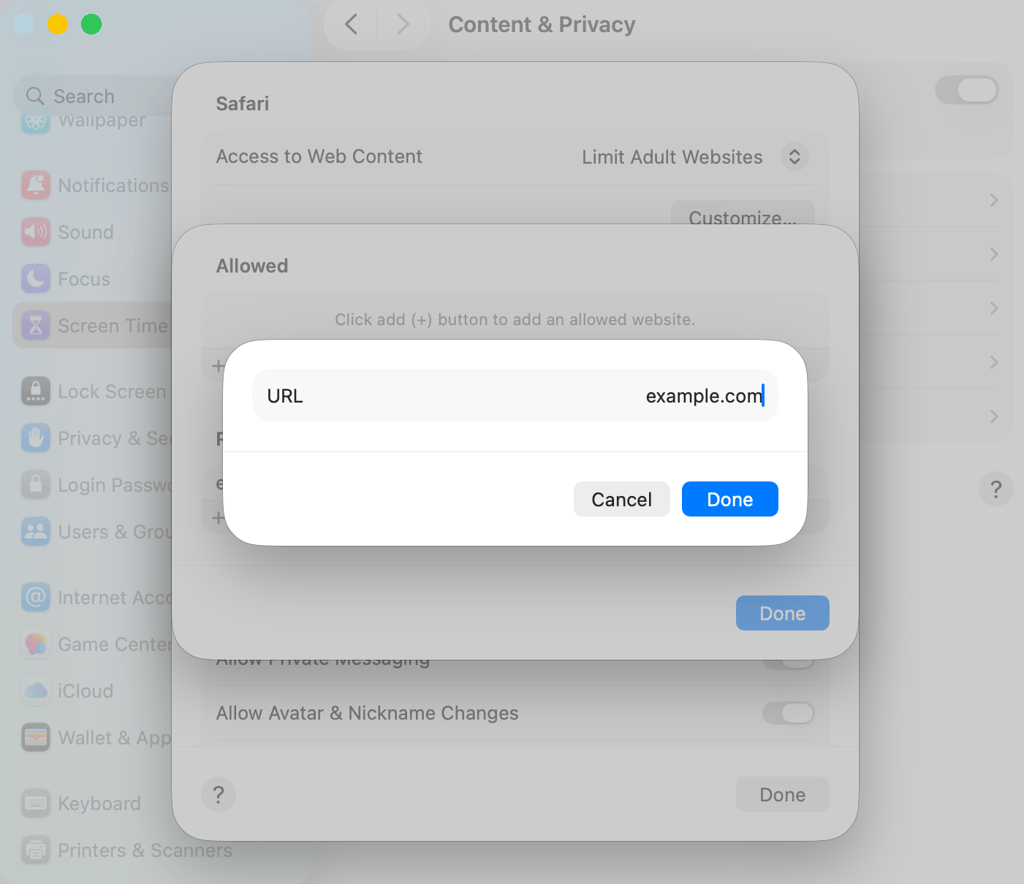
Note that bypassing this kind of website blocking is very easy. All one has to do is switch to another browser. On Chrome and Firefox, it’s sometimes enough to load private/incognito mode to bypass blocking, too. If you need more control, I suggest combining browser-level blocking with device- or network-level methods.
3. How to block a website on iPhone and Android
If you decide to block websites on a mobile device, note that steps will differ by platform and even by device manufacturer. The guides below show how to block websites on iPhone and Android, but take these as general guides, not exact manuals.
You can block unwanted websites using the Screen Time feature on your iOS device:
- Go to Settings > Screen Time
- Tap Content & Privacy Restrictions and toggle it ON
- Tap Content Restrictions > App Store, Media, Web & Games
-
Choose Limit Adult Websites or Allowed Websites Only
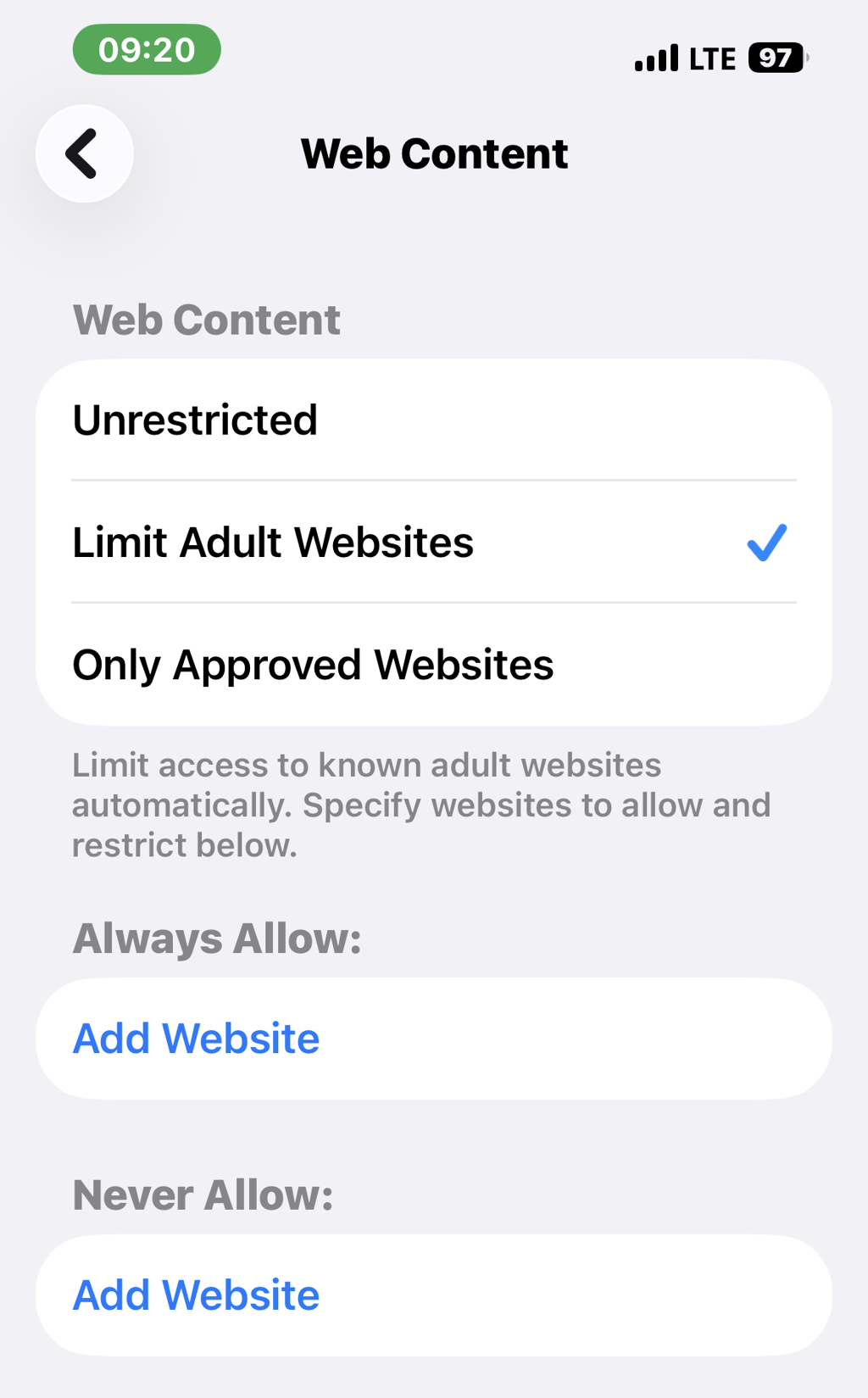
- Under Never Allow, add the domain you want to block (e.g., example.com)
Android, unfortunately, doesn’t have one universal built-in website blocker. However, you can find these common approaches useful:
- Digital well-being/parental controls. Some Android devices let you set app limits or restricted profiles, which can help restrict access to certain sites via browsers.
- App-based blockers. You can employ third‑party apps that block specific domains or categories within the browser or via accessibility features. Freedom, BlockSite, and AppBlock are a few apps that fit this profile.
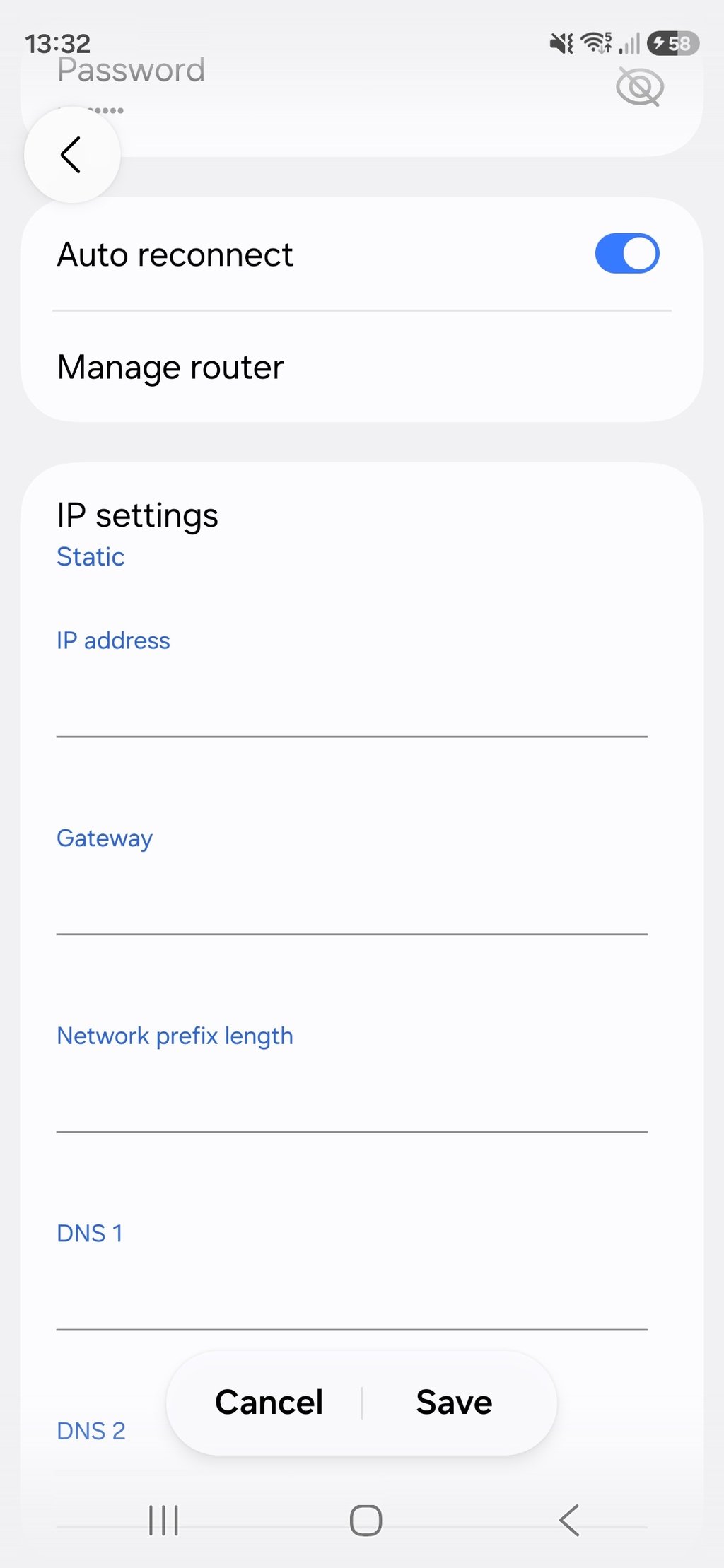
- DNS configurations. On some Androids, you can point your device to a filtering DNS provider using this method: go to Settings > Connections > Wi-Fi > tap your Wi-Fi network > change the IP settings to Static > change the address on DNS 1 and DNS 2.
4. How to block a website on your router
You can block websites on every device connected to your Wi‑Fi network. The best part is, you don’t need to install software on each device. This method works best for households that want to introduce consistent rules across phones, tablets, laptops, and smart TVs.
The exact steps will differ by router model and firmware. If your ISP (internet service provider) manages the router, certain features may be off limits or located in the ISP’s portal. In general, though, here’s what you need to do:
- Log in to your router’s admin panel
- Look for parental controls, access restrictions, security, or URL filtering settings
- Add the websites you want to block
- Save/apply the settings and test whether the setup was successful
One thing to note is that it’s easy to bypass home network rules. All a user needs to do is switch to mobile data or another network. Also, changing the DNS addresses on a device will override the router's DNS. Consider this if you’re after stricter control.
5. How to block websites with DNS filtering
If you go with DNS filtering, the domain name requests are intercepted and denied before the website loads. The DNS service either displays an error message (e.g., "Server not found" or "This site can't be reached") or redirects to a warning page indicating that the website has been blocked due to a security issue.
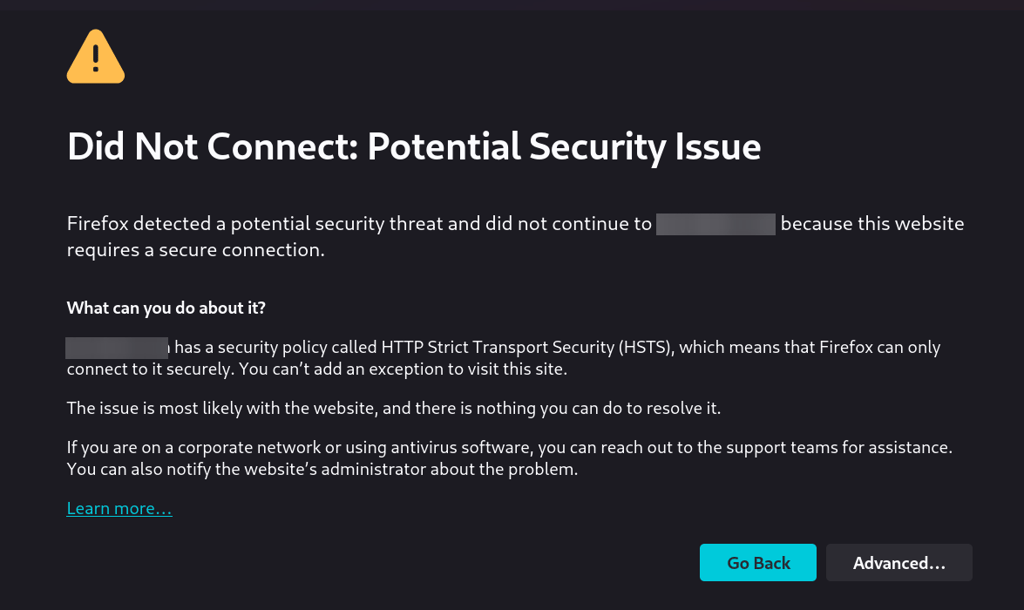
This is one of the most effective options if you’re trying to block adult or violent content for kids and reduce exposure to malware and phishing sites across multiple devices.
You can set DNS filtering on:
- Your router – this is a great option if you want all devices on the same Wi‑Fi network to adopt the same rules
- Individual devices – if you go for this option, you can change the DNS server in network settings or using a dedicated DNS app
Depending on the DNS filtering service you choose, you may be able to use custom blocklists along with predefined categories. This makes it easier to manage many blocked sites from one dashboard instead of having to set up restrictions on each device manually.
Of course, how effective DNS filtering is depends on whether users can change the settings back. To avoid this, restrict admin rights and set a strong password for your router.
6. How to block a website with a VPN
Some VPNs and security tools offer content filtering, parental controls features, or custom DNS-based blocking to prevent access to certain websites while the VPN is active.
If your VPN offers such features, you typically enable them via the app’s settings.
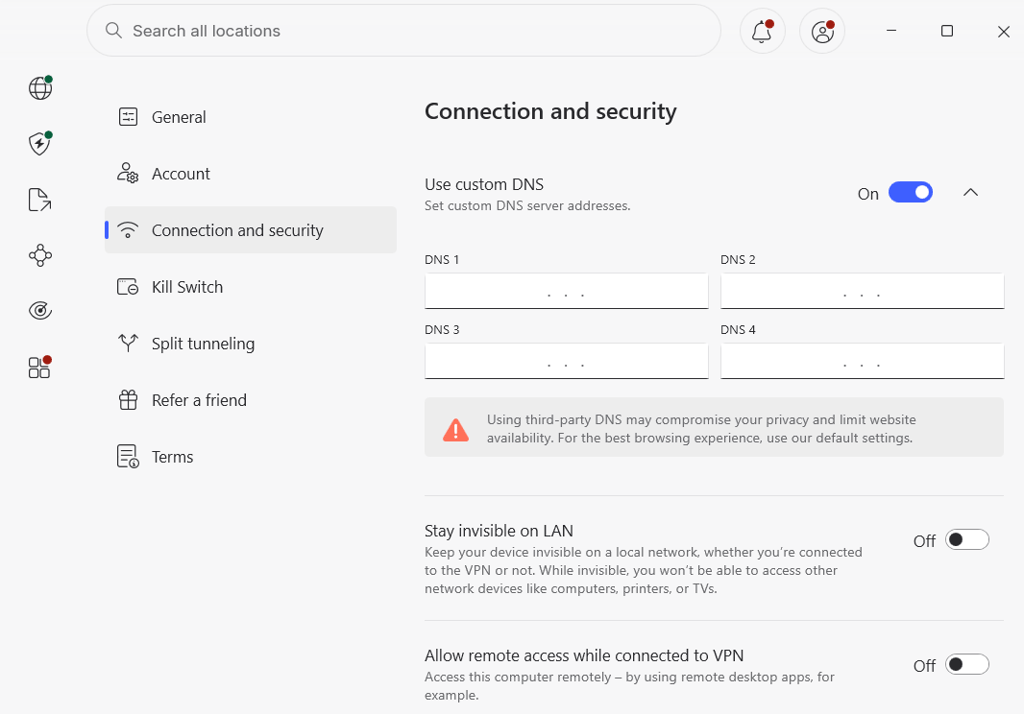
Because this only works when the VPN is running, I’d say VPN-based website blocking is one layer to add, but not a one-and-done solution. Of course, there are other benefits to consider. While VPNs cannot replace device- or network-level controls, they can offer web traffic encryption on public Wi-Fi networks, IP address masking from third-party tracking, and many other advantages.
Common issues when blocking websites
So, you’ve used the instructions above to block a website, but during tests, it still loads? Here are a few common issues you might have faced and a few tips on how to solve them:
- Blocked website loads. Did you flush the DNS cache and restart your device? This is especially important after editing the hosts file or changing DNS.
- Forgot www or subdomains. It might not be enough to block example.com – www.example.com, m.example.com, and other variants might still load. In this scenario, you will have to go back in the process and add these other variants too.
- Blocking occurs on one browser/device only. If you opt for a browser extension, remember that it works on that particular browser only. Also, router rules you may have set up don’t cover mobile data.
- Mobile data bypasses router rules. Home network blocks don’t apply outside your Wi‑Fi network. If you need broader coverage, I suggest using device-level controls or DNS filtering.
- Admin restrictions. If you’re using a shared device, you might need admin-level permissions to make any changes, including editing the hosts file, installing browser extensions, or changing system settings. This is a double-edged sword – non-administrators cannot make changes freely; on the other hand, admins can avoid unauthorized website unblocking.
How to unblock a website
It’s generally very easy to reverse a website block. You simply need to remove or disable the rule you created.
If you edited a hosts file, go back to it, delete the blocked domain-related lines, save it, and flush DNS. If you downloaded an extension, go back to the settings and remove the domain from a blocklist, or remove the extension entirely. If you’re using parental controls features (e.g., Screen Time on macOS and iOS), remove the domain from the blocklist. And if you edited router and DNS settings, log back in to the router or DNS dashboard and delete the domain from the blocklist.
Final word
How you choose to block a website completely depends on what level of control you want and need. If you’re looking for a way to cut down on distractions, a trustworthy browser extension might do the trick. On the other hand, if your main goal is to protect children from adult content or less tech-savvy family members from malicious websites on shared devices, you need a solution that would cover your entire home network. In this case, you’ll need to rely on device-level controls, DNS filtering, or router settings.
Unfortunately, there’s no single solution that offers complete and fail-proof website blocking. Extensions can be removed, hosts files re-edited, parental controls deactivated, and DNS filtering disabled using unsecure admin access. I recommend combining different methods to achieve higher levels of control. Also, don’t forget to test different setups until you find one that works for you and caters to your needs.
FAQ
How do I block a website on all devices in my house?
Use DNS filtering configured on your router. This covers all devices on your Wi‑Fi network, but does not affect mobile data or other networks. For stronger coverage, I recommend combining this method with device-level controls on phones and tablets.
What is the easiest way to block a website on one computer?
A browser extension offers the quickest way, but it works on one specific browser only. If you want to cover all browsers on the same computer, editing the hosts file or using parental controls is more comprehensive but requires admin access.
Can I block websites without installing software?
Yes. On a single device, you can edit the hosts file (all you need are admin rights). On a network, you can use your router’s built-in parental controls or apply DNS filtering.
Why is a blocked website still opening?
Common reasons include DNS or browser caching, missing www and subdomain entries, using a different browser and device, or switching to mobile data when only the home network is filtered.
Can a website block be bypassed?
Yes. Switching browsers, using another device, going on mobile data, or changing DNS settings can help bypass website blocking. No single method is foolproof, which is why users who are looking for stricter control usually layer different blocking methods.