How to check for website safety: a practical guide

Every day on the internet, there’s a chance you’ll land on a phishing page, counterfeit store, or a website that hosts malicious downloads or tries to exploit vulnerable software. Many look convincing, and many use the padlock icon associated with HTTPS, which you already know to look for. So that alone guarantees you nothing, and staying vigilant online is still your responsibility.
In this guide, I explain what website safety means and which tools you can use to check a website before entering information, downloading a file, or making a payment.
First things first: what does a "safe" website actually mean?
Website safety isn’t as straightforward as it might seem at first glance, as a site can be safe in one respect and unsafe in another. For example, a phishing site can use HTTPS, while a legitimate site may just have poor security practices. Common risks include:
- Phishing. A site impersonates a real organization, service, or person to collect passwords, one-time verification codes, payment details, or other sensitive information.
- Malware distribution. A site hosts harmful files, displays deceptive download prompts, or attempts to exploit vulnerabilities in a browser, operating system, or other software.
- Fraudulent commerce. A fake store or seller accepts payment but doesn’t deliver the advertised product or service. These sites may copy a real company’s branding, listings, and checkout design.
- Insecure transport. A legitimate site can use an unencrypted, plain HTTP connection instead of HTTPS. As a result, anyone on the network path can read or tamper with what you send.
No single check identifies every risk. A valid HTTPS connection helps protect information as it travels between your browser and the website you're viewing, but thinking it means the website is safe is actually one of the more widespread cybersecurity myths. It cannot and doesn’t verify that the website operator is legitimate or that the site is free of scams or malware. I still catch myself trusting a page more than I should just because it loads fast and looks polished. And that instinct is exactly what these sites are built to exploit.
For this reason, you’ll need to use several checks together before you sign in, share sensitive information, download a file, or pay an unfamiliar seller. In practice, it means always checking for these three things:
- Connection, i.e., whether HTTPS is working
- Destination, i.e, whether the domain is the one you intended to visit
- Behavior, i.e., whether the site asks for information, money, or downloads in a way that seems unusual or risky
Here’s how each of these checks works.
1. Read the URL carefully
Many scams can be detected by checking the address before you open a link or enter information. A URL like https://login.example-bank.com/account?id=123 has several identifiable parts:
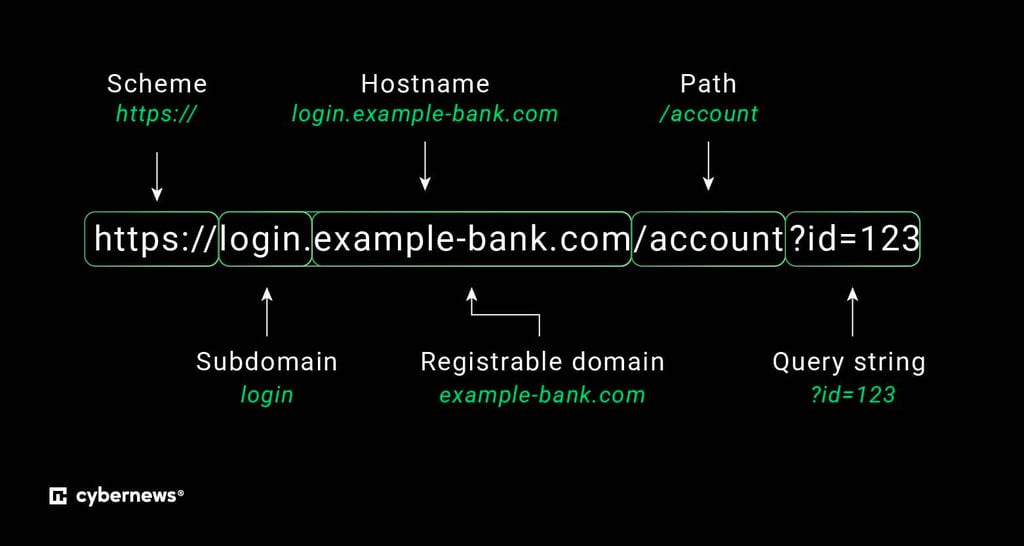
- “https://” is the scheme. It shows that the browser is attempting to use an encrypted HTTPS connection.
- “login.example-bank.com” is the hostname.
- “example-bank.com” is the registrable domain in this example. This is the key part to check when deciding who controls the website.
- “login” is a subdomain. A domain owner can create subdomains with almost any name.
- “/account” is the path to a page or resource.
- “?id=123” is a query string that passes information to the website.
When reviewing a link, first find the hostname: it appears after “https://” and ends at the next “/.” Then identify the registrable domain. For many addresses, this is the name immediately before “.com,” “.org,” or another public suffix. For example:
- login.example-bank.com is controlled by example-bank.com
- www.example-bank.co.uk is controlled by example-bank.co.uk
- paypal.com.account-verify.xyz is controlled by account-verify.xyz
So, as you can see in the last example, paypal.com is only part of a subdomain. The site is not operated by PayPal because the registrable domain is account-verify.xyz. This one trips up more people than you'd think, because we're trained to scan left to right.
Reading URLs this way also makes it easier to spot the URL tricks scammers rely on. The two most common are subdomain camouflage and typosquatting. In subdomain camouflage, a scammer places a familiar brand name at the start of a longer hostname, like in the PayPal example above, but when you read right to left, you find the actual registrable domain and not the first recognizable word. Typosquatting works differently: the address itself is altered with a small misspelling or character substitution, like arnazon.com, where "r" and "n" sit close enough together to read as "m," or amaz0n.com, where a zero stands in for the letter "o." Here’s what else to pay attention to:
- Lookalike characters. Internationalized domain names can use characters from other writing systems that resemble Latin letters. A browser may show some potentially deceptive domains in Punycode, which begin with “xn--.” Punycode isn’t inherently malicious, but an unexpected “xn--” address that resembles a familiar brand requires closer inspection.
- Unexpected brand-and-domain combinations. A familiar brand name paired with an unrelated or unexpected domain ending, or a long hostname packed with terms such as “secure,” “login,” “support,” and “verify,” can indicate impersonation. As such, the domain ending alone doesn’t establish whether a site is safe.
Before opening a link in an email, message, document, or social media post, preview its destination:
- On a computer, hover the pointer over the link without clicking it and check the URL shown by the browser or email client.
- On a phone, long-pressing a link shows the destination or a preview, depending on the app.
Check that the displayed link text matches the actual address: attackers can make a link appear to lead to one website while sending you to another. For sensitive services such as email, banking, payments, or government accounts, avoid message links when possible. Instead, use a saved bookmark or type the known address into the browser yourself.
2. Check HTTPS and the TLS certificate
Most likely, you already know that a website should have a padlock icon next to its address. Let’s see why that is and how much it actually signals of a website’s safety.
What HTTPS and TLS do
HTTPS is HTTP carried over TLS (Transport Layer Security), the modern successor to the obsolete SSL protocol. When your browser successfully connects to an HTTPS website, TLS helps provide:
- Encryption. It protects data sent between your browser and the website from being read by people or systems monitoring the network path.
- Integrity. It helps prevent traffic from being changed in transit without detection.
- Server authentication. The website presents a TLS certificate, and the browser checks whether the certificate is valid for the domain shown in the address bar and chains to a certificate authority it trusts.
For most websites, the certificate is domain-validated (DV). This means the certificate authority verified that the requester could demonstrate control of the domain (e.g., by placing a verification file on the site or adding a specific DNS record). However, it doesn’t verify that the domain belongs to a trustworthy business or that the website’s content is safe.
What the padlock doesn’t tell you
A padlock or other connection indicator means your browser established an encrypted HTTPS connection to the domain shown in the address bar. It doesn’t establish that the website is legitimate, safe, or operated by the organization it claims to represent.
Certificate authorities issue free, automated domain-validated certificates to anyone who can demonstrate control of a domain, and that includes scammers. For example, a phishing site at paypa1-login.com can obtain a valid certificate for paypa1-login.com if its operator controls that exact domain. The browser can then show a secure connection even though the domain isn’t PayPal’s official website. The lock icon in this case just means nobody's eavesdropping. It says nothing about who's on the other end.
The absence of HTTPS is still a real warning, though. Don’t enter passwords, personal information, payment card details, or other sensitive data on a page that uses plain HTTP. Browsers commonly mark HTTP pages as not secure, particularly when they contain sign-in or payment forms, although the exact warning varies by browser.
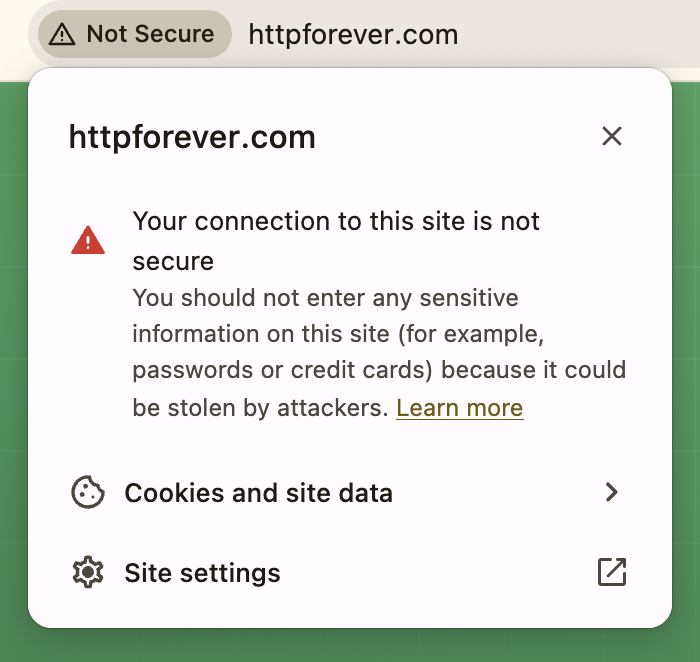
If your browser displays a full-page certificate warning, such as a message that the connection is not private, secure, or trusted, don’t bypass it to sign in or make a payment.
How to inspect a certificate
To inspect a certificate in many desktop browsers, select the site information icon to the left of the address bar. Depending on your browser, this may appear as a padlock, sliders, or another settings-style icon.
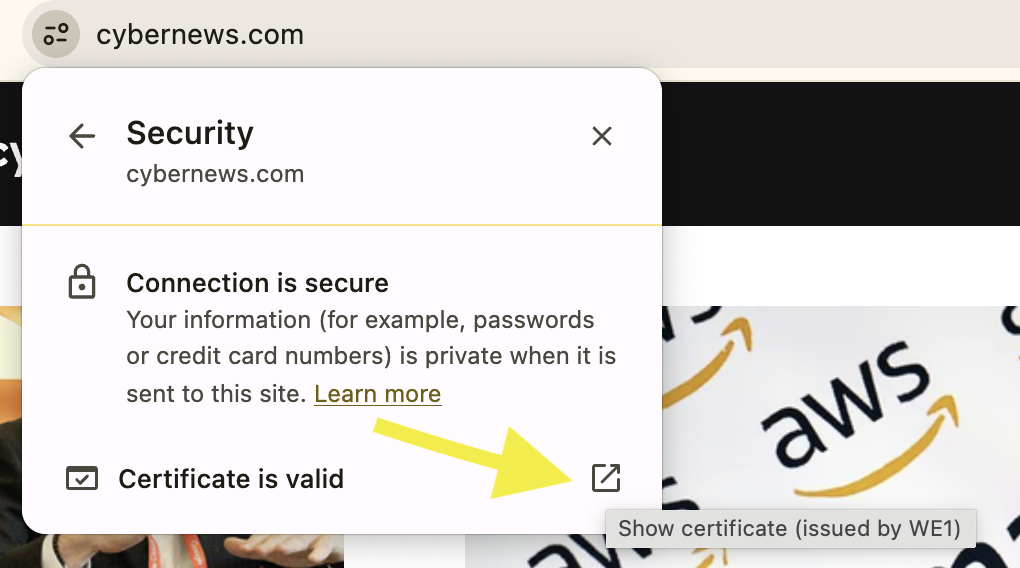
Open the connection or certificate details, then review:
- Domain names. Check the certificate’s Subject Alternative Names (SANs), and, where shown, its Common Name. The address you are visiting should be covered by the certificate. For a normal site visit, your browser performs this check automatically, and a mismatch normally produces a certificate warning.
- Validity period. Confirm that the certificate is currently valid. Don't treat a recent issue date as suspicious on its own – most certificates renew automatically every 60–90 days now, following the industry-wide phased reduction schedule with maximum validity dropping to 47 days by 2029.
- Issuer. The issuer identifies the certificate authority (CA) that signed the certificate. This can help with troubleshooting, but a recognized CA doesn’t prove a website is legitimate, since CAs can issue valid DV certificates for malicious domains as well.
- Organization information. Some organization-validated certificates include organization information. However, browser interfaces no longer emphasize this information as a general trust signal, so it shouldn’t replace checking the exact domain and other safety indicators.
While these are detailed, from personal experience, I can say I rarely look at the issuer or validity dates unless something else about the site has already made me suspicious. This is because the domain name check catches most of what matters.
3. Check the domain's background
A domain’s registration details can provide useful context, especially when a website claims to represent an established company. You can search an unfamiliar domain using a Registration Data Access Protocol (RDAP) or a WHOIS lookup service, such as ICANN Lookup, WHOIS Domain Lookup, or a registrar’s lookup page. ICANN’s tool uses RDAP, a newer protocol designed to replace traditional WHOIS lookups.
Enter only the domain name (e.g., cybernews.com, not the complete address) to see available details, such as the registration date, expiry date, registrar, and nameservers. Most of this is unremarkable – a domain registered eight years ago tells you almost nothing bad.
It’s worth being more cautious when a domain was registered only days or weeks ago but claims to belong to a long-established business, government service, or major retailer. A recently created domain promoting unusually steep discounts, urgent payment requests, or a well-known brand also deserves additional checks. However, domain age isn’t proof of safety or fraud: legitimate businesses can launch new domains, while scammers can use older domains that are purchased, hijacked, or repurposed.
Note that registrant details are often hidden by privacy services or redacted under data-protection rules. Hidden owner information alone, therefore, isn’t a meaningful sign of fraud. Treat registration data as one clue to combine with URL inspection, reputation checks, independently verified contact information, and safe payment methods.
4. Use URL scanners and reputation checkers
URL scanners and reputation checkers can assess a link before you open it in your own browser. To copy a link without visiting it, right-click it and select Copy link address on a computer or long-press the link and use the available copy option on a phone. Don’t copy or submit a URL that contains private information, such as a password-reset token, account identifier, private file link, or invitation code.
Common options fall into two groups:
- Tools that check a URL against known threat data. This first group works by lookup. Google Safe Browsing's Site Status tool lets you paste an address into its Transparency Report to see whether Google currently flags it as dangerous – the same data source behind warnings in Chrome and other supported browsers. Alternatively, VirusTotal pools results from dozens of security vendors at once, so you can weigh a single isolated detection against a page flagged by half a dozen engines. Vendor link checkers from premium VPNs and antivirus providers work the same way on a smaller scale: you paste in a URL, and it's compared against the provider's own threat database.
- Tools that actually load the page to see what it does. A tool like urlscan.io opens the submitted URL in a sandboxed environment and shows you a screenshot, the resources the page requests, and which domains it actually contacts. It’s useful if you want to see where a login form sends its data before you trust it.
Be careful what you submit, as some URL-analysis services store or share submitted links and scan results. Don’t submit URLs containing passwords, reset codes, personal details, private document links, or other confidential data.
A clean scan result means only that the service hasn’t identified the URL as malicious at the time of the check. Newly created phishing pages can operate for hours before any blocklist catches them. Conversely, a single detection doesn’t always confirm malicious activity – different tools can also disagree or produce false positives.
As such, I’d say only treat multiple detections, deceptive domains, browser warnings, and suspicious site behavior as reinforcing signals. One flag isn't a verdict, but several definitely are.
5. Recognize visual and behavioral signs of phishing
Technical checks are useful, but the page’s content and behavior can also reveal a scam. Here are the warning signs I suggest looking for:
- Mismatched domain names. The page is branded as one company, but the address belongs to another. This is the most reliable sign.
- Urgency, pressure, or threats. Messages such as "Your account will be closed in 24 hours" or “Pay now to avoid a fine” are designed to prompt you to act before you properly check the page.
- Unexpected credential requests. Be cautious when an email, text message, social media post, or pop-up directs you to a login page. Whenever you come across such a request, visiting the service through its official website or app is always a safer bet.
- Inconsistent design or writing. Misspellings, unusual grammar, inconsistent formatting, low-resolution logos, and copied or incomplete legal pages can indicate a phishing site.
- Fake-store markers. These typically include prices far below market value, no physical address, working contact details, or return policies, only unusual payment methods (e.g., wire transfers, gift cards, cryptocurrency that are difficult to reverse), and copied product descriptions.
- Unexpected download prompts. Treat pop-ups such as "Your browser is out of date" or "Download this security update" as suspicious, particularly on an unfamiliar website. Your only sources for legitimate software updates should be the developer’s official website and your device’s built-in update system or its official app store.
My main recommendation is simple: if a page feels suspicious, just close it.
What about missing security headers?
Security headers are instructions a server sends to browsers. For example, Strict-Transport-Security (HSTS) tells the browser to use HTTPS for future visits to the site and automatically upgrade HTTP requests to HTTPS, while Content-Security-Policy (CSP) restricts which sources the browser may use for scripts, styles, images, frames, and other resources.
You can inspect them in your browser's developer tools (go to the Network tab, then view the response headers for the main document) or with a free scanner such as securityheaders.com.
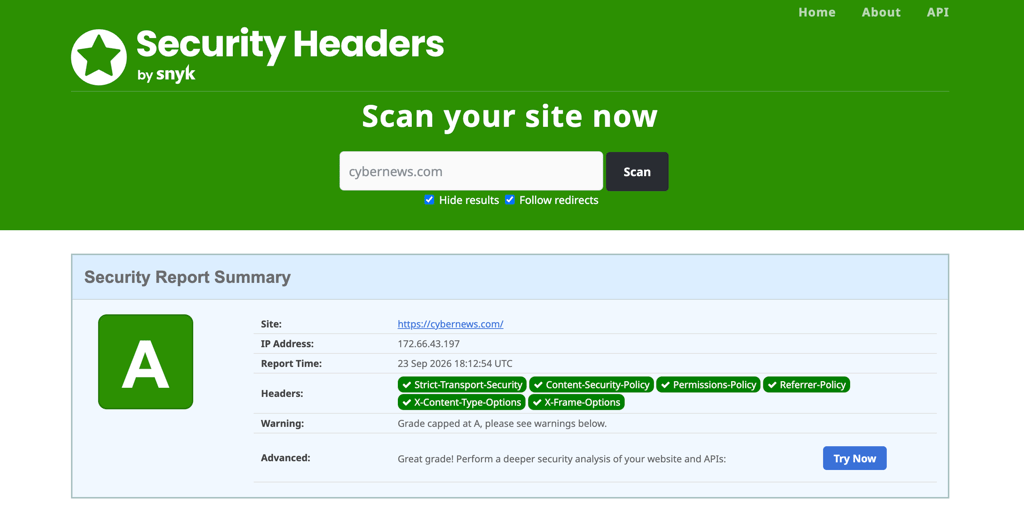
Missing headers indicate that a site owner hasn't hardened their configuration, which is a hygiene issue and can matter if you're evaluating a site that will handle sensitive data. While malicious attackers who build phishing pages rarely care about them, plenty of legitimate small sites skip them, too. As such, I’d take the presence or absence of headers as a weak indicator. Never as proof of legitimacy or fraud on its own.
6. Use automated protection
Manual checks are useful for suspicious links, but realistically, you won’t be inspecting every page you visit. Fortunately, you can add several automated layers that work in the background.
- Built-in browser protection. Chrome and Firefox use Google Safe Browsing data, Edge uses Microsoft Defender SmartScreen, and Safari has its own fraudulent-website warning. These show a full-page warning before loading known-dangerous sites. Make sure the setting is enabled (e.g., in Chrome, go to Settings → Privacy and security → Security, and choose Standard or Enhanced protection).
- DNS-level filtering. When your device looks up a domain name, a filtering DNS resolver can refuse to resolve domains on a malicious list. Public resolvers such as Quad9 and Cloudflare's malware-blocking DNS variant (1.1.1.2) do this.
- Security suites and VPN-integrated web protection. Many antivirus products and some VPN apps include a web protection feature. For instance, NordVPN's next-gen antivirus scans files during download and flags threats before they finish downloading, and it also automatically blocks known scam, phishing, and malware URLs.
I keep a couple of these running at once (browser protection plus DNS filtering) since none of them catches everything on its own. As such, whichever tool you use, remember that it complements your own checks rather than replaces them.
If you’ve already opened a suspicious site, do this:
- If you only opened the page, close it. If a download has started, don't open the file – run a scan with your security software.
- If you entered a password, change it immediately on the real site and anywhere else you reused it. Enable multi-factor authentication if available.
- If you entered card details, contact your bank or card issuer and ask about blocking or replacing the card.
- If you installed something, disconnect from the network, run a full malware scan, and consider a factory reset if the software can't be removed.
- Report it. Most browsers and Google Safe Browsing accept reports of phishing and malware sites, which helps protect others.
Final takeaways
No single check proves a website is safe – not the padlock, not a clean scan, not an old registration date. What works is layering a few of these checks together and paying attention to what actually asks you for money, credentials, or a download. Here’s my quick checklist:
- Read the domain right to left – check the registrable part, not just whatever brand name appears first.
- Confirm https://, but don't mistake the padlock for a trust seal. It only means the connection is encrypted.
- If a site claims to be established, a quick domain-age lookup can tell you otherwise.
- Run unfamiliar links through a URL checker before opening them.
- Watch for urgency, unexpected login requests, and branding that doesn't match the address.
- Keep at least two automated protection layers running, since none of them catches everything on its own.
- For anything sensitive, type the address yourself or use a saved bookmark instead of following a link from an email or message.