How to fix Netflix's "you’re using a VPN" error in 2026

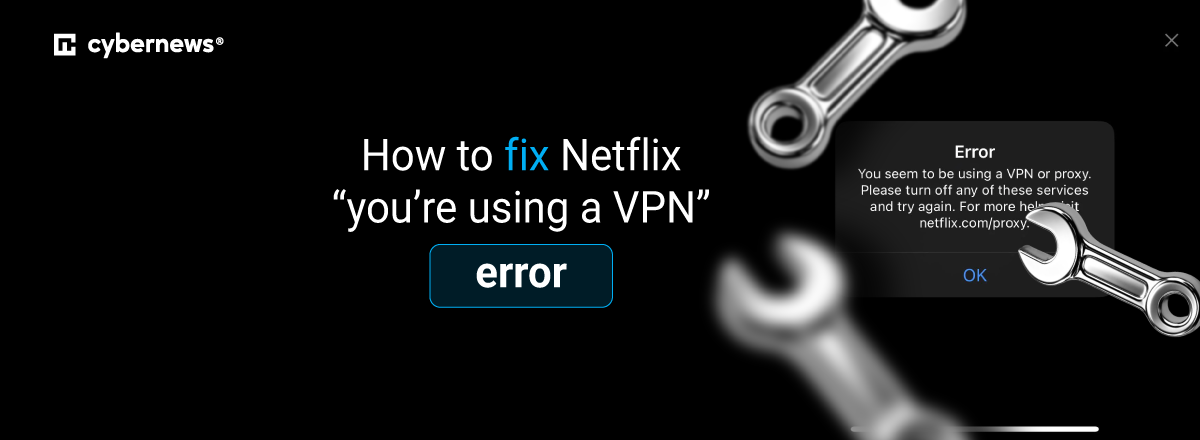
Here you are, ready to binge-watch the new second season of The Gentlemen after a day that definitely could have been shorter, only to see a Netflix error message saying "you seem to be using a VPN or proxy." It usually means that Netflix has flagged your connection as using a VPN, proxy, or similar service that masks or reroutes your IP address.
That can be expected if you have a VPN enabled, but it’s not always the case. Shared networks, certain ISP IP addresses, security tools like antivirus software, browser extensions, and custom DNS settings can also trigger the warning, i.e., a false positive.
Below, I explain why the Netflix VPN error appears in the first place and how to fix it, whether or not you use a VPN.
Netflix’s terms of service on VPN use
Before we move on to possible issues and troubleshooting, let’s cross-check VPN (and similar service) use against Netflix’s terms of service.
So, even though Netflix’s Terms of Use don’t specifically mention VPNs or proxies, it doesn’t mean these are fully allowed. Instead, the relevant rule is broader. Under section 1.5, “Access Limitations,” Netflix states that you may access content primarily in the country where you established your account, and only in locations where Netflix offers your plan and has licensed that content. The available content can vary by location because of legal restrictions and the rights granted by content providers.

What’s more interesting, Netflix's own support documentation, as well as its VPN/proxy error page frames VPN use in practical rather than punitive terms. It explains that a VPN can make your connection appear to originate elsewhere, and that, as a result, you may be limited to the subset of titles Netflix has worldwide licenses for (rather than your home region's full catalog) until the VPN is turned off.
Netflix also notes that VPNs aren’t supported for live events or for ad-supported plans. Besides, Netflix troubleshooting tips direct users with VPN-related connection questions to the VPN provider and/or ISP rather than handling them as an account enforcement matter.
Nonetheless, while the Terms of Use page doesn’t explicitly name VPN or proxy use as a ban-triggering violation, it’s important to note that Netflix’s Terms do reserve the right to restrict or terminate use for a violation of the Terms – in this case, account limitations described in section 1.5 mentioned above.
Why and how Netflix flags VPN and proxy connections
Netflix licenses content on a country-by-country basis. To enforce those licensing agreements, it actively tries to detect and block connections that appear to be masking a user's real location.
When Netflix detects a VPN, proxy, or another connection setup that appears to hide or change your location, it may display a message such as: “Looks like you're connecting through a VPN, proxy, or ‘unblocker’ service. To start watching, please turn off any of these services and try again.” Depending on the device and the version of Netflix you use, it can be accompanied by an error code such as E106, M7111-5059, or, like in my case, M7037-1111-420.
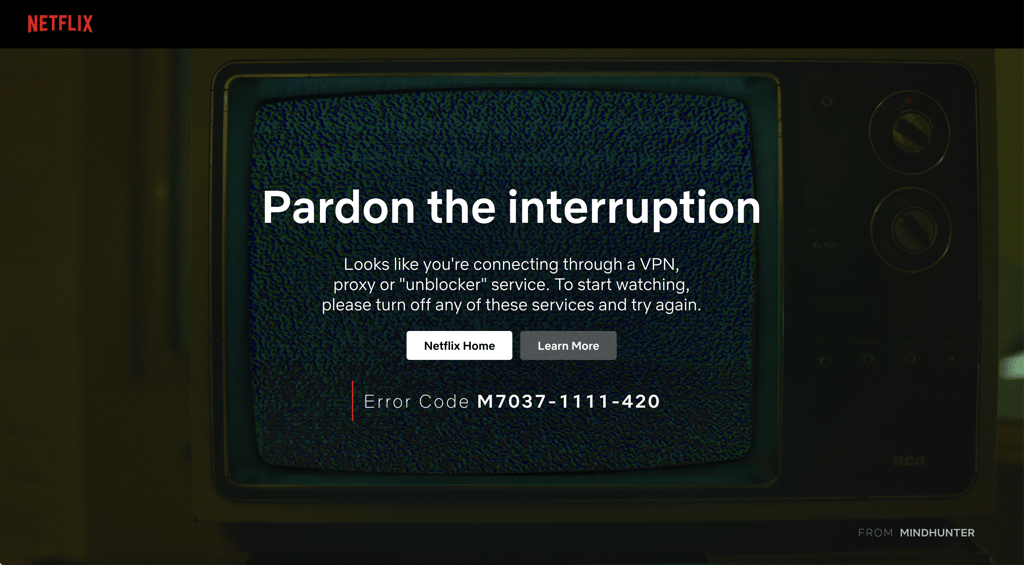
Netflix doesn’t disclose all the signals it uses to detect VPNs and proxies. In practice, the error most often comes down to the reputation and type of IP address Netflix sees, or to a network setup that makes your location appear inconsistent. Below are a few possible options.
Data-center and commercial IP addresses
A VPN server often uses an IP address leased from a hosting provider or data center, rather than one assigned to a household by a consumer ISP. These networks can be identified through their Autonomous System Number (ASN), which in turn identifies the organization that operates an IP range.
An IP address associated with a hosting company, cloud platform, VPN provider, or proxy service is more likely to be flagged than a typical residential IP address. As such, if Netflix has identified an IP address as part of a VPN or proxy network, connecting through it can trigger the error.
Shared IP address overuse
Most consumer VPNs use shared IP addresses, so many subscribers could be connecting to Netflix through the same public IP address. If that IP address becomes associated with VPN or proxy traffic, Netflix can flag it, meaning every user connected through the same server may see the error.
This is one reason switching to a different VPN server can sometimes be a quick fix: the new server may use an IP address that Netflix hasn’t flagged.
Location inconsistencies
A connection can appear inconsistent when different traffic types take different routes. For example, a VPN app, browser extension, custom DNS service, Smart DNS setup, or split tunneling may not route every connection in the same way. When Netflix cannot reliably determine the origin of a connection, it may display a VPN or proxy error.
Custom DNS and DNS leaks
A VPN normally routes your browsing traffic, and often your DNS requests, through its encrypted tunnel. If those requests bypass the tunnel, your device may use a different DNS service, creating a DNS leak. Manually configured DNS, Smart DNS, router-level DNS filtering, and browser-only VPN extensions can also route DNS traffic differently from the rest of your connection.
That doesn’t necessarily trigger Netflix’s VPN/proxy error, since Netflix doesn’t publicly disclose whether it directly checks for DNS leaks. However, inconsistent DNS and VPN settings can cause streaming problems. In my testing, changing to custom DNS settings while connected to a VPN eventually triggered the Netflix VPN/proxy error, which I’ve attached a screenshot of above.
Step-by-step basic troubleshooting
To resolve Netflix’s VPN/proxy error, I suggest you start with the simplest checks, then move on to VPN, DNS, and network settings. Not every step applies to every device: browser-specific fixes won’t affect the Netflix app, and advanced DNS or IPv6 changes are best used only if the earlier steps don’t work.
If you got a false positive and don’t intend to use a VPN for streaming purposes, first ensure that any VPN, proxy, Smart DNS service, privacy relay, or work/school network connection is turned off. Netflix states the error means your device or network is connecting through a VPN or proxy service and recommends disabling it before trying again.
Step 1: clear Netflix site data and browser cache
If you watch Netflix in a browser, clear Netflix cookies and cached files, then fully close and reopen the browser. This signs you out and removes stored site data that may be interfering with a fresh connection. Here’s how to do it on your browser:
- Chrome and Edge: Go to Settings → Privacy and security → Delete browsing data. Select Cookies and other site data and Cached images and files, choose an appropriate time range, then click Delete data.
- Firefox: Go to Settings → Privacy & Security → Cookies and Site Data → Clear Data.
- Safari: Go to Safari → Settings → Privacy → Manage Website Data, search for Netflix, then remove the matching data.
For the Netflix mobile or TV app, force-close the app and restart the device. If the problem persists, check Netflix’s device-specific troubleshooting steps before clearing app data or reinstalling the app, since those actions can sign you out and remove downloads.
Step 2: disconnect and reconnect the VPN
If you are intentionally using a VPN, fully disconnect it, wait a few seconds, then reconnect. This establishes a new VPN session and confirms that the app has correctly applied its current settings.
If Netflix works with the VPN off but fails after you reconnect, the VPN server or its IP address is the likely issue, not your Netflix account.
Step 3: try another VPN server
VPN providers often use multiple IP addresses in each location. One server may use an IP address Netflix has recognized as VPN-related, while another may work normally. As such, connect to a different server in the same country and test Netflix again. I’d try two or three servers before changing more advanced settings. This usually does the trick, so hopefully, your troubleshooting ends with this step.
Some providers already have standard servers optimized for streaming, like NordVPN, which automatically enables SmartPlay technology to hide your IP address. However, if your provider offers servers labeled for streaming, you might need to connect to these manually before you try Netflix again.
Step 4: restart the streaming device and router
Restart the device you use for Netflix, then restart your modem/router if possible. Leave the router unplugged for roughly 30 seconds before powering it back on. This can refresh local network connections and clear temporary routing problems.
Depending on your ISP, reconnecting may also assign a different public IP address.
Step 5: return DNS settings to automatic
Custom DNS settings can conflict with a VPN’s built-in DNS handling. This is especially worth trying if you use manually configured DNS, Smart DNS, encrypted DNS, Pi-hole, AdGuard Home, NextDNS, router-level filtering, or a VPN browser extension. Temporarily set the device's or router’s DNS settings back to Automatic or DHCP, then disconnect and reconnect the VPN before testing Netflix again.
Step 6: flush the local DNS cache
Move to this step only after returning DNS settings to automatic or changing DNS servers. This clears locally cached domain name records, so your device requests fresh answers from its active DNS resolver. However, it doesn’t change your public IP address or remove an IP-level VPN block.
Here’s how to flush the local DNS cache on your operating system:
- Windows: Open Command Prompt and run “ipconfig /flushdns.”
- macOS: Open Terminal and run “sudo killall -HUP mDNSResponder.”
- Linux systems using systemd-resolved: Run “sudo resolvectl flush-caches.”
Step 7: check for conflicting connection tools
Temporarily disable other tools that can reroute or filter network traffic, then test Netflix again. Here are a few examples to look out for:
- VPN or proxy browser extensions
- Second VPN running at the operating-system, antivirus, router, or work-profile level
- Smart DNS services
- Privacy relays and secure-DNS tools
- Ad blockers or security suites with HTTPS scanning, web protection, or proxy features
- Work, school, hotel, or public Wi-Fi network that routes traffic through its own gateway
I’d suggest re-enabling these tools one at a time once Netflix works. That makes it much easier to identify the conflicting setting.
Step 8: try another network
If possible, try Netflix on a different connection, such as mobile data, another trusted Wi-Fi network, or a phone hotspot. Do this with the VPN turned off first if you are troubleshooting a false positive.
Here’s how it might play out:
- If Netflix works on the second network, your original home, work, school, hotel, or public network is the likely source of the problem.
- If it fails on every network and every device, the issue may be tied to the account, the app, the device configuration, or a broader Netflix service issue.
- If it works with the VPN off but not on, the VPN server or its IP address is the most likely cause.
Step 9: test DNS and browser IP leaks
If you’re watching Netflix in a desktop browser while using a VPN, run a DNS leak test and an IP/WebRTC leak test while connected to the VPN. These tests show whether your browser reveals your normal connection details alongside your VPN connection.
If the results show your usual ISP, home IP address, or DNS servers instead of those used by your VPN, it means that your VPN may be leaking information outside its encrypted tunnel. That can create conflicting location signals: Netflix sees the VPN’s IP address for some traffic, but your normal network details for other traffic.
Start by opening your VPN app and enabling its DNS Leak Protection (alternatively, this setting can be listed as DNS protection, Use VPN DNS, or similar). Then reconnect the VPN and run the tests again. If the leak is gone, try Netflix once more.
If an IP/WebRTC test still exposes your real IP address, temporarily disable WebRTC in Firefox to check whether it is responsible. Type “about:config” in Firefox’s address bar, search for “media.peerconnection.enabled,” and set it to false. This turns off a browser feature used for real-time voice, video, and peer-to-peer connections, so re-enable it later if it doesn’t fix the Netflix error.
Chrome and Edge don’t offer the same simple built-in setting. You can use a reputable WebRTC-control extension as a temporary test, but check its permissions before installing it and remove it if it makes no difference.
Step 10: test IPv6 only if needed
If the error persists after trying the previous steps, test whether IPv6 is involved. Netflix supports native IPv6 connections supplied by an ISP, but that an IPv6 connection tunneled over an IPv4 network can cause a proxy-related error.
Temporarily disable IPv6 on the device or router, reconnect the VPN, and test Netflix. If it solves the problem, update or reconfigure the VPN, router, or tunnel setup rather than leaving IPv6 disabled indefinitely.
- To do this on Windows, go to Network & Internet → Advanced network settings → More network adapter options → right-click the active connection → Properties → and clear the Internet Protocol Version 6 (TCP/IPv6).
- In macOS Settings, go to Network, open the active Wi-Fi or Ethernet connection, choose Details…, and look for its IPv6 configuration. Use a Temporary Off, Link-Local Only, or equivalent diagnostic setting if your macOS version and network configuration support it.
Advanced solutions
If the basic steps don’t work, the problem may be related to the VPN server’s public IP address, the way the VPN routes traffic, or another network setting that conflicts with the connection. Let’s move to more advanced fixes.
Switch VPN protocols
A VPN protocol controls how the VPN app creates and maintains its encrypted connection. Common options include OpenVPN, WireGuard, and provider-specific implementations such as NordLynx, NordVPN’s custom WireGuard-based protocol, and ExpressVPN’s proprietary Lightway.
Changing protocols can help when the issue involves local network filtering, unstable connections, DNS handling, or a compatibility problem between the VPN app and the network you’re using. It’s less likely to help if Netflix has already identified the particular server IP address as VPN-related, because changing protocols doesn’t necessarily change that exit IP address.
In your VPN app, open its connection or protocol settings and try another available option. For example, here’s how the protocol selection settings look with NordVPN:
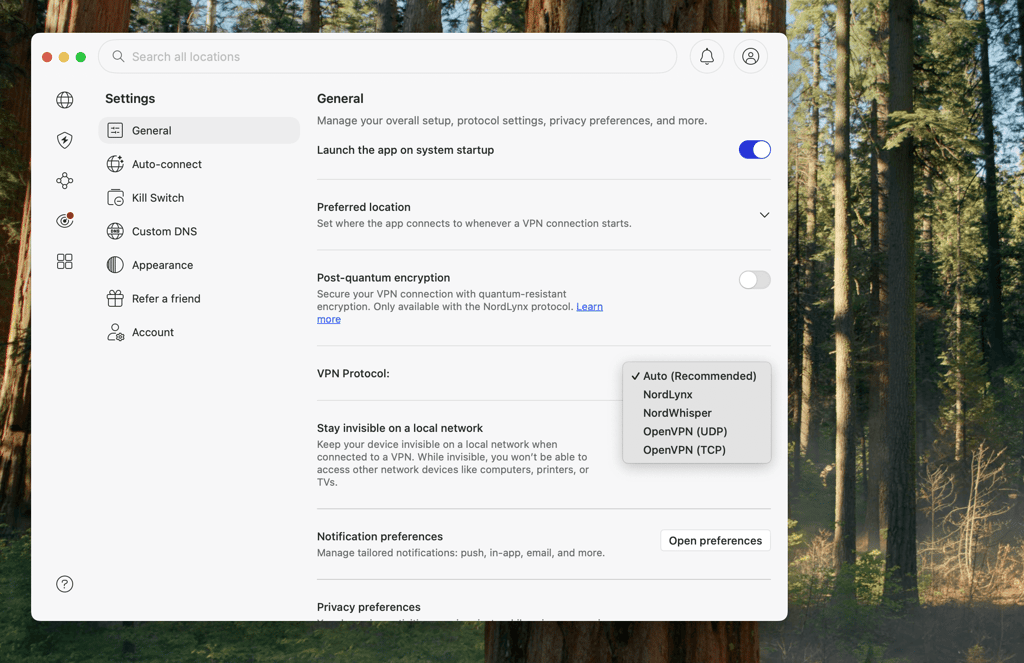
Reconnect to the VPN and retest Netflix after each protocol change. Remember to change only one variable at a time so you can identify what, if anything, resolves the error.
If your provider offers an obfuscated or stealth mode, you can try that as well. Obfuscation modifies the externally visible characteristics of VPN traffic, making it harder for a network to classify it. However, obfuscation protocols/servers often come with slower speeds, which, depending on your baseline home connection speed, might not be ideal.
If you keep changing protocols and several servers fail, contact the VPN provider and ask whether it has a recommended server location or IP pool you can test.
Use a dedicated (static) IP address
A dedicated IP address is an address assigned to one customer rather than shared with other VPN users. For example, NordVPN describes its Dedicated IP add-on as an IP address that belongs solely to the subscriber and is not shared with others connected to the same VPN server.
A dedicated IP address may reduce problems caused by using a heavily shared VPN exit address. To use one, check whether your chosen VPN for Netflix offers a dedicated IP address as an add-on – these are usually charged extra. With NordVPN, Surfshark, and ExpressVPN, dedicated IP addresses are available to all subscribers, while Proton VPN, for example, only offers this with its Business plans.
Available locations vary depending on the provider, but once you do get a dedicated IP, the setup is really simple:
- Choose an available location
- Activate the service through your provider
- Select the dedicated IP address location within the VPN app to connect
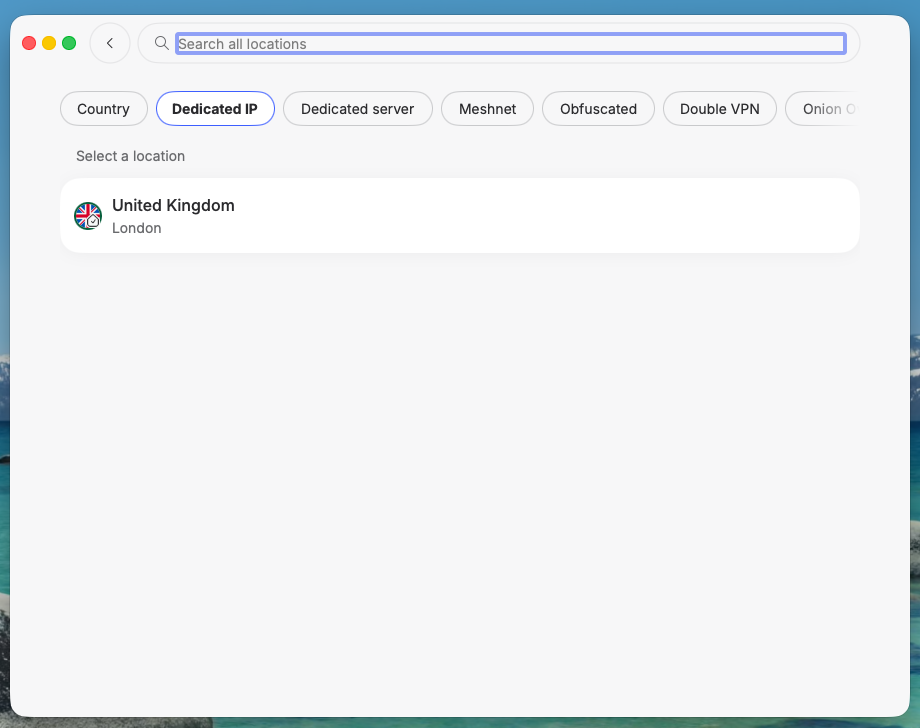
For example, NordVPN has a separate tab for these among its server categories:
Consider a residential IP address or proxy
Residential proxies route your traffic through IP addresses that belong to real home internet connections, not data centers. Since they look like ordinary household traffic rather than VPN traffic, they're less likely to be flagged by Netflix's detection systems, which is why some people turn to them when regular VPN servers keep getting blocked.
That said, there are real reasons to be cautious before using one:
- Consent is often unclear, as these networks usually work by using other people's devices as exit points, often through an SDK bundled into free apps, so someone's phone or computer relays your traffic without necessarily realizing it.
- Your traffic passes through a stranger's device, not infrastructure that the provider directly controls.
- Connections are unreliable, since a home device can go offline at any time.
- It's still not a guaranteed fix – Netflix can flag unusual activity on a residential IP address, too.
Overall, residential proxies are typically built for business uses like web scraping or ad verification, not everyday streaming. If you're weighing whether to set one up anyway, I recommend checking the provider's consent practices and security policies first, and treating it as a last resort.
Test your connection systematically
As you can see, there are many quick fixes and more advanced methods you can try to get rid of Netflix’s “you’re using a VPN” error. For this reason, instead of changing several settings at random, use a simple baseline-and-variable method: test Netflix after each individual change and record the outcome.
- Disconnect the VPN and confirm whether Netflix plays normally on your regular connection. If it does, the VPN or a VPN-adjacent setting is the likely cause.
- If you use custom DNS, Smart DNS, a VPN browser extension, or a privacy relay, temporarily disable it or revert DNS to automatic.
- Connect to a VPN server in your intended country.
- Open Netflix in a private/incognito browser window, or fully restart the Netflix app, and try playing a title instead of just loading the home page.
- If Netflix displays the VPN/proxy error, switch to a different server in the same country and repeat the playback test.
- Try two or three more servers before changing another variable.
- Change the VPN protocol, reconnect to an untested server, and repeat the same playback test.
- If you use a desktop browser, run DNS and IP/WebRTC leak tests. Correct any configuration problems before testing Netflix again.
- If shared servers consistently fail, consider a dedicated IP as an optional paid test, or contact your VPN provider for a different location or server pool.
- Keep a short log that includes the date and time, device, network, server location/name, protocol, DNS settings, and result. A simple record makes results reproducible and gives the provider’s customer support enough information to investigate than just saying “Netflix doesn’t work with my VPN.”
How to avoid the Netflix error in the future
Once Netflix is working again, I recommend you stick to a few consistent practices to reduce the chances of seeing the VPN/proxy error in the future. Keep your network setup as simple and consistent as possible. The aim is to avoid accidental proxy settings, conflicting DNS services, and other connection changes that can make Netflix misread where your traffic is coming from.
- Use a trusted network when possible. Your home connection is usually easier to troubleshoot than public, work, school, or hotel Wi-Fi, which may use shared routing, filtering, or proxy-like network configurations.
- Avoid overlapping privacy and routing tools. Don’t run a VPN alongside another VPN, a proxy extension, a Smart DNS service, a privacy relay, or an antivirus web-protection feature unless you have confirmed they work together. Multiple tools can send different traffic through different routes.
- Keep DNS settings consistent. If your VPN manages DNS, leave device and router DNS settings on Automatic unless you have tested a custom resolver with that VPN. If you use custom DNS, Smart DNS, Pi-hole, NextDNS, or router-level filtering, change one setting at a time and test Netflix afterward.
- Check for unwanted proxy settings. Review your device’s network or proxy settings if the error appears while you are not using a VPN. Turn off automatic proxy detection, configuration scripts, or manually entered proxy-server details that you don’t recognize or no longer need.
- Keep Netflix and your devices updated. Update the Netflix app, browser, operating system, and VPN app. Updates can resolve compatibility bugs, improve network handling, and ensure you are using a supported browser or device configuration. Netflix recommends updating browsers and devices when streaming problems occur.
FAQ
Why does Netflix say I am using a VPN when I am not?
Netflix can show this message when your device or network appears to connect through a VPN, proxy, or similar service. The cause may be a work or school network, a browser proxy extension, Smart DNS, custom DNS, a privacy relay, antivirus web protection, an IPv6 tunnel, or an ISP-assigned IP address associated with proxy-like traffic.
Can I watch Netflix with a VPN?
Yes, you can watch Netflix while a VPN is connected, but Netflix may restrict what you can watch or display a VPN/proxy error if it detects the connection. Note that using a VPN to access content outside the location in which you established your account also conflicts with Netflix’s location-based access limitations.
Why does my VPN work with Netflix sometimes but not always?
VPN providers use many servers and IP addresses. One server may work while another triggers the proxy/VPN error because Netflix may treat their respective IP addresses differently.
Does clearing cookies fix the Netflix VPN error?
Yes, clearing cookies can help when the problem is limited to a browser session or to Netflix site data stored locally, particularly after changing servers or network settings. However, clearing cookies doesn’t change the public IP address Netflix sees and thus won’t resolve an IP-level restriction on its own. You will also need to sign back in afterward.
Does changing DNS fix the Netflix proxy error?
Yes, it can, particularly if you use custom DNS, Smart DNS, router-level filtering, or a VPN that manages DNS itself. Temporarily set DNS back to automatic, reconnect the VPN, and test Netflix. Flushing the local DNS cache afterward ensures the device uses fresh DNS records.
Will a dedicated IP address work with Netflix?
A dedicated IP address gives you an address that is not shared with other VPN service customers. This may reduce problems caused by heavily shared VPN IP addresses, but it’s not a guarantee: the IP address can still be associated with a VPN or data center network and may still be restricted.
What should I do if Netflix still says I am using a VPN?
Test Netflix on a different device and network, with all VPN, proxy, Smart DNS, custom DNS, and browser-extension tools disabled. If Netflix works on another network, your usual network or ISP may be the issue. If it works without the VPN but fails across multiple VPN servers, contact the VPN provider with your server names, protocol, device, DNS configuration, and the exact Netflix error code. If the error appears even on a normal connection with no network-altering tools active, contact Netflix or your ISP.