How to install IPVanish on Amazon Fire Stick
Our in-house cybersecurity experts and journalists, renowned for major reports like The Mother of All Breaches, conduct transparent, unbiased VPN testing and in-depth analysis.
With 750+ articles crafted based on real-world research, we empower readers to make informed purchasing decisions through first-hand expertise.
Learn more
The Amazon Fire Stick is a popular tool for streaming content using various apps and services. Adding a VPN such as IPVanish to your Fire Stick setup allows you to access content securely and helps protect your privacy when streaming online. This is especially helpful if you are traveling and need to maintain access to your usual services or if you want to reach content not currently offered in your location.
Using IPVanish with your Fire Stick also provides additional security by masking your IP address. It is important to note that IPVanish requires a Generation 2 Fire Stick or newer to function properly. First-generation devices are not supported.
This guide will walk you through the process of installing IPVanish on your compatible Fire Stick device, step by step.
Install IPVanish on Fire Stick: a quick guide

- Sign up for an IPVanish subscription on the VPN's official website
- Select the IPVanish app from the search results
- Click Download or Get to install the IPVanish app on your Fire Stick
- Log in with your credentials and connect to a VPN server of your choice
- Once connected, you can stream securely with your Fire Stick as usual
Why choose IPVanish to unblock Amazon Fire Stick devices?
IPVanish is a leading choice for Amazon Fire Stick users who want secure, fast, and private streaming. Here’s why it stands out:
- Native Fire Stick app. IPVanish offers a user-friendly app optimized specifically for Fire Stick (Gen2 or newer), which makes setup and daily use straightforward even for beginners. Installation is seamless via the Amazon Appstore.
- Fast streaming and unlimited bandwidth. With consistently high speeds and no data caps or bandwidth limits, IPVanish easily supports HD and even 4K streaming, so you’re less likely to encounter buffering or interruptions while watching your favorite content.
- Extensive server network. IPVanish gives you access to more than 3,400 servers in over 112 locations, making it simple to bypass geo-restrictions and access streaming libraries or apps not available in your region.
- Strong security and privacy. Your data is protected with robust encryption and a strict zero-logs policy. IPVanish hides your IP address, provides secure protocols (including WireGuard), and includes extra security measures like a kill switch, letting you stream with confidence.
- Risk-free trial. While IPVanish doesn’t offer a general free trial for Fire Stick, all subscription plans include a 30-day money-back guarantee. You can test IPVanish on your Fire Stick risk-free during this period and get a refund if it’s not right for you.
With these advantages, IPVanish gives Fire Stick users a reliable way to unlock more content, keep streaming activities private, and enjoy smooth HD streaming from virtually anywhere.
How to Install IPVanish on Fire Stick or Fire TV
There are two main ways to install IPVanish on your Amazon Fire Stick or Fire TV. Before starting, make sure your device is a Gen2 Fire Stick or newer.
Method #1: install IPVanish from the Amazon App Store
This is the easiest and most reliable method for most users.
-
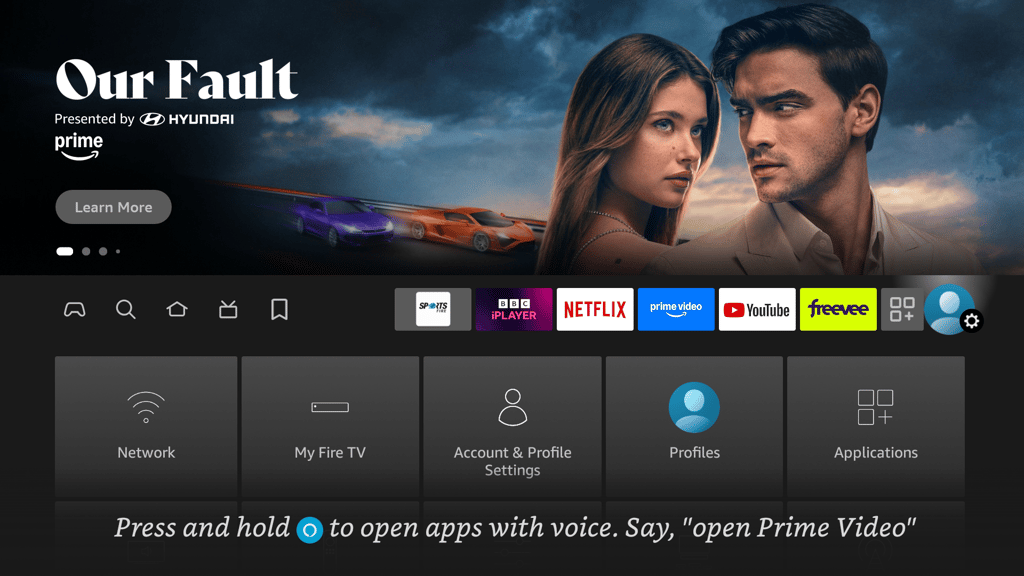
On your Fire Stick home screen, select the Search option
-
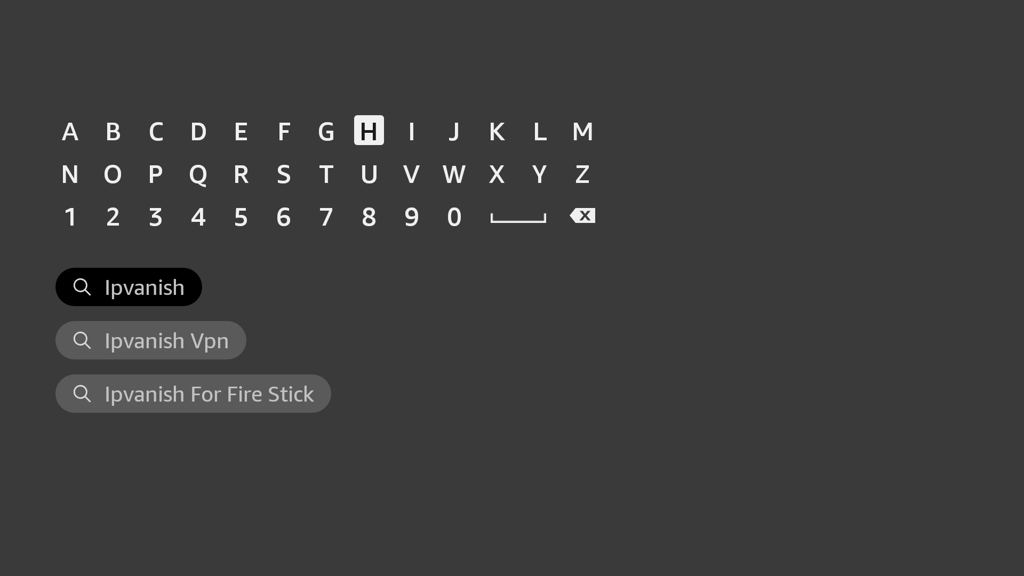
Search for the IPVanish app in the search window
-
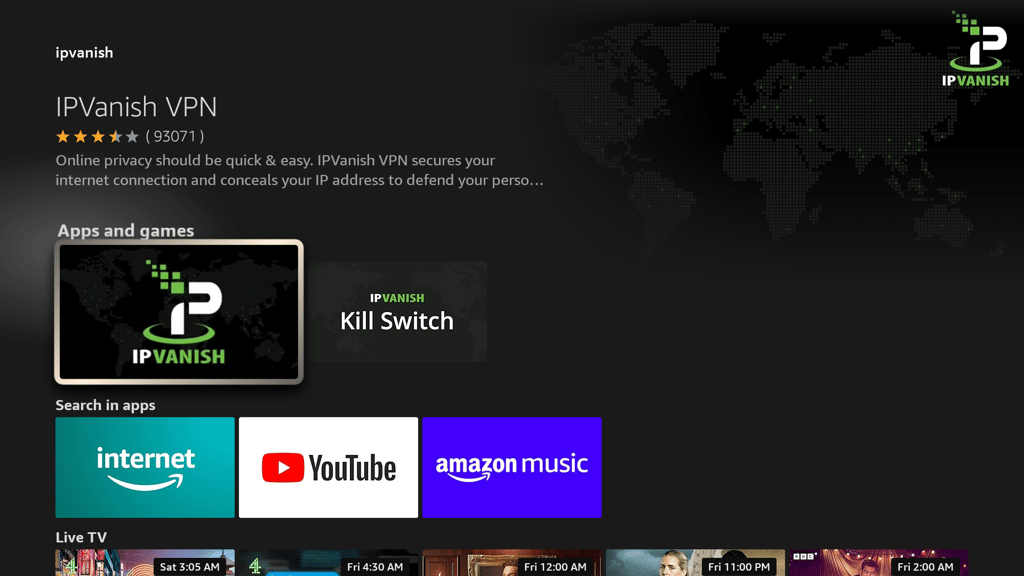
Pick the IPVanish app from the Apps and games selection – it should be the top selection
-
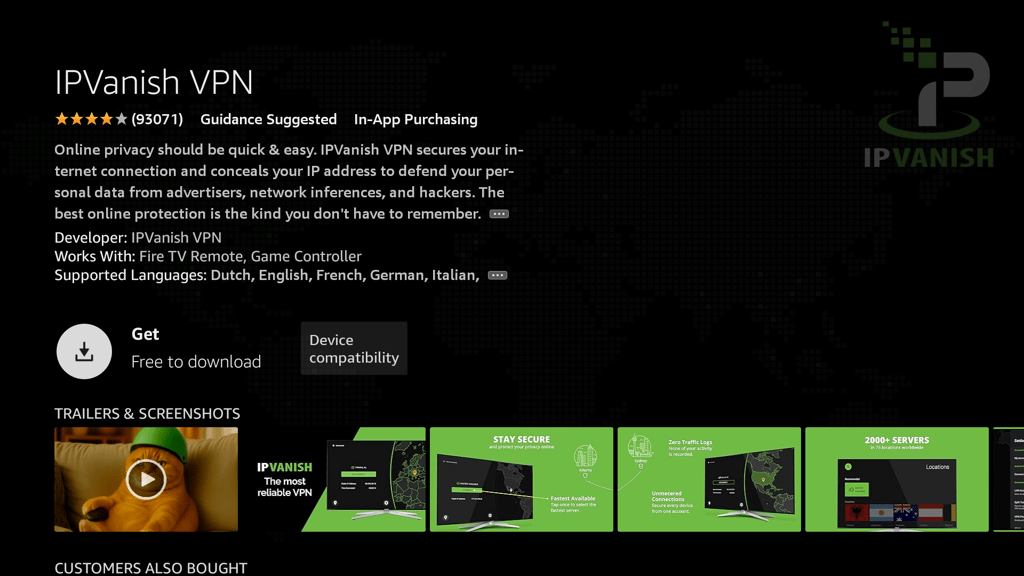
Select Get to download the IPVanish app to your Fire Stick
-
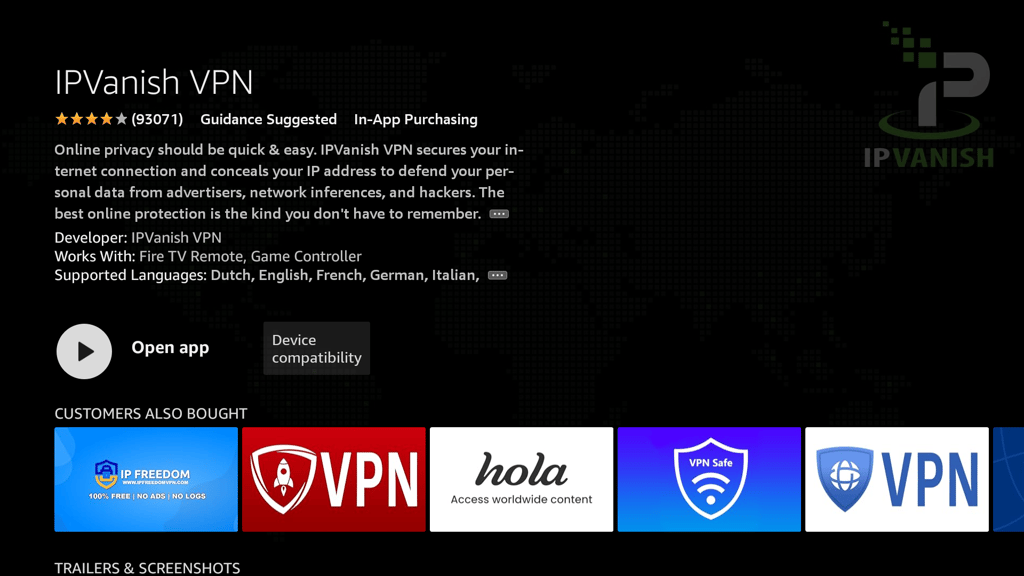
When the VPN is installed, select Open app
-
You should now see the IPVanish home screen. Going forward, you can access IPVanish at any time by finding it in the Apps section on your Fire Stick home screen.

-
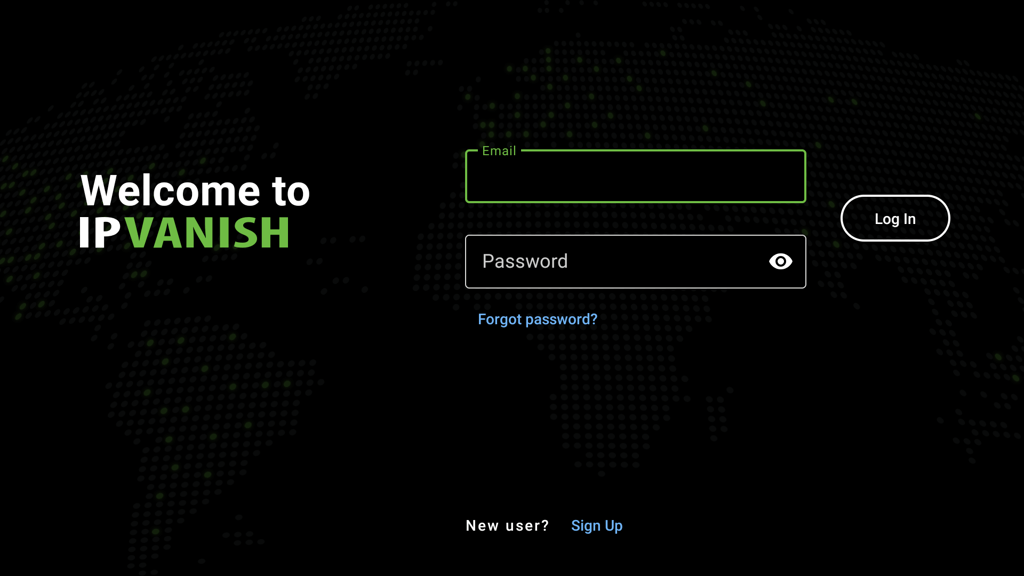
When you reach the IPVanish home screen for the first time, existing subscribers should choose Log In to enter their account details. If you’re new to IPVanish, select Sign Up to create a new account directly from your Fire Stick.
-
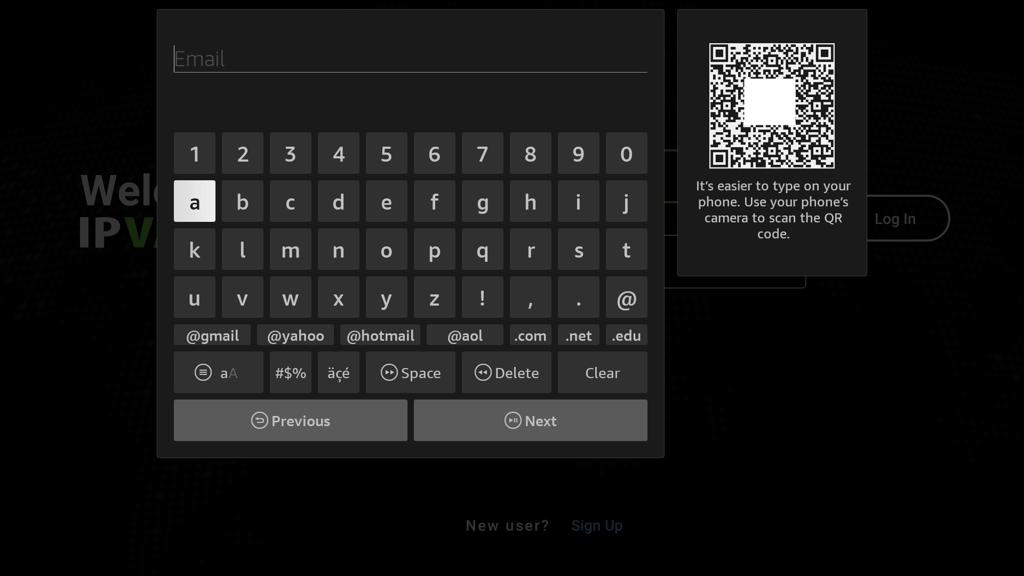
Enter your IPVanish username and password, then log in to your IPVanish account
-
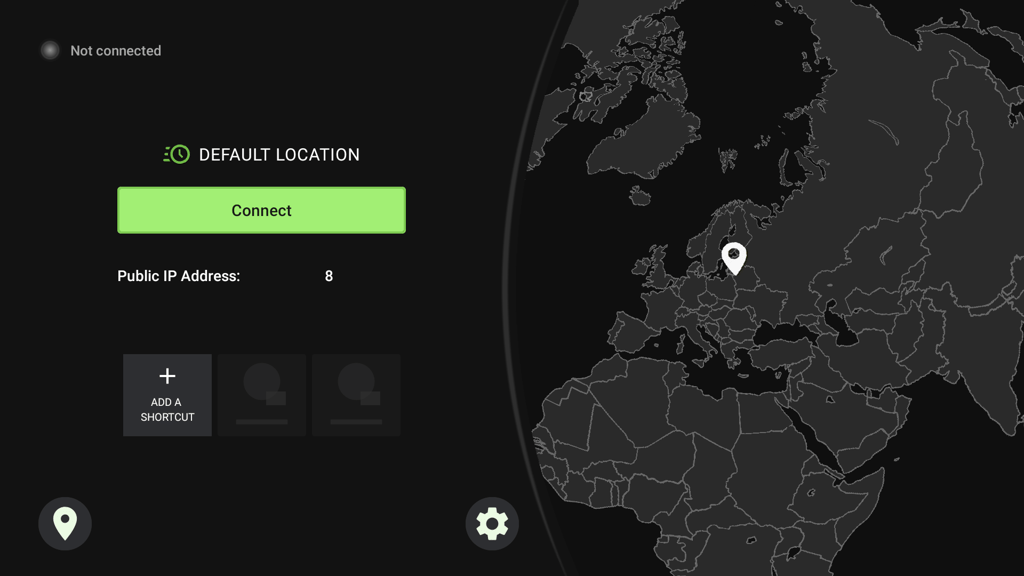
To activate your VPN, select Connect
-
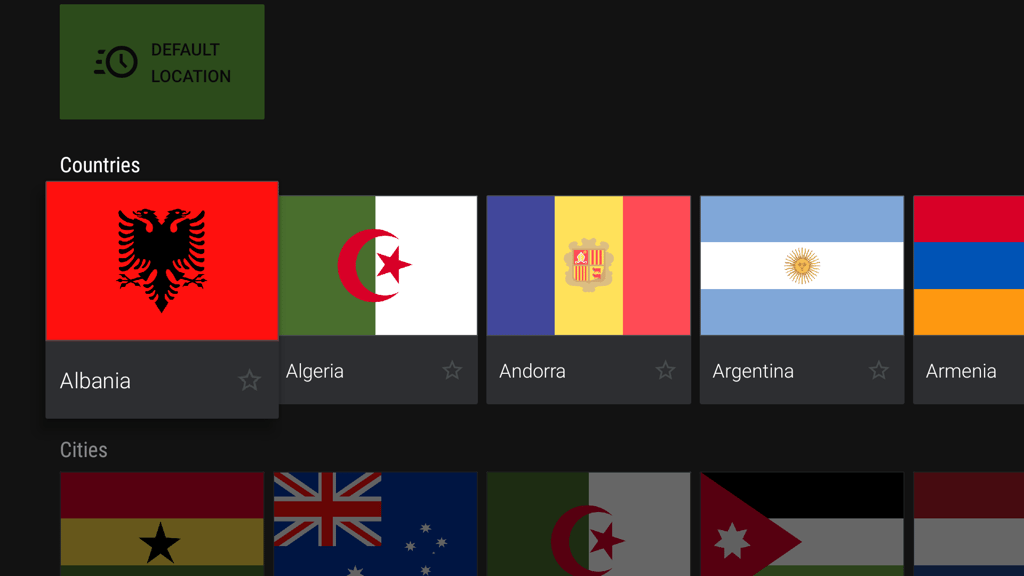
Select the VPN location or server you want to use
-
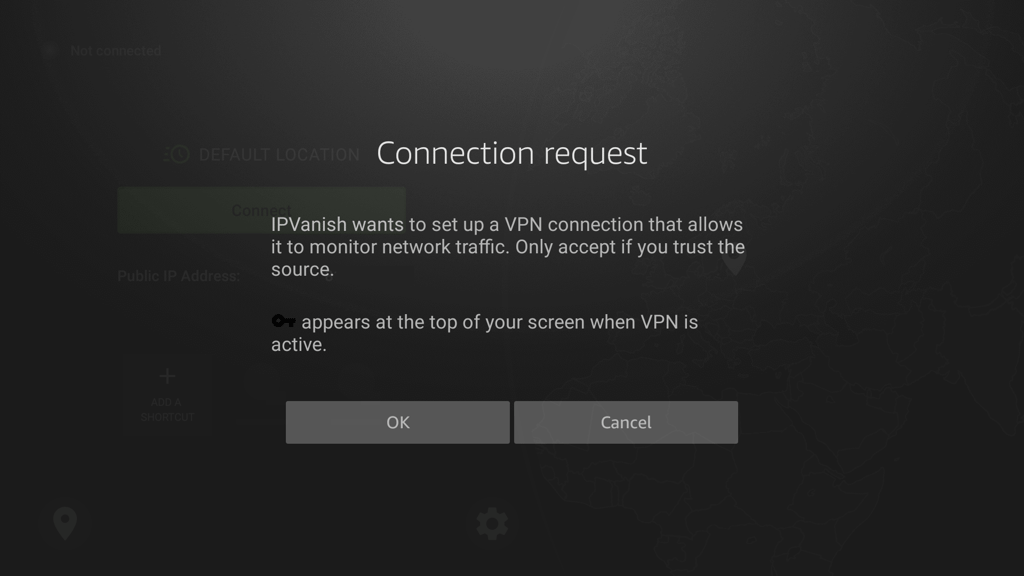
Approve the connection request by clicking OK when prompted. Once IPVanish is active, you’ll see a dark key icon at the top of your Fire Stick screen to indicate the VPN is connected.
Method #2: how to Install the IPVanish APK on Fire Stick
While most users can now install the native IPVanish app directly from the Amazon App Store, you can also sideload the IPVanish APK as an alternative method, especially if the app isn’t available in your region. This process is still supported and can give you access to the IPVanish network on your Fire Stick or Fire TV.
-
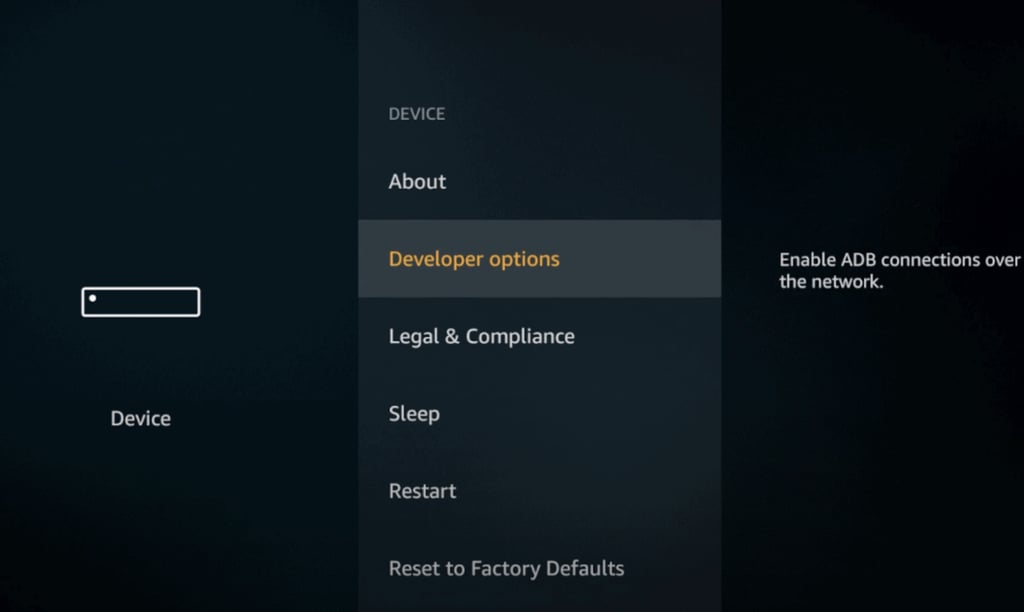
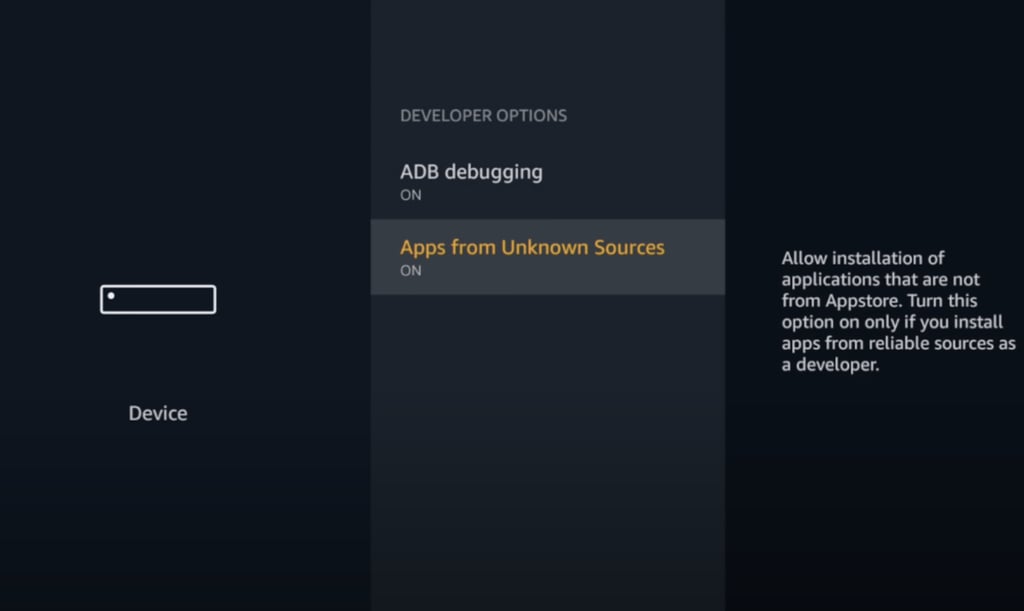
From your Fire Stick home screen, go to Settings > My Fire TV > Developer Options
-
Turn on ADB debugging and allow Apps from Unknown Sources
-
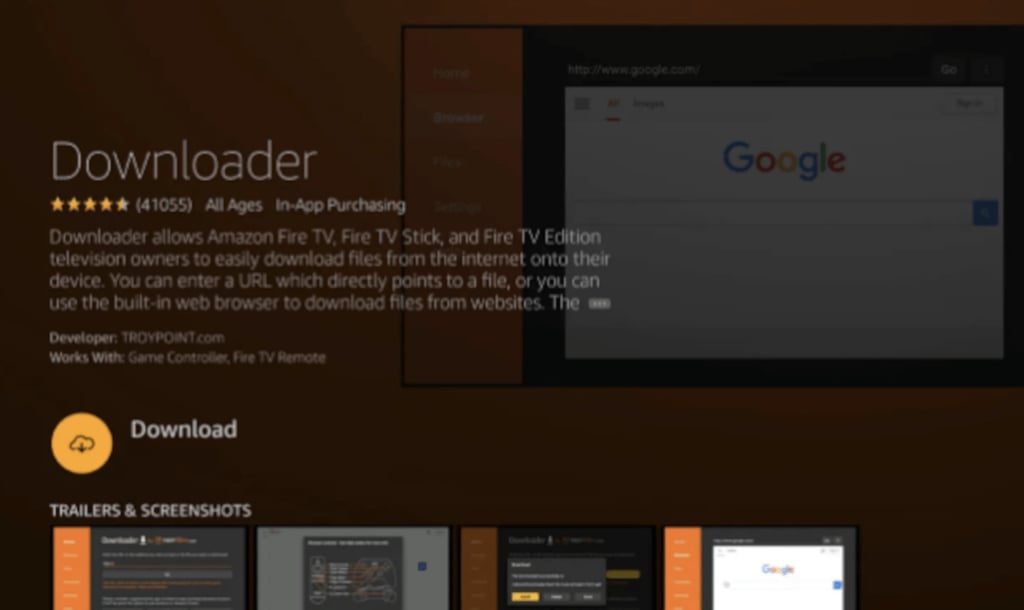
Return to your Fire Stick home screen, go to the Find or Search option, and search for the Downloader app to install it
-
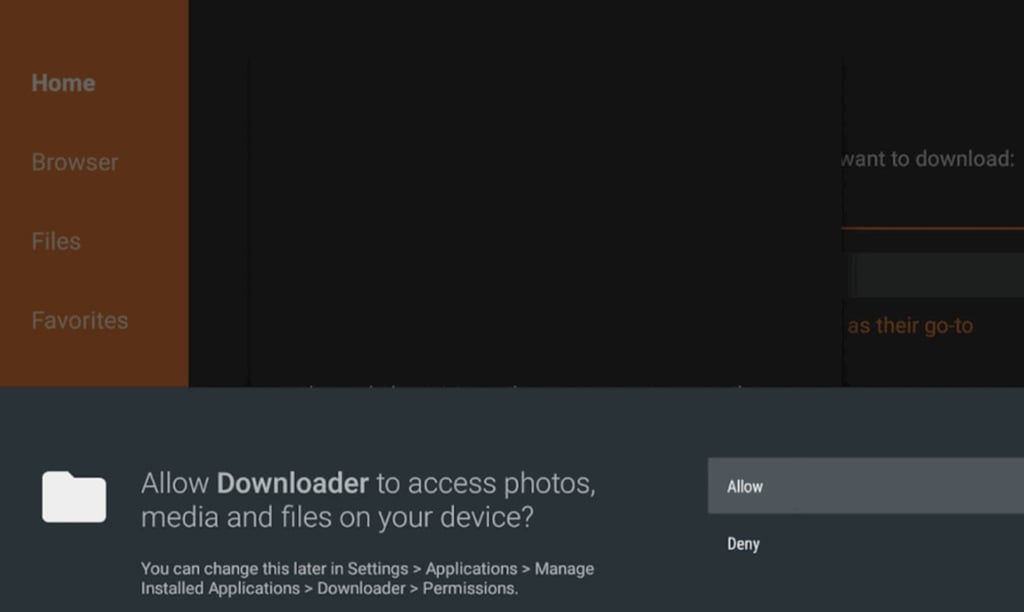
Launch the Downloader app, then grant it permission to access your device’s storage and files if prompted
- In the Downloader app, enter the APK download address for IPVanish as provided on their official website or support resources, then select Download to begin the process
-
From the Home screen, navigate to Settings, open the Applications section, and then choose Manage Installed Applications
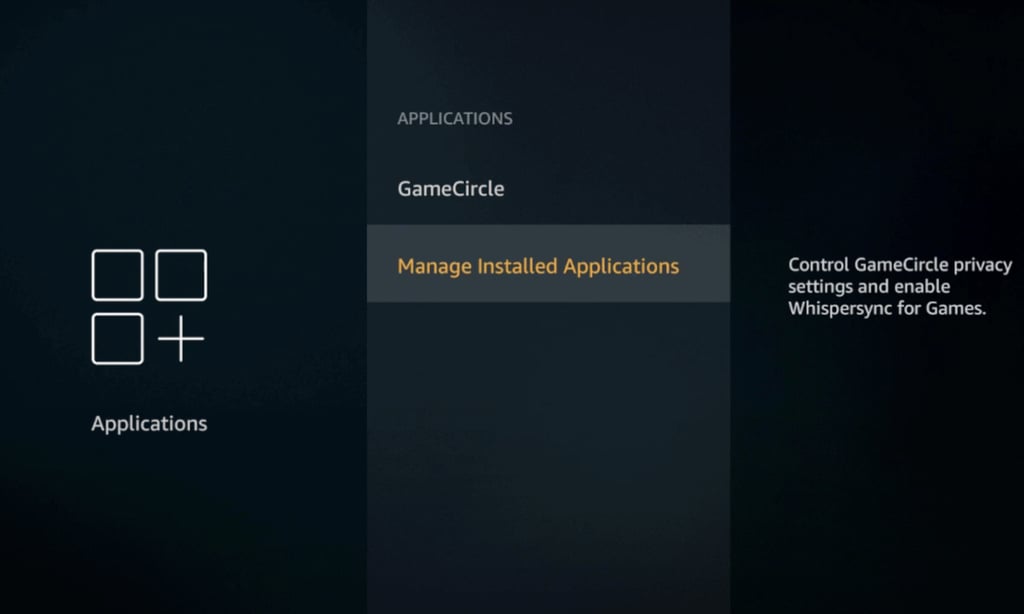
- Select Launch Application, find the IPVanish APK in the list, and open it. If you cannot navigate the app using your Fire Stick remote, connect a Bluetooth mouse for easier control.
IPVanish, Kodi, and Fire Stick
Kodi is a popular open-source media player app that enables users to stream a vast range of content – from movies and TV to community add-ons. Its flexibility means you can access material from a variety of sources, but this open approach also introduces risks. Some Kodi add-ons may be unsafe or facilitate access to copyrighted or illegal streams, which can expose your device to privacy and security threats.
Using IPVanish on your Fire Stick with Kodi helps dramatically reduce these risks. IPVanish secures all your streaming traffic with strong encryption, keeping your viewing habits private from ISPs, corporate trackers, and government surveillance. This safeguards your privacy and helps shield you from legal or security issues should you inadvertently access unauthorized content. The VPN also protects against malicious add-ons, reducing the chances of malware infection, data theft, or cyber attacks while you explore new Kodi repositories.
IPVanish’s robust no-logs policy, DNS leak protection, and Threat Protection features further minimize risks when using Kodi. These tools help ensure your information stays confidential and block threats from potentially unsafe add-ons. Plus, IPVanish lets you unlock geo-restricted add-ons and content libraries, letting you enjoy Kodi’s full potential on your Fire Stick.
Getting started is simple: just install and activate IPVanish on your Fire Stick, connect to your preferred server, and launch Kodi. With IPVanish running in the background, you can stream content on Kodi more securely and privately, giving you peace of mind while enjoying the open world of streaming.
Can I use a free VPN for Fire Stick?
Yes, you can use a free VPN with your Fire Stick, but you’ll likely face several limitations compared to premium services designed for streaming. Most free VPNs restrict how much data you can use, offer slower speeds, and may not provide the level of security or privacy that paid services do. Additionally, you might encounter a smaller selection of server locations and more frequent ads or even tracking risks.
Windscribe is one of the stronger free VPN options for Fire Stick. Its free version gives you 10GB of data each month, which is enough for a few hours of HD streaming. Windscribe supports unlimited devices and offers a dedicated Fire Stick app, but the data cap still limits extended use.
Hide.me is another reliable free choice, also providing 10GB of data monthly. While it offers generally good speeds, you are limited to using only one device at a time and may experience occasional buffering, especially during longer viewing sessions. This single-device limit means you can’t use Hide.me simultaneously on your Fire Stick and other devices.
Overall, while free VPNs can be handy for occasional or light use on Fire Stick, they aren't ideal for regular streaming due to data restrictions, slower connections, and reduced security. If you want a smoother and more secure experience, a reputable paid VPN is usually a better fit.
FAQ
Can IPVanish be used on Fire Stick?
Yes, IPVanish provides a native app for Amazon Fire Stick, which you can download directly from the Amazon App Store. It’s compatible with second-generation Fire Stick devices and newer. Unlike some other VPNs, an IPVanish subscription lets you connect an unlimited number of devices at once, so you can use it on your Fire Stick and all your other devices without any connection limits.
How does IPVanish work on Fire Stick?
Once you install and activate IPVanish on your Fire Stick, the app encrypts all of your internet traffic and hides your real IP address. This not only keeps your streaming activity private but also lets you choose a server in another location, which can help unlock geo-restricted content and streaming platforms from around the world. IPVanish uses strong encryption to secure your connection and protect your privacy while you browse or stream.