MailerSend review – does it make transactional email easier?
Being behind major reports like The Mother of All Breaches and RockYou2024, our in-house cybersecurity experts and journalists provide unbiased, real-world testing and in-depth analysis.
We maintain complete transparency by openly sharing our testing methodologies with our audience.
Learn more

I initially thought MailerSend was just another newsletter tool. Its dashboard quickly showed me that it wasn’t. MailerSend focuses on transactional messages: login codes, receipts, password resets, and delivery updates sent after a customer takes action.
I analyzed MailerSend to see how manageable its tools actually are. In this comprehensive MailerSend review, I share my insights about its visual editors, discuss when you need technical knowledge, and address whether its pricing suits a small business.
MailerSend pros and cons
What is MailerSend
MailerSend is a transactional messaging service. You can connect it to an app or website for sending messages triggered by customer activity. For example, a shop might send a receipt after checkout, while a software company might deliver a login code.
MailerSend is different from a standard email marketing service. These emails can contain information customers need right away, so a delivery being late or failing can interrupt the service itself. This is where MailerSend is genuinely useful, as it helps you investigate problems by letting you authenticate the sending domain, test emails before using them, and check delivery records when a message doesn’t arrive.
With MailerSend, developers can handle custom integrations while other team members work on the email. In simpler setups, you can enter SMTP credentials into a supported app or plugin like a WordPress SMTP plugin – without writing code. When a template is connected, others from the team can add branding, adjust wording, and send a test email from the dashboard without changing the integration. I think that’s very practical for account notifications and receipts that require regular edits.
MailerSend features
I explored MailerSend’s best features. These are tools I consider most helpful:
| Area | Main tools |
| Email delivery | API and SMTP, plus inbound email routing |
| Email design | Rich-text, drag-and-drop, HTML editors with personalized templates |
| Monitoring | Webhooks, delivery activity, sender reputation tools |
| Other channels | SMS in the US and Canada, WhatsApp is a paid add-on |
What about MailerSend security?
MailerSend supports two-factor authentication, while API tokens can be limited to specific permissions. I recommend enabling two-factor and allowing each token only the access it needs before using MailerSend for real customer emails.
DMARC monitoring shows which sources are sending emails using your domain and if those messages pass authentication checks, helping you pinpoint an unfamiliar sender or an incorrectly configured service. The information comes from reports supplied by receiving email providers.
Blocklist monitoring separately checks if your IP address or domain is on blocklists. Access depends on the plan you have. These tools help you investigate problems, but can’t guarantee that every email reaches the inbox.
My experience with MailerSend
I’ll walk you through the important bits of MailerSend in the order of how I explored it. I went from connecting a website and creating email templates to checking delivery activity and looking at MailerSend’s other messaging channels.
Connecting a website or app
On the dashboard, I was asked to choose SMTP or an API. SMTP works with apps or plugins that accept mail server settings. Developers can also use it through mailing libraries – code that helps an application send emails. The API gives developers more control over message content and recipients.
You don’t always need to build the connection yourself, as you can connect to your store using an API token via MailerSend’s WooCommerce plugin. Then, you can assign templates to emails like order confirmations. Zapier is another option for connecting MailerSend to other apps without writing the integration code. Still, you need to configure and test the connection. These options can make setup more manageable if you don’t have a developer.
MailerSend also has an MCP server. The server connects your account to a compatible AI assistant. Once authorized, this assistant can send emails or check delivery activity from written requests. For example, you could ask it to investigate messages that bounced instead of writing an API request yourself. I’d check the permissions before connecting it, as the assistant can access account data. This makes some tasks easier, although a custom app or website may still need developer assistance.
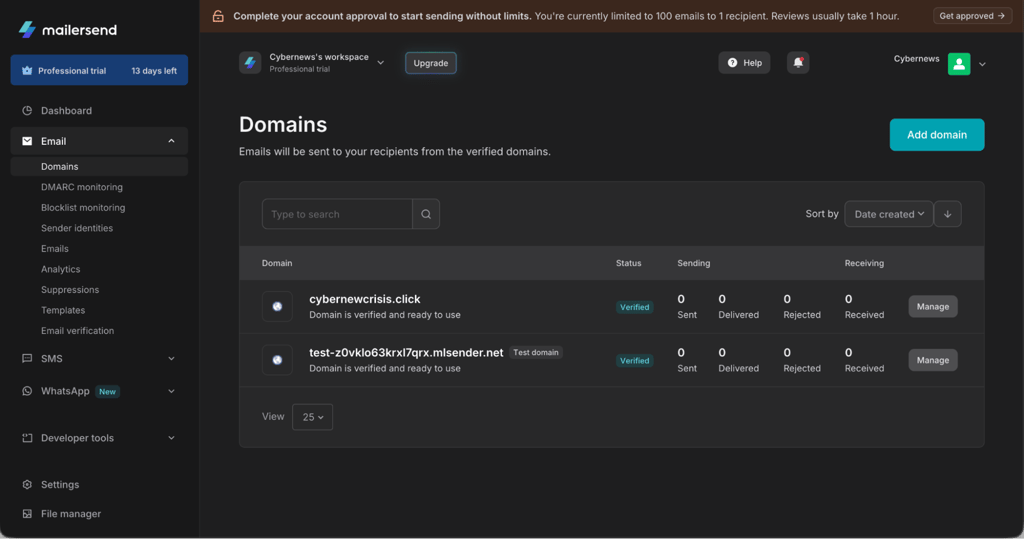
MailerSend has a trial domain for testing. If you want to send from your own business domain, you need to authenticate it. The automatic connection process lets you sign in to your domain provider and authorize MailerSend to add the required DNS records. To do this manually, MailerSend has the records and instructions for it. Also, you can forward those instructions to your domain manager.
One thing stood out in the account I reviewed: both domains were shown as verified, but an approval banner limited sending to 100 emails to one recipient. Domain verification and account approval are separate checks, and completing one check doesn’t lift the other restriction automatically. MailerSend reviews accounts to prevent abuse – like spam sending. That helps protect email delivery for everyone using the service, because abusive senders can damage the reputation of shared sending infrastructure.
Creating email templates
In my testing, I found the drag-and-drop builder easy to use, plus the ready-made templates gave me a starting point for the test emails. You can also just pick a rich-text or HTML editor. The important thing is that designing a template doesn’t automatically connect it to your website. Your app or supported integration needs to use its template ID to pick the right design when sending.. Also, developers can create HTML templates via MailerSend’s API. If the email design is written in code and not in the visual editor, that’s useful.
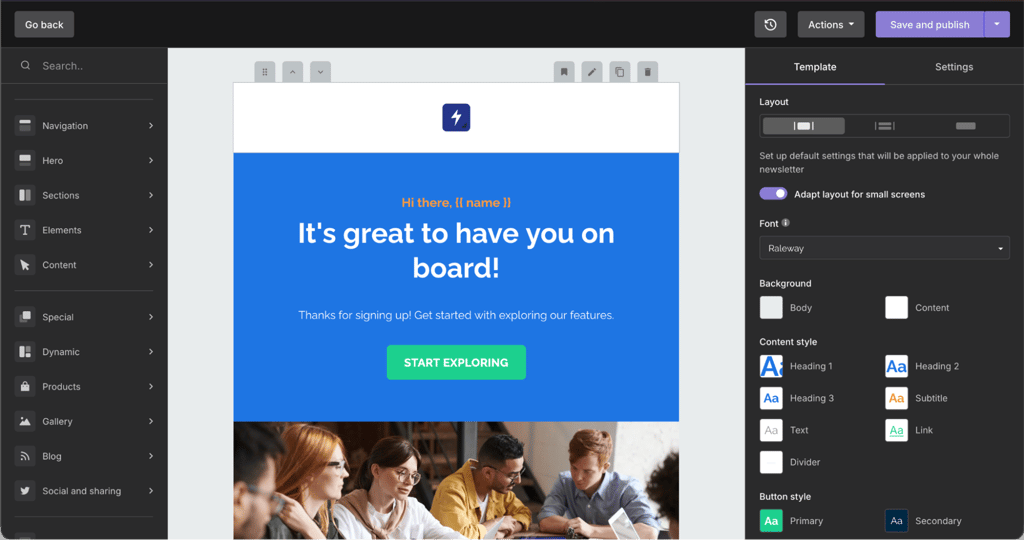
I suggest using the visual editor for updates on email wording, branding, or layout. This is easier for non-developers as you won’t touch the integration this way.
Templates can show details like the order number, customer’s name, or total purchase amount. MailerSend fills these fields with information from your app or website, so that incorrect or missing data also appears in the email.
You can also send a test email from the template details page. I suggest checking prices, names, and order information before using the template for real emails.
Checking what happened to an email
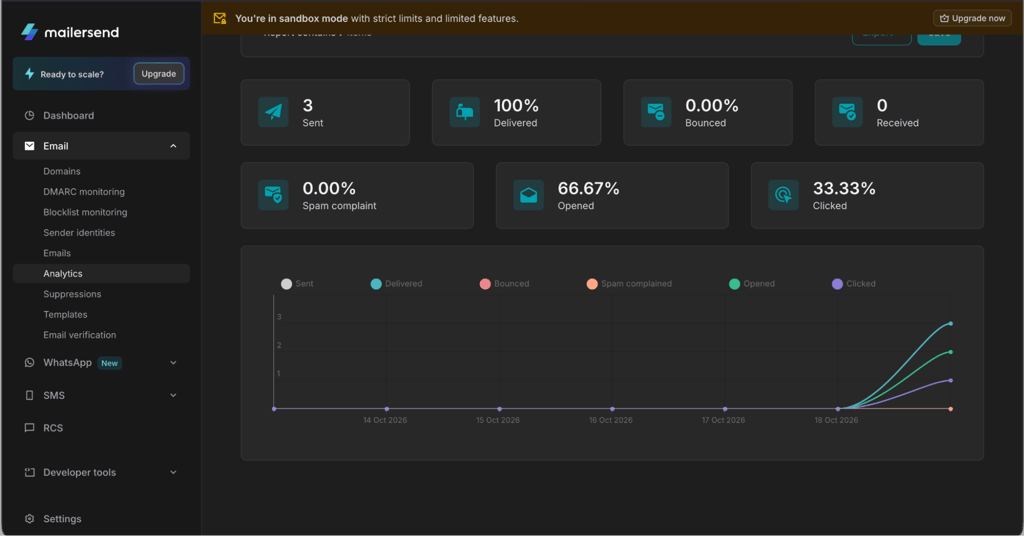
During testing, we sent a few emails mainly to Gmail addresses, plus checked the results in the Emails section. The Emails section showed if the emails were sent or delivered, and also if recipients opened them or clicked a link. I think that’s useful when checking why a customer hasn’t received a message.
Clicks were tracked correctly, but opens weren’t always recorded as expected. I saw some in the dashboard, but others seemed to be missing. It wasn’t clear if a setting or a problem with MailerSend caused this.
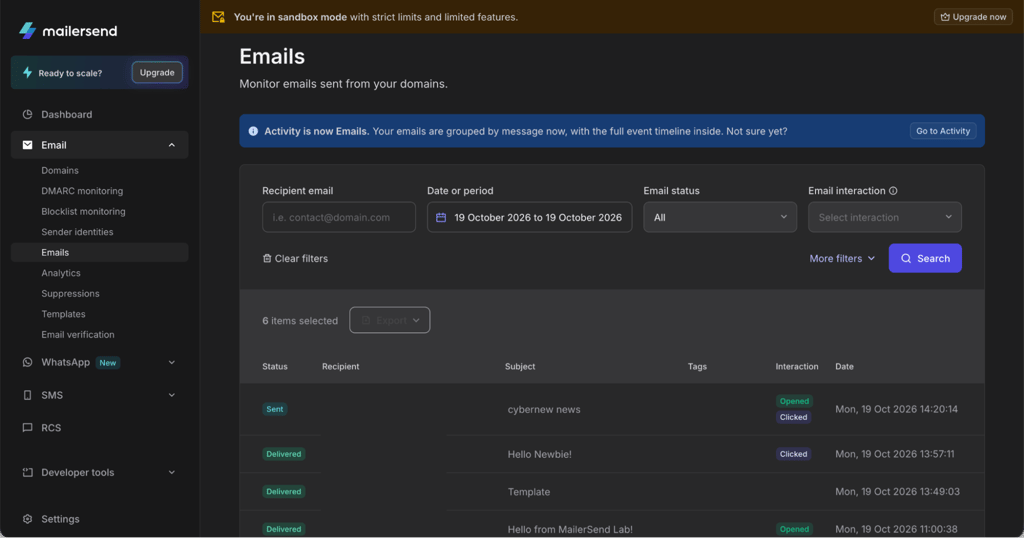
Furthermore, one of the test emails went to Gmail spam, so I’d check if your emails come to the inbox or spam folder before using a template for customers. The team only tested a few emails, so this doesn’t tell us how often MailerSend emails reach the inbox overall.
Developers can also use webhooks to send delivery updates to another system. For example, a failed email could generate a follow-up task. Of course, while webhook reports the failure, developers need to build the following action.
Adding SMS and WhatsApp
With MailerSend, you also get SMS in the US and Canada (on the Starter and Professional plans). Complete this step before launch because you have to verify the sending number before messaging customers.
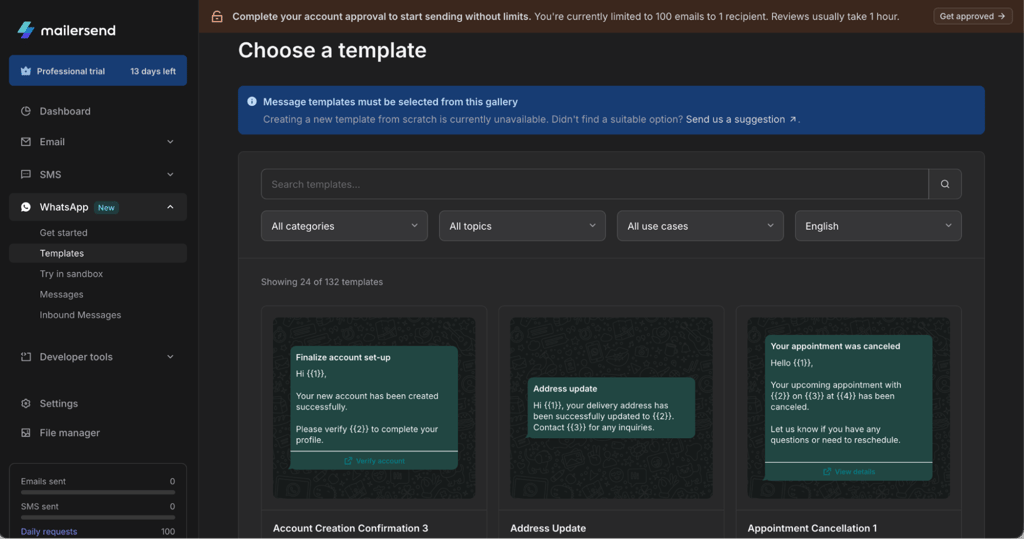
WhatsApp is a separate add-on on MailerSend’s paid plans. I set it up and found that it requires a Meta Business account plus a dedicated phone number. MailerSend’s WhatsApp instructions take you through it. A sandbox is available on every plan to test messages first.
Customer support
As for customer support, that’s plan-dependent. The Hobby plan has email support, while the Starter plan adds live chat. The Professional plan includes priority email support and onboarding assistance, plus live chat.
MailerSend also has a knowledge base with helpful setup information. I’d check which support options are included before picking a plan, especially if nobody on the team is comfortable troubleshooting the connection.
MailerSend pricing
MailerSend Free plan includes 500 emails/month, one template, and one domain. I think it’s best for testing. If you own an online store, you could outgrow that plan, and you might need separate receipts and shipping updates.
Next, Hobby costs $7/month (monthly billing) and includes 5,000 emails, 10 templates, and 5 users. Additional emails are $1.50/1,000 emails. I found that higher sending volumes require a closer price comparison.
The Starter plan for $35/month increases the template limit to 250 and covers 10 domains. Plus, you get live chat. The Professional plan at $110/month adds an account manager and longer activity history.
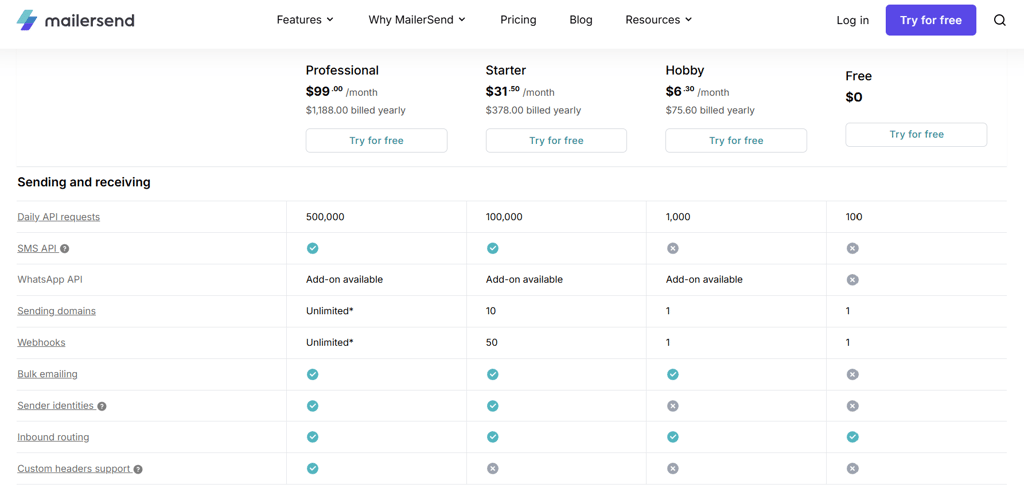
MailerSend prices vary according to sending volume, so compare the email allowances thoroughly before paying for the subscription. Also, the prices vary depending on whether you pay monthly or annually. Paying annually works out to be cheaper per month, but you’re paying for the year upfront. If you decide to upgrade to a paid plan, you can apply our exclusive coupon code CYBERNEWS10 at checkout to receive 10% off your subscription.
You should also look at email activity data retention. Free and Hobby plans keep the data for 1 day, whereas Starter increases that to 7 days. The Professional plan keeps data for 30 days. From my perspective, a 1-day history may not be ideal when a customer reports a missing receipt later in the week.
The 14-day MailerSend trial lets you try Professional features with reduced usage limits. That also includes 500 monthly emails. You need to add a payment method for verification, while MailerSend won’t charge you automatically. If you decide not to upgrade, the account shifts to the Free plan at the end of the trial period. I’d use that time to understand which features you really need, since the trial doesn’t include add-ons, while the sending limits are lower than those of the paid Professional plan.
Is MailerSend worth it?
During testing, MailerSend’s web app was simple to navigate and felt quite responsive. Personally, I found its visual editors to be practical for teams that need to update emails without modifying code.
Supported plugins can also make setup easier, while custom integrations may still need developer assistance. However, open tracking wasn’t consistent, and one test email went to Gmail’s spam folder. I’d check your own templates and tracking configurations before relying on the service. The team and I didn’t test bulk sending, so we can’t say how it performs with larger email volumes.
If you’re not ready to jump into a full subscription, try the MailerSend 14-day trial and create one real customer email before paying. Check the template allowance and activity retention details of each plan, since both of those determine how useful the service will be as your needs expand.