
Best cybersecurity practices: 15 ways to protect your data and devices

 Follow us
Cybersecurity is more complex than ever in 2026. That is obvious from the sheer number of apps, services, and technologies out there and installed on our devices. Each one promises to be the thing that finally keeps you safe from the ever-evolving cyberthreats.
Meanwhile, threats keep appearing and coming at you from every angle: phishing emails, smishing texts, ransomware, data breaches at companies you’ve never even heard of, unsecured public Wi-Fi, malicious ads, and identity theft that can sit undetected for years.
With that much noise, it’s easy to either do nothing because it feels overwhelming, or throw money at every tool that claims to help without knowing which ones actually matter and which ones can multitask in helping you defend yourself against cyberthreats.
In this article, I share my personal 15 cybersecurity best practices, explaining exactly how you can improve your digital protection while also saving money and decluttering your devices from a dozen overlapping apps you don’t actually need.

15 best cybersecurity practices you should be employing now
Most cybersecurity practices aren’t complicated or require much skill. However, it’s easy to let threats slide when nothing’s gone wrong yet. Below are the 15 tips that can impact your safety tenfold, each one addressing a specific way people get compromised in real life.
1. Use a unique password for every account
Reusing a password means one leaked account can unlock every other account tied to it. Breach databases show that the vast majority of leaked passwords are duplicates of passwords used somewhere else. That is exactly what lets an attacker who gets one password try it everywhere else automatically.
2. Turn on multi-factor authentication (MFA)
A password alone is one barrier, and it’s a barrier that’s easiest to breach. Enabling MFA can block the majority of automated account compromise attacks, making it one of the most effective things you can do for the least effort. My suggestion is turning it on for your email first, since that’s the account every other password reset flows through.
3. Get a password manager and actually use it
Most people know reusing passwords is risky, but keep doing it because remembering dozens of unique ones is genuinely hard. A trusted password manager solves that by generating strong, unique passwords and auto-filling them, so the only thing you need to remember is one master password. This tool makes creating strong passwords easy, so you have no excuse to reuse the same old weak combination over and over again.
4. Keep your software and firmware updated
Unpatched software is one of the most common entry points for malware, since known vulnerabilities stay exploitable until you install the fix. This applies just as much to your router’s firmware and your smart TV as it does to your laptop, and it’s usually the forgotten or the least used devices that stay vulnerable the longest. Turn on automatic updates wherever the option exists, so this isn’t something you have to remember to do manually.
5. Learn to spot phishing emails before you click anything
Phishing emails typically create urgency, impersonate a company you trust, and push you toward a link or attachment before you have time to think it through. Check the sender’s actual email address rather than just the display name, and hover over links to see the real destination before clicking. If an email claims to be from your bank or a delivery company and asks you to log in or share private details, go to the official site directly instead of clicking through.
6. Treat unexpected texts the same way you treat phishing emails
Smishing, the text-message version of phishing, has grown exponentially because people are more likely to trust a text than an email. In the US alone, consumers reported $470M in losses to scams that started with a text message in 2024. That’s more than five times the 2020 level.
Any text about a package, a bank alert, or an account issue that includes a link deserves the same suspicion as a phishing email, especially if it asks you to reply first to activate the link.
7. Avoid public Wi-Fi without a VPN
Public networks weren’t built with your privacy in mind, and most public Wi-Fi networks lack basic encryption. That makes it easier for someone else on the same network to intercept your traffic.
Top-rated VPNs can encrypt your connection regardless of how secure the network itself is. This matters most when you’re checking email or logging into an account from an airport, cafe, or hotel. I recommend using a VPN whenever you’re off your home network.
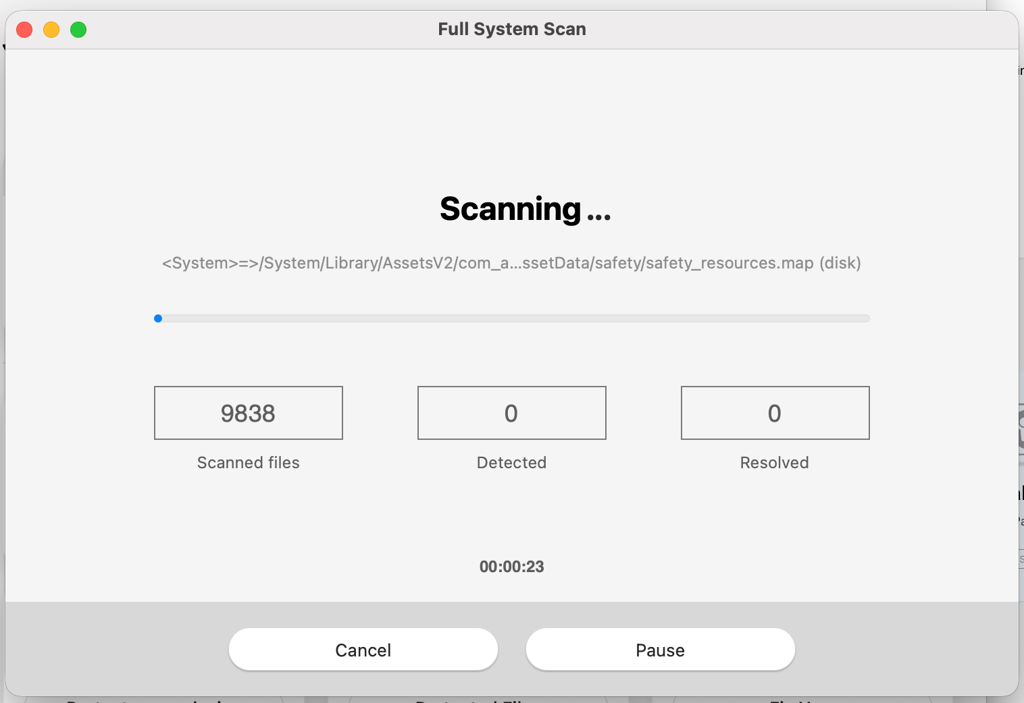
8. Run regular malware scans, not just one-time installs
Most people these days assume their operating system’s built-in protection is enough, and skip installing trusted antivirus software altogether. But built-in protection is a baseline, not a full solution. Even where antivirus software is installed, it isn’t a one-and-done fix, as it needs to actually run scans regularly to catch anything that slips through.
A quick scan catches the obvious issues fast, while a full system scan digs through everything, including files you rarely open. Set scans to run automatically on a schedule so protection doesn’t depend on you remembering to check.
9. Build ransomware protection into your routine, not just your recovery plan
Dedicated ransomware protection tools monitor for the specific behavior patterns ransomware uses, like mass file encryption, and can block or roll back the damage before it spreads. Combine that with regular backups, since even the best protection benefits from a fallback plan.
10. Monitor your identity, not just your accounts
A breached password is often the first domino, not the last one. If your personal information, like your email address, phone number, or social security number, ends up on the dark web, you often won’t know until it’s already been used somewhere.
Dark web and identity monitoring tools alert you the moment your information shows up in a new breach, so you can act in days instead of finding out from a collections call months later.
11. Secure your home router and Wi-Fi network
Your router is the gateway for every device in your house, yet it’s usually the device people forget completely. Change the default admin password the day you set it up, not months later, and keep the firmware updated the same way you would any other device.
If you have smart home gadgets, put them on a separate guest network so a compromised smart bulb isn’t sitting on the same network as your laptop or banking app.
12. Set up parental controls if kids use your devices
Kids and teens are frequent targets for social engineering attacks because they tend to overshare without realizing what that information can be used for.
The best parental control apps let you filter content by age, set screen time limits, and get visibility into what’s actually happening on a child’s device, without you having to check it manually every day. If a child is using a hand-me-down phone or tablet, treat it as seriously as you would your own device, since it’s connected to the same network.
13. Block trackers and invasive ads
Beyond the annoyance factor, ad networks and trackers may distribute malicious ads and scam links, and some tracking scripts collect far more personal data than most people realize.
An ad blocker and anti-tracker combination cuts down your exposure to both the tracking itself and the malicious ads that occasionally slip through legitimate-looking ad networks. This won’t stop every threat, but it closes a channel a lot of scams rely on.
14. Cover your webcam and mute your mic when you’re not using them
Malware that hijacks a webcam or microphone is rarer than phishing or ransomware, but malicious actors can breach them to violate your virtual security.
A physical camera cover costs nothing and works regardless of software, but dedicated webcam and microphone protection tools go further by alerting you the moment an app tries to access either without your permission.
15. Back up your data somewhere your devices can’t reach
If ransomware does get through, or a device is lost, stolen, or simply dies, a backup may be the only solution to your problem.
Most security suites don’t include a dedicated backup tool, so this is one habit you may need to cover separately. That can be a cloud backup service or an external drive kept disconnected from your network. If you can, set cloud backup to run automatically, since a backup you forget to update isn’t much better than no backup at all.
The app clutter problem
Following all 15 of these practices with separate, single-purpose tools adds up fast. The tips above are associated with different dedicated apps or services willing to sell you a subscription, and buying them one by one is usually far more expensive than most people realize until they actually add up the bills. Stack all of that together and you’re looking at at least $350–$500/year.
Plus, each app comes with its own login, its own dashboard, and its own renewal date to keep track of. That’s before factoring in the mental overhead of actually remembering which tool does what, or noticing when one of them quietly stops working because a subscription lapsed.
Unfortunately, the cybersecurity app clutter can become a security risk. A notification from an app you rarely open is easy to swipe away without reading, a renewal that lapses on a tool you forgot you had leaves a gap nobody’s watching, and switching between seven different interfaces makes it harder to notice when something actually looks off.
The more scattered your setup, the more likely something slips through the cracks simply because no single dashboard is showing you the full picture.
Bitdefender’s approach to all-around security
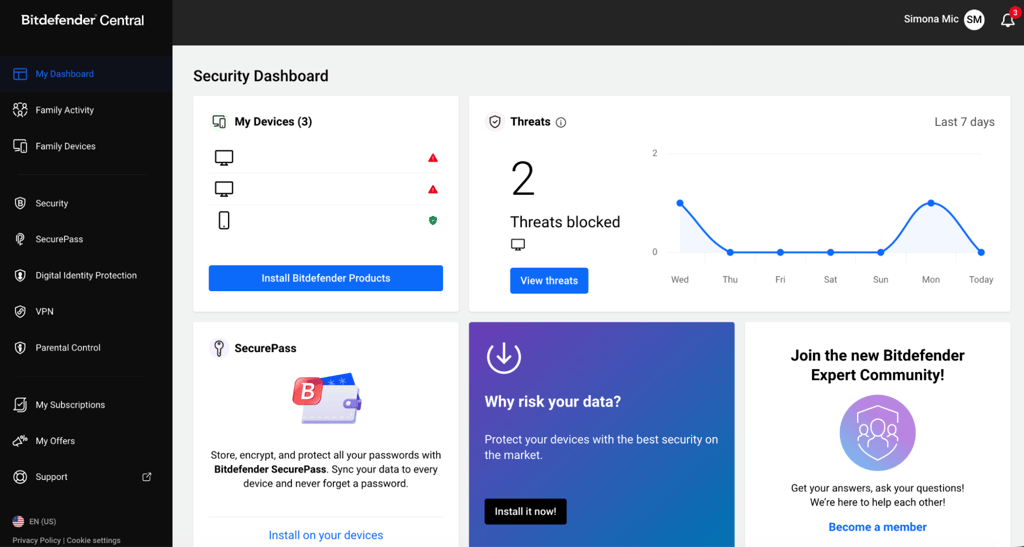
Instead of burdening yourself with countless apps, you can opt for an all-in-one solution that does it all. Bitdefender Ultimate Security Plus covers most important digital protection tools into one subscription and one dashboard. From just $119.99/year, you get a comprehensive security hub that covers your devices, your browsing, your passwords, and your identity all at once.
On the device side, it handles malware and ransomware protection with anti-malware results that have topped independent tests for over a decade.
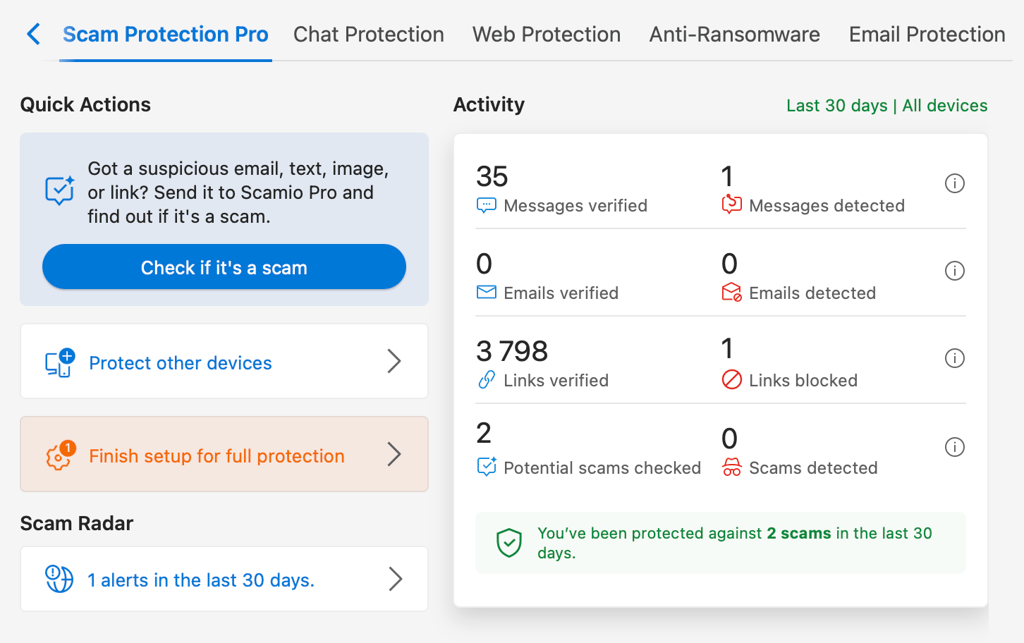
Plus, the AI-powered Bitdefender Scam Protection Pro catches phishing and smishing attempts in real time, the exact kind of scam text covered earlier in this piece.
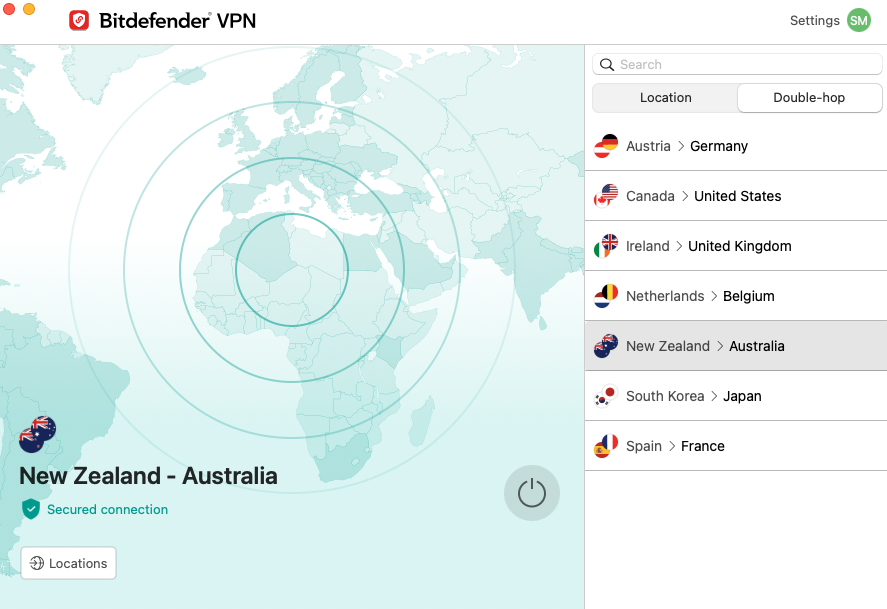
The included Bitdefender Premium VPN keeps your connection private and secure on public Wi-Fi, with unlimited encrypted traffic protecting you end to end. It runs 3,000+ servers across 112 countries, and its no-logs policy was independently audited in 2025, meaning there’s third-party verification behind the privacy claim rather than just Bitdefender’s own word for it.
Meanwhile, Bitdefender SecurePass covers password protection. It uses AES-256 with end-to-end encryption and a zero-knowledge architecture. That means not even Bitdefender can see your stored passwords.
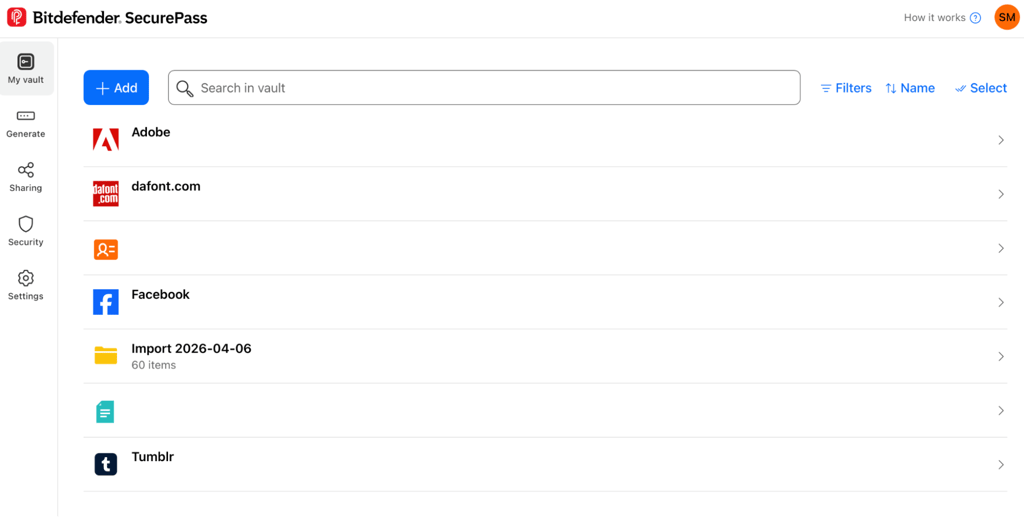
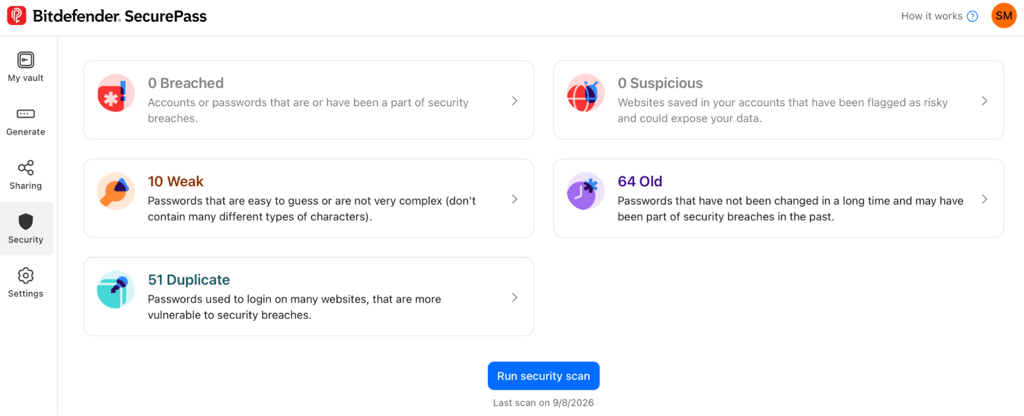
Beyond generating and auto-filling strong passwords, it runs a security scan that flags any leaked, reused, or weak passwords sitting in your vault, and it supports secure password sharing for the accounts you actually need to share with someone else.
Where Bitdefender goes further than a typical antivirus bundle is identity protection. Continuous dark web monitoring watches for your personal data showing up in a breach, and dedicated identity theft protection, including a Smart SSN Tracker and up to $1M in identity theft insurance, covers the rest.
Most importantly, Bitdefender Ultimate Security Plus lands well below what the separately purchased version of all this tends to cost. Buying a password manager, a VPN, antivirus software, and a dark web monitoring service individually can easily run into several hundred dollars a year across four different apps. Bitdefender offers a budget-friendly single subscription and one dashboard to check instead of five.
Final thoughts
None of these 15 cybersecurity practices I listed are complicated on their own. However, the main difficulty is keeping all of them up consistently, across every account and device, without it turning into a part-time job managing subscriptions.
That’s the real cost most people underestimate: not just the $350–$500 a year a DIY cybersecurity stack can run, but the mental tax of remembering which app does what and whether it’s even still working.
Bitdefender Ultimate Security Plus closes that gap in one place. Unique passwords, phishing and smishing defense, safe browsing, anti-malware protection, and identity monitoring: the habits that cause the most damage when skipped all live under one $119.99/year subscription and one dashboard, covering more ground than most people manage juggling five separate apps.
FAQ
The most important cybersecurity habit is turning on MFA on your email account first, since it’s the account every other password reset flows through. Plus, MFA blocks the vast majority of automated account compromise attempts on its own.
To detect if a text message is a smishing attempt, look for urgency, an unfamiliar link, and any request to reply before the link works. Check the actual destination of a link instead of trusting it blindly, since scammers often disguise the real URL behind familiar-looking text.
Yes, you should also get a VPN if you already have antivirus software, since they protect against different things. Antivirus software protects against existing malware and new malware attacks, while a VPN encrypts your connection so your data can’t be intercepted by someone else on the same network, which matters most on public Wi-Fi.
Buying a password manager, VPN, antivirus, and identity monitoring service separately can easily run to around $350–$500 a year across four different apps. Bitdefender Ultimate Security Plus brings all-in-one digital protection to the same ground for a fraction of that cost, starting at $119.99/year.