PHP2Shell: Passwords at risk after government websites went offline?

Multiple government websites in several countries recently went offline in response to a major PHP flaw that was discovered. Many were taken down as a precaution, leaving users unable to access services and unsure whether their personal information was at risk.
The disruption affected government portals, ministry websites, and other public services. While several organizations said they took their websites offline as a precaution, those statements alone do not confirm whether attackers accessed systems or stole personal information. The full extent of any damage remains unclear.
Why did government websites go offline?
Government websites went offline to reduce the risk of attacks while administrators fixed serious security flaws. In the PHP2Shell case, its vulnerabilities can allow attackers to run code on a website’s server without logging in.
The response reached government services across Europe, Asia, and Africa, with ministries, public portals, and local services temporarily suspended while their systems were secured.
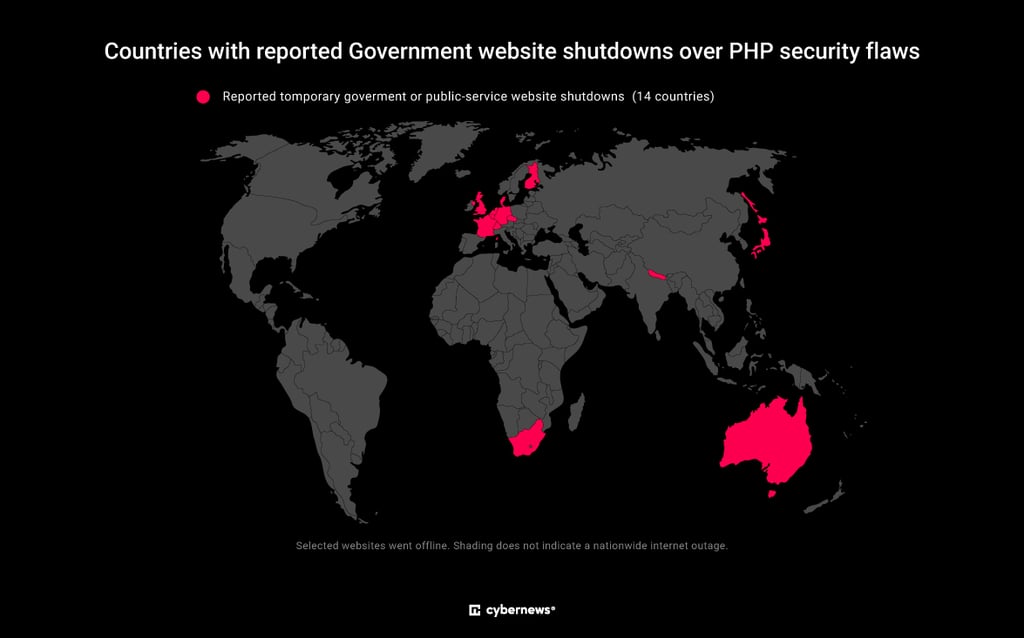
Several governments described their shutdowns as precautionary. While that explains why services were suspended, it does not by itself confirm whether attackers accessed any data beforehand. The shutdown notices alone cannot tell users whether their login details were exposed.
How could a website flaw expose passwords?
A website flaw can put passwords at risk if it allows attackers to reach the systems where login details are stored. PHP2Shell is the most infamous recent example. The vulnerabilities affect PHP, software that runs behind the scenes on websites, and can allow attackers to run their own code on a server without logging in.
If an attacker did steal a password database, the next question is how those passwords were stored. Thankfully, governments usually do adhere to strict security guidance such as NIST’s calls for password hashing, which makes stolen passwords significantly harder to recover.
However, that “usually” isn’t a guarantee, and the implementation of security measures can vary widely across government services. If, say, the local government’s parking permit website stores passwords poorly, attackers who steal its database could have an easier time recovering them.
If attackers recover a password you reuse for a government service, shopping, and email, they can try it on all three. Called credential stuffing, this attack can put other accounts at risk even when those websites have no security flaws.
It is hard to keep all of the good habits of password management without forgetting them, but reusing them puts more accounts at risk if one is exposed. A good password manager is a great solution for this, which helps you create and save a unique password for each account without having to remember them all.
Advanced password management tools such as NordPass can even flag weak or reused passwords and alert you when your monitored details are exposed in breaches, helping you identify which accounts need attention.

What should you do to protect your accounts?
First, you don’t need to change every password just because a website went offline. However, if a service tells you that your password may have been stolen or asks you to reset it, follow the instructions to do so immediately.
If you used that same password elsewhere, change the password on those accounts too. Start with your email, because someone who gets into your inbox could use password-reset links to access other accounts.
Most importantly, choose a different password for each account. A strong password should be at least 15-characters long, so feel free to utilize a password manager, which can generate and remember them for you. Make each change on the website itself, then save the new password in your manager.
And remember, always if available activate two-factor authentication. It adds another check when someone signs in, making a stolen password alone less useful.