How to remove AI from Snapchat: a step-by-step guide
Being behind major reports like The Mother of All Breaches and RockYou2024, our in-house cybersecurity experts and journalists provide unbiased, real-world testing and in-depth analysis.
We maintain complete transparency by openly sharing our testing methodologies with our audience.
Learn more
If you’re not overly excited about the addition of AI features to the popular social app, let me show you a quick and easy way to get rid of AI on Snapchat. Recognizing the different benefits AI introduces to software, developers often implement it in both new and existing solutions. It’s up to us, as users, to ensure we don’t unintentionally leak sensitive data and put our privacy at risk.
Snapchat introduced Generative AI in 2023, and since then, it has powered several of its features, including the My AI chatbot, AI Lenses, and AI Snaps. I will discuss these in more detail later in the guide.
If you wish to skip the introduction and get straight into the step-by-step guide, follow this link.
Understanding AI on Snapchat
Snapchat utilizes generative AI, a type of software that analyzes large amounts of data to continually improve its ability to create new content, including text, images, and videos. For example, the more pictures of cats it processes, the better it becomes at recognizing different cats and generating relevant images.
Let’s have a look at Snapchat AI functionalities:
- AI Lenses. This is a type of augmented reality (AR) technology used to transform your Snaps in creative ways, e.g., you can take a selfie with special effects that change the way you look or the overall style of the photo.
- My AI. This is a chatbot that will do its best to answer your questions in a similar way to ChatGPT or Google’s Gemini AI, whether it’s specific information you need or a suggestion for today’s dinner.
- AI Snaps. Applied both in the Memories tab and in creative tools, this feature allows you to transform existing Snaps or generate new ones with the use of AI.

Why you might want to remove AI from Snapchat
Using Snapchat AI features raises security concerns. To give you some examples, in its Privacy Policy, the company acknowledges that it analyzes user conversations with My AI to enhance its capabilities, and all content shared with My AI is stored until you delete it.
Similarly, the company may use any videos, audio, and text you have posted publicly on Snapchat to further develop its AI. Also, remember that if you post content publicly, another user may take a screenshot and use the image outside of the app’s environment.
AI can have a negative impact on user experience. Personally, I dislike seeing My AI among my contacts all the time, and I always thought that social apps were about interacting with friends (or other people in general), not machines.
Let’s not forget that, like other AI solutions, My AI can sometimes provide irrelevant or misleading responses (which is why Snapchat uses your interactions to train it).
How to remove AI from Snapchat
There are several actions you can take to disable AI features in Snapchat and protect your data.
Toggle Allow Use of Public Content off
- Open Snapchat
- Tap the user icon in the upper-left corner of the screen
- Tap the cog wheel icon in the upper-right corner
- Scroll down to the Privacy Control section and tap Generative AI Settings
- Disable Allow Use of Public Content
Delete My Selfie and disable its features
- Open Snapchat
- Tap the user icon in the upper-left corner of the screen
- Tap the cog wheel icon in the upper-right corner
- Scroll down and tap My Selfie
- If you see a yellow Create My Selfie button in the center of the screen, then you don’t have to do anything. If you see a different screen, go to step 6
- In the Features section, disable AI Snaps and See My Selfie in Ads
- Tap Delete Selfie and confirm by tapping Delete
Remove My AI from your list of contacts
- Open Snapchat
- Tap Chat at the bottom of the screen
- Press and hold My AI, which is located at the top of the screen
- Tap Chat and Notification Settings
- If the option is available, tap Unpin Conversation and repeat steps 1-4. If the option isn’t available, continue to step 6
- Tap Clear from Chat Feed and confirm by tapping Clear
Note: If you ever need it, you will still be able to access My AI through a tab at the top of the screen in the Chat section.
Delete My AI Data
- Open Snapchat
- Tap the user icon in the upper-left corner of the screen
- Tap the cog wheel icon in the upper-right corner
- Scroll down to the Account Actions section, tap Delete My AI Data, and Confirm
Note: You may have noticed that the notification highlights that you won’t delete already visible or saved content this way, including situations where you @mentioned My AI in other conversations. To remove visible or saved content, press and hold a specific message in individual discussions.
Alternative solutions
Here, I list some additional actions you can take to customize your Snapchat experience.
Turn off Snapchat permissions
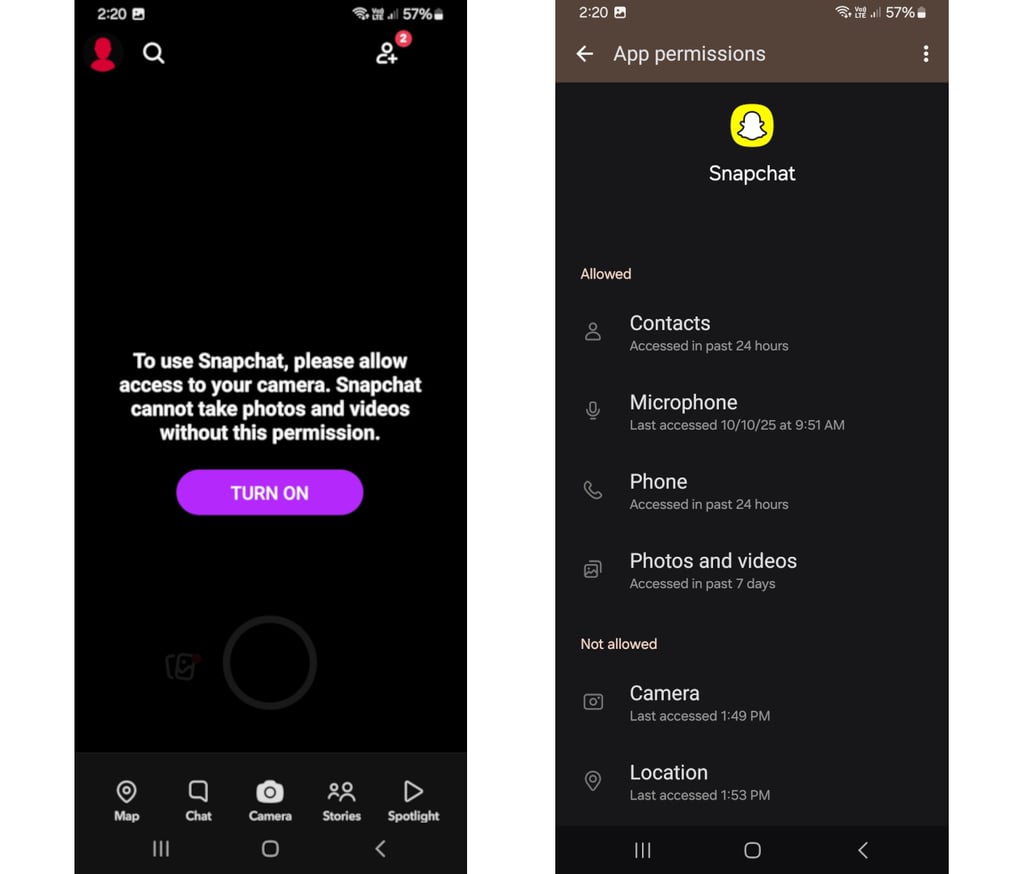
If you’re concerned about privacy while using Snapchat, you may also want to disable some of its permissions, such as location tracking. To do so, you need to access App permissions.
The settings are located in different sections depending on the smartphone brand. Below, I’ll show you how I can modify Snapchat permissions on my Samsung Galaxy m23 phone with Android 14 and One UI 6.1:
- Swipe down from the top of the screen and tap the gear icon to access your phone’s settings
- Scroll down and tap Apps
- Scroll down to find Snapchat and tap it
- Tap Permissions
- See which options are located in the Allowed category and tap the one you would like to disable. In my case, I tapped Location
- Change the existing setting by tapping Don’t allow
Note: Disabling settings in this section will make some functionalities unavailable in the app. For example, if you revoke camera permissions, you will not be able to create Snaps.
Suggest improvements and report issues
If you’re experiencing problems with Snapchat or have suggestions on how to improve the app, follow these steps:
- Open Snapchat
- Tap the user icon in the upper-left corner of the screen
- Tap the cog wheel icon in the upper-right corner
- Scroll down to the Support and Feedback section
- Tap Bugs and Suggestions
- Tap either Report a Bug or Make a Suggestion, depending on your intention
- Tap one of the suggested topics
- Describe the issue, tap Add Screenshot (if relevant)
- Tap This is related to… and select a relevant option from the list
- Tap Submit
Contacting Snapchat support
If you can’t find what you are looking for on the Snapchat help page, you can try contacting the company through a request form. However, you will be able to reach support directly only regarding a limited number of topics (e.g., when you believe your account has been compromised). In most cases, you will be redirected to different sections of the support page.
Conclusion
Companies are continually seeking ways to integrate AI into new and existing applications, making it crucial to understand the impact of these systems on your privacy. Some of these new solutions increase the risk of personal data leaks, may negatively affect user experience, or provide misleading information.
I hope that with the few suggestions I outlined above, you feel more comfortable about the control you have over your Snapchat experience. Remember that you can also use some core functionalities of the app without AI. You can create Snaps without special effects, or with just simple captions or drawings. Exchanging messages with your friends can also be done without the help of this new technology.
FAQ
How do I get rid of My AI on Snapchat?
There are a few methods you can try to get rid of My AI on Snapchat. These include toggling Allow Use of Public Content off, deleting My Selfie and disabling its features, removing My AI from your list of contacts, and deleting My AI data.
Can I disable AI features in Snapchat?
Yes, some AI features can be disabled, including Allow Use of Public Content and My Selfie. You can also revoke some of the app’s permissions (e.g., camera, location), but doing so will disable certain features.
What happens when I remove AI from Snapchat?
When you remove AI from Snapchat, some features will become limited or unavailable. Which features will be affected depends on the settings you change.
How do I delete My AI on Snapchat?
To delete My AI features on Snapchat, follow 4 simple steps: switch Allow Use of Public Content off, delete My Selfie and disable its features, remove My AI from your contacts’ list, and delete My AI data.
Are there any alternatives to using AI in Snapchat?
If you don’t like Snapchat’s AI, you can either disable some of its functionalities, revoke individual permissions, or refrain from using specific options available in the app. You can also consider switching to a different app, such as Instagram (but it has AI features too).