Best parental control app for iPhone (2026 tests)
Being behind major reports like The Mother of All Breaches and RockYou2024, our in-house cybersecurity experts and journalists provide unbiased, real-world testing and in-depth analysis.
We maintain complete transparency by openly sharing our testing methodologies with our audience.
Learn more

Aura is my top pick in the realm of iPhone parental control apps. It offers robust web filtering, app and site blocking, and easy-to-set-up screen time management. Better yet, all of this is available in one intuitive package.
The internet is full of explicit content, scams, and even strangers sliding into DMs. These aspects make it risky even for adults, let alone children who are still learning the ropes. But that’s exactly where the best parental control apps for iPhone come in.
These tools help parents guide their child’s online habits, block inappropriate content, and set screen time boundaries. What’s more, they do so without making it feel like you’re spying on your children.
With the help of the Cybernews research crew, I scoured the web and tested these apps in real-life conditions. After our 2026 hands-on tests with 13 iPhones and over 17,000 hours of screen time data, we crowned Aura as the best parental control app for iPhones.
Below, you’ll also find our full rankings, lab results, and a 3-minute setup guide to get you started.
Our top picks for parental control apps for iPhone
- Aura Parental Control – best overall parental control app for iPhone
- Qustodio Parental Control – best for advanced monitoring
- HeyPolo – best for privacy-focused parents
- Norton Family Parental Control – best for web filtering
- Bark – best for social media monitoring
- mSpy – best for stealth monitoring




Our Cybernews team of experts always conducts detailed testing of the best parental control apps. All of the information is then checked by our cybersecurity experts, who ensure you only get reliable and accurate data. More so, the testing process is transparent and includes testing and analyzing numerous apps and features and disclosing the methodology. Discover more about our testing process.
Best parental control apps for iPhone – detailed list
After thorough research and testing, I narrowed down our top picks to the five best parental control apps for iPhones. These tools genuinely make it easier to protect your child from the dangers of the online world, and you can learn more about each of them below.
1. Aura – best overall parental control app for iPhone

| Starting price | $8.33/month |
| Platforms | iOS, Android, Windows, macOS |
| App blocking | Yes |
| Screen time limit | Yes |
| Location tracking | No |
Aura is the best parental control app for iPhones, as it strikes the perfect balance between ease of use and robust protection features. From full app and site control to screen time limits and monitoring, Aura is loaded with tools that’ll make guiding your child’s online activities a breeze.
Who it’s for. Aura suits parents who want strong iPhone parental controls without a steep learning curve. It works best for families focused on screen time management, content filtering, and online activity monitoring rather than location tracking.
Key features. Aura kicks things off with a clean and intuitive dashboard from which parents can easily view browsing history, set healthy screen time limits, and block unsafe websites. Activating SafeSearch is a single tap away here, and you can choose to completely block or limit certain apps, sites, or games.
With Aura’s Pause the Internet tool, parents can also instantly shut off the internet on their child’s device. This can be quite beneficial for parents who continually have to remind their kids to put their phones away.
Aura’s Safe Gaming feature is also worth noting, as it allows parents to monitor their child’s in-game voice and text messages. As such, it provides real-time alerts for cyberbullying and predators and comes with detailed reports on gaming activities.
Pricing. Aura’s Kids plan starts at $8.33/month and includes a wide range of parental control features for an unlimited number of children and devices. While there’s no location tracking, parents can still filter content, block sites, set screen time limits, pause internet access, and get detailed online activity and app usage reports.
There’s also a 14-day free trial, so you’ll have plenty of time to test the app and see whether it’s right for you. Go for the annual plan, and you get a 60-day money-back guarantee.
Bottom line. Overall, Aura is a top choice for any parent looking for a robust yet easy-to-set-up solution to guide their child’s smartphone and online habits. While the app could benefit from the addition of location tracking, it still comes with a myriad of monitoring and report-focused features that make it a great deal.
2. Qustodio – best for advanced monitoring

| Starting price | $5.00/month (billed annually) |
| Platforms | Windows, Android, iOS, Mac, Kindle, Chromebook |
| App blocking | Yes |
| Screen time limit | Yes |
| Location tracking | Yes |
Qustodio has earned its spot on my list because it’s a comprehensive, all-in-one app for nearly all platforms. If you’re looking for real-time location tracking, detailed daily management tools, and emergency response features, Qustodio is the way to go.
Who it’s for. Qustodio fits parents who prioritize real-time location tracking, emergency tools, and detailed daily controls across multiple platforms. It works well for families that want safety-focused features alongside structured screen time and activity monitoring.
Key features. While Qustodio’s dashboard may appear overwhelming at first glance, the app more than makes up for it with its extensive features. For starters, Qustodio’s Panic Button is a standout option, which allows your kid to send an instant SOS if they’re in trouble.
The app also lets parents see their child’s real-time location, a feature that provides peace of mind and is missing in Aura. With it, parents can easily set up geofencing and get alerts if the child leaves their designated area.
Beyond safety tools, Qustodio facilitates setting daily screen time limits, scheduling for study, bedtime, and family activities, as well as blocking apps and websites. And once you learn to navigate the app, setting these up will be a breeze.
Detailed activity reports are also present, so you can view your child’s online history and check what apps they’ve used and for how long.
Pricing. Qustodio offers two pricing packages, with the Basic plan starting at $5.00/month but billed annually at $59.95/year. It comes with the Panic Button, daily time limits, comprehensive web filtering, app, game, and site blocking, real-time location monitoring, and the ability to pause internet access.
This plan covers up to five devices. If you need more than that, you’ll need to opt for the Complete option, which starts at $9.16/month ($109.95/year).
If you’re not satisfied with either package, a 30-day money-back guarantee is available.
Bottom line. If you’re looking for a safety-first tool that offers location tracking and a panic button, you can’t go wrong with Qustodio. It’s an affordable solution, with its Basic plan ideal for smaller families and offering almost everything you need. However, it’s worth noting that AI-powered alerts, app insights, game and app time limits, and support for more than five devices are only available through the Complete plan.
3. HeyPolo – best for privacy-conscious parents
| Starting price | $3.59/year |
| Platforms | Android, iOS |
| App blocking | No |
| Screen time limit | No |
| Location tracking | Yes |
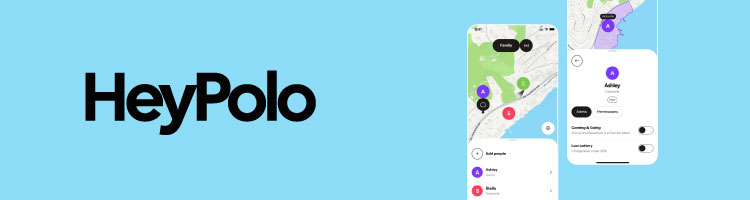
HeyPolo takes a very different approach compared to traditional parental control apps. Instead of focusing on monitoring or restricting device usage, it’s built around privacy-first location sharing, helping people coordinate in real time without constant tracking.
The app lets you share your live location, notify others when you arrive or leave a place, or allow someone to follow your route during a trip. What stands out most is its focus on transparency and consent – you decide when to share your location, who can see it, and you can stop sharing at any moment. There’s no continuous background tracking or detailed activity logging, which makes it feel less intrusive but also less suitable for supervision.
Who it’s for. HeyPolo is best suited for iOS users who want simple, situational location sharing – like meeting friends, sharing a route home, or checking in during travel. It’s a good fit for those who value privacy and control over their data, rather than parents looking for full monitoring of their kids’ devices or behavior.
Key features. One of HeyPolo’s strongest points is its clean and intuitive interface, which makes it easy to get started even if you’ve never used a similar app before. You can begin sharing your location in seconds, set up alerts, and manage who sees your data without digging through complex menus.
The app allows you to control how your location is shared, including adjusting precision and selecting specific contacts. You can also create trip-based sharing sessions, where others can view your route and timestamps during a journey, along with receiving arrival and departure notifications.
That said, HeyPolo doesn’t include advanced parental control features. There’s no way to monitor app usage, set screen time limits, or filter content. While the simplicity is part of its appeal, it may not be enough for users who need deeper insights or control.
Pricing. HeyPolo keeps things simple with two plan options. Pricing starts at $3.59/month with annual billing, which includes a 30-day money-back guarantee. There’s also a monthly plan at $5.99, offering more flexibility without a long-term commitment.
Bottom line. HeyPolo stands out as a lightweight, privacy-focused alternative to traditional tracking apps. It works best for real-time coordination and short-term location sharing, rather than ongoing monitoring. If you’re looking for control-heavy features like screen time limits or content filtering, it won’t be the right fit – but if you want a simple, user-controlled way to share your location, it does the job well.
3. Norton Family – best for web filtering

| Starting price | $49.99/year |
| Platforms | Windows, Android, iOS |
| App blocking | Yes |
| Screen time limit | Yes |
| Location tracking | Yes |
Norton is a name that’s become almost synonymous with antivirus protection. Yet, the company has also ventured into parental control, and that’s precisely what Norton Family is all about.
The app offers detailed time, web, search, app, video, and location supervision features that’ll keep you up-to-date with everything your child is doing. It also provides parents with insights they need to keep their children safe online.
Who it’s for. Norton Family suits parents who want broad online supervision, school-focused controls, and location tracking in a single, affordable package. It’s a strong fit for families comfortable managing controls through a web portal and working around iOS limitations.
Key features. Norton Family helps you manage your child’s safety online in one easy-to-use Parent Portal. For starters, it allows parents to see when their kids are online and what they’re doing. Setting up time limits and schedules for device use is effortless and only takes a few taps.
With Norton Family, parents can also see what their kids are searching for online. The monitoring feature also extends to videos, providing parents with snippets of what their kids watched on YouTube. And while the app automatically blocks inappropriate web content, parents can also set their own content rules.
Norton Family’s School Time feature helps keep your children focused on their education. It lets parents set up custom site lists during school days to prevent distractions.
Meanwhile, Location Supervision offers real-time location tracking and provides a straightforward map interface that you’ll have no trouble using.
Pricing. At $49.99/year, Norton Family offers excellent value. There are no plans to choose from here, so you get everything I’ve mentioned right away. However, you should note that not all features are available on iOS devices due to Apple’s restrictions. For example, tracking app usage isn’t possible on iPhones.
Bottom line. Even with iOS restrictions affecting Norton Family’s functionality, this is still one of the best parental control apps for iPhone. Its easy-to-use web portal, detailed supervision, instant lock, email alerts, and School Time features make it a top choice for protecting your child’s online safety.
4. Bark – best for social media monitoring

| Starting price | $5.00/month |
| Platforms | iOS, Android, Chromebook, Amazon Fire |
| App blocking | Yes |
| Screen time limit | Yes |
| Location tracking | Yes |
For parents whose teens already have social media accounts, Bark stands out as a top choice. The appropriately named app alerts parents to various online threats and cyberbullying on any of the 30+ social media platforms it monitors. It also scans text messages and emails and keeps up with the latest teen slang.
Who it’s for. Bark works best for parents of teens who actively use social media, messaging apps, and email. It suits families who want proactive alerts for cyberbullying, online threats, and risky behavior rather than manual activity reviews.
Key features. While Bark heavily focuses on its Phone and Phone Pro plans, which include devices with built-in Bark and custom controls, the Bark app itself is no slouch either. It covers an unlimited number of children and devices and works with both iPhones and iPads, as well as other devices.
The app features real-time location tracking and provides insights into whether kids are walking, driving, or riding bikes, and notes their speed. Its intuitive user interface also allows parents to block specific apps and sites or entire categories with just a few taps.
Managing screen time and setting schedules that keep your kids focused is also a breeze. For instance, parents can block certain apps and websites during school days as well as after bedtime.
What sets Bark apart is its AI-powered monitoring, though. The app scans for all kinds of threats, including violence, predators, and suicidal ideations, promptly alerting parents of anything it finds. It also keeps up with teen slang, so it can easily distinguish between real dangers and joking around.
Pricing. At just $5/month ($49/year), Bark Jr is one of the most affordable parental control app plans on this list. It comes with screen time controls, app and site blocking, content filtering for inappropriate content, and live GPS tracking.
However, if you want Bark’s AI-driven social media, text, and email monitoring and alerts, you’ll have to shell out for Bark Premium. This plan costs $14/month, so it’s a bit on the pricier side, but it’s well worth it for many families.
Bottom line. Bark’s advanced machine learning-fueled algorithms offer some of the best content monitoring features available today. Pair that with effortless screen time management, app and website blocking, and live location tracking, and you see why Bark is a worthwhile investment for parents seeking to protect their kids.
5. mSpy – best for stealth monitoring

| Starting price | $11.68 |
| Platforms | Android, iOS |
| App blocking | Yes |
| Screen time limit | Yes |
| Location tracking | Yes |
mSpy is intended for lawful parental supervision and should only be used on devices you own or have explicit permission to monitor. On iPhones, full features like keylogging, call logging, and deep message tracking require jailbreaking. The non-jailbreak version is limited to basic monitoring, such as location tracking and some account-based data.
mSpy is the best parental control app for iPhone for parents who want to monitor their children’s activities discreetly. While it requires jailbreaking an iPhone or iPad (although there’s a version with fewer features that doesn’t require it), the mSpy app stays completely hidden. Your kids won’t even know it’s on the device, and yet you’ll be able to see every keystroke, call, and message they make.
Who it’s for. mSpy is designed for parents who need discreet, in-depth monitoring and are comfortable with invasive oversight. It fits situations where safety concerns outweigh privacy, especially when full visibility into messages, keystrokes, and location matters.
Key features. Most iPhone tracking tools, especially the ones from Apple’s App Store, are visible. mSpy isn’t one of those, as the tracker app works entirely hidden, with no app icons, alerts, or other indications that the iOS device is being tracked and monitored.
Another one of mSpy’s standout features is its ability to log every keystroke your kid makes on the device. This makes it effortless to see what your children are up to at any moment. Furthermore, parents can also set up keywords and get alerts if the child uses them in any context.
Besides stealth mode and keylogging, mSpy also offers real-time location tracking, giving parents full access to their children’s whereabouts. It also comes with geofencing capabilities and location history, so you can retroactively check where your kids have been going.
Standard app blocking, screen time limits, and message and social media tracking are also present. Furthermore, you’ll have no issues setting these up, as mSpy’s user interface is quite intuitive.
Pricing. At around $11.68/month (mSpy’s pricing is in euros), this is one of the pricier parental control apps for iPhones. Nonetheless, it offers stealth mode, a feature that, by itself, can justify the price, as it isn’t available with any other apps on this list.
You should also note that there’s no free trial here, so you’d best be sure that the app is right for you before making a purchase.
Bottom line. While mSpy can feel a bit intrusive, there are certain situations where knowing as much as the app can provide could save your kid from getting into a lot of trouble. In those cases, you’d be more than happy to have installed such an app, even at the cost of your child’s privacy.
How I tested and ranked these parental control apps
To find the best parental control apps, I didn't just rely on what the companies said. I conducted research and testing using to see how well these apps perform in real-world scenarios.
| Devices tested | iPhone |
| Operating systems used | iOS 16, iOS 17, iOS 18 |
| What “hours” means | Daily or weekly screen time refers to total hours the device is active. App-specific usage indicates hours spent on individual apps or games. |
| Uninstall attempts for each app | 10+ (including VPN bypass attempts, app uninstallation and reinstallation, permission removal attempts) |
| Apps tested for filtering | Facebook, Instagram, TikTok, Snapchat, WhatsApp, Discord, Messenger, Safari, Chrome |
| Primary test scenarios | App and web filtering, content blocking, real-time alerts, location tracking, screen time limits |
| Alert test scenarios | Accuracy and speed of alerts for blocked content, app installs, location changes, and setting changes |
I also checked extensive user reviews, expert opinions, and real-world tests to see which apps actually deliver value. To rank these apps, I used the following criteria:
- GPS/location tracking (20%). I researched whether these apps correctly show a child's real-time location. I also verified if parents get alerts when their child leaves a safe area, like school or home, by reading user feedback and expert tests.
- Content filtering (25%). I wanted to see if these apps block harmful websites. I analyzed reviews from parents and tech experts to find out if kids could still access restricted sites by switching browsers or using private mode.
- Activity monitoring (20%). I reviewed if apps clearly report what kids do online, such as browsing history, social media use, and app activity.
- Screen time limits (20%). I investigated whether these apps stop kids from using their devices after a set time. I also looked at whether parents can schedule breaks or cut off internet access when needed.
- Device compatibility (15%). I made sure the apps worked on different devices, like iPhones, iPads, and iOS desktop devices.
More parental control apps for iPhone worth considering
Several other parental control apps offer solid features for iOS users, depending on the level of control and monitoring you need. The list below highlights notable alternatives, along with their main strengths and limitations.
- OurPact. OurPact excels at screen time scheduling and instant device blocking. It also has a very simple interface that should suit families of all tech knowledge levels.
- Net Nanny. Net Nanny provides strong web filtering and real-time alerts for inappropriate content. I like its Family Feed, which shows a log of all your kids’ activities in one place.
- Kaspersky Safe Kids. Kaspersky Safe Kids offers reliable location tracking and detailed web filtering at a competitive price. It offers a free version that lets you test the service before committing to a subscription.
- Mobicip. Mobicip focuses on customizable web filters and screen time rules that are easy to manage. The interface feels dated, and its features feel run-of-the-mill, but it does work as intended .
- Canopy. Canopy stands out with real-time image analysis that blocks explicit photos before they load. It doesn’t provide basic screen time rules, so it works best as an additional service to your preferred monitoring app.
- Google Family Link. Google Family Link is free and works well for basic screen time limits and app approvals. Its features are basic compared to competitors, but it’s worth trying since there’s no subscription.
Each of these apps can be a good fit if their specific strengths align with your parenting needs.
Are parental control apps safe for your child’s data?
Parental control apps collect and handle vast amounts of sensitive data about your child’s device, app usage, browsing habits, and location info. That’s why it’s crucial to choose a reliable and transparent option that utilizes state-of-the-art encryption and other advanced data protection features.
When it comes to our recommendations for the best parental control apps for iPhone, there’s nothing to worry about. These tools comply with data privacy laws such as the Children’s Online Privacy Protection Act (COPPA) in the US, as well as the General Data Protection Regulation – Kids (GDPR-K) in the UK and the EU.
These laws regulate the online collection and use of personal information from children under 13 for COPPA or 16 for GDPR-K, which also allows member states to lower this to 13. Here’s what that entails:
- Apps and sites that collect data must be transparent about their collection policies and the use of the collected data.
- Parents must receive direct notice of the information practices before their child’s data is collected.
- Parents must provide verifiable consent before any data can be obtained.
- Parents have the right to review information collected about their child, as well as to revoke consent and request the deletion of data at any time.
You can learn more about these laws and their implications for your family’s digital privacy in our detailed privacy toolbox explanation guide.
Built-in iPhone Screen Time vs third-party apps
Recent iOS updates have expanded Apple’s built-in Screen Time controls, refining how parents manage app usage, content restrictions, and device limits. Even with these improvements, third-party apps like Aura or Qustodio still outperform Screen Time in areas such as detailed reporting, cross-platform support, and advanced monitoring features.
On the one hand, Apple’s Screen Time is free and offers a decent set of features that’ll only get better with each update. This currently includes basic app limits, scheduling, easy-to-set-up content filters, and real-time alerts if your child attempts to tamper with passcodes.
However, Screen Time doesn’t include geofencing features or social media monitoring. There’s no cross-platform dashboard from which parents can view their child’s online activity. Worst of all, tech-savvy teens can relatively easily bypass it.
Most third-party parental control apps for iPhones don’t suffer from these drawbacks. For starters, they rely on Mobile Device Management (MDM) technology, which is much more challenging to bypass. They also offer AI-powered text and image analysis for detecting cyberbullying, predators, and self-harm.
These tools are also worth it because they include advanced web and YouTube filtering, granular scheduling, real-time alerts, cross-platform and web dashboards, and detailed usage reports sent to these dashboards.
Ultimately, Screen Time is a solid choice for budget-conscious parents and those with younger children. However, for anyone with a teenager who spends a lot of time online, you’ll want something more comprehensive. In that sense, third-party apps, such as Aura, Qustodio, and Norton Family, are undeniably the way to go.
Age-by-age recommendations
As I essentially explained above, not every parental control app is suitable for every age group. That said, here’s a quick guide that can help you find the right tool for your kid:
| Age group | Recommended apps | Best for |
| Under 10 years old | Apple Screen Time, Aura | Basic app blocking, screen time management, and safe browsing |
| Children aged 10-13 | Aura, Qustodio, Norton Family | Comprehensive app and site limits and blocking, real-time location tracking, and web filtering |
| Teens (14-17) | Aura, Bark, mSpy | Social media monitoring, real-time alerts, and discreet tracking |
How to choose the right parental control app
Choosing the best parental app for families depends on your child's age, goals, and how comfortable you are with technology. Here are some simple tips to help you choose the right parental control app:
- Choose features that fit your family. For younger kids, focus on apps that offer safe browsing, content filters, and screen time limits to protect them online. For teens, choose apps with social media monitoring, app tracking, and GPS location tracking to help you stay updated on their digital activity. If you have more than one child, look for an app that supports multiple devices and profiles to manage everything in one place.
- Look for an app that is easy to use. User-friendly apps should be easy to set up and manage. You want a simple dashboard where you can quickly adjust settings, monitor activity, and get alerts. If it's too complicated, it'll be discouraging to keep using.
- Make sure it works on all your devices. Check if the app works on iOS, Android, macOS, and Windows. Some features may not be available on certain devices.
- Check how well it prevents bypass attempts. Kids are smart. Choose an app that stops them from uninstalling it by using VPNs or changing DNS settings to bypass the controls.
- Ensure the app offers reliable support. Good customer support can be a lifesaver when you encounter problems. Look for apps with 24/7 help, FAQs, and community forums.
Step-by-step guide to setting up a parental control app on iPhone
Setting up parental controls on your child's iPhone helps you manage screen time, block inappropriate content, and prevent unwanted purchases. Here's a simple guide to parental controls on iPhone to get everything set up.
1. Set up family sharing
Before setting up parental control app features, you must enable Family Sharing. This allows you to manage your child's iPhone remotely.
Open Settings and tap your Apple ID (your name at the top).

Tap Family Sharing, then Continue.

Tap Invite Others and add your child's Apple ID.

2. Turn on screen time
Screen Time lets you set limits on apps, block content, and see how much time your child spends on their phone.
Go to Settings, then Screen Time on your child's iPhone.

Tap Turn On Screen Time and select This is My Child's iPhone.
Create a Screen Time Passcode (don't share it with your child).

Enable Content & Privacy Restrictions and enter your passcode.
3. Block app store and in-app purchases
To prevent your child from installing or purchasing apps without permission, follow this how-to-install parental control apps guide:
1. Go to Settings > Screen Time > Content & Privacy Restrictions.

2. Enter your Screen Time Passcode.
3. Tap iTunes & App Store Purchases and set:
- Installing Apps to Don't Allow
- Deleting Apps to Don't Allow
- In-App Purchases to Don't Allow

4. Set screen time limits (Downtime)
This helps control when your child can use their phone.
1. Go to Settings > Screen Time > Downtime.

2. Tap Turn on Downtime Until Schedule or set specific hours.

5. Block explicit content
You can filter out movies, music, or apps that aren't kid-friendly.
1. Go to Settings > Screen Time > Content & Privacy Restrictions.
2. Tap Content Restrictions.

3. Adjust settings for Music, TV Shows, Movies, and Apps based on your child's age.

6. Restrict web browsing
To prevent your child from accessing adult content online:
1. Go to Settings > Screen Time > Content Restrictions.
2. Tap Web Content and choose:
- Limit Adult Websites (automatically blocks inappropriate content).
- Allowed Websites Only (your child can only visit websites you approve).

Conclusion
Parental control apps help you manage your child's phone use and cultivate healthy, mindful tech habits from a young age. The apps allow you to set screen time limits, block harmful content, and monitor activity.
Aura is my top pick for a parental control app because it's easy to use and has a full suite of features. Download parental control apps to secure your child's iPhone use and keep them safe. When choosing the best parental control app for iPhone, go for one that's simple but effective and matches all your needs, whether geofencing, app blocking, or monitoring.
FAQs
Does iPhone have built-in parental controls?
Yes, the iPhone has built-in parental controls through Screen Time. You can set app limits, restrict content, and manage purchases. It also allows you to monitor how your child uses their device and block inappropriate websites, giving you greater control over their screen time and online activities.
Is there an app where I can see everything on my child's phone?
Due to privacy restrictions, no single app can track everything on a child’s device. Apps like Qustodio provide a detailed overview of activity, including app usage, web browsing, and real-time location, though iOS limits some app monitoring compared with Android.
What is the age limit for parental control on iPhones?
Parental controls on iPhones apply to children under 18. Once they turn 18, they can disable these settings. However, many parents still use monitoring apps to guide older teens, especially for internet safety and responsible phone use. It's a helpful tool for setting healthy boundaries.
Is there a child lock app for iPhones?
Yes, the iPhone's built-in Screen Time works like a child lock. It restricts app access, sets daily limits, and blocks certain content. You can also explore third-party apps for more advanced options, such as location tracking and detailed activity reports, to help keep your child safe.
Is it legal to monitor my teenager’s iPhone in the UK/US?
Yes, it’s generally legal to monitor your child’s devices, and the US has no federal laws that forbid parents from doing so. Meanwhile, the UK’s Information Commissioner’s Office (ICO) also has an Age-Appropriate Design Code. It emphasizes being transparent and ensuring the children understand that they’re being monitored.
What happens if my child deletes the app?
Upon deletion, most apps notify parents they’ve been removed from the child’s phone. Apple’s Screen Time also uses passcodes to make this incredibly difficult without a PIN, and it alerts parents if the child tampers with it. Meanwhile, apps like mSpy are entirely undetectable, so deletion is nearly impossible.