How to block emails and stop unwanted senders


 Follow us
In today’s digital world, your inbox is a prime target for unwanted attention. Emails can become a major security gap if you're not careful, as various cyberthreats target them. So, it’s natural that email encryption alone isn’t enough. You need to control what kinds of emails reach your inbox.
One of the solutions is to block unwanted senders. By doing this, you not only ensure that threats don’t reach your account but also help maintain your overall privacy and security. That’s why in this article, I provide a quick guide on how to block emails and other useful tips.

Why block emails instead of just deleting them?
Spam, promotional emails, and other types of junk can reach your inbox. And too many emails, especially unwanted ones, in your inbox can be annoying or even stressful. Therefore, you should block them permanently instead of deleting.




I also believe that blocking emails is more proactive. Users who do this minimize security risks, as some types of unwanted emails can pose a serious threat. For example, phishing emails can steal your personal data. As stated in the Verizon Data Breach Investigations Report (DBIR), over 36% of breaches involve phishing, highlighting its significance.
Unwanted emails can sometimes lead to serious issues like harassment or doxxing (revealing private information online). That’s why blocking them is an important way to protect yourself. Moreover, according to Statista, malware attacks continue to rise, and many are delivered through malicious emails.
Blocking these senders not only reduces distractions but also strengthens your inbox’s security. Unlike simply deleting unwanted emails, blocking prevents future messages from ever reaching your primary inbox, giving you better control and peace of mind. I highly recommend integrating blocking as part of your broader email hygiene practices.
How to block emails on different email platforms
Blocking emails is a powerful way to protect your inbox across different devices and platforms. From my experience, having these steps on hand saves you a lot of headaches. Below are detailed guides on how you can block emails on the most popular email services.
How to block emails on Gmail
Here are quick guides on how to block emails in Gmail:
- Open Gmail and log in
- Open the unwanted email
-
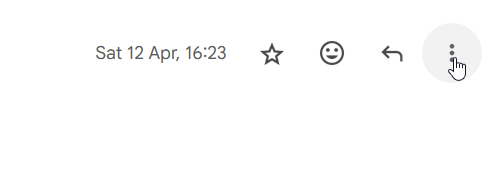
Click the three-dot menu beside the reply button
-
Select Block [Sender]

How to block emails on Outlook/Hotmail
Follow these quick steps to block emails in Outlook/Hotmail.
- Open Outlook
-
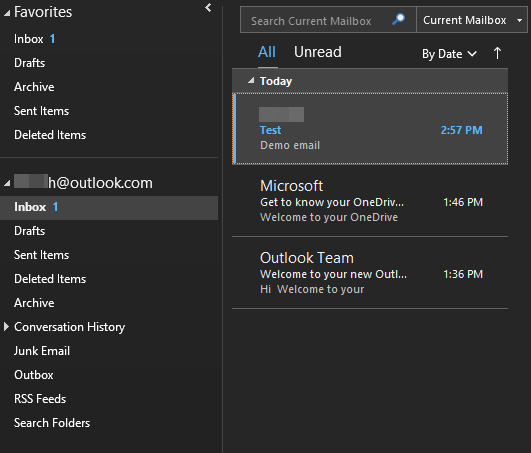
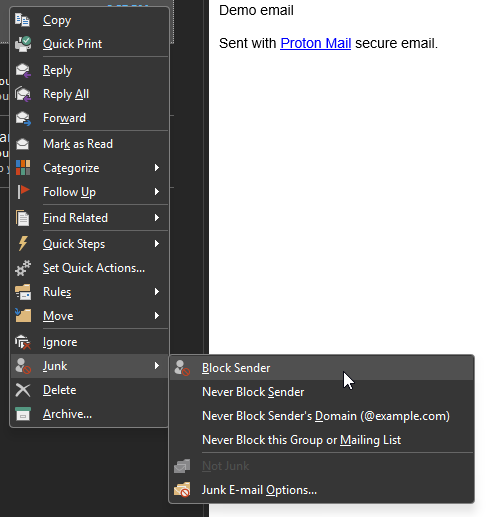
Right click on an email from the sender
-
Click Junk > Block Sender
How to block emails on Yahoo
Below you’ll find short step-by-step guides on how to block unwanted emails in the Yahoo environment.
- Sign in
- Open the unwanted email
- Click the three-dot menu
-
Select Block Sender

How to block emails on Apple Mail/iCloud
Here are the steps for blocking emails in Apple Mail:
- Open the Mail app
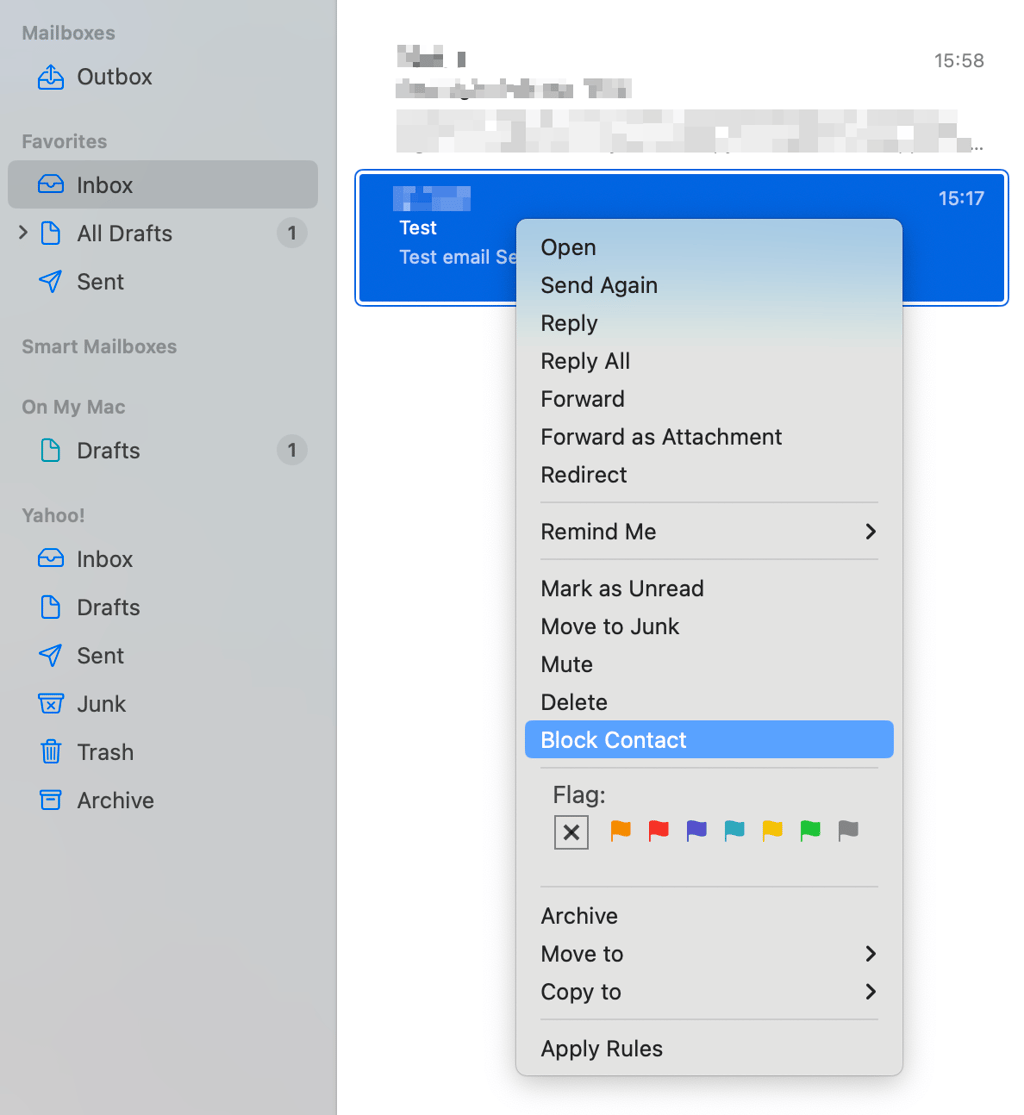
- Select the unwanted email and right click on it
-
Choose Block Contact
What happens when you block an email sender
After blocking a sender, incoming emails from them are typically diverted away from your primary inbox. On Gmail, they’re sent straight to the Spam folder. Outlook might reroute them to the Junk folder, and Apple Mail can move them to Trash. The sender isn’t notified when you block them, preserving your privacy.
However, blocking isn’t foolproof. Some persistent senders may bypass blocks by changing addresses. Even so, it’s a strong first step in managing spam and harassment. I always suggest combining blocking with creating custom rules or filters if you want to enhance your inbox security.
If you’re serious about stepping up your email defenses, consider services like ProtonMail. It offers powerful custom filters and advanced rules that let you fine-tune your inbox protection. These features help automatically sort or block suspicious messages, enhancing both your privacy and overall email security without extra hassle.
When blocking doesn’t work
Blocking an email address is helpful, but it’s not always a complete solution. Persistent spammers can bypass blocks by using different addresses or domains. This happens because basic email blocking usually matches only specific addresses.
When blocks fail, I recommend checking your spam and filter settings to strengthen your email defenses. Remove the sender from safe lists if applicable and create custom rules to catch variations.
For Gmail users, blocked emails generally go to Spam.
Outlook users might find blocked emails in the Trash. Regardless, doubling up blocking with smart filters gives you better results.
From my experience, ProtonMail is the best email service that allows you to create custom rules and block unwanted emails. However, if the problem continues, it’s best to reach out to your email provider’s support team for additional help.
FAQ
How can I block all emails from a domain?
By setting up custom rules, you can block entire domains. For instance, ProtonMail makes it easy to create custom filters to block entire domains with precision. Simply set up a rule using *@domain.com, and ProtonMail will automatically filter out unwanted senders, boosting your privacy and control.
Can I automatically delete blocked emails on Gmail?
No, you can’t automatically delete blocked emails on Gmail. The popular email service moves blocked emails to Spam automatically, but doesn’t delete them. If you wish to delete them instantly, you must create a custom filter with the Delete it action.
What happens to attachments in blocked messages?
Blocked emails – including their attachments – are delivered to Spam or Trash folders. They aren't automatically deleted unless specified by filters.
Can I unblock an email address later?
Yes, you can easily unblock a sender by reversing the blocking steps in your email settings.
Why am I still getting emails from blocked addresses?
Senders can bypass blocks by changing email addresses. Also, some email platforms have limitations on blocking effectiveness.
Do blocked senders get notified?
No, blocked senders aren’t notified. They have no indication that their messages are being diverted elsewhere or that they have been blocked.
Can I block multiple email addresses at once?
Yes, you can block multiple addresses by creating filters with custom rules or adding them individually to your block list.