How to replace Google’s everyday tools with privacy-friendly alternatives
Being behind major reports like The Mother of All Breaches and RockYou2024, our in-house cybersecurity experts and journalists provide unbiased, real-world testing and in-depth analysis.
We maintain complete transparency by openly sharing our testing methodologies with our audience.
Learn more
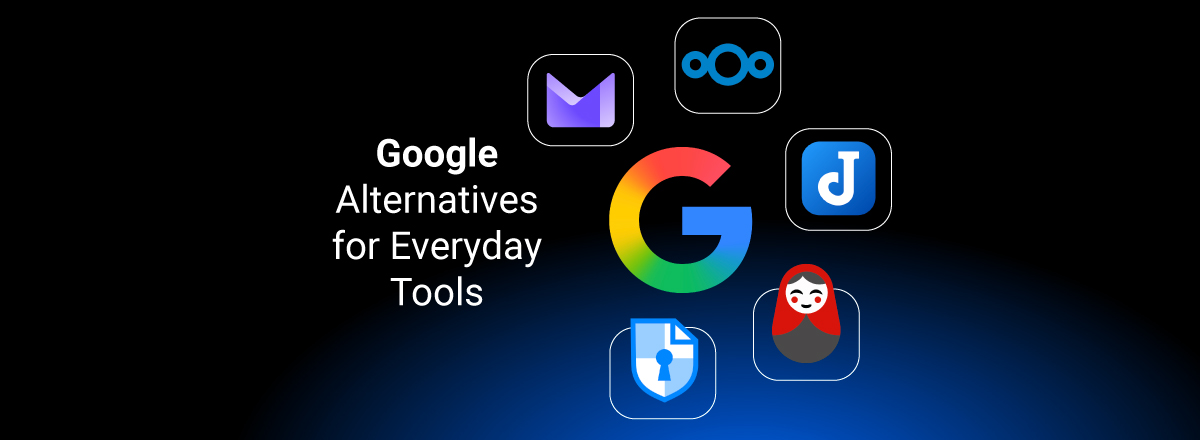
Google is easy to stick with and hard to leave because you barely notice it working. It’s there in your inbox, your shared documents, and your calendar invites, not to mention the Sign in with Google button that saves you from creating yet another account.
That’s exactly why switching to something else feels so daunting: you replace not just one app but a stack of habits. The challenge is finding more privacy-friendly tools without making everyday tasks harder than they need to be.
The good news is that you don’t have to do it all in a day. The way I see it, a better approach is to build a plan around what you actually do with Google, then tackle one habit at a time. You might replace some tools completely and keep a few stubborn ones for now. That’s still a perfectly good outcome.
In this guide, I’ll walk you through four areas worth covering first: staying in touch, keeping files and documents, organizing your schedule, and browsing and logging in securely. Along the way, I’ll point out where Google alternatives for everyday tools hold their own, where they sacrifice some usability, and where Google is still hard to beat.
Start with what you actually use Google for
Before you pick a single replacement, spend 10 minutes mapping your own Google footprint. Write down which services you use in a normal week: email, file storage, shared documents, search, calendar, maps, and photos. Include any sites where you use Sign in with Google. Check your phone’s app list and your browser’s saved logins – these can help jog your memory.
Then rank how sensitive the information in each service is. Does your inbox hold receipts, medical appointment details, bank notices, or password-reset emails for other accounts? Place it at the top of your list, then. Does your cloud storage contain scans of IDs, tax forms, or contracts? Move it up instead. Take note of what your search history and saved location history reveal, too, since they record what you're curious or worried about, and where you go.
Write the list down and use its ranking to decide where to start. The smartest first move is to replace the tool that holds your most sensitive data, which will not necessarily be the one you open most often. Besides, seeing five or six items on a list helps make the job feel finite without putting a deadline on it, and gives you a manageable set of changes to work through.
Staying in touch without Google watching: email and messaging
Email can feel especially hard to change because your address is tied to so many other accounts. Rather than treating the switch as a clean break, I suggest you think of it as gradually moving those connections to a new inbox.
If encrypted email is a priority, Proton Mail and Tuta are two main options to consider. Both offer encryption-focused services, though the protection depends on how you exchange messages. With Proton Mail, emails between Proton users are automatically end-to-end encrypted, while ordinary messages to external providers aren’t, unless you use an additional option, such as password-protected emails or PGP.
Before committing, look beyond the inbox’s appearance and consider how you’ll use it:
- Aliases. A disposable forwarding alias lets you give a store or newsletter a separate address rather than your main one. If it starts attracting unwanted mail, you can disable it.
- Custom domains. On Proton’s paid plans, you can use an address like [email protected], which gives you an identity you can take to another provider later.
- Search. Check how the service handles searches inside messages, especially across the devices you use. Proton’s web and desktop apps can search message contents by building an encrypted index on your device, which implies some initial setup.
- Spam filtering. Treat this as something to test with a new provider rather than assuming it will behave exactly like Gmail. Proton, for example, uses its own incoming-mail filtering process. During the transition, I’d expect to check both the inbox and spam folder, and use the provider’s filtering controls when messages land in the wrong place.
In practice, migration is easier than most people fear, but I’d still suggest using the new address for a few key accounts before moving everything. That gives you room to get used to the inbox and test the features you rely on without making the change feel so radical. If you go with Proton, its Easy Switch tool, built into Proton Mail, can import your Gmail messages, contacts, and Google Calendar events in a few clicks. It can also forward new Gmail messages to your new inbox while you update your accounts one by one. Tuta and other providers offer their own import tools, so check what yours supports.
While you’re setting up the new inbox, review how you sign in. Replace SMS-based two-factor codes with an authenticator app, which generates codes on your device rather than sending them over the phone network. Aegis (Android-only) and Ente Auth are popular standalone options, and some password managers, like Bitwarden, also include an authenticator.
For messaging, take the same gradual approach: choose one conversation or group to move first, rather than expecting your whole contact list to change habits at once.
Keeping files and documents without handing them to Google
The reality is, you want to keep your files private, but you still need to share a draft and edit it with someone else. Proton Drive and Proton Docs make a natural pair for that job: Drive stores your encrypted files, while Docs lets you create documents, share them, and work together in real time within the same workspace. Document contents, edits, comments, and suggestions are all end-to-end encrypted, so only you and the people you share with can read them.
If you want more control over where your files live, Nextcloud offers a self-hosted route with collaborative office editing. Its privacy protections depend on how it’s configured, though: controlling the server isn’t the same thing as making every document unreadable to whoever runs it. With a server-based editor such as Collabora, documents are processed on the server. Alternatively, CryptPad is an open-source, end-to-end encrypted office suite built around real-time collaboration. It’s worth considering if working together on documents is your main priority.
There are some trade-offs, of course – a privacy-focused alternative won’t match the polish of every Google Docs workflow. For this reason, try one real project before committing: share a trip plan, ask someone to comment on a résumé, or co-write a draft. Pay attention to the details you actually depend on, be it sharing permissions and suggested edits or formatting and working across devices. For example, if you’re co-writing documentation with a team on a daily basis, run that test with these people.
When you migrate, use Google Takeout to export your Drive data and convert Google-format files to standard formats such as .docx and .xlsx. Keep the originals until you've opened a few of the converted files and confirmed that formatting survived. Remember that exporting creates a copy and it doesn’t remove the originals from Google’s servers, so you’ll need to do that manually if needed.
Organizing your life: calendars and daily planning
Your calendar keeps the week moving: school pickups, dentist visits, team meetings, a friend’s birthday, you name it. Switching to a Google Calendar alternative has to maintain that rhythm. The harder part is often coordinating with everyone else, especially when your partner, your kids’ coach, your pilates instructor, or your coworkers still use Google.
If you’ve already moved your email to Proton Mail, Proton Calendar is a natural fit. It uses the same account, encrypts event details, and integrates with your inbox so you can respond to invitations and add events without starting from scratch in another app. You can also send invitations to people outside Proton, so someone using Google Calendar doesn’t have to switch just to attend your meeting.
Shared schedules might need a little more attention, though. Proton supports shared editing between Proton users, and you can subscribe to a Google Calendar through its secret iCal link and see its events alongside your own in Proton Calendar. However, note that that subscription is read-only, and changes can take a few hours to appear.
A sensible approach for mixed households is to move your personal calendar first, subscribe to any shared Google calendars you still need, and only then suggest the rest of the family follow. Nobody has to switch at once.
Browsing and searching without being profiled
Search and browser are two components of the same habit: you type a question in one, and the other decides who gets to observe. Changing your search engine helps keep your questions from becoming a personal profile. Changing your browser can help limit the tracking that happens afterward.
For search, I identified three options worth trying. DuckDuckGo doesn’t keep a personal search history or build a profile of you. Brave Search uses its own independent index of web pages. Startpage fetches results from providers, including Google and Bing, without passing along your identifying information.
For the browser, Firefox is the mainstream, independent alternative. Brave is another option, which blocks ads and trackers by default and feels familiar to Chrome users. LibreWolf is a privacy-hardened Firefox derivative for users who want stricter privacy settings and are willing to deal with some friction. LibreWolf’s defaults mean adjusting permissions for some websites, while conveniences like Firefox Sync need to be enabled manually. It also includes uBlock Origin, so you don’t need to add another ad blocker.
Here are the changes to expect in daily use:
- Results. Rankings and coverage will differ, so try the local, work-related, and niche searches you actually rely on. This is a consequence of less personalization, but not only: providers also use different indexes and result feeds. If you occasionally need Google, DuckDuckGo’s “!g” shortcut sends a query there – just note that search is then subject to Google’s privacy practices.
- Personalization. You can expect results less tailored to your past activity, but it doesn’t necessarily mean an ad-free experience. For example, Startpage returns non-personalized results and still displays advertising. Private search also doesn’t stop a website from recognizing you when you sign in.
- Migration and sync. Start with the browser’s import tool for bookmarks and other saved data, then check your essential extensions individually. Password migration may need an extra step: Firefox currently requires a CSV import from Chrome on Windows and Linux. Don’t assume your Chrome setup carries over and set up syncing separately.
Set your new default search engine in the browser, set the new browser as your default on your phone, and give it about a week for the old habit to fade.
Locking the front door: passwords and logins
Every switch you've made so far creates a new account, and each new account needs a strong, unique password. For this reason, adopting a password manager is the practical final layer: it protects everything else you've changed. If you've been saving passwords in Chrome or reusing a few favorites, this step makes the rest of the project safer.
Proton Pass is a strong fit if you’re consolidating around Proton. It stores and generates passwords, creates email aliases, and includes a two-factor code generator on paid plans. Bitwarden is an established alternative if you’d rather keep your password manager separate from your email provider. It’s open source, undergoes independent security audits, and supports access across devices.
For authentication codes, decide whether you want to keep everything together or separate passwords from your second factor. Proton Pass can generate codes for other accounts, but I’d avoid using it for the codes needed to unlock your own Proton account. Keep those in a separate authenticator and save recovery codes somewhere you can access even if you’re locked out of the manager.
Whichever password manager you choose, I recommend working through the setup in this order:
- Set up the new password manager. Choose a strong, unique master passphrase, configure its recovery options, and enable two-factor authentication.
- Import your existing passwords. Export them from Google Password Manager and import them into the new service. The exported CSV is sensitive: anyone who can read it can read the passwords inside.
- Test before removing anything. Check that important logins work and that you can access the manager on your usual devices. Then delete the temporary export file and, once you’re confident the move is complete, remove the old saved passwords from Google Password Manager.
- Replace weak or reused passwords. Start with email and other important accounts. Moving an old password into a new vault doesn’t make it stronger, so use the manager to generate a unique replacement.
- Replace Sign in with Google. On each important site, check whether you can add a password, passkey, or another independent sign-in method. Where supported, set it up and test it while signed out before disconnecting Google. Update the recovery email too if it still points to a Gmail address you plan to stop using.
The last step is slow and tedious, but it's important because the goal is to ensure you can actually log in to an account without Google’s help. Tackle it gradually, one site at a time, whenever you log in.
One ecosystem or several tools? Deciding what fits your habits
Once you’ve considered your options for Google alternatives for everyday tools, another question arises: should you move everything into a single privacy-first ecosystem, or choose a separate tool for each job?
Consolidating your privacy tools is mostly about getting rid of unnecessary friction. An ecosystem such as Proton gives you a single account to manage and a single subscription that covers email, calendar, files, and passwords. As a result, there will be fewer billing decisions, fewer settings to learn, and less time figuring out which services work together. If setup fatigue is what might send you back to Google, simplicity deserves real weight.
However, you become dependent again. When several essential tools share an account, protecting that account and setting up recovery is especially important. Proton, for example, provides recovery methods for encrypted data across its services, and you need to configure them before you need them. A privacy-first provider can be a better fit for your priorities without being a provider you want to rely on for everything.
On the other hand, you can opt for mixing tools for greater flexibility. You can choose the photo service, password manager, or document editor that suits your specific needs, rather than accepting the entire bundle as is. You also reduce how much of your setup you would need to reconsider if one provider changed its prices, policies, or features. However, this approach inevitably entails maintaining more accounts and settings, potentially more subscriptions, and greater responsibility for making the pieces work together.
The best thing is that you don’t have to stick to one approach here. Consolidate where integration saves you meaningful effort (I find keeping email, calendar, and files under one hood most convenient, for example) and use separate tools when you have a strong preference or an unmet need. The best setup is always the one that fits your habits without making your next move unnecessarily difficult.
Why Proton Unlimited is worth considering if you are replacing more than one tool
If the one-ecosystem approach suits you, Proton Unlimited is worth considering as a way to pay for several replacements at once. It’s built for people moving their inbox, files, calendar, and passwords in one go who would otherwise juggle separate subscriptions.
The plan is aimed at one person and includes 500GB of storage. It also covers the email features most people miss when leaving Gmail:
- 15 encrypted email addresses
- Support for 3 custom email domains
- Unlimited folders and labels
- Unlimited hide-my-email aliases
- VPN, password manager, and encrypted cloud storage
This mix suits someone who wants to separate work, shopping, and personal mail without having to open multiple accounts. A custom domain also gives you an address you can take with you if you ever move providers.
Despite the name, there are limits. Proton Unlimited is an individual plan, so if you need separate accounts for family members on a single bill, consider the Duo or Family plans instead.
Before subscribing, compare the upfront and renewal prices with what you’d pay for the tools you’d actually choose. If you’re unsure, test your routines on the free tiers first to see which paid features you’d really use. The bundle is worth it when it simplifies a setup you want, not when it asks you to adopt tools you wouldn’t otherwise use.
A realistic way to make the switch
You don’t need to leave Google all at once. Pick one part of your routine, make sure its replacement works for you, and build from there.
- Pick one habit area. Use your earlier ranking to start with the tool holding your most sensitive data. For many people, that means importing Gmail and calendar through Proton’s Easy Switch first, then moving a handful of files across.
- Export before you switch. Keep a separate copy of the data you’re moving, so the migration isn’t your only backup.
- Keep a fallback. Leave the old account active during the transition, check for anything you missed, and avoid deleting originals until you’ve tested the replacement.
- Update connected accounts gradually. If you’re changing email addresses, work through important logins and recovery addresses first, then handle the rest as they come up.
- Expand when it feels normal. Once the first replacement fits into your day with little thought, move on to the next area.
A partial move is still a move. You want to reduce your dependence on Google in a way you can comfortably maintain.
FAQ
What is the easiest Google habit to replace first?
Search is a low-commitment place to start: change your default search engine and try it on your everyday queries. But easiest isn’t necessarily most important. If your goal is to protect your most sensitive data first, use the assessment earlier in this guide to choose your starting point.
Can I use privacy-friendly tools and still collaborate with people who use Google?
Yes, but distinguish exchanging information from editing it together. You can use invitations, exported files, and document-sharing links without requiring anyone else to choose the same provider. For live document editing, agree on one tool for the project. For example, Proton Docs supports inviting collaborators through its sharing controls. Shared calendars might need more attention: viewing someone’s schedule is not the same as having permission to edit it.
Is it better to use one privacy-focused ecosystem or to mix different tools?
It depends on how much you value simplicity versus independence. One ecosystem can reduce account management and combine paid services under one subscription. Mixing providers gives you more freedom to choose each tool separately. A hybrid approach is also reasonable: keep closely connected tools together and use separate services where they fit your needs best.
What do I lose by switching away from Google apps?
You may lose some familiar conveniences or need to adapt a shared workflow. Test the things you actually rely on (e.g., finding old messages, co-editing documents, sharing family schedules, locating businesses, and searching photos) because every alternative has its own weaknesses.
Is Proton Unlimited a good fit if I only want to replace a couple of Google tools?
Possibly, but don’t choose it based on the number of tools alone. Compare the paid features you need with those on a free or smaller plan, and with any services you already pay for. Proton Unlimited bundles multiple Proton services, but that only helps if the combination suits your actual use.
How long does it realistically take to switch away from Google?
Expect a few weeks for your first area and a few months for a fuller move. Updating old accounts to a new email address is the slowest part, because it happens one login at a time. Move one habit at a time and remember that there’s no concrete deadline for the move.