How to unsend an email in Gmail: a step-by-step emergency guide


Things happen, and you’ve just sent something that wasn’t supposed to be sent. Whether it was too embarrassing or simply wrong, Gmail has a built-in feature that lets you cancel an email within a few seconds after pressing the Send button.
I’ve been in these stressful situations before and have learned a few useful tricks on how to build a routine that helps prevent them. So, in this article, I’ll share both practical email management tips and precise instructions on how to unsend emails in Gmail.
How to cancel an email after sending it: a quick guide
- After sending an email, look for Undo (bottom-left on desktop and bottom on mobile).
- Click Undo before the time elapses (from 5 to 30 seconds, depending on your settings).
- Open the Sent mailbox to check whether the email was irreversibly sent.
How does the Undo Send feature work?
The Undo Send feature allows you to cancel an email immediately after sending it. So, you have from 5 to 30 seconds to press the Undo button and unsend the email if you made a mistake, noticed a typo, missed important information, or got the recipients wrong. You can customize the time period for email cancellation in Gmail settings.
If you manage to cancel sending on time, the recipient won’t receive any notification about this email. Note that you can’t retrieve an email once the time has elapsed and it appears in your Sent mailbox.
How to unsend an email on desktop
Follow these steps to cancel emails on the Gmail website:
-
Go to Settings in the right corner of your screen and click See all settings. Find the Undo Send section in the menu, set the preferred email cancellation period (from 5 to 30 seconds), and hit Save Changes at the bottom of the page.

-
Hit the Send button after composing the email.
-
Click Undo, which appears in the bottom-left corner of your screen for the time period you set in Settings.

-
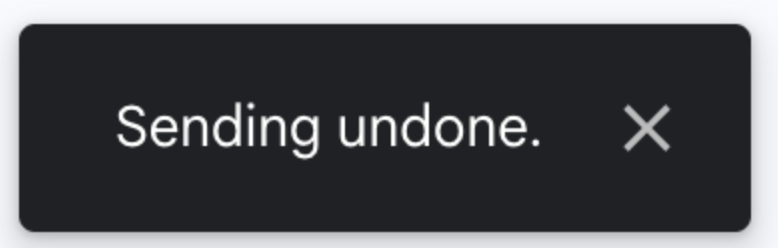
After hitting Undo, you’ll see the Sending undone message in the bottom-left corner of your screen. If you haven’t seen it, open the Sent email box to check if your email has been irretrievably sent.
How to unsend an email on mobile devices
The process of retracting emails on a mobile device is similar to that on a desktop. However, there’s one key difference: you can’t set a custom cancellation period. Here, by default, you can unsend your email only within 5 seconds. So, to cancel an email in a mobile app, follow these steps:
-
Write your email and hit the Send button.
-
Click on the Undo button at the bottom of your screen. It’ll be available only for 5 seconds after sending the email.
-
The Undoing message will appear on the screen, and your email will be opened automatically so you can edit it. If it hasn’t opened, check the Sent mailbox, as you could’ve hit the Undo button too late.
How to write emails and not stress about unsending
Writing emails requires skills too – even small mistakes can damage your reputation and sabotage your relationships. That’s why Gmail has various features to help you avoid the headache of sending wrong emails. So, here are a few email management tips to help you make the most of Gmail.
Schedule emails
Gmail has a useful feature of scheduling emails. This way, you won’t miss important deadlines and have time to edit and check them in advance. Moreover, you’ll be able to return to the scheduled emails as many times as you want to make sure they’re honed to perfection.
iOS and Android. Tap three dots at the top right corner of the composed email and choose Schedule send.
Desktop. In the composed email, click on the down arrow next to the Send button and choose Schedule send.
Enable grammar and spelling checks
Instead of letting a single typo stress you out and rush you to unsend an email, Gmail can check your text while you’re typing it. What you need to do is to go to Settings, click See all settings, and turn on the Grammar, Spelling, and Autocorrect features.
Create email templates
If sending similar emails is a part of your routine, you can create a reusable template that you can further adapt to each specific recipient. It may include a greeting, information that you often reiterate, or just a structure that you must follow in every email. Note that this feature is only available on the Gmail website, not in the mobile apps.
Desktop. Go to Settings, click See all settings, choose the Advanced section, and click Enable next to Templates. Then, you can compose an email and save it as a template.
Conclusion
We all know how it goes: you remember an important detail and spot an error at the very last second. But Gmail saves the day, giving you the possibility to catch the wrong email before it reaches the recipient and causes problems.
Even though it’s available only for up to 30 seconds, Undo Send is still a useful feature that will save you some stress. And if you use other Gmail smart tools, you may need such an emergency measure far less often.