How to fix the “Your connection isn’t private” error

The “Your connection isn’t private” error is likely to appear when your browser can’t verify a website’s security certificate or establish a secure HTTPS connection. Usually, you should treat the warning as serious, as it can mean that the website you are trying to access is unsafe. However, harmless things, such as an incorrect system clock, outdated browser data, a VPN, or a firewall interfering with the connection, may also trigger the error.
Whatever the real cause, you should not ignore the warning without investigating its trigger. In this guide, I’ll explain what the “Your connection isn’t private” error means, what the typical causes are, and share my safe fixes.
What does “Your connection isn’t private” mean?
Typically, the “Your connection isn’t private” warning means that your browser couldn’t establish a secure connection with the website you are trying to enter. In slightly more technical terms, the browser was unable to verify the site’s SSL (Secure Sockets Layer) or TLS (Transport Layer Security) certificate, which is used to confirm the website’s identity. Without the verified certificates, the browser cannot encrypt the data exchanged between your browser and the site for security and privacy purposes.
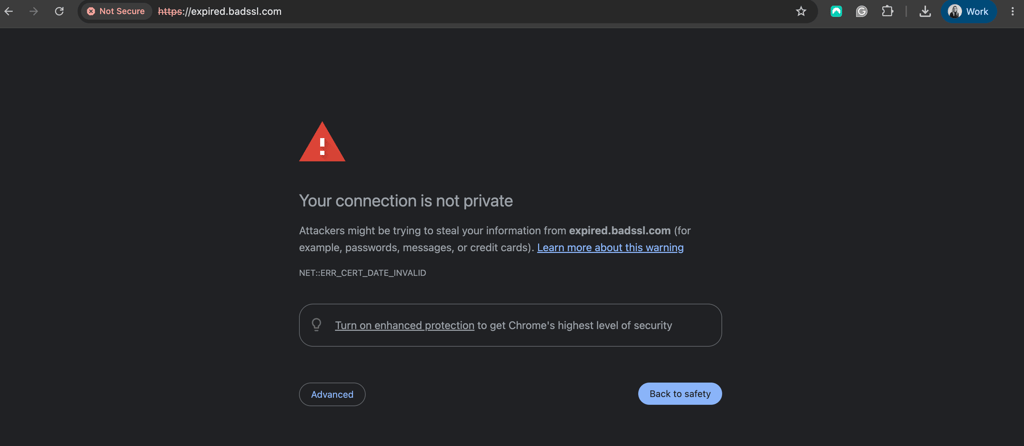
So, when you open an HTTPS (HyperText Transfer Protocol Secure) website – which is a typical website – your browser first checks its security certificate. If it verifies the certificate’s validity, ensures it belongs to the exact site, and whether it was issued by a trusted authority, only then does it proceed to load the site for you. However, if one of these checks fails, the browser is likely to block the page rather than risk sending your data over a potentially unsafe connection.
The exact warning varies depending on the browser you use:
| Browser | Typical warning |
| Google Chrome | Your connection is not private |
| Microsoft Edge | Your connection isn’t private |
| Mozilla Firefox | Warning: Potential Security Risk Ahead |
| Safari | This Connection Is Not Private |
In addition to the warning message, you might also see an error code providing information about what exactly went wrong. For example:
- NET::ERR_CERT_DATE_INVALID usually points to an expired or not-yet-valid certificate.
- NET::ERR_CERT_AUTHORITY_INVALID means the browser doesn’t trust the certificate issuer.
- NET::ERR_CERT_COMMON_NAME_INVALID typically indicates that the certificate doesn’t match the domain you’re visiting.
While these warnings don’t necessarily mean that the website is malicious, you still shouldn’t ignore them. My advice is to investigate the root cause and never to proceed blindly to the page after receiving this error.
Why am I getting the “Your connection isn’t private” error?
The most common reasons you are seeing the “Your connection isn’t private” error are related to the website itself. However, your device, browser, or network may also be preventing the browser from verifying an otherwise valid security certificate.
Some of the most common causes include:
- An expired or invalid SSL/TLS certificate. If a website’s certificate has expired, isn’t active yet, or was configured incorrectly, your browser won’t be able to verify the connection.
- A certificate and domain mismatch. The certificate must be issued for the website you’re visiting. If the domain name doesn’t match, your browser will treat the connection as potentially unsafe.
- Incorrect date and time settings. Your device uses its system clock to determine whether security certificates are currently valid. An incorrect date or time can therefore trigger certificate errors even on legitimate websites.
- Outdated or corrupted browser data. An outdated browser, cached certificate information, or corrupted browsing data can sometimes interfere with certificate verification.
- Public Wi-Fi networks. Hotels, airports, cafés, and other public networks often use captive portals that require you to sign in or accept terms before accessing the internet. This process can interfere with HTTPS connections and produce a privacy warning.
- VPN or virtual network adapter issues. VPN software routes your traffic through virtual network adapters. An incorrectly configured, outdated, or conflicting adapter can sometimes interfere with secure connections.
- Antivirus or firewall interference. Some security programs inspect encrypted HTTPS traffic. If this feature isn’t working correctly, your browser may be unable to validate a website’s certificate.
- DNS or other network problems. Incorrect DNS responses, router issues, or network misconfigurations can send your browser to the wrong server or otherwise prevent it from establishing a trusted connection.
The warning can also indicate a genuine security threat, such as someone attempting to intercept your connection or a malicious website impersonating a legitimate one. For this reason, it’s best to identify the cause of the error before bypassing the warning.
How to fix the “Your connection isn’t private” error
If you see the “Your connection isn’t private” error, I do not recommend simply bypassing it. A solid first step would be to try to determine whether the problem is caused by the website itself or by your browser, device, or network. Then you can try the simplest fixes below, and move on to the more technical methods if you still see the error.
1. Reload the website and check the URL
The simplest fix is to reload the page and check if you entered the correct website address. Sometimes, a temporary connection or server issue can prevent your browser from validating the website’s certificate. If that’s the case, reloading the site will probably solve it.
You should also pay close attention to the website’s domain name. For example, if you clicked on a link you received in an email or a message, the name may not be spelled correctly. If it’s a simple typo, correct it and see if it removes the warning. However, if the certificate warning is combined with a suspiciously misspelled domain name, it may be a good reason to leave the page immediately.
2. Check your device’s date and time
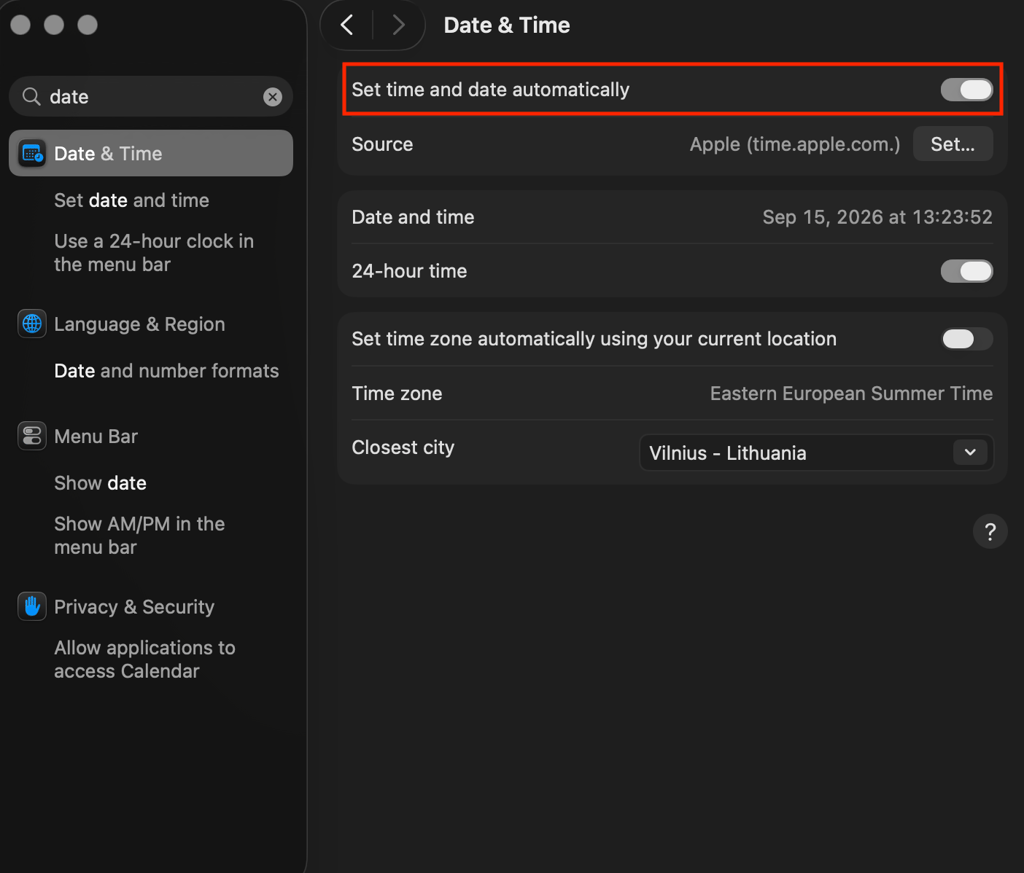
Interestingly, your browser relies on your device’s clock when checking an SSL/TLS certificate’s current validity. If the date, time, or time zone is incorrect relative to the website, a perfectly valid certificate may appear to be expired or invalid.
To fix this, check your system settings and enable automatic date and time synchronization if available. Then restart your browser, go to the website you were trying to reach, and check whether the issue is resolved.
3. Try private or incognito mode
Another quick fix if you keep seeing the “Your connection isn’t private” error is to open the website in a private or incognito window. This simple step may help you check whether the stored browser data or an extension is triggering the error.
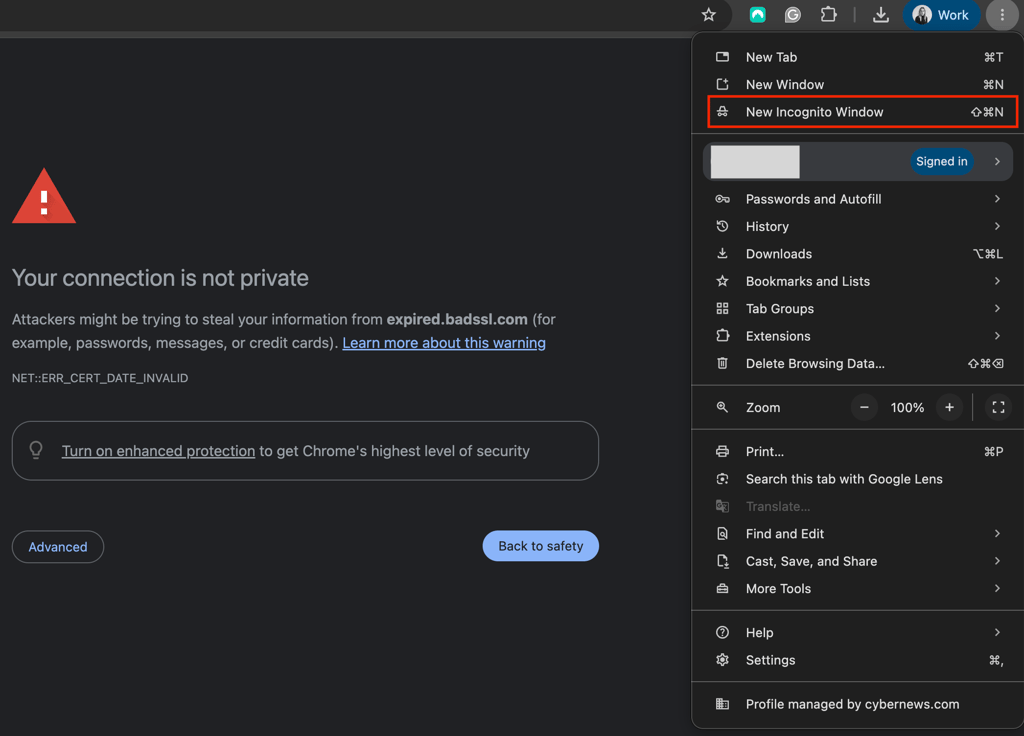
If using a private or incognito mode resolves the error, the next step is to clear your regular browser’s cookies and cache. You can also temporarily disable browser extensions, particularly those associated with security and traffic filtering. If, after disabling one of the extensions, the website loads normally, it’s likely that the specific extension was the culprit interfering with the connection.
4. Clear your browser cookies and cache
Clearing browser cookies and cache often solves a number of connection issues. Old or corrupted browser data can occasionally cause problems when connecting to websites, using a VPN service, and simply loading sites. So, clear your browser cookies and cache, close the browser, reopen it, and try entering the website again.
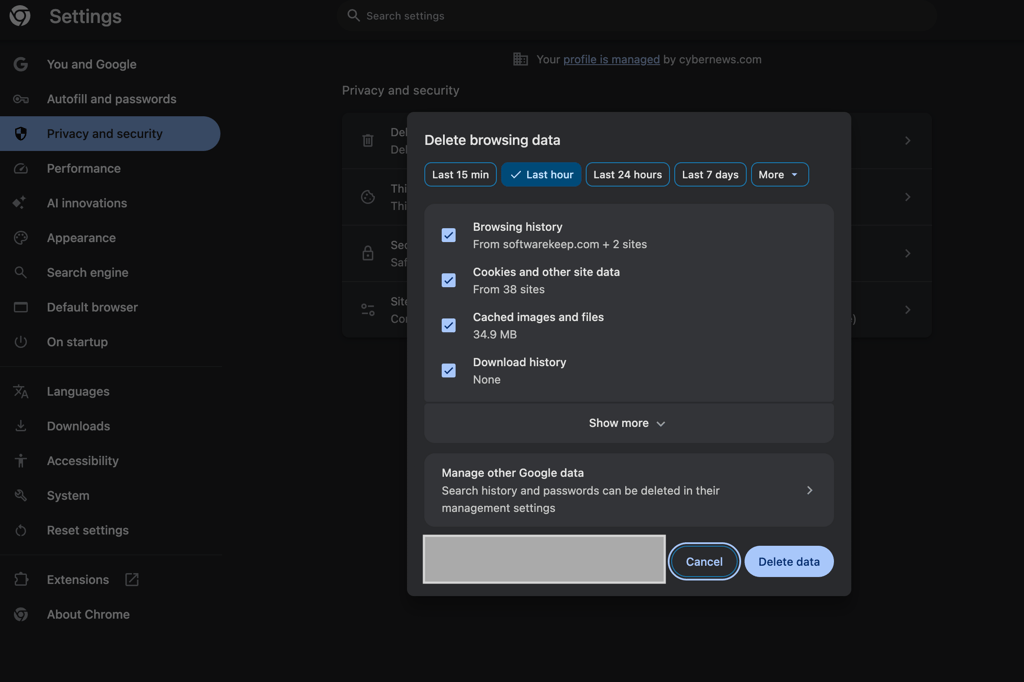
Remember that clearing browser data can sign you out of websites and remove some saved site preferences. To avoid this, you can also delete data for that one specific website that’s showing you the “Your connection isn’t private” error.
5. Update and restart your browser and device
A simple issue, such as an outdated browser or operating system, may cause the “Your connection isn’t private” error, because older versions of browsers and devices may not recognize newer certificates or certificate authorities. Check for any pending browser updates, and if you find any, install them. Do the same for your device, install the update, and restart it.
Of course, restarting the device is also a cure-all for temporary network connection issues, so it’s worth trying it even if your browser and device are up to date.
6. Try another browser or network
If you have any other browser on your device, try opening the website in it. If it loads without any issues, then the problem is most likely related to your usual browser or one of its extensions.
Another similar fix to try is switching to a different network, such as from Wi-Fi to mobile data. If the “Your connection isn’t private” error disappears this way, your original network, router, DNS configuration, or public Wi-Fi login page may be responsible. If you are using public Wi-Fi, make sure you’ve completed any required sign-in or captive portal before trying the website again.
7. Check your VPN connection
Even a premium VPN service may sometimes interfere with HTTPS connections. Most often, this happens if there’s a problem with the VPN server, the VPN protocol, DNS configuration, or the network interface.
If you suspect your VPN is the cause, try disconnecting from it temporarily and reloading the website. If the “Your connection isn’t private” error disappears, reconnect to your VPN, but use a different server or tunneling protocol. Restarting the VPN app can also help reset its own connection and network configuration.
However, if the error continues even after you disconnect or close the VPN app, the problem may involve the virtual network adapter installed by the VPN rather than the VPN connection itself. This is more likely if you have used multiple VPN apps, recently switched VPN providers, or uninstalled a VPN without removing all of its network components.
8. Check VPN virtual network adapters
Typically, when you install a VPN app, it creates a virtual network adapter. This allows the app to route network traffic through the encrypted VPN tunnel. Depending on the VPN and protocol, Windows may show adapters associated with technologies such as TAP, TUN, or Wintun.
Although this may sound highly technical, it simply means that old VPN installations or multiple VPN apps can leave behind adapters that conflict with your current network configuration. To fix this on Windows, open Settings > Network & Internet> Advanced network settings and check the listed network adapters. If you see an adapter belonging to an old VPN you no longer have or use, disable it and try visiting the website again.
However, it is important to avoid randomly disabling or uninstalling adapters you don’t recognize. If you’re unsure which adapter belongs to your VPN, the best practice is to check the VPN provider’s documentation first. A simpler way might be to reinstall your current VPN app. This way, it should recreate the network components and adapters it needs.
9. Check your antivirus and firewall settings
Most antivirus software and firewall programs include live scans of HTTPS, SSL, or encrypted connections. These programs can intercept your usual browser-to-website connection, presenting their own certificate to your browser. If the live scan feature is misconfigured or its certificate isn’t trusted correctly, your browser may show you the “Your connection isn’t private” error.
The only fix in this case is checking your security software’s HTTPS scanning, SSL scanning, encrypted traffic scanning, or web protection settings. Once you locate these settings in your antivirus or firewall, temporarily disable them, and try visiting the site again. If it loads correctly, then you’ll know the cause. That said, I do not recommend permanently disabling these protections. Instead, update or reconfigure the security software and check whether it resolves the issue again.
10. Flush DNS or reset your network settings
If none of the previous fixes work, the problem could be related to your device’s DNS cache or network configuration. Then, fixing it involves flushing the DNS cache and forcing your device to request fresh DNS information, instead of relying on the old one.
To flush DNS cache on Windows, open Command Prompt and run ipconfig /flushdns. On macOS, you can restart the device to clear many temporary network issues, or flush the DNS cache manually using Terminal.
As the absolute last resort, you can reset your device’s network settings. However, this may remove all saved Wi-Fi networks, VPN configurations, and most other network preferences. So, if you want to proceed with this, I recommend trying the easier fixes on my list first.
Lastly, if the error persists on the same website across multiple browsers, devices, and networks, the problem is likely on the website’s side. In that case, there may be nothing for you to fix, and you’ll simply have to wait for the site owner to correct its certificate or security configuration instead.
Is it safe to bypass the “Your connection isn’t private” warning?
Unless you know exactly what happened, you shouldn’t bypass the “Your connection isn’t private” warning. Browsers do not display this message to annoy you; it’s there to prevent access to a potentially dangerous website. Continuing anyway could expose information, such as passwords, payment details, and other sensitive data, that you send to the site.
That said, seeing this warning does not mean that the website is automatically malicious. For example, you might encounter it when accessing a trusted internal network, router configuration page, development environment, or another service that uses a self-signed certificate. So, if you know and trust the website and have an idea why its certificate cannot be verified, entering the site may be reasonable.
Keep in mind that bypassing the warning by selecting an option such as Advanced > Proceed doesn’t really fix the problem that caused the error in the first place. And if a website you usually use without issues suddenly shows the “Your connection isn’t private” error, I recommend troubleshooting the connection first or waiting for the website owner to resolve the issue before trying the website again.
What if the error appears on only one website?
If the “Your connection isn’t private” error appears on only one website, the problem is more likely to be on the website’s side than with your device or network.
To check this theory, try opening the website in another browser or on another device. Switching networks, such as from Wi-Fi to mobile, also works. If the same privacy warning still appears even though other HTTPS websites work as they should, there’s probably nothing you can do to fix it on your end.
FAQ
Why does Chrome say my connection isn’t private?
Chrome shows the “Your connection is not private” warning when it can’t verify a website’s SSL/TLS certificate or establish a trusted HTTPS connection. This can happen because the certificate has expired, is invalid, or was issued for a different domain. However, problems on your device or network, such as an incorrect system clock, VPN issues, or HTTPS scanning by security software, can also trigger the warning.
Can a VPN cause the “Your connection isn’t private” error?
Yes, a VPN can sometimes cause the “Your connection isn’t private” error. Problems with the VPN connection, an incorrect protocol choice, a mismatched DNS configuration, or a virtual network adapter may cause issues with secure connections. To check, temporarily disconnect the VPN and reload the website. If the error disappears, reconnect and try another server or protocol. If the error persists, check for outdated or conflicting VPN network adapters.
Can I safely ignore the “Your connection isn’t private” warning?
No, you shouldn’t ignore the warning unless you know exactly why it appeared. Never enter passwords, payment information, or other sensitive data on a website displaying an unexplained certificate warning.
Why does a legitimate website say my connection isn’t private?
A legitimate website can trigger the warning if its SSL/TLS certificate has expired or been configured incorrectly. However, the problem may also be on your end. If the error occurs only on one website and persists across different devices and networks, the issue is most likely with the site itself.