How to unblock YouTube in 2026: simple guide

-
YouTube might be blocked because of location restrictions, school or work rules, parental controls, DNS filtering, or network problems.
-
The easiest way to unblock it is to try a different network, change your browser settings or your DNS server, or use a VPN to connect through a different server.
-
More advanced methods include using a browser proxy, a privacy-focused YouTube frontend, or VPN obfuscation.
YouTube can be blocked for several reasons, including school or workplace restrictions, problems with your internet connection, and even country-wide blocks. Sometimes, the site itself is available, but your network administrator or router prevents your device from reaching it. This can be a major problem if you’re traveling and want to access your favorite channels from back home, educational content, or the news.
But a block doesn’t mean that YouTube is permanently unavailable. In this detailed guide, I’ll show you how to unblock YouTube using 7 different methods and explain the most common reasons why the site might be blocked.
Why is YouTube blocked?
YouTube is often blocked for reasons that have little to do with YouTube itself. In some countries, such as China and Iran, internet censorship and government regulations limit access to the platform. Schools, offices, libraries, and other organizations might also block YouTube to control bandwidth or enforce their network policies. Parents can restrict access through parental control tools, while mobile service providers might use content filters due to local laws or safety reasons. Creators themselves can also choose to restrict their own videos to viewers over 18 years old.
On the technical level, YouTube is usually blocked using one or several of the following methods:
- DNS blocking. Your network's DNS service prevents your device from finding the correct IP address for YouTube.
- IP blocking. A firewall blocks connections to the IP address used by YouTube.
- URL or firewall filtering. Your network device checks the website address or traffic and prevents access to YouTube or specific parts of it.
- Account restrictions. Your school or workplace’s Google Workspace administrator can disable YouTube for all managed accounts.
- Restricted Mode. YouTube's own Restricted Mode feature can filter out mature content. It can also be used by a network administrator, including on school or public networks.
- Mobile-provider filters. Some mobile providers use content filters that restrict websites or content when you're using their mobile network. YouTube specifically notes that these filters can cause network-level restrictions.
It’s important to know what exactly is causing the YouTube block because different causes require different solutions. I’ll explain how to figure it out in the next section.
How to unblock YouTube: 7 ways from simplest to advanced
If YouTube is blocked for you, the first thing you need to do is identify what’s causing the block. I’ve created a simple table for you to follow with the most common errors, their causes, and solutions:
| What you’re seeing | Likely cause | What to do |
| YouTube does not load, but other sites do | ISP, network, or regional blocking | Use a VPN or switch to another network |
| YouTube says Restricted Mode is enabled | Account, device, DNS, or administrator restriction | Check YouTube and network restrictions |
| YouTube works on mobile data but not Wi-Fi | Wi-Fi network or ISP restriction | Switch to another network or change your DNS server |
| Your browser says it can’t find YouTube’s server | DNS filtering or DNS failure | Change your DNS server |
| YouTube is unavailable, but you only need access from one browser | Browser or network filtering | Use a browser proxy |
| YouTube's website is blocked, but you can still access other websites and don’t mind using them instead | YouTube domain or tracking restrictions | Use a privacy-focused YouTube frontend (an alternative interface for YouTube) |
| VPN connects, but YouTube or the VPN remains blocked | VPN blocking or deep-packet inspection | Enable an obfuscated VPN connection |
I explain the steps to the different methods in more detail below.
Check YouTube and network restrictions
Before changing anything on your device, find out if YouTube is actually blocked. Playback errors, account restrictions, DNS problems, and administrator settings can look like a full YouTube block.
Here’s how to check for restrictions:
- Try opening another website. If several different sites fail, check your internet connection: make sure you’re connected to Wi-Fi and restart your router or modem if necessary. Also check if your ISP is experiencing an outage – you can do that on its official website.
- Try YouTube on another device connected to the same network. If it fails everywhere, the network is likely to be the source of the problem.
- Connect the same device to a different network, such as mobile data. If YouTube works there, the original network is the problem.
- Check if Restricted Mode is turned on. If YouTube loads but videos or content are restricted, go to YouTube > profile picture > Restricted Mode and turn it off.
- If Restricted Mode cannot be disabled, use YouTube's content restriction troubleshooting page. It can identify whether restrictions come from an administrator, your account, or the network.
This method helps you identify the problem and is especially useful on school, workplace, library, or managed-device networks, where restrictions are often intentional. Note that if an administrator controls the network, changing local settings might not remove the restriction and could violate the network's rules.
Use a VPN
A secure YouTube VPN is usually the easiest method because all you need to do is install an app and connect to a server. The VPN then creates an encrypted connection between your device and the server and sends your internet traffic through that server. As a result, the network that blocks YouTube no longer sees a direct connection from your location to YouTube.
Follow these steps to unblock YouTube with a VPN – I’ll use NordVPN as an example:
-
Choose a VPN and download it from the official provider’s website or an app store. Make sure you use a VPN with industry-standard encryption and strong security. For example, NordVPN uses AES-256-bit encryption, RAM-only servers, a kill switch, DNS leak protection, and a six-times-audited no-logs policy, with additional features like Double VPN and obfuscated servers.
NordVPN official website with a link to securely download the VPN - Install the VPN app and sign in or create an account.
-
Select a server location and connect to it. I recommend choosing a location that’s closest to you for the fastest speeds and lowest risk of lag or buffering.
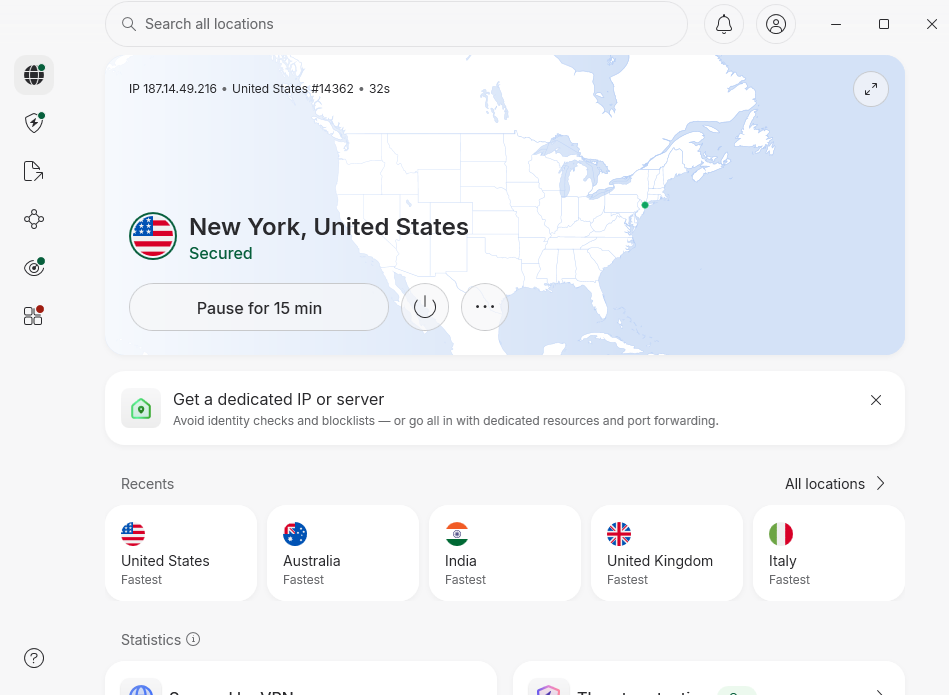
NordVPN connected to a server in New York - Open YouTube again. If it still doesn’t load, try connecting to a different server, as individual servers are sometimes blocked or get crowded. Also, try clearing your browser’s cache and cookies – they store information about your connection and can leak your real location.
A VPN should help if you’re dealing with your ISP, Wi-Fi network, or local network blocking YouTube. However, it might not work if the VPN itself is blocked or if YouTube is unavailable because of a different problem.
Switch to another network
A network can block YouTube through its firewall, DNS filtering, content-filtering service, or other access controls. If this is the case, simply connect to a different network:
- Disconnect your device from the Wi-Fi network where YouTube is unavailable.
- Connect to another trusted Wi-Fi network, if it’s available, or enable your phone's mobile hotspot and connect the affected device to it.
- Open YouTube and try the same video again.
- The video should play as normal now.
This method works when the original network is responsible for the block. It won’t help if YouTube is unavailable on both networks, if your device is restricted, or if the problem is caused by your account or browser.
Change your DNS server
DNS is the system that translates a domain like youtube.com into an IP address. If your ISP or network uses DNS filtering, changing to a different DNS resolver can sometimes restore access.
Here’s how to change your DNS server on Windows:
-
Open Settings, go to Network & internet, click on Wi-Fi, and then select Hardware properites.
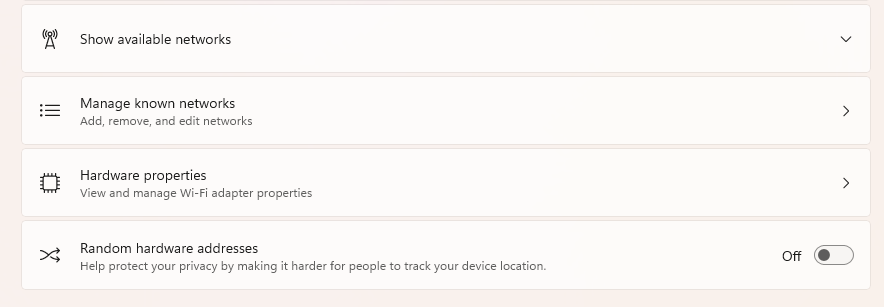
Hardware properites section in Windows network settings -
Find DNS server assignment and select Edit next to it.
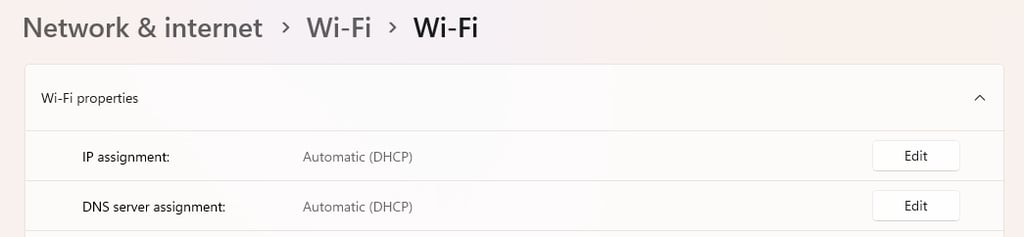
DNS server assignment option with an Edit button that will allow you to change the default DNS setting - Change the setting from Automatic (DHCP) to Manual.
-
Enable IPv4 and enter 1.1.1.1 as the preferred DNS server and 1.0.0.1 as the alternate server.
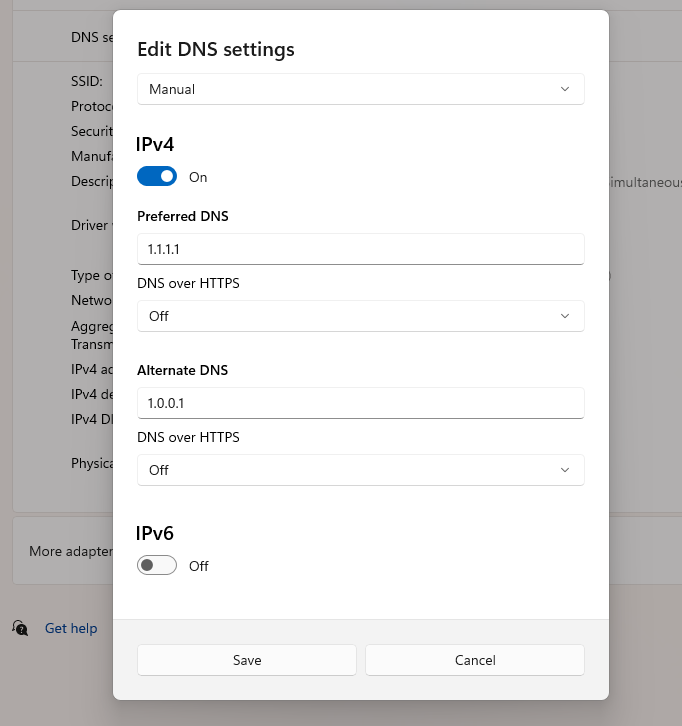
DNS settings where you can change the preferred and alternate servers - Save the settings and reconnect to the network.
- Try accessing YouTube again.
This method works when the problem is DNS-based filtering or a faulty DNS resolver. It won’t bypass an IP-level block, firewall rule, or blocking system that blocks YouTube at a later stage of the connection. Changing your DNS server also doesn’t make all internet traffic anonymous, which is a concern if privacy is your priority.
Use a browser proxy
A proxy acts as an intermediary between your browser and the internet. Instead of connecting your device directly to YouTube, the browser sends its request to the proxy, which then connects to the website. You can also use a network or system-level proxy, like the kind that’s available through Chrome, but in that case, all of the apps on your device will use the proxy connection. If you only want to access YouTube, I recommend a browser proxy. Note that you’ll first need a proxy server to use this method.
You can set up a browser proxy in Firefox by following these steps:
- Open Firefox and select Settings.
- Go to Privacy and security and then Connection and software security.
- Click on Advanced settings and go to Proxy settings.
- Click Configure proxy.
- Select Manual proxy configuration.
- Enter the proxy's address and port supplied by the proxy operator.
- Save the settings and open YouTube.
The browser proxy method works when your network blocks direct access to YouTube. It might fail if the network blocks the proxy, the proxy is overloaded, YouTube blocks the proxy’s IP address, or the proxy doesn’t support the traffic required for video playback.
There’s also a privacy issue you need to consider. Proxy operators can potentially see and log traffic passing through their service. Avoid free proxies, particularly those asking you to install software or enter passwords. For sensitive browsing, a proper VPN is a safer choice, especially one with a split tunneling feature so that you can still route only your browser through a VPN server.
Use a privacy-focused YouTube frontend
A privacy-focused YouTube frontend provides a different interface for accessing YouTube’s content. Invidious is one example: it’s a free and open-source alternative interface that can retrieve YouTube content without requiring you to use the standard YouTube website.
Here’s how to unblock YouTube with Invidious:
- Open the official Invidious documentation and go to its current list of public instances.
- Choose an instance from that list – public instances outside this list are untrustworthy and could be unsafe.
- Open the instance and search for the video you want, or paste a YouTube video URL if the instance supports it.
- If playback fails, try a different instance.
This approach can help when the standard YouTube website is blocked but the alternative frontend remains reachable. It’s less useful when the underlying YouTube video servers are also inaccessible from your network.
Like the browser proxy method, the frontend approach has privacy concerns. Even though it’s privacy-focused and Invidious itself doesn’t collect user data, instance operators can still log your IP address. Public instances can also disappear or stop working as YouTube changes its systems. If you need consistent access, hosting your own instance is possible, but that’s an advanced approach that requires server resources and maintenance.
Enable an obfuscated VPN connection
While using a VPN is the easiest way to access YouTube, it can sometimes be blocked because a network can identify it as a VPN connection. Obfuscation is designed to make VPN traffic look like ordinary web traffic, so it’s harder for network filters and firewalls to recognize and block the VPN connection.
Here’s how to turn on obfuscation, with NordVPN as an example:
-
Open the NordVPN app and select your profile icon.
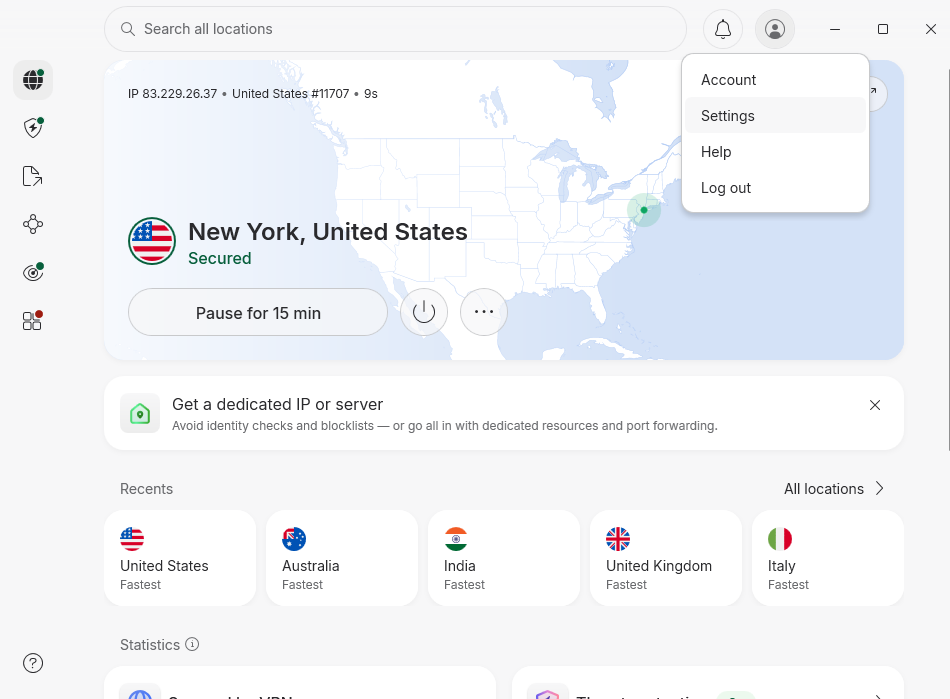
NordVPN app with the Settings option selected in the menu - Open Settings and go to Connection and security.
-
Expand the VPN protocol list and select NordWhisper. This protocol is specifically designed to help you connect to the VPN on restrictive networks.
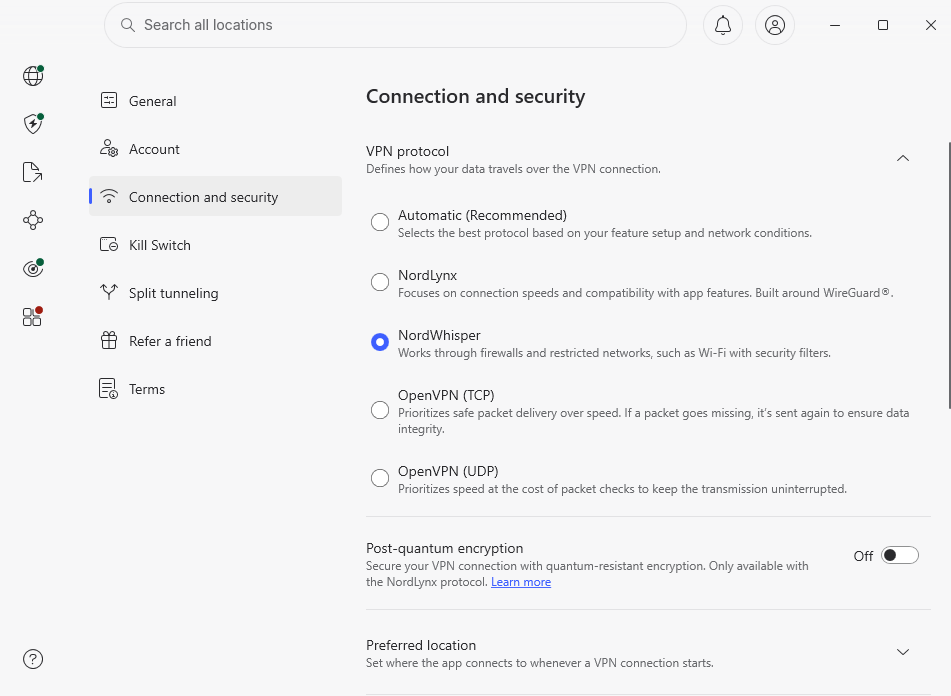
List of NordVPN protocol options on the app with NordWhisper as the chosen protocol - Return to the main screen and open All locations.
-
Select Obfuscated and connect to your chosen server location.
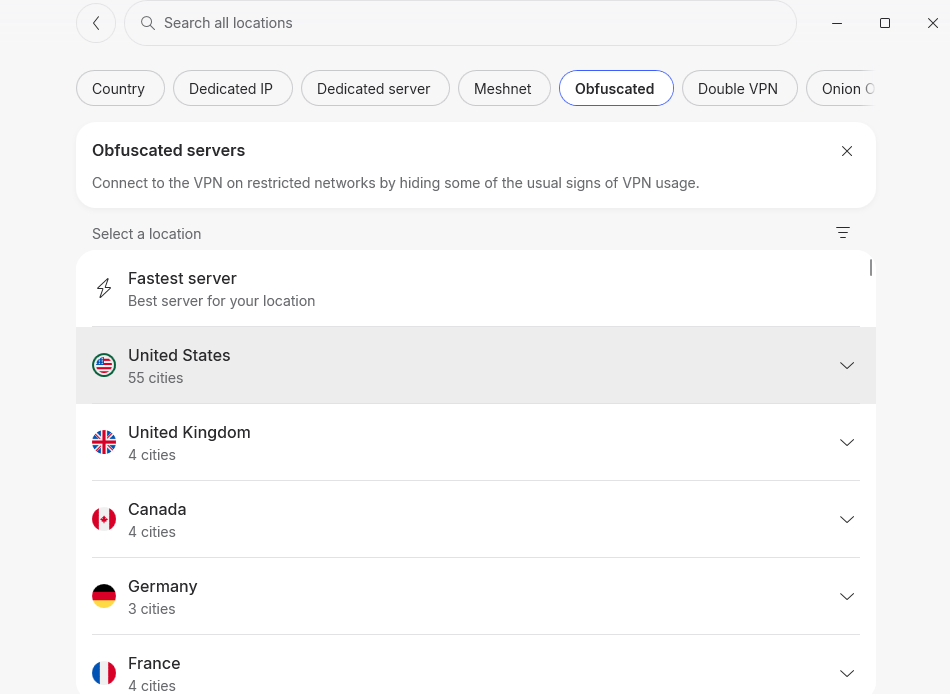
NordVPN’s selection of Obfuscated servers with United States marked as the chosen location - Once connected, open YouTube and check if the site and videos load.
Note that with NordVPN, you don't need to enable both settings manually. Its Obfuscated server category now runs on NordWhisper, so selecting an obfuscated server handles the obfuscation in the background.
The obfuscation method is useful when YouTube is inaccessible because the network blocks regular VPN connections. However, it still doesn’t guarantee access, as the network can identify and interfere with obfuscated connections. Obfuscation can also affect performance because it requires extra processing power to disguise the connection.
Which countries restrict access to YouTube?
YouTube is available in most countries, but there are governments that restrict access to the website. Some countries fully block the website, while others use throttling and specific restrictions or block only certain videos. Some of the better-known examples include:
- China. YouTube was blocked in 2008 after videos showing unrest in Tibet appeared on the platform. The block became part of China's wider internet filtering system, which also restricts many other foreign websites.
- Iran. YouTube has been blocked in Iran since 2006. The restriction is part of a much broader system of internet filtering that affects many international websites and online services.
- Turkmenistan. YouTube was blocked in 2009, although access was reportedly restored for a period in 2014. Internet access remains tightly controlled, and the government also blocks VPNs and proxy services that can be used to reach restricted websites.
- Pakistan. YouTube was blocked in 2012 after the controversial Innocence of Muslims video was uploaded. The nationwide block lasted until January 2016, when Pakistan introduced a local version of YouTube that could restrict content under Pakistani law.
- Russia. Russia is a good example of why “blocked” doesn't always mean completely unavailable. It began throttling YouTube in July 2024, making the service much slower rather than immediately shutting it off. The throttling increased in August and again later in the year.
- North Korea. This is a slightly different situation. YouTube isn't simply a website that the government has chosen to block. Ordinary people have extremely limited access to the global internet in the first place, so international services like YouTube are generally unavailable.
Note that restrictions can change. Governments sometimes only block YouTube temporarily during protests, elections, conflicts, and other sensitive events and then restore access when they’re over. For example, Turkey has blocked YouTube several times rather than keeping it permanently unavailable. One of the most notable blocks began in March 2014 and lasted 67 days. The block was lifted after Turkey's Constitutional Court ruled that it violated freedom of expression.
How to choose the best VPN for YouTube
To unblock YouTube with a VPN, look for one that offers reliable connections, can handle video traffic, and has advanced security features to keep your data private. The main things to check are:
- Server locations. A large server network with thousands of servers in around a hundred locations gives you more options if one server or IP address is blocked. Servers closer to you can also provide better speeds.
- Obfuscation. If your network detects VPN traffic, an obfuscated connection can make VPN traffic harder for network filters to identify. NordVPN's NordWhisper protocol with obfuscation is one example.
- Privacy and security features. Make sure you choose a secure VPN with features like AES-256 encryption, a kill switch, DNS leak protection, a double VPN, and Onion Over VPN. It should also have an audited no-logs policy and be based in a country that’s not part of the 14 Eyes alliance.
- Speed. Video playback needs a stable connection. A VPN can reduce speed, so choose one with a high speed retention rate. You can test your connection speed with and without your chosen VPN with the Speedtest tool by Ookla.
- Multiple protocols. Look for several protocol options. If a network blocks normal VPN connections, being able to switch protocols can make the difference between connecting and staying blocked.
Conclusion
There are multiple reasons why YouTube might be blocked for you, from regional restrictions to account settings. To unblock it, start with the simple fixes: check whether YouTube is actually blocked, try a different network, or change your DNS server if the problem is DNS-related. If those don't work, you can try a proxy server, a privacy-focused YouTube frontend, or an obfuscated VPN connection.
For most people, a VPN is the easiest option. You only need to install the app and connect to a server. The VPN will route your traffic through another server, which can help bypass network or location restrictions without you having to change any settings.
FAQ
How do I unblock YouTube when it is blocked?
To unblock YouTube, first find out what is causing the block. Try YouTube on another device or network. If the network is responsible, try switching networks, changing your DNS server, using a proxy, or connecting through a VPN. If a VPN is blocked, an obfuscated connection may help.
Why is my access to YouTube blocked?
Your access to YouTube may be blocked by your school, workplace, ISP, Wi-Fi network, regional restrictions, or device settings. DNS filtering, firewalls, parental controls, and account restrictions can also prevent access. If YouTube works on another network, the original network is likely causing the problem.
How can I unblock YouTube without a VPN?
To unblock YouTube without a VPN, try connecting to another network, such as mobile data, or change your DNS server if DNS filtering is the problem. You can also use a proxy server or privacy-focused YouTube frontend. These methods won't work for every type of block, so first identify what is preventing access.
Can a VPN unblock YouTube?
Yes, a VPN can unblock YouTube when your network or location is preventing access. It routes your internet traffic through a VPN server, which can bypass some network and location-based restrictions. However, VPNs can also be blocked, and some YouTube restrictions are unrelated to your network.
How do I unblock YouTube if it is blocked in my country?
If YouTube is blocked in your country, you can unblock it by using a VPN – it will make you appear to be in a location where YouTube is available. However, check the local laws first, as rules on VPN use to bypass internet restrictions vary between countries.

.jpg)