How to set up a VPN on your printer
Our in-house cybersecurity experts and journalists, renowned for major reports like The Mother of All Breaches, conduct transparent, unbiased VPN testing and in-depth analysis.
With 750+ articles crafted based on real-world research, we empower readers to make informed purchasing decisions through first-hand expertise.
Learn more
Both at home and in business environments, printers connected to a local network or the internet can expose sensitive information if they aren’t properly protected. If you’re concerned about this vulnerability and want to protect printer traffic, this article will show you how to set up a VPN on your printer.
Although most printers don’t support VPN applications directly, you can still route printer traffic through a VPN by setting up a mesh VPN connection, configuring a VPN client on your router, or using a VPN gateway.
What are the risks of having a network printer?
While millions of people secure their smartphones, cameras, or PlayStations with a VPN, they overlook printers as one of the devices posing security issues. Although less common than attacks targeting computers or smartphones, cybercriminals can compromise printers to get access to your network or obtain sensitive document information stored in your printer's memory or internal storage.
Here are some of the risks associated with unprotected printer connections:
- Data capture. Some enterprises use internal storage drivers to cache print jobs, and often, such data is left unprotected. Thus, attackers on the same local network may use packet-sniffing tools to capture unencrypted data to read document contents.
- Botnet infections. Similar to other Internet of Things (IoT) devices, if your printer’s firmware is outdated or vulnerable, cybercriminals may take control of it, turning it into a digital weapon or botnet. Once infected, your printer can be used to participate in distributed denial-of-service (DDoS) attacks, flooding websites with traffic and causing service disruptions.
- Local network movement. Once an attacker breaks into your network, they can maintain permanent access. By lingering undetected, they can later find other computers to compromise.
- Abuse of printing services. Sending oversized or unexpected data strings to the printer port could trigger kernel glitches, forcing the device into endless reboot loops. Threat actors with unauthenticated access can send mass print scripts to print out blank pages, propaganda, ransom demands, or just black pages until the printer’s toner supplies are depleted.
With an unprotected printer, businesses may leak financial documents, customer records, and internal communications. Home printer users may unintentionally expose personal information and lose control of the printer by having it hijacked into a botnet.
To avoid this, learn how to set up a VPN on your printer for an additional layer of protection.
Setting up a VPN on your printer
Most printers don’t support VPN natively, but there are several workarounds. Here is how you can secure your printing traffic.
Set up a VPN on your router
One of the easiest ways to protect your printer with a VPN is by setting it up on your router, which can help you cover other devices at home using the local network. However, not all VPNs have dedicated router apps, requiring tedious manual configuration.
To avoid the headache, I recommend selecting one of the best VPNs for your router with easier setup or a device with a pre-configured VPN. To set up a VPN on your router manually, the exact VPN configuration files and authentication details you may need depend on your provider.
Follow the steps below to set up a VPN on your router. If you get stuck in the process, I suggest checking your provider’s step-by-step setup guide or contacting the provider's customer service.
- Log in to your router’s admin panel by entering the local IP address in your browser’s search bar. The default IP should be set to 192.168.1.1.
-
Select the VPN section within the router’s admin panel.
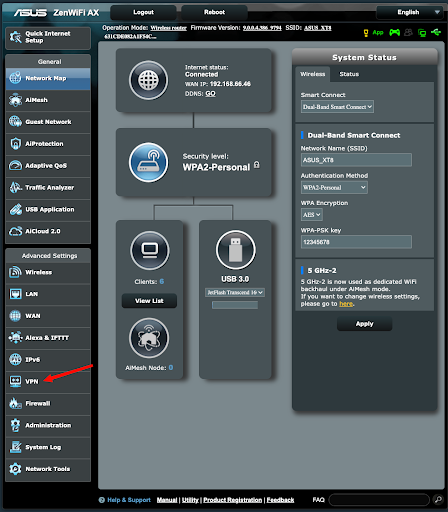
Navigating in the router's admin panel -
Select ‘VPN Client’ on the top side of the page, then click on Add a profile on the lower side of the page.
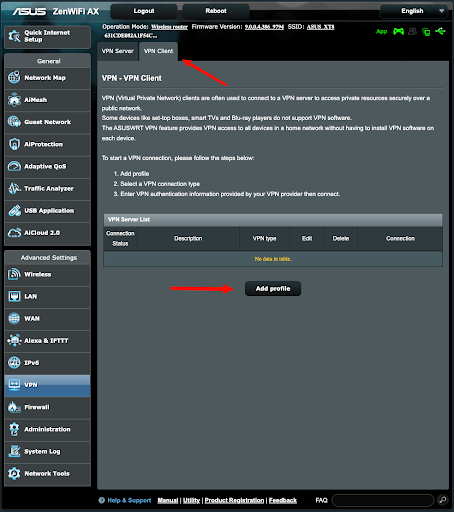
Configuring VPN for your router - Select OpenVPN and fill in the required fields within the profile field, with the name of the server, as well as your VPN provider service credentials. Then, upload the OpenVPN server configuration file, which was provided by your VPN service. Click OK to save the configuration.
Once you connect a VPN to the router, connect your printer to it using Wi-Fi or an ethernet cable. To confirm everything works smoothly, test printing from a connected computer or smartphone.
Mesh VPN connection
NordVPN’s Meshnet is a feature that allows you to group your devices into one private and secure network using a VPN connection between them. Using a Meshnet allows you to reach the printer from outside of the home or office network.
When printing remotely, your printer requires opening ports on your router, which creates security risks. Meshnet bypasses this by keeping the inbound router ports locked from public eyes. A laptop with access to the local host computer could use a service like Meshnet to safely pass the print job to the printer.
VPN gateways and intermediate devices
Another way to set up a VPN on your printer is through an intermediate device. In corporate environments, this is managed by network-level VPN gateways and centralized print servers that check user credentials before sending documents to the printer.
At home, you can use a mini-computer called a Raspberry Pi, connecting to your printer via USB. This small, cheap device scrambles all network traffic and lets approved family members and authorized devices use the printer. Remember that a bit of manual configuration is required, as consumer VPN services cannot handle this out of the box.
How does this work? Because the print traffic travels through the VPN tunnel directly to the Raspberry Pi, attackers cannot intercept or read your documents in transit. The device then delivers the print job over a local USB cable, keeping the printer isolated from the network. This way, cybercriminals cannot access either your printer's stored data or other devices connected to the printer.
Network segmentation
Network segmentation is an alternative approach to protecting your printer and other devices related to it.
Printers are notoriously easy to hack because they have weak security, rarely receive software updates, and are often left with factory logins. Once an attacker compromises your printer, they can easily hack other devices on the network. To protect everything else in the office or at home, you can try to place your printer in a separate virtual room called a VLAN.
Here is the step-by-step way to set it up:
- Create the separate room (VLAN). Log in to your router's setup page on your computer. Find the Networks or VLAN tab, click Add New, name it Printer-zone, and give it a number such as 20.
- Put the printer in that room. If using Wi-Fi, create a separate Wi-Fi network linked to VLAN 20 (you could name it Home-printer-Wi-Fi), and connect your printer to it. If using a cable, in your router settings, find the specific plug (port) the printer's cable is plugged into, and switch its setting to VLAN 20.
- Lock the printer's IP address. In your router's device list, find the printer and turn on Fixed IP (or Static IP). This ensures the printer's address (for example, 192.168.20.50) never changes. Write this number down.
- Put up a one-way security door (Firewall Rule). Go to the Firewall section in your router and create a simple rule – block any connection that starts from Printer-zone trying to reach your Main Network. Your router automatically allows one-way replies, meaning your PC can send a document out, but the printer can never snoop on your PC.
Because the printer is now in its own isolated room, your computer might not see it automatically when browsing. So, here is how you can help it find the printer:
-
Open your computer's Printers & Scanners settings and click Add a new device manually.
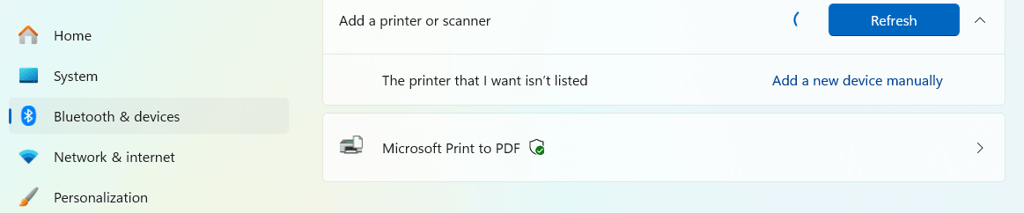
Adding a printer to your router manually -
Choose Add by IP address, type in the number you wrote down, and click Next.
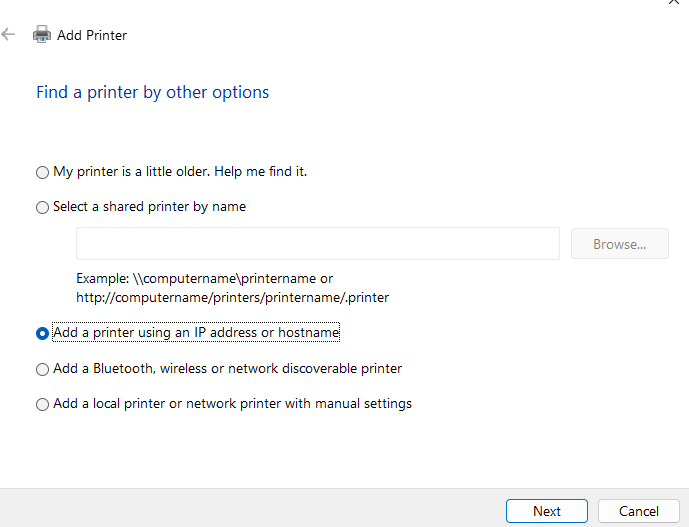
Adding a printer using an IP address
When a printer is segmented or isolated, it has only one open path through which your home or office devices can send print jobs. The printer is blocked from sending any contact back to the computer, servers, or phones. If a cyberattacker takes over your printer, they cannot snoop around the network and scan your private information.
Final thoughts
Because printers sit quietly in the corner of your home or office, they are often overlooked as security risks. If they are left unprotected, especially with unchanged factory settings, they become easy prey for cybercriminals.
Printers have no hardware or operating system support for a VPN application, but you can secure your print traffic with several methods. You can use intermediate devices, isolate your printer in a secure VLAN, or encrypt its data path through a Meshnet tunnel for remote access.
Personally, I’d choose the easiest option and install a VPN on my home router to protect not only a printer but other connected devices. My second option would be to get a Raspberry Pi device to encrypt the traffic shared between my device and the printer.
FAQ
Can I install a VPN directly on my printer?
No, you cannot put a VPN on your printer directly. Printers run basic firmware that doesn’t allow third-party apps or software. You can use alternative ways to protect your device, such as intermediate devices or by installing a VPN on your router.
Can I use split tunneling to protect my printer?
No, split tunneling doesn’t help you protect your printer. With a VPN running, your computer cannot see your printer. Using split tunneling helps to restore the connection between your computer and printer by bypassing the VPN tunnel.
Can I print remotely while using a VPN?
Yes, you can print remotely while using a VPN. You can connect your device to your home network via a VPN mesh network connection. This can help your documents stay hidden all the way from your device to the printer sitting at home.
Does putting a VPN on my router slow down my printing?
Putting a VPN on a router can slightly slow down printing and overall internet speed. However, noticeable delays usually happen with large or remote printing tasks.