AdBlock360 review


AdBlock360 promises more than just blocking annoying ads, it also aims to stop trackers at the system level. Together with the Cybernews research team, I tested its features and compared how it performs as a desktop app versus traditional browser extensions. I found that AdBlock360 has strong blocking and smooth usability.
This tool successfully removes ads before they even load. It also got perfect scores on some benchmark tests. Then again, its performance was inconsistent in others. This ad-blocker tool is completely free and has no paid tiers, so it’s an accessible choice if you want ad-free browsing. To see all of my results, continue reading.
| ⭐ Rating: | 4.0 |
| 💵 Price: | Free |
| ✂️ Free version: | Yes |
| 🛑 Blocks trackers: | Yes |
| 🍿 Blocks YouTube ads: | Yes |
| 🖥️ Compatibility: | Windows 10, Windows 11 |
| 🌐 Supported browsers: | Chrome, Edge, Opera, Firefox |
AdBlock360: company background
AdBlock360 was created by Adblock Limited – a company registered in Malta in 2023 – which is the same company behind the hugely popular browser extension Adblock for YouTube. I believe the company behind AdBlock360 has legitimate experience building high-traffic, ad-blocking tools.
AdBlock360 is a system-level ad-blocker which uses local filtering with a root certificate and proxy to stop ads before they load in any browser or desktop app. It relies on well-known open-source filter lists while letting you import custom rules. Essentially, it’s like a traditional script-based blocker but works across your whole system.
Pricing and plans
As far as pricing and plans go, AdBlock360 is actually completely free to download and use. My research showed that, unlike most ad-blocking tools, it doesn’t have any paid tiers, subscription plans, or premium upgrades. Its full feature set is available at no cost, which was rather surprising to me.
Namely, the application gives you full access – at no cost – to its system-level ad-blocking engine, HTTPS filtering, tracker blocking, custom filter lists, and real-time statistics. It doesn’t ask for payment or show in-app ads. My testing didn’t reveal any time-based restrictions or usage caps either.
With that being said, future versions might add optional advertising features, according to the company’s official FAQ. The provider states that, if that ever happens, those features would be fully user-controlled and optional. I found this key bit of information in the company’s malware FAQ page on its official website.
Is AdBlock360 safe to use?
My research suggests that AdBlock360 seems legitimate and safe to use, even though searching for the software on the internet might suggest it’s a scam – but those claims refer to a different app with a similar name. Cybernews security testing showed no suspicious connections or hidden data transfers. All traffic was processed locally rather than sent to external servers – which would be highly suspicious, and evidence of third-party data-gathering.
Some antivirus tools might flag it as a Potentially Unwanted Program (PUP) since it uses system-level techniques like root certificate and proxy. However, this is usually a false positive triggered by its deep filtering methods. AdBlock360 is definitely not malware.
It’s important to note that AdBlock360 is also AppEsteem certified, meaning that it meets established consumer protection software standards. It also undergoes VirusTotal security checks for every release.
When I looked at AdBlock360’s privacy policy, it states it doesn’t collect personal browsing history or personally identifiable information (PII). It gathers minimal, anonymized technical data, such as device specifications, operating system details, and app version (for updates and improving performance).
However, while reading the policy, I did read that user data may be shared with affiliates or partners in aggregated form or during corporate transactions. Then again, as a user, you have the right to request access to or deletion of any stored data.
To echo established worldwide cybersecurity best practices, only install AdBlock360 directly from its official website: www.adblock360.com.
Features overview
I also dug deep into AdBlock360’s core features. Given that it’s a free ad blocker tool, it’s got many useful features that other brands would lock behind a paywall.
Blocking ads and trackers everywhere
AdBlock360 removes banners ads, pop-ups, and ads in videos on all browsers and PC apps. It blocks these elements before they load, which speeds up page performance and reduces data usage. Also, it uses open-source and third-party filter lists to block common tracking scripts and analytics tools. That prevents advertisers from storing data about your browsing habits. These features operate at the system level, meaning you don’t need separate extensions or configurations for each individual browser for the protection to function.
Additionally, AdBlock360 has three dedicated QA specialists who write and refine blocking rules based on user feedback. The helper icon includes functionality to report ads or broken rules directly, ensuring constant improvements to protection.
HTTPS filtering and custom rules
For deep blocking on secure websites, AdBlock360 installs a local root certificate and configures a system-wide proxy to let itself inspect and filter HTTPS-encrypted traffic safely. If you’re an advanced user, you can also import your own custom filter lists, create personal blocking rules, or whitelist trusted domains.

Plus, if you’re visiting sites where you’re entering sensitive information – like a banking portal – you can disable HTTPS filtering to control how deeply AdBlock360 inspects encrypted pages. The tool also features a predefined list of sensitive domains, including banking and government websites, where ad blocking is automatically disabled. This list is not currently visible in the app, but the company has indicated that it may be made visible in a future update.
Browsing safety
AdBlock360 detects and blocks known phishing and malicious websites for safety while browsing. A built-in manager icon within supported browsers allows for quick actions like pausing blocking, reporting ads, or adjusting settings. The dashboard is clean, and shows live statistics like ads blocked, content removed, and time saved. Plus, an onboarding guide helps newcomers get started quickly and efficiently.
According to the company, AdBlock360’s filtering rules are constantly updated by a dedicated team to deal with the latest advertising techniques. It also handles YouTube’s anti-adblock mechanisms by temporarily prompting you to disable blocking while a fix is developed, then automatically re-enabling protection afterward.
Compatibility
AdBlock360 only works on Windows 10 and Windows 11 – for the moment. It’s a desktop application, not a browser extension. Basically, just install AdBlock360 once and it protects all your major internet browsers. It’s compatible with browsers including Google Chrome, Microsoft Edge, Opera, and Mozilla Firefox.
As for the installer itself, it puts the app in your Windows AppData folder, bypassing the need for administrator permissions. To install it, visit adblock360.com and download the setup file. Run the installer, review the Root Certificate and Proxy configuration steps, approve the User Account Control (UAC) prompt, and follow the wizard’s steps to get going.
Interface and ease of use
AdBlock360’s interface looks clean and minimalist, with all the core controls remaining accessible at all times. I found that it’s easy to use, even for beginners.
Desktop app interface
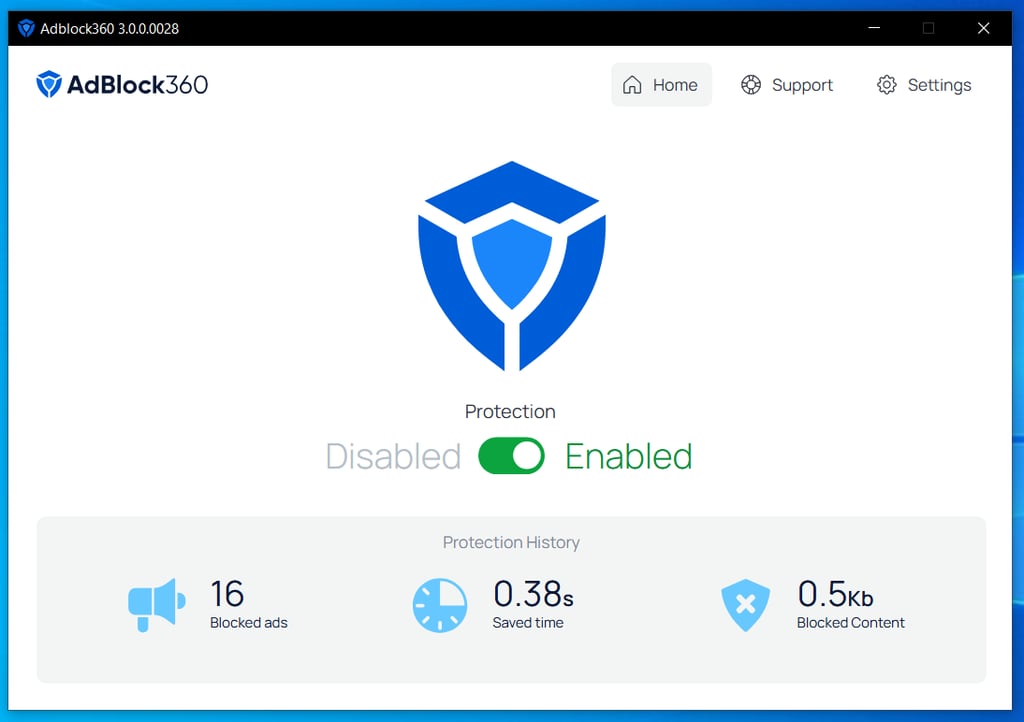
On the main Home screen, you’ll see a large toggle to enable or disable protection, plus live counters that update in real time as you browse, with the number of blocked ads, saved time, and blocked content size. On the top bar, you’ll see Home, Support, and Settings.
On the left-hand panel inside Settings, features are divided into uncluttered, logical categories: General, AdBlock360 Manager, Whitelisted domains, Advanced, and About.

In general settings, you can enable autostart or switch between light, dark, and system themes. The Manager tab below that gives you fine control over the in-browser icon – like auto-hide timeout, icon position, and per-domain visibility.
Below that, Whitelisted domains can be added with a single click. Next, the Advanced tab has powerful tools like HTTPS filtering, custom filters, blocked requests logs, and auto-update toggles. Finally, the About tab has links to the EULA, privacy policy, and uninstall guide.
I found the navigation to be simple and responsive. Every screen has the same, simple, white design with clear toggles and buttons – a design that works well for everyone.
In-browser manager
The in-browser manager is a small icon that you’ll see on supported browsers (Google Chrome, Microsoft Edge, Opera, and Mozilla Firefox).

Clicking the icon opens a clean overlay with quick actions like: pause or resume blocking on the current site, report ads, access FAQs, or access settings. For instance, reporting an ad sends feedback to the development team – which uses it to improve filter rules.
There’s also an onboarding guide that walks you through some steps, like how to reposition or auto-hide the icon and how to temporarily disable blocking to troubleshoot a page.

The in-browser icon can be hidden on specific websites, or entirely. Overall, I found the interface to be clear, and simple, blending into the browser interface naturally – so it never felt intrusive.
AdBlock360 test results
To test AdBlock360, I used in-house testing and third-party benchmarking tools. This way, I could analyze how it performs in real-world browsing sessions.
First, it wasn’t difficult to set up AdBlock360 for testing. I installed it from the official website, opened the installer, and clicked “Yes” on the Windows security prompt. It completed automatically. Afterwards, I only had to review the proxy and certificate steps. Then, it was running within 60 seconds.
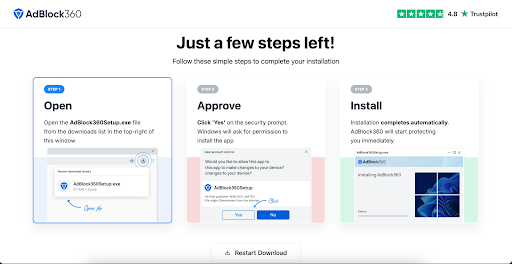
Once the tool was enabled, it instantly started filtering traffic across all of my test browsers on my Windows test machine. No extension or browser-specific configuration required on my end.
In-house results
During my real-world browsing, it removed banner ads, pop-ups, and video ads on YouTube and news sites.
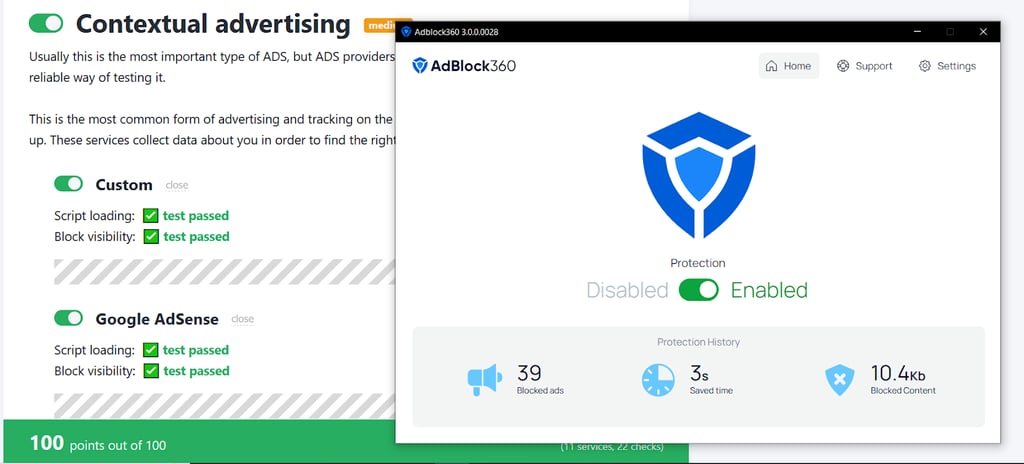
The Home screen displays real-time counters of blocked ads, saved time, and blocked content size, so it was easy to track the tool’s effectiveness. In one session, it reported blocking 39 ads within just a few minutes of browsing.
During testing, I noticed an inconsistency: in one test, it initially let several ads through, but later blocked everything under the same conditions. The company has since claimed to have fixed this minor bug, though I have not yet re-tested to confirm the fix.
If you encounter this issue, enable Auto-update in Settings > Advanced, ensure HTTPS filtering is enabled, and perform a hard refresh on pages.

With that being said, it can still be very effective – one run scored 98% on a synthetic ad-blocking test.
Furthermore the interface remained smooth throughout my runs. I didn’t note any browser slowdowns or crashes, and switching protection on/off was instant. However, some users on forums reported rare stuttering on YouTube (due to anti-adblock changes), but that went away after pausing the blocker. You can also temporarily accept the prompt to disable blocking on YouTube and let it auto re-enable later.
Testing using independent testing tools
I ran AdBlock360 through several known testing tools. On adblock.turtlecute.org its performance varied quite a bit: one run blocked only 54% of ads, while the next run jumped to 93% and 98% under the same conditions. This proves that the tool does block, but it’s not that consistent at it yet.

Next in my independent testing session was checking privacy protection with Cover Your Tracks – which measures how well a browser blocks tracking ads and hidden trackers.
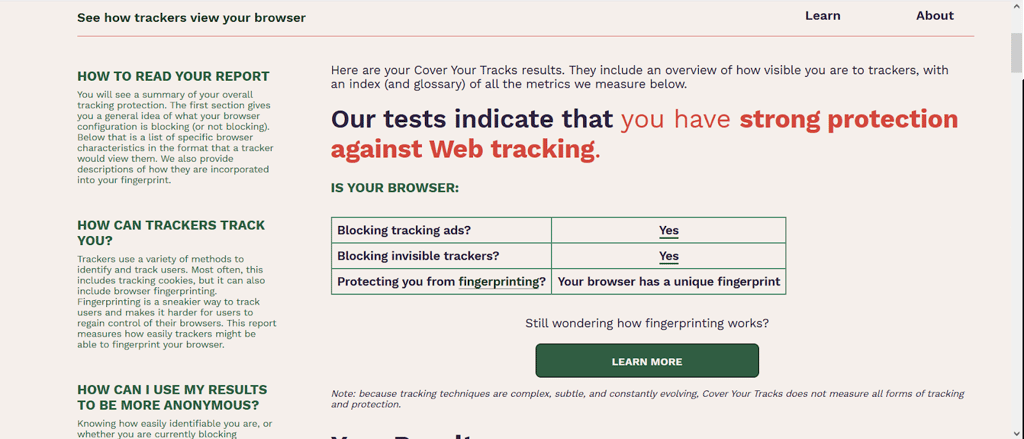
Here, AdBlock360 scored well in both categories, so it clearly stops typical trackers from following you across sites. If trackers still appear, update or add filter lists in Settings > Advanced > Custom filters – then clear your cache and reload pages.
As you can see, AdBlock360 is lightweight and powerful, but its reliability fluctuates. Still, it’s excellent at blocking ads and basic trackers.
Customer support
There’s a “Submit a request” area on the tool’s official website, and a user community area for customer support. You can also reach out to the company via the social media icons on the bottom of their website.
Inside the PC app, you’ll see a Support tab on the top navigation bar. Also, the About tab displays the official FAQ, uninstall guide, EULA, and privacy policy. If you want direct help, the company that develops AdBlock360 has a support email: [email protected].
Based on my research, responses aren’t instant and rely mainly on email or public replies on Reddit. Also, some online users said uninstallation was difficult and that they needed to rely on forum replies.
AdBlock360 not working: troubleshooting guide
Though AdBlock360 generally works as advertised, no software is perfect, so here’s how to troubleshoot if something’s off. If AdBlock360 stops blocking ads, first ensure the protection is On on the Home screen. Next, go to Settings > Advanced and enable HTTPS filtering for blocking ads on secure sites. Also, turn on Auto update to keep filter rules fresh.
If you still see ads, clear your browser cache and hard-refresh pages (Ctrl+F5). For YouTube problems caused by anti-adblock enforcement, temporarily accept the popup to disable locking. Finally, if trackers still appear, add or update filter lists in Settings > Advanced > Custom filters.
AdBlock360 video presentation
If you prefer listening over reading, you might enjoy checking out AdBlock 360’s own presentation of its ad blocker. It concisely presents what this service does and showcases all its strengths.
Is AdBlock360 worth it?
I think AdBlock360 is worth using. It has a lot of features that many rivals don’t offer for free. It’s got strong ad and tracker blocking, simple one-time setup, and a minimal interface that doesn’t get in your way. I enjoyed using its centralized dashboard, customizable filter lists, and liked how it blocks ads on all major browsers without requiring separate extensions.
If you want a no-cost way to put a stop to several annoying ads and trackers on PC, give AdBlock360 for Windows a try today.
FAQ
Is AdBlock360 good?
Yes, especially considering it’s a completely free ad blocking tool. AdBlock360 is an effective ad and basic tracker blocker, blocking almost 100% of ads in several test runs. Overall, the tool works as advertised.
Is there a downside to AdBlock360?
Yes, there are a few downsides to AdBlock360. Some online users have reported experiencing video stuttering on YouTube that disappears when the blocker is paused. Also, users have reported difficulties uninstalling it, having to rely on forums for help.