FanDuel not working with a VPN: troubleshooting tips
Our in-house cybersecurity experts and journalists, renowned for major reports like The Mother of All Breaches, conduct transparent, unbiased VPN testing and in-depth analysis.
With 750+ articles crafted based on real-world research, we empower readers to make informed purchasing decisions through first-hand expertise.


If FanDuel is not working with your VPN, it is most likely because of the betting platform’s advanced location verification system. FanDuel, together with other betting sites, uses a combination of location tracking methods, such as IP address tracking, GPS data, Wi-Fi signals, and its own proprietary software, to check if a user is physically located in a location where betting is legal. If FanDuel detects VPN usage, it will block or restrict access to the site.
To fix the issue of a VPN not working with FanDuel, you can try using a higher-quality VPN or a proxy, changing your time zone and browser location settings, or spoofing your geolocation on a mobile device. However, these methods are not guaranteed to work.
Overall, it is nearly impossible to trick FanDuel’s location detection. Additionally, using a VPN violates the site’s Terms of Use – your account can get flagged, which may also lead to voided bets and frozen funds. If you intend to use a VPN with FanDuel, I recommend being extra careful.
VPNs that work with FanDuel in 2026
You can access FanDuel with a VPN if you are physically present in a state where FanDuel is legal. Such locations include New York, New Jersey, Pennsylvania, and Michigan in the US and Ontario in Canada. In these locations, using a VPN with FanDuel is good for your privacy – especially if you’re using public Wi-Fi or want to secure your personal and payment data.
Here are my top 3 recommendations for FanDuel VPNs in 2026:
- NordVPN is the best VPN for FanDuel with a server network including 225 locations. It offers excellent privacy features, such as an ad blocker, obfuscated servers, and fast and reliable protocols. The prices start at $3.49/month.
- Surfshark offers a great price-to-value ratio, with prices starting at just $2.49/month, and an 4,500-server network spanning 100 countries. With its excellent security features, you can enjoy enhanced privacy and security on FanDuel.
- Proton VPN is a great VPN provider that offers a fully functional free version with servers in 10 locations, including the US. Premium plan prices start at $2.99/month.
If you are in a state where FanDuel is blocked, you will need to turn off the VPN so FanDuel can verify your physical location. Instead of trying to bypass FanDuel restrictions, I recommend opting for alternative betting sites that work with a VPN, such as Stake or Bovada.
Why is FanDuel not working with a VPN?
FanDuel blocks VPNs because, as a gambling site, it must comply with local laws in US gambling states, which includes verification of the users’ physical location before allowing access to the betting site. Contrary to popular belief, FanDuel doesn’t only rely on IP addresses but also uses advanced geolocation tracking software called GeoComply.
The GeoComply app uses a combination of methods to verify users’ physical location. For example, on mobile devices, it cross-references your GPS data with Global System for Mobile Communications (GSM) signals and looks for nearby Wi-Fi signals to map your location. A generic VPN will only change your IP address but leave other geolocation markers exposed, which is why using a gambling VPN alone doesn’t work for FanDuel.
If you try to bypass these checks by disabling Wi-Fi or hiding other data that reveals your location, such as GPS spoofing, you will still get an error because the system can’t verify where you actually are. In other words, you need to meet all verification requirements – any location signal mismatch will result in blocked access. Further, FanDuel proactively cross-references any incoming traffic against databases with known VPN server IP addresses. If it finds a match, access to the site is immediately denied.
In short, a VPN won’t work with FanDuel because of the site’s advanced location verification system that denies access any time it can’t verify the user’s physical location.
Our tested ways to fix FanDuel VPN not working issues
The Cybernews research team tested a variety of different methods to bypass FanDuel geo-blocks and fix the issue of a non-working VPN. Although these methods weren't successful in our testing environment, they may still be worth trying, as results can vary from user to user.
Method 1. Using a VPN (PC and mobile)
- Download and install a VPN. We used NordVPN.
-
Find a NordVPN server in a FanDuel-supported and legal location. We tried New York and Toronto.
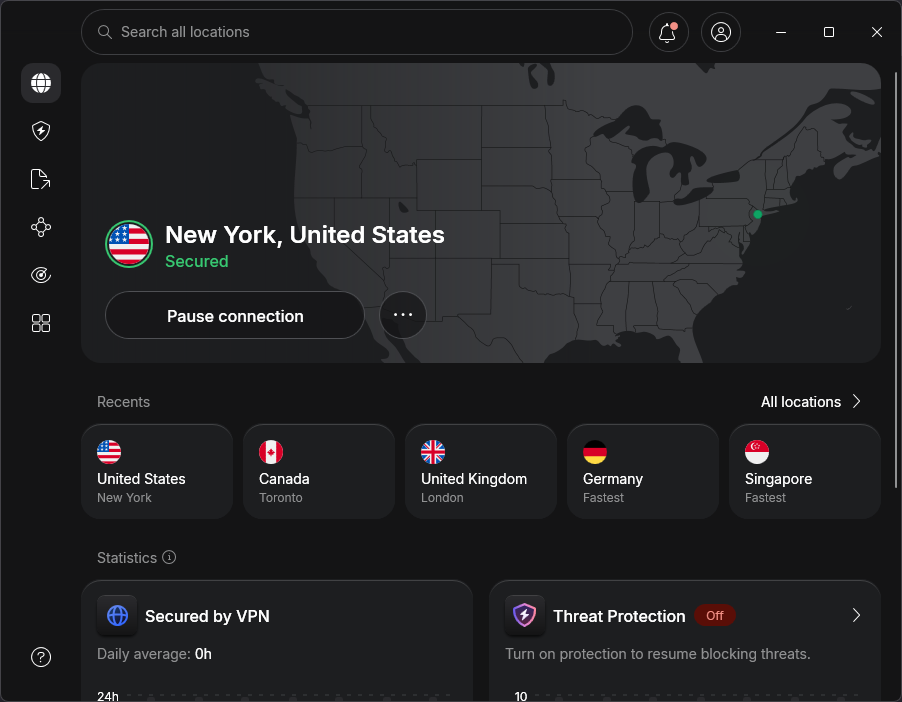
- Connect to the server and try accessing the FanDuel website or app.
Method 2. Using a proxy (browser extension)
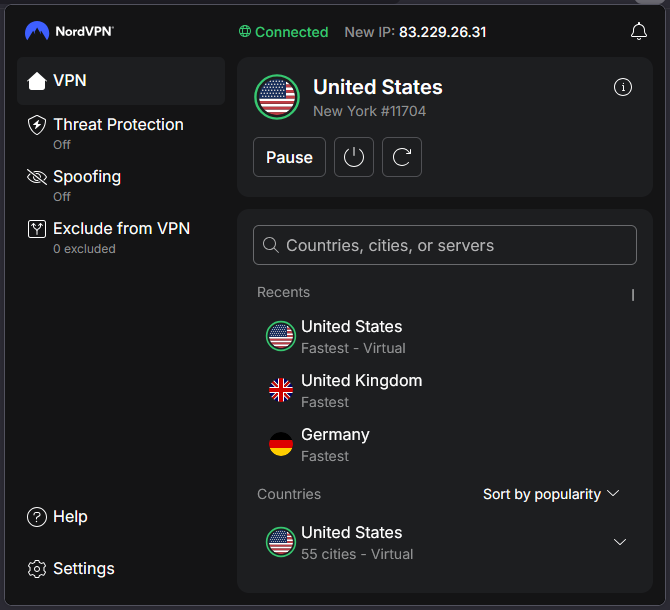
The steps for using a proxy server are the same as for a VPN – simply use the VPN’s browser extension, which uses proxy connections. We used NordVPN’s browser extension.
Method 3. Time zone change
The FanDuel website uses the TZ cookie to determine the time zone of the user. The difference between an IP address and the user’s time zone could be an indication of VPN or proxy usage. Therefore, I recommend changing the device’s time zone to the same region as your VPN or proxy IP address.
We tested this on a Windows device with the following steps:
- Access the Windows settings by pressing the Windows key + i
- Head to Time & Language > Date & Time
-
Set the time zone to the region of your VPN/proxy IP address [image]

Method 4. Browser location emulation (via DevTools)
In addition to the IP address and time zone, websites like FanDuel may also use an additional geolocation tracking technique via the HTML5 geolocation API. It tracks the browser client’s coordinates. The Chrome browser’s DevTools’ Sensors panel allows users to enter desired coordinates into the browser, which are then sent to the website’s front-end server. However, the mismatch between the browser’s coordinates, IP address, and time zone could trigger anti-bot/fraud detection systems.
Here’s how we changed the browser location:
- Connect to a VPN in a desired location.
-
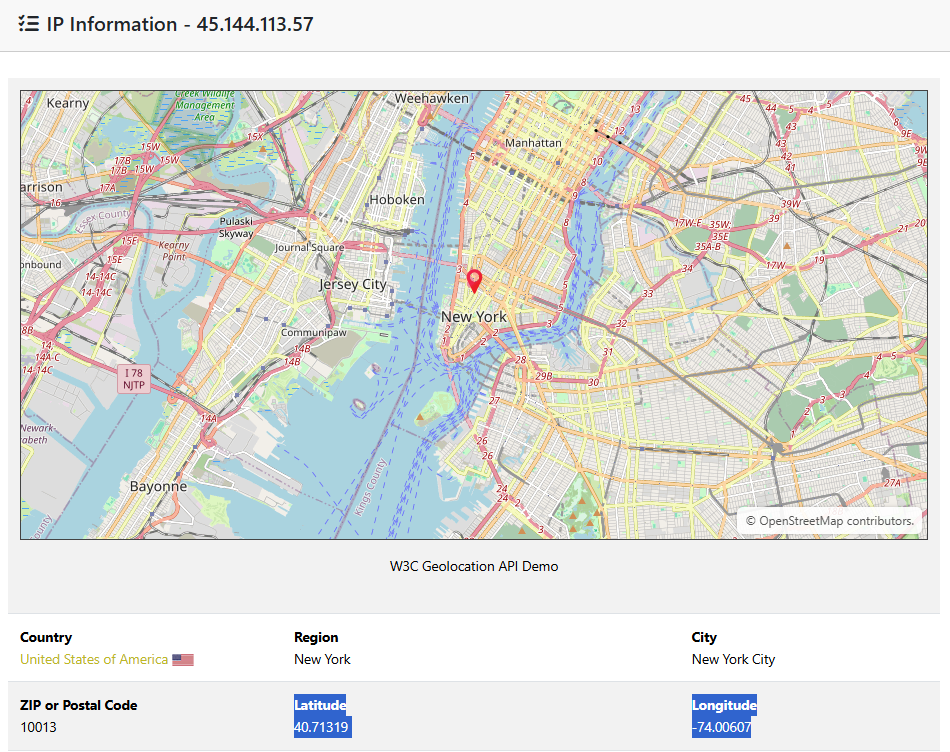
Go to geolocation.com and find the Latitude and Longitude coordinates of your IP address.
-
Open the developer tools on your browser (F12 for Chrome) and head to Settings > Locations.
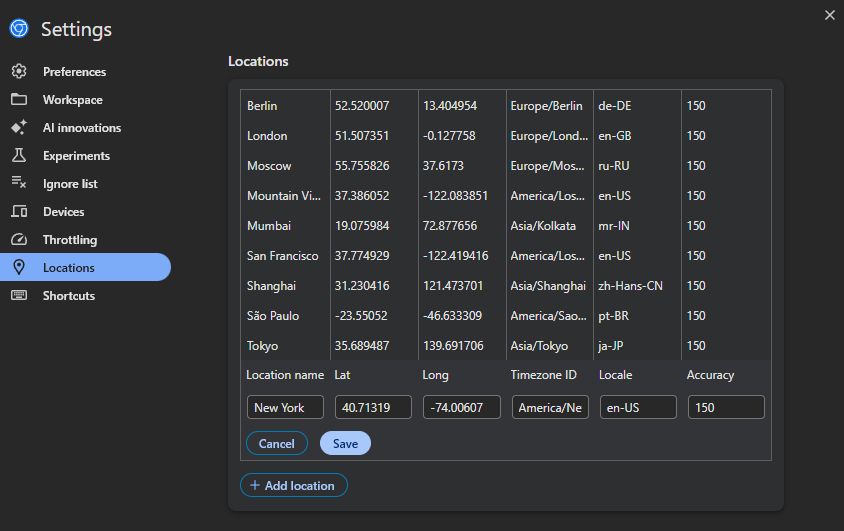
- Click on Add location, enter the name of your location, the coordinates you found on Geolocation.com, and the timezone ID, and click Save. We used America/New_York for New York, as well as the Locale en-US.
-
Exit the Settings tab and click on the little three dots next to the settings button > More tools > Sensors.
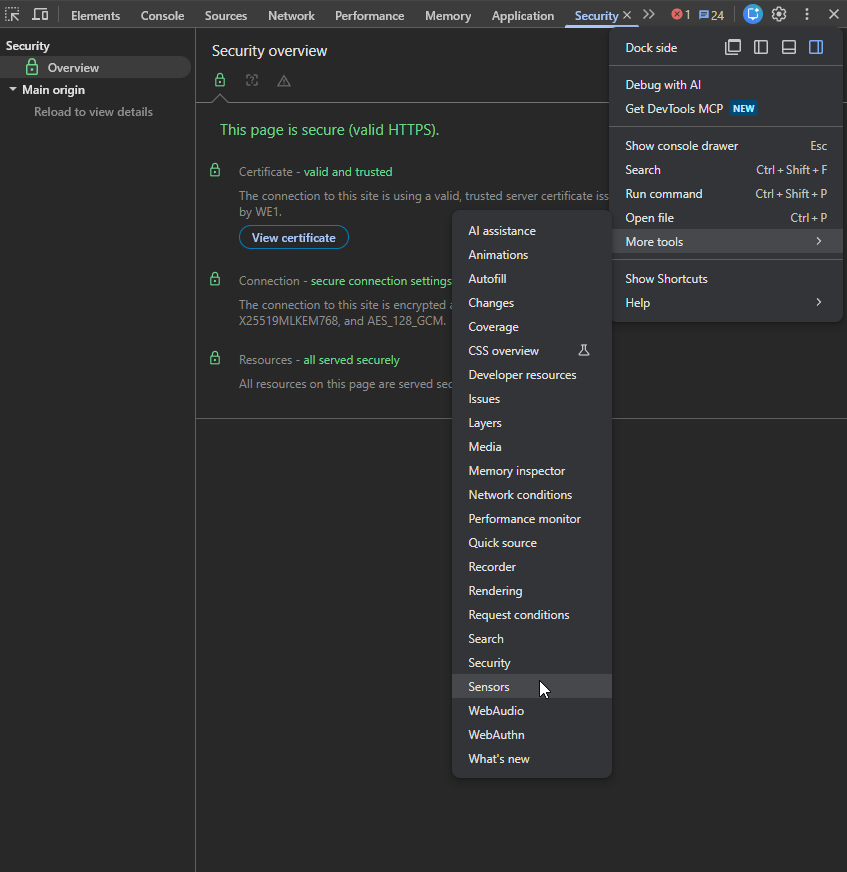
-
Select the new location from the Location dropdown menu.
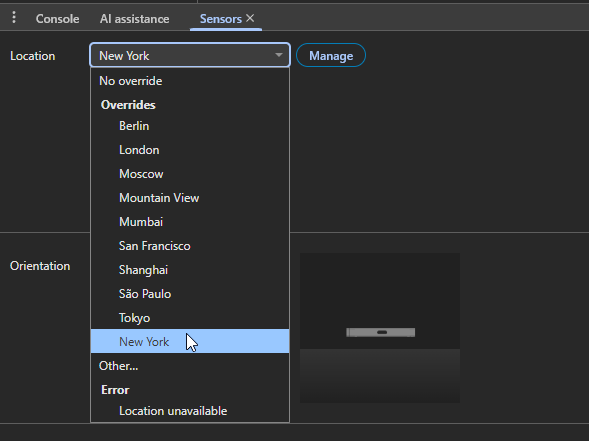
- Refresh the page once the new location is selected. If the website requests location permissions, click Allow to ensure the location emulation settings are initiated.
Note: these settings are only active while the DevTools panel is open.
Method 5. Spoofing GPS location (mobile)
Most apps on Android and iOS have location tracking permissions, which use GPS signals to detect your location instead of an IP address. We tried to bypass it by spoofing the GPS location using dedicated apps and Surfshark’s built-in Override GPS location feature, which automatically sets your GPS location to the same spot as your IP address. Both methods are described below.
Note: GPS spoofing is only possible on Android.
GPS spoofing app
- Connect to a VPN server in your desired location and go to geolocation.com to see where your IP address is detected.
- Download and install a GPS spoofing app.
- Enable Developer settings on your phone: go to device Settings > About this phone > Tap several times on the Build number section until you get an alert that Developer settings are enabled.
-
Head to System settings > Developer options > Select mock location app > choose the GPS spoofing app you installed.
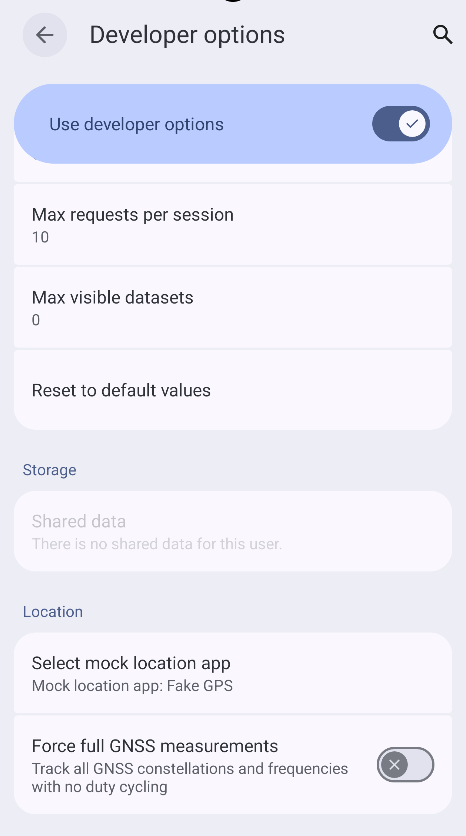
- Open your GPS spoofing app and set your location to approximately the same place as on geolocation.com.
-
You may check Google Maps to see if the GPS spoofing was successful. Your location should show up in the same spot as you set in your GPS spoofing app.
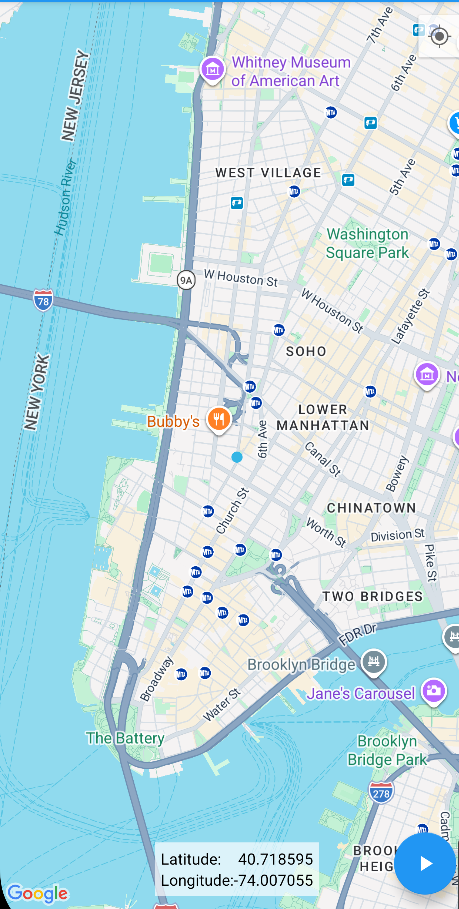
GPS spoofing with Surfshark
- Download and install Surfshark VPN on your mobile device.
-
Open Surfshark and go to Settings > Advanced settings > Override GPS location.
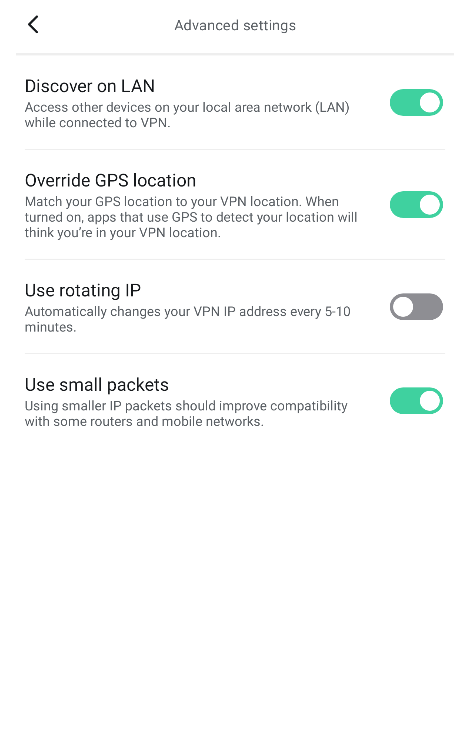
- Follow the steps above (GPS spoofing app) to change the mock location app in your device’s settings. Select the Surfshark app as the mock location app.
- Connect to a VPN server in your desired location. The GPS location should change automatically.
FanDuel alternatives that work with a VPN
We tested a number of different betting sites with a VPN. Here are some that work and could be viable alternatives for FanDuel:
| FanDuel alternative | VPN worked in tests | Crypto support | Sports betting | Casino | Poker | KYC strictness |
| Rainbet | ✅ Yes | ✅ Yes | ✅ Yes | ✅ Yes | ✅ Yes | Mandatory for high withdrawals |
| Roobet | ✅ Yes | ✅ Yes | ✅ Yes | ✅ Yes | ✅ Yes | Mandatory |
| Gamdom | ✅ Yes | ✅ Yes | ✅ Yes | ✅ Yes | ✅ Yes | Mandatory |
| Polymarket | ✅ Yes | ✅ Yes | ✅ Yes | ❌ No | ✅ Yes (Poker Markets trading) | Not mandatory |
| PrizePicks | ✅ Yes | ❌ No | ✅ Yes | ❌ No | ❌ No | Mandatory |
Common FanDuel VPN errors
When FanDuel detects VPN usage, you will commonly see one of the following errors:
- FanDuel location restricted. This means that FanDuel is detecting that your IP address or GPS data are outside the allowed regions.
- FanDuel won’t/can’t verify location. This error indicates that your location signals, such as IP address or GPS or Wi-Fi location, don’t match each other or that the system can’t detect signals from one or more of these location markers.
- FanDuel location check not working. In case location check is not working at all, it might mean errors with the GeoComply app. Install and reinstall the app and ensure that all location services (such as GPS, Wi-Fi, and/or mobile data) are turned on.
- FanDuel requires precise location services to be enabled. You will see this on your mobile device. It means that to use FanDuel, you need to turn on location services such as GPS, Wi-Fi, and/or mobile data so FanDuel can verify your physical location.
- FanDuel account suspended. Your FanDuel account may have been suspended for many reasons, such as failed verification or too many login attempts. If you were using a VPN, FanDuel might have detected it and flagged it as a Terms of Use violation, leading to a suspension of your account.
States where FanDuel is legal
FanDuel is available in select US states. In some states, you can access it only online, in some, it’s only available at physical betting locations, and some states allow both options. Here’s a comprehensive list of the states where FanDuel is legal:
| Online and retail | Online only | Retail only |
| Arizona | Arkansas | Colorado |
| Washington DC | Illinois | Indiana |
| Kansas | Kentucky | Louisiana |
| Missouri | Maryland | Michigan |
| North Carolina | New Jersey | New York |
| Pennsylvania | Tennessee | Virginia |
| Washington | West Virginia | Wyoming |
Conclusion
FanDuel is one of the hardest betting platforms to use with a VPN because it relies on advanced geolocation verification systems, including GPS checks, Wi-Fi triangulation, GeoComply, and VPN IP detection. The Cybernews research team tested 5 methods to bypass FanDuel geo-location restrictions, including proxies and location spoofing. These tests either failed or triggered location verification errors.
Fortunately, if you are located in a state where FanDuel is legal, you can still use a high-quality VPN like NordVPN, Surfshark, or Proton VPN for privacy. However, keep in mind that using a VPN to bypass FanDuel’s georestrictions might violate the Terms of Use. This can result in blocked access, frozen funds, or voided bets.
Overall, the most viable option is to consider alternative betting platforms such as Rainbet, Roobet, or Gamdom, which are confirmed to work with a VPN.
FAQ
Why does FanDuel keep saying something went wrong?
If FanDuel keeps saying "something went wrong," it often means a location verification error. This could mean that FanDuel detected a VPN or Proxy, your VPN IP address doesn't match your GPS/Wi-Fi location, it detected disabled location services and can’t verify your physical location, or there’s a GeoComply software issue. Try reinstalling the app or ensuring your browser or mobile permissions are correctly set.
Does FanDuel work with NordVPN?
Yes, NordVPN works with FanDuel if you are connecting to a server in the same state where you are physically located and if FanDuel is legal in that state. While NordVPN is a high-quality provider and offers excellent privacy features, FanDuel's advanced geolocation system checks multiple location markers beyond just your IP address. If you are outside a legal state, NordVPN won’t be able to bypass the location verification checks.
Does FanDuel know if you're using a VPN?
Yes, FanDuel can detect VPN usage. It uses advanced geolocation software, such as GeoComply, which cross-references multiple location data points beyond just your IP address, such as GPS, Wi-Fi signals, and GSM data. If any of these location signals conflict with the IP address provided by the VPN or if the VPN's IP address is on a known VPN server list, FanDuel will flag it and block access.
Does FanDuel work with a VPN?
In most cases, FanDuel doesn’t work with a VPN. FanDuel uses advanced geolocation technology that verifies your physical location using more than just your IP address – it checks GPS and Wi-Fi signals. While a VPN changes your IP, it often leaves other location markers exposed, resulting in a location mismatch error.
Can FanDuel ban you for VPN use?
Yes, using a VPN violates FanDuel's Terms of Use, and it can suspend or ban your account if it detects VPN usage. FanDuel's terms explicitly require users to be physically present in a state where betting is legal. If it detects that you are trying to mask your location with a VPN or any other method, it has the right to suspend your account, void your bets, and freeze your funds.