How to remove a Google Account from your phone: a step-by-step guide

 Follow us
We’ve all had a reason to want to remove a Google Account from our phones at one point or another. Perhaps you’ve lost your phone, you want to switch accounts, or you’re concerned about Google’s invasive data collection. Whatever your motives, it’s easy to block access to your Google Account from your phone — and you can even do this remotely.
In this guide, I’ll show you how to remove a Google Account from your phone, and provide step-by-step instructions for Android and iPhone users. I’ll also explain how to disconnect access to your Google Account remotely if your phone is lost or has been stolen.

Why remove a Google Account from your phone
There are several reasons you may want to remove a Google Account from your phone. Here are some of the most common reasons people cite:
1. Lost phone
Losing your phone can be an anxiety-inducing experience. Besides the inconvenience and the cost of buying a replacement phone, there’s an immediate risk to your privacy. Your phone probably contains loads of personal information, like emails, photos, messages, banking details, and more. Removing your Google Account from your phone is one of the first steps you can take to safeguard your privacy.
2. Privacy concerns
Google is notorious for its intrusive privacy practices, driven by its ad-based business model. While Google apps are convenient, there are plenty of other equally good options that are more private. If you want to cut ties with the Google ecosystem, you’ll have to remove your Google Account from your phone.
3. Changing accounts
Another reason you may want to remove a Google Account from your phone is if you need to switch accounts. For example, you’ve signed in to your work Google Account on your phone, but need to change it to your personal account because you’re changing jobs or want to keep things separate.
4. Selling or switching phones
If you’re looking to sell your device and switch to another phone, it’s best to remove your Google Account to prevent your sensitive information from falling into the wrong hands.
Regardless of the reason you want to remove a Google Account from your phone, the process is pretty much the same. The steps differ slightly depending on whether you’re using an Android phone or an iPhone. I’ll explain how to wipe a Google Account on both devices below.
How to remove a Google Account on Android
Here’s how to remove a Google Account on your Android phone:
-
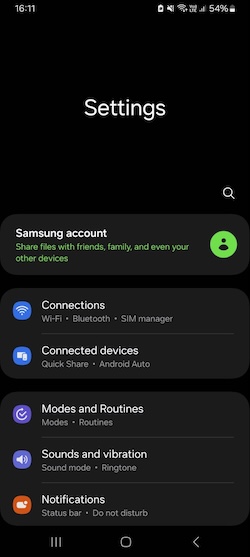
Go the the “Settings” app on your phone.
-
Scroll down and select “Accounts and backup.”

-
Click on “Manage accounts.”

-
Tap on the Google Account you want to remove from your phone.

-
Click on “Remove account.”

-
Confirm the decision by clicking on “Remove account” at the bottom of your screen.
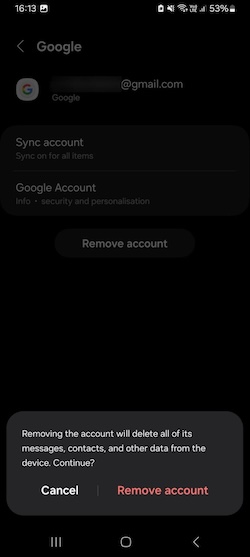
- You’ve successfully removed the Google Account from your phone.
Note: I used a Samsung device running on Android 14 for this guide. While these steps should be somewhat similar for most Android phones, they may be slightly different if you’re using an older version of Android or if you’re using another Android phone besides Samsung.
How to remove a Google Account on an iPhone
Here’s how to remove a Google Account on an iPhone:
-
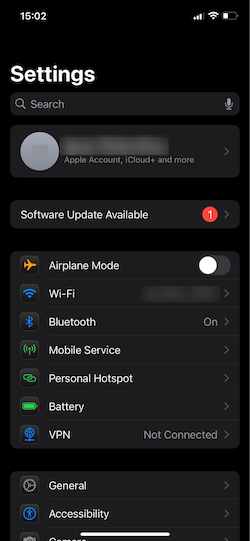
Go to the “Settings” app on your iPhone.
-
Scroll down and tap on “Apps.”

-
Find the “Mail” app and click on it.

-
Select the Google Account you want to remove from your phone.

-
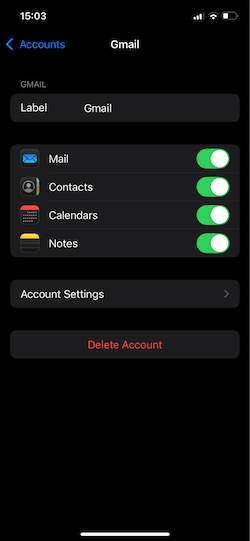
Click on “Delete Account” to initiate the process.
-
Confirm your decision by tapping on “Delete from My iPhone” at the bottom of your screen.
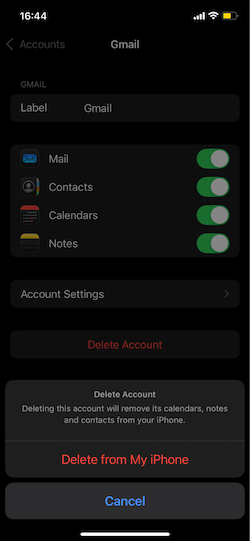
- You’ve successfully removed the Google Account from your iPhone.
Note: I used an iPhone running on iOS 18.3.2 for this guide. The steps may be slightly different if you’re using an older version of Apple’s iOS operating system.
How to remove a Google Account remotely
If you’ve lost your phone and you want to sign out of Gmail or other Google services on your device and protect your privacy, here’s how to go about it:
-
Go to the Google Dashboard and sign in to your account.
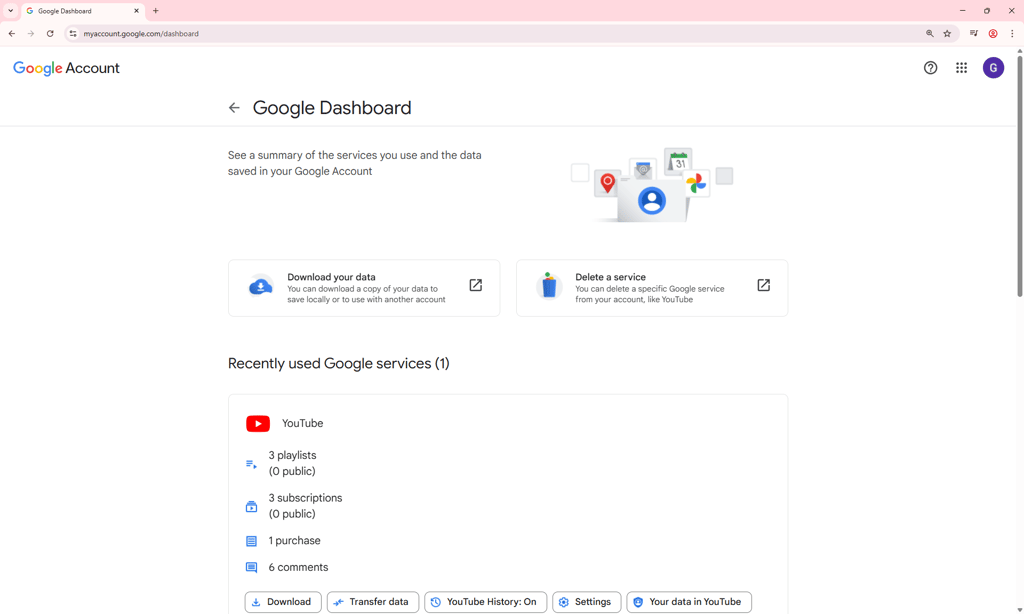
- Click on “Delete a service” and delete the services linked to your phone.
Note: If you’d like to continue using Google services like Google Play, Calendar, or Google Docs after deleting them from your phone, you’ll need to enter another email address and complete a verification.
Does removing a Google Account delete Gmail?
No, removing a Google Account from your phone does not delete your Gmail account from Google’s servers. It also doesn’t delete that Google Account completely. It simply signs you out of the account, removing access to your Gmail, Google Account, and other related services from that device.
This means you won’t be able to access Gmail or other Google services from that phone. However, if you’re still signed in to your Google Account on your laptop, you can continue to access Gmail and other Google services without any issues. If you change your mind about removing your Google Account from your phone, you can simply sign back in and continue using Google services.
Keep in mind that if you remove a Google Account from your phone without backing up your photos or syncing your contacts, you’ll lose access to those photos and contacts permanently.
Final thoughts
It only takes a few clicks to remove a Google Account from your phone. You can even do this remotely if your phone is lost or has been stolen. Removing your Google Account from a phone isn’t the same as deleting your Google Account. The former simply removes access to your Google Account from the phone, while the latter wipes your account from Google’s servers.
Remember, when you remove a Google Account from your phone, you won’t be able to access Gmail and other Google services linked to your account from that device. So, it’s important to back up your photos and contacts before removing a Google Account from your phone. Also, ensure you know your password or have it saved to a password manager so you can log in to the account again.
FAQ
Can I remove my Google Account from a phone without doing a factory reset?
Yes, you can remove a Google Account from your phone without resetting your phone. If you’re using an Android device, simply go to Settings > Accounts and backup, then select the account and click “Remove account.” Consult the article for instructions on how to delete a Google Account on an iPhone.
Does removing a Google Account from my phone delete the account?
No, removing a Google Account from your phone doesn’t delete the account. It simply disconnects access to your account from that device. You can still access your Google Account and related services from other devices, or even sign back in using the same device.
Can I remove my Google Account remotely from a stolen phone?
Yes, you can remove your Google Account remotely from a stolen or lost phone. Simply go to the Google Dashboard, sign in to your account, and select the Google services you want to delete, like Gmail, Google Play, and Calendar.
Do I need to remove one Google Account to sign into another account on my phone?
No, you don’t need to remove one Google Account to sign into another. Most Android devices allow you to be signed in to multiple Google Accounts simultaneously.
Are there any important things to do before removing my Google Account?
Yes, there are a few things to consider before removing a Google Account from your phone. For starters, ensure you’ve backed up your contacts, emails, photos, and Google Docs files if they haven’t been saved to Google’s servers. Also, ensure you know your password so you can log in to your account on another phone.
Should I remove my Google Account before selling or trading in my phone?
Yes, it’s advisable to remove your Google Account from your device before giving it away, selling it, or trading it in. This is an important step to protect your privacy. Otherwise, you may inadvertently be exposing your data to other parties and putting your privacy at risk.
How can I see which Google Accounts are linked to my phone?
You can check which Google Accounts are signed in on your phone by going to Settings > Accounts and backup > Manage accounts. You should see a list of all the Google Accounts linked to your phone.