How to remove virus from a computer


Have you noticed unfamiliar apps suddenly appearing on your computer, an increased number of pop-up ads, or changed computer settings? All these things can be symptoms of a computer virus infecting your system. Not only is a virus on your computer threaten your device and data security, but it also affects the computer’s performance.
Luckily, several ways to remove a virus from your computer efficiently exist. Whether it’s with a reliable antivirus program or manually going through your settings and files to find the malware threat. In this article, we will provide the best ways how to remove a virus from your Windows computer, Mac or laptop and prevent future virus attacks from targeting your device.

Symptoms of a virus on your computer
If your computer has been infected with a virus, you can identify it by noticing these symptoms:
- Computer lags or crashes. Viruses running in the background use a lot of space and storage on your computer and can impact its performance. So, check for unexpected and often computer crashes, error messages, and slower loading times for your computer, programs, and webpages.
- Change of settings. A virus can change your setting without notice, so look for changes in your browser settings: homepage, search engine address, new, unfamiliar extensions, or if you are often redirected to other pages or find unexpected drive access changes.
- Increased network activity. Many viruses communicate with the original source to send the information that it has gathered from you or communicate with a larger botnet. You can identify this with noticeably increased network and internet activity. Your friends are getting weird messages or emails you haven’t sent.
- You find unfamiliar apps or files on your device. You notice that some files go missing, and you are sure you have not deleted them. Someone, probably with the help of a virus, has access to your system and might have accidentally deleted or added new files. More so, unfamiliar programs on your computer that you don’t remember installing are a sign of a virus.
- Increased number of ads. Adware is a common threat to your computer, so if you note that the number of ads and pop-ups has increased, you might be dealing with a virus.
How to get rid of a computer virus
Removing a virus from your computer will not only prevent malware threats but also improve your device's performance. There are several ways to remove computer virus threats, ranging from manually to trusting a robust antivirus tool.
Here are the guides detailing the best ways to remove computer viruses:
- Remove a virus from your computer with an antivirus
- Remove a virus manually from your Windows computer
- Remove a virus manually from your macOS
- Remove a virus from your browser
Step 1: Remove virus automatically with antivirus software
One of the easiest and most reliable ways to remove a virus from your computer is with reliable and secure antivirus software. Here’s what you need to do:
- Choose trustworthy antivirus software and purchase a subscription. We recommend TotalAV, now 80% OFF!
-
Download and install the app on your potentially infected device.

-
Run a full system scan.

- Take additional necessary steps if the antivirus provides the instructions.
Step 2: Manual virus removal on Windows
If you prefer to try removing the malware manually yourself from your Windows computer, then there are a couple of different ways to approach this, depending on where the virus is.
The first step is to find and remove suspicious programs from your computer. Here are the steps you need to follow:
-
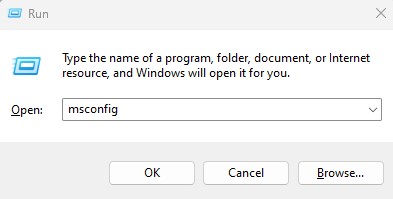
Boot your computer into safe mode: click at the same time Windows + R key; in the Run box, type “msconfig”.
-
In the newly opened System Configuration window, choose the Boot tab, select the Safe Boot option, and confirm by clicking Apply and then OK.

- You will be prompted to restart your computer in Safe mode; confirm by clicking on Restart.
-
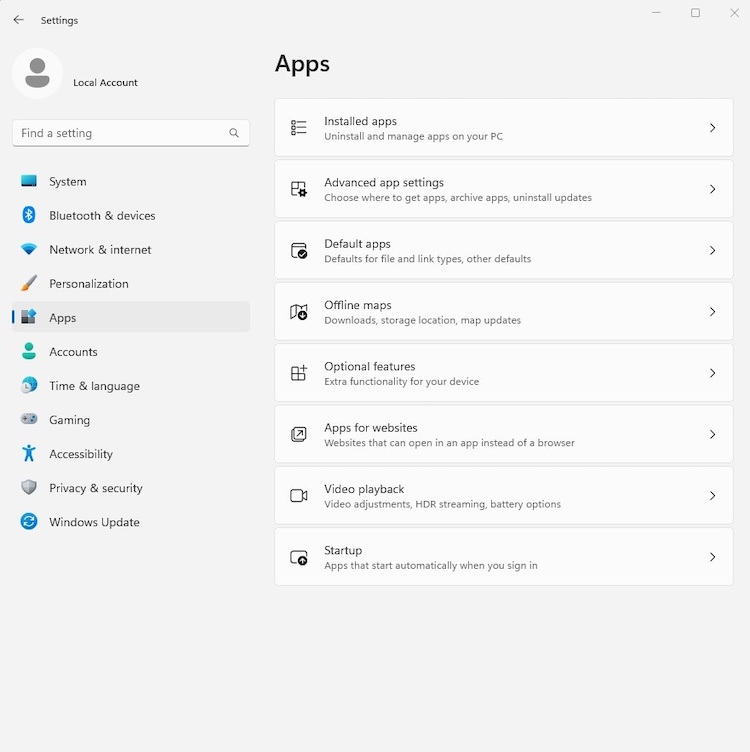
Now right-click on the Start menu and open Settings.

-
On the left side, find and click on Apps, then Installed Apps.
-
In the list of applications, look for anything suspicious you don’t remember downloading. If unsure, you can always use Google to find more information about the installed software.

- If you find a malicious app, click on the three dots (...) and select Uninstall.
Alternatively, if the virus wasn’t found within program files, then you can try deleting temporary files. Here’s how to do so:
-
Type “Disk Cleanup” in the Windows search bar.

-
Open the Disk Cleanup program and, select the drive you want to clean up, click OK.

-
Scroll through the list and check the box next to Temporary Files. Confirm by clicking OK.

Step 3: Manual virus removal on macOS
Your macOS computer, no matter how secure it is from malware threats, can also be infected with a virus. Luckily, there are several different ways to remove the malware threats manually.
The first step is to remove any suspicious applications on your computer. Here are the steps on how to do that:
-
On the Apple sidebar, click on Go and then Applications.
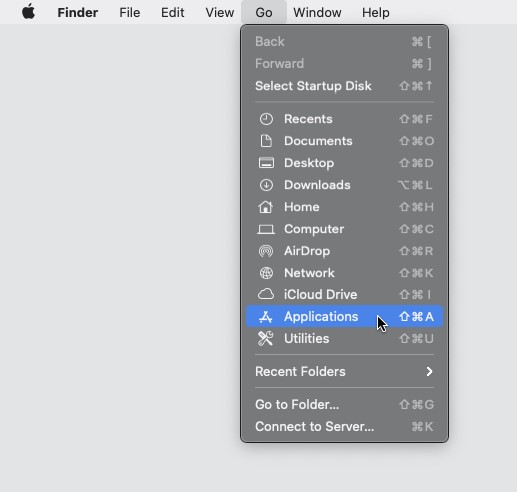
- Find a suspicious program and drag it to the Trash/Bin.
-
On the Apple sidebar, click on Finder and then Empty Bin.
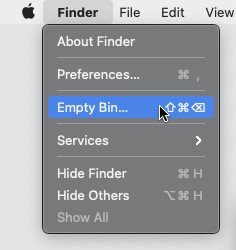
If you couldn’t delete the applications, then you’ll need to stop the processes of the unwanted applications and try again:
-
From the Apple menu, open the Go dropdown menu and click Utilities.

-
Double-click on the Activity Monitor.

-
Look for a suspicious item and choose to Stop the process by clicking on the X icon.

-
Confirm by selecting Force Quit.

If removing suspicious applications didn’t solve you computer virus issue, then the next step is to remove other components. Here’s how to do so:
-
Click Go on the Mac’s Finder toolbar and select Go To Folder.

-
Type /Library/LaunchAgents in the search bar and click on the Go button.

- Look through the open folder for suspicious files that can be related to Geek Squad and move them to Trash/Bin.
- Repeat Steps 1-3 with these folders too:~/Library/Application Support~/Library/LaunchAgents~/Library/LaunchDaemons
Step 4: Remove malicious browser extensions
It’s possible that the virus that’s disrupting your computer’s performance can be infecting your browser. Therefore, we prepared instructions on how to remove viruses from different browsers.
First, here are the steps to remove a virus from your Google Chrome browser:
-
Open the Google Chrome browser, click on the three dots on the right, select More Tools, and click Extensions.

-
If you find a recently installed suspicious extension, click Remove.

If you need to remove a virus from Mozilla Firefox browser, here are the steps to do so:
-
Open the Mozilla Firefox browser, click on the menu icon on the top right, and select Add-ons and themes.

-
Select Extensions, look for recently added suspicious extensions, click on three horizontal dots, and Remove.

Finally, follow these steps to remove a virus from your Safari browser:
-
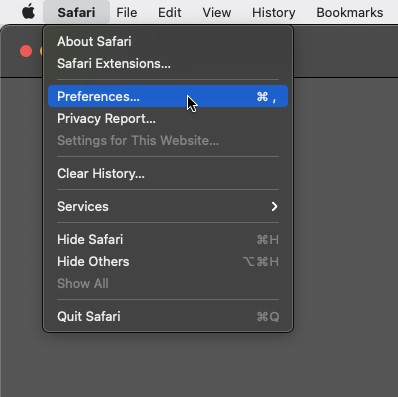
Open Safari Browser and go to Safari > Preferences.
-
Go to the Extensions section and look for suspicious recently added extensions. If you find one, click Uninstall.

What are computer viruses?
Computer viruses are malicious software that infects your device and can disrupt your system in various ways. The goal of the virus is then to replicate and spread to other devices and systems by modifying and attaching itself to other files.
There are many different types of viruses; some of them can only infect and affect your web browser, while others, like spyware, can use keyloggers to collect all the information that you are typing, such as your login credentials and bank account information, or rootkits which can access and gain the internal controls of your computer.
The easiest way to catch and remove a virus is with trusted antivirus software like our top-rated TotalAV. You can also remove it yourself manually with the steps provided below.
Ways to keep your device safe from viruses
There are a few ways to prevent viruses from threatening your device in the future:
- Invest in a reliable antivirus. A reputable antivirus software, like TotalAV, will not only remove viruses from your system but will also provide robust protection to prevent malware threats from infecting your systems
- Keep your system up to date. Make sure that you always update your operating system and applications when new updates are released. They often contain security patches that can protect your device from new vulnerabilities.
- Don’t download unknown files. This includes software or files from unknown or unofficial sources. Additionally, don’t click on unknown attachments in emails or messages because they may carry viruses as well.
- Get a reliable ad blocker. Annoying pop-up ads can be hidden malware; with an ad blocker, you can block them so you don’t accidentally click on one.
- Don’t install unknown browser extensions. If the extension seems suspicious or is unknown, then it might be a virus. So by installing it in your web browser, you infect it and, in turn, infect your system.
- Keep your data updated. Regularly clean up temporary files to remove possible viruses and optimize your device performance. Additionally, make sure to back up your data regularly in case you lose it to malware.
- Don’t leave your device unattended. Use a strong password for your computer and don’t leave it unlocked and unattended, so it minimizes the chances of a virus infection. Additionally, do not use USBs or external hard drives that aren’t yours; these are often used as bait to spread malware.
Virus removal on PC: video review
We have a video guide on removing viruses on Windows 11 PCs if you need a detailed explainer on fixing your computer.
Conclusion
If your computer starts lag, the overall performance quality drops significantly, you notice unfamiliar files or apps, your browser settings get messed up, or you notice spikes in your network activity, it’s very likely that your computer has been infected with a virus.
The best and easiest way to remove a virus from your device is with a reliable antivirus, our top suggestion is TotalAV. Antivirus software comes with features like real-time protection, virus scans, and others that help prevent viruses from infecting your computer in the future or safely remove existing threats hidden in your system.
Alternatively, you can manually go through your computer and files to remove anything that you don’t recall downloading, or that appears as a malicious file. However, it’s more time-consuming and less reliable since it depends on your knowledge of computer viruses.
FAQ
Are computer viruses easy to remove?
The easiest way to remove viruses from your computer is to use reputable antivirus software like our recommended TotalAV. Alternatively, you can try to remove a virus manually, but it’s a very complex action and depends on the virus itself. Some viruses can hide in several different parts of your computer, and finding just one is not enough.
How do I check if my computer has a virus?
The most efficient way to check if your computer has a virus is by running a full system scan with a trustworthy antivirus program, we recommend TotalAV. Not only will it warn you about the found virus, but it will also remove it from your computer just in a few simple steps.
How do I know if my computer has a virus without an antivirus?
If you notice some of these symptoms, your computer most likely has a virus: your device and programs are running slower and even crash from time to time, you see more annoying ads and pop-ups than you used to, and your web browser settings are changed without your input.