Brick phone blocker review: can a $59 plastic square actually fix your screen time?

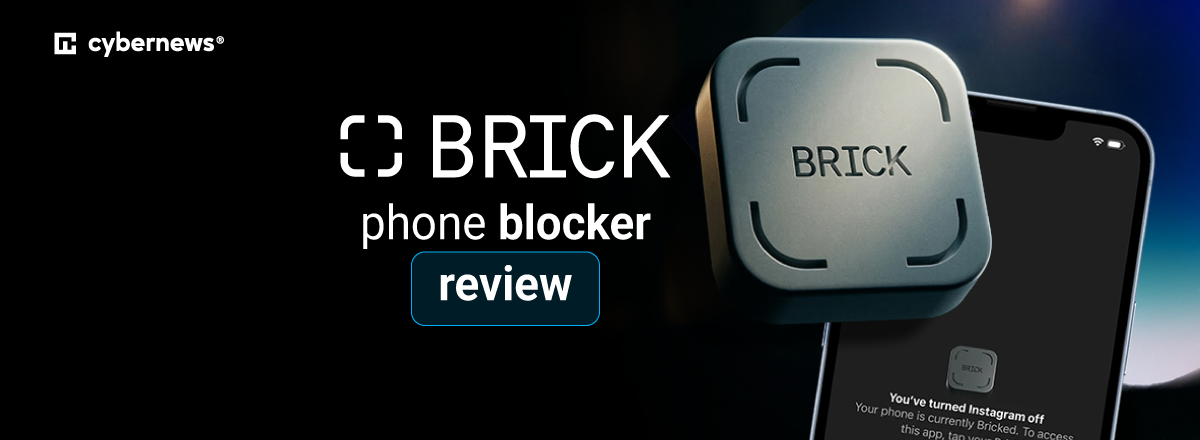
Global screen time statistics show that individuals between 16 and 64 years spend around 6 hours and 40 minutes daily scrolling multiple screens. This is where Brick comes in handy.
This is a novel physical device, not just another app blocker, founded in 2023 by TJ Driver and Zach Nasgowitz from the University of Wisconsin-Madison. At its core, Brick utilizes physical friction to break the habit loop. In fact, it’s a small NFC-enabled magnetic puck that pairs with a free app to block selected apps on iOS or Android until you physically tap the device again.
In this guide, you’ll learn how Brick differs from Apple Screen Time or app blockers like Opal or Freedom, whether the physical friction concept actually works, who it’s best for, and if the $59 one-time purchase is worth it.
That’s why, I, together with the Cybernews research team, reviewed Brick's official product documentation (how it works, setup, design, pricing), app features, user feedback across multiple platforms, and published third-party evaluations to produce this review. You’ll also find out its best-use cases.
Quick overview of the Brick phone blocker
| Overall rating: | 4.7/5 |
| A brief description: | Brick is a physical device that temporarily removes distracting apps and their notifications from your phone. To regain access to the apps, you need to tap the physical square. |
| Key specs: |
|
| Pricing: | $59 (one-time purchase) |
Our methodology
To provide this detailed Brick phone blocker review, I conducted an in-depth research with the help of my Cybernews team. I evaluated the following criteria:
- Blocking effectiveness and friction design (25%). First of all, I focused on the effectiveness of the blocking, whether users can find loopholes, and the overall friction design.
- Feature depth and customization (20%). I also explored the features and availability to customize the blocking modes.
- Ease of setup and daily usability (20%). Of course, I didn’t forget to research more about the user-friendliness and the setup process.
- Build quality and hardware design (15%). Another thing I explored was the durability, build quality, and the hardware design of the Brick.
- Pricing and value for money (10%). I also reviewed the pricing and the overall value for your money to make sure you get what you pay for.
- User sentiment consistency (10%). Ultimately, I explored multiple user reviews and focused on their consistency.
I evaluated Brick against both software-only alternatives (Apple Screen Time, Opal, Freedom) and physical device alternatives (Unpluq, Foqos with NFC tags). However, keep in mind that behavioral effectiveness varies by individual. More precisely, Brick works best for users who engage with the physical friction component intentionally.
What is Brick and how does it work?
Brick is an NFC-enabled device, meaning it uses the same technology as contactless payments to communicate between the physical device and the phone.
To activate it, you need to tap your phone to the Brick. All of the previously-selected apps will be immediately blocked and their notifications will be silenced. When you want to deactivate it, just tap the phone to Brick again, and all the apps will unlock.
More precisely, this device relies on a physical separation principle. This means that you can place the Brick in a different room, car, or workplace, which creates physical distance between you and the device you want to unblock.
What’s more, you can also hold the in-app button for five seconds to activate Brick mode without the physical device, but you can’t deactivate it remotely. In total, there are five Emergency Unblocks. This lets you fully unblock your phone without the physical Brick. However, it requires email support to replenish once you use this.
But don’t worry. Brick doesn’t block everything. Your calls and texts are always available, and you can even define which other apps remain open. As for the blocked apps, they show a message that says: “This is a Distraction. Your phone is currently Bricked.” For them, there’s no bypass option.
The bottom line is that Brick works on the principle of friction by design, making the decision to return to distraction a deliberate act rather than an impulsive one.
Setting up Brick: how easy is it?
Setting up Brick is a breeze. That’s why I decided to guide you through the simple step-by-step setup:
- Purchase the Brick device ($59). It ships in a small box with QR code for app download.
- Download the Brick app (iOS or Android), which is free and doesn’t require a subscription.
- Create an account. You’ll just need your email (no credit card).
- Scan or select apps to block. You can also select apps to keep, while all others will be blocked.
- Create custom Modes (e.g., Work, Study, Family, Sleep). You can create up to 10 modes.
- Enable scheduled auto-Brick at set times (optional).
- Enable Strict Mode to prevent app deletion while Bricked (optional).
- Tap phone to Brick device to activate.
I wanted to further explore the process, which is why I went through the experience that users had when setting it up, and here’s what I learned:
- Several app crash reports during setup (may require restarting the setup process).
- Easy to forget to whitelist essential apps, such as banking or ride-share (requires unbricking to edit).
- Safari and browser blocking works but some hyperlinks in other apps can bypass it (documented workaround).
Overall, the setup takes 5-15 minutes. Most users describe daily use as intuitive after initial configuration.
Brick features and modes
One of the things that surprised me the most is how many features and modes Brick has, despite being a physical device. Some of the most prominent ones are:
- App blocking. Brick lets you block up to 50 apps per mode. You can either block by exception (whitelist) or inclusion (blocklist).
- Custom Modes. One of the best things is that there are up to 10 named modes with different app configurations. These include Work, Family Time, Study, Sleep, etc.
- Scheduled Bricking. You can also set automatic Brick activation at specific times of day or days of week.
- Focus timer. There’s also a visible countdown/count-up timer on the home screen showing how long the phone has been Bricked. This is a gamified element that users frequently praise.
- Notification silencing. The blocked apps’ notifications are also silenced while your phone is Bricked.
- Remote activation. One of the best things is that you can hold the in-app button for five seconds to Brick without the physical device. Still, deactivation requires the physical device.
- Emergency Unbricks. You get five Emergency Unbrick per device. This feature offers a full override without the physical device in case of an emergency.
- Strict Mode. This mode prevents deleting the Brick app or changing Screen Time settings while Bricked. More precisely, it closes the main bypass loophole.
- Multi-device blocking. What I also liked a lot is that the Brick works with unlimited phones. Also, one phone can work with multiple Bricks.
- Cross-platform compatibility. Brick currently works with Android devices running version 12.0 or later and iPhones running iOS 16.2 or later.
- HSA/FSA eligible. Ultimately, Brick is HSA/FSA eligible for qualified customers. More precisely, a licensed provider will review your answers to determine your eligibility.
Still, Brick comes with some limitations. You should be aware that:
- It doesn’t block desktop/computer websites.
- Browser blocking on phones has some documented workarounds via hyperlinks in other apps.
- Five Emergency Unbricks is a hard limit (replenishment requires emailing support).
Design and build quality
The Brick phone blocker is a small square puck the size of a palm. More precisely, it’s around 1.5-2 inches. It’s built from a 3D-printed plastic, which is why users describe it as lightweight and minimal.
It also comes with a magnetic backing, which is why you can stick it to metal surfaces, such as fridges, car dashboards, and filing cabinets. Plus, its base is slip-resistant. Currently, you can get this device only in a gray/neutral color.
When it comes to its hardware, Brick has an NFC chip embedded in the device for tap-to-activate functionality. The best part is that it doesn’t require charging, as the physical device has no battery. It’s a passive NFC tag.
While reviewing it, I didn’t find any significant breakage reports. In fact, most users describe it as durable. Additionally, Brick is small enough for you to carry, but designed to be placed in a fixed location to maximize the friction benefit.
Some of the best placement strategies that users point out are:
- On the fridge
- In a different room from usual scrolling spot
- In the car (noted by multiple users as highly effective, forces intentional decision to unblock)
- At the workplace
All in all, Brick is intentionally minimal. As simplicity is the whole point, there are no buttons, no screen, and no charging.
Who is Brick best for?
Whether Brick is a good fit for you depends on your needs and preferences. Here’s a brief summary of its best-use cases.
What do users think about Brick?
As always, I went through multiple user reviews to support my Brick phone blocker review findings and to help you get insights from first-hand experience. Based on my research across Reddit, App Store, Google Play, and published editorial reviews, here’s what I discovered:
Positive patterns:
- Long-term users describe the physical friction as game-changing
- They frequently praise the focus timer/count-up feature as motivating and gamified
- Users also like the multi-phone/family use, as they find it practical and cost-effective
- Another decisive positive is the no subscription model
- ADHD users report Brick as the only tool that has worked after many others failed
- There’s also a notable celebrity adoption (Lorde has been publicly using Brick)
Negative patterns:
- App crashes during setup
- Only five Emergency Unbricks (anxiety-inducing for some users, replenishment requires emailing support)
- Browser blocking has documented workarounds (hyperlinks in notes apps, etc.)
- Strict Mode described as unforgiving if apps misconfigured before enabling
- Does not block desktop computers (a limitation for users who migrate distractions to laptop)
- UK/international users note higher effective price due to shipping costs
At time of writing, users gave Brick a rating of 4.9 on iOS App Store, and 4.0 on Google Play.
Brick pricing
| Item | Price |
| Brick device (single) | $59 USD |
| Brick app | Free (iOS and Android) |
| Subscription | None - ever |
| Additional Brick devices | $59 each (for multi-location setups) |
| Emergency Unbrick replenishment | Contact support (free) |
As you can see in the table above, Brick has a one-time payment that covers the hardware and lifetime app access. There’s no tier system, meaning no premium features are locked behind a paywall.
Another great thing is that the HSA/FSA eligibility allows you to use money set aside in your HSA or FSA to purchase Brick and save around 30% if you’re eligible.
Furthermore, one Brick device works with unlimited phones, which makes it cost-effective for families.
Plus, the 30-day money-back guarantee lets you test this device for 30 days, and refund your money if you’re not satisfied with it.
If you compare it with other similar devices, you’ll notice that Opal Pro costs $99/year, and Freedom costs around $40/year. More precisely, Brick pays itself off, which is more efficient than paying for recurring subscriptions.
Note: Pricing in non-US markets (especially UK/EU) is higher in practice due to shipping costs.
Final verdict: is Brick phone blocker worth it?
Brick is the only mainstream phone blocker that introduces genuine physical friction, making it fundamentally harder to bypass than any app-only alternative. Its greatest aspects are the one-time price, cross-platform, physical enforcement, Strict Mode, no subscription, and family-friendly approach.
However, there are some limitations, such as app crash reports during setup, five Emergency Unbricks hard limit, no desktop blocking, and documented browser workarounds.
Therefore, I’d recommend Brick for chronic doomscrollers who have failed with app-only tools, ADHD users, students, remote workers, parents managing teen screen time, and anyone wanting a lifetime no-subscription solution.
However, it might not be worth it for users who also need desktop blocking, users with iOS below 16.2 or Android below 12.0, or individuals who need frequent emergency app access.
Based on my research with the Cybernews team, Brick is the most effective phone blocker for users who are serious about reducing screen time, not because of its software, but because of what it uniquely does that no app can replicate: make you physically go get the key.
FAQ
What is Brick and how does it work?
Brick is an NFC-enabled magnetic puck that introduces physical friction to reduce doomscrolling and spending hours on your phone.
Can you bypass or hack the Brick phone blocker?
While bypassing or hacking the Brick phone blocker is hard, there are some documented loopholes, such as hyperlinks in note apps.
Does Brick work on Android as well as iPhone?
Yes, Brick works on both Android and iPhone phones, but only if they use Android 12.0+ or iOS 16.2+.
What happens if you lose your Brick device?
If you lose your Brick device, you can benefit from the five Emergency Unbricks that will automatically unblock all apps.
Is Brick better than Apple Screen Time?
Yes, Brick is considered better than Apple Screen Time because it relies on physical friction. This makes it harder for you to bypass any restrictions.