The ultimate cybersecurity checklist for individuals and small businesses

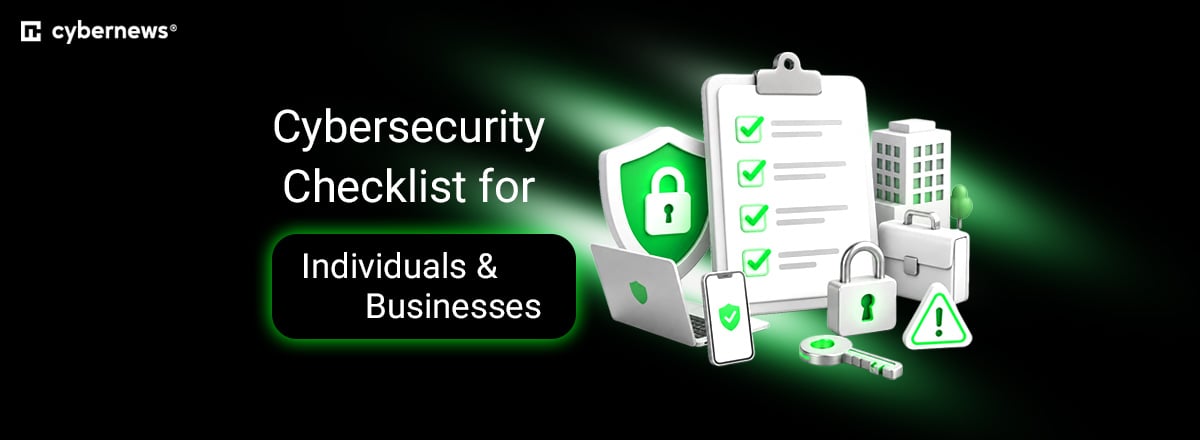
It’s important to follow a robust cybersecurity checklist to ensure you don’t miss anything in your effort to protect both personal and business accounts and devices. Being thorough is the most effective way to defend against automated and manual online threats.
Enterprise corporations have IT security departments that manage risk, but individuals, freelance professionals, entrepreneurs, and small businesses have to rely on their own digital habits. The good news is that you don't need to be a professional or have a massive budget. You only need to practice effective digital hygiene.
Human factors like phishing and misused credentials drive a large percentage of breaches, so secure habits matter as much as technical safeguards.
Quick-start cybersecurity checklist: 7 non-negotiables
Before diving into deeper system configurations, I’ve prepared some essential practices based largely on Cybersecurity & Infrastructure Security Agency (CISA) and National Institute of Standards and Technology (NIST) guidance:
- Turn on multifactor authentication (MFA). Enable secondary authentication with an authenticator app like Google Authenticator for your main email, banking accounts, and password vaults. This protects you from compromised passwords.
- Enable automated software updates. Turn on automatic updates on all major devices, like your phone and laptop. Do the same for key software, like your main web browser and antivirus program.
- Use a dedicated password manager. Store passwords in a secure password vault and use unique, randomly generated passwords or long passphrases. Domain-matched autofill can help you avoid entering passwords on fake login pages. For example, Bitdefender Total Security includes a fully featured password manager, and Bitdefender Ultimate Small Business Security includes a multi-platform one for your whole team.
- Establish an isolated backup routine. Keep a copy of critical personal and business files. Do this on an external drive that you disconnect after backing up, or in cloud backup storage that is protected against overwriting or deletion.
- Practice verification before clicking. Always pause before clicking a link or opening an attachment. Be skeptical of unexpected payment requests, password-reset prompts, and account-suspension notices, especially in emails.
- Enable full-disk encryption. Turn on BitLocker or Device Encryption on a compatible Windows device, or FileVault on macOS. This makes your data unreadable if you lose or have your device stolen.
- Use the principle of least privilege. Do all daily tasks on a standard user account, not the system administrator account. If you run a business, limit each employee’s access to the files and systems they need.
Securing accounts and identity access
Compromised login credentials are a common initial access point for cyberattacks on both individuals and businesses. That’s why strict access controls are key to ensuring a single compromised password doesn’t give access to your entire digital footprint.
Password management, passkeys, and audit tools
If you try to memorize passwords, you’re just bound to reuse many and create ones that are easy to breach. It’s better to use a dedicated password manager that generates, stores, and auto-fills unique strings of characters.
Configure it to create a randomized string of at least 16 characters with letters, symbols, and numbers, which are inherently harder to break. At the same time, use passkeys wherever you can. They use public-key cryptography and can be unlocked with biometrics or a device PIN, providing phishing-resistant sign-ins.
You should also regularly use built-in password audit tools that find weak and reused passwords and warn you to change them. They also find previously exposed credentials.
Multifactor authentication
No matter how strong they are, passwords aren't entirely safe and can still be phished, intercepted, or guessed. It’s better to add a second verification factor through authenticator apps.
Use actual time-based one-time password apps like Google Authenticator or physical hardware keys. Avoid SMS text messages for authentication codes. Phone numbers are highly vulnerable to SIM-swapping fraud and cellular interception.
Account permissions
If you own a business, focus further on two important things:
- Role-based access control. Enforce this type of control across all company software. Assign standard user permissions to employees and reserve full administrator rights for isolated admin profiles.
- Offboarding audits. When you offboard an employee or external contractor, revoke their access to company accounts and communication channels. Don’t leave dormant accounts, as they can provide an entry point for attackers.
Locking down personal devices and endpoints
Every device is an endpoint an attacker can target to enter your network. That’s why every device needs physical access controls and basic software protections. To keep them safe, plan automated software maintenance and native encryption.
Automatic updates, antivirus programs, and patch management
Operating systems, web browsers, and other third-party software are constantly updated as developers discover and fix security holes. So, if you leave updates pending, you leave a vulnerability unpatched that an attacker can exploit. Here’s what you should do to reduce these vulnerabilities:
- Automate operating system updates. Always enable automatic updates on your Windows, macOS, Android, and iOS devices. Set devices to restart outside working hours, so updates apply as soon as possible.
- Dependable antivirus software. Windows Security includes Microsoft Defender Antivirus, which provides built-in malware protection, but a full security plan like Bitdefender Total Security goes further, with award-winning protection across Windows, macOS, Android, and iOS plus a password manager. Keep your antivirus enabled and up to date, whether you use the built-in option or a third-party product.
- Remove unused software and browser extensions. Audit installed apps and browser extensions every few months. Remove those you no longer actively use.
- Retire obsolete hardware. Stop using legacy hardware and software that no longer receive security updates.
Endpoint protection and remote location tools
If you lose a device or it gets stolen, passwords won’t do much. The attacker can still remove the internal drive and read unencrypted files. That’s why you need to keep everything encrypted.
Full-disk encryption helps with that. It scrambles stored files behind boot credentials, helping prevent someone without the key from reading data on a lost or stolen device.
You should also set up remote-location tools. Microsoft Find My Device can help locate and lock a missing device, while Apple Find My also supports remote erasure if configured beforehand.
Network defense
If your network isn’t secure, anyone in physical range or on the communication path can intercept traffic and redirect it to fraudulent sites. Fortunately, there are several practical steps you can take to secure your network and keep that traffic safe.
Router and gateway hardening
Start by hardening your router and gateway. Here’s what you need to do:
- Replace default admin credentials. These are often simple credentials like “admin,” and many attackers use database lookups to find factory passwords and access your system.
- Disable remote management. Turn off features like “WAN Access” and “Remote Management”. This ensures only you can access the admin interface locally.
- Turn off Wi-Fi Protected Setup (WPS) and Universal Plug and Play (UPnP). These are common convenience features on many home Wi-Fi routers. WPS has known brute-force vulnerabilities. UPnP lets devices on the network open external ports without authentication, which is also a major vulnerability.
- Change the default Service Set Identifier (SSID). This is your Wi-Fi network’s technical name. Change it to something that’s not easy to identify. Also, turn off older wireless protocols if you don’t need them.
On Windows, you can go further with Bitdefender Total Security’s Wi-Fi Security Advisor. It can also assess your Wi-Fi network and router security, wherever you connect.
Network segmentation
Keep your network segmented so one compromised device can’t wreak havoc on the whole system. You can do that by separating work hardware from your home network and by creating an isolated guest Wi-Fi for visitors or contractors.
Also, it’s good to create a separate Wi-Fi network for smart devices like smart TVs and printers.
Proper encryption and VPNs
Data that moves to and from your network needs to be protected as well, and the only way to achieve that is through proper encryption:
- Use WPA3-Personal encryption, not WPA2-AES. Both are security protocols, but WPA2 is the older standard and therefore less secure. Use WPA3-Personal as the standard, and WPA2-AES only when necessary.
- Use a strong pre-shared key (PSK) on your Wi-Fi. This is the shared password or passphrase for your Wi-Fi, and it should be at least 16 characters long and fully randomized for maximum security.
- Encrypt your DNS queries. Choose a resolver that supports encrypted DNS, such as Cloudflare or Quad9, and enable DNS over HTTPS or DNS over TLS.
- Get a virtual private network (VPN). A reputable VPN provider can add a layer of privacy when you connect to public or hotel Wi-Fi while traveling. A VPN encrypts traffic between your device and the VPN server, helping protect it from observers on the local network.
Data protection, backups, and disaster recovery
Most people, both professionals and individuals, lose data through accidental deletions and hardware failures. Attacks are less common here, except for ransomware.
To stay protected in either case, it’s best to adopt the industry-standard 3-2-1 backup strategy that looks like this:
- Keep 3 copies of critical data. You should always have your original data and two separate copies.
- Have backups on 2 different media types. Store your data on two different types of storage media, such as your computer’s internal drive, an external hard drive, cloud storage, or a Network-Attached Storage (NAS) device.
- Have 1 copy off-site. Store one copy remotely, either in a different physical location or in the cloud.
For example, you can keep the original data on your primary laptop, one copy on an external hard drive at home, and one automatically backed up to an encrypted cloud backup service.
One of the most common mistakes individuals and small businesses make is relying entirely on cloud synchronization services like Google Drive or OneDrive. The problem is that they replicate changes almost instantly, so if malware corrupts your files, it will sync to the cloud immediately.
That’s why you need at least one disconnected, offline backup. Periodically test that you can restore your files from those backups.
Human defense: how to recognize modern social engineering
Now that we’ve covered the technical steps you need to take, we need to talk about your behavior and your employees' digital habits. Criminals often use social engineering attacks where they try to manipulate human emotions to gain access to victims’ devices and networks.
Modern phishing campaigns are no longer generic emails with typos. They are more sophisticated, and attackers will often research targets to craft convincing messages, including:
- Urgent invoice and payment scams. These are common because it’s easy to pose as a familiar vendor or utility company. A simple defense is to avoid clicking links or updating payment information until you've verified the message is legitimate. As for small businesses, they can use Bitdefender Ultimate Small Business Security, which flags fake invoices and urgent emails and includes Scamio Pro, so your team can paste a suspicious message or link and get a clear answer before replying, clicking, or paying.
- Malicious QR codes. Because you can’t see what's behind a QR code, the best practice is to avoid automatically scanning one that isn’t from a trusted source.
- Colleague impersonation. This is a problem for small businesses, as attackers often impersonate a colleague, manager, or owner. Establish a clear internal policy requiring spoken or in-person confirmation for any financial request so employees don’t fall for it.
- SMS and delivery notifications. These are easy to fall for, especially when you get a link that looks like it's from your delivery service. It’s always better to visit the service’s website directly and check there, rather than clicking links from unclear sources.
Above all, pause whenever you get a message demanding immediate action. Then you’ll only need a few seconds or a couple of minutes to verify the request through an independent channel. This applies to individuals and companies alike. In small businesses, this should be mandatory for all employees and executives.
Incident response: what to do if you suspect a breach
Whenever you suspect a breach, know that panic is your worst enemy. Calm down and approach the problem methodically. Besides taking actions specific to your case, ensure you prioritize these:
- Disconnect from the network. Disconnect the affected device from Wi-Fi and Ethernet to limit further spread.
- Power down only as a last resort. If you cannot disconnect the device, shut it down, but be aware that this can destroy evidence stored in memory.
- Identify unauthorized connected devices. Check your router’s connected-device list, identify unfamiliar entries, and block any confirmed unauthorized devices.
- Secure affected accounts from a clean device. Change compromised account passwords, sign out other sessions, and review recovery details and MFA settings.
- Run a full antivirus scan. Use trusted security software, such as Bitdefender Total Security, and run a full system or offline scan on all potentially affected devices.
- Remove unknown apps and profiles. Inspect programs, apps, browser extensions, and configuration profiles for anything suspicious.
- Do a factory reset (if necessary). Before resetting an infected device, preserve relevant evidence, confirm your backups are clean, and seek IT support if business systems are involved.
- Document what happened. If you run a business, write down a timeline of events because it helps identify whether any client records or financial systems were exposed.
Bottom line
Effective cybersecurity defense comes down to staying consistent with the basics. Run automated updates, use unique credentials and multifactor authentication, keep isolated backups, and, above all, practice good digital hygiene.
If this cybersecurity checklist feels overwhelming, start simply. A security plan like Bitdefender Total Security, or Bitdefender Ultimate Small Business Security for your team, can add digital protection for several of these basics in one subscription. Then implement the remaining solutions and digital habits over the next week or longer.
Over time, you’ll complete every necessary step and build habits that will protect you from most threats facing individuals and small businesses.
FAQ
What’s the most important step in a cybersecurity checklist?
Turning on multifactor authentication across your main email and banking accounts is the single most effective step you can take. It makes it harder for an attacker to get in with a stolen password.
Can antivirus software protect me from all online threats?
Antivirus software is a strong first line of defense and can block a wide range of threats, but it isn't a complete solution on its own. It's less effective against things like phishing emails or scams that trick you into handing over your credentials voluntarily. Pairing it with safe browsing habits and awareness gives you the best protection overall.
Is cloud storage enough as a safe backup method?
Cloud synchronization alone isn’t a reliable backup strategy. It can replicate corrupted or deleted files, while dedicated cloud backups may retain earlier versions. You also need to keep an isolated, offline external drive.
How often should small businesses audit their cybersecurity?
It’s enough to do a formal review every quarter. This review should mainly include checking user permissions, auditing software licenses, removing old accounts, and testing offline backups.
Is it difficult to set up full-disk encryption on a personal laptop?
No, it’s not difficult to configure. macOS includes FileVault, while Windows encryption options depend on your edition and hardware.
Do small businesses really need to use a VPN?
A VPN can be useful for employees traveling or accessing company systems remotely, but whether it is necessary depends on the business’s setup. On public Wi-Fi, follow company security policies and use encrypted services such as HTTPS, whether or not a VPN is required.