Best VPNs for Windows PCs and laptops in 2026
Our in-house cybersecurity experts and journalists, renowned for major reports like The Mother of All Breaches, conduct transparent, unbiased VPN testing and in-depth analysis.
With 750+ articles crafted based on real-world research, we empower readers to make informed purchasing decisions through first-hand expertise.
Learn more
Top 5 VPNs for Windows 11 and 10
-
 View deal1. Overall best VPN for Windows 11 and 10 in 2026 – NordVPNExpert review
 -
 View deal2. Budget-friendly Windows VPN – SurfsharkExpert review
 -
 View deal3. Privacy-focused VPN for Windows with a great free version – Proton VPNExpert review
 -
 Learn more4. Beginner-friendly Windows VPN – IPVanish
 -
 Learn more5. Fast and reliable VPN for Windows PCs and laptops – ExpressVPN
Why do you need a good VPN for a Windows PC?
Here are several reasons why you need a VPN for a Windows PC or laptop:
- Protect your online activity. Without a VPN, what you do on your PC can be tracked and logged, increasing the risk of surveillance or data leaks. A reliable VPN for Windows encrypts your traffic and keeps your data private.
- Stay safe on public Wi-Fi. Public networks are easy targets for attackers, but a Windows VPN helps secure your connection and protect sensitive details like passwords, banking info, and private messages when you’re on the go.
- Unlock global content. A VPN lets you switch your virtual location, making it easy to access movies, shows, and live sports from different regions using your preferred streaming platforms.
- Avoid speed throttling. Some ISPs slow down connections during heavy activities like streaming or torrenting. By masking your traffic, a good Windows VPN can help maintain faster, more consistent speeds.
Best VPN for Windows 11 – detailed list
Selecting the best VPN for a Windows laptop or PC can be overwhelming due to the numerous options available. To help, I compiled the best VPNs on the market and highlighted their key strengths, including robust security, feature variety, ability to bypass geo-restrictions, and affordability. Rest assured that choosing any of these Windows VPNs will provide excellent results.
1. NordVPN – ultimate Windows VPN in 2026

-
Privacy
-
Speed
-
Windows apps
-
Windows features
NordVPN is a top all-round VPN for Windows: fast, secure, and full of useful features that are easy to use. It has 8,000+ servers in 149 countries, plus tools like next-gen antivirus (formerly Threat Protection Pro) for strong privacy. It’s an excellent fit for most users, whether you need it for work, streaming, torrenting, or everyday protection.
NordVPN runs on Windows PCs and laptops, including Windows 11 and Windows 10. It also supports Windows 7.1 and 8.1. Though those older apps are more limited and no longer receive new feature updates.
I found the Windows app to be stable and intuitive, and I was able to use it right away. You can connect with one click or pick a server manually if you want more control.
Compared to macOS, Windows actually gets more features. For example, split tunneling is available on Windows. Additionally, Windows supports more VPN protocols. macOS is more limited in both areas due to stricter system-level network restrictions.
NordVPN barely slows down a Windows PC. During testing, NordVPN retained 82% of download speed and 52% of upload speed. This makes it one of the fastest VPNs for Windows 11. Nearby servers perform especially well, with no buffering during Netflix or YouTube streaming.
The one thing I appreciate is NordVPN’s excellent feature set for Windows. You get a system-level kill switch, split tunneling, and strong encryption. There are also multiple protocols, including NordLynx (WireGuard-based). Windows supports extra features like Double VPN and Onion over VPN. P2P servers, next-gen antivirus, and Dedicated IP are also included. Despite the feature depth, the app stays clean and easy to use.
NordVPN allows up to 10 simultaneous connections. It works across Windows, macOS, iOS, Android, and Linux. Browsers, routers, and Windows ARM devices are also supported. I use it daily on a Windows laptop for work and an iOS phone for personal use. The experience is smooth on both devices.
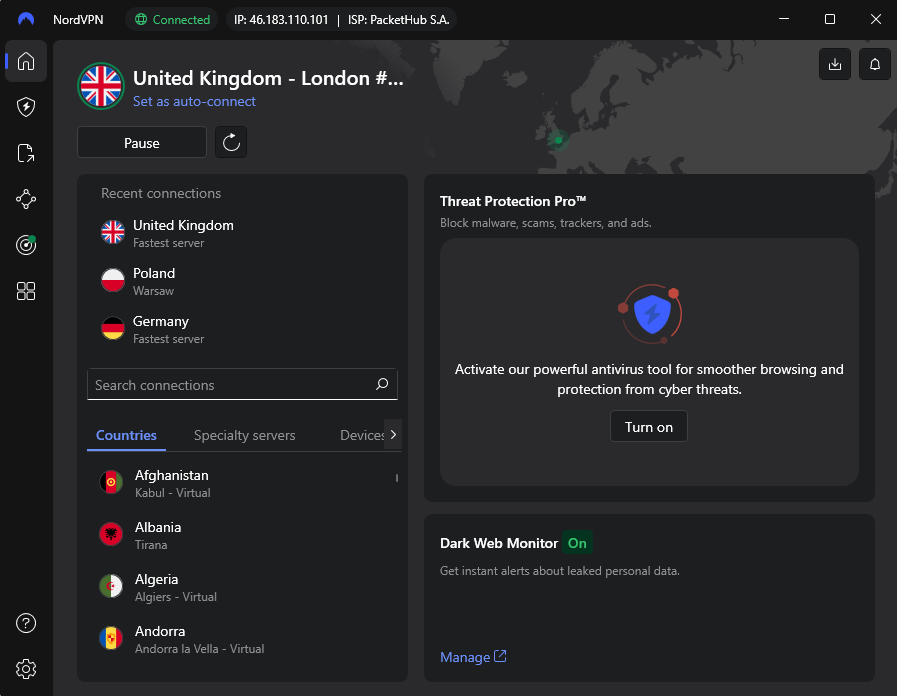
NordVPN cost starts from $3.49/month, making it a strong value considering how feature-rich it is. You can test it risk-free with a 3-day free trial (Android) and a 30-day money-back guarantee. For full plan details, check the NordVPN pricing page before committing.
2. Surfshark VPN – most cost-effective VPN for Windows

-
Privacy
-
Speed
-
Windows apps
-
Windows features
Surfshark is a great Windows VPN if you want strong performance and features at a lower price. It’s fast, flexible, and especially appealing for users who want premium-level tools without paying premium-level money. In my opinion, it’s one of the best value VPNs you can get for Windows.
Surfshark works well on Windows PCs and laptops, including Windows 11 and Windows 10. It also supports Windows 7, 8, and 8.1, though older versions mainly receive maintenance updates.
In my opinion, the Windows app is stable, clean, and beginner-friendly. You can connect with one click, and settings are clearly labeled. Windows users get full features, including antivirus, which is not always available on other systems.
The slowdown on a Windows PC is minimal. Surfshark kept 81% of download speed and 52% of upload speed, with an average ping of 123ms. Streaming and torrenting worked smoothly on a Windows 11 laptop.
Surfshark offers solid Windows features. You get a system-level kill switch, split tunneling, and modern protocols like WireGuard. Extra tools include MultiHop, Static IP, and NoBorders mode for restricted networks.
Surfshark allows unlimited simultaneous connections, which is rare. It works on Windows, macOS, iOS, Android, Linux, browsers, routers, and ARM-based Windows devices like Surface Pro.
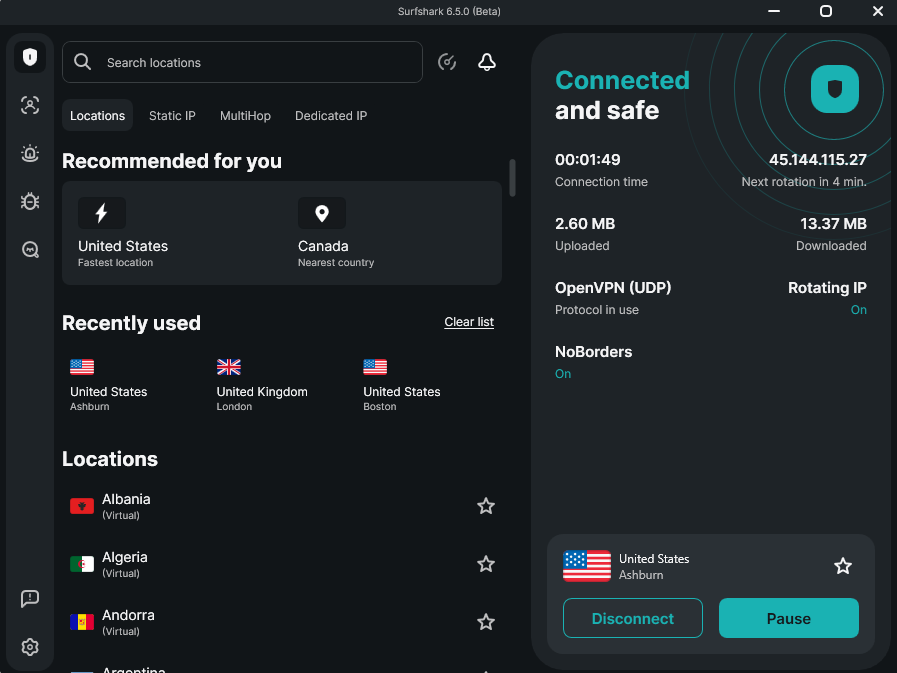
Surfshark plans start from $2.49/month with the 2-year plan. It includes a 7-day free trial on mobile apps and a 30-day money-back guarantee. For the price, it offers very strong value for Windows users.
3. Proton VPN – trustworthy Windows VPN with a free version

-
Privacy
-
Speed
-
Windows apps
-
Windows features
Proton VPN is a strong choice for Windows users who care most about privacy and transparency. It combines solid speeds with one of the most privacy-focused setups on the market. If security comes before flashy extras, Proton VPN makes a lot of sense.
Proton VPN works reliably on Windows PCs and laptops, including Windows 11 and Windows 10. It also supports Windows 7, 8, and 8.1, plus ARM-based Windows devices like Microsoft Surface Pro.
The Windows app is simple and clean, with a straightforward layout that’s easy to understand even for first-time users. You can connect quickly, but advanced options like Secure Core and server categories are still easy to access when needed.
The slowdown on Windows PC is minimal. In our tests, Proton VPN retained 81% of download speed and 52% of upload speed, with an average ping of 108ms. Streaming, browsing, and torrenting all worked smoothly on a Windows PC.
Proton VPN offers strong Windows features. You get a kill switch, P2P support, and performance tools like VPN Accelerator. Extras such as Secure Core, NetShield, and Tor servers add another layer of protection, especially for privacy-focused users.
Additionally, Proton VPN works across Windows, macOS, Linux, iOS, Android, browsers, and routers. It supports up to 10 simultaneous connections, making it suitable for multi-device use across different platforms.
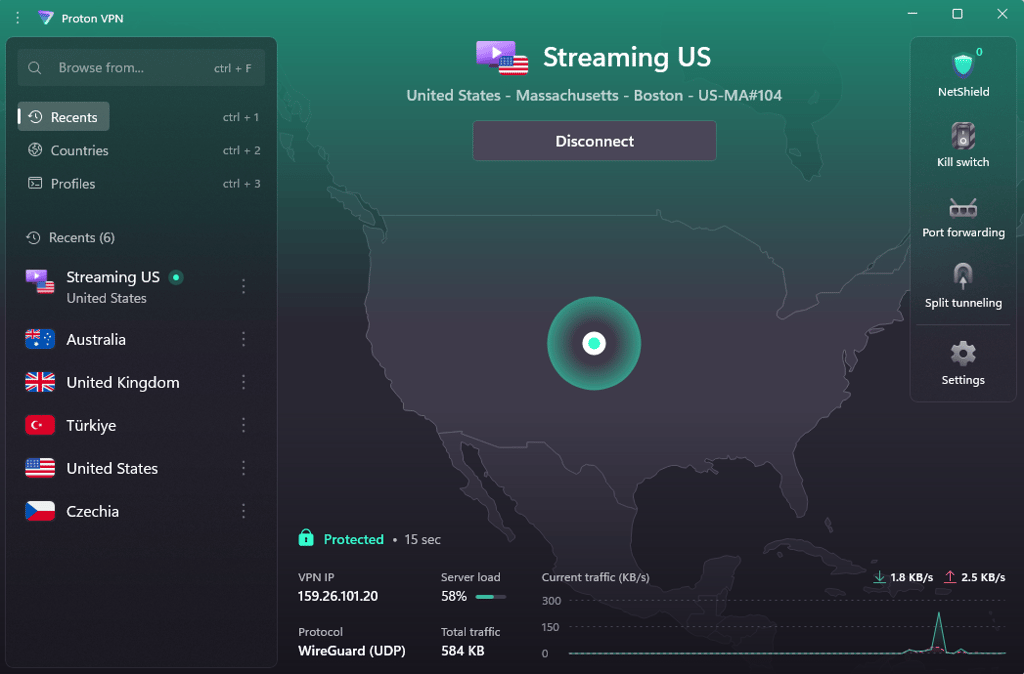
Proton VPN cost starts from $2.99/month, which is higher than many competitors. The upside is a free plan that lets you test the service before paying. Paid plans also come with a 30-day money-back guarantee, so there’s little risk if you decide to upgrade.
4. IPVanish – budget-friendly Windows VPN for gaming

-
Privacy
-
Speed
-
Windows apps
-
Windows features
IPVanish is a solid Windows VPN if you want speed and unlimited device connections. It focuses on core VPN functionality without extra complexity. It’s best suited for users who value simplicity and flexibility.
IPVanish is suitable for Windows PCs and laptops, including Windows 11 and Windows 10. Older versions like Windows 7 and 8 are supported, but with fewer updates and limited long-term support.
The Windows app is very beginner-friendly. You can connect in one click, and all main settings are clearly visible. Compared to feature-heavy VPNs, IPVanish keeps things simple.
IPVanish delivers decent speeds that vary by server location. Using WireGuard, it retained around 80% of the original speed on average, slightly behind NordVPN and Surfshark. Nearby servers perform much better – a UK server reached 90% download and 96.6% upload speed.
IPVanish covers the essentials, meaning you get a system-level kill switch, split tunneling, and support for WireGuard and OpenVPN. It also includes SOCKS5 proxy access, which is useful for P2P users. On the other hand, advanced privacy extras, like ad blockers are limited to higher tiers.
IPVanish supports Windows, macOS, iOS, Android, Linux, routers, and more. It allows unlimited simultaneous connections, which makes it a strong choice for users with many devices.
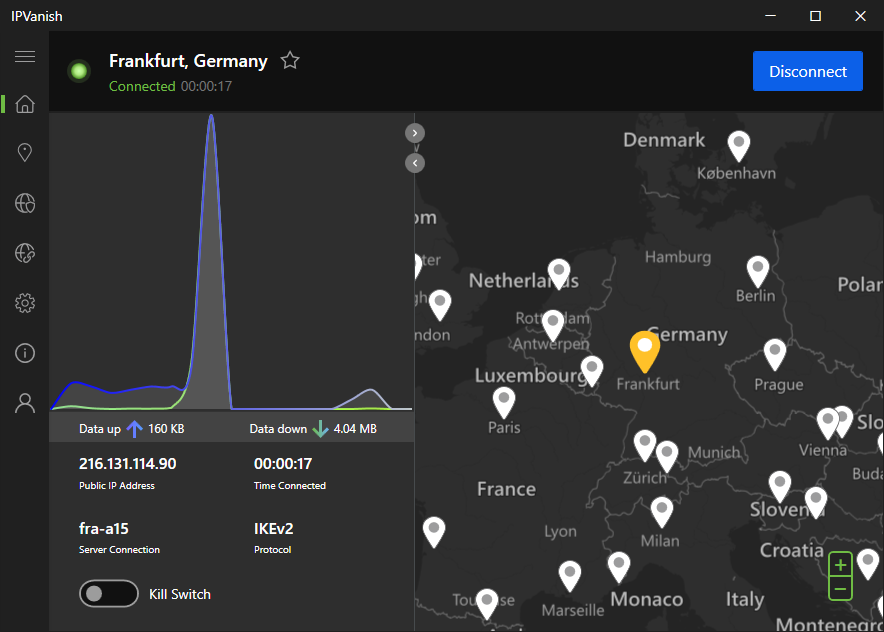
IPVanish starts from around $2.49/month on long-term plans. It includes a 30-day money-back guarantee, so you can test it without risk. Short-term plans are more expensive, but long subscriptions offer good value.
5. ExpressVPN – solid VPN for Windows PCs for speed and security

-
Privacy
-
Speed
-
Windows apps
-
Windows features
ExpressVPN is a good Windows VPN if speed and smooth streaming are your top priorities. It’s simple, fast, and very reliable for everyday use. That said, it’s more of a premium option than a value pick.
ExpressVPN works good on Windows PCs and laptops, especially on Windows 10 and Windows 11. There’s no native app for older Windows versions, but manual setup guides are available if needed.
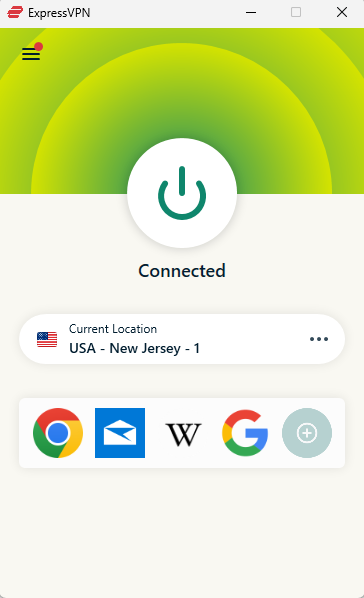
The Windows app is easy to use, but for me it looks a bit outdated. It’s built around a one-click connect experience, with minimal settings to tweak. Compared to some competitors, the app is simpler, but that also means fewer advanced configuration options.
Speed impact on Windows PC is low. ExpressVPN kept 74% of download speed and 52% of upload speed, with an average ping of 110ms while testing. Streaming Netflix and YouTube worked without buffering, and large P2P downloads completed quickly.
ExpressVPN covers the essential features well. You get a system-level kill switch (Network Lock), strong encryption, and its proprietary Lightway protocol. Extras include Threat Manager for blocking trackers and malicious sites, but there are fewer advanced features compared to NordVPN or Surfshark.
ExpressVPN supports Windows, macOS, iOS, Android, Linux, routers, and browser extensions. Just note that the ExpressVPN router app is no longer compatible with non-Aircove routers, which may restrict flexibility for some users. Moreover, it allows up to 14 simultaneous connections, which is enough for most users but less generous than Surfshark or NordVPN.
ExpressVPN starts from $2.99/month, making it one of the more expensive Windows VPNs. Personally, I think cheaper options like Surfshark or NordVPN offer better overall value for Windows users. Still, you're free to test it out, especially considering that ExpressVPN offers a 30-day money-back guarantee for new users.
Comparing Windows VPNs side-by-side
Still can’t decide between these five VPNs for Windows? Refer to the table below for a convenient side-by-side comparison of all the VPNs discussed in this article.
| VPN | Rating | Servers | Works with Windows 11 | Jurisdiction | Main features | Price | Money-Back Guarantee |
| NordVPN | 8,000+ servers in 149 countries | ✅ Yes | Panama | Next-gen antivirus, Dark Web Monitor, Meshnet, Double VPN, Onion over VPN | From $3.49/month | ✅ Yes, 30-day | |
| Surfshark | 4,500+ servers in 100 countries | ✅ Yes | Netherlands | CleanWeb, IP Rotator, Alternative ID, Static IP servers | From $2.49/month | ✅ Yes, 30-day | |
| Proton VPN | 20,700+ servers in 149 countries | ✅ Yes | Switzerland | Secure Core, NetShield, Tor servers, Stealth protocol | From $2.99/month | ✅ Yes, 30-day | |
| IPVanish | 3,400+ servers in 112 countries | ✅ Yes | United States | AES-256 encryptionKill switch, DNS leak protection, WireGuard and OpenVPN, support | From $2.49/month | ✅ Yes, 30-day | |
| ExpressVPN | Servers in 113 countries | ✅ Yes | British Virgin Islands | Threat Manager, Keys, MediaStreamer | From $2.99/month | ✅ Yes, 30-day |
How to set up a VPN for Windows
Setting up a VPN on your Windows computer is quick and easy. You can secure your internet connection and protect your privacy with just a few simple steps. Follow this guide to get started and optimize your VPN experience.
- Choose a VPN provider. Start by selecting a reputable VPN provider that meets your speed, security, and price needs. I recommend NordVPN, now 75% OFF, since it's the best VPN for Windows overall.
- Download and install. Sign up on the provider's website, download the Windows app, and follow the installation prompts to set up the software on your computer.
- Log in and connect. Open the VPN app, log in with your credentials, and choose a server location. Click Connect to secure your connection.
- Configure settings. Adjust settings like enabling the kill switch or selecting a preferred protocol (e.g., WireGuard for speed, OpenVPN for security) to optimize your experience.
Optimizing your Windows VPN
Want to improve VPN performance on Windows? Here are some tips you can try:
- Connect to a nearby server to reduce latency. This ensures better speeds for activities like streaming and gaming.
- Adjust the protocol settings to strike a balance between speed and security. WireGuard is generally faster, while OpenVPN provides robust security.
- Use split tunneling to route only specific apps through the VPN, which can free up bandwidth for other tasks.
- Ensure your VPN app is up to date to benefit from the latest enhancements and security patches.
Troubleshooting your Windows VPN
If you’re having trouble connecting to your VPN, check your internet connection and try a different server. Restarting the VPN app or your computer can also help resolve connection issues. For slow speeds, consider connecting to a server closer to your location or closing any unnecessary applications that may be consuming bandwidth.
Frequent disconnections can be resolved by switching to a more stable protocol, such as OpenVPN, and ensuring the kill switch is enabled to protect your data. If websites block your VPN traffic, try different servers or use features like obfuscation if available.
To prevent DNS leaks, enable DNS leak protection and verify using a DNS leak test tool. If issues persist, contact your VPN provider’s support team for further assistance.
Free VPNs for Windows: are they worth it?
Windows users seeking cost-effective security solutions consider popular free VPNs like Proton VPN, Hide.me, and Hotspot Shield.
Proton VPN stands out for its unlimited bandwidth and data, as well as its strong security features, including a strict no-logs policy and ad-free experience, making it a reliable option for maintaining privacy online. However, its free plan only supports one device and offers limited server locations.
Hide.me offers solid privacy policies and decent speeds without requiring user registration, but it has a 10GB monthly data limit and fewer server locations. Hotspot Shield is known for its fast connections and easy-to-use interface, but its free plan includes a 500MB daily data cap and displays ads.
While these free VPNs have advantages, they also have significant drawbacks, such as limited server options, slower speeds, and potential security risks. Free VPNs often lack the advanced features and robust performance found in paid services.
For those requiring comprehensive protection and enhanced performance, upgrading to a paid VPN like NordVPN is recommended, as it offers extensive server networks, faster speeds, and advanced security features specifically designed for Windows users.
What to consider when choosing a VPN for Windows?
There are many things to consider when choosing a suitable VPN for Windows. Some aspects will depend on personal preference, but I think a few criteria are non-negotiable. Here’s what I recommend paying special attention to when choosing a VPN for Windows:
- Connection speed. How well a VPN retains your internet connection speed will have a direct impact on your daily online activities. So, make sure the VPN you pick offers modern tunneling protocols that will prevent lag and stuttering.
- Privacy practices. A strict and audited no-logs policy is one of the key components that highlight a VPN’s trustworthiness in terms of overall privacy.
- Security features. Make sure the VPN you pick offers a kill switch, DNS leak protection, and ad blocking to ensure a safer online experience.
- Server network size. A vast server array allows you to easily find a nearby server for optimal speeds and to bypass regional restrictions on various foreign content.
- Streaming capabilities. It’s beneficial to have a VPN that works well with streaming platforms, allowing you to watch different movies and TV shows from other countries.
- App interface. Ensure the VPN service’s apps for Windows and other operating systems you intend to use are intuitive and straightforward.
Final thoughts
A reliable VPN for Windows adds a layer of protection and flexibility that the operating system alone doesn’t offer. It encrypts your traffic, blocks ads and trackers, and helps keep your online activity private. On top of that, a VPN lets you change your virtual location, making it easier to stay anonymous and access geo-restricted content.
Based on our hands-on testing, NordVPN stands out as the best overall VPN for Windows 10 and 11, delivering strong speeds and a feature-rich Windows app. If you’re looking for a more budget-friendly option that still performs well, providers like Surfshark are also worth considering.
FAQ
What is the most trusted VPN for PC?
NordVPN is the most trustworthy VPN for PC users because it is based in Panama and has conducted five independent audits of its no-logs policy. Additionally, you can subscribe to the service using cryptocurrencies or cash if you want to further improve your anonymity.
Can I use a free VPN on Windows?
Yes, you can use a free VPN for Windows if you’re on a tight budget. However, it’s much more advisable to use a premium Windows VPN like NordVPN for improved performance and protection. You can use its 3-day free trial and 30-day money-back guarantee to test it in advance.
Can you use a VPN on a PC?
Yes, you can and should use a VPN on a PC. For starters, it improves your online anonymity by encrypting your traffic and hiding your IP address. You can also use it to bypass geographical restrictions on streaming platforms and other online content.
Is it legal to use a VPN on Windows?
Yes, it is legal to use a VPN on Windows in most countries. VPNs are commonly used for privacy, security, and accessing restricted content.
Are there specific VPNs optimized for Windows 10 or Windows 11?
Yes, top VPNs like NordVPN, Surfshark, and ExpressVPN are optimized for both Windows 10 and Windows 11. These VPNs also offer easy installation and intuitive apps, ensuring a seamless user experience on your device.
What is the most affordable VPN for Windows users?
Surfshark is the most affordable option for Windows users, priced from just $2.49/month with the 2-year plan. Despite its low cost, Surfshark provides strong security, unlimited simultaneous connections, and fast speeds, offering great value for money.
Do VPNs for Windows protect against malware and phishing attacks?
Yes, some VPNs, such as Surfshark, offer built-in features like CleanWeb to block ads, trackers, and malware. ExpressVPN also includes a Threat Manager to protect against malicious websites. For full protection, using both a VPN and antivirus software is recommended.
How do I troubleshoot VPN connection issues on Windows?
To troubleshoot VPN issues, start by checking your internet connection and restarting the VPN app. You can also try to switch to a different server if needed. Ensure your VPN app is up-to-date, and temporarily disable any antivirus or firewall software that may interfere with the connection. If problems persist, reinstall the VPN app or contact customer support for assistance.