How to turn off AI Overviews on Google (in-depth tutorial)
Being behind major reports like The Mother of All Breaches and RockYou2024, our in-house cybersecurity experts and journalists provide unbiased, real-world testing and in-depth analysis.
We maintain complete transparency by openly sharing our testing methodologies with our audience.
Learn more

If you’ve noticed Google’s AI Overviews popping up in your search results and find them more distracting than helpful, you’re not alone. Many users have been looking for ways to turn them off. However, Google doesn’t offer an official setting to disable them.
Instead, people have been experimenting with workarounds. Some rely on browser extensions or custom filters, though these come with security risks if you’re not careful about what you install. Others prefer safer tricks, like adding -ai to their search queries or tweaking Chrome’s settings with the udm=14 parameter.
In this guide, I walk you through the most reliable methods on how to turn off AI overviews on Google so you can return to a more traditional Google search experience.
What are Google AI Overviews?
Google’s AI Overviews work by scanning multiple relevant sources for your query, pulling out the key points, and presenting them as a short summary at the top of your search results. Alongside the overview, you’ll see links to the original sources, so you can dig deeper if you want the full details.
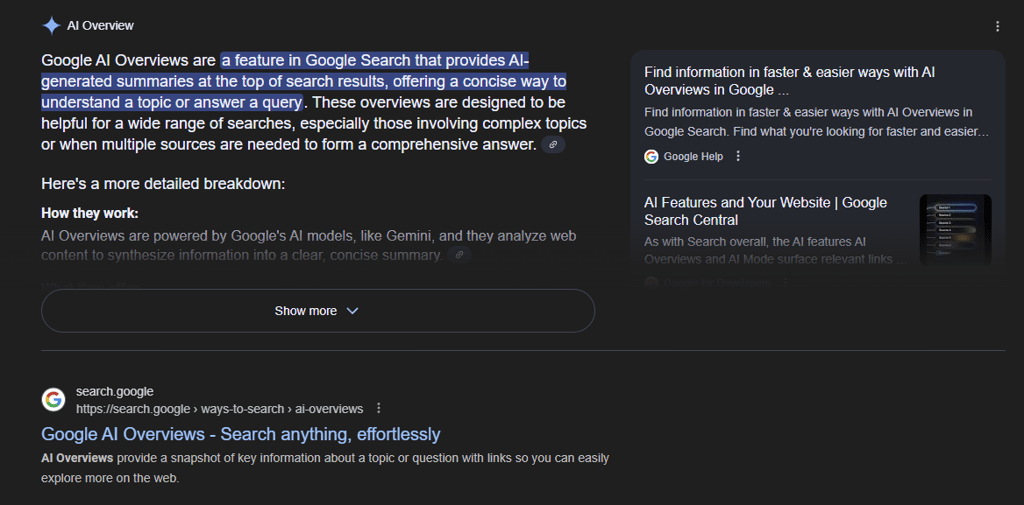
As for why there’s no off switch yet – that’s likely intentional. Google has invested heavily in AI integration, and AI Overviews are part of their vision for how searches should work going forward. If they made it easy to disable, many users might simply turn it off before giving it a fair try, which could slow the adoption process. It’s also possible Google wants to keep gathering data on how people interact with the feature to improve it before offering more control.
How to turn off AI Overviews on desktop?
Google’s AI Overviews are now a regular part of search results for many users. If you find them distracting or prefer traditional results, there are a few ways to minimize or bypass them. For example, you can try using Search Labs, switch to Incognito mode, the Web tab, or extensions like Hide Google AI Overviews to view results without AI summaries.
While there isn’t a universal way to switch off the AI Overviews, these workarounds sometimes can help remove or reduce AI-generated summaries from your desktop experience.
Here’s some of the methods on how to turn off AI Overviews in more detail.
Use Search Labs
If Search Labs is available in your region, this is the most direct method. First, make sure you’re signed into your Google account and not browsing in Incognito mode. Then, go to Google Search and click the Labs icon (a beaker symbol). Look for the AI Overviews and more option and toggle it off.
Search Labs is still experimental and not available everywhere. For supported countries, Google provides full instructions for desktop and mobile here.
Use a browser extension
Some browser extensions can hide or block AI Overviews by removing them from the page layout. These tools often work by targeting specific front-end elements in Google’s results. However, this approach depends on the structure of the search page – if Google changes it or if you’re in a different region, these extensions might break.
Also, keep in mind that not all extensions are regularly maintained, and safety can be a concern. Because of that, it's best to avoid installing random or untrusted ones. For now, I can’t recommend a specific trusted extension.
Use a custom search engine (udm=14 trick)
This workaround involves changing your browser’s default search behavior to skip AI Overviews. It doesn’t fully disable the feature, but it filters out most of the AI-generated summaries.
In Chrome:
-
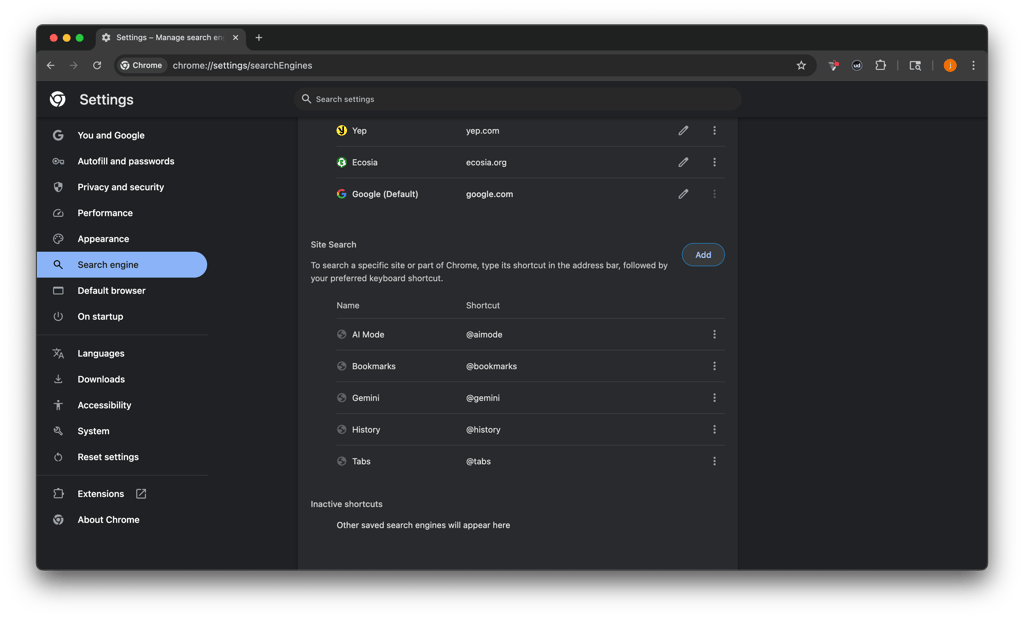
Open Chrome and go to Settings

-
Click Manage search engines and site search

-
Tap Add next to Site search
-
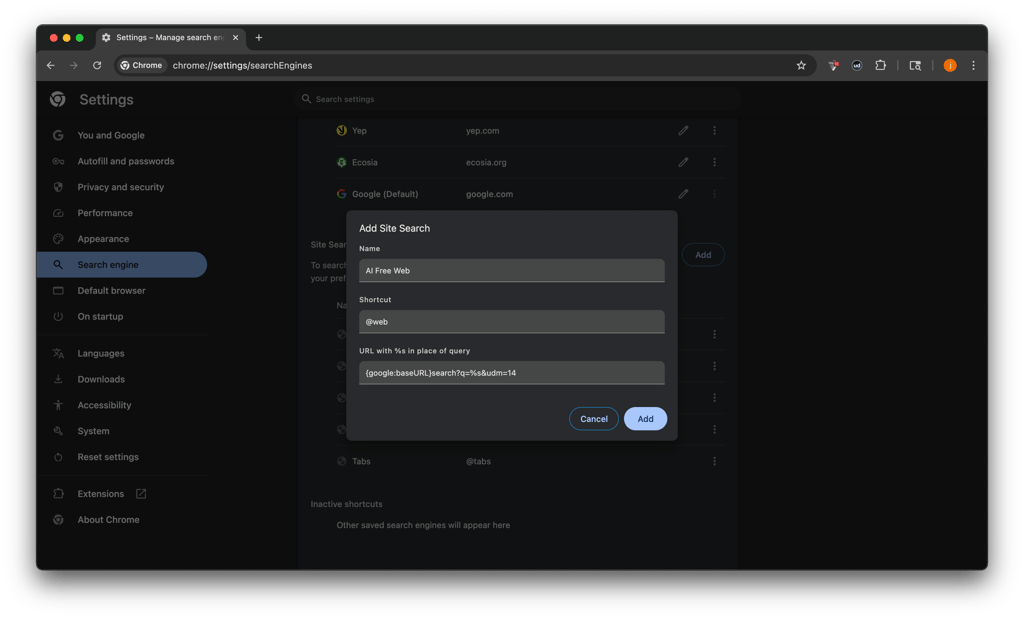
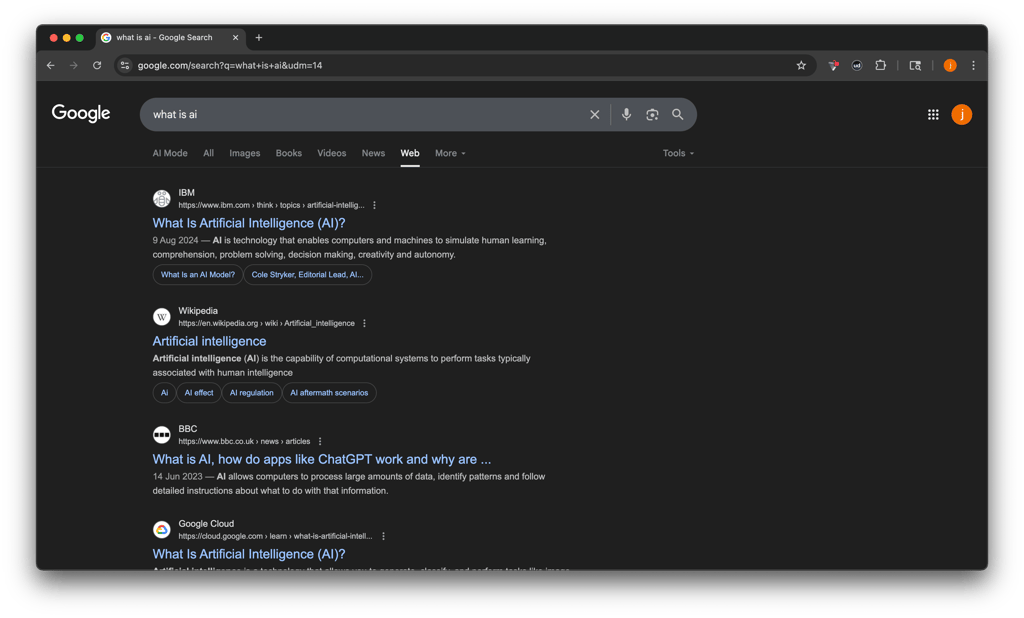
Fill in the form: Name: AI Free Web, Shortcut: @web, URL: {google:baseURL}search?q=%s&udm=14
-
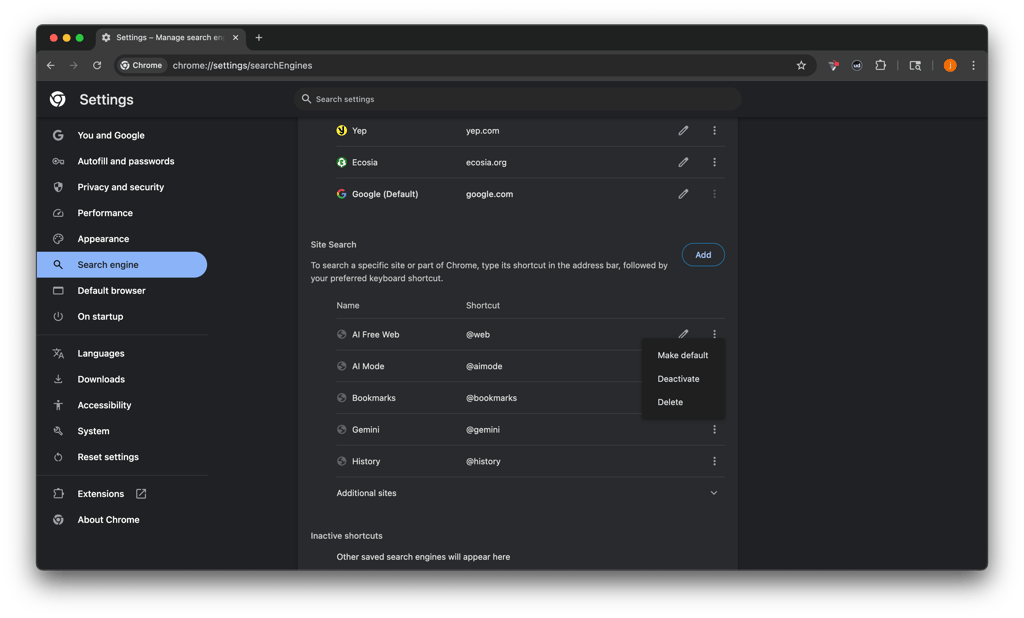
Once added, click the three dots next to it and select Make default
-
Now you should be able to browse AI Overviews-free
This method can also be used in Firefox and Edge. On Firefox mobile, go to Settings → Search → Manage Alternative Search Engines, add the same custom engine, and set it as default.
This tells Google to use a simplified layout by adding udm=14 to the search URL. It’s not officially documented, but it often skips AI Overviews.
How to remove AI Overviews from mobile?
Disabling AI Overviews on mobile isn’t as straightforward as on desktop, but there are a few ways to reduce or bypass them. These steps focus on Chrome and Firefox – the two most used mobile browsers.
Chrome on mobile
At the moment, there’s no official way to fully disable AI Overviews on Chrome mobile. Extensions aren't supported, and Search Labs may not be available on all devices or in all regions.
The best workaround is to switch to the Web tab after searching. This skips the AI Overview and takes you straight to traditional results. While it’s not a full fix, it’s currently the simplest method on Chrome mobile.
Adding a custom search engine manually, like you can on desktop, isn’t supported in Chrome mobile.
Firefox on mobile
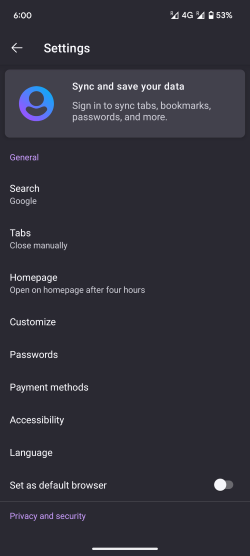
Firefox gives you more control. You can add a custom search engine using the udm=14 trick to avoid AI Overviews:
-
Tap the three dots in the top right corner

-
Go to Settings → Search → Manage alternative search engines
-
Tap Add search engine and enter: Name: AI Free Web, Search string URL: https://www.google.com/search?q=%s&udm=14

- Save it
-
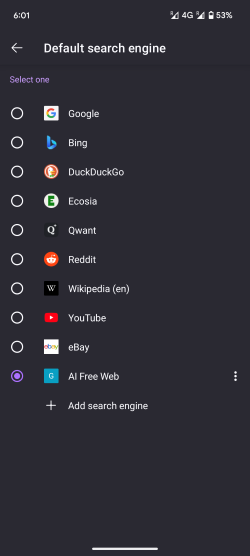
Go back to the Search settings → Default search engine → Select AI Free Web
-
Now you will see reduced amount of AI Overviews

This won’t remove AI entirely but it typically avoids triggering summaries.
Consider switching search engines
Some search engines also use their own version of AI Overviews, but a few let you customize how often they show up. For example:
- DuckDuckGo lets users adjust how often Search Assist appears – with options like Never, On Demand, Sometimes, or Often
- Brave Search offers a toggle to turn off its Answer with AI feature in settings
These privacy-focused search engines may offer a simpler, less AI-heavy experience compared to Google.
Other ways to disable Google's AI Overviews
If Search Labs or custom search settings aren’t an option, here are a few other things you can try:
- Use simpler queries. AI Overviews are more likely to appear when you ask detailed or complex questions (e.g., what is AI). Shorter, keyword-based searches like “Taylor Swift” or “Adele” tend to trigger standard results instead.
- Add -ai to your search. Some users try this to filter out AI-related content, but it doesn’t consistently work. In most cases, it won’t stop AI Overviews from appearing.
Why would you need to turn off AI Overviews?
There are several reasons why someone might want to turn off AI Overviews. Some users simply prefer the traditional list of links, where they can choose which sources to trust and explore. Others may question the accuracy or completeness of AI-generated summaries – especially on complex topics.
In many cases, AI Overviews don’t provide enough depth, and users still end up clicking through to other sites for more detailed information. For those who value transparency, variety of perspectives, or more control over what they read, turning off AI Overviews can make the search experience feel more reliable and straightforward.
What to do if AI Overviews show up again?
If you've followed all the steps to turn off AI Overviews but they’re still showing up, here are a few things you can try:
- Update or replace your browser extension. If you’re using an extension to block AI Overviews, make sure it’s up to date. Google often changes the layout of its results page, which can break older extensions. If the one you're using no longer works, consider switching to a different one – just make sure it’s well-reviewed and safe.
- Update custom selectors. For advanced users using scripts or custom filters (e.g., with uBlock Origin), check that your selectors match the current structure of Google’s results. These need to be adjusted regularly as Google tweaks its interface.
- Switch browsers. If you're running into limitations with your current browser (especially on mobile), try using another one like Firefox, which allows more customization – including adding a custom search engine to bypass AI Overviews.
- Double-check Search Labs settings. If you previously opted in to Search Labs, make sure AI Overviews and more is toggled off. And remember, this setting only applies when you're signed into the same Google account and not in Incognito mode.
- Clear cache and refresh. Sometimes changes don’t take effect immediately. Try clearing your browser cache or restarting the browser to see if that helps.
Conclusion
While AI Overviews aim to simplify the search process, they don’t always deliver the depth or reliability users expect. If you’d rather have more control over the sources you see – or just want a cleaner, more familiar search experience – the most reliable methods include disabling the feature via Search Labs (where available) and using a custom search engine with the udm=14 parameter.
Firefox also allows custom search engines on mobile, offering more flexibility than Chrome. If those options aren’t enough, switching to a browser like DuckDuckGo or Brave, which lets you turn off AI summaries entirely, can be a solid alternative.
FAQ
Why do I get AI Overviews on Google?
You see AI Overviews on Google because Google has introduced them as a default feature to summarize information quickly using generative AI. They're triggered mostly by questions or detailed queries like “how to” or “what is.” These overviews aim to give a quick answer at the top of the results page, pulling from various sources. However, not every search will trigger them – simpler searches or one-word queries usually don’t show AI Overviews.
What is the easiest way to turn off AI Overviews?
The easiest way to turn off AI Overviews is through Search Labs, if it’s available in your region. Just go to Google Search while signed into your account, click the Labs icon (a beaker), and toggle off AI Overviews and more. If Search Labs isn’t available, another simple method on desktop is to set up a custom search engine using the udm=14 parameter, which often bypasses AI Overviews.
Why are AI Overviews not always accurate?
AI Overviews are not always accurate because they rely on generative AI to summarize information from various sources, which can sometimes lead to oversimplified or misinterpreted answers. They may also pull data from outdated, low-quality, or unclear content. Unlike traditional search results, AI Overviews don’t always show their sources clearly, making it harder to verify the information. This can lead to summaries that lack context, depth, or precision – especially for complex or nuanced topics.