How to block ads on Chrome in 2026
Our trusted in-house research experts conduct independent, unbiased testing of ad blockers, combining internal and external evaluation data and tools for comprehensive reviews.
We maintain full transparency by sharing our methodologies and technical insights, empowering readers to make informed, independent decisions.
Learn more

Even with customized Google Chrome settings, you’re not out of the water yet. Ads can still find their way onto your device, disrupting your browsing experience. From intrusive pop-ups to banner ads, the presence of ads on Chrome is an ongoing challenge. According to Statista, in 2023 alone, global advertising spending could round up to 856 billion US dollars, driving advertisers to push ads any way they can.
To regain control and protect your device from potential malware, a reliable ad blocker is essential.
In this article, we’ll take a look at some ways you can block ads on Google Chrome in more detail. By implementing these methods, you can not only enhance your browsing experience but also safeguard your device from potential cyber attacks. Let's discover how you can reclaim ad-free browsing on Chrome.
How to block ads on Google Chrome

- Get an ad blocker or a VPN that can block ads. Our top choice is Total Adblock
- Install the app and sign up or log in
- Enable the Threat Protection feature in the settings
- That’s it – browse ad-free!
Why you might want to block ads on Google Chrome
If you're using Google Chrome as your primary browser, there are several reasons why you might want to consider blocking ads. Here are some key points to think about:
- Improved browsing experience. Ads can be intrusive and disrupt your online activities, making it difficult to focus on the content you're interested in.
- Enhanced privacy and security. Some ads can track your online activities and collect personal data, potentially compromising your privacy. Blocking ads not only helps to reduce the risk of data collection and targeted advertising but to prevent malware.
- Faster page loading. Ads can significantly slow down website loading times, especially if they contain auto-playing videos. Blocking ads can help improve the speed and responsiveness of your browsing experience.
- Reduced bandwidth usage. By blocking ads, you can save on your data usage, especially if you have a limited or throttled Internet connection.
- Minimized distractions. Eliminating ads from your browsing experience allows you to concentrate on the content you actually want to see without being bombarded by irrelevant or disruptive ads. With the best ad blockers for Google Chrome, you can enjoy a distraction-free browsing experience that focuses on what matters to you.
How to block Chrome ads with ad blocker: detailed guide
Blocking Chrome ads with an ad blocker is quite an easy task. Follow the instructions listed below:
- Get a trustworthy ad blocker. We chose Total Adblock
-
Download and install the Total Adblock Chrome extension

-
Launch the extension and sign up or log in

-
Customize ad-blocking options. Total Adblock offers additional customization and whitelisting options. Explore the settings to adjust the ad-blocking preferences to your liking

-
Test ad blocking. To verify that ads are being blocked, try canyoublockit.com or similar testing platforms

- Enjoy ad-free browsing! Total Adblock will easily get rid of pesky ads
Video guide: How to block ads on Google Chrome?
Check out the video tutorial on how to prevent malware on Google Chrome with the best ad blocker:
How do I block YouTube ads on Chrome?
To block YouTube ads on Chrome, it’s best to use a reliable YouTube ad blocker for the Chrome application, which efficiently blocks not only video ads but also pop-ups, sticky ads, and more. The process of blocking YouTube ads on Chrome is actually very simple and doesn't require a lot of technical knowledge. Here's how you can block them in a couple of simple steps:
- Get a trustworthy ad-blocking provider. Total Adblock is our pick
- Download the app and install it
- Sign up for the service or log in
- Go to app's settings and toggle on Threat Protection
- Go to Chrome and enjoy ad-free YouTube videos
But why would you want to block YouTube ads?
YouTube can overlook harmful ads that can direct you to malicious websites, infect your devices, and steal your personal data. However, Google and YouTube are greatly against any misleading ads and scams. Besides, YouTube ads can be very disruptive, interrupting your video viewing experience. This can be especially annoying if you're watching a long video or if you're trying to concentrate on something else. Here are some of the options of how to block ads on YouTube:
- Get a YouTube Premium subscription. As, initially, it’s a free-of-charge platform, ads are one of the main ways to make an income for the website. But the premium subscription would stand up for that, meaning you would pay for YouTube instead of the companies that share their ads.
- Get an ad-blocking service like Total Adblock. With it, you can avoid malicious and annoying ads wherever you go, not to mention extra security features, such as a VPN, that overall improve your security.
Block ads by changing Google Chrome settings
Google Chrome comes with a built-in ad blocker that filters out the ads, lets you enable or disable pop-ups, and other sticky ads. Even though it won’t prevent all ads (adverts that don’t violate your security will keep showing up), it’s good for minimizing the number of intrusive ads. Here’s how to enable it:
-
Click on the three dots in the upper right corner of the window.

-
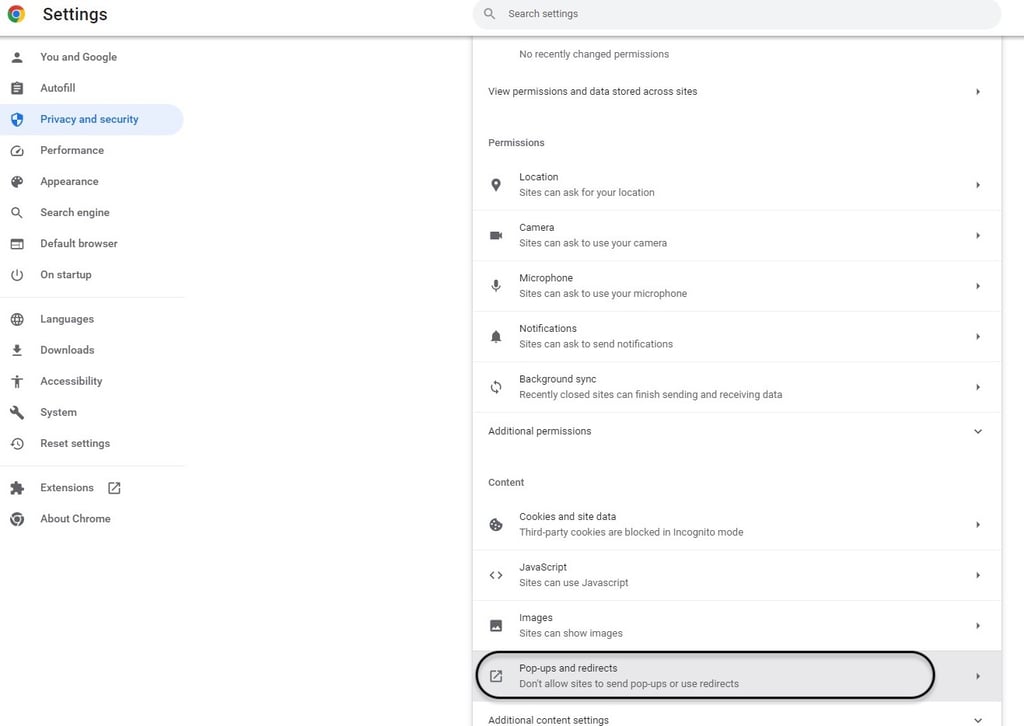
Choose Settings and look for Privacy and Security.

-
Click on it and choose Site settings, then find Pop-ups and redirects.
-
In Default behavior, enable the Don't allow sites to send pop-ups or use redirects.

- That’s it! Google Chrome's built-in ad blocker is now enabled.
If you want to get all-around security and block trackers and other privacy threats besides ads, opt for a third-party ad blocker – we recommend Total Adblock.
What ads are there on Google Chrome
On Google Chrome, you may encounter various types of ads, including:
- Page push ads. It automatically redirects to other web pages.
- Direct link ads. Automatically redirects when clicked.
- Video ads. Ads that play before, during, or after online videos.
- Push notification ads. Notifications promoting products or services.
- Pop-up ads. Ads that open as separate windows on top of the current page.
- Banners. Graphical or banner ads displayed on websites.
- Native ads. Ads designed to blend in with the surrounding content.
- In-text ads. Hyperlinked keywords within webpage content that display related ads.
- Pop-under ads. Ads that open in new browser windows behind the current window.
These ads can vary in format and size, and their presence depends on the websites visited and the ad networks they use. Ad blockers can help reduce or eliminate these ads, enhancing your browsing experience.
Conclusion
Whether you choose to use an ad blocker like Total Adblock or manually configure Chrome settings, taking action to block ads on Google Chrome can greatly enhance your browsing experience.
By eliminating intrusive ads such as pop-ups and banners, you can enjoy a cleaner and more streamlined interface while also reducing the risk of encountering malware. Total Adblock, with its efficient ad-blocking capabilities and focus on user safety, stands out as a reliable solution for Chrome browser. Get a safer and more enjoyable browsing experience with the right ad-blocking measures in place.
More ad blocker guides from Cybernews:
Best YouTube ad blockers: YouTube videos without interruptions
Best Android ad blockers: enjoy an ad-free experience on your Android
Best Chrome ad blockers: remove pop-ups with a Chrome ad blocker
How to block Twitch ads: enjoy your favorite streams ad-free
FAQ
How do I block ads on Chrome without extensions?
To block ads on Chrome without extensions, you can use Chrome's built-in ad-blocking features. Open Chrome's settings, go to "Privacy and security," select "Site settings," and click on "Ads." Enable the toggle to block ads on websites. Note that this may not block all types of ads.
Can you block all ads on Chrome?
While it's not possible to completely block all ads on Chrome without using a third-party app, you can minimize them. Chrome allows you to block pop-ups and disable some ads through settings. For the best result, we recommend using Total Adblock, which can help reduce the number of ads you see and enhance your protection against malware.
Why do pop-ups keep appearing on Chrome?
Pop-ups on Chrome can appear due to adware, malicious websites, browser settings, or extensions. To fix the issue, run a malware scan, update Chrome, adjust settings to block pop-ups, disable suspicious extensions, and clear browsing data. Total Adblock will help you do that – it scans your files, identifies, and blocks threats.