How to block ads on iPhone in 2026
Our trusted in-house research experts conduct independent, unbiased testing of ad blockers, combining internal and external evaluation data and tools for comprehensive reviews.
We maintain full transparency by sharing our methodologies and technical insights, empowering readers to make informed, independent decisions.
Learn more

Tired of irritating ads popping up on your iPhone? Whether you’re gaming, browsing online, or using an app, adverts always have a habit of getting in your way and spoiling the fun.
Unfortunately, advertising is a part of the digital experience. Websites, content creators, and app developers rely on ad revenue to fund their services.
Luckily, there are several hacks you can use to block ads on your iPhone. From using a reliable ad blocker to specialist browsers, this article runs through all the best methods to banish adverts for good.
How to block ads on iPhone with an ad blocker in simple steps
- Get a reliable ad blocker. We recommend Total Adblock, now 80% OFF.
- Install the app and create an account.
- Open iOS settings, find Safari, and select Extensions/Content blockers.
- Switch on the content blockers and enjoy browsing ad-free.
Why you might want to block ads on your iPhone
You’re probably used to ads on your iPhone by now, but that doesn’t mean you have to put up with them. There are solid reasons to block ads that improve your iPhone experience. Let’s take a look:
- No distractions: adverts tend to pop up when you’re engrossed in a game or video. Block ads, and you can enjoy your content without any irritating distractions jumping onto your screen.
- Reduce time: when an ad appears during a video, you’re often forced to watch it for a set amount of time. Annoyingly, you might have to view multiple ads during one clip. That means your viewing time is unnecessarily increased. Block the ads to get that lost time back.
- Save iPhone battery and data: as just explained, ads use up time, and time is money, or in the case of a smartphone – data and battery. Reduce your data consumption and battery drain by blocking those demanding ads.
- Protection from malware: some ads are malicious and will attempt to steal your details and money through phishing attempts. Some could even directly link to malware. Ad blockers provide an extra layer of protection against such threats.
- Stay private: ad trackers follow your online activity and bombard you with targeted adverts, which can be a real pain. Switch on your ad blocker to get some peace.
How to stop ads on iPhone with an ad blocker: detailed guide
An ad blocker is a capable tool that will block ads effortlessly. Download a premium provider onto your iPhone, and you’ll see fewer ads on Safari and in apps than ever before. Here’s what you need to do:
-
Download a tested and approved ad blocker. Total Adblock is highly recommended

- Open iOS Settings
-
Find and click on Safari

-
Depending on the iOS model, go to Extensions or Content Blockers

- Switch on all Content Blockers
- All done! Enjoy ad-free browsing on your phone!
Other methods of blocking ads on iPhone
Aside from an ad blocker, there are more ways to block ads on your iPhone. Let’s take a look at some of the best methods:
Turn off personalized and location-based ads on your iPhone or iPad
Did you know you can turn off personalized and location-based ads in the settings section of your iPhone or iPad? Here’s how:
Personalized
- Go to the Settings menu
-
Open the Privacy section

- Click on Apple Advertising
-
Now disable Personalised Ads

- All set!
Location-based
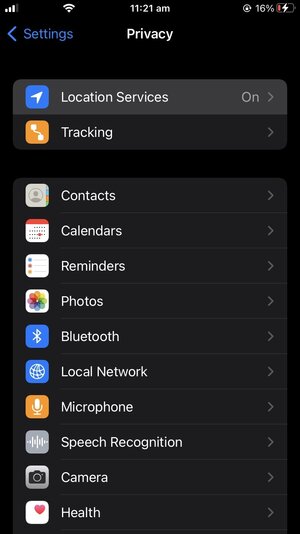
- Open the Settings menu
- Click on Privacy or Privacy & Security
-
Select Location Services
-
Disable all location services or set App store location access to Never

- No more ads!
Check Safari settings on iPhone
If you use Safari on your iPhone, there’s a setting to block ads within the browser:
- Launch your iPhone’s Settings menu
- Click on Safari
-
Open General and enable Block Pop-ups

-
Scroll down to Privacy&Security and enable the following settings: Prevent Cross-Site Tracking, Hide IP Address from Trackers, Fraudulent Website Warning, Privacy Preserving Ad Measurement
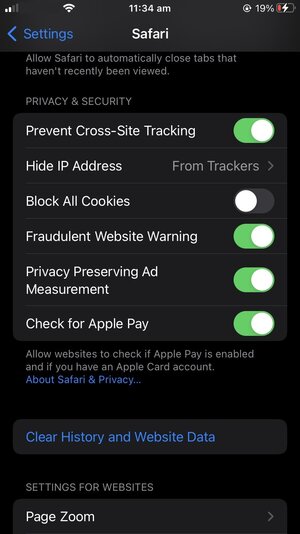
- Ads blocked!
Turn off suspicious extensions
Another browser-related tip that could help is turning off suspicious extensions:
- Go into your iPhone’s Settings menu
- Click on Safari
-
Scroll down to Extensions

- Disable extensions you haven’t set yourself or look suspicious
Update your iPhone software regularly
Regularly updating your iPhone to the latest iOS is a great way to block malicious ads. Apple incorporates bug and fault fixes into its updates which helps to block unwanted adverts and phishing attempts.
Disable your internet connection
Disabling your internet connection on your iPhone can stop ads from showing up, although this can also halt your apps and games. Try turning off Wi-Fi and mobile data in your settings to see if it helps.
Avoid getting infected with adware
Some ads are a product of malware and adware, so it’s important to be alert for dodgy downloads and extensions. Never download any files from suspicious websites or spam links.
Use the Brave web browser
Brave is a free web browser that blocks most ads. It’s an excellent alternative to the likes of Safari and Chrome. You can download it from the Apple App Store on your iPhone.
How to block ads on iPhone apps?
If adverts within apps are always interrupting your games and content, try using an ad blocker to get rid of them and enjoy iPhone games without ads:
Securing your browsing activity from malicious ads and other online threats can massively improve your online activity. Therefore, you should consider investing in a reliable ad blocker, like Total Adblock, which costs only $1.59/month.
How to choose an ad blocker to block iPhone ads
Picking the right ad blocker for iPhone is crucially important in order to stay protected. Keep an eye out for these features when making your selection:
| Compatibility: | iOS app, browser extension |
| Types of ads blocked: | Pop-ups, banners, social media ads, in-video ads, etc. |
| Features: | Whitelisting, filters, tracker blocker |
| Additional security: | VPN, antivirus |
- Ad blocking capabilities. Pick a reputable and tested ad blocker that works well on iPhones. Each provider on our list was tested to make sure you get to choose from the options that actually work.
- Compatibility with iOS apps. Not every VPN supports smartphones, so pick a provider that has an excellent iOS app.
- Advanced security features. Don’t opt for the bare minimum, pick a provider that comes with additional security benefits instead. These could include malicious site blocking, whitelisting, or even a VPN or antivirus.
- Pricing. You can get high-quality service for a budget-friendly price, so there’s no need to overpay.
Conclusion
Adverts are a real pain, especially when they come up on your iPhone. They interrupt games, shows, video content, articles, and websites.
Ads waste your time, drain your data, and suck up your battery life. It’s a good idea to block them on your iPhone.
An ad blocker can help you do this, especially one that comes with a dedicated ad blocker tool, like Total Adblock. This provider is well-proven to block ads and offers a range of benefits, like advanced security and content streaming unblocking.
More ad blocker guides from Cybernews:
The best YouTube ad blockers: watch ad-free YouTube videos
Chrome’s ultimate ad blockers: get rid of pop-ups with an ad blocker
The best Android ad blockers: free your Android from ads
How to block ads on Spotify: enjoy music ad-free
FAQ
Why am I getting so many pop-up ads on my iPhone?
Pop-up ads on your iPhone are an annoying part of life. They’re on games, apps, websites, and browsers. It may feel like there’s no escape from ads, but if you get a capable ad blocker, like Total Adblock, you can turn your iPhone into an ad-free device!
How do I block iPhone ads?
Blocking ads on your iPhone is easy with an ad blocker. Sign up for either NordVPN next-gen antivirus or Total Adblock and enable a few settings to turn off pesky ads on video, mobile games, apps, and websites.
How can you block ads on iPhone apps for free?
Get an ad blocker with a free trial or money-back guarantee, and you’ll be able to enjoy an ad-free iPhone experience until the trial window ends. We recommend Total Adblock as a reputable option.
How can you block ads on the iPhone YouTube app?
If you’re getting annoyed by ads on your iPhone YouTube app, try NordVPN next-gen antivirus. It’s proven to block ads so you can enjoy uninterrupted videos. Just download the app to get started.
How can I block inappropriate ads on iPhone games?
Inappropriate ads popping up during games are a concern, as children may be exposed to things they shouldn't see. Try using NordVPN next-gen antivirus or Total Adblock to solve the problem.
Is Apple adding ads?
Apple doesn't add apps to your iPhone, but they pop up during games, videos, websites, and content. The best way to block ads is with a dedicated app, like Total Adblock. It works great on iPhones, so you can enjoy the best experience.