Is Windows Defender enough in 2026?
Backed by leading cybersecurity experts and investigative journalists, we deliver independent, real-world antivirus testing and analysis, guaranteeing objective evaluations without undue influence or bias from outside parties.
Our transparent and consistent methodologies ensure objective, up-to-date reviews, empowering readers to make well-informed decisions.
Learn more

Short answer: for most users, Windows Defender (now called Microsoft Defender Antivirus) is genuinely good enough. It scored a perfect 6/6 for protection in AV-TEST’s February 2026 evaluations and earned AV-Comparatives’ Advanced+ certification in March 2026. These results put it close to top-tier antiviruses like Norton, Bitdefender, and TotalAV.
That said, “good enough” won’t satisfy everyone. In my hands-on testing, a few gaps stood out. Offline detection rates were weaker, and phishing protection only works fully in the Edge browser, which many people don’t use. It also lacks extras like a VPN or password manager, which competitors such as Norton and TotalAV include in their plans.
After reviewing Microsoft Defender Antivirus in detail, my conclusion is simple: if you browse carefully and use Edge, it’s enough. But if you handle sensitive data, prefer Chrome or Firefox, or want an all-in-one security suite, it’s worth upgrading. In that case, I recommend Norton 360, which starts at just $29.99/year and offers more complete, all-around protection.

Microsoft Defender can be confusing since it refers to both free and paid versions. Defender Antivirus is built into Windows, while Defender for Microsoft 365 is a paid, advanced version. This article covers only the free version included with Windows.
What Windows Defender gets right
Windows Defender has improved significantly over the years, making it a solid security foundation for Windows PCs. While it isn’t as comprehensive as some of the best antivirus services on the market, it includes the essentials to protect you from common cyberthreats. Here’s a rundown of some of the features that the free version of Windows Defender includes out of the box:
- Real-time protection. Windows Defender will continuously monitor your system to immediately stop malicious software in its tracks.
- Firewall. The software monitors all incoming and outgoing network traffic to prevent unauthorized access.
- SmartScreen. Windows Defender notifies you when you’re about to encounter malicious websites, applications, or downloads.
- Offline scans. You can utilize Windows Defender’s scanning capabilities offline to stay secure even if you lose internet access, although its capabilities will be somewhat limited.
- Regular updates. Windows Defender automatically stays up to date to ensure you’re never exposed to old vulnerabilities.
- Low performance impact. You likely won’t notice Windows Defender running in the background since it requires few resources and is directly integrated with Windows.
- Works in passive mode. Windows Defender runs in the background when a third-party antivirus is installed, which stops it from interfering with other apps.
- Works well with Edge. Windows Defender works well with the Microsoft Edge browser to improve your security while browsing.
Windows Defender showed strong malware detection in independent tests by AV-TEST and AV-Comparatives. In the latest AV-TEST evaluation from February 2026, it achieved a perfect 6/6 scores across protection, performance, and usability. The protection test used over 12,000 malware samples, while the performance test recorded just 2 false positives, which is below the industry average.

In AV-Comparatives’ Real-World Protection Test from March 2026, Microsoft Defender blocked 98.5% of malware samples. This is slightly behind top competitors like TotalAV, Norton 360, and Bitdefender, which each achieved 99.5% detection rates.
Where Windows Defender falls short
While independent lab tests show that Windows Defender is reliable for core malware protection, our testing showed clear gaps in other areas of online security. Below, I list some of the most notable weaknesses based on our hands-on observations and industry findings.
Subpar phishing protection
In our phishing tests, Windows Defender failed to block a noticeable portion of malicious URLs, allowing several credential-harvesting pages to load without any warnings. So, if you rely solely on Defender for web protection, you could still fall victim to fake login pages or scam websites.
Besides, Defender’s web protection features, including phishing and DNS-based filtering, are only available if you use Microsoft Edge. Since many rely on Chrome or Firefox as their default browser, this is a major drawback.
Weak against potentially unwanted programs
During testing, Defender struggled to consistently flag potentially unwanted programs (PUPs), such as bundled adware and browser hijackers. Several PUP samples installed successfully without any alerts, which could lead to intrusive ads or unwanted system changes.
Low offline detection rates
Windows Defender relies heavily on cloud-based protection, which becomes especially evident when the device is offline. In our tests, malware detection rates dropped significantly without an internet connection, leaving the system more vulnerable compared to competitors with stronger offline capabilities. While the online malware detection rate was solid at 98.1%, the offline detection rate dropped to 89.2%. This highlights a noticeable gap in offline protection.

A bigger target for cybercriminals
Because it’s built into Windows and widely used, Defender is a frequent target for attackers. A recent example is CVE-2024-21412, which allowed attackers to bypass security warnings, highlighting how vulnerabilities can have a large-scale impact.
Limited customization
Windows Defender offers very few advanced settings for users who want more control. This means you cannot fine-tune scans, detection sensitivity, or behavior rules as much as you can with premium antivirus tools.
Frequent alerts
While using Defender, I noticed constant notifications and alerts from the program, many of which were low priority. This interfered with my work and made me ignore the warning altogether.
No additional features
Windows Defender lacks many extra features found in competing antivirus suites, like Norton or Bitdefender. It doesn’t include a VPN, and there’s no built-in password manager, so you’ll need to get separate apps if you want additional protection. It also lacks dedicated webcam and microphone protection, leaving a potential privacy gap. While these are “extras”, they have become a staple in many modern antiviruses.
Parental controls are basic and tied to Microsoft accounts, while safe browsing protections mainly work in Edge, limiting effectiveness across browsers. Additionally, Defender doesn’t offer data breach monitoring, meaning you won’t be alerted if your personal information is exposed.
In our in-house tests, Defender fell short in key areas
In our in-house testing, the results were mixed and, in some areas, disappointing. The quick scan completed in 27 seconds but failed to detect any malware. The full scan took about 1.5 hours and detected only 56% of malware samples, which is below expectations.
Real-time protection also underperformed, with just a 9% detection rate. In terms of system impact, performance was inconsistent. During scans, CPU usage ranged from 20% to 96%, while RAM usage stayed between 26% and 36%. With real-time protection enabled, CPU usage remained high at 43% to 98%, while RAM hovered around 25%.
| Test category | Result |
| Quick scan time | 27 s |
| Quick scan detection | 0% (no malware detected) |
| Full scan time | 1h 34m 4s |
| Full scan detection | 56% of malware samples detected |
| Real-time detection | 9% success rate |
| CPU usage (scans) | 20-96% |
| RAM usage (scans) | 26-36% |
| CPU (real-time) | 43-98% |
| RAM (real-time) | 25% |
Windows Defender vs paid antivirus – a head-to-head test
Below, you can see how Windows Defender compares to some of the best-rated paid antiviruses.
| Feature | Windows Defender | TotalAV | Norton 360 | Bitdefender |
| Real-time detection | 9% | 50% | 61% | 80% |
| Full scan detection | 56% | 66% | 71% | 89% |
| VPN | ❌ No | ✅ Yes | ✅ Yes | ✅ Yes |
| Password manager | ❌ No | ✅ Yes | ✅ Yes | ✅ Yes |
| Webcam protection | ❌ No | ❌ No | ✅ Yes | ✅ Yes |
| Parental controls | ✅ Yes | ❌ No | ✅ Yes | ✅ Yes |
| Identity theft monitoring | ❌ No | ✅ Yes | ✅ Yes | ✅ Yes |
| Price | Free | From $19.00/year | From $29.99/year | From $12.99/year |
| Devices covered | 1 | 8 | 10 | 10 |
| OS support | Windows only | Windows, macOS, iOS, Android | Windows, macOS, iOS, Android | Windows, macOS, Android, iOS |
Windows Defender falls far behind its competitors in both real-time protection and full scans. Beyond that, its feature set is limited, especially compared to more comprehensive security tools. Alternatives like Bitdefender, which starts at just $12.99/year, offer stronger protection, a wider range of privacy features, and support across multiple platforms, delivering better overall value for the price.
Who should use Windows Defender vs when to upgrade
Windows Defender is a solid security tool nowadays, meaning that not everyone needs to upgrade to another cybersecurity solution. However, if your security needs are greater, then an alternative antivirus is worth considering. Let’s review the overall circumstances when Windows Defender is good enough, and when it’s time to upgrade.
Firstly, it’s worth sticking with Windows Defender if you have a good understanding of the best cybersecurity practices when going online. That means you don’t fall for phishing scams, don’t download suspicious email attachments, and don’t visit poorly-secured websites. These and other practices mean you’re less likely to encounter malware that Windows Defender might struggle with.
Additionally, you can stay with Windows Defender if you simply want to save money. The software is pretty good considering it’s free. Moreover, there’s no need to upgrade if you’re happy with its results and don’t feel that any features are missing.
In contrast, consider upgrading from Windows Defender if you believe your security needs exceed those of the average person. For example, maybe you’re a high-ranking executive and feel like you could be frequently targeted by threat actors. Or, you’re using multiple devices to conduct important business and don’t want any of it to be exposed. These and many other situations warrant an upgrade to a better antivirus solution than Windows Defender.
Best alternatives and how to choose one
If you’re looking for a stronger alternative to Windows Defender, these antivirus tools offer better malware detection, more features, and improved overall protection. Below is a ranked list of the 10 best options right now.
1. Norton 360 – best overall alternative
| Rating: | 4.8 |
| Detection rate: | 71% |
| Key features: | Real-time protection, VPN, dark web monitoring, cloud backup |

Bottom line: The most complete security suite with top-tier protection across all areas.
2. TotalAV – best value for money
| Rating: | 4.7 |
| Detection rate: | 66% |
| Key features: | Real-time protection, VPN, system cleanup tools, easy-to-use interface |

Bottom line: A strong, beginner-friendly antivirus at a very affordable price.
3. Bitdefender Antivirus – best for advanced protection
| Rating: | 4.9 |
| Detection rate: | 89% |
| Key features: | Ransomware protection, web attack prevention, low system impact |
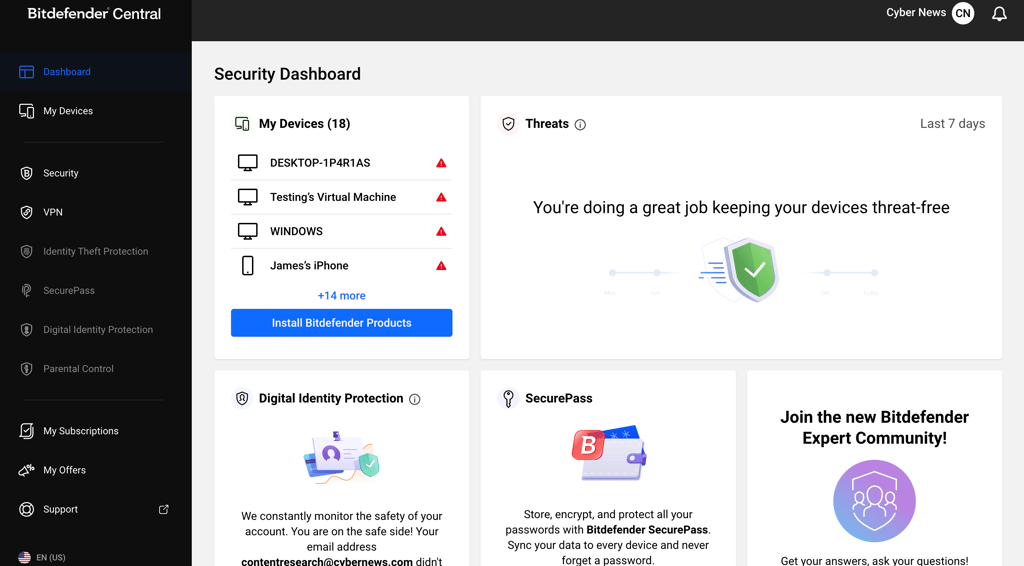
Bottom line: Excellent protection with minimal performance slowdown.
4. Surfshark Antivirus – best bundled security deal
Rating: 4.4
Detection rate: 85%
Key features: Antivirus, VPN, identity protection in one package
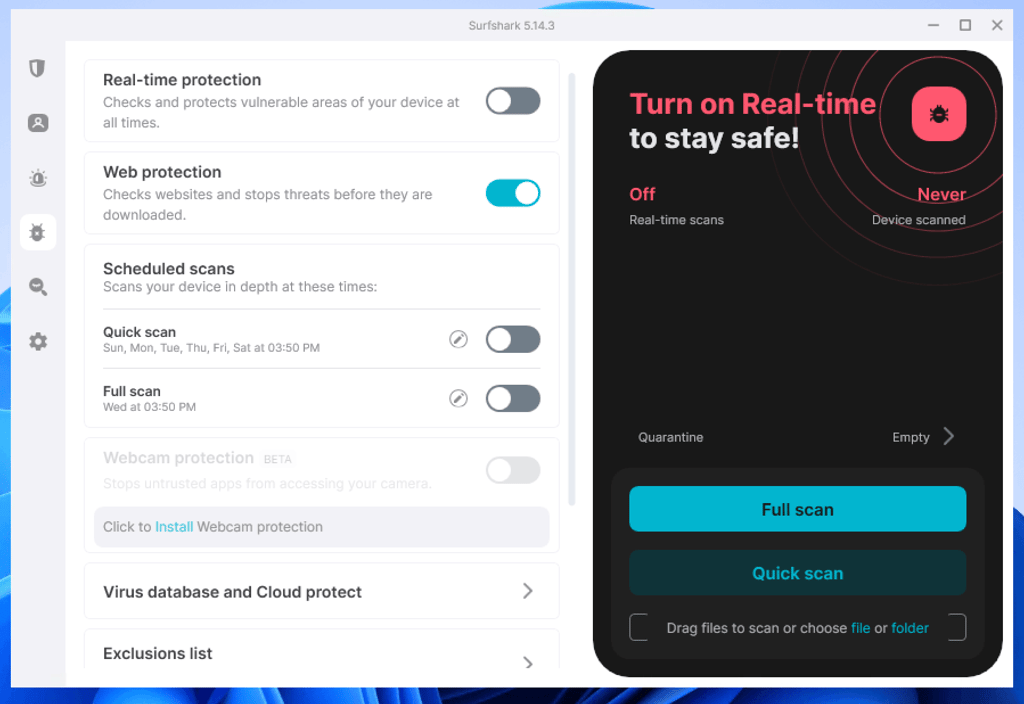
Bottom line: Great choice if you want multiple security tools in one subscription.
5. Malwarebytes – best for malware removal
Rating: 4.6
Detection rate: 59%
Key features: Malware cleanup, real-time protection, lightweight design

Bottom line: Ideal as a backup antivirus or for removing existing infections.
6. Avast One – best free alternative
Rating: 4.5
Detection rate: 72%
Key features: Free plan, Wi-Fi security scan, real-time protection
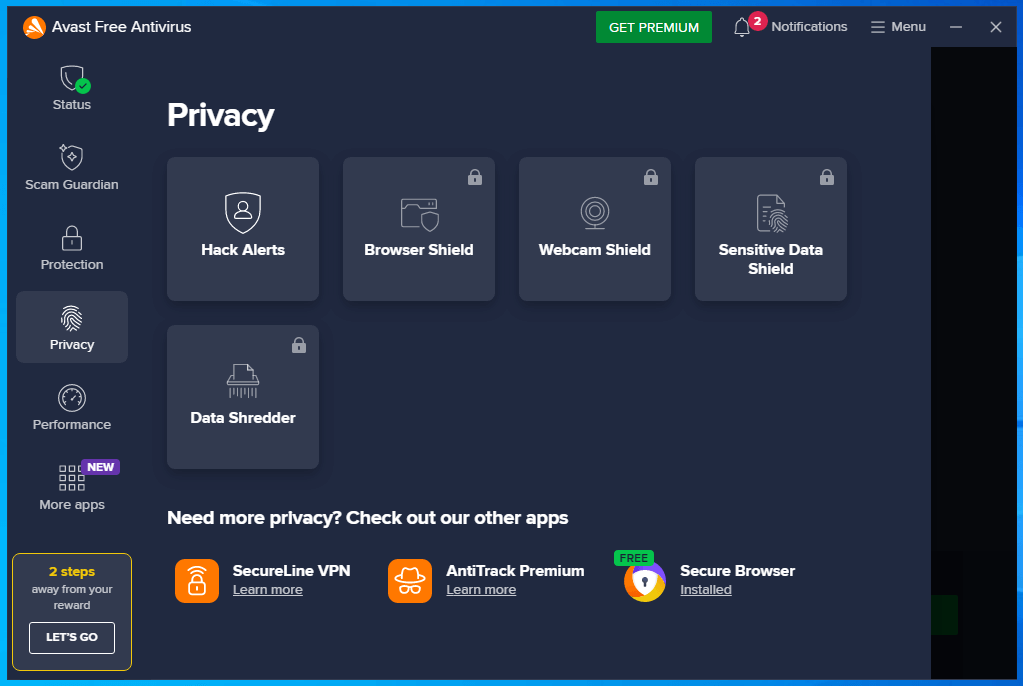
Bottom line: A solid free option, though premium features are limited.
7. Aura Antivirus – best for identity protection
Rating: 4.2
Detection rate: 50%
Key features: Identity theft protection, credit monitoring, antivirus

Bottom line: Strong focus on identity security alongside antivirus protection.
8. ESET NOD32 – Best for advanced users
Rating: 4.4
Detection rate: 78%
Key features: Exploit blocker, device control, low system usage
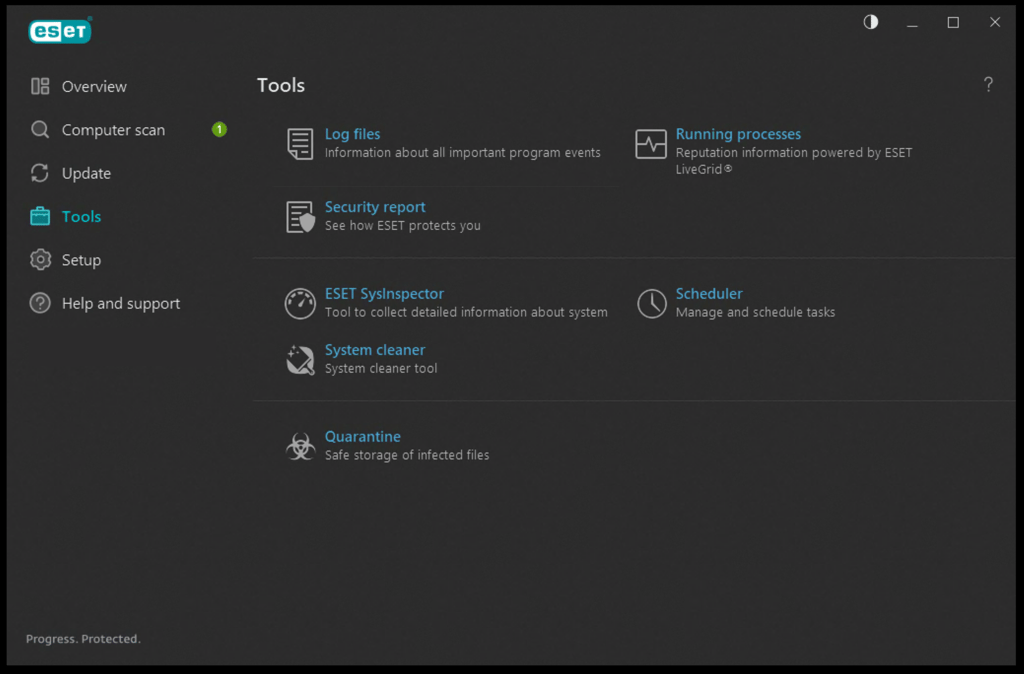
Bottom line: Powerful and customizable, but better suited for experienced users.
9. Intego Antivirus – best for Mac users
Rating: 4.1
Detection rate: 72%
Key features: Mac-focused protection, firewall, optimization tools
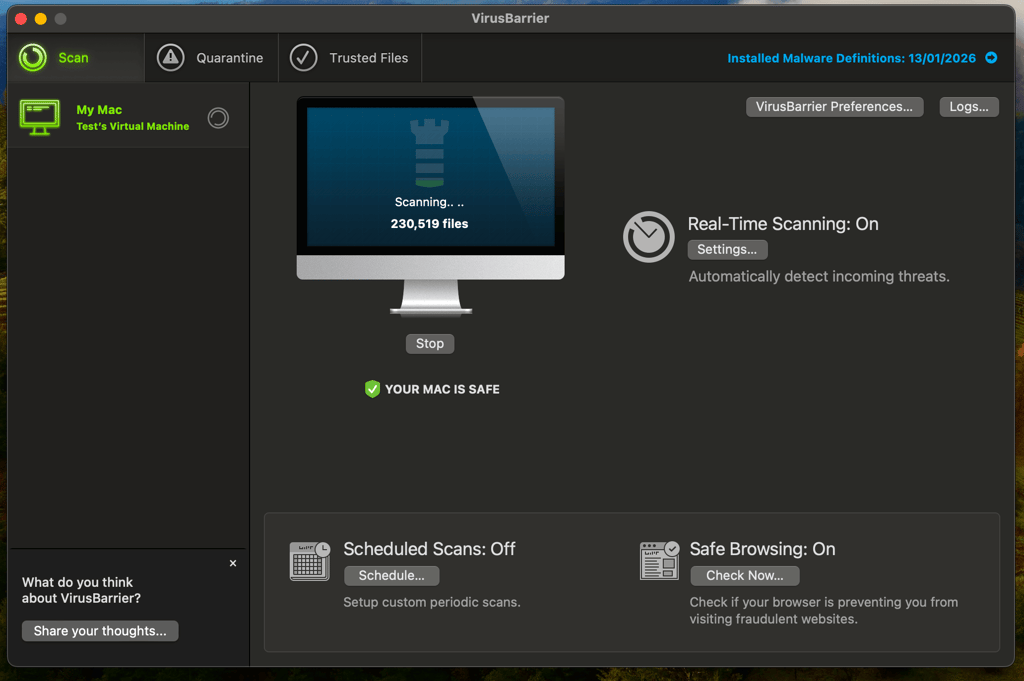
Bottom line: A top choice if you need dedicated macOS protection.
10. Avira Antivirus – best lightweight option
Rating: 4.3
Detection rate: 85%
Key features: Real-time protection, free plan, low system impact
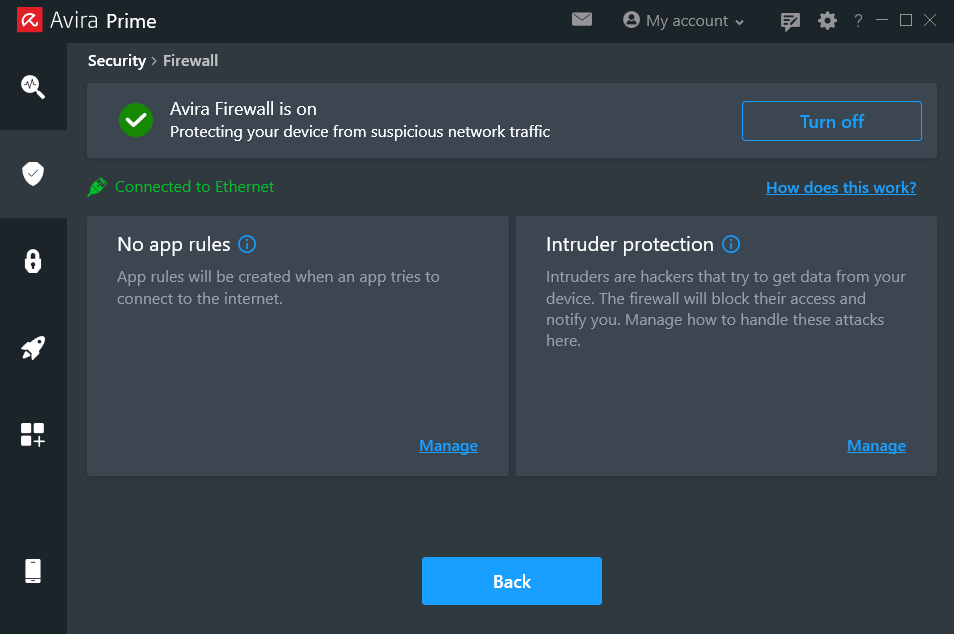
Bottom line: Good balance of performance and protection, especially on older devices.
If you stick with Defender: essential setup and safety tips
If you want to stay with Windows Defender, I suggest taking a few extra steps to maximize its effectiveness. These measures will ensure that the service is doing everything it can to keep you safe.
First, go to the Windows Security settings, then click the virus & threat protection menu. There, make sure that real-time protection, cloud-delivered protection, automatic sample submission, and tamper protection are all enabled.
Next, go to the app & browser control menu to enable SmartScreen (sometimes called reputation-based protection). Also, switch to the Microsoft Edge web browser if you want the best results when surfing the web. Finally, enable controlled folder access to minimize ransomware risks.
Besides that, remember that common sense is the best way to protect yourself online. No amount of security software can save you if you keep visiting shady websites and downloading suspicious files as if nothing is going to happen.
FAQ
Is Windows Defender sufficient as an antivirus?
Yes, Windows Defender is a sufficient antivirus, although it is lacking in some areas. For example, it offers lackluster phishing protection, and it isn’t the best service against zero-day malware and ransomware.
Do I need an antivirus beyond Windows Defender?
No, an antivirus beyond Windows Defender isn’t strictly necessary. On the other hand, Windows Defender isn’t the best antivirus, meaning it’s a good idea to get a third-party antivirus if you want better protection from ransomware and zero-day malware.
Is Windows Defender enough for the average user?
Yes, Windows Defender is enough for the average user if they have common sense and follow proper cybersecurity hygiene. However, the service may not be sufficient if you frequently visit dangerous websites, download suspicious files, or click on questionable links.