How to change location on Snapchat in 2026
Our in-house cybersecurity experts and journalists, renowned for major reports like The Mother of All Breaches, conduct transparent, unbiased VPN testing and in-depth analysis.
With 750+ articles crafted based on real-world research, we empower readers to make informed purchasing decisions through first-hand expertise.
Learn more

As stricter age-verification and regional social media rules roll out in more countries in 2026, many users are becoming more conscious of how much of their location data Snapchat collects and shares.
Whether you want to boost your privacy, unlock location-specific filters, or explore content from other regions, changing your Snapchat location can be useful. In this guide, I explain how to change your location on Snapchat in 2026 using a VPN safely and effectively, and what to consider before doing so.
A VPN may help you change your Snapchat location, but it’s not a fail-proof solution. Snapchat may also use your GPS to determine your location, which can’t be changed by a VPN.
How to change location on Snapchat with a VPN short guide

- Choose a VPN that supports GPS spoofing: I recommend Surfshark since it has a GPS override feature for Android
- Download and install the VPN app onto your device
- Connect to a server in your preferred location
- Enable Override GPS location in Surfshark's Advanced settings and complete the required Android setup (such as enabling Developer Options and allowing mock locations)
- Open Snapchat and check whether your location has updated
Keep in mind that Snapchat may still detect or flag location changes. Also, using a VPN puts your account at risk of suspension or ban.
Best VPNs to change your location on Snapchat with
Here are my top picks for VPNs that protect your online privacy and enhance your security on Snapchat and beyond.
- Surfshark – best VPN with a location change tool for Snapchat on Android
- NordVPN – secure VPN for Snapchat
- IPVanish – fast VPN for Snapchat
How a VPN can help and what are its limitations
Most smartphones we use today have GPS that tracks our exact location. While it’s handy when using Google Maps to suggest the best route to your destination or Uber so the driver can find your pickup point, constant GPS tracking can be inconvenient and even frustrating in other cases.
A VPN alone can’t change your device’s GPS location. However, it can give you an IP address in your chosen country or region, enhancing your privacy and security while browsing.
| What you're trying to change | Can a VPN help? |
| Your IP address (the country your internet traffic looks like it's from) | ✅ Yes |
| The location Snap Map shows (Android) | ❌ No |
| The location Snap Map shows (iPhone) | ❌ No |
Some VPNs, such as Surfshark, offer a GPS override feature that automatically matches your GPS location with your chosen server’s location, hiding where you actually are. Yet, it’s not a fail-proof method, and for now, Surfshark’s GPS override is only available on Android.
How to change location on Snapchat
To change your Snapchat location, you'll need different tools depending on your device. On Android, a VPN such as Surfshark can help you change the GPS location your Android device reports, thanks to its GPS override feature. However, results can vary, and Snapchat may still detect or flag location changes. On an iPhone, the process is different, and you'll need alternative tools to change your Snapchat location. I'll walk you through each method step by step.
How to change your location on Snapchat map on Android
You can change your Snapchat map location using Surfshark's GPS override feature. This feature allows you to synchronize your GPS location with your IP address location on the VPN. By doing so, you can effectively change your location on Snapchat. To change your location on Snapchat Map on Android, follow these steps:
- Download a VPN app that has a GPS spoofing feature – my top choice is Surfshark
- Connect to a server in the location of your choice to change your IP address
-
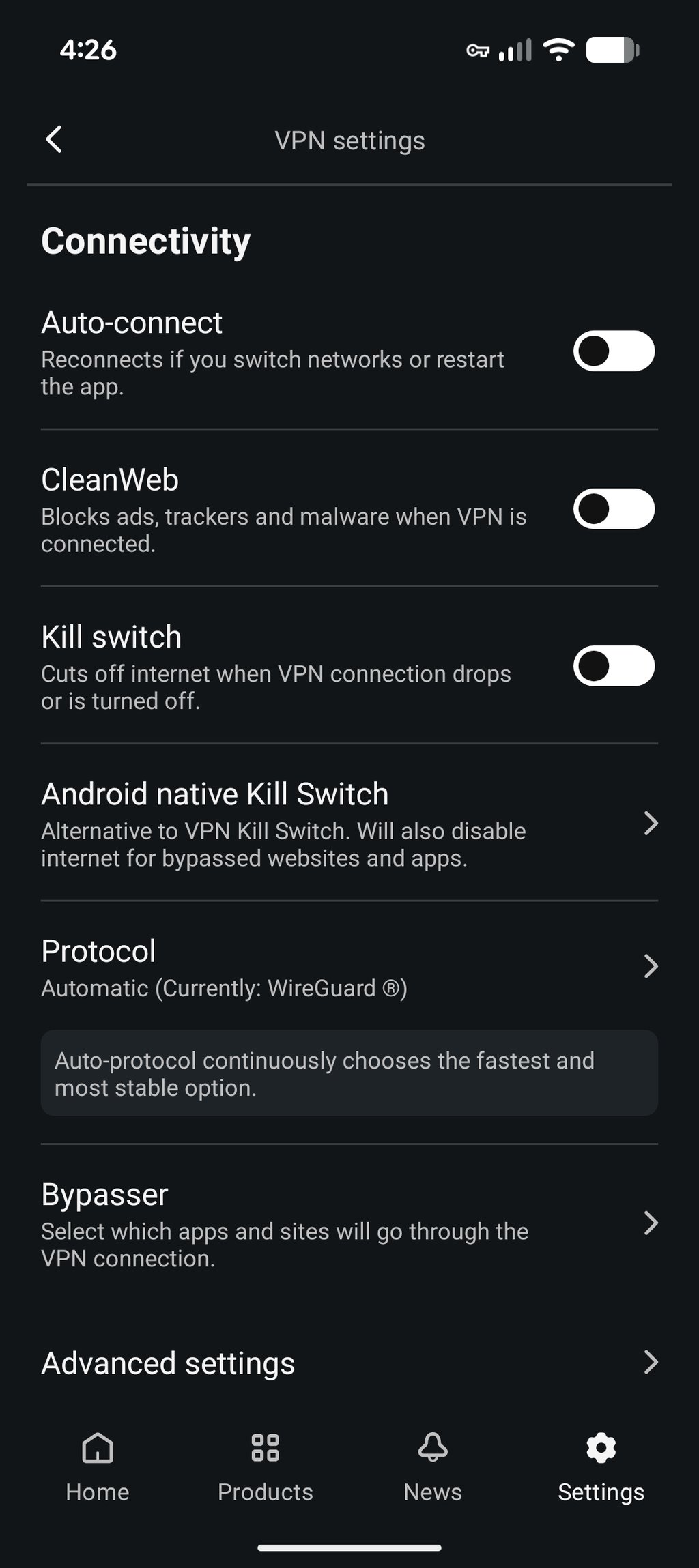
Go to Surfshark’s Settings > VPN settings > Advanced settings
-
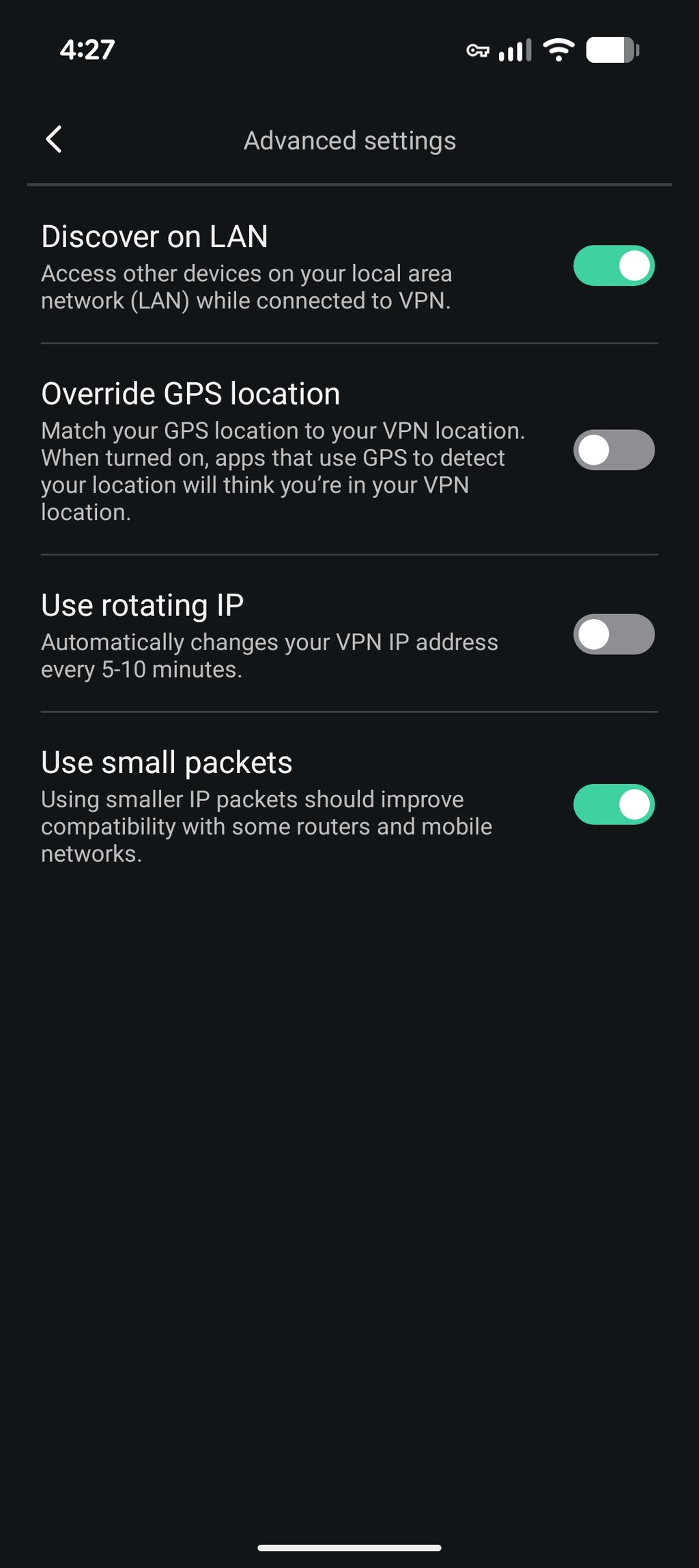
Toggle on the Override GPS location feature
-
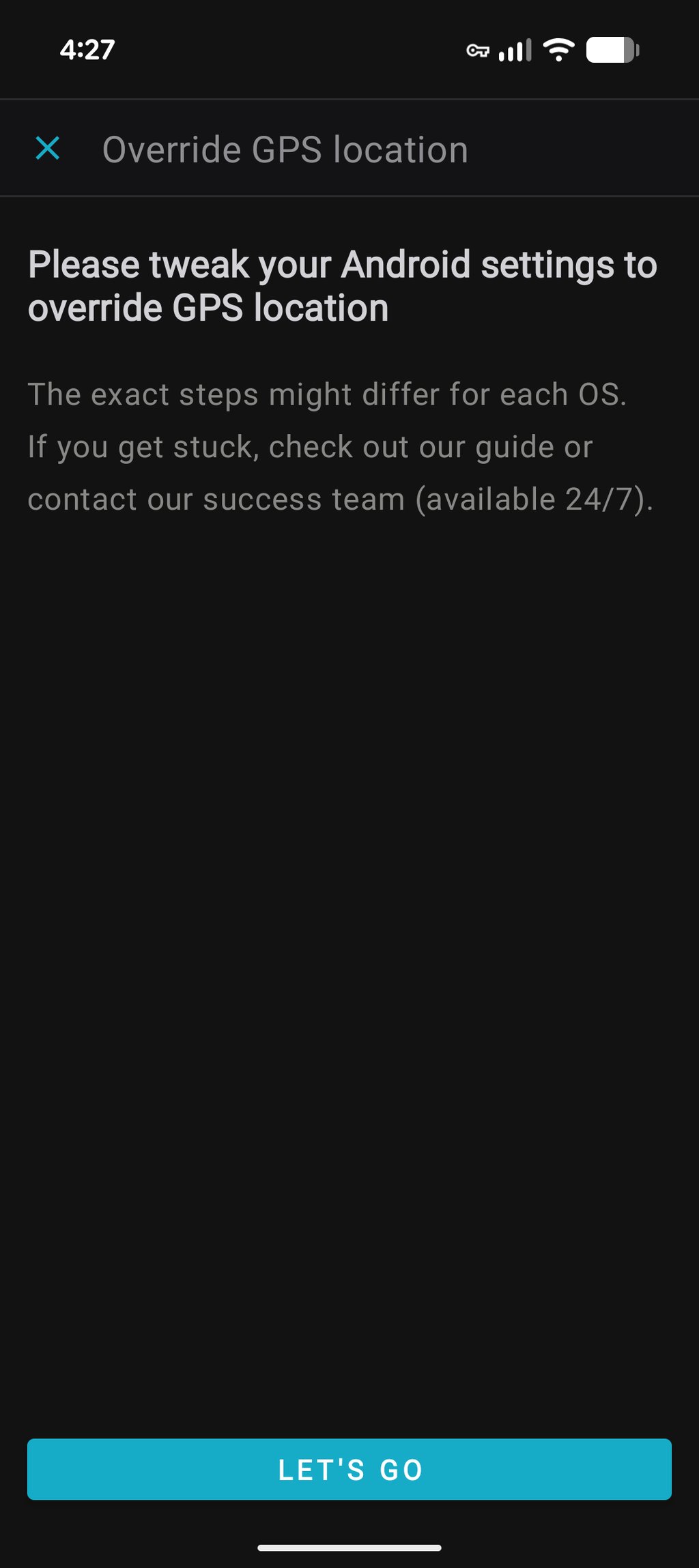
Surfshark will provide further instructions, or you can go to the Settings of your phone
- Click on About phone
- Find the Build number and tap on it 7 times. The message will appear that you are now in Developer mode
-
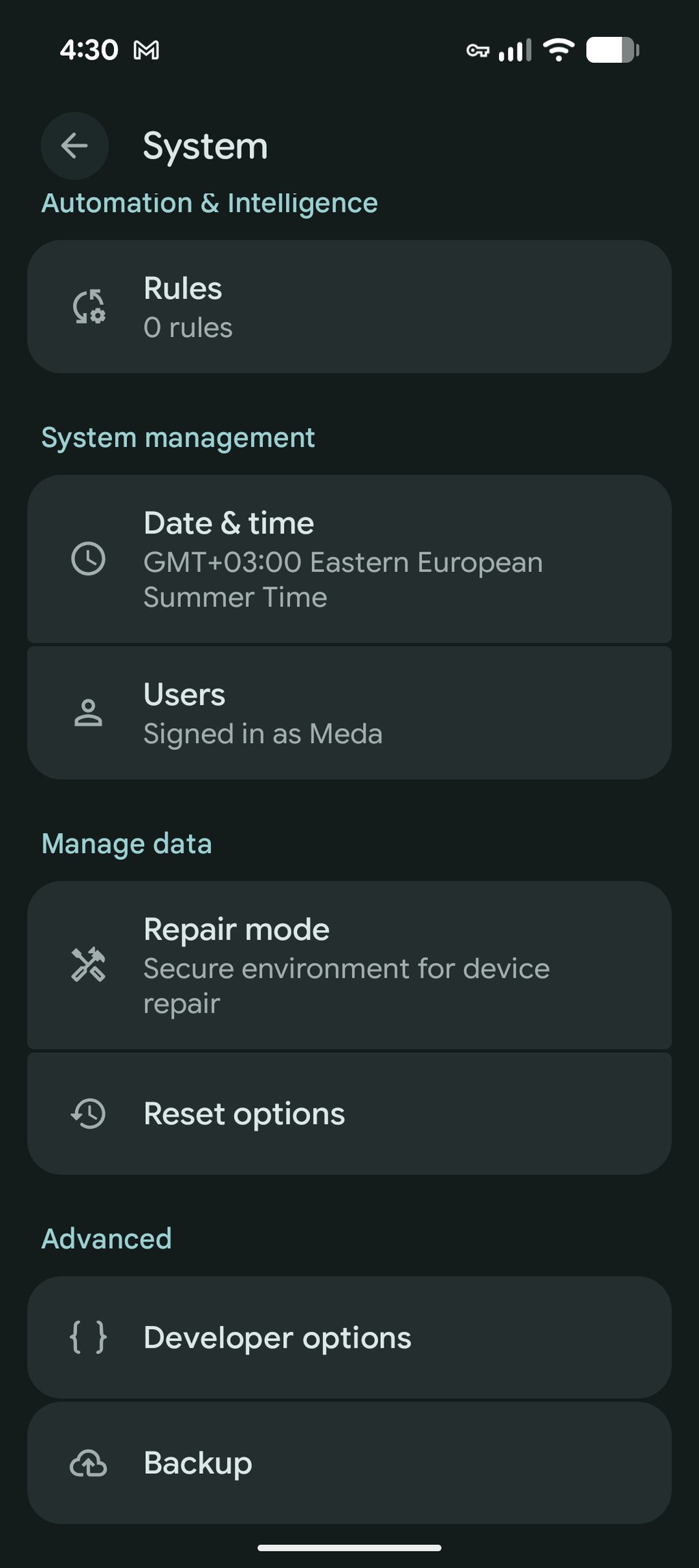
Go to the phone’s Settings > System and scroll down to Developer options
-
Click Select mock location app
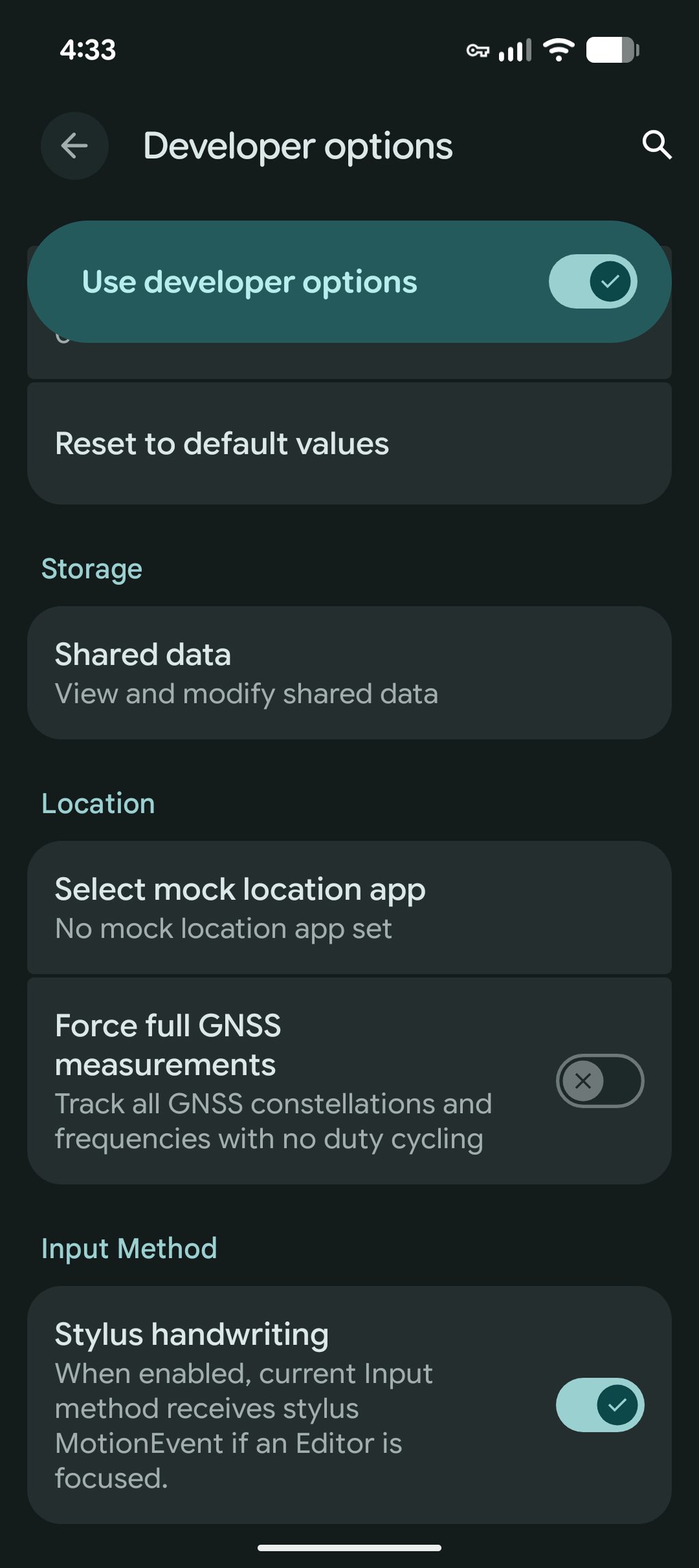
-
Select Surfshark
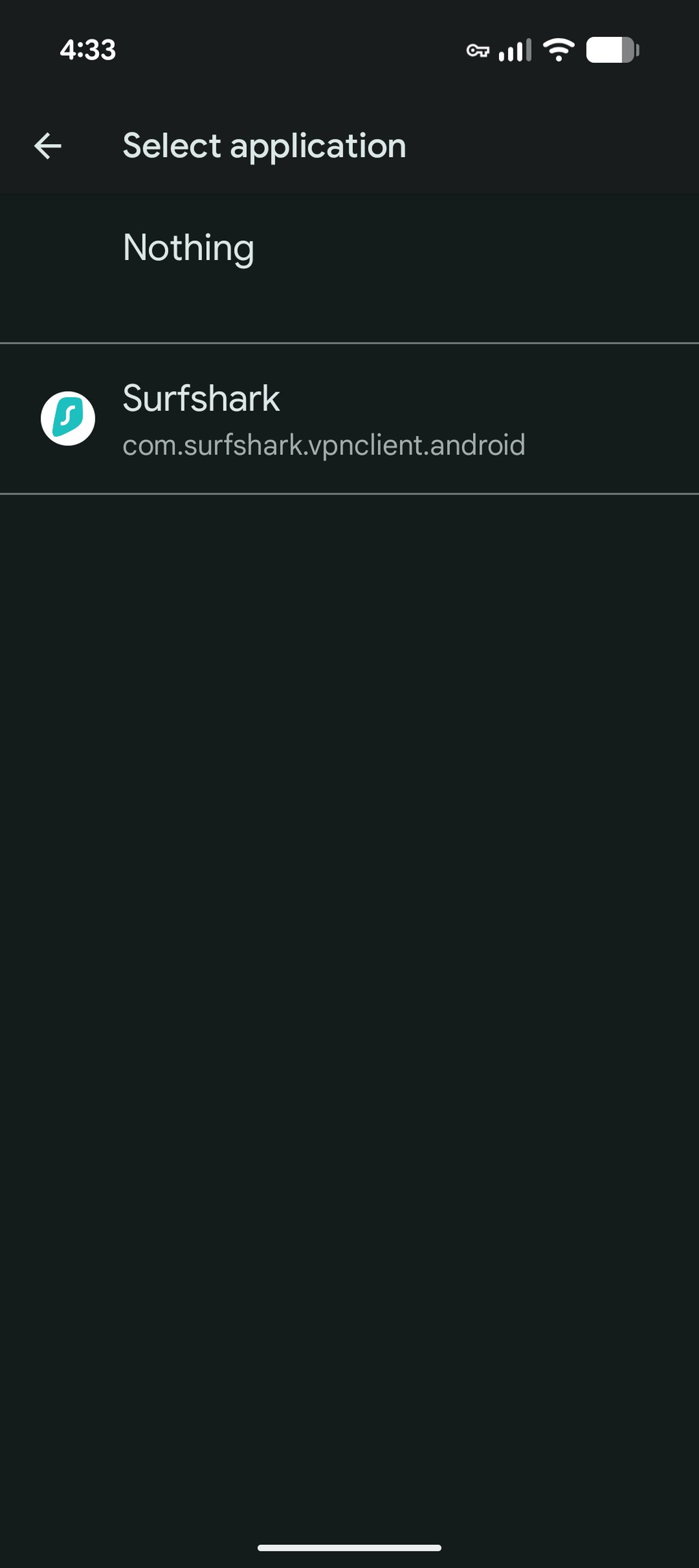
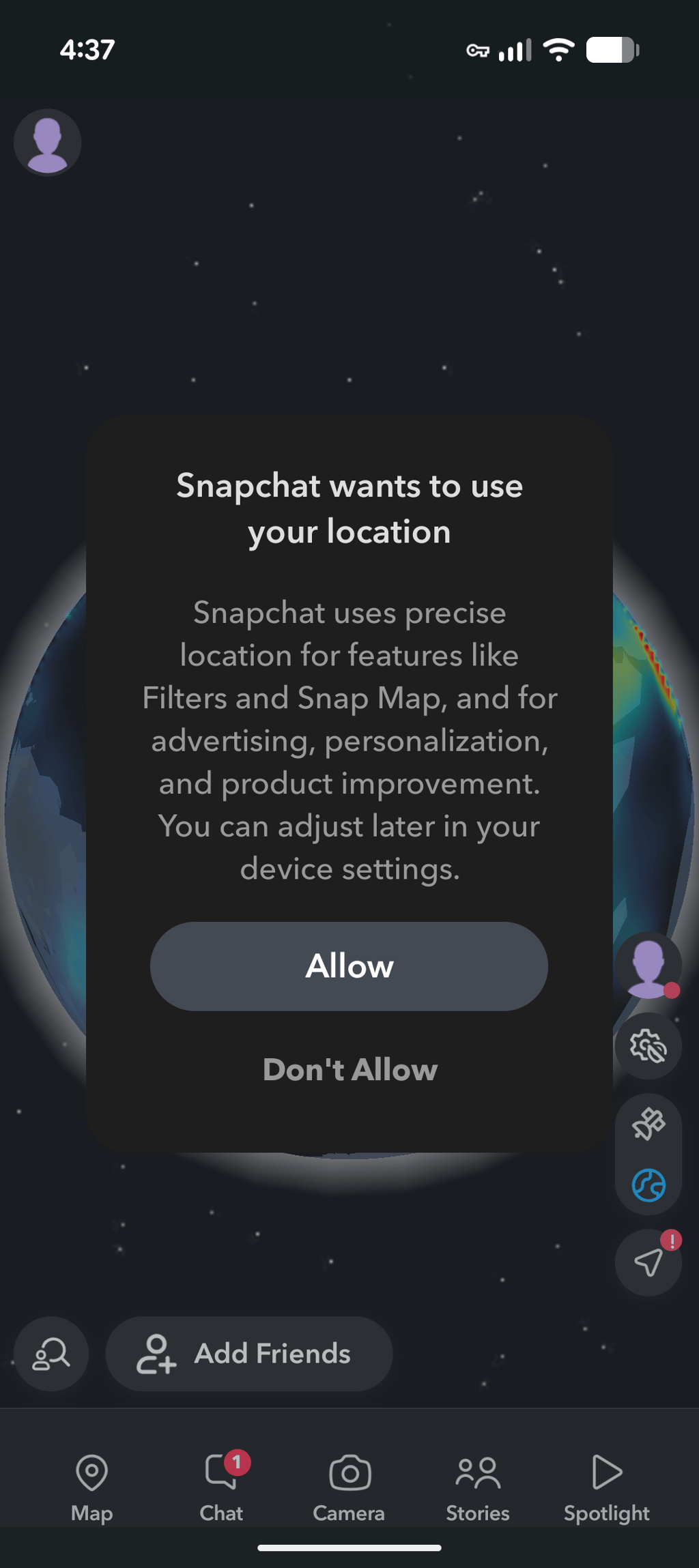
- Open Snapchat, and you should see that your location matches the one you are connected to with the VPN
How to change your location on Snapchat Map on an iPhone
Altering your iPhone's GPS location without jailbreaking poses challenges. Due to Apple's restrictions, no apps are permitted for this purpose. Additionally, VPNs don’t offer changing GPS location features for iPhones. So, installing third-party software is the only choice.
However, using third-party tools to change the GPS location on an iPhone has serious drawbacks. Changing your iPhone's reported GPS location typically requires third-party desktop software, such as iTools or 3uTools, that connects your iPhone to a computer. Also, using such tools poses security risks – that’s why it’s not recommended. Nonetheless, VPNs remain valuable for Snapchat, enhancing privacy and security despite the inability to directly alter GPS locations.
Alternatively, you can try turning off location services on your iPhone. This can help prevent Snapchat from accessing your real-time location, making it easier to control when and how your location is shared. Here’s how:
- Go to Settings
- Select Privacy & Security
- Tap on Location Services
- Toggle Location Services off
Note that some apps and features may not work with Locations Services disabled.
Why would you spoof your Snapchat location?
There are several reasons why you may want to learn how to change location on Snap Map – a location-sharing feature on Snapchat – but these are the most popular:
- Increased privacy. As Snapchat shows your current location to your friends, you may wish to spoof your location for privacy reasons. This way, your activity and true whereabouts will remain hidden.
- Bypassed geo-blocking. Snapchat isn’t available everywhere. For example, the app is banned in China, Cuba, Iran, Russia, Turkmenistan, and North Korea, so if you live in or travel to these countries, you won’t be able to use Snapchat. The app is also banned in some schools, even in the US.
- Unlocked features. You may also wish to spoof your Snap location to gain access to region-based content and filters.
Different location settings options
If you decide to use Snap Map, you can choose who you want to share your location with via the Settings on the app. In the See My Location menu, you can choose from the following:
- Ghost Mode. By turning on Ghost Mode, you can make yourself invisible to anyone using the Snap Map. This option ensures the most privacy out of the four detailed in this list. The best part is that you can still view the location of your friends who have made their locations visible.
- My Friends. By choosing to share your location with your friends, you essentially share it with all your followers.
- My Friends, Except. This option enables you to share your location with everyone except specific followers/friends.
- Only These Friends. This option enables you to choose specific followers/friends you want to share your location with.
How to change your Snapchat Map location settings
It is easy to activate and deactivate your location-sharing settings on the Snapchat app. Open the Snap Map and tap the Settings menu gear in the top-right corner.
Set the Ghost Mode toggle on (green) if you wish to make yourself invisible and stop all location sharing. When asked to choose how long you want the Ghost Mode on, select Until turned off. To reactivate location sharing, go back to the menu and turn the Ghost Mode toggle off (gray).
Unfortunately, Ghost Mode doesn’t automatically guarantee full privacy and security. Also, if you want to change your location completely, turning Ghost Mode on or off won't do the trick. Instead, you need to install a reliable VPN app compatible with your mobile device OS.
Can Snapchat detect a VPN?
Yes, Snapchat can detect VPN use. The Snap Map feature uses GPS and other device location data to pinpoint the location of user snaps, using a VPN by itself won’t change your location in the app – it only changes your IP address.On Android, Surfshark includes a GPS override feature that can align your device's reported GPS location with your VPN location. However, results can vary, and Snapchat may still detect or flag location spoofing, so there's no guarantee that your location will appear as expected.
Is it legal to change your location on Snapchat?
Yes, it is legal to change your location on Snapchat using a VPN. You can also legally change your location with the help of GPS spoofing apps or proxies, but these options may violate Snapchat’s terms of service.
A VPN creates an encrypted tunnel between your device and the VPN server so that you can connect to the internet without being seen. This encryption means that your online activity is kept anonymous at all times. However, there are some countries, like China, where social media platforms are illegal, that’s why before using a VPN you should consult the local laws.
Final thoughts
Snapchat users often face frustration with geo-restrictions limiting certain features and content, and might feel uncomfortable with their location tracking. If you want to access more features and protect your privacy, a VPN might help you.
For example, Surfshark VPN offers a solution for Android users that bypasses some restrictions and ensures overall security. Surfshark includes a GPS override feature that synchronizes your GPS location with your VPN IP address, which may help you change your location on Snapchat.
For iPhone users, on the other hand, installing software like iTools is necessary for location alteration, as no apps are permitted for this purpose due to Apple’s restrictions. Using VPNs like Surfshark is vital for overall security on Snapchat, encrypting data, and protecting against cyber threats, but they can’t change your iPhone’s GPS.
FAQ
How do you unblock Snapchat at school?
To unblock Snapchat whilst at school, you may download a VPN onto your device. You can then install Snapchat and use the app freely.
Can you fake a live location on Snapchat Map?
Yes, you can fake your live location on the Snapchat map. I suggest using Surfshark VPN, which offers a GPS override feature for Android users. This feature lets you synchronize your GPS location with your VPN IP address, changing your Snapchat location. iPhone users can use software like iTools or similar tools to alter their location.
Can you get banned on Snapchat for spoofing location?
Yes, spoofing your location on Snapchat can lead to a ban. Using unauthorized methods to deceive or gain unfair advantages violates Snapchat's terms of service, risking account suspension or ban.
Why does my Snapchat location say I'm somewhere else?
Your Snapchat location might not match your actual location because you’ve enabled Ghost Mode or you’re not online. If you are offline for more than 24 hours, Snapchat automatically removes or hides your last location notice.
Does Snapchat location glitch?
Yes, Snap Map may glitch by showing inaccurate location information. Snap Map shows the most accurate data when you update your location. If you don’t update it, your location data could be delayed and, therefore, inaccurate. Note that location data may become inaccurate if you use Ghost Mode.
How do I freeze my location on Snapchat?
You can freeze your Snapchat location for enhanced privacy and security. Open the Snap Map, tap the Settings menu icon, and find My Live Location. Make sure the Hide My Live Location toggle is on. To improve your privacy further, consider using a reliable VPN like NordVPN.