How to stop someone from tracking your phone: 15 methods
Our in-house cybersecurity experts and journalists, renowned for major reports like The Mother of All Breaches, conduct transparent, unbiased VPN testing and in-depth analysis.
With 750+ articles crafted based on real-world research, we empower readers to make informed purchasing decisions through first-hand expertise.
Learn more

How to stop someone from tracking your phone isn’t just a topic for the ultra-cautious – it’s something everyone should know. Modern tools make it surprisingly easy for someone with bad intentions to monitor your device. If you notice suspicious behavior like overheating, rapid battery drain, or sudden data usage spikes, it could point to tracking.
Effective ways to protect yourself include using a VPN with an ad blocker, removing suspicious apps, installing antivirus software, and turning off all wireless connections. In this guide, I show you how.
Is your phone being monitored? Here’s how to tell
Unauthorized phone monitoring can have serious privacy and security consequences. If your device has been compromised by spyware, stalkerware, or other unauthorized access, someone may be able to view your personal information, track your location, or monitor your activity. To help determine whether your phone may be compromised, here are some common warning signs for Android and iPhone devices.
How to tell if my iPhone is being monitored
First of all, if any monitoring software is installed on your device, it’ll be sending information to some external source, which uses extra data. Therefore, noticing a spike in your data usage can be a strong indicator that your iPhone is being monitored. Here’s how you can check your data usage:
- Go to Settings
-
Tap Cellular or Mobile Service (the name varies by region and iOS version)
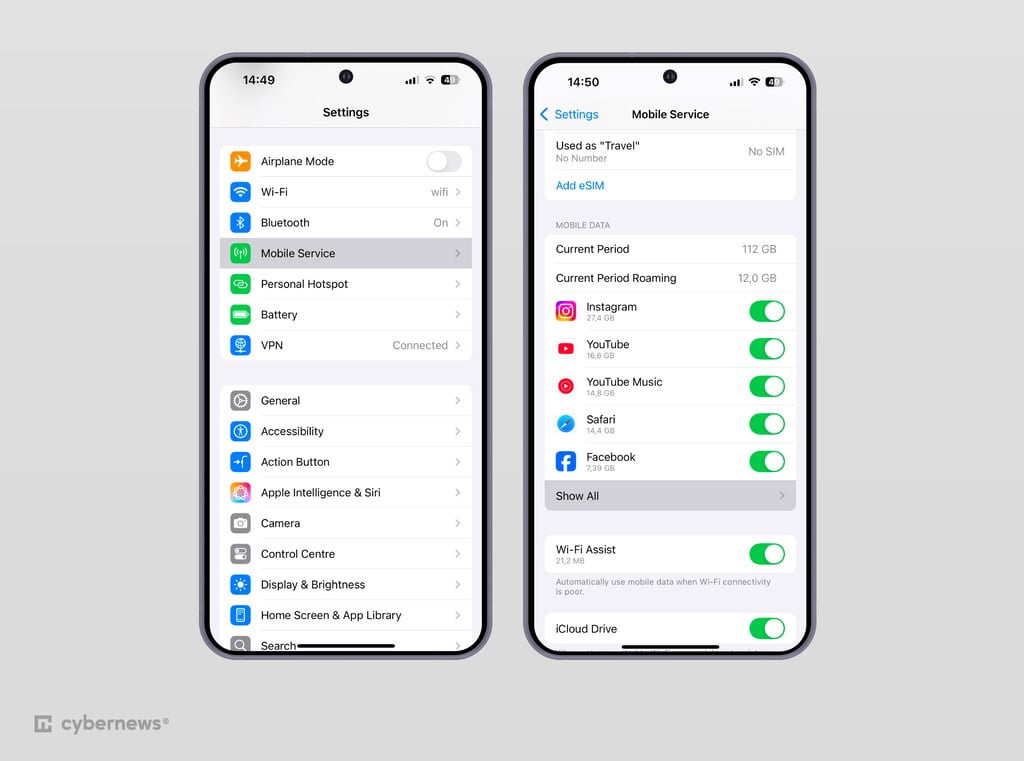
- Scroll down to view Current Period (or similar) and inspect how much cellular data each app has used
- Look for apps using an unusually high amount of data that you don't recognize or don't expect to use much
If your data usage appears normal, keep in mind that tracking apps often disguise themselves as regular apps or use Wi-Fi data usage, which is not displayed here. That's why it's important to carefully review all the apps on your device. If you see anything unfamiliar or suspicious, I recommend uninstalling it right away:
- Go to your Home screen
- Swipe left to browse through all your apps
It’s also worth paying attention to whether your messaging apps, like Signal or WhatsApp, start acting unusually. Delayed messages, unexpected call drops, or errors indicating multiple sessions can indicate that monitoring tools or cloned apps interfere with your connection. While disruptions like these don’t always mean your device is being monitored, they should definitely raise your awareness, especially if something like this happens repeatedly and without another clear cause.
In addition, it’s a good idea to regularly check which devices are connected to your Apple account, as unauthorized access could allow surveillance or data syncing without your knowledge. Here’s how to do it:
- Go to Settings
- Tap your name at the top, and scroll down to see the list of devices associated with your Apple ID
If you notice a device you don’t recognize, remove it immediately and change your Apple ID password to keep your information secure.
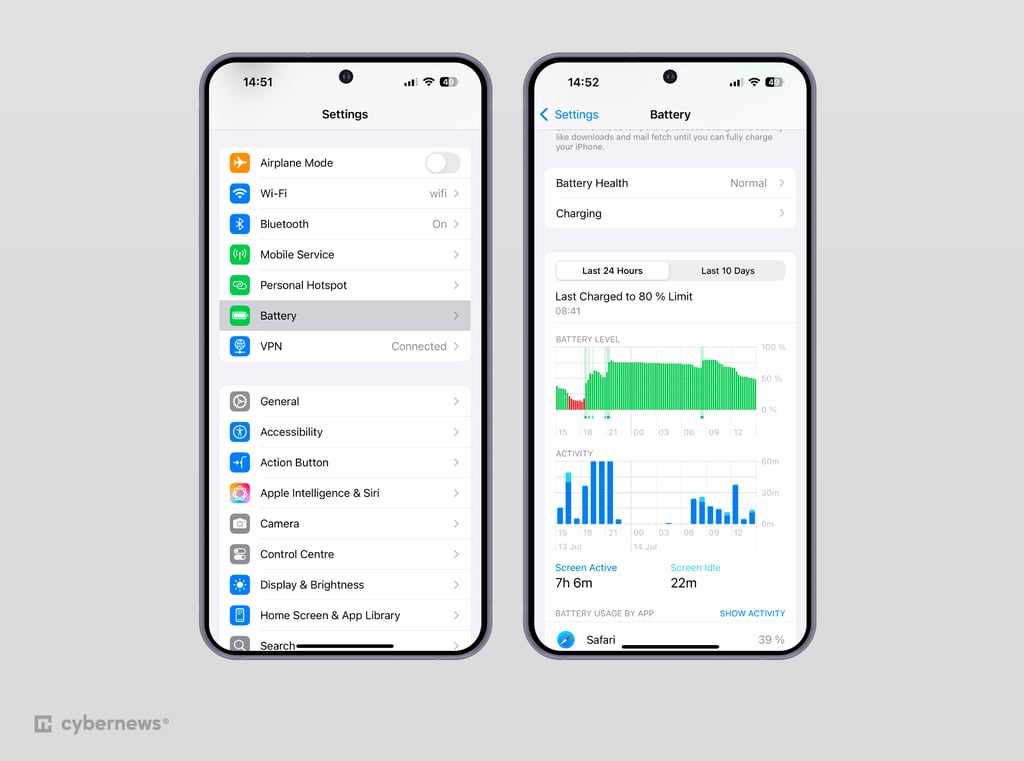
Monitoring apps can also use an excessive amount of RAM, which can lead to rapid battery drain or cause your device to overheat. If you notice these issues, check which apps are consuming your battery:
-
Go to Settings
-
Scroll the menu and click on the Battery section
-
Check which apps use your battery life the most
Also, monitoring software may interfere with how your device shuts down, causing delays, unexpected restarts, or even preventing shutdown altogether. This happens because tracking apps are designed to run in the background and may attempt to prevent you from turning them off.
Finally, if you notice your autocorrect isn’t working properly, it could be a sign of a keylogger – a type of tracking software that records everything you type. This could put your private messages, passwords, and credit card information at risk.
How to tell if my Android is being monitored
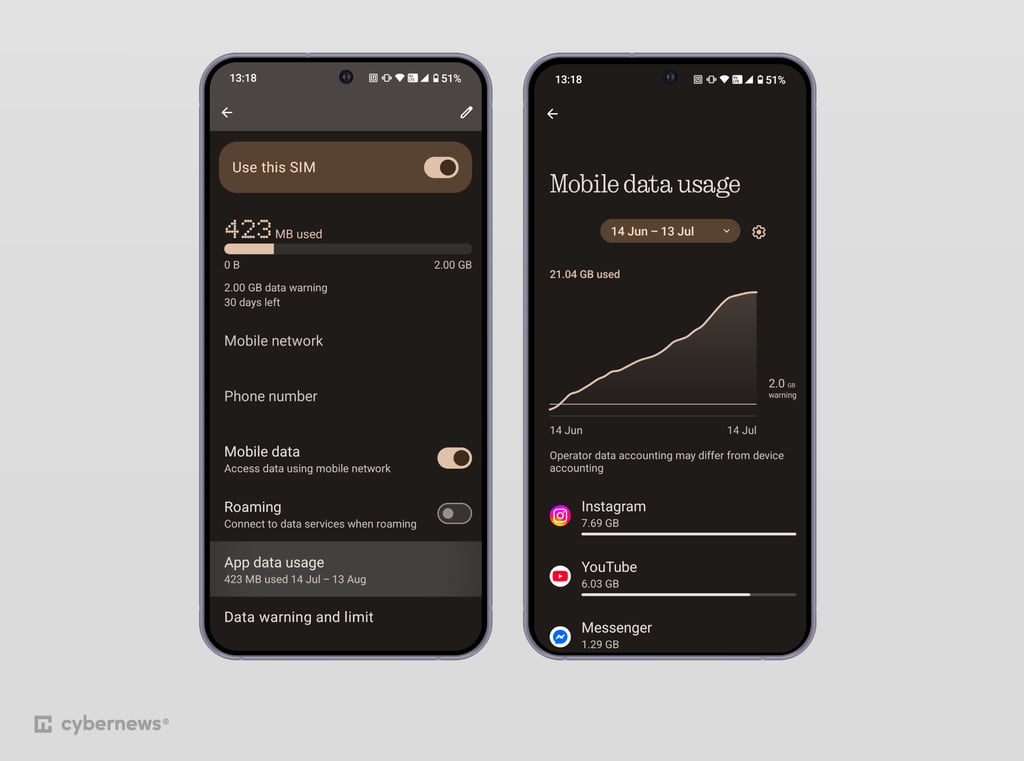
If your Android device has monitoring or spyware installed, it often works in the background, sending your data to third parties even when you aren’t using the phone. This hidden activity can cause unexpected increases in your data usage, which might indicate that someone is tracking you.
Although there are many reasons your data usage might spike, it’s a good practice to regularly review your consumption and explore anything unusual:
-
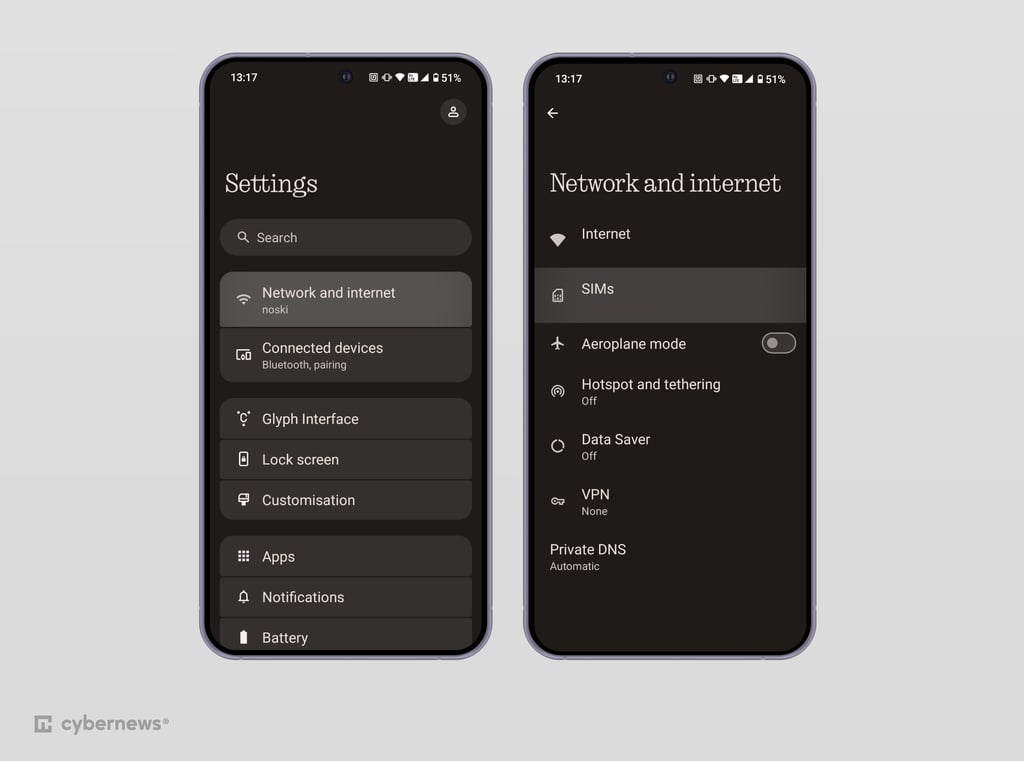
Go to Settings
-
Tap on Network and internet and select SIMs
-
Now, click on App data usage and check the data consumption and how much data is being used by particular apps
Many apps monitor your device activity, and you can’t always be sure where your data goes or how it’s used. Tracking software can also often disguise itself as a harmless or familiar app, which is why it’s a good idea to regularly review and uninstall any apps you don’t use. This way, not only will you save data and memory, but you will also protect your privacy. Here’s how to check installed apps on your Android:
- Go to Settings
- Click on Apps
- Examine the list for anything strange or apps you didn’t intentionally install
Keep an eye on secure messaging apps like Signal or WhatsApp. If you notice delayed messages, frequent call drops, or errors in multiple sessions, it could mean someone is trying to intercept your conversations, possibly through man-in-the-middle activity or by cloning your app. It’s always worth investigating the root cause of issues like these.
Finally, I recommend periodically checking your Google account for unfamiliar devices. Here’s how to do this:
- Visit myaccount.google.com/security
- Find the Your Devices section
If you spot a device you don’t recognize, remove its access and update your Google account password to ensure your data stays safe.
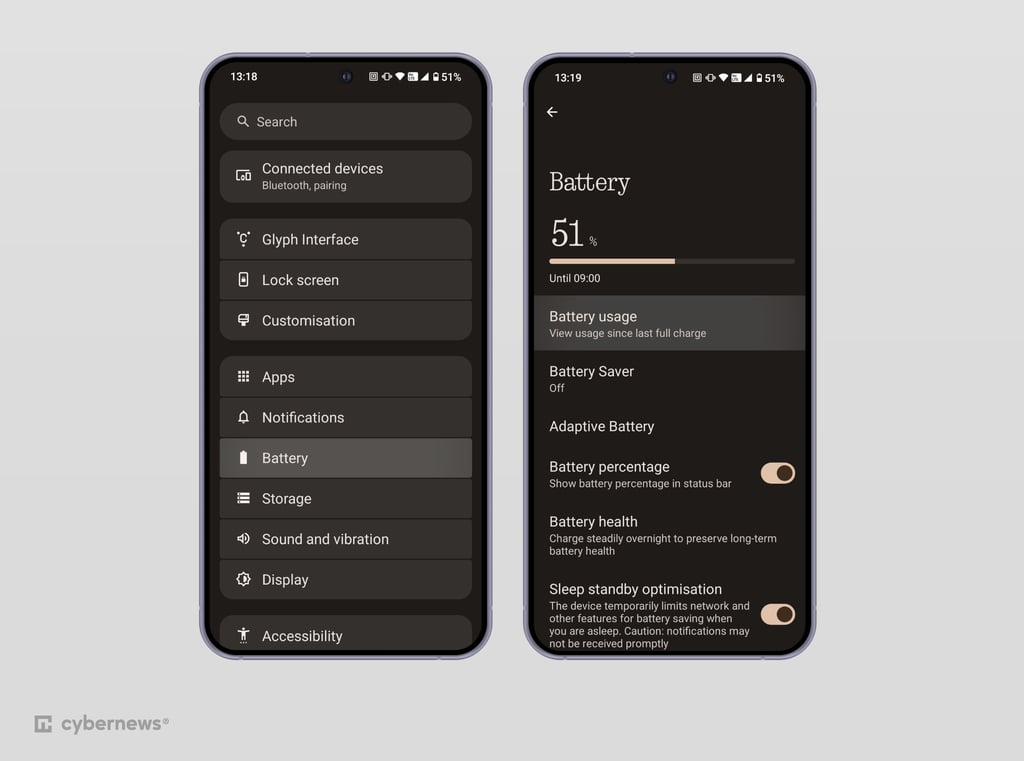
Spyware and tracking apps also tend to use up more system resources, making your phone feel hot or draining your battery faster than normal. If your device overheats or your battery percentage drops more quickly than usual, it’s time to check what’s causing the issue:
-
Go to Settings
-
Tap on Battery and Battery usage
-
Check the recent app usage and how it is draining your battery
In addition, some monitoring tools can interfere with the way your device shuts down or restarts. If your Android phone restarts out of the blue, takes too long to turn off, or refuses to shut down, it may be due to background software working to remain active.
Lastly, unusual autocorrect behavior can also point to a keylogger or similar tool. This software is designed to record everything you type. This is a serious privacy risk, as your passwords and even payment information could be compromised.
How to stop your phone from being tracked: a detailed list
Now that you know how to recognize the signs of monitoring software on your device, it’s time to get rid of it. I gathered some easy-to-implement solutions to protect yourself from tracking.
1. Disable location services
If your phone is being monitored, your location is one of the most sensitive pieces of information you can expose to any criminals. Knowing someone can see your whereabouts at any time is unsettling.
Keep in mind that turning off location will affect apps like maps and any services that rely on your GPS signal, but it’s worth it for greater security.
Here are the steps for iOS:
- Go to your Settings and choose Privacy & Security
- Tap Location Services
- Toggle off Location Services
You can adjust location access for specific apps.
Here’s how you do it on Android:
- Open your Settings
- Select Location
- Toggle the Location setting to Off
Like on iOS, you can manage location permissions for individual apps from this screen.
2. Use VPN with an ad blocker
A VPN encrypts your web traffic and masks your IP address from your local network and ISP, protecting your online activity. However, a VPN cannot block hardware GPS logging, manage app permissions, or remove device-level malware. An ad blocker complements this by preventing web tracking scripts and hiding intrusive or malicious ads.
Protect your phone using a VPN in 4 steps

- Choose a reliable VPN provider: Get 75% OFF NordVPN + 3 months free
- Download the VPN app on your device and sign in
- Connect to one of the servers to change your IP address
- Browse privately and keep safe from prying eyes
3. Use antivirus software
Antivirus can detect malicious software installed on your device, which is helpful since spyware is often made to seem just like a regular app.
This advice is especially important for Android users, since Android devices are generally more vulnerable to malware due to their open nature. An antivirus software can scan your device for known spyware and prevent you from downloading these apps in the future.
iOS devices, on the other hand, are much more strictly protected and rarely allow suspicious downloads (unless the device is jailbroken). Additionally, iOS system restrictions prevent antivirus apps from fully scanning the system, making antivirus software not necessary on iPhones and iPads in most cases.
4. Don’t use public Wi-Fi
When you connect to public Wi-Fi, your device may be exposed to various types of tracking and monitoring, such as packet sniffing, location, or behavioral tracking.
Malicious hackers use packet sniffing tools to intercept data from your traffic over a public Wi-Fi network. This process allows them to gather personal information, from login credentials to credit card numbers. Additionally, data collectors may use Wi-Fi networks to gather your location data and your online behavior to build advertising profiles.
5. Disable automatic Wi-Fi connections
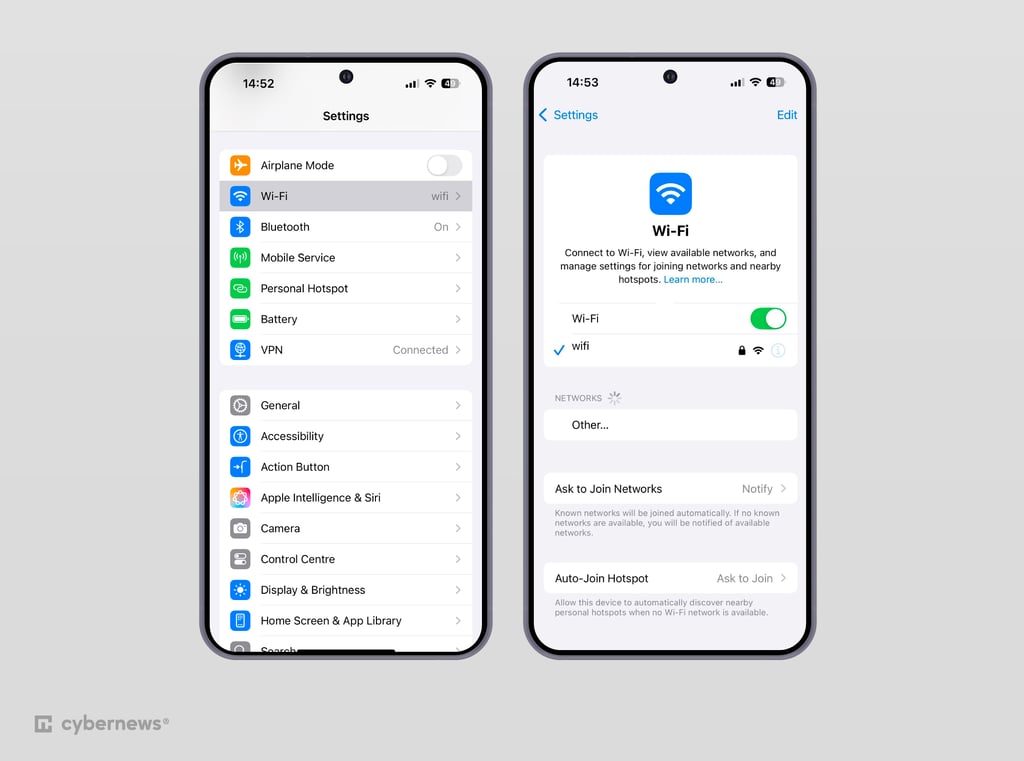
You can ensure that you’re safe from risks related to public Wi-Fi by turning off automatic Wi-Fi connections. This will prevent your device from connecting to untrustworthy networks.
Here are the steps for iOS:
-
Go to Settings and tap Wi-Fi
-
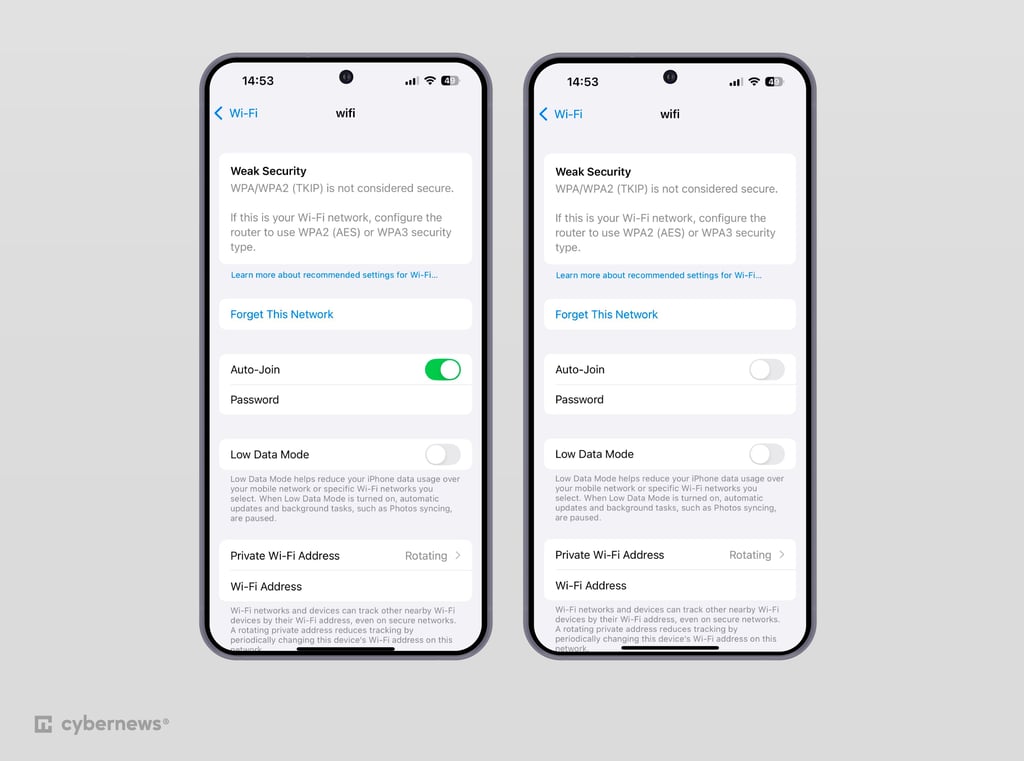
For a specific network: tap the (i) icon near a Wi-Fi connection
-
Turn off the Auto-Join switch
-
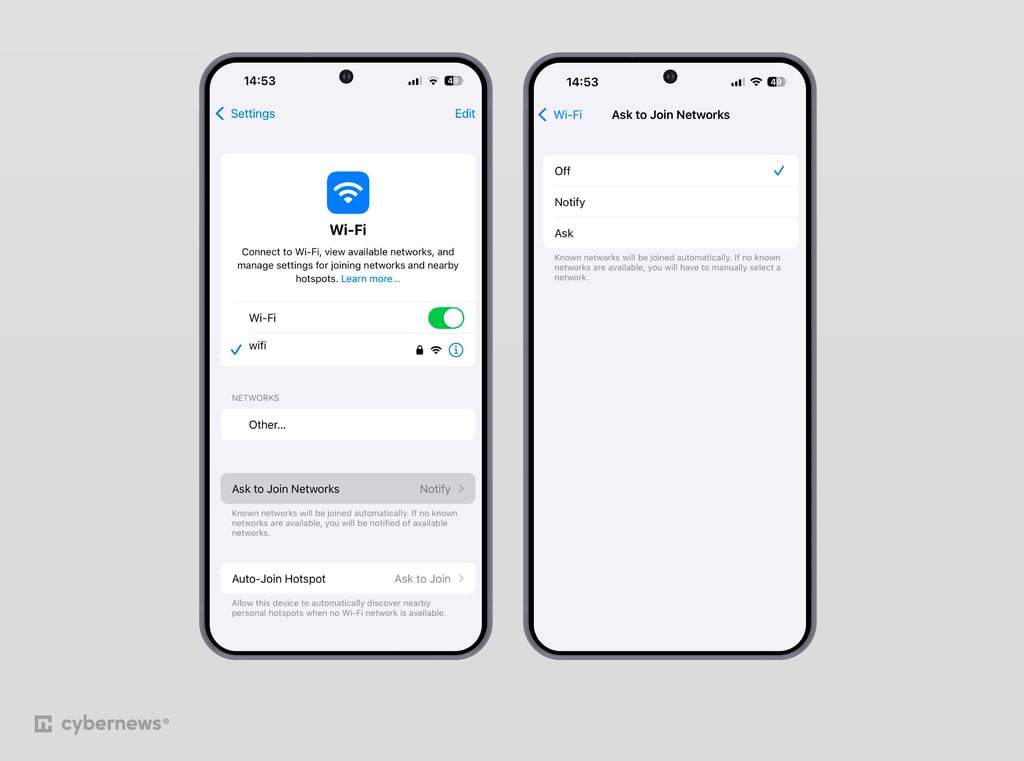
For all networks: disable the Ask to Join Networks feature
Here are the steps for Android:
- Go to Settings and choose Network and internet
- Select Wi-Fi and then Wi-Fi preferences
- Turn off the feature Turn on Wi-Fi automatically
- For a specific network: click on the gear icon next to it and tap to forget it
6. Turn off Bluetooth
Cybercriminals can use Bluetooth beacons to track the movements of nearby devices. These beacons send out Bluetooth signals that nearby devices can pick up, allowing threat actors to gain data on your location.
The simplest way to prevent these beacons from tracking you is to turn off your Bluetooth connection.
7. Use airplane mode
Airplane mode is a feature that disables all wireless connections, such as GPS, Wi-Fi, and Bluetooth. By turning off all of these connections, your device won't be able to send out signals, which can prevent your device from being tracked by others.
8. Keep your phone updated
Updates often include security patches that address known vulnerabilities and exploits. By patching up these risks, you can prevent malicious hackers from exploiting your device.
Additionally, updates often come with new privacy and security features as well as bug fixes. These features are essential for giving you more control over your data and help prevent common attacks.
However, there are cases when updates come with vulnerabilities and bugs on their own. Therefore, I recommend reading up on the bigger updates to make sure they’re safe.
9. Use secure browsers
Secure browsers are designed to provide additional privacy and prevent tracking by third-party advertisers. These tools often include ad-blocking, anti-tracking, and encryption features to protect your internet traffic.
The Brave browser is one of the most popular and secure options available. It is a free and open-source web browser designed to provide a safe and private online experience. It features built-in protection against browser fingerprinting and automatically upgrades unencrypted HTTP connections to secure HTTPS connections by default.
10. Avoid suspicious apps
Malicious apps are often designed to look as legit as possible, making them hard to detect by trusting users. However, there are some things to be wary of:
- Permission request. Be vigilant when an app asks permission to access your contacts, microphone, camera, location, or any other features that aren't necessary for its basic function.
- Reviews. It's important to check reviews before downloading the app. Consistently low ratings may indicate issues with the app. However, keep in mind that consistently positive reviews can also be fake.
- App branding. A generic name, inconsistent or poor design, and vague or ungrammatical description can all indicate the app's suspicious or malicious intent.
- Pop-ups. While most apps show ads, they shouldn't be too prominent or intrusive. If an app is constantly bombarded with fishy pop-ups, it can't be trusted.
- Personal data requests. Be cautious when an app asks you for your credit card information or any other sensitive data before you even sign up for its service. Make sure to take advantage of the free trial before inputting sensitive data.
- Availability on the app store. A general rule of thumb is always to download apps from official sources such as Google Play or the App Store. Be cautious if an app is unavailable on these platforms and the provider offers to download installation files directly from its website.
11. Revise app permissions
You can determine if an app is spyware by checking what permissions it requires. Apps that can access features not necessary for their basic functionality, such as camera, messages, and photos, should raise suspicions. I recommend analyzing each app's permissions and uninstalling suspicious apps.
Here are the steps for iOS:
-
Go to Settings
-
Tap on Privacy & Security and check what kind of apps have permissions in sections like Tracking, Photos, Microphone, Camera

- Click on the permission, and if you find anything suspicious, toggle off the feature
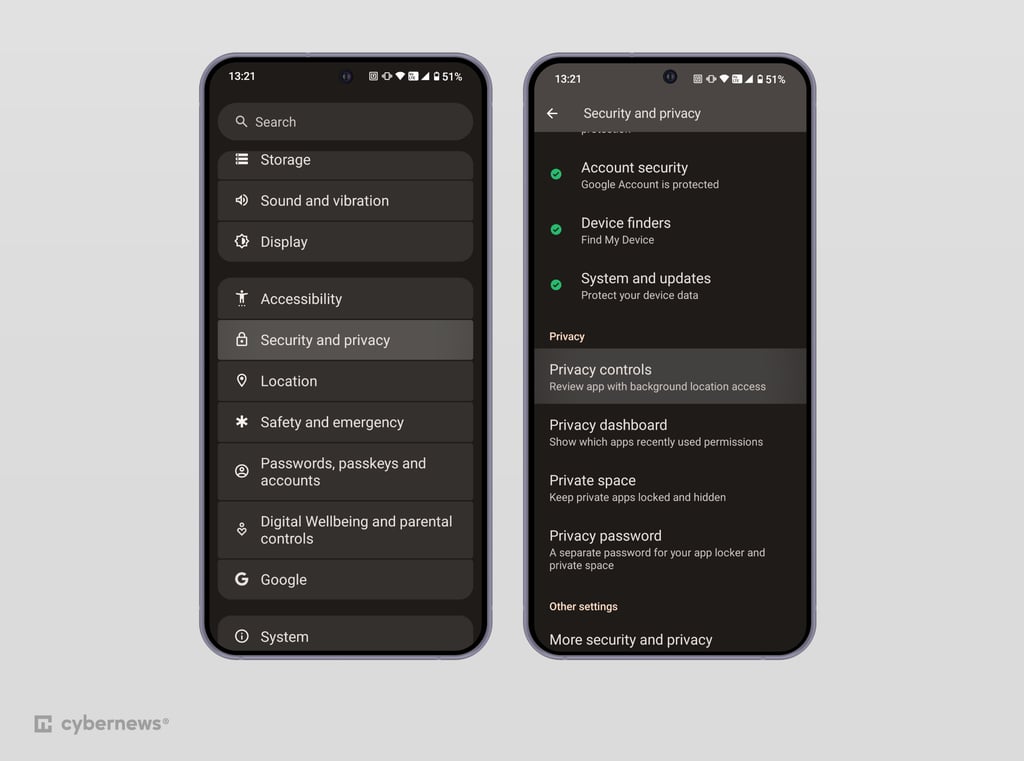
Here are the steps for Android:
-
Go to Settings
-
Tap Security and privacy and select Privacy controls
-
Click on Permission manager and review permissions for sections like call logs, camera, files, and location by clicking on the permission name and reviewing apps that have it

12. Disable personalized ads
While disabling personalized ads may not completely stop all tracking, it’s a good way to start protecting your privacy. However, you may still see ads, but they won’t be based on your activity. In case you want to stop seeing ads altogether, I recommend getting a reputable ad blocker.
Here are the steps for iOS:
- Go to Settings and select Privacy & Security
- Tap on Tracking and toggle off the Allow Apps to Request to Track option
Here are the steps for Android:
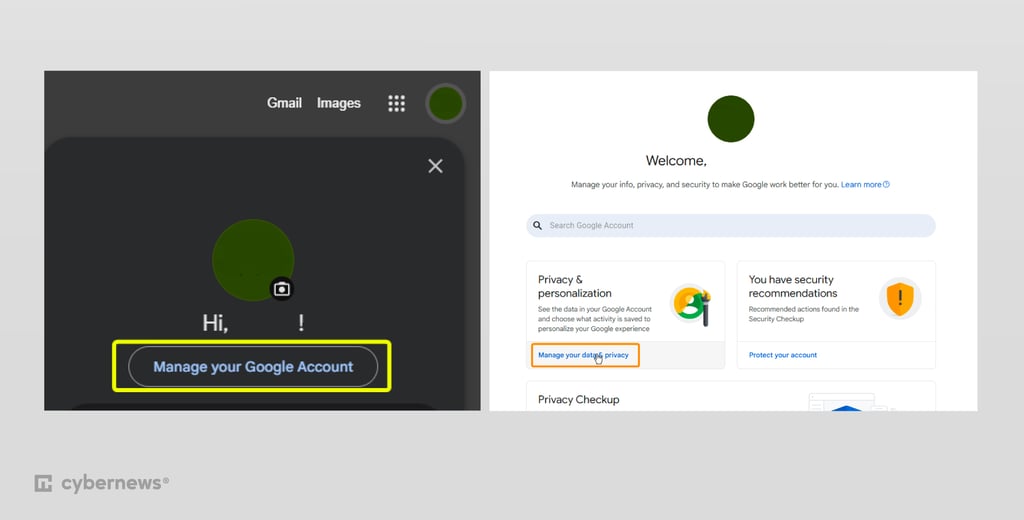
-
Go to Google and tap on your account icon
-
Select Manage your Google Account and go to Manage your data & privacy under Privacy & personalization settings
-
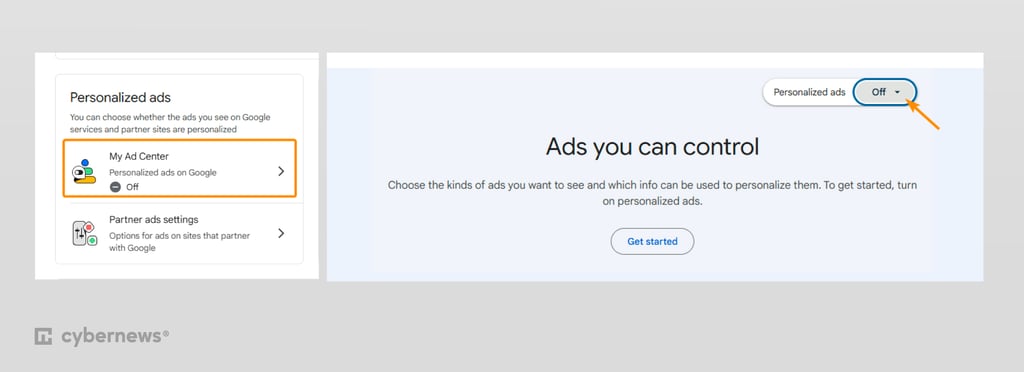
Find the Personalized ads section, click My Ad Center, and disable this feature
13. Disable cross-site tracking
Cross-site tracking is a form of tracking that allows companies to follow your activity across different websites and apps, even if you’re not using their services. This typically works through cookies and other tools. When you disable cross-site tracking, your browser blocks third-party cookies and prevents companies from tracking while browsing different websites.
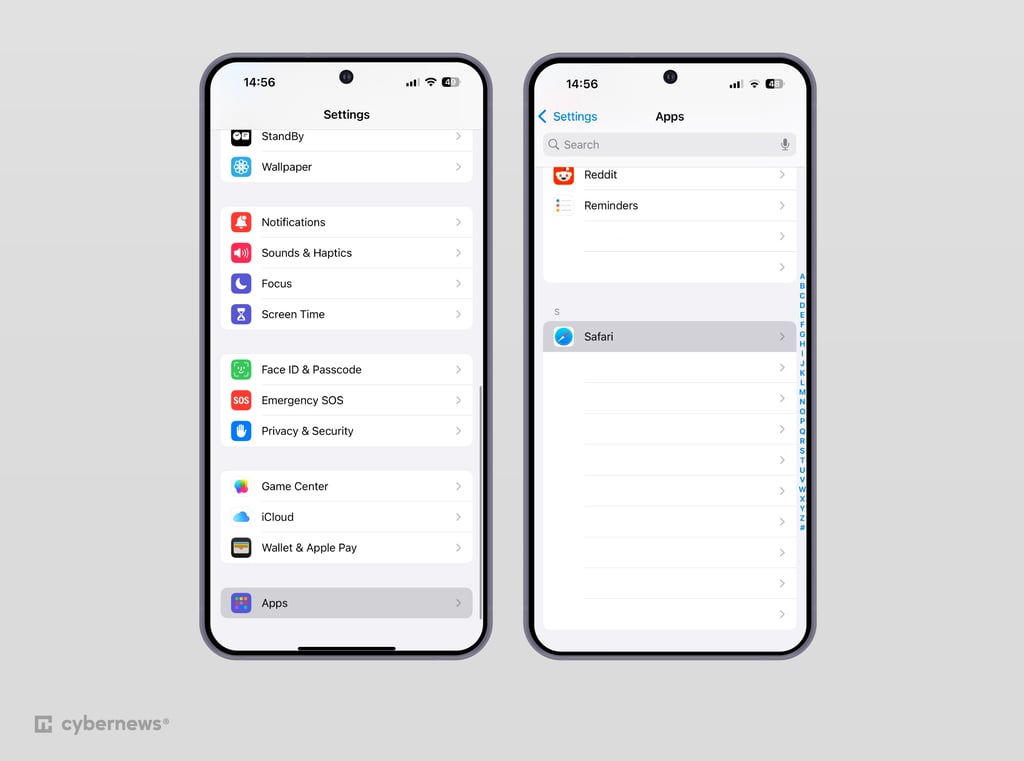
Here are the steps for the iOS Safari browser:
-
Go to Settings
-
Scroll down to the Apps section and tap on Safari
-
Then, scroll down to the Privacy & Security section
-
Find the Prevent Cross-Site Tracking option and turn on the toggle switch
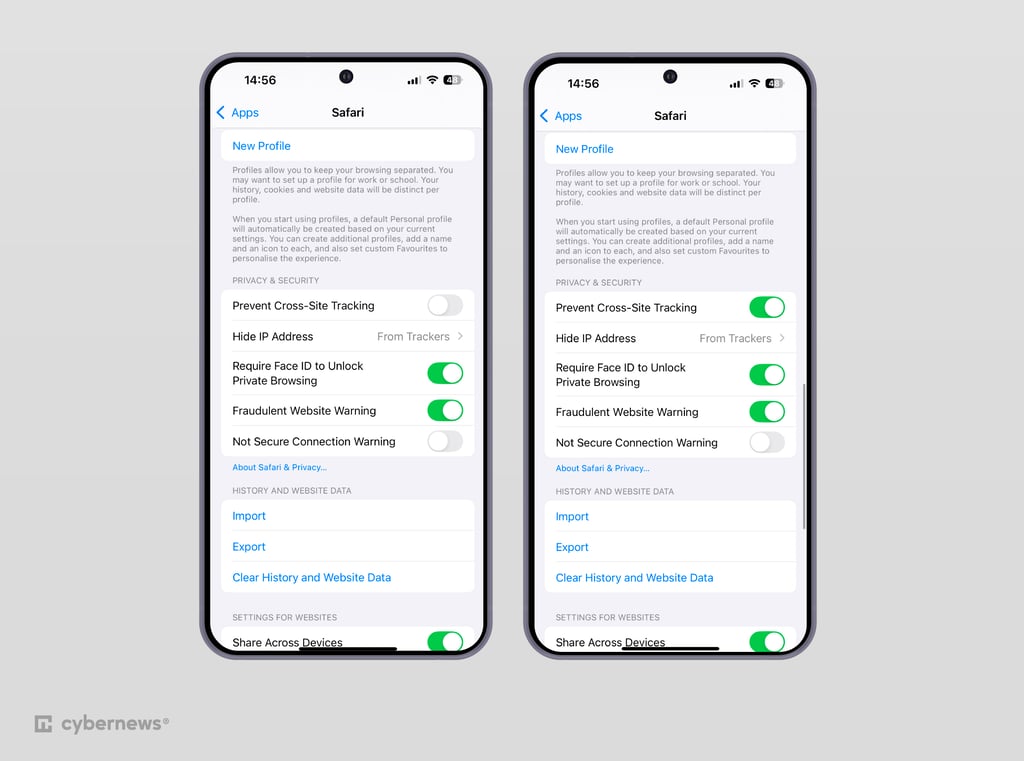
Here are the steps for the Android Chrome browser:
-
Open the Chrome app on your device and tap the three-dot menu icon in the top-right corner
-
Select Settings from the menu and tap on Site settings
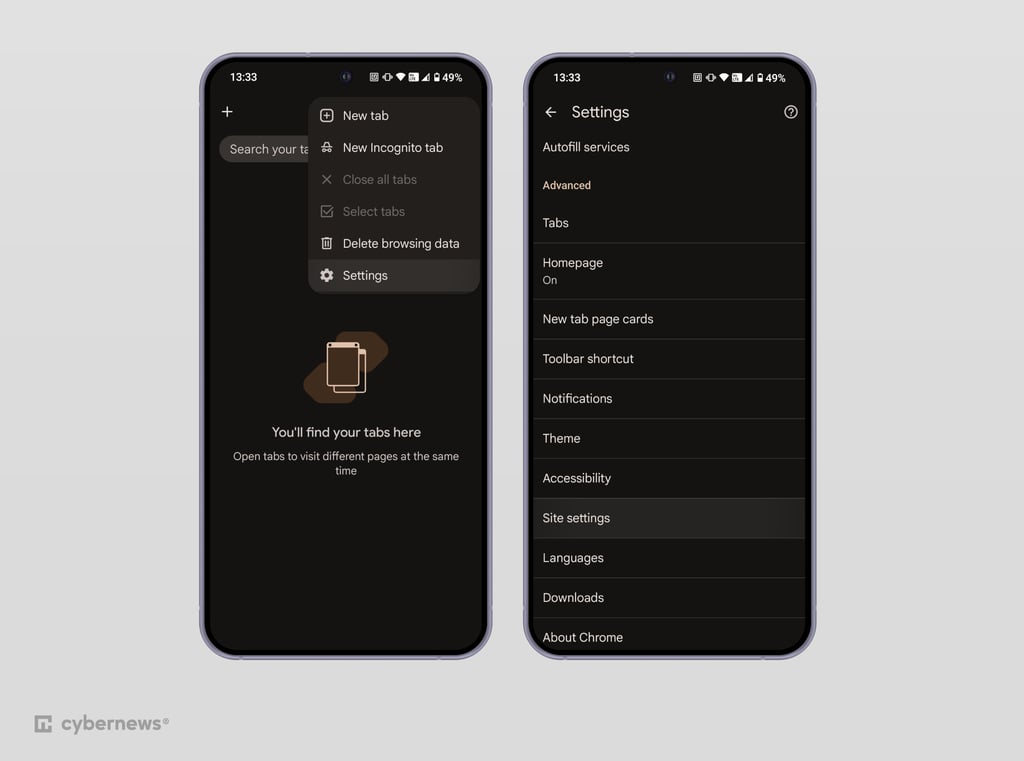
-
Tap on Third-party cookies and select the Block third-party cookies option
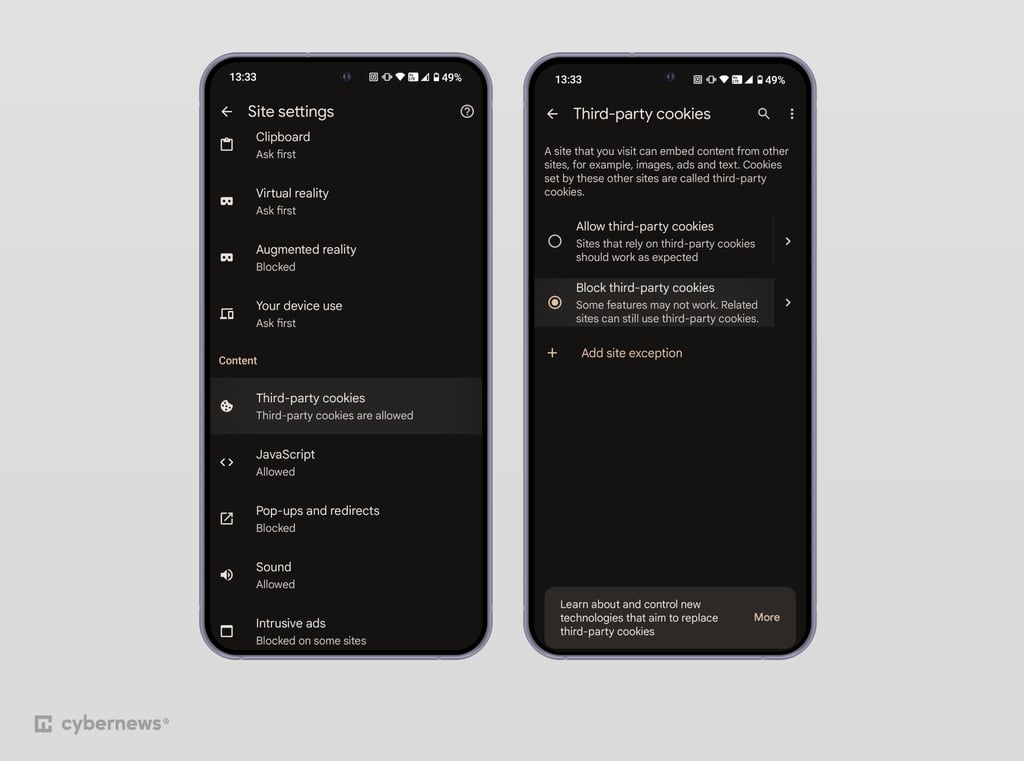
14. Avoid using voice assistants
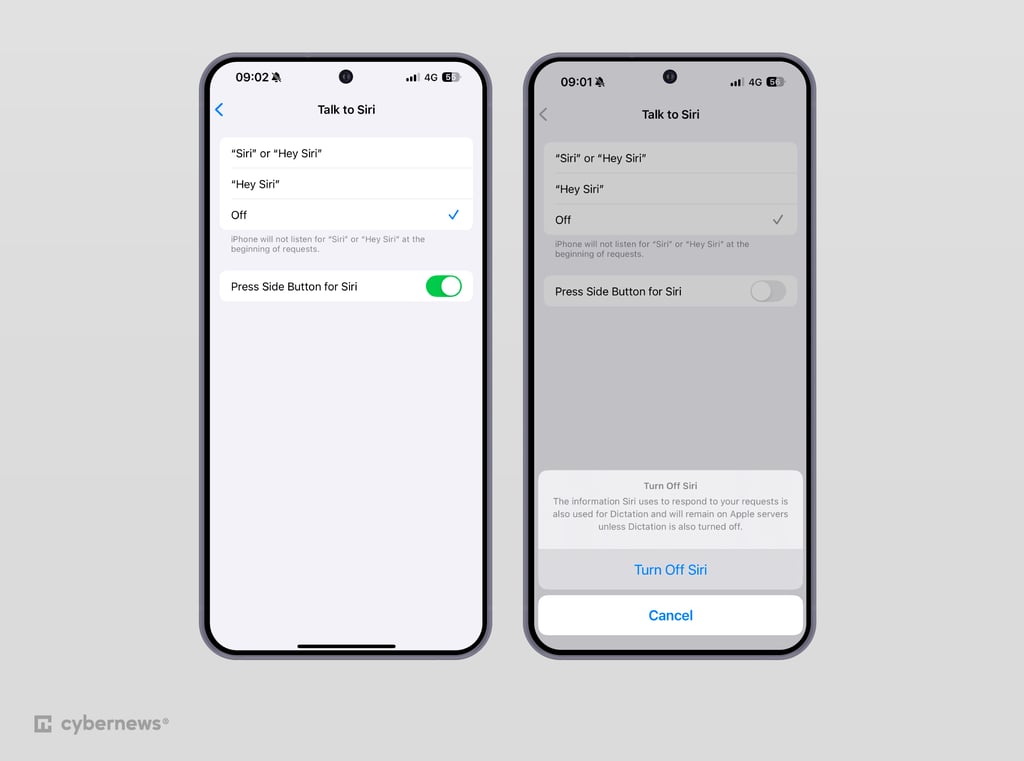
Siri, Google Assistant, and Alexa often run in the background and send data to the cloud, which means they could always be listening to you. In fact, Apple has faced lawsuits over Siri recording private conversations. For better privacy, I recommend turning off voice assistants when you’re not using them.
Here are the steps for iOS:
-
Go to Settings
-
Tap on Apple Intelligence & Siri and select Talk to Siri
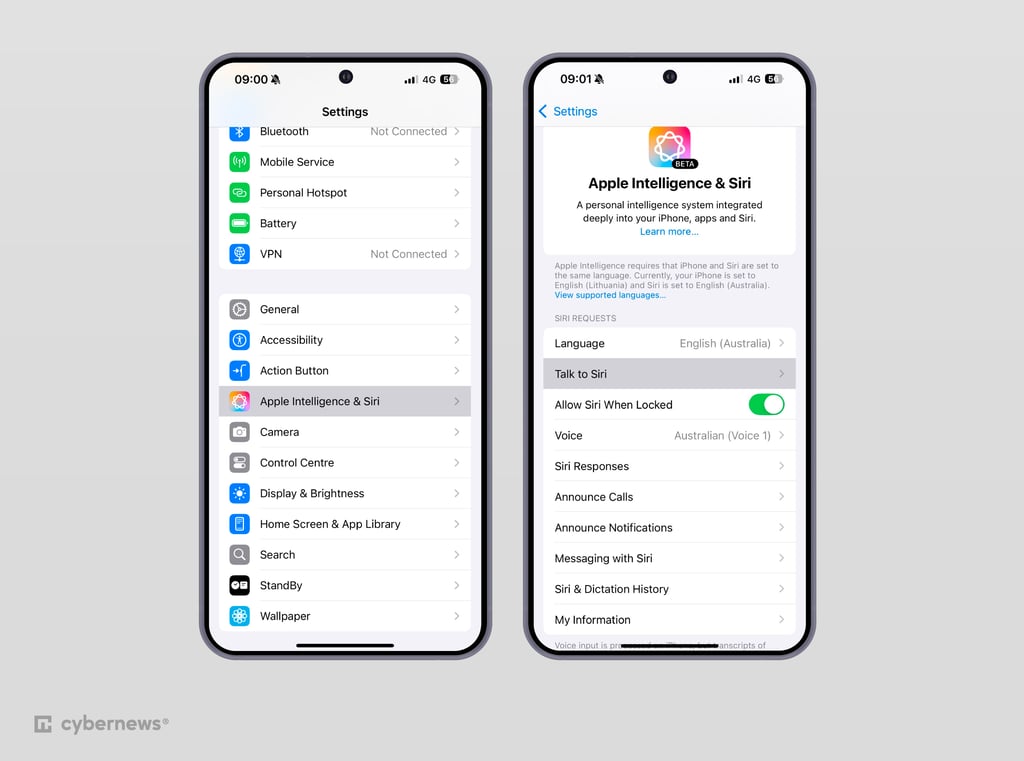
-
To fully disable Siri, toggle off the Press Side Button for Siri option. To disable only the listening option, click on the Off option
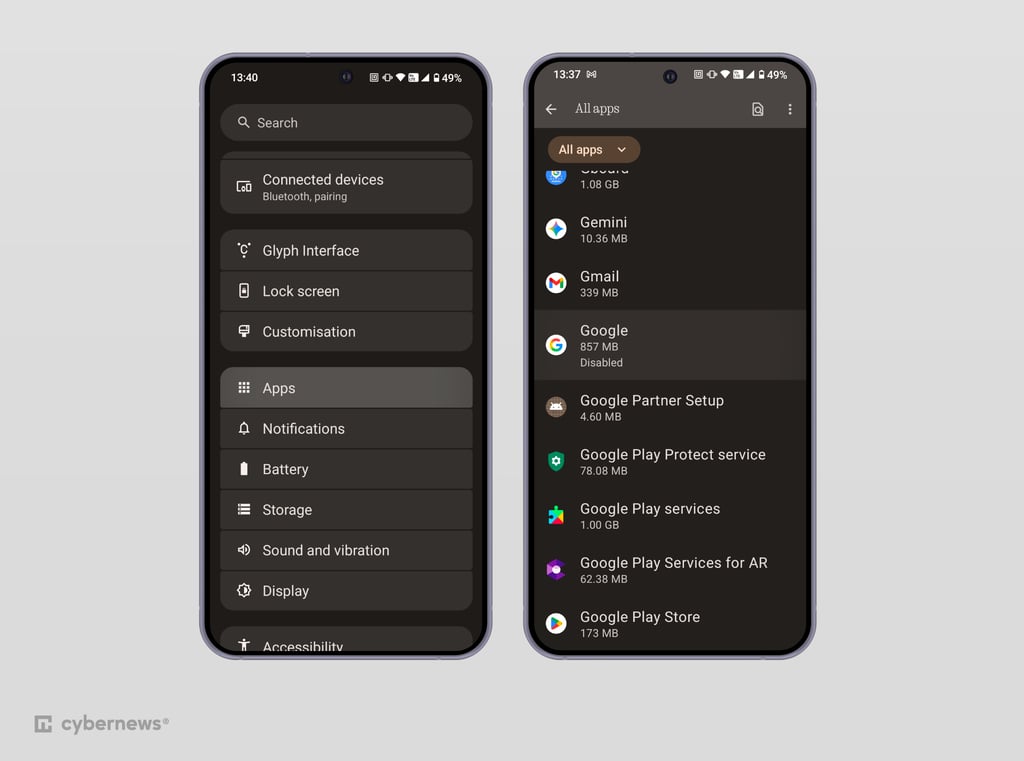
Here are the steps for Android:
-
Go to Settings, click on Apps, and find Google
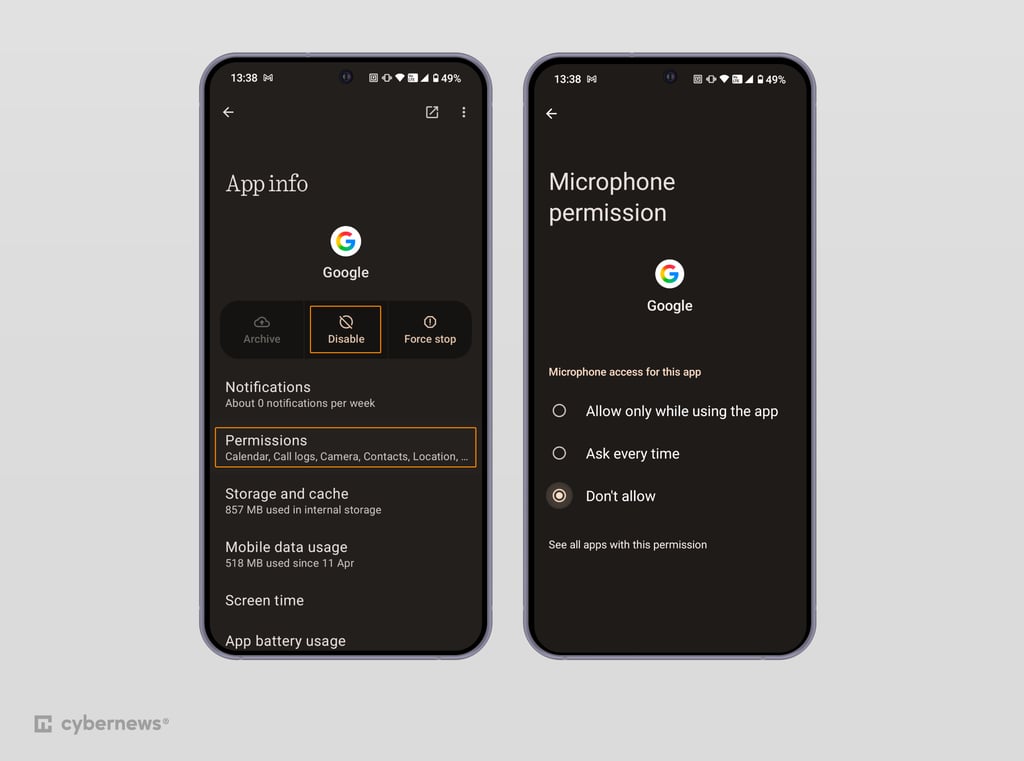
-
Select Permissions, go to Microphone, and click Deny; alternatively, you can disable Google altogether if you plan to use a different browser and search engine
15. Use minimalist, open-source apps
Many mainstream apps collect large amounts of your data and don’t always keep it secure. Whenever possible, consider switching to more privacy-focused alternatives. Below, you’ll find some suggestions for different types of apps you can try.
| App type | Privacy-focused alternative |
| Messaging | Signal, Session |
| Browser | Firefox Focus, Mull, Brave |
| Maps | Organic Maps, Magic Earth |
| ProtonMail, Tuta |
How to find hidden tracking apps on a phone
Typically, spyware and other tracking apps can be installed without users' knowledge when downloading applications from untrustworthy sources. They can also be downloaded when you click on suspicious links that contain malware with installation files.
Thus, to avoid these apps, it's important to only download apps from the App Store or Google Play Store. You should also be wary of any links you click on, even when they’re sent by someone you know.
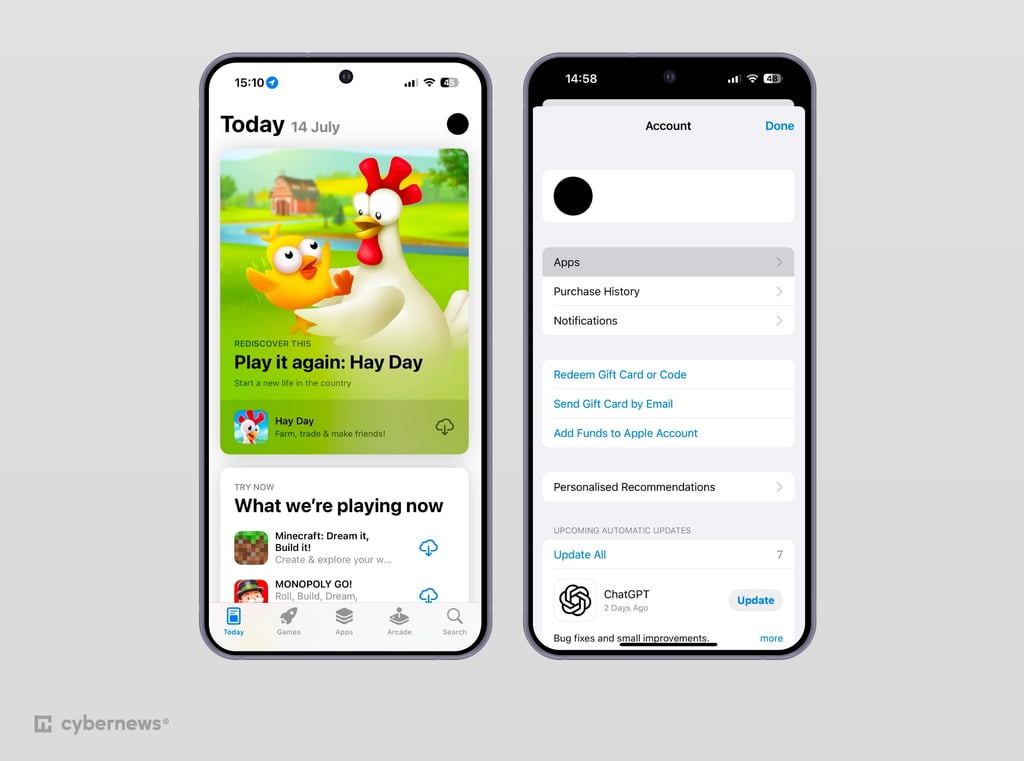
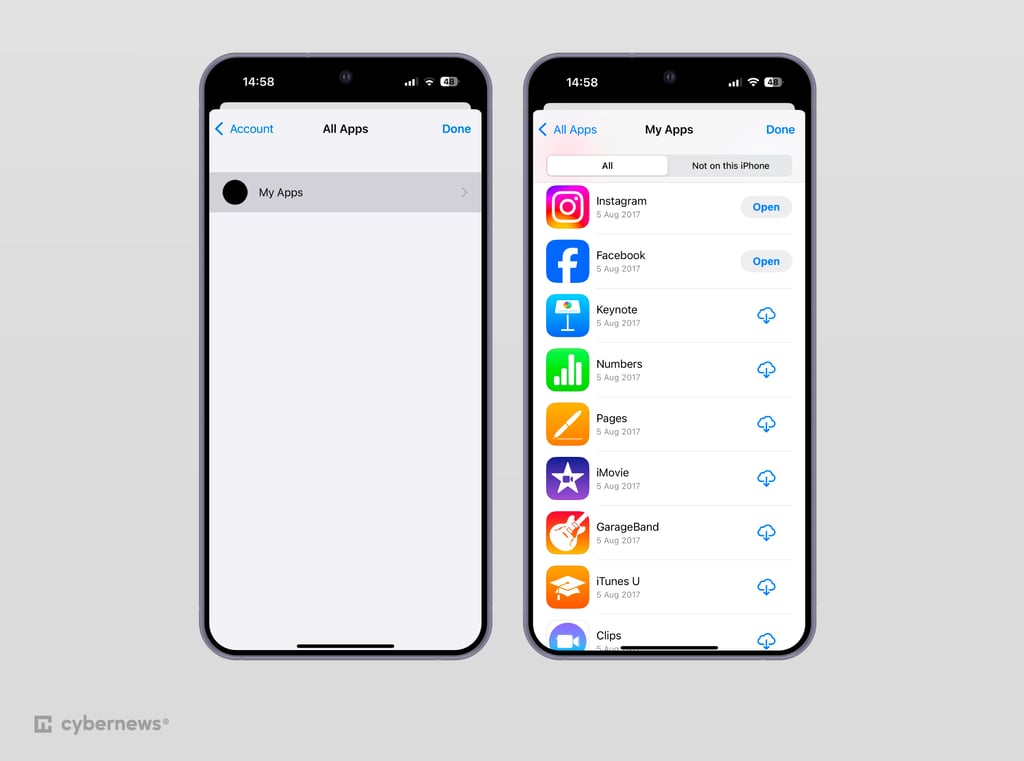
If you suspect that you already have a suspicious hidden app on your iOS, here's what you can do to find it:
-
Open App Store
-
Click on your profile on the top-right part of the screen and select Apps
-
Go to My Apps, and here you'll find the list of all apps you've installed – if anything doesn't look familiar, I suggest deleting it promptly
If you're an Android user, try this:
- Open App Drawer by pressing and holding on the empty spot on your home screen
- Then, click Settings
- In the Hide Apps section, you will find all hidden apps
- If there are any unfamiliar apps, uninstall them immediately
Who can potentially track your phone?
Your phone can be tracked by many different parties, with or without your consent. Advertisers, data brokers, and third-party apps often collect your location through app permissions, then share or sell this data for targeted ads. ISPs and mobile carriers can see your approximate location through network connections. Employers and schools may track devices they issue or manage using specialized management tools.
Tech giants can also track your location data for select features:
- Google. Tracks precise location via Google Maps, Google Assistant, and even location history, using it for navigation and advertising.
- Apple. Collects location data for Siri and uses this information for ads and suggestions.
- Facebook. Uses your location for check-ins, friend suggestions, and targeted ads.
Additionally, family and friends can track you if you’ve enabled location sharing, and malicious hackers may do so through spyware. Regularly reviewing permissions and settings helps protect your privacy.
Conclusion
A sudden fast battery drain or an overheating device can be strong indicators that your phone is being tracked. Unfamiliar apps on your phone or a high data usage bill are other tell-tale signs. Even autocorrect issues or unexpected restarts can indicate that your device is infected with spyware.
Fortunately, you can reduce these risks with a few simple steps. Using a service like NordVPN can help encrypt your internet traffic and protect you with features like ad blocking and malicious site protection. For more comprehensive security, consider installing a reputable antivirus and maintaining good cyber hygiene by regularly checking your device for unusual activity or permissions.
FAQ
How do you know when your phone is being tracked?
An overheating device, spikes in data usage, misbehaving autocorrect, or unfamiliar applications can be good indicators that your phone is being tracked. Paying close attention to any irregularities can help you stop issues early on.
How do I block my iPhone from being tracked?
There are several ways to make your iPhone untrackable. First, you can turn on airplane mode or turn off location tracking. It's also important to avoid using public Wi-Fi and get a VPN to encrypt your traffic. Additionally, you should revise app permissions and don't install any suspicious applications.
What happens if you don't update your phone?
If you don’t update your phone, it becomes more vulnerable to cyberattacks. Updates often come with security patches and bug fixes, which remove backdoors that make your operating system more vulnerable to exploits and malware.
How do you disconnect someone tracking your phone?
To disconnect someone tracking your phone, first enable airplane mode – this will cut all signals and stop anyone from tracking you. You can then remove any suspicious apps and revise all app permissions. That said, it’s best to reset your phone to factory settings and install the latest updates. To avoid being tracked in the future, use strong passwords and install a VPN to encrypt your traffic
Can someone track your phone if your location is off?
Yes, your phone can still be tracked even if location services are disabled. Cellular carriers and network operators can still determine your position through SIM cell-tower triangulation, carrier metadata, IP addresses, and hardware GPS data.While a VPN masks your IP address and encrypts your web traffic, it cannot prevent SIM/carrier cell-tower tracking or device-level GPS logging. Using a VPN, private browsers, and strong passwords helps secure your online activity, but it does not stop hardware- or carrier-level tracking.
Does turning your phone off prevent tracking?
Yes, turning off your phone can prevent tracking. Your phone stops sending signals to cell towers once it’s off, making tracking you via your device difficult. While your ISP still has the data of your last location, it won’t receive any real-time updates on your new location.