How to switch email accounts: swap providers without losing anything
Being behind major reports like The Mother of All Breaches and RockYou2024, our in-house cybersecurity experts and journalists provide unbiased, real-world testing and in-depth analysis.
We maintain complete transparency by openly sharing our testing methodologies with our audience.
Learn more

There are countless reasons to switch emails. Maybe you’re worried about your existing account’s security. Maybe you’re tired of spam. Or perhaps you just want a new address for the job you’re starting soon.
Whatever the case, moving to a new email doesn’t necessarily mean you have to say goodbye to data tied to your old one. Most modern providers offer tools that make switching far easier than it used to be.
In this guide, I’ll show you how to switch email accounts by using Proton Mail as an example. I’ll dive into email forwarding, inbox importing, auto replies, and security features of different providers.
Decide what you want to keep
Before switching emails, consider what you want to preserve. A full switch involves everything listed below, but you can also choose specific parts only:
- Inbox messages. From conversations to important attachments, your inbox holds most of the items you’ll want to save.
- Sent emails. The same goes for outgoing messages that you’ve sent to family, friends, or coworkers.
- Contacts. Your account has an address book of everything you’ve ever interacted with, so you may want to keep it.
- Subscriptions and logins. Since your old email may be tied to dozens of services, you’ll need to determine whether they’re worth saving.
- Calendar. If you store events and appointments in an email calendar, you’ll likely want to keep it as well.
Forward emails or transfer your inbox
Once you’ve figured out what to keep, you can forward only new messages, import your old inbox, or do both:
Set up email forwarding
Automatic message forwarding lets your new account pick up exactly where the old one left off. Enabling it should be a breeze.
In Gmail, navigate to Settings > See all settings > Forwarding and POP/IMAP. Then, tap Add a forwarding address and enter your new email.
The steps for Outlook and Yahoo Mail should be just as simple. However, there could be some labeling differences, so snoop around for “forwarding”.
Import your old emails
Now, what about the old messages? Fortunately, you can keep these as well by importing your existing inbox into your new account.
This process used to involve complicated EML exports from your old email. Nowadays, import assistants like Proton Mail’s Easy Switch make moving inboxes a breeze, regardless of whether you’re coming from Gmail, Outlook, Yahoo, or another provider:
- Head onto Proton Mail and tap the Settings gear icon.
- Click All settings and select Import via Easy Switch on the left-hand side.
- Pick your previous email provider in the One time import section.
-
Select what you want to keep, then hit Start import and sign in.

Proton Mail's Easy Switch wizard for importing data from other providers
Export contacts
If you’d prefer to start fresh with no messages and only your contacts in the new account, you can export these separately. How you do it will depend on your current email provider:
- Gmail. Head to Google contacts > Export and choose between Google CSV, CSV for Outlook, or a vCard file.
- Outlook. Tap File > Open & export > Import/export > Export to a file and pick Comma separated values. Then, choose to export contacts.
- Yahoo Mail. Click the Contacts icon and then tap the three dots to access more contact options. Select the Export to CSV file option.
Import contacts to Proton Mail
Once you’ve got yourself a .CSV or a .VCF file, moving your email contacts into Proton Mail should be easy:
- Launch Proton Mail and click Contacts in the right sidebar.
-
Tap Import contacts at the bottom and select the Import from .CSV or vCard option.
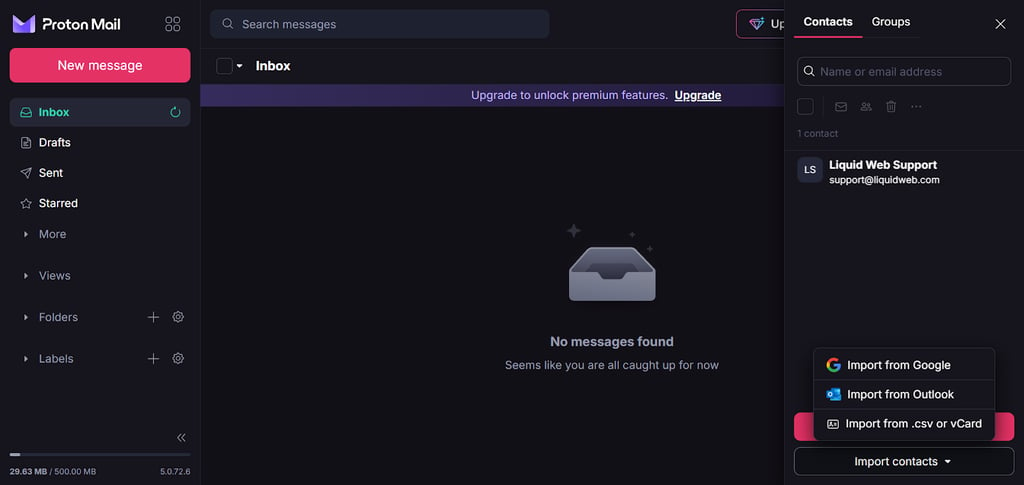
Proton Mail's contact import options - Drag the extracted file to Proton Mail.
Update your logins across services
Most online services, be it Netflix or a bank account, use your email for login and billing. When switching accounts, you’ll also need to update all of the services you intend to keep.
This is crucial, and disregarding this step can lead to loss of access to your most important accounts. Obviously, not all of these services matter to you, but you’ll have to update the essential ones yourself.
A good way to go about it is to look them up by name. You can also combine the names with keywords, or use “login”, “account”, “email change”, “welcome”, “invoice”, or “confirmation” on their own to find the services. Adding filters, such as “has:attachment” or “from:noreply”, may also point you to those that have previously sent you invoices.
Once you’ve got a list of the services you want to keep, you’ll need to access each one and update your login or billing email.
Focus on updating the most important services like banking first. Keep things safe by adding your new Proton Mail address as soon as possible, preferably before you lose access to your old inbox.
Set an auto-reply on your old account
If you’ve had an email account for a while, chances are some contacts will try to reach you at your old address. Even if you’re already forwarding new messages, senders won’t know about the update and might keep emailing the account you’ve replaced.
That’s where auto-replies come in. While they’re generally used during vacation, setting these up is a good idea when transitioning inboxes, too. A brief, clear message is all it takes to let your contacts know you've switched addresses.
Auto-replies are especially handy if you know you won’t have the time to check your inbox regularly. Still, it’s highly recommended that you keep them on for at least 3-6 months. This way, everyone will have a chance to find out about your new email.
Here’s how you can set them up:
-
Gmail. Head to Settings > See all settings > General > Vacation responder at the bottom.

Gmail's AutoReply (Vacation response) functionality - Outlook. Navigate to Settings > Account > Automatic replies and toggle the option on.
- Yahoo Mail. Click Account info in the top-right to access the dropdown menu. Pick Settings, hit the Go button, and click on Vacation response in the left sidebar.
Clean up the old account
While you might have already migrated your inbox, the work isn’t done yet. Practicing good digital hygiene is essential to minimize spam in your new account and mitigate potential security risks. Here’s how:
- Unsubscribe. Newsletters and promotional emails can clutter your new account. You can get rid of them by searching for Unsubscribe in your inbox.
- Export vital data. If you’re planning to close your old account, it would be good to export your inbox to a PC or phone to ensure no important data is left behind.
- Review recovery info. Chances are, your old address has a recovery email, a phone number, or even your new account tied to it due to forwarding. Removing this info is crucial, as it prevents users with malicious intent from gaining access to your new email through linked recovery methods.
Secure your new account
Locking down your new inbox is just as important as properly shutting down the old one. Here are some tips that can help you out:
- Pick a unique password. Never reuse old email passwords. Come up with a new one that’s at least 12 characters long. Bonus points if it’s a mix of letters, numbers, and symbols. A reliable password manager like Proton Pass can also help out with logins.
-
Enable 2FA. Locate the 2FA setting in Proton Mail and turn it on to add another layer of security to your new account. This involves using time-based one-time passwords or QR codes from an authenticator app such as Proton Authenticator.

Setting up Proton Mail's two-factor authentication (2FA) - Configure a recovery email. A secondary address is a must-have in case you need to reset passwords or regain account access.
- Look out for suspicious activity. While Proton Mail automatically cuts sessions after 60 days of inactivity, you can also actively keep an eye on them through Proton’s activity monitor.
Security features of top email providers
Speaking of security, there are certain features that make Proton Mail a top choice for privacy-focused individuals. These are the most important ones:
- End-to-end encryption (E2EE). Unlike Gmail, which only secures emails in transit, Proton offers complete communication encryption.
- No third-party trackers. Google frequently scans your messages and attachments to personalize ads. Proton, on the other hand, never uses your data.
- Zero-access architecture. With Proton Mail’s zero-access architecture, no one but you can access your inbox.
- Swiss servers. Proton’s servers are based in Switzerland, which has robust privacy laws that also protect you as the user.
Now, let’s take a peek at how Proton Mail stacks up against other major email providers:
| Provider | Proton Mail | Gmail | Outlook | Yahoo Mail |
| Free plan | ✅ Yes | ✅ Yes | ✅ Yes | ✅ Yes |
| Spam protection | ✅ Yes | ✅ Yes | ✅ Yes | ✅ Yes |
| Tracker protection | ✅ Yes | ❌ No | ❌ No | ❌ No |
| End-to-end encryption | ✅ Yes | ❌ No | ❌ No | ❌ No |
| Open-source code | ✅ Yes | ❌ No | ❌ No | ❌ No |
| 2FA support | ✅ Yes | ✅ Yes | ✅ Yes | ✅ Yes |
| Custom domains | ✅ Yes (paid) | ✅ Yes (Google Workspace) | ✅ Yes (Microsoft 365) | ❌ No |
| Ads | ❌ No | ✅ Yes | ✅ Yes | ✅ Yes |
| Data used for ads | ❌ No | ✅ Yes | ❌ No | ✅ Yes |
FAQ
Will I lose data if I switch email accounts?
No, you can keep messages and contacts, as well as calendar events. Email providers have migration wizards that can help with this, but you can also export the data the old-fashioned way.
Should I notify people if I’m switching emails?
Yes, you should. While auto-replies can handle it, manually updating your key contacts about the switch is recommended.
How long should I keep my old email active?
It depends on the type of email. For work accounts with a lot of contacts, you should keep the old one active for at least a few months. But if it’s a personal email or if you don’t care about your address book, you can shut it down right after the switch.
What’s the best email provider for anonymity?
If you’re all about privacy, Proton Mail is the way to go. The zero-access service comes with E2EE and tracker protection, and it doesn’t use your data for ad improvements.
Can I transfer multiple inboxes to my new email?
Yes, you can, as Proton Mail lets you migrate several inboxes into one. You can even transfer data from up to two different email accounts at the same time.