How to remove malware from your Chromebook


Does your Chromebook keep crashing, or is the browser and the device lagging more than usually? If such situations sound familiar, your Chromebook might be infected with malware.
Malware on your Chromebook can have serious consequences, including compromised personal information, financial losses, and a painfully slow device. If you suspect your Chromebook is infected, it’s important to take immediate action.
In this article, I will guide you on how to check if Chromebook is infected and provide you with the easiest solution on how to remove malware from Chromebook – a reliable antivirus software. I also cover essential steps you should take to secure your Chromebook from other threats.

Symptoms of malware on your Chromebook
While ChromeOS is known for its robust security features, it is important to note that no operating system is entirely immune to malware. Chromebooks can still be susceptible to infection through fake browser extensions, phishing attacks, or malicious websites. Despite its strong security foundations, here’s a list of symptoms that indicate malware on your Chromebook:
- Slow performance. If your Chromebook suddenly becomes noticeably slower, takes longer to start up, or experiences delays when launching apps or browsing the web, it could indicate malware.
- Frequent crashes or errors. If your Chromebook frequently crashes, freezes, or displays error messages, it could be due to malware interfering with system processes or applications.
- Persistent pop-up ads. When you encounter an excessive number of pop-up ads, even while browsing legit websites, it may be a sign of adware or potentially unwanted programs (PUPs) installed on your Chromebook.
- Unauthorized browser extensions. Malicious extensions can silently install themselves on your Chromebook. It leads to unwanted behavior such as search redirects, injected ads, or unauthorized tracking of your online activities.
- Browser setting alterations. If your Chromebook's browser settings, such as the default search engine or homepage, suddenly change without your consent and you're unable to revert them, it could indicate malicious activity.
- Unusual network activity. Pay attention to any abnormal network usage, such as a significant increase in data consumption or unusual outgoing connections from your Chromebook, as these could be signs of malware activity.
How to get rid of Chromebook malware
If you experience symptoms of malware on your Chromebook, you need to restore its health before it does any more harm. Getting rid of malware on your Chromebook is really easy – you can find step-by-step guides on how to do it below.
Step 1: restart your Chromebook
Chromebooks are generally very secure, because they have a built-in security feature called Verified Boot. This feature automatically checks your device for malware and other threats during the startup process. Restarting your Chromebook should be the first step when trying to remove potential malware on your device.
Step 2: install antivirus software and run a malware scan
The first step is to take the antivirus software for a spin and perform a full system scan. If your Chromebook device performs slowly, crashes, or you see more pop-up ads than usual, a scan helps detect and remove viruses from your Chromebook. Here’s how you do it:
- Choose a reliable antivirus for Chromebook and download it – I recommend TotalAV, now 80% OFF
- Install the antivirus program on your Chromebook device
-
Select to run a full system scan

- After the scan is finished, follow further instructions provided by the antivirus application.
Step 3: remove suspicious extensions from your browser
Malicious extensions can harm your device with unwanted ads, annoying pop-ups, or even an unauthorized tracking of your activity. Whether you prefer Chrome or Firefox, I've got you covered with comprehensive instructions to address your specific needs.
Google Chrome
-
Open the Google Chrome browser, click on the three dots on the right, select Extensions, and then click Manage Extensions

-
If you find a recently installed suspicious extension, click Remove

Mozilla Firefox
If you have installed Mozilla Firefox directly from its website, you may follow these steps:
-
Open Mozilla Firefox browser, click on the menu icon on the top right, and select Add-ons and themes

-
Select Extensions, look for recently added suspicious-looking extensions, click on the three horizontal dots, and Remove

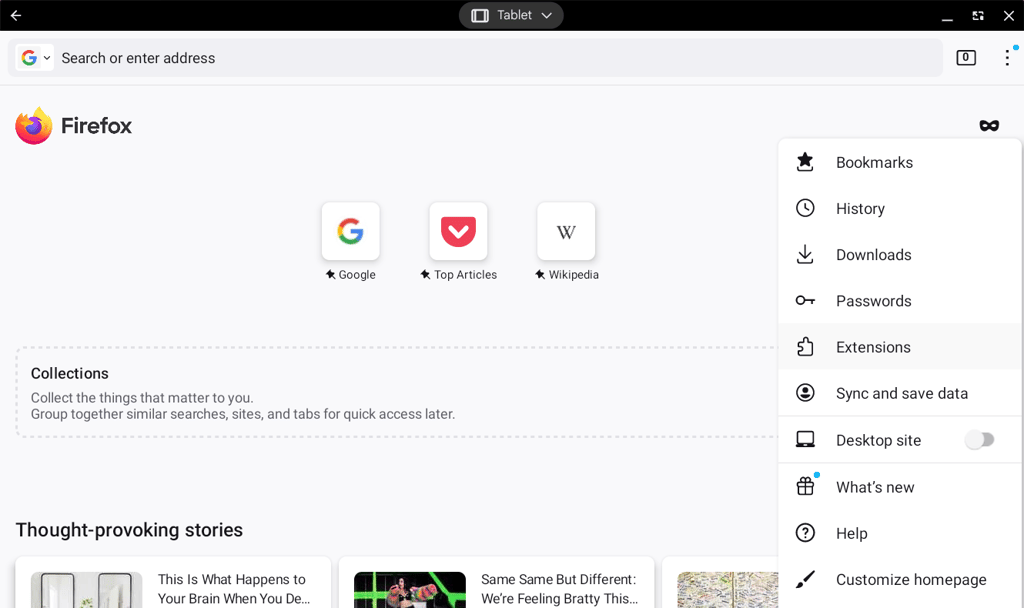
If you have downloaded Firefox from the Google Play Store, you should follow these steps:
-
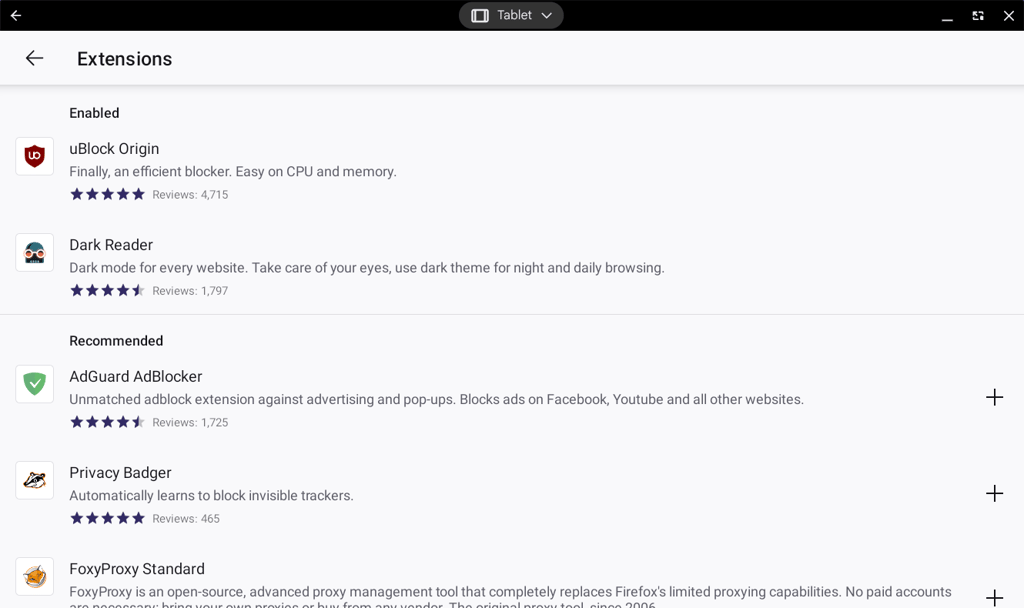
Click on the three dots on the top right side and choose Extensions
-
Look for suspicious extensions you never installed and click on them, then choose Remove
Step 4: reset browser settings
Some viruses can lie within your browser. Therefore, resetting of your browser settings returns your browser to its primary state without any malicious modifications. Below you can find detailed guides on how to do it for Google Chrome and Mozilla Firefox.
Google Chrome
- Click on the three dots in the upper right corner of the Chrome browser
-
Select Settings
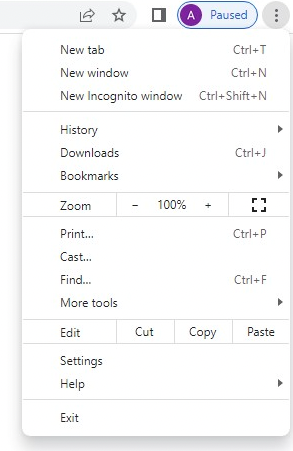
- Click on Reset settings
-
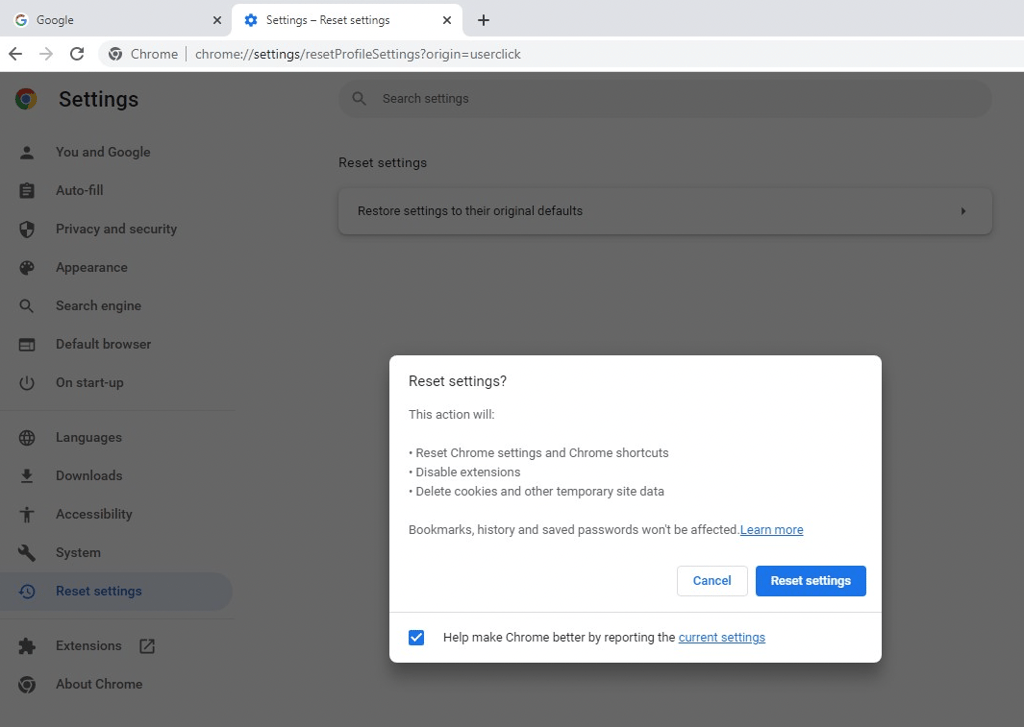
Select Restore settings to their original defaults

-
Confirm by clicking on Reset settings
Mozilla Firefox
If Mozilla Firefox was downloaded from the Google Play Store, you can reset it by simply uninstalling and reinstalling it. If you downloaded the application directly from the Mozilla Firefox website, follow these steps to reset it:
-
Click on three horizontal lines in the upper right corner of your browser and select Help

- Select More troubleshooting information
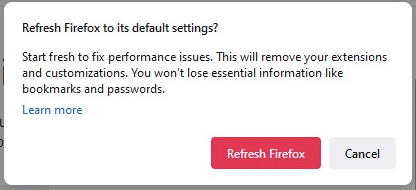
- Click on Refresh Firefox
-
Confirm by clicking on Refresh Firefox again
Step 5: factory reset your Chromebook
If everything else fails, resetting your Chromebook should be your last resort. However, it is an effective method to remove any potential harmful software, programs, or files by completely rebooting your device and removing all traces of malware.
Prior to performing a factory reset on your Chromebook, it is crucial to ensure that you have backed up all important files and media, as they can't be recovered afterwards. If you're ready, here are the steps to factory reset your Chromebook:
- Sign out of your Chromebook
- Press and hold at the same time: Ctrl + Alt + Shift + r
- Now select the Powerwash section and press Continue
- Follow further instructions and sign in with your Google Account
How to scan for malware on a Chromebook
While there’s no scanner that can run a manual scan on Chromebook, antivirus will cover that:
- Choose a reliable antivirus software and purchase a subscription – my top recommendation is TotalAV, now 80% OFF
- Download and install the antivirus program on your Chromebook device
- Select to run a full system scan
- When the scan is finished, follow the further instructions provided by the antivirus application
Ways to keep your device safe from malware
The good news is that you have the power to keep your device healthy and protected from malware by following these straightforward steps:
- Use reputable antivirus software. Installing a trustworthy antivirus software on your Chromebook will protect your device from malware that may compromise your personal and digital security.
- Keep your Chromebook up to date. Regularly install updates for the ChromeOS and your apps. Updates often include security patches that address known vulnerabilities.
- Install apps from trusted sources. Stick to the official Chrome Web Store when installing applications. Google reviews the apps available in the store to minimize the risk of malware.
- Be cautious with downloads. Avoid downloading files from unfamiliar or untrusted websites.
- Use strong and unique passwords. Use different and extra secure passwords. You can also consider a reliable password manager which creates unbreakable passwords and stores them in a secure vault.
- Enable 2FA. This helps prevent unauthorized access, even if your password is compromised.
Conclusion
While Chromebooks are generally known for their strong security features, it's important to be aware of the signs and symptoms of malware, and take proactive measures to protect your device.
You can do it by removing malware from your browser or simply using a reliable antivirus software like TotalAV. These solutions will ensure your device's security in the long run.
Once you learn how to distinguish and remove malware from your Chromebook, it’s still crucial to exercise caution when browsing the web. Avoid visiting suspicious websites, clicking on unfamiliar pop-ups, and installing unknown or unofficial programs.
Overall, you can effectively safeguard your Chromebook from malware by combining reputable antivirus software with vigilant online hygiene.
FAQ
Can a Chromebook get a virus?
Yes, Chromebooks can get viruses and other forms of malware, although the chances are relatively low due to its strong security. To keep your Chromebook free from malware, practice safe browsing habits, install apps from trusted sources, and get reliable antivirus software, such as TotalAV.
How do I know my Chromebook is safe?
You can make sure your Chromebook is safe from malware through having an extra layer of protection from trustworthy antivirus software, like TotalAV. In addition, you should keep your Chromebook up to date, install apps from reputable sources, and use a password manager for unbreakable password security.
Do you need malware protection on a Chromebook?
Yes, you need malware protection on a Chromebook. While Chromebooks are less prone to malware than other platforms, it’s still possible to encounter malicious software or engage in unsafe online behavior. For an extra layer of protection, we recommend using a reputable antivirus software like TotalAV.