Geek Squad scam in 2026: how to spot and remove it


Geek Squad is a well-known provider of tech support services, and scammers frequently exploit its trusted reputation to impersonate the official team and trick people into sharing sensitive personal and financial information.
If you've received an email or message claiming to come from Geek Squad, treat it with caution. It could be part of a scam designed to look like legitimate communication from Best Buy’s tech team. These fake emails have been circling around for a decade, but they still trap unsuspecting victims who fall for the bogus auto-renewal charges and get tricked into sharing sensitive information.
This article aims to explain how the Geek Squad email scam works. I’ll highlight the common warning signs, how to remain cautious if you receive phishing emails, and how to remove any threats if you suspect your device has been compromised. I will also go over the steps to take if you've been targeted and how reliable antivirus software can help protect you from similar scams in the future.

What is the Geek Squad email scam?
The Geek Squad email scam is a phishing scheme in which cybercriminals impersonate Geek Squad employees – the tech support for the electronics retailer Best Buy. The scammers send out official-looking emails, masquerading as the genuine brand.
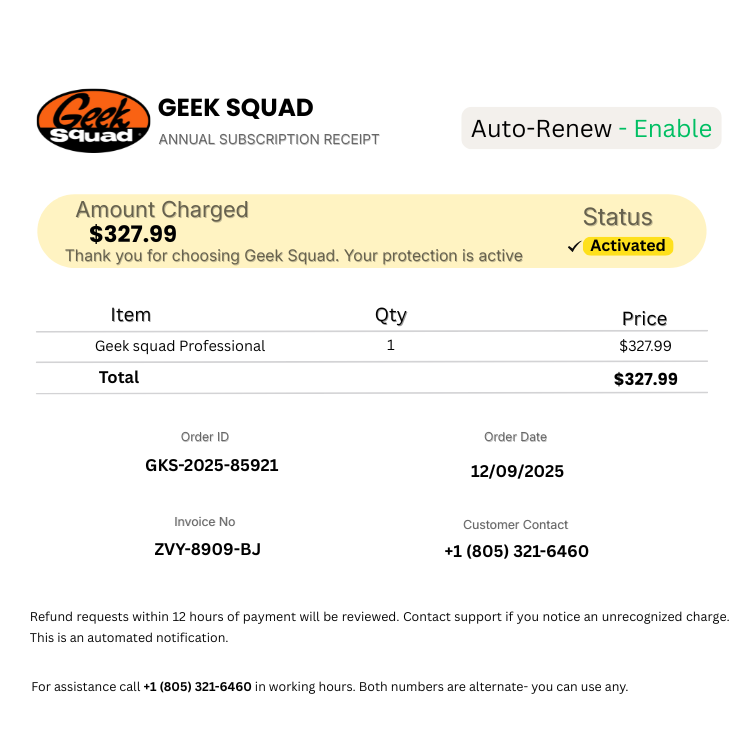
Here’s a quick rundown of the most common Geek Squad scam mechanism:
- You receive a fake service renewal invoice email
- The email claims you have a pending charge of around $400–$700
- You're urged to call a support number to request a refund
- The scammer poses as a Geek Squad support agent and asks you to install AnyDesk or TeamViewer apps to, allegedly, resolve the issue quicker
- The scammer accesses your computer to steal information and/or display fake refund screens
- The scammer stages a mistake in the fake refund – this is meant to trick the victim into thinking that a much larger refund was made to their account
- The victim is pressured to return the difference
Note: The Geek Squad refund or subscription renewal scam doesn’t rely on the customer clicking on a malicious link, like many similar phishing scams. Instead, it relies on fake urgency to push the potential victim into contacting scammers and giving up their money and/or personal information.
Geek Squad scam sends an email: What happens next?
Because Geek Squad is heavily associated with technical support and digital expertise, there are numerous phishing scams using its name, varying in technical sophistication.
The fraudulent emails aim to replicate the legitimate Geek Squad formatting, so you might find logos or even some of the official information, like ToS, attached to it. The main goal is to convince the user that they signed up for a high-cost premium service.
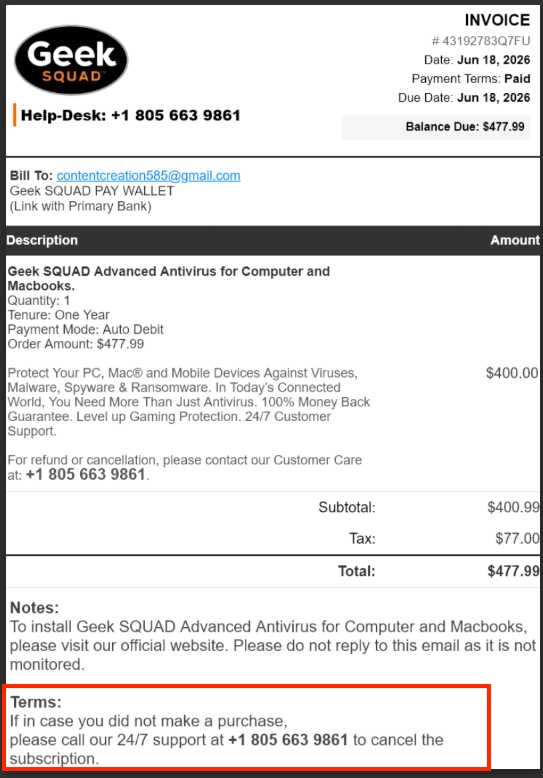
The scammers always provide a phone number you can call, stating it will connect you with the customer service. Instead, the call goes to the scammers and they ask you to install a remote access app, which they can use to get your money. Depending on the scammers involved, you may be tricked into transferring money yourself, or you may be tricked into disclosing personal information that scammers can then use for monetary gain later on.
Another type of Geek Squad scam uses the threat of malware. Users might receive an email with a fake Geek Squad warning about a malware infection. These emails encourage users to download infected files or click on malicious links under the pretense of protecting their devices. Here’s an example of the fake Geek Squad malware warning:
"We've recently seen an increase in malware and virus infections with our customers. To help keep you and your devices safe, we're offering our Geek Squad customers access to free antivirus software. To download your copy, click this link."
The Geek Squad scam can also appear like a failed password change request. Users are prompted to click on a fake link that leads to a scammer’s website. And while the site itself may look like an official Best Buy page, any information entered becomes accessible to the scammers. This scam is essentially designed to steal your data and credentials.
"We've detected suspicious activity on your account. We recommend resetting your password to avoid any issues. Click the link to reset your password now."
What to do if you receive a Geek Squad scam email
If you’ve encountered a Geek Squad phishing email, you should report it to your email provider first. You can do this by finding a Report spam or Report phishing (or similar) button in the options of the received email. This way, the email service provider will be able to filter such emails for you and other users in the future.
You can also contact the genuine Geek Squad customer service (through contacts found on the official website) and notify them of a phishing attempt. They can take action in notifying other users about Geek Squad scams to prevent them from falling prey to this fraud.
You can take one additional step and forward the scam email to the Anti-Phishing Working Group at [email protected], too.
To prevent further phishing emails, you should maintain good digital hygiene. If you receive a suspicious email, don’t just trust it blindly and evaluate the legitimacy of the email.
While it’s likely impossible to stop the scam emails outright, you can take steps to minimize your exposure. It’s also a good idea to check your device for any unauthorized apps, just to be safe. You can easily do that with a reliable antivirus app, like Bitdefender.
A good way to stay off the scammers’ radar is to avoid interacting with scam emails entirely. If you find an email suspicious, you shouldn’t reply to it, as it only confirms that your email address is active, making it more attractive to the fraudsters.
Use antivirus software to remove malicious apps
If you want to be extra cautious, you can utilize anti-malware apps to serve as a barrier between you and the scammers. In many cases, you can employ antivirus software to automatically block or quarantine malicious Geek Squad attachments from emails by using solid antivirus software. A trusted antivirus app will also protect your device from unauthorized installation of unwanted apps. Follow these easy steps:
- Choose trustworthy antivirus software and purchase a subscription – I recommend Bitdefender
- Download and install antivirus software on your device
- Run a full system scan
- Follow on-screen instructions to deal with any discovered threats
Trusted antivirus software, like Bitdefender, can help you block phishing emails before they cause any harm. Here’s a short summary of the features a good antivirus app can bring to the table:
- Anti-phishing protection. If you click on a link you receive in an email, an antivirus can often check it against a list of known phishing sites. If it registers the site as malicious, your access to it will be cut off, and you will receive a warning.
- Web protection. Antivirus software can scan websites you visit for malicious content. It protects you from fake login pages and scam sites that are designed to enable scammers to steal your personal details.
- Malicious attachment detection. If a phishing email contains an infected attachment, an antivirus’ real-time protection can detect and quarantine the infected file before it runs on your device.
- Real-time malware protection. Should a phishing attack attempt to install ransomware, spyware, or other malware, an app like Bitdefender continuously monitors files and processes to detect and block malicious activity.
- Scam detection features. Many premium antivirus providers include tools to identify common online scams. This includes phishing messages and fraudulent websites, and the system warns you before you interact with them.
Manual removal on Windows
If you suspect that the initial prevention failed, you can check your system for unauthorized apps. Below, I’ve listed some methods on how to remove an app that may have been installed on Windows devices via the Geek Squad scam. Follow these steps.
Step 1: Remove suspicious applications
-
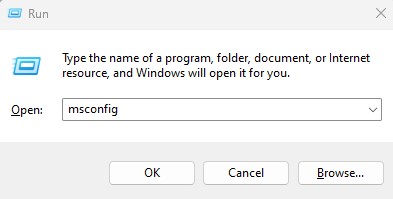
To boot your computer into safe mode, first press and hold the Windows + R keys and then type msconfig into the Run box
-
In the newly opened System Configuration window, choose the Boot tab, select the Safe Boot option, and confirm by clicking Apply and then OK.

- You will be prompted to restart your computer in Safe mode – confirm by clicking Restart
- Now right-click the Start menu icon and open Settings
-
On the left side, click Apps and then Installed apps

-
In the list of applications, look for anything suspicious that you don’t remember downloading (if you are not sure, you can always use Google to find more info about the installed software)

- If you find a malicious app, click the three dots (...) on the right and select Uninstall
Step 2: Remove any registries related to the Geek Squad scam
You can also remove any registries created by Geek Squad. Most frequently targeted areas are these:
- HKEY_LOCAL_MACHINE\Software\Microsoft\Windows\CurrentVersion\Run
- HKEY_CURRENT_USER\Software\Microsoft\Windows\CurrentVersion\Run
- HKEY_LOCAL_MACHINE\Software\Microsoft\Windows\CurrentVersion\RunOnce
- HKEY_CURRENT_USER\Software\Microsoft\Windows\CurrentVersion\RunOnce
- Tap Windows + R keys to open the Run window
-
Type regedit and click OK

-
You can navigate in the opened Registry Editor window and find the directories mentioned above (Run and OnceRun)

- Find a suspicious value and remove it by right-clicking on it and selecting Delete
Manual app removal on macOS
Similarly to Windows, you can remove potentially unwanted programs associated with the Best Buy Geek Squad scam on macOS, too. Removal can be done in several ways, listed below.
Remove unwanted applications
-
On the Apple sidebar, click on Go, and select Applications

-
Find a suspicious program and drag it to the Bin

- On the Apple sidebar, click on Finder and then Empty Bin
If you cannot remove unwanted apps, try removing other components
- Click Go on the Mac’s Finder toolbar and select Go To Folder
- Type /Library/LaunchAgents in the search bar and click on Go button
- Look through the open folder for suspicious files that can be related to Geek Squad and move them to Bin
- Repeat Steps 1-3 with these folders too:
- ~/Library/Application Support
- ~/Library/LaunchAgents
- /Library/LaunchDaemons
Remove malicious browser extensions
A third way to get rid of potentially unwanted elements from the Geek Squad scam is to remove malicious extensions directly in your browser. The process will depend on your browser. Follow the steps listed below.
-
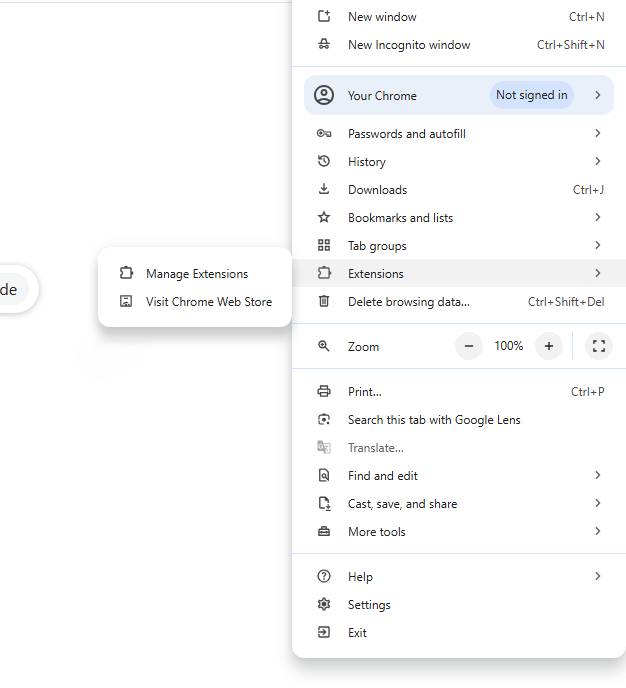
Open the Google Chrome browser, click on the three dots on the right side, select Extensions, and click Manage extensions
-
If you find a recently installed suspicious extension, click Remove

-
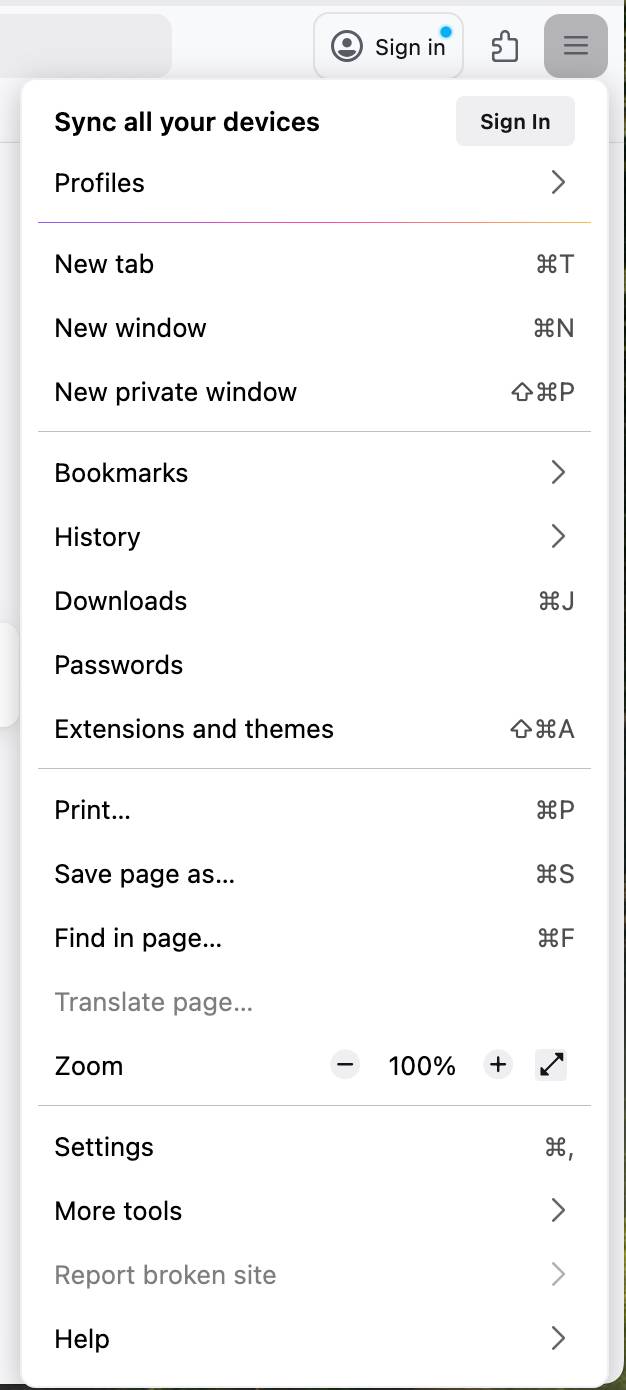
Open the Mozilla Firefox browser, click on the menu icon on the top right, and select Extensions and themes
-
Select Extensions, look for recently added suspicious extensions, click on three horizontal dots, and select Remove

-
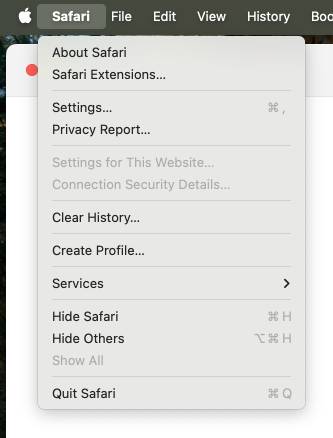
Open Safari Browser and select Safari in the top left corner, then click Safari Extensions
-
Go to the Extensions section and look for suspicious, recently added extensions. If you find any, click Uninstall

Conclusion
Geek Squad phishing scams continue to evolve, but they all rely on the same tactic: convincing you to act before you have time to verify the message. Whether it's a fake subscription renewal, refund request, or malware warning, the safest approach is to avoid clicking on links, downloading attachments, or calling phone numbers provided in unsolicited emails.
If you've already interacted with a suspicious Geek Squad email, scan your device with a trusted antivirus, remove any unauthorized software, change any compromised passwords, and monitor your financial accounts for unusual activity. A trusted provider like Bitdefender can offer an important layer of protection by blocking known phishing websites and monitoring for malware in real time. Ultimately, the best protection is a combination of good security software and digital hygiene.
More scam removal guides from Cybernews:
Remove the Amazon Loyalty Program pop-up scam: protect your device effectively
Remove Windows Defender security warning scam: simple guide with screenshots
Remove the Apple Security Alert scam: protect your Apple devices
FAQ
Is Geek Squad a scam?
Geek Squad is a legitimate company. It’s a subsidiary of a consumer electronics company owned by Best Buy. Unfortunately, there are scammers who use this company’s name and reputation to send phishing emails and trick users into giving out their personal information. We encourage getting a reliable antivirus suite, such as Bitdefender, to ensure all-around protection
What happens if I accidentally open a spam email?
It’s unlikely you’ll get malware only by opening a spam email. Most threats, like trojans and worms, activate when you click on the links or attachments in the scam email. The only thing attackers can find out is that the email was opened.
How to recognize a fake Geek Squad renewal scam?
You can identify Geek Squad scams by looking through the contents of the email. You receive a warning about the auto-renewal of the Best Buy subscription and a potential loss of a large amount of money and are urged to cancel it by providing your personal data, like credit card details and SSN. If the email is full of typos, comes from an unknown sender, or contains random links and attachments, it’s most definitely a scam.