How to remove Apple security alert scam from your iOS


Apple security alert pop-ups appearing on your screen are most likely fake. Apple communicates official security notifications only through your Apple ID account or email, never via on-screen pop-ups or scare tactics in Safari or other apps. These deceptive alerts are designed to trick users into revealing personal information, paying for bogus services, or installing harmful software.
In this guide, I explain how the Apple security alert scam works, how it gets on your device, and effective steps to remove it. Additionally, I cover trusted security tools that have been tested for protecting your iPhone, MacBook, or iPad from future threats. Read on to learn how to remove Apple security alert scam from your iOS devices and secure them with proven methods.

What is Apple security alert scam?
Apple security alert scam refers to a fake pop-up message that states your iOS device was hacked and your personal information is at risk. Users can get this alert by visiting a suspicious website or get redirected if they have a potentially unwanted program (PUP) installed on their Mac or iPhone device.

It may look like an official Apple security alert, but it's actually fake. It's designed to scare you into giving away your personal and financial information that threat actors would later use for financial gain. It’s important to note that these messages are fake – no one hacked into your device, and your data is not at risk.
| Name | Apple security alert scam |
|---|---|
| Threat type | Scareware |
| Targeted devices | All Apple devices: Macs, iPhones, iPads |
| Symptoms | You get redirected to suspicious websites, annoying pop-ups with fake warning messages |
| Damage | Annoying unwanted ads, redirecting to shady websites, potential browsing tracking, possible loss of personal and financial information, and financial loss |
If you still want to verify whether an Apple threat notification is real, sign into your Apple ID account and check if Apple has sent a notification. If you cannot find a threat notification at the top of the page, it’s most likely that you have faced a fake warning. You can also contact Apple's customer support for more help.
Is that Apple alert real or fake?
Many think that Apple devices can't be infected with malware. Unfortunately, that's a myth. While MacBooks are less popular than Windows computers, they're still susceptible to malware. In fact, there are many cyberthreats, like adware, that could have invaded your iPhone or MacBook device. Regardless of whether the Apple security alert scam is associated with malware or an unreliable website, there are plenty of signs you should look for to confirm whether that Apple alert is real or fake:
- Fake emails or messages. Scammers often send fraudulent emails or messages claiming that Apple has detected a virus or security issue on your device. These messages typically use urgency and scare tactics to make you click a link or download an attachment. This is an attempt to steal your private information or to trick you into downloading malicious software. Receiving such a message doesn't necessarily mean your device is infected – it could simply be spam that wasn’t filtered out.
- Redirects to untrusted websites. Once a PUP enters your system, you may notice an increase in random redirects to various less-than-reliable sites. They often promote other suspicious products or ask you to enter your credentials to win a prize. Your browser’s home page or search engine could be also hijacked to manipulate your searches.
- Unsolicited ads. Another sign of a potential infection is an enormous increase in intrusive ads that appear while you browse. They might not only deteriorate your browsing experience but also trigger an automatic installation of malware. Even clicking on an unassuming X icon that would normally close an ad could trigger a redirect to a malware-ridden website.
- Requests to share login data. If you are ever asked to disclose your Apple password, this should immediately alert you that someone is targeting your private information and that your device could have been infected. Remember that Apple will never ask you to disclose login credentials. Also, beware of fake login prompts on your devices. If you notice anything suspicious, you should immediately investigate for active threats.
- Requests to share verification codes. Just like your password, verification codes are private information that should never be shared with anyone. Thus, if you receive a notification that asks to disclose your verification code, suspect a phishing attempt. Beware of false Apple verification code screens that scammers could use to trick you into disclosing sensitive codes as well.
- Requests to download files. Have you been asked to click a button or link and download something via a suspicious security alert? Scammers can use intimidation and a sense of urgency to trick you into downloading malicious files onto your own device. To stay on the safe side, only download files from reputable sources.
- Scam calls impersonating Apple. You might also receive calls from scammers pretending to be Apple support agents who claim your device has a security issue. They may ask for your sensitive information or try to guide you through steps to install malware on your device. Receiving such a call does not mean your device is infected, but it does indicate that your phone number may have been compromised or leaked on the internet.
How to remove fake Apple security alert pop-up
There are various reasons why you might see the Apple security alert warning. Sometimes it’s merely displayed on a suspicious website, and closing the tab is enough to get rid of it. However, if you have adware on your system or another malicious program, you will need to uninstall it to stop the fake pop-ups.
Remove from Mac
PUPs that display fraudulent warnings usually have multiple components hiding inside your system. So, there are multiple steps to take for a successful removal of the Apple security alert from Mac. Here are detailed instructions on how to complete the elimination.
Get rid of the Apple security alert warning with a Mac antivirus:
- Download and install an antivirus for Mac – I recommend Malwarebytes, now 50% OFF
- Register an account and run a full system scan
- Follow the instructions provided by the antivirus to remove threats
Delete Safari cookies, cache, and history:
-
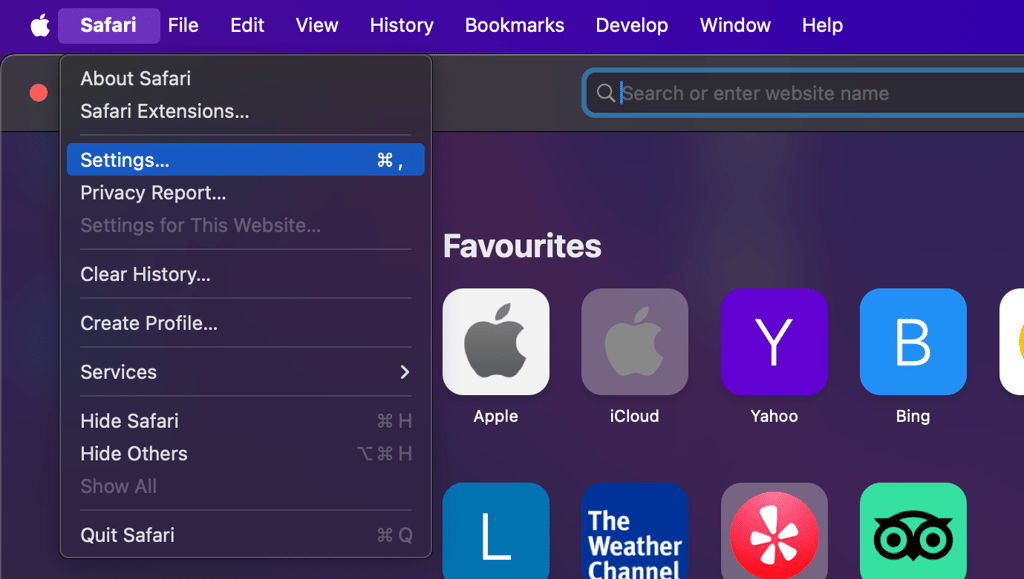
Open Safari and click the Safari button at the top-left corner of the screen
-
Select Settings and go to Privacy > Manage Website Data > Remove All > Remove Now

-
Open Safari again, click Develop and go to Empty Caches

-
Go to History > Clear History and select All History

Uninstall suspicious macOS applications that might be showing the Apple security alert:
- Open Finder
-
Select Applications from the left-side pane

- Find any questionable application, right-click on it, and select Move to Bin
- Enter your password to complete the action
Revise and clear suspicious notifications on Safari
You may encounter fake Apple security alerts while browsing the web. These might pop up from the top-right corner of the browser, just like normal Apple notifications, and that can be truly confusing and dangerous to interact with.
Unfortunately, these fake notifications may use familiar icons and wording to confuse you further, so it’s crucial to remain vigilant. To stay safe, never click on these suspicious notifications, but also do not ignore their existence because they could be a symptom of an infection. Of course, unreliable notifications could also be related to specific websites you’re browsing. Fortunately, there is an easy way to block them.
Remove notification permissions for websites:
- Open Safari
- Go to Settings > Websites > Notifications
- Select the websites whose notifications you want to stop and click Remove at the bottom
- De-select Allow websites to ask for permissions to send notifications at the bottom of the menu
Note: There are numerous applications promising to remove notifications from your browsers. However, notifications are not necessarily related to malware. If they show up due to website permissions, you do not need to install anything to get rid of them.
Remove from iPhone
The removal of the Apple security alert scam from an iPhone consists of multiple steps. Here are three main actions you should take to successfully get rid of the fraudulent messages from iOS.
Remove the Apple security alert scareware with an iOS antivirus:
- Go to the App Store and find a reliable iOS antivirus – I recommend Malwarebytes, now 50% OFF
- Click the Get button and confirm your Apple ID
- Open the app and run a full system scan
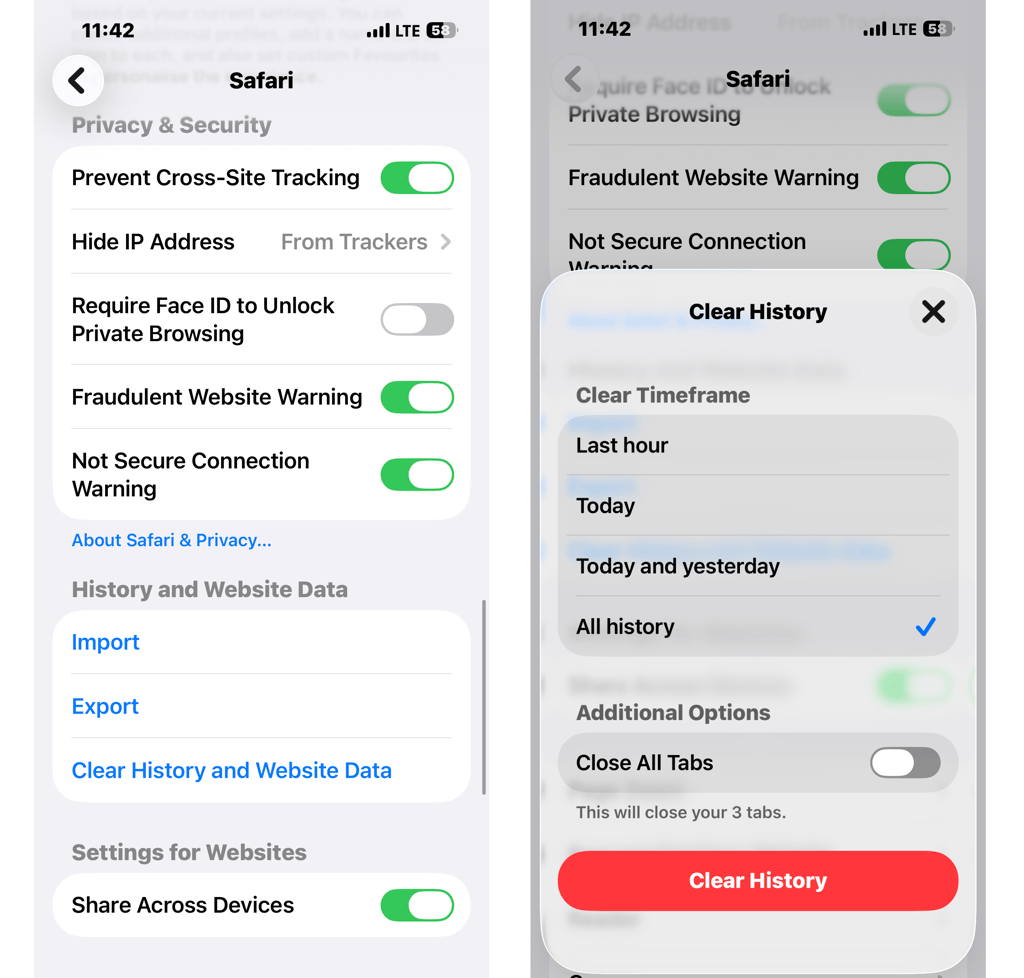
Clear Safari history and data:
- Open the Settings icon on your iPhone
-
Click Safari > Clear History and Website Data > Clear History
Uninstall unreliable iPhone apps:
- Identify a suspicious app on your screen
-
Press and hold the icon until the menu bar appears and click Delete App
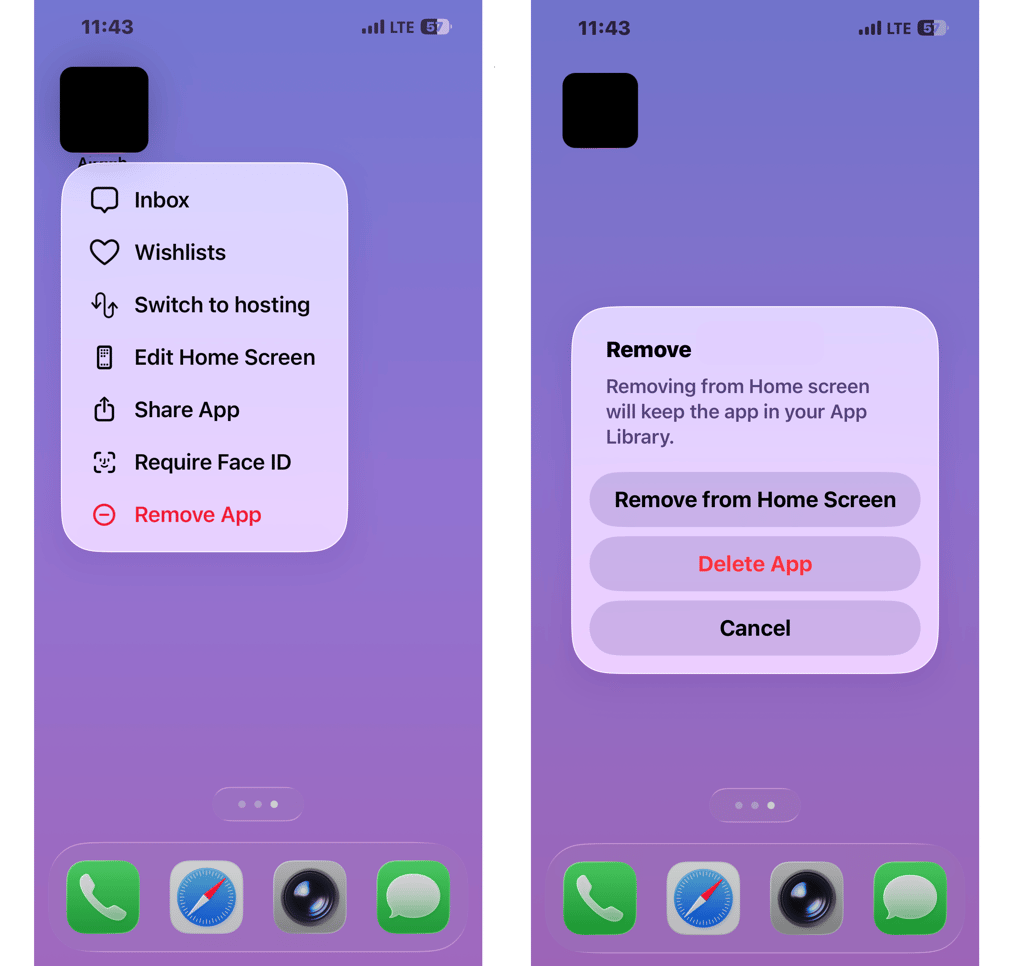
- Repeat the steps with all untrustworthy applications
How can I protect my macOS against malware?
You may stumble upon fake Apple security alerts in many different ways. So, it’s essential to take every precautionary measure possible to protect your devices. Here are some tips you should follow:
- Do not click on ads. You should always be cautious when interacting with ads, especially pop-ups, banners, or any promotional content that seems suspicious. Malicious ads can redirect you to malware-infected sites or even trigger automatic installations with just one click. It’s best not to interact with pop-ups at all – including the Close button – since some fake alerts use it to launch downloads or other harmful actions.
- Do not open links. Scammers impersonate legitimate companies, like Apple, and send emails with malicious links. Often, people are tricked into thinking that the letter is legitimate and end up installing malware.
- Do not visit suspicious websites. There are many less-than-reliable sites that are used for the distribution of malicious programs. You should only visit trusted websites if you want to protect your devices.
- Download and install only trusted software. Cybercriminals try to spread malware by disguising it under the names of legitimate software and uploading it to peer-to-peer (P2P) networks. For this reason, you should only download software from official websites to avoid falling victim to malware.
- Spot phone scammers. Keep in mind that support agents of services or products you use should never ask for sensitive information via phone. If you receive a call from a fake support agent asking for your credentials, there’s a high chance that it’s a scam.
- Install the latest updates. Cybercriminals will have a much easier time attacking you if your operating system already has security vulnerabilities that can be exploited. Besides security patches, updates also include bug fixes and new features to make your iOS or macOS experience even better, so do not forget to install them. But beware of fake update pop-up notifications.
- Use a passcode. A passcode enables you to add an extra layer of security for your device and data. Additionally, if your device supports it, you should also consider using Face ID and Touch ID.
- Always use an antivirus. Nowadays, premium antivirus products can protect both desktop and mobile devices from the latest cyberthreats. You should install reliable Mac antivirus software or an iPhone antivirus for an extra layer of protection.
Video guide
Get rid of the Apple security alert scam easily by following our comprehensive video tutorial:
Conclusion
Cybercriminals use social engineering tactics to trick users into revealing personal information, and the Apple security alert scam is a prime example. These fake warnings are designed to create panic, but they have no real threat – just an attempt to manipulate you.
To stay protected, be cautious about phishing attempts and browser-based scams. Watch out for suspicious websites, avoid clicking on unverified links, and never trust unexpected security alerts. If your iPhone or Mac has already been affected, you can remove the Apple security alert scam by running a full system scan with a trusted antivirus like Malwarebytes.
FAQ
Is the Apple security warning fake?
Yes, the Apple security warning is fake. It is created to trick you into providing your personal and financial information for the cybercriminals. Later, the gathered data is used to obtain illegal profits or spread malware.
Does Apple let you know if your phone has malware?
Yes, Apple sends official security notifications through Apple ID and emails about compromised accounts. It does not issue security alerts through pop-ups or web pages.