Best password manager for iPhone in 2026
Being behind major reports like The Mother of All Breaches and WhatsApp Data Leak, our in-house cybersecurity experts conduct independent, unbiased testing and thorough analysis of password managers, helping users confidently manage their credentials and sensitive information.
We prioritize transparency by openly sharing detailed descriptions of our in-house testing procedures and methodologies.
Learn more

Managing passwords across all your accounts can be a hassle – especially on a phone. I felt this firsthand after switching from Android to iPhone. It took hours to re-login to every app, reset forgotten passwords, and deal with constant typos on the phone keyboard.
A proper password manager is essential to avoid all that. Apple’s Passwords app, which uses iCloud Keychain, already offers encrypted password and passkey storage, secure sharing, security recommendations, and autofill. However, third-party password managers are a better fit if you use several operating systems or want extras such as dark web monitoring, emergency access, email aliases, or encrypted file storage.
In this article, I reviewed dozens of trusted providers and selected the 8 best password managers for iOS. Since iCloud Keychain is free, I also included the best free password managers for iPhone so you can stay secure without breaking the bank. Keep reading to find the one that best fits your needs.
Is iCloud Keychain good enough for iPhone?
Apple’s Passwords app is the main place to manage credentials stored through iCloud Keychain. It saves and autofills passwords and passkeys, stores verification codes and Wi-Fi credentials, warns about weak or compromised passwords, and lets you securely share credentials with other Apple users.
Its main limitation is cross-platform support. While Apple offers iCloud Passwords for Windows, including extensions for Chrome, Edge, and Firefox, there is no equivalent native support for Android or Linux. Shared Password Groups also require compatible Apple devices, so sharing credentials with people outside the Apple ecosystem is not very convenient.
Additionally, I noticed that it doesn't offer the added control you get with third-party apps, like creating a separate master password or adding extra login layers. And while the encryption is solid, tying it to your device passcode isn't ideal if you want a more independent layer of security.
Overall, Apple Passwords is a solid choice for people who mostly use Apple devices, but a third-party password manager gives you much more flexibility across platforms and access to extra security and privacy features.
Our top 5 best iPhone password managers in 2026
Here are my top 5 iPhone password managers in 2026. They’re all safe, easy to use, and work well. Each has different strengths – some are better for sharing, and others are better for syncing across devices, so the best choice depends on your needs.
- NordPass – best autofill experience on iPhone
- 1Password – best Apple Watch integration for password management
- RoboForm – budget-friendly password manager for iOS
- Keeper – password manager with Siri integration
- Dashlane – password manager with a VPN included
Recent Updates
Best password managers for iPhone – detailed list
Your iPhone stores some of your most important and sensitive data, so having a reliable password manager is essential. To help you choose the right one, I tested various providers' security, ease of use, compatibility, and pricing. From there, I picked the top 8 best-performing options. Keep reading to find out which one fits your needs best.
1. NordPass – iPhone password manager with perfectly optimized autofill feature

| Rating: | ||
| Platforms: | Windows, macOS, Linux, Android, iOS | |
| Free version: | Yes, plus 30-day money-back guarantee | |
| Browser plugins: | Chrome, Edge, Firefox, Opera, Safari, Brave, Vivaldi | |
| Discount coupons: | NordPass coupon codes |
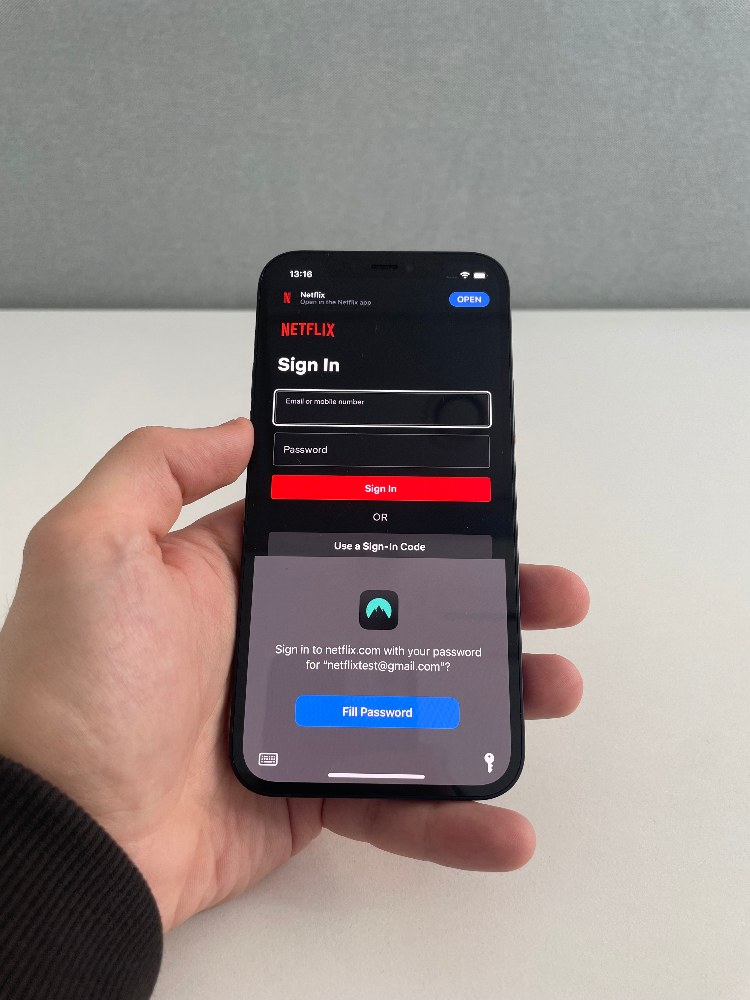
NordPass is one of the best iPhone password managers thanks to its smooth autofill feature and user-friendly design. While I tested it, it consistently filled in passwords quickly and accurately, making logging in to apps and websites effortless. It's a great choice if you want something that works without hassle.
NordPass iPhone app
NordPass felt like a modern, well-designed app, and it ran smoothly. When I tested it, Face ID unlocked it almost instantly, so I didn’t need to enter my password each time. The layout stood out too – it’s clean and intuitive and made it easy to move between folders, vaults, and features without confusion.
After spending more time with it, I found the autofill feature particularly impressive. Unlike some other iOS password managers I’ve used, NordPass filled in logins and forms correctly every time – I never had to go back and fix anything. Importing passwords was just as seamless. I easily transferred data from my browser and old password manager, and I could even export my iCloud Keychain data from my Mac as a CSV file and import it into NordPass without any issues.
I also appreciated how everything synced automatically across my iPhone, iPad, Mac, and other devices, regardless of the operating system. It kept everything up to date without me having to think about it.
NordPass security overview
NordPass keeps your data safe with xChaCha20 encryption and a zero-knowledge architecture, so only you can see what's in your vault. To back this up, it's been independently audited by Cure53 and meets high-security standards, including SOC 2 (Type 1 and 2) and ISO/IEC 27001:2017 certifications. Since the company is based in Panama, your data is also protected by privacy-friendly laws with no data retention requirements.
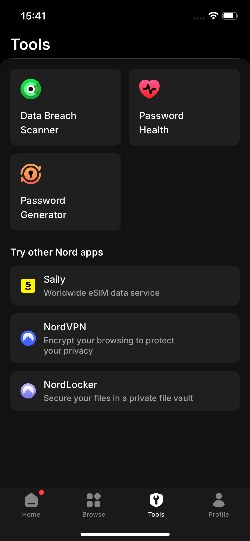
From the feature's side, you can protect your NordPass account on iOS with multifactor authentication using apps like Google Authenticator, Authy, or Microsoft Authenticator. NordPass also supports security keys and backup codes, and it lets you use passkeys, which are stored as a separate item type. To add more security layers, NordPass includes tools like a Data Breach Scanner, Password Health Checker, Password Generator, and an auto-lock feature you can customize.
NordPass also includes Emergency Access with Premium and Family plans, although you can’t configure it from the iOS app. You need to use the desktop app, Android app, or Web Vault instead. Once enabled, a trusted NordPass user can request access to your passwords and secure notes after a waiting period you set.
NordPass pricing
NordPass offers 3 personal plans: Free, Premium, and Family. The Free plan includes unlimited password storage and sync across devices. Premium, starting at just $1.29/month, adds the Password Health feature and a Data Breach Scanner. The Family plan, from $2.32/month, includes all Premium features for up to 6 users. Additionally, all paid plans come with a 30-day money-back guarantee if you change your mind.
| NordPass Free | NordPass Premium | NordPass Family | |
| Price | $0.00 | $1.29/month | $2.32/month |
| User accounts | 1 | 1 | 6 |
| Unlimited passwords | ✅ Yes | ✅ Yes | ✅ Yes |
| Password generator | ✅ Yes | ✅ Yes | ✅ Yes |
| Sync across devices | ✅ Yes | ✅ Yes | ✅ Yes |
| Emergency access | ❌ No | ✅ Yes | ✅ Yes |
| Secure sharing | ❌ No | ✅ Yes | ✅ Yes |
| Password Health | ❌ No | ✅ Yes | ✅ Yes |
| Data Breach Scanner | ❌ No | ✅ Yes | ✅ Yes |
| Manage plan members | ❌ No | ❌ No | ✅ Yes |
| Current deal | Get NordPass, now with 56% OFF | NordPass Family, now 56% OFF and 4 months FREE |
2. 1Password – iPhone password with good Apple Watch support

| Rating: | ||
| Platforms: | Windows, macOS, Linux, Android, iOS | |
| Free version: | No | |
| Browser plugins: | Chrome, Firefox, Edge, Brave, Safari | |
| Discount coupons: | 1Password coupon codes |
1Password stands out thanks to its seamless integration with Apple devices, especially the Apple Watch. Its dedicated Watch app makes it easy to access selected logins, one-time passwords, and secure notes right from your wrist – ideal for quick, safe access on the go.
1Password iPhone app
While testing 1Password’s iPhone app, I was impressed by how smoothly everything synced across my iPhone, iPad, and Mac. I didn’t need to adjust the settings – everything updated automatically in the background. I also appreciated the Apple Watch support. Since 1Password has an app for Apple Watch, I could check Wi-Fi passwords or other saved entries right from my wrist. This one detail turned out to be much more helpful than I expected.
The interface on my iPhone felt modern and easy to use. Navigating between folders, vaults, and items was quick, and I never had trouble finding what I needed. I also liked that everything was available offline, meaning I could view saved entries without an internet connection.

Importing data was also simple. 1Password supports most major browsers, other password managers, and CSV files. I even exported my iCloud Keychain data as a CSV file on my Mac and imported it into 1Password without any issues. 1Password now also lets you export data directly from the iPhone app through Settings > Advanced > Start Export. This makes it possible to move your vault to another service without using a desktop device.
1Password security overview
1Password, headquartered in Toronto, Canada, benefits from strong privacy laws. It uses AES-GCM-256 encryption and a zero-knowledge architecture, which means no one but you can access your vault, not even 1Password. Additionally, 1Password's claims have been audited by Cure53, Recurity Labs, Bishop Fox, and other respected firms. It's also SOC 2 Type 2 certified and has multiple ISO certifications. ISE, Onica, and others have completed additional penetration tests and audits.
For everyday use, 1Password offers multi-factor authentication (MFA) with apps like Authy, Microsoft Authenticator, and Okta Verify. It also supports security keys and lets you create and use passkeys.
1Password doesn’t use a traditional Emergency Access feature, but users can create a recovery code to regain access if they forget their account password or lose their Secret Key. The Emergency Kit also contains your sign-in address, email, Secret Key, Setup Code, and a space to record your account password.
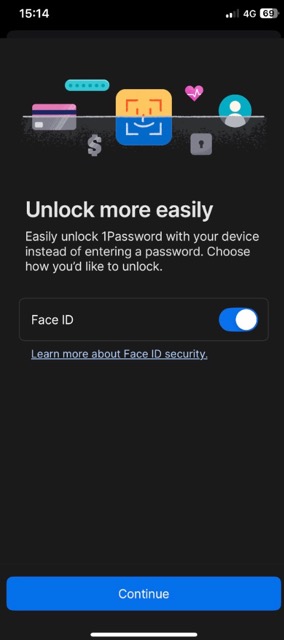
You also receive extra tools like Watchtower, Travel Mode, a secure password generator, and auto-lock, which adds even more security. Plus, 1Password deletes your clipboard automatically after 90 seconds to keep copied data safe.
1Password pricing
If you’re wondering about 1Password’s pricing, it offers 2 personal plans – one for individuals and one for families, with the choice of monthly or annual billing. Both plans include 1Password’s core password management features, while Families also adds tools for managing and recovering family members’ accounts.
It doesn’t have a free version like NordPass or RoboForm, but you can test it with a 14-day free trial. Here are the main plans:
| Features | Individual plan | Families plan |
| Price | $2.99/month | $4.49/month |
| Current deal | Get 1Password, now up to 50% OFF | Get 1Password, now up to 50% OFF |
| Users | 1 | 5 |
| Unlimited devices | ✅ Yes | ✅ Yes |
| Unlimited passwords | ✅ Yes | ✅ Yes |
| Two-factor authentication | ✅ Yes | ✅ Yes |
| Watchtower | ✅ Yes | ✅ Yes |
| Account recovery | ✅ Yes, recovery code | ✅ Yes, recovery code and family recovery |
3. RoboForm – budget-friendly iPhone password manager

| Rating: | ||
| Platforms: | Windows, macOS, Linux, ChromeOS, Android, iOS | |
| Free version: | Yes | |
| Browser plugins: | Chrome, Firefox, Opera, Edge, Brave, and Safari | |
| Discount coupons: | Roboform coupon codes |
RoboForm is one of the best iPhone password managers if you're looking for something reliable and affordable. It offers all the essential features, like saving passwords, filling out forms, and syncing across devices, without the high price. This makes it a great choice if you want solid performance on a budget.
RoboForm iPhone app
When I tested RoboForm’s iPhone app, it felt like a mix of old and modern. That said, it’s definitely cleaner and more pleasant to use than the desktop version.
Face ID worked flawlessly – the app unlocked quickly every time without a password. Autofill was also smooth and straightforward – I could tap a saved login, hit LOG IN, and the app would launch the website and fill in my details automatically. This feature made logging in feel quick and hassle-free. I also tried using the app offline and had no trouble accessing my saved entries, which was especially useful when I didn’t have internet access.
However, I didn’t like that exporting passwords had to be done through the desktop app. There’s no way to manage that directly on the iPhone. When I wanted to move my data to my iCloud Keychain, I had to export it as a CSV file on my Mac and then import it into RoboForm – not the most convenient process. At least importing passwords is possible because RoboForm can receive credentials directly from Apple Passwords on iOS.
RoboForm security overview
RoboForm takes a layered approach to protecting your data. It uses AES-256 encryption combined with PBKDF2 SHA-256, ensuring your login information stays safe. In addition, it follows a zero-knowledge model, meaning no one can see your saved data. Security audits are another strong point. The platform passed 2 independent assessments by Secfault Security, one in 2023 and another in 2025.

For added protection, premium users can enable multifactor authentication with apps like Google Authenticator, Authy, or Microsoft Authenticator. RoboForm also supports passkeys, but only on iPhones running iOS 17 or later. Additionally, if you ever lose access to your account, you can set up Emergency Access for a trusted contact, giving them permission to recover your data for a limited time (from 12 hours to 30 days).
RoboForm pricing
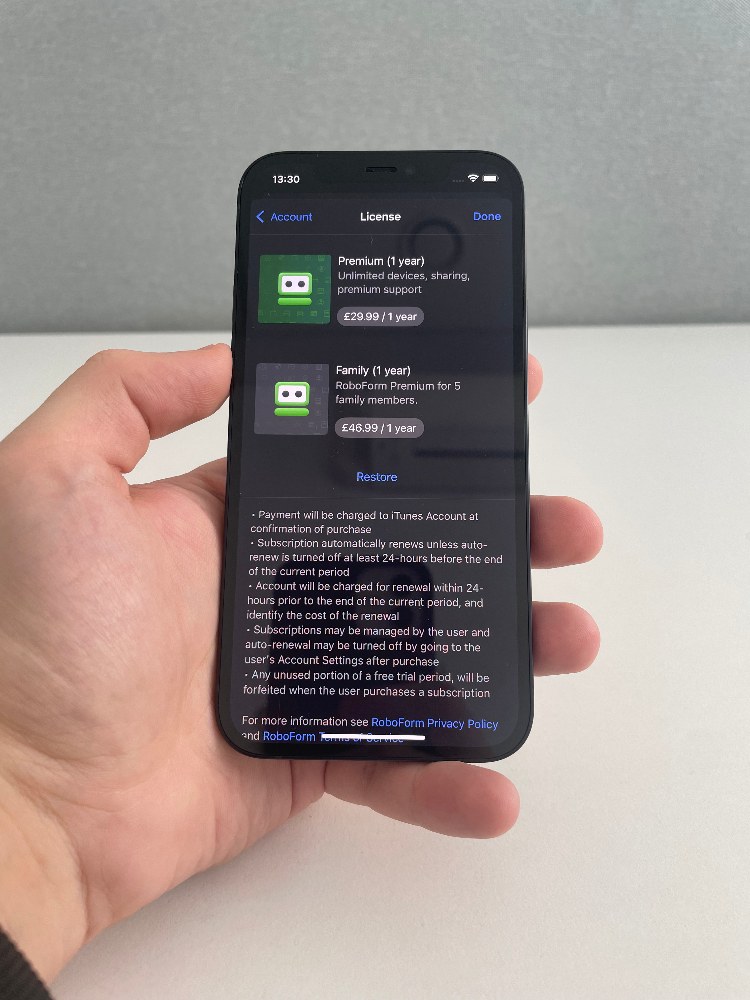
RoboForm is one of the most affordable password managers, with Premium plans starting at just $0.99/month. RoboForm also has a Free plan, plus, all paid plans have a 30-day money-back guarantee, so you can try it risk-free.
| Free account | RoboForm Premium plan | RoboForm Family plan | |
| Price | Free | $0.99/month | $1.59/month |
| Number of people allowed to use it | 1 | 1 | 5 |
| Two-factor authentication | ✅ Yes | ✅ Yes | ✅ Yes |
| Monitor for compromised passwords | ✅ Yes | ✅ Yes | ✅ Yes |
| Unlimited devices | ❌ No | ✅ Yes | ✅ Yes |
| Web access | ❌ No | ✅ Yes | ✅ Yes |
| Local only mode | ❌ No | ✅ Yes | ✅ Yes |
| Emergency Access | ❌ Only receive | ✅ Grant and receive | ✅ Grant and receive |
| Secure Shared Folders | ❌ No | ✅ Two Shared Folders | ✅ Two Shared Folders for each account |
4. Keeper – Siri supported iPhone password manager

| Rating: | |
| Platforms: | Windows, macOS, Linux, Android, iOS |
| Free version: | Yes |
| Browser plugins: | Chrome, Firefox, Safari, Opera, Edge, Brave |
| Discount coupons: | Keeper coupon codes |
Keeper is a top iPhone password manager, thanks to its Siri support. You can quickly pull up your logins using your voice, making it super convenient when you're on the go. So, if you use Siri a lot on your iPhone, Keeper is a wise choice.
Keeper iPhone app
One thing that immediately made Keeper stand out was its Siri support. I could use voice commands to pull up logins, which saved time and made the app more convenient, especially when I was in a rush. It's a small feature, but it adds value for iPhone users looking for speed and ease.
However, a few things were missing. Similarly to RoboForm, I couldn't import or export passwords directly from the iPhone app – this had to be done through Keeper's Web Vault on a desktop. The same goes for iCloud Keychain – I needed a Mac to export and upload the data as a CSV file. Handoff and iCloud backup also weren't available, which may be a drawback for users deep in the Apple ecosystem.
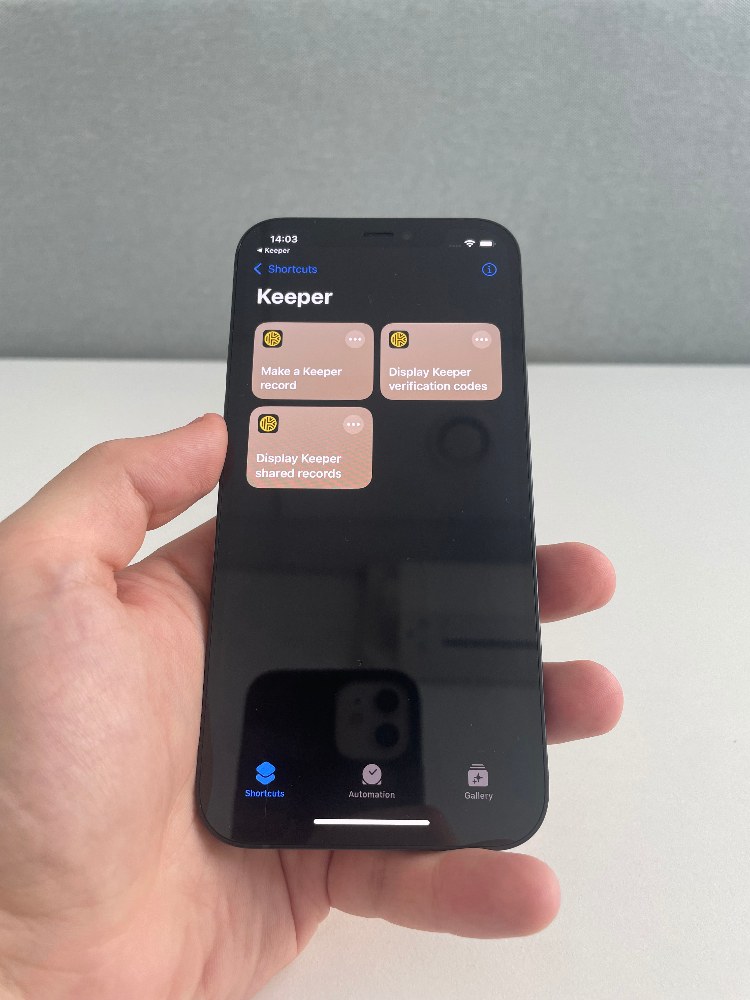
On the other hand, syncing was flawless. During testing, my data stayed up to date across iPhone, iPad, and Mac without any effort. Offline access also worked well unless restricted by an employer account.
Keeper security overview
Keeper uses strong AES-256 encryption and follows a zero-knowledge approach. It also meets high-security standards, with certifications like SOC 2 and ISO 27001 and government-level approvals like FedRAMP High. Independent labs have also tested and approved its encryption under the FIPS 140 standard.
On iPhone, you can easily set up multifactor authentication (MFA). Options include text messages, authenticator apps, Duo Security, RSA SecurID, and even smartwatches through KeeperDNA. Passkeys are also supported on Apple devices running iOS 17 or later.
However, I didn't like that emergency access isn't available in the iPhone app – you have to set it up in the Web Vault by adding up to five trusted contacts. You can choose how long they must wait for access, from immediately to 3 months.
Keeper pricing
Keeper offers 3 different plans. The free plan is basic – it only works on 1 mobile device and stores up to 10 records. Free users can also store up to 5 files with a combined 100MB storage limit. For more features, there's Keeper Unlimited, which gives you unlimited password storage, sharing, backup, emergency access, and use on all your devices. There's also a Family Plan for up to 5 people, each with a private vault.
| Free | Personal | Family | |
| Price | Free | $2.15/month | $3.83/month |
| Users | 1 | 1 | 5 |
| Two-factor authentication | ✅ Yes | ✅ Yes | ✅ Yes |
| Unlimited devices | ❌ No | ✅ Yes | ✅ Yes |
| Unlimited passwords | ❌ No, up to 10 records | ✅ Yes | ✅ Yes |
| Security Audit (password health monitor) | ❌ No | ✅ Yes | ✅ Yes |
| Secure sharing | ❌ No | ✅ Yes, individual items | ✅ Yes, individual items and folders |
| Emergency access | ❌ No | ✅ Yes | ✅ Yes |
| Document storage | ❌ No | ❌ No, only as a paid add-on | ✅ Yes, up to 100GB |
5. Dashlane – VPN and a password manager for iPhones

| Rating: | ||
| Platforms: | Web app/browser extension, macOS, Android, iOS | |
| Free version: | Yes | |
| Browser plugins: | Chrome, Safari, Firefox, Edge, Brave, Opera, Vivaldi | |
| Discount coupons: | Dashlane coupon codes |
Dashlane made it to this list because it offers more than just password protection – it also includes a Hotspot Shield Premium VPN access. This means you can keep your logins safe and browse the internet more securely, without paying for a separate VPN subscription. It’s an excellent choice for convenience and extra online privacy on your iPhone.
Dashlane iPhone app
One part I found especially useful about Dashlane was the Tools section. This section let me quickly access features like Password Health, Dark Web Monitoring, and Dashlane’s included Hotspot Shield Premium VPN access, which really stood out. Most password managers don’t include a VPN, making Dashlane a great option to protect your browsing on public Wi-Fi without paying for another VPN subscription.
Syncing between devices worked without issues. I could also use the app offline, as long as I had logged in on that device before. However, if you’re using a passwordless account, offline access won’t work – you’ll need to be online.
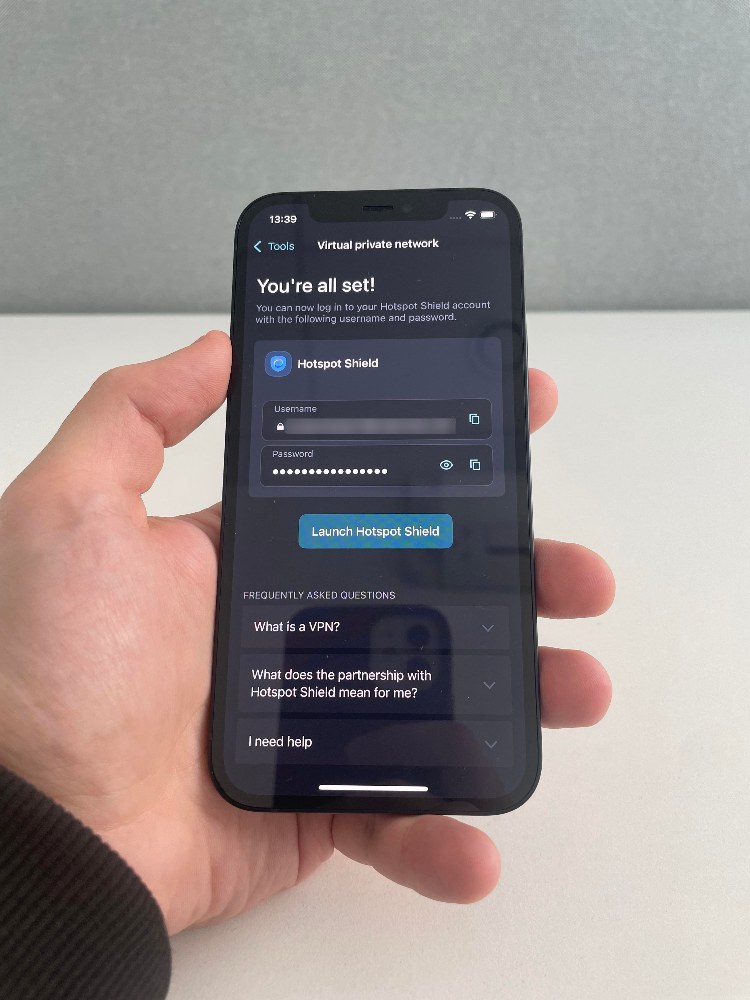
Additionally, all other features, such as Face ID and autofill, were easy to use and worked well. Dashlane filled in passwords without any problems. I could export my data as a CSV file directly from the iPhone app, but the available import method depends on the file format. CSV imports still require the web or Android app, while Credential Exchange transfers and DASH backups can be imported directly on supported iPhones.
Dashlane security overview
When I looked into Dashlane’s security, I was glad to see it uses AES-GCM-256 encryption and follows a zero-knowledge model. It also holds SOC 2 Type 2 and ISO 27001 certifications, which means it has been independently reviewed for strong security practices.
Dashlane also includes plenty of useful extras. The built-in Dark Web Monitoring and Password Health tools are helpful, and the VPN adds another layer of privacy while browsing. You can also adjust how quickly the app locks itself and set the clipboard to clear after 5 minutes – small but smart features that help tighten security.
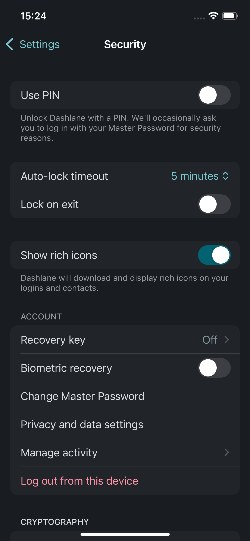
Dashlane currently offers 2 paid main plans: Premium and Friends & Family. New users get a 14-day Premium trial, but there is no permanent Free plan. The paid plans start at $4.07/month, and there's no monthly option, so you have to pay yearly. Dashlane costs significantly more than several password managers on this list, but you get a 30-day money-back guarantee, so you can try it to see if it's worth the price.
Dashlane pricing
| Features | Premium | Friends & Family |
| Price | $4.07/month | ~$8.13/month |
| Password storage | Unlimited | Unlimited |
| Devices | Unlimited | Unlimited |
| Accounts | 1 | 10 |
| Password generator | ✅ Yes | ✅ Yes |
| Form/payment autofill | ✅ Yes | ✅ Yes |
| Secure notes | ✅ Yes | ✅ Yes |
| Dark web monitoring | ✅ Yes | ✅ Yes |
| VPN | ✅ Yes, Hotspot Shield Premium | ✅ Yes, Hotspot Shield Premium |
6. Proton Pass – best open-source password manager for iPhone

| Rating: | |
| Platforms: | Windows, macOS, Linux, Android, iOS |
| Free version: | Yes |
| Browser plugins: | Chrome, Firefox, Brave, Edge, Safari |
| Discount coupons: | Password manager coupons |
Proton Pass is the best open-source password manager for iPhone users who want strong privacy and transparency. Built by the creators of Proton Mail, it combines secure features with a clean, easy-to-use app. Additionally, since it’s open-source, anyone can inspect the code, so you don’t have to take its word on security.
Proton Pass iPhone app
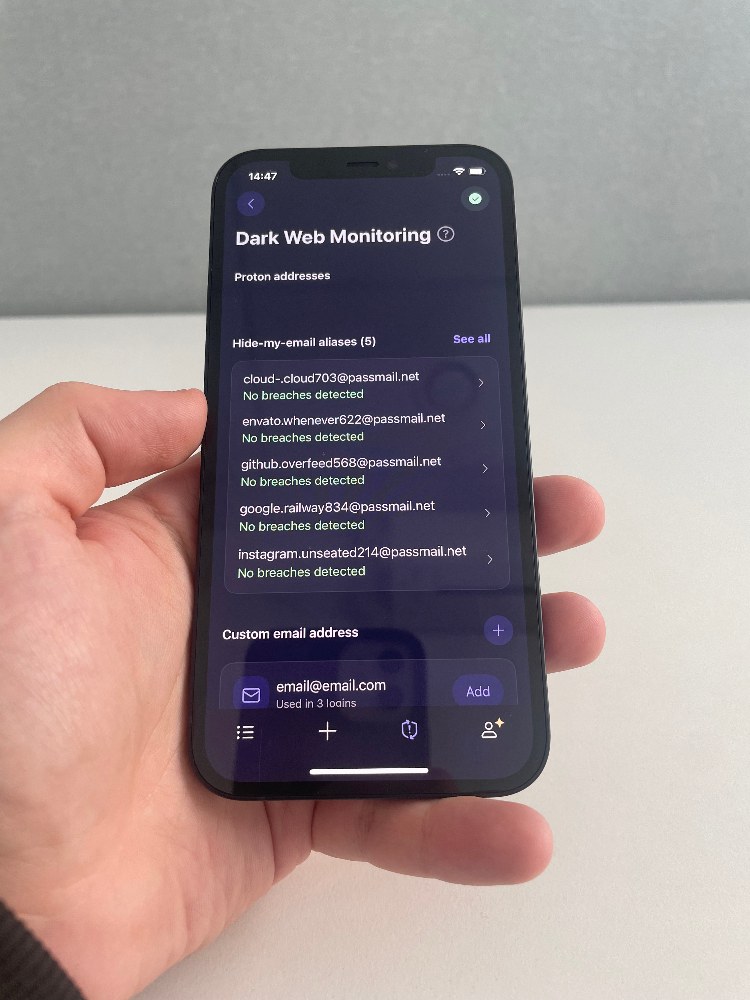
What stood out most to me when using Proton Pass on iOS was the email alias feature. It let me create fake email addresses for signing up to websites, keeping my real inbox private while still receiving messages. It was an easy way to cut down on spam and avoid giving out my real address. This feature is also available in NordPass, which is another great option for users who value email privacy.
Also, the app was simple to use. Navigation felt straightforward, Face ID worked every time, and autofill handled logins without issues. Everything synced smoothly across my devices, and I could also access vault data stored locally on my device while offline.
When I inspected Proton Pass's security, I saw that it uses AES-GCM-256 encryption and has undergone several independent security reviews. Most recently, Recurity Labs audited Proton Pass between January and April 2026, covering its apps, browser extensions, and other components. An earlier Cure53 assessment covered its mobile apps, browser extensions, and API. It also runs a public bug bounty program, adding an extra accountability layer.
I have many tools, such as a password generator, dark web monitoring, Proton Sentinel, and auto-lock settings. Plus. Emergency Access is now available with all paid Proton plans. It lets you choose up to 5 Proton users who can request access to your account after a waiting period that you configure., Even the Passkeys worked well on iOS. However, I couldn't set up two-factor authentication directly in the iPhone app.
ProtonPass security overview
ProtonPass pricing
Proton Pass offers 1 free plan and 3 paid options, so you can pick what fits your needs. The free plan is quite generous and works well if you only need basic password storage. The main paid plan, Pass Plus, starts at $1.99/month, which is more expensive than many other options. However, it comes with a 30-day money-back guarantee, giving you plenty of time to try it out and decide if it’s worth it.
| Proton Free | Pass Plus | Pass Family | Proton Unlimited | |
| Price | $0.00/month | $1.99/month | $2.79/month | $6.49/month |
| User accounts | 1 | 1 | 6 | 1 |
| Unlimited passwords | ✅ Yes | ✅ Yes | ✅ Yes | ✅ Yes |
| Password generator | ✅ Yes | ✅ Yes | ✅ Yes | ✅ Yes |
| Sync across devices | ✅ Yes | ✅ Yes | ✅ Yes | ✅ Yes |
| Pass Monitor | ✅ Yes | ✅ Yes | ✅ Yes | ✅ Yes |
| Securely share vaults | ✅ Yes | ✅ Yes | ✅ Yes | ✅ Yes |
| Hide-my-email aliases | ✅ Yes(10 aliases) | ✅ Yes (unlimited) | ✅ Yes (unlimited) | ✅ Yes (unlimited) |
| Integrated 2FA | ❌ No | ✅ Yes | ✅ Yes | ✅ Yes |
| Dark Web Monitoring | ❌ No | ✅ Yes | ✅ Yes | ✅ Yes |
| Proton Sentinel | ❌ No | ✅ Yes | ✅ Yes | ✅ Yes |
7. Bitwarden – best free iPhone password manager

| Rating: | |
| Platforms: | Windows, macOS, Linux, Android, iOS |
| Free version: | Yes |
| Browser plugins: | Chrome, Firefox, Edge, Opera, Safari, Vivaldi, Brave, Tor, DuckDuckGo |
| Discount coupons: | Password manager coupons |
Bitwarden earns its spot as the best free iPhone password manager. It’s open-source, secure, and offers features you’d typically only get with paid apps. If you’re looking for solid protection without spending a cent, Bitwarden is an easy choice.
Bitwarden iPhone app
When I used Bitwarden on iOS, the app felt clean and minimal, and autofill handled logins without any major issues. The only thing that slowed me down was having to enter my master password every time I used autofill – even if I had just opened the app. It was inconvenient, but I understood the trade-off for better security.

I liked that I could export my vault directly from the app in multiple formats, including password-protected .json files. Importing, though, had to be done through the web app. One useful feature I found was Bitwarden's support for TOTP codes on Apple Watch, which made logging in with two-factor authentication much faster. However, Bitwarden currently labels its Apple Watch app as beta, so I wouldn’t present the feature as fully mature yet.
Bitwarden security overview
When I checked Bitwarden's security, I was impressed by how much it offers – especially for a free app. It uses AES-CBC-256 encryption and a zero-knowledge setup, and it's been audited by firms like Cure53 and Fracture Labs. It also holds ISO 27001 and SOC 2 certifications and runs a bug bounty program on HackerOne.
I couldn't set up a two-step login in the iPhone app, but the web app made it easy. It supports email, authenticator apps, FIDO2, Yubico OTP keys, and Duo Security. Passkeys are available, too, though they are still in beta. Emergency access was also a nice bonus for premium users. I could add trusted contacts with options for view-only or full access and set a wait time before access kicks in.
Bitwarden pricing
Bitwarden offers 3 main plans: Free, Premium, and Families – all billed yearly. The Free plan covers all the basic features at no cost. The Premium plan starts at just $1.65/month, making it one of the most affordable paid options on this list. The Families plan supports up to 6 users and includes extra features designed for sharing and managing passwords as a group. All paid plans come with a 30-day money-back guarantee to try them out risk-free.
| Features | Free account | Premium account | Families | Teams |
| Price | Free | $1.65/month | $3.99/month | $4.00/month per user |
| Number of licenses | 1 | 1 | 6 | Unlimited |
| Unlimited passwords | ✅Yes | ✅Yes | ✅Yes | ✅Yes |
| Unlimited devices | ✅Yes | ✅Yes | ✅Yes | ✅Yes |
| Two-factor-authentication | Email, authentication app | Email, authentication app, YubiKey, FIDO2, Duo | Email, authentication app, YubiKey, FIDO2, Duo | Email, authentication app, YubiKey, FIDO2, Duo |
| Bitwarden Authenticator (TOTP) | ❌No | ✅Yes | ✅Yes | ✅Yes |
| Encrypted file attachments | ❌No | 5GB | 5GB per user + 5GB shared | 5GB per user + 5GB shared |
| Emergency access | ❌No | ✅Yes | ✅Yes | ✅Yes |
8. Bitdefender SecurePass – minimalistic iPhone password manager

| Rating: | |
| Platforms: | Windows, macOS, Android, iOS |
| Free version: | No, 30-day free trialY |
| Browser plugins: | Chrome, Firefox, Edge, Safari |
| Discount coupons: | Password manager coupons |
Bitdefender SecurePass makes this list for users who want something simple and easy to use. Its minimalistic design focuses on the basics, offering a clean experience without extra clutter. So, if you're looking for a straightforward password manager for your iPhone, SecurePass is worth a look.
Bitdefender SecurePass iPhone app
Bitdefender SecurePass on iPhone kept things simple. Switching between items in the vault was quick, and Face ID unlocked the app instantly. Autofill worked whenever I needed it, with no delays or failed attempts.
What stood out was the smooth handoff between my iPhone and Mac. I could open an entry on one device and continue right where I left off on another. Everything stayed in sync, and offline access worked without any issues.

Importing passwords was also flexible. I could bring in data from most major browsers, other password managers, or a CSV file. The iPhone app now also supports exporting SecurePass data, so you no longer need a desktop device to move credentials in or out.
Bitdefender SecurePass security overview
Don't be fooled by Bitdefender SecurePass's minimalistic design – its security is solid. It uses AES-256 encryption and a zero-knowledge setup, keeping your data private by design. Two-factor authentication can be enabled through the web app using an authenticator app or email, which adds an extra layer of protection.
There's no emergency access feature, but you get a recovery key during setup to help reset your master password if needed. Additionally, Passkey support appears to be missing for now, as I couldn't find any official info on it.
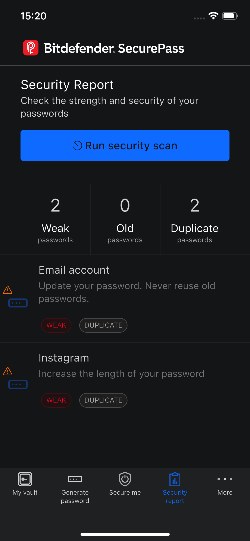
Still, I found a few useful extras like the password generator, the Secure Me tool for managing devices and sessions, and a basic security report to help spot weak passwords. It's a stripped-down manager, but the essentials are handled well.
Bitdefender SecurePass pricing
Bitdefender SecurePass is available as a standalone password manager or bundled with Bitdefender Total Security and Premium Security. The standalone plan starts at $2.50/month and includes the core password management features, while the broader security plans add antivirus, scam protection, and other privacy tools. All options come with a 30-day money-back guarantee.
| Features | SecurePass | Total Security | Premium Security |
| Price | $2.50/month | $5.00/month | $6.67/month |
| Devices | Multiple supported devices | 5 | 5 |
| End-to-end encryption | ✅ Yes | ✅ Yes | ✅ Yes |
| Cross-device sync | ✅ Yes | ✅ Yes | ✅ Yes |
| Secure password sharing | ✅ Yes | ✅ Yes | ✅ Yes |
| Real-time device protection | ❌ No | ✅ Yes | ✅ Yes |
| Data breach detection | ❌ No | ✅ Yes | ✅ Yes |
| Unlimited VPN | ❌ No | ❌ No | ✅ Yes |
Best free password managers for iPhone
If you're looking for the best free password manager, remember that free options usually have limits. They often don't have many advanced features, such as sync between devices, unlimited password storage, and password sharing.
If you're set on using a free password manager, NordPass Free is a great choice. While it only works on one device at a time, it gives you unlimited password storage, a built-in password generator, passkey support, cross-device synchronization, and access to your vault across supported platforms. It also uses strong XChaCha20 encryption to keep your vault secure, and its 24/7 customer support is there if you run into any issues. While tools like Bitwarden or LastPass also offer free plans, NordPass is more user-friendly and provides better overall value. However, Password Health and the Data Breach Scanner require Premium.
You can also use Apple's Passwords app with iCloud Keychain, which comes built into your iPhone. It's suitable for basic use and works across apps and websites, provides security recommendations and password sharing, and can sync passwords to Windows PCs. However, Apple does not offer equivalent native support for Android or Linux.
The best iPhone password managers compared
To make choosing the best iOS password manager easier, I've organized each provider's key details into a clear, easy-to-read table. You can check it out below.
| Password manager | Rating | iOS app | Encryption | Compatibility | Works with Apple Watch | Features | Pricing |
| NordPass | ✅ Yes | Zero-knowledge, XChaCha20, Argon2 | Windows, macOS, Linux, Android, iOS | ❌ No | Data breach scanner, Password health, Password generator, Autolock | from $1.29/month | |
| 1Password | ✅ Yes | AES-GCM-256, PBKDF2 | Windows, macOS, Linux, Android, iOS | ✅ Yes | Watchtower, Travel mode, Password generator, Automatically cleared clipboards, Autolock | from $2.99/month | |
| RoboForm | ✅ Yes | AES-256, PBKDF2 | Windows, macOS, Linux, ChromeOS, Android, iOS | ✅ Yes | Password generator, Security center, Data breach monitoring, Sharing center, Auto lock | from $0.99/month | |
| Keeper | ✅ Yes | Zero-knowledge, AES-256, PBKDF2 | Windows, macOS, Linux, Android, iOS | ❌ No | Password and passphrase generators, Security Audit, BreachWatch (add-on), Secure File Storage (add-on with Personal), KeeperChat | from $2.15/month | |
| Dashlane | ✅ Yes | AES-GCM-256, PBKDF2 | Web app/browser extension, macOS, Android, iOS | ✅ Yes | Password health, Dark web monitoring, Hotspot Shield Premium VPN access, Auto-lock timeout | from $4.076/month | |
| ProtonPass | ✅ Yes | AES-GCM-256 | Windows, macOS, Linux, Android, iOS | ❌ No | Password generator, Dark web monitoring, Pass monitor, Proton sentinel, Hide-my-email aliases, Secure link | from $1.99/month | |
| Bitwarden | ✅ Yes | AES-CBC-256 | Windows, macOS, Linux, Android, iOS | ✅ Yes | Bitwarden send, Password/passphrase/username generator, Session timeout, Clear clipboard | from $1.65/month | |
| Bitdefender SecurePass | ✅ Yes | AES-256 | Windows, macOS, Android, iOS | ❌ No | Password generator, Secure Me, Security report | from $2.50/month |

Why should you use a third-party password manager on an iPhone?
Apple’s Passwords app already does much more than basic autofill. It stores passwords, passkeys, verification codes, and Wi-Fi credentials, warns you about weak or compromised passwords, and supports secure credential sharing with other Apple users. If you mainly use Apple devices, it may already cover everything you need.
The main reason to choose a third-party password manager isn’t that Apple Passwords has weak security. Dedicated password managers simply offer more flexibility outside the Apple ecosystem and often provide separate account credentials and authentication options. Apple Passwords works on Windows, but providers such as NordPass, 1Password, and Bitwarden also support Android and Linux.
Plus, you get way more than just password storage. A good and secure password manager can store sensitive information, help you create strong and unique passwords, securely share them with others, and even alert you about weak or reused logins. Depending on the provider, you may also get encrypted file attachments, emergency access, dark web monitoring, email aliases, or even VPN access.
How we tested and ranked password managers for iPhone
Picking the best password managers for iOS wasn't quick and straightforward. First, with our researchers, I analyzed 20 password managers based on our Cybernews methodology. Then, I outsourced the 8 top-performing providers and ranked them from 1 to 8 based on the following aspects:
- Security (30%). Since password managers protect some of your most sensitive information, I ensured every pick on this list takes security seriously. That means using strong encryption like xChaCha20 or AES-256, offering two-factor authentication (2FA), and including extra tools like password health checks and data breach scanners.
- Ease of use (25%). Using the app on the phone often means smaller screens and touch navigation, so ease of use is crucial. I paid close attention to how easy each password manager was to download, set up, and use. The most intuitive, reliable apps naturally landed at the top of the list.
- Compatibility (20%). I also made sure each password manager worked smoothly across Apple's ecosystem. Even though this guide focuses on iPhones, the best tools should sync effortlessly with other supported devices and platforms, including iPads, Macs, Android devices, Windows PCs, and Apple Watches where available.
- Pricing (15%). Paying for a subscription to stay organized can feel unnecessary – I get it. That's why price was also a big factor in the research. I only included iOS password managers that offer strong features and solid security without costing more than they should.
- Features (10%). While advanced features are used less frequently on iPhones, it's still great to have them. That's why I made sure my top picks include extra security tools like dark web monitoring, VPN access, and travel mode for added peace of mind.
Video review
If you prefer video format over reading, here is our team's video review of the best password managers for iPhone.
Final thoughts
Using a third-party password manager on your iPhone is a smart move. Apple Passwords covers the essentials, but dedicated password managers give you more control over how and where you use your vault. They typically offer wider platform support and extras such as encrypted file storage, emergency access, email aliases, dark web monitoring, or VPN access.
There are plenty of great password managers to choose from, so it depends on what fits your needs. NordPass is a great pick for something simple and secure. If you’re looking to save money, RoboForm works well. And if you want powerful features like Travel Mode or a built-in VPN, 1Password or Dashlane are worth the extra cost.
However, in the end, regardless of which one you choose, using at least one is better than using none. Password managers let you use stronger passwords more conveniently, which is a big step toward digital security.
FAQ
What is the best way to manage passwords on iPhone?
The best way to manage passwords on an iPhone is by using a password manager. This tool helps you securely store your login details, autofill them when needed, and keep everything synced across devices. They’re more convenient and secure than relying on memory or browser-based tools.
Do I need a password manager if I use Apple Keychain?
Not necessarily. Apple’s Passwords app already offers encrypted password and passkey storage, security recommendations, verification codes, and secure credential sharing. A third-party password manager is useful if you need Android or Linux support, separate password-manager credentials, or extras such as dark web monitoring, emergency access, encrypted files, or email aliases.
Is it safe to use a third-party password manager on iPhone?
Yes, it is safe to use a third-party password manager on your iPhone. As long as you choose a trusted provider, your data is protected with strong encryption (like AES-256 or xChaCha20), along with the authentication and account-protection features supported by that provider.
What are the disadvantages of Apple Keychain?
Apple Passwords works best if you stay within Apple’s ecosystem. There is no equivalent native Android or Linux app, and Shared Password Groups require compatible Apple devices. Compared with dedicated password managers, Apple Passwords also lacks extras such as dedicated dark web monitoring, encrypted file attachments, and provider-specific Emergency Access features.