KeePass vs 1Password: which one is better?
Being behind major reports like The Mother of All Breaches and WhatsApp Data Leak, our in-house cybersecurity experts conduct independent, unbiased testing and thorough analysis of password managers, helping users confidently manage their credentials and sensitive information.
We prioritize transparency by openly sharing detailed descriptions of our in-house testing procedures and methodologies.
Learn more
Both 1Password and KeePass are popular choices for password managers, but they take very different approaches. 1Password is a premium password manager with polished apps, strong security, and plenty of features that make it ideal for both beginners and advanced users.
KeePass, by contrast, is a free, open-source password manager that appeals more to tech-savvy users who do not mind manual setup and a more basic interface. It is not the most beginner-friendly choice, and the user experience can feel clunky, but for those who value control and customization, it gets the job done.
In this updated 2026 comparison, I walk you through everything I found when testing 1Password vs KeePass – from security and pricing to usability and support – so you can decide which password manager works best for your needs.
1Password vs KeePass – an overview
Both 1Password and KeePass are built for very different types of users. 1Password offers more advanced features, stronger built-in security tools, and a much smoother user experience overall.
KeePass, on the other hand, is completely free, which makes it appealing if you're on a budget. But it’s definitely better suited to more technical users who don’t mind a clunky interface and doing a bit of setup on their own.
| 1Password | KeePass | |
| ⭐ Rating: | ||
| 🥇 Overall rank: | #2 out of #20 | #19 out of #20 |
| 🔥 Coupons: | 1Password coupon 50% OFF | Cybernews Password Manager Coupons |
| 💵 Price: | From $1.99/month | Free (donations) |
| ✂️ Free version: | 14-day trial | Yes (unlimited) |
| 🔒 Encryption: | AES-256 | AES-256 |
| 🖥️ Platforms: | Windows, macOS, Linux, Android, iOS | Windows |
| 🌐 Browser extensions: | Chrome, Firefox, Edge, Brave, Safari | Only with unofficial plugins |

Recent Updates
Key differences between 1Password and KeePass
1Password and KeePass are both secure password managers that use strong encryption to protect your credentials. However, they target very different users. Here are some main differences in how these password managers work that you need to know before choosing one of them:
Choose 1Password if:
- You want a more beginner-friendly password manager. 1Password is much easier to use across desktop, browser, and mobile apps. The interface is modern, and setup takes only a few minutes.
- You want more built-in security and recovery options. 1Password supports multiple 2FA methods, including authenticator apps, Duo Security, and hardware keys like YubiKey.
- You want convenience features without relying on plugins. 1Password includes autofill, password sharing, password health monitoring, secure file storage, and cross-device syncing natively.
For a more detailed breakdown, read our 1Password review, where we tested its security, features, pricing, and real-world usability.
Choose KeePass if:
- You want a completely free password manager. KeePass is fully free to use with no subscriptions.
- You prefer open-source software and full control over your data. KeePass stores your encrypted database locally and gives you more flexibility over how your vault is managed, synced, and customized.
- You are comfortable with more technical setup and customization. KeePass supports plugins, custom workflows, and multiple encryption options like AES-256, Twofish, and ChaCha20.
For a more detailed breakdown, read our KeePass review, where we tested its security, features, pricing, and real-world usability.
1Password vs KeePass: plans and pricing
KeePass leads the KeePass vs 1Password pricing battle as it is completely free. But 1Password is very close as it has a line of plans catering to various types of users. Besides, I find 1Password very affordable, considering that it’s generous with its features. Plus, all these features are already built-in and ready to use.
| Free | Individual | Family | Teams | Business | |
| 1Password | ❌ No | $1.99/month (1 user) | $2.99/month (5 users) | $119.95/month (10 users) | $7.99/month (per user) |
| KeePass | ✅ Yes | - | - | - | - |

To get the best value for your money, I suggest choosing one of the available 1Password coupon codes to enjoy up to 50% off.
As for KeePass, I think it’s biggest advantage is being completely free, while 1Password doesn’t have any type of free plan. However, there’s just that one plan, and it’s supposed to fit all users, which isn’t ideal. Plus, KeePass doesn’t offer much out of the box. Instead, you’ll have to rely heavily on plugins to extend functionalities.
I like that 1Password offers a variety of plans for all types of users. It has 2 plans for personal users and 2 for businesses. The Individual plan covers one user and costs from $1.99/month, while the Family one is $2.99/month for 5 users. The Teams Starter plan allows up to 10 users for $19.95/month. And if you need even more accounts, the 1Password Business plan is your best choice, costing $7.99/month per user.
I find 1Password Individual to be the best fit for solo users. It can be used on unlimited devices and offers unlimited password storage, 1GB file storage, autofill, 2FA, 1Password Watchtower, a digital wallet, and travel mode.
To fit in more users, upgrade to 1Password Families which can accommodate up to 5 users and includes everything that’s in 1Password Individual. Apart from that, it also comes with access/permission management and account recovery.
As for business plans, it depends on the size of the team. If there are just up to 10 people, then Teams is best, but if there are more – Business plan is the one to pick.
As for KeePass pricing, I don’t have much to say here. It offers only one plan, which is completely free. However, you can send a donation fee to “support the development of the project” if you wish. While KeePass does not have a business-specific plan, it can still be used as a tool by companies.
As for what you get with the plan, it’s customizable. You can extend KeePass’ functionalities with different plugins, like autofill, database backup, and breach/leak checkers. I do find it rather too much hassle, but there’s not much to complain about as the service is free.
KeePass vs 1Password: security overview
Overall, 1Password is more secure than KeePass. Although both 1Password and KeePass use highly secure 256-bit AES encryption, our 1Password review revealed, that it offers more ways to verify your identity, and it's more transparent about how it handles your data.
Together with our research team, I have tested and reviewed the security practices of both 1Password and KeePass. During my testing, I have analyzed their encryption, multi-factor authentication, data storage, and privacy policies to define the safety of password managers.
| Encryption protocol | Multi-factor security | Data storage | Privacy policy | Third-party security audits | |
| 1Password | AES-256 | ✅ Yes (2FA with email, authentication app, Duo Security, YubiKey, Titan) | ✅ Yes, unknown size | ✅ GDPR, collects some data | ✅ SOC 2 Type 2 certified, audited by Recurity Labs, Cure53, Secfault Security, ISE, Onica, AppSec, nVisium, and CloudNative |
| KeePass | AES-256 | ✅ Yes (2FA with YubiKey) | ✅ Yes, 1 or 5 GB, depending on plan | ✅ GDPR, collects some data | ✅ OSI-certified, audited in the EU-FOSSA 1 project |
Encryption
Both 1Password and KeePass pulled out all the stops when it comes to encryption. I found they both offer virtually-unbreakable 256-bit AES encryption.
In 1Password’s case, it encrypts your vault with 256-bit AES encryption and employs PBKDF2 password hashing to shield your master password. Additionally, you’ll be given a 128-bit Secret Key, which is used in tandem with your account password to encrypt your data.
Plus, 1Password’s zero-knowledge architecture means that you alone have access to your vault. The end-to-end encryption ensures that the company has no way to access the content of your vault.
As for KeePass, the edition that you opt for will determine the encryption algorithms supported:
- KeePass 1.x – 256-bit AES and Twofish
- KeePass 2.x – 256-bit AES, Twofish, and ChaCha20
I really like that all three ciphers are available as they are all top-rated and considered to be the most secure encryption algorithms out there.
Overall, both password managers are tip-top when it comes to encryption. KeePass, however, gets an additional point in its favor since it offers more encryption options.
Multifactor security
Regarding, multi-factor authentication (MFA), both providers offer a 2FA option. However, 1Password impressed me most with it’s multiple 2FA methods, while KeePass allows only one.
1Password allows a few two-factor authentication (2FA) methods. First off, you can enable 2FA with authenticator apps like Authy, Google Authenticator, and Microsoft Authenticator. Apart from that, you can also use Duo Security to send push notifications to your mobile device when you need to confirm login requests.
As for KeePass, it allows 2FA using YubiKey – a USB stick that you’ll need to plug into your device. But, that’s about it for built-in 2FA. Alternatively, you can also go about it in a roundabout way and install a plugin that can add 2FA to your account.
Overall, both 1Password and KeePass have limited options when it comes to MFA. However, 1Password is more flexible as it supports more 2FA methods.
Data storage
While both 1Password and KeePass offer some sort of data storage solutions to encrypt sensitive files, I found no information on the storage size KeePass offers.
With 1Password, you get 1GB of storage if you’re on its Individual or Families plan. For me, 1GB doesn’t offer much elbow room, especially if you have resource-intensive items like videos and high-definition photos. Even so, it’s enough if you keep it to just passwords and vital documents.
Meanwhile, 1Password Business plan users get 5GB of storage. That said, I found each file must be under 2GB in size.
In contrast, KeePass has an Attachments feature that allows you to store documents, files, and images. However, it confused me that not much is known about the storage size.
That said, creator Dominic Reichl has previously noted that KeePass isn’t designed to store huge attachments and the maximum file attachment size is about 4GB. And, he’s not just being overcautious – multiple users have complained that they ran into issues when storing larger attachments.
Privacy policy
When reviewing KeePass vs 1Password, I found that both password managers implement GDPR policy. They both also collect certain user information when you sign up and use their services, including IP address, account information, and other.
1Password collects information on type of account, payment methods, log-in details, storage space utilized, IP address, name, email address, and so on. It’s worth noting that 1Password offers end-to-end encryption and pledges to never share the above-mentioned information with third parties. Besides, I found it very reassuring that it not only complies with GDPR, but also has been certified by SOC (Service Organization Control) that makes sure user data is managed securely and customers’ privacy is protected.
As for KeePass, the app itself doesn’t collect user data because it works offline and stores everything locally without requiring an account. However, the KeePass website does collect some data, including IP address, browser type and version, operating system, access times, and cookies. KeePass complies with GDPR, so any collected data must be handled in line with strict EU privacy regulations.
Third-party security audits
When analyzing and comparing 1Password vs Keepass, I found they both had some sort of security audits or certifications given by third parties. Third-party audits are great for substantiating (or debunking) password managers’ claims. In this regard, I found 1Password more rigorously audited by well-known independent firms.
The first thing to know is that 1Password is SOC 2 Type 2 certified. Additionally, it regularly engages auditors Recurity Labs, Cure53, and Secfault Security to perform penetration tests on its products and services.
Other firms, including ISE, Onica, AppSec, nVisium, and CloudNative, are also frequently engaged in auditing other areas. Code review, security architecture, infrastructure configurations, tools, and practices – these firms have assessed them all. Plus, 1Password has a public, ongoing bug bounty program.
In contrast, KeePass has had only a few audits and recommendations. I like that KeePass is an open-source password manager and OSI-certified. Additionally, it has been audited in the EU-FOSSA 1 project, and no pressing security issues were found.
Plus, the European Commission has sponsored bounties for finding security vulnerabilities in KeePass 2.x for the EU-FOSSA 2 project. Some issues were found, but nothing major and they’ve already been fixed.
1Password vs KeePass: features comparison
1Password is the easy winner in the 1Password vs KeePass feature comparison. Both providers offer some additional features to elevate their services from just mere password storage and management. 1Password even has the whole nine yards with built-in features like password importing, recovering, generating, and sharing as well as autofill.
In comparison, KeePass is far more skimpy with its features. Things like password importing and generating are provided out of the box, but everything else either requires a plugin or is simply not available on KeePass.
| Password import | Account and password recovery | Password generator | Password sharing | Automatic autofill | |
| 1Password | ✅Yes | ✅Yes | ✅Yes | ✅Yes | ✅Yes |
| KeePass | ✅Yes, but complicated | ❌No | ✅Yes | ❌No | ❌No |
Password importing
During my review, I’ve learned that both password managers offer password import feature. However, I found 1Password offers way more options when compared to KeePass.
1Password supports data and password importing from a variety of applications. For browsers, Chrome, Firefox, and Safari make the list. Imports from other password managers like KeePass, KeePassXC, Dashlane, Bitwarden, LastPass, and RoboForm are supported as well.
Otherwise, you can also import passwords and data using CSV, 1pux, or 1pif files.
As for KeePass, your password and data importing options depend on your edition, but I find them far more limiting. KeePass 1.x supports import only from CSV files, CodeWallet, Password Safe, and Personal Vault. Meanwhile, KeePass 2.x supports a wider variety of applications, including KeePass 1.x, CSV files, 1Password and 1Password Pro, Keeper, and RoboForm.
That said, for me the the importing process seemed too complicated. Even though KeePass offers guides, I found them rather difficult to follow, especially for beginners, since the text is quite technical, and there are no screenshots to help things along.
In brief, both password managers offer a wide range of importing options. However, compared to KeePass, 1Password makes things a lot easier with its streamlined and guided processes.
Account and password recovery
When it comes to account and password recovery, I was quite disappointed, as both 1Password and KeePass aren’t exactly keen to offer a helping hand. However, of the two, 1Password is far more forgiving.
With 1Password, the Emergency Kit is your absolute salvation if you’ve forgotten or lost your password. It’s a PDF document that contains all the necessary account details and passwords. 1Password advises storing both digital and printed copies of the Emergency Kit somewhere secure.
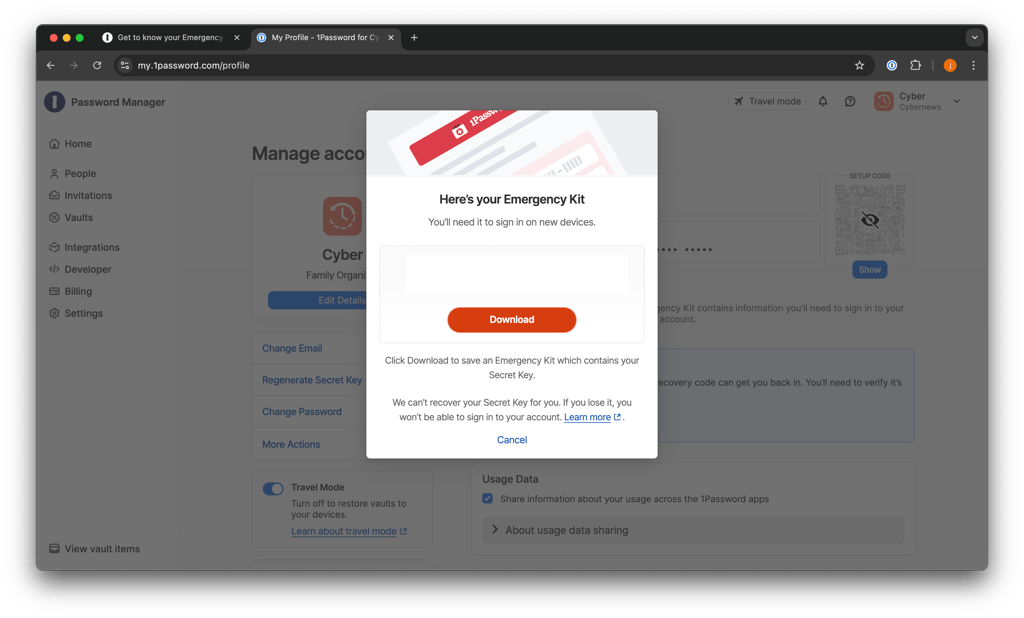
For those on 1Password’s Family, Teams, Business, or Enterprise plans, 1Password offers another way out. You can request the family organizer or team administrator to restore your access.
As for KeePass, it offers no account and password recovery methods. If you’ve lost your master password or key file, there will be no way to recover your KeePass account and all of your passwords. I think this is quite a dealbreaker.
To sum up, 1Password might be restrictive with its account recovery methods, but it’s still significantly better than KeePass’ zero recovery options.
Password generator
1Password and KeePass both offer password generators that allow all sorts of customizations and help you create strong passwords.
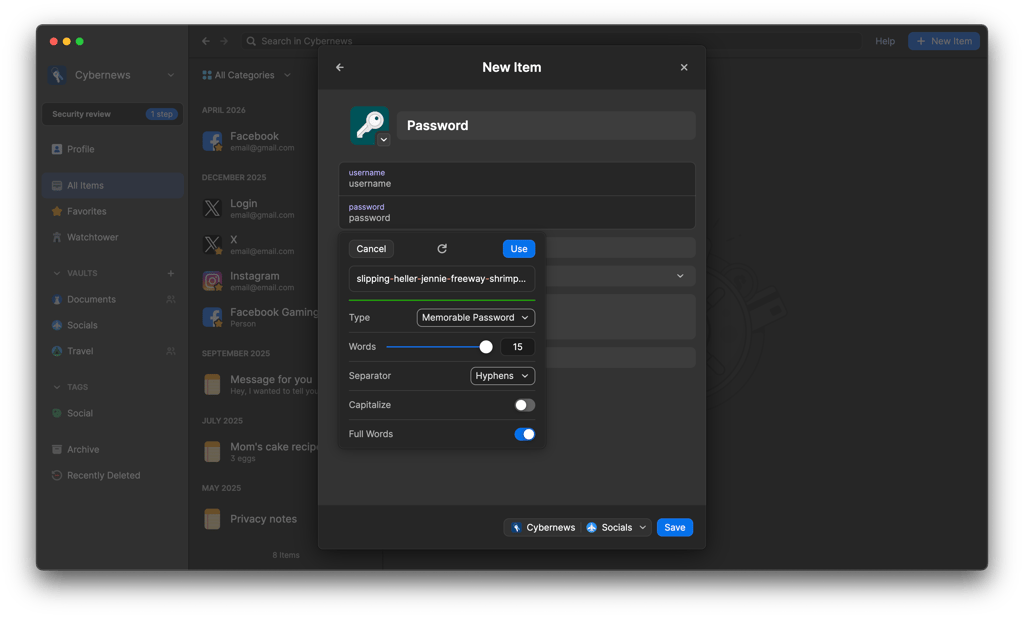
1Password’s Strong Password Generator can come up with random passwords, pass-phrase passwords, and pin numbers. You can customize by tweaking the password lengths, capitalization, and types of characters.
The KeePass password generator allows for a fair of creativity, too. In addition to length, there are 9 other boxes for you to tick to specify the types of characters that you want to include in the password. And I really like that you can even generate using patterns or custom algorithms.
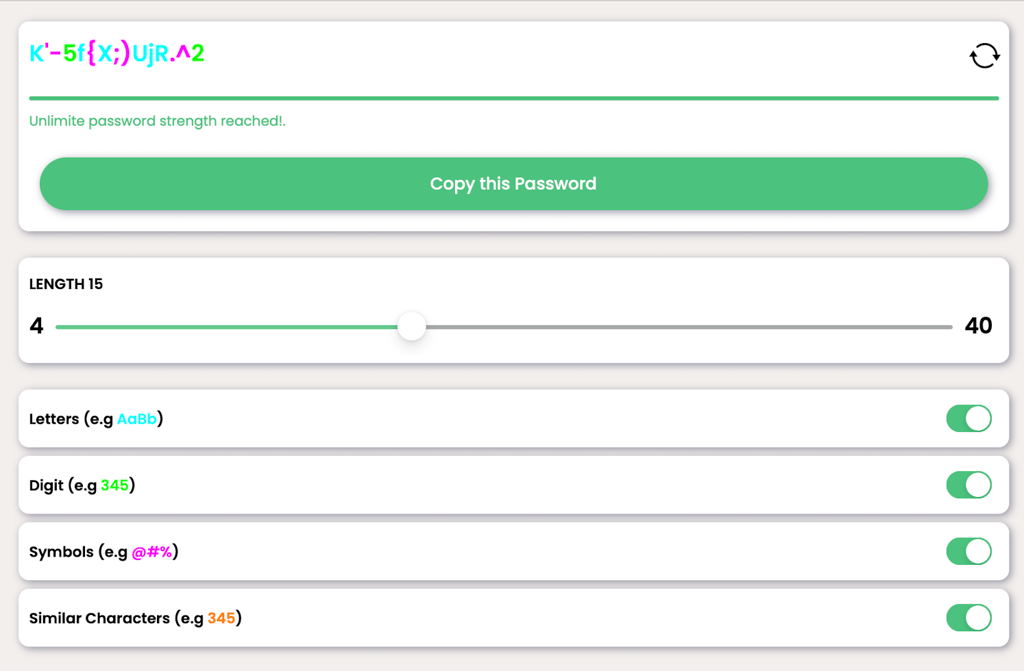
Overall, both password generators have their respective appeals. 1Password’s version is an easy-to-use generator that allows plenty of customizations. Meanwhile, KeePass’ generator is more flexible but might be slightly overwhelming to those who aren’t tech-savvy.
Password sharing
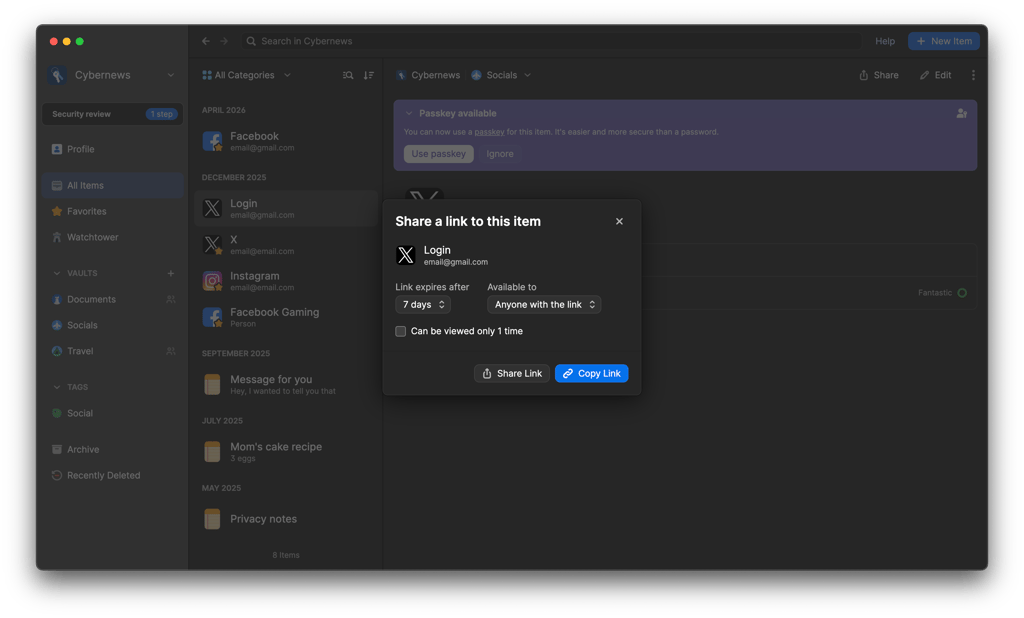
When it comes to password sharing, 1Password is the clear winner against KeePass, as KeePass doesn’t really offer a straightforward password sharing feature. My research revealed that 1Password allows you to share passwords and other saved items with others using just a single link. 1Password also lets you decide who gets access to the link and when it expires.
Additionally, I really like that those on 1Password’s Families or Team & Business plans can opt to share a vault as well. For this option, the family organizer or team administrator will be the one to manage each user's permission and access level.
In stark contrast, KeePass doesn’t have a specific feature for sharing, and I find this rather disappointing. Your only workaround to share things with other users is to set up a shared database and share the master password. I don’t think it’s exactly convenient or ideal, but it’s, however, your only option at the moment.
My vote clearly goes to 1Password. KeePass’ lack of password-sharing options is a huge inconvenience, especially for those that work collaboratively.
Autofill
Autofill feature is only offered by 1Password, while KeePass only gives a somewhat clumsy autotype. 1Password’s version requires a few clicks before you can sign in, but I didn’t eperience anything too obnoxious or complex. You simply need to click on the 1Password icon and then the login item.
If there’s more than one suggested item, you’ll need to scroll down to get to the specific credential. Do I find it clunky? Yes, slightly. Deal-breaker? Not particularly so.
Meanwhile, KeePass doesn’t offer autofill, but it does have the so-called Auto-Type feature. Here, you’ll need to press the hotkey to initiate username and password auto-type. Your cursor must also be correctly positioned where the typing should be.
Quite frankly, I found the feature more trouble than useful. For me, it’s more complicated than necessary and not exactly convenient. Plus, KeePass’ guide to autotype might make sense to tech whizzes, but it’s needlessly technical and torturous to everyone else. This might explain why its users have created plugins for autofill.
All in all, 1Password quite clearly beats KeePass with its significantly easier-to-use autofill feature.
KeePass vs 1Password: platforms, interface, and ease of use
1Password and KeePass are compatible with all mainstream operating systems. But, for me, 1Password outshined KeePass offering browser extensions for all the common names. In contrast, I didn't like that KeePass doesn’t have official browser extensions. It also doesn’t have official mobile apps.
| Supported OS | Browser extension | Number of users | |
| 1Password | Windows, macOS, Linux, Android, iOS | Chrome, Safari, Firefox, Edge, Brave | Up to 5 |
| KeePass | Windows, macOS, Linux, Android, iOS | Plugins only | Multiple |
As for ease of use, for me, 1Password remains the winner. From setup to management, I found 1Password puts user-friendliness first. My experience with KeePass, on the other hand, wasn’t very rewarding. It was more difficult to navigate, and its interfaces were far less intuitive and modern.
Desktop apps
The pair’s desktop apps are supported on Windows, macOS, and Linux. I liked that the installation and setup processes were guided and very easy – took me only a couple of minutes.
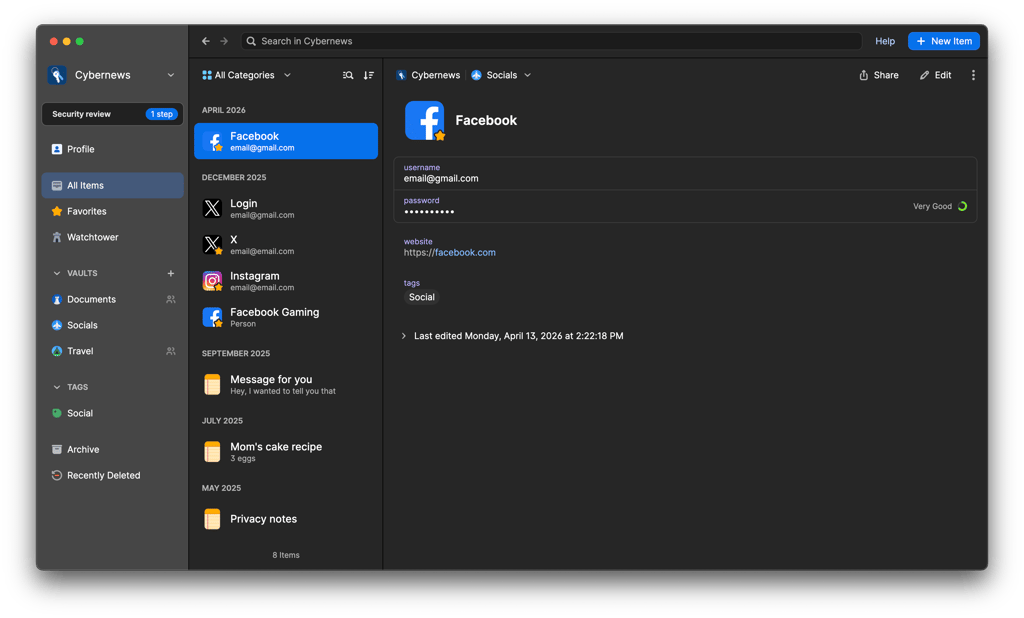
With 1Password, the look of your desktop app depends on your operating system. Generally, though, I found 1Password’s desktop apps sleek and modern but crammed with features. Hence, while things looked a little full, the intuitive layouts ensured I could quicky and easily navigate the app.
In clear contrast, I felt like KeePass’ desktop apps take you back to the 90s. For me, its interfaces looked extremely outdated and the furthest thing from sleek. There’s a menu and lots of tools/features but I didn’t find any clear path for navigation.
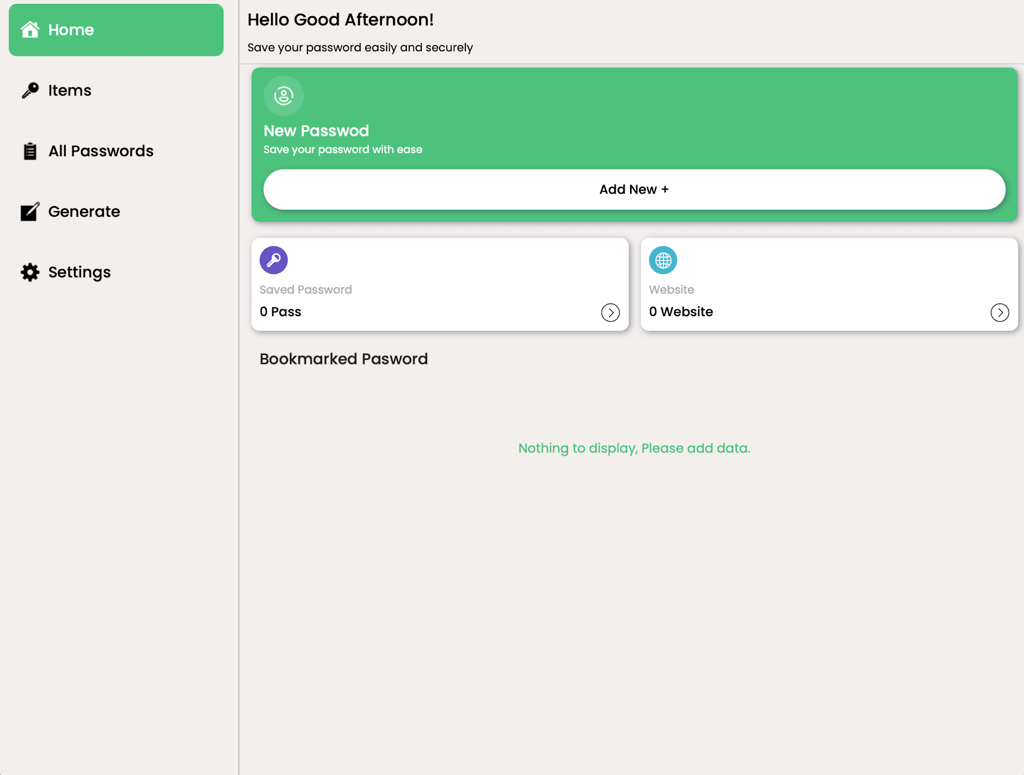
If you’re a techie, you might like that they’re functional and stripped down. But, I feel beginners and everyone else are likely to lose their way and find themselves frustrated and lost.
Browser extensions
I found it useful that 1Password’s extension is supported on all the major browsers: Chrome, Safari, Firefox, Edge, and Brave. Installation (if you want to call it that) is basically just a couple of clicks.

As for the extensions’ functionalities, I felt they’re very much tied to its web app. You can generate, save, and autofill passwords but that was about as far as I could go. Although, that’s very common with password managers’ browser extensions.
And, limited functionality is still better than nothing, which is what KeePass offers. KeePass has no official browser extensions. That said, I found there is a selection of plugins ready to step in.

Just beware that there’s always a risk involved when you use a third-party plugin.
Mobile apps
When I was setting up 1Password mobile app, all I had to do was download it from either the Apple App Store or the Google Play Store. That’s the entire setup process.
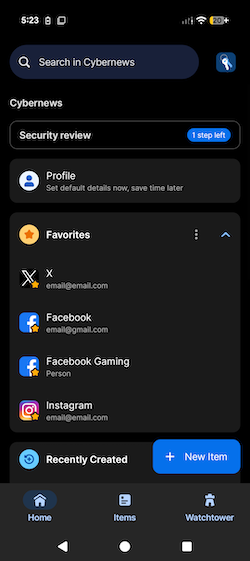
In terms of looks, I noticed both 1Password’s mobile apps for iOS and Android look almost identical. For me, they looked modern, minimalistic, and easy to navigate – everything you’d want in a mobile app. The only snag I found was that the features provided were only essential ones, such as autofill, password generator, and data sharing.
KeePass doesn’t have official mobile apps for Android or iOS, too, which I found quite disappointing. However, I noticed there are apps created by the community in the App Store and Play Store. Some examples include KeePassDroid, KeePassMob, KeePassium, and MiniKeePass.

Quality, design, and functionality vary widely, so I suggest to thoroughly research first.
1Password vs KeePass: customer support
Both 1Password and KeePass have a few customer support options up their sleeves but no real-time support, which I found very frustrating.
| Email support | 24/7 live chat | Phone support | Support community (forum) | How-to guides/Knowledge base | Social media support | |
| 1Password | ✅ Yes | ❌ No | ❌ No | ✅ Yes | ✅ Yes | ✅ Yes |
| KeePass | ❌ No | ❌ No | ❌ No | ✅ Yes | ✅ Yes | ❌ No |
In 1Password’s case, your first pit stop for help is its knowledge base, which houses thousands of articles and guides. These articles and guides for me felt very well-written and include detailed instructions, images, and step-by-step guides.
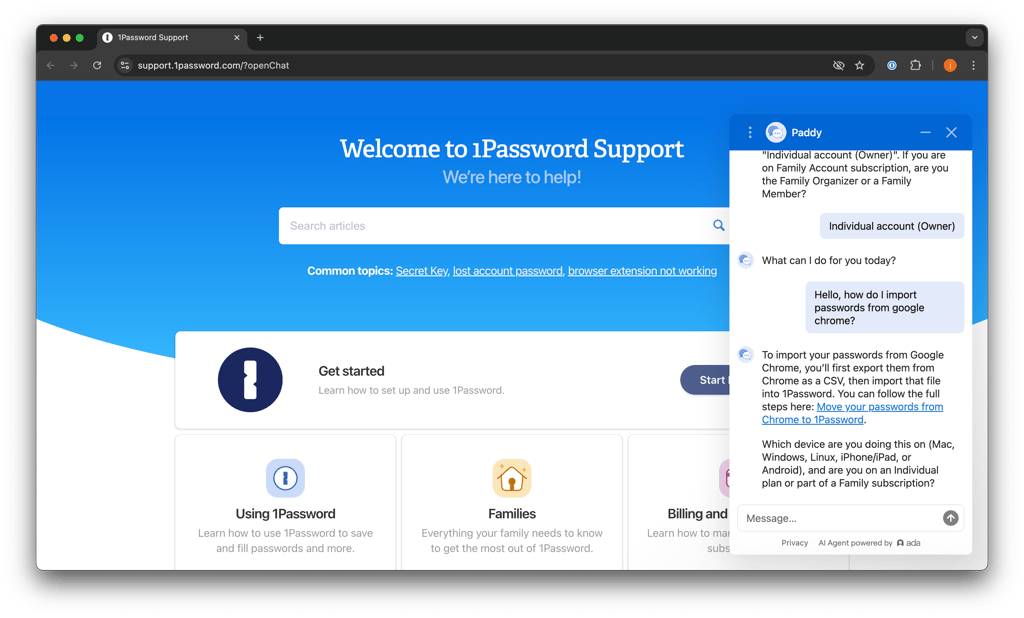
For human assistance, you could also reach out via email, Twitter, or its community forums. There’s also an AI chatbot service, which I tested. It created a ticket for me to get a reply via email, which I received in 15 minutes. I found this process quite smooth and prompt, although I understand that receiving an email reply might not always be as quick.
Conversely, KeePass has absolutely no agent support options. Your only official avenues for help are its FAQ and help center. Alternatively, there’s also a local Wiki for KeePass users and a user forum. But again, I found even the help center too complicated and frustrating, while in theory, it should be helpful.
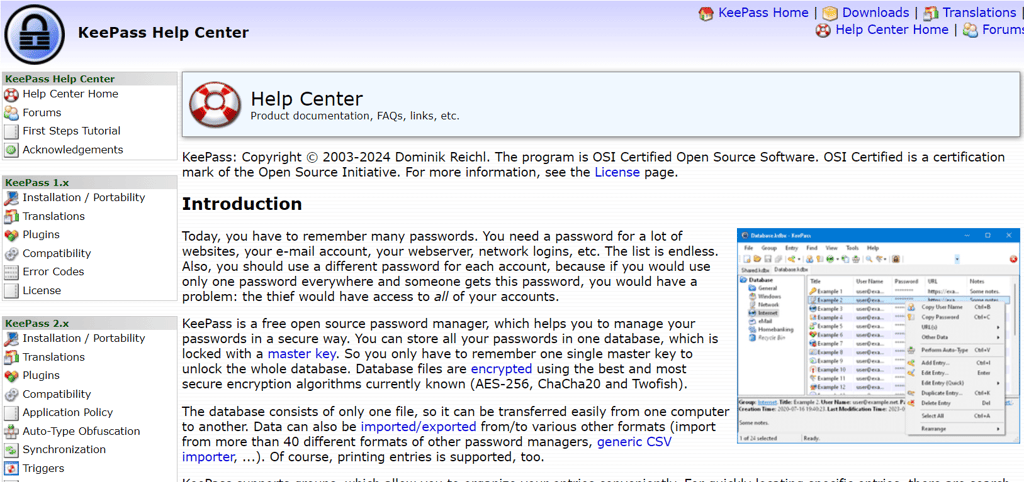
In brief, 1Password customer support isn’t perfect, but it’s still a step up from KeePass’ lack of all agent support options.
Final verdict
Both 1Password and KeePass offer solid password protection, but they suit different types of users. If you’re after ease of use, helpful features like autofill and built-in two-factor authentication, and reliable customer support, 1Password is the better choice, even if it comes with a price tag. It’s designed to be beginner-friendly without sacrificing security.
KeePass, meanwhile, is a free and secure option, which makes it great for budget-conscious users. But during testing, I found it much harder to use. Its interface feels outdated, and it lacks many of the convenient tools that make 1Password so smooth for everyday use.
FAQ
Is 1Password better than KeePass?
Yes, 1Password is better than KeePass. 1Password has better security, features, and customer support. Plus, its interfaces and apps are significantly more user-friendly as well as modern.
Which is better for mobile: 1Password or KeePass?
1Password is better for mobile. 1Password’s mobile apps for iOS and Android devices have all the core features and are easy to navigate. Contrastingly, KeePass doesn’t have official mobile apps for both Android and iOS devices.
Can 1Password import from KeePass?
Yes, 1Password can import from KeePass if you have version 2.0 or later. You’ll need to export your database from KeePass using KeePass XML (2.x) format to import it into 1Password.