How do you send an encrypted email?


When you encrypt your emails, it ensures that only the right recipients can read your messages. If anyone else tries to read your email, all they see is a code, so your private information stays safe.
In this guide, I explain why email encryption is important and how it works. I also cover easy steps to send encrypted emails using the most popular tools. By the end of this article, you’ll know the best way to protect your sensitive information in transit and avoid common mistakes.

What is email encryption and why does it matter?
Encrypted emails are encoded so that only the sender and intended recipient can read it. If you send a normal, unencrypted email, it travels through the internet as plain text. Malicious hackers or nosy third parties could easily see your message, attachments, or even sensitive details like bank numbers or personal info.
Therefore, you need encryption to protect your confidential information (financial data, personal details, business secrets, etc.). With encryption, your email gets scrambled, so even if someone else receives it, all they see is nonsense.
This is crucial for privacy and compliance reasons. Many industries like healthcare, finance, and law have regulations that require protecting sensitive data in their emails. Encryption makes sure only the right people can read your email, so you stay safe from malicious hackers and avoid breaking the law.
It also prevents scenarios like identity theft or data breaches. For example, an encrypted email can’t easily be altered and re-sent by attackers.
In short, encrypted emails keep your private information truly private. They protect attachments (when properly applied) and give you peace of mind even if someone intercepts your message. Threat actors can’t read it without the decryption key. For anyone dealing with sensitive details or personal data over email, encryption is a must-have security measure to avoid leaks and cybercrime.
How does email encryption work?
Email encryption works by using cryptographic keys to lock and unlock your messages. There are two main approaches: encryption during transport and end-to-end encryption.
- Transport-level encryption (TLS). This protects the connection between mail servers. Your email is sent as plain text, but the channel is encrypted, so it’s safe in transit. Once it reaches the recipient’s server, it’s decrypted and stored in readable form. This is what most email providers (like Gmail by default) do – it stops casual interception en route but doesn’t secure the email on the endpoints.
- End-to-end encryption (E2EE). This method keeps your email locked from when you send it until the recipient unlocks it on their device. Normally, E2EE uses a special kind of security called public-key cryptography: you lock the email with the recipient’s public key, and only their private key can unlock it. Services like PGP or S/MIME work this way: both people have a key pair, the sender uses the recipient’s public key to lock, and the recipient uses their private key to unlock. This means even email providers or anyone in between can’t read the email. Sometimes, a symmetric key can be used instead, but that needs both people to share the password securely before sending the email.
In real life, secure email services such as ProtonMail take care of the key exchange for you, so E2EE happens automatically. If both you and the person you’re emailing use compatible encryption or services, your email stays locked all the way, keeping it truly private. However, if only basic transport encryption is used, the message might sit unlocked in the inbox, which is not ideal.
How to send an encrypted email
There are a few easy ways to send encrypted emails depending on the tools you use:
- Use a secure email service. The simplest method is to choose an email provider with built-in end-to-end encryption. For example, ProtonMail automatically encrypts emails between its users with zero effort.
- Enable encryption in your current email. Gmail and Outlook have encryption features. In Gmail, you can use Confidential Mode (which limits forwarding and can require an SMS code) or S/MIME if you have a business account. In Outlook, if you have Office 365, you can click the Encrypt option or use S/MIME certificates to encrypt messages. These features ensure the email is sent in a protected format.
- Use a third-party encryption tool. Alternatively, add a plugin or app like Virtru or FlowCrypt to your email. These integrate PGP encryption into Gmail, Outlook, etc., adding a Secure Send button. Both you and the recipient might need the tool or to exchange keys for this to work.
Below, I’ll detail step-by-step how to send encrypted emails using ProtonMail, Gmail, and Outlook, covering both built-in features and a few tips to ensure your message stays safe.
How to send an encrypted email on ProtonMail

ProtonMail offers end-to-end encryption by default for emails between ProtonMail users, making it one of the easiest ways to send encrypted email. If you email someone who doesn’t use ProtonMail, ProtonMail lets you send a password-protected encrypted email that they can decrypt via a secure link. Here’s how to send an encrypted email using ProtonMail:
- Compose your message. Log in to your ProtonMail account and click New message to start composing. Enter the recipient’s email, subject, and write your email as usual. Emails sent between ProtonMail accounts will be encrypted automatically – you won’t need any extra steps.
- Enable encryption for external recipients. If you’re sending to someone outside ProtonMail, click the lock icon at the bottom of the compose window (the icon with a padlock). ProtonMail will prompt you to set a password for the message and an optional hint for the recipient. Create a strong password and share it privately with your recipient. Share it via a secure messaging app or a phone call – not via email.
- Set expiration (optional). ProtonMail also allows you to set an expiration time for the email (via the hourglass icon) if you want the message to self-delete after a period. This is optional but adds extra security for highly sensitive messages.
- Send the email. Click Send. If you use the password feature, ProtonMail will not send the actual content directly. Instead, the recipient (non-ProtonMail user) gets a notification email with a link. When they click the link, they’ll go to ProtonMail’s secure web page and be asked to enter the password to decrypt and read your message. They can also safely reply through that portal (their reply will be encrypted back to you).
ProtonMail’s process ensures that only someone with the password can read the content. Even ProtonMail itself cannot access the decrypted message content. This user-friendly approach means you don’t need to exchange encryption keys manually – just set a password. In our experience, ProtonMail is the best pick for hassle-free encrypted emailing because it combines strong security with ease of use.
How to send an encrypted email on Gmail?
Gmail offers a feature called Confidential Mode to help protect your messages. While it’s not end-to-end encryption, since Google can technically still see the content, it adds privacy controls. You can set an expiration date, require an SMS passcode to open the email, and Gmail will disable forwarding or downloading for that message. Here’s how to use it:
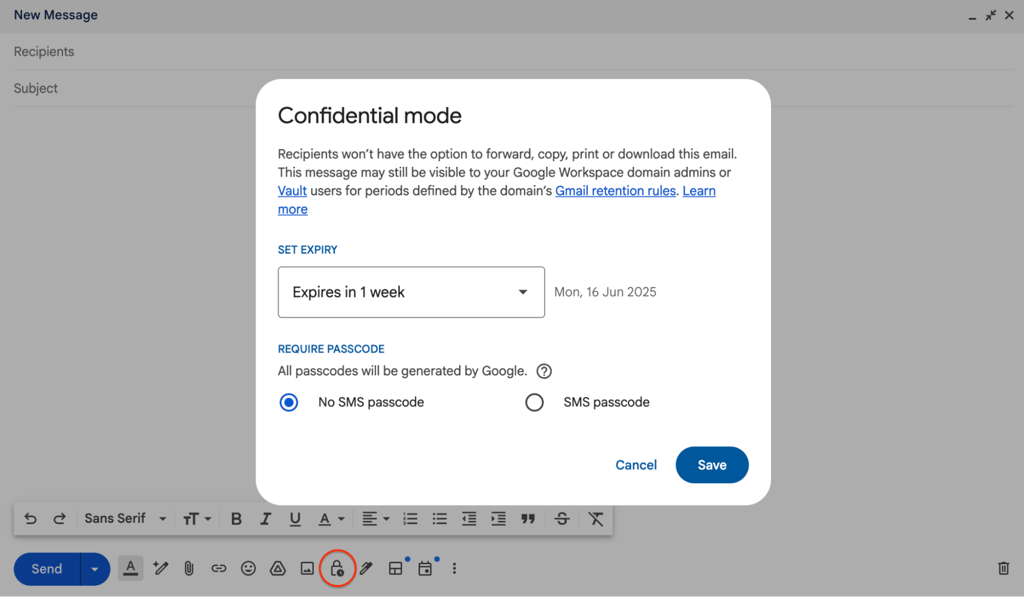
- Compose a new email. Log in to Gmail and click Compose. Then, write your email as usual.
- Enable Confidential Mode. At the bottom of the compose window, click the Toggle confidential mode icon (it looks like a padlock with a clock). A popup will appear with options.
-
Set expiration and passcode. In the Confidential Mode settings, choose an expiration date for the email: 1 week, 1 month, etc.. After this date, the recipient can no longer view the email content. Next, choose whether to require an SMS passcode.
- If you select No SMS passcode, Gmail users can open the email directly once received.
- If you select an SMS passcode, the recipient (especially if they’re not on Gmail) will receive a text message with a code. They must enter that code to open the email. Gmail will prompt you to enter the recipient’s phone number when you send, in order to send them the code.
- Send the email. Click Save in the Confidential Mode dialog, then send your email as normal. The recipient will get your message with a notice that it’s in confidential mode. If you set an SMS passcode, they’ll be prompted to enter the code Google sent them before they can read the message.
With Confidential Mode, recipients cannot forward, copy, print, or download your email or attachments. Keep in mind it’s not foolproof – someone could still take a screenshot or photo of their screen, so avoid relying on it for absolute secrecy. Also, Confidential Mode doesn’t encrypt the email’s content end-to-end (Google stores it on their server), but it does prevent casual sharing. For most users, this provides sufficient privacy for sensitive but not top-secret emails.
How to send an encrypted email on Outlook
Microsoft Outlook has built-in encryption capabilities. If you have Outlook with Microsoft 365 (Personal, Family, or Enterprise), you can use Office 365 Message Encryption (OME) which is very user-friendly. Here’s how to send an encrypted email using Outlook 365.
-
Compose a new email. Open Outlook and click New Email to compose your message. Enter the recipient and content as usual.
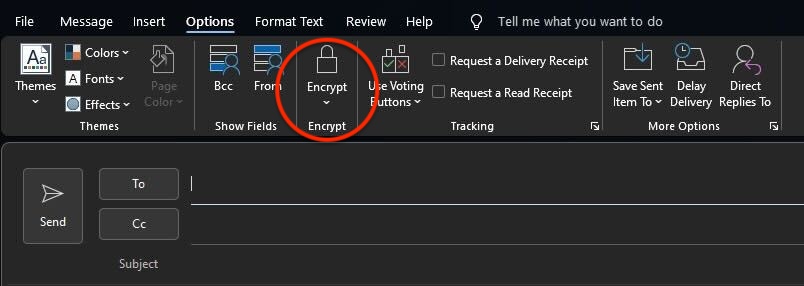
- Select the Encrypt option. In the message window, go to the Options tab on the ribbon. Click the Encrypt button. In newer Outlook versions, this may be under a Permissions or dropdown menu.
-
Choose the level of encryption/restriction you want. Encrypt-Only: encrypts the message (and attachments) so that only the intended recipient can open it. Do Not Forward: in addition to encryption, this prevents the recipient from forwarding or printing the email (it locks down the content).
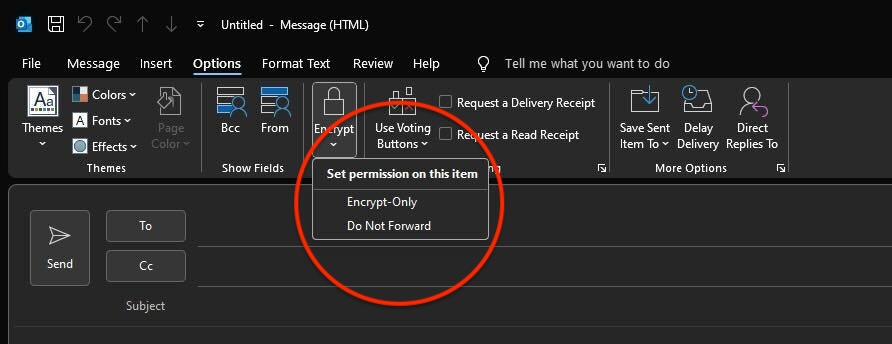
- Select the option that fits your needs. Once selected, Outlook will apply the encryption template.
- Send the email. Now send your message. If the recipient is using Outlook.com or Office 365 as well, they will typically be able to open and read the encrypted message directly in their mail client (with a little lock icon indication). If the recipient is on another service (say Gmail, Yahoo, etc.), they will receive a message with a link to the Microsoft encrypted message portal. They can click the Read the message link, and they’ll be guided to sign in with their Google/Yahoo account or enter a one-time passcode to view the email on a secure Microsoft webpage. This is similar to how ProtonMail handles outside recipients – no special software is needed; they just verify their identity and the portal displays the decrypted message for them.
Outlook’s encryption will also secure any attachments. In fact, Office documents (Word, Excel, etc.) sent with Do Not Forward remain encrypted even if downloaded, so they can’t be opened by unintended people. Other file types get encrypted in transit and via the portal viewer.
In summary, Outlook’s built-in OME is straightforward if you’re in the Microsoft ecosystem – just one button to encrypt. In my team’s tests, this method worked seamlessly when both sender and recipient used Outlook or Office 365. For outside recipients, the web portal approach added one extra step (identity verification), but kept the message secure. It’s a robust solution, especially for businesses already using Microsoft’s tools.
Common mistakes to avoid when sending encrypted emails
Even with encryption tools at your disposal, there are a few common mistakes that can undermine your email security. Avoid these pitfalls:
- Not encrypting attachments. Don’t assume attachments are automatically encrypted along with the email body. Many times, users send an encrypted email but attach files that aren’t protected. Ensure your encryption method covers attachments, or use a tool that explicitly encrypts attachments as well (ProtonMail, OME, and PGP do encrypt attachments).
- Assuming all encryption tools are equal. Not all encrypted email solutions provide the same level of security. For example, Gmail’s Confidential Mode limits forwarding but isn’t end-to-end encrypted (Google could access those emails). Make sure you understand your tool – true E2EE (like ProtonMail) is more secure than just TLS or confidentiality features. Choose a reputable, up-to-date encryption method for real privacy.
- Mishandling encryption keys or passwords. The security of encrypted email is only as strong as how you manage the keys/passwords. A huge mistake is sharing the decryption password over the same channel (e.g., emailing the password). Always share passwords or keys via a separate secure channel. Also, protect your private keys – if an attacker gains access to your key, they can decrypt everything. Use strong passwords for your key storage, and don’t store keys in plaintext on your device.
- Forgetting usability for the recipient. If you use a very niche encryption method, the recipient might struggle to decrypt it (or might bypass security altogether). This isn’t a security flaw per se, but it’s a human mistake. Always ensure the person on the other end can handle the encrypted message. Otherwise, they might resort to risky behavior like copying content into an unencrypted form to read it.
By being mindful of these issues, you can maximize the effectiveness of email encryption and not accidentally negate the benefits through human error.
Best practices for email encryption
To get the most out of encrypted email and keep your sensitive communications safe, follow these best practices:
- Double-check recipient details. Verify you’re sending to the correct email address, especially when sharing confidential data. A simple typo can send a sensitive email to the wrong person. It sounds basic, but misaddressed emails have caused real breaches. Consider verifying the recipient’s identity through a secondary channel if the content is highly sensitive.
- Use strong authentication and account security. Encryption won’t help if an attacker can directly access your account. Enable 2FA on your email accounts to add an extra layer of login security. This way, even if someone guesses or steals your password, they can’t log in without the second factor. Also use strong, unique passwords for your email and encryption keys. Account security and encryption go hand-in-hand – both protect your messages in different ways.
- Keep your software updated. Ensure that your email client, encryption plugins, or secure email app are always up to date. Updates often patch security vulnerabilities. Using an outdated PGP plugin or an old version of an email app could expose you to known exploits. Regularly update your devices and applications to get the latest security improvements.
- Combine encryption with other security measures. Encryption protects content, but you should still be cautious with email overall. Continue to use anti-malware filters and be vigilant about phishing emails. For extremely sensitive communications, consider using dedicated secure messaging apps. And if you do use password-protected emails, deliver passwords safely. Good operational security (OpSec) plus encryption provides the best defense.
- Educate recipients if needed. If you’re sending an encrypted email to someone unfamiliar with the process, give them a heads-up. For example, if you send a client a ProtonMail encrypted message, you might separately inform them. This prevents confusion and encourages them to follow through with the secure method rather than prompting you to resend unencrypted.
By following these best practices, you ensure that your encrypted emails achieve their purpose: keeping your private information truly private. It’s about combining the right tools with smart habits.
FAQ
Does email encryption secure attachments as well?
Yes, if you send an email with proper end-to-end encryption or a secure email service, attachments are encrypted along with the message. However, not all methods automatically encrypt attachments, so be sure you’re using a solution that explicitly covers attachments. When in doubt, assume you need to encrypt files too (or use built-in secure file share) to keep them safe.
How do I know if my email is encrypted?
Your email client will usually indicate it. Look for a lock icon or label when composing or viewing an email. For example, ProtonMail shows a lock status icon in the To field indicating encryption is in effect. Outlook will display a lock icon in the sent email or a message banner if an email was sent with encryption. In short, if you see a lock symbol or a notice like This message is encrypted, then it’s secured. If such indicators are absent, the email likely went out unencrypted.
Do recipients need special software?
Not usually. Many modern encrypted email solutions do not require the recipient to install special software. For example, if you send an encrypted email via ProtonMail to someone without ProtonMail, they can open it in their web browser using a link and the password you provided – no sign-up or app needed.
Are replies and forwards automatically encrypted?
Not by default, unless the reply is handled within the same secure system. If both you and your recipient use the same encrypted email service or have shared keys (e.g., ProtonMail to ProtonMail), then replies will be encrypted as well with no extra effort. ProtonMail, for instance, allows an external recipient to reply securely through its portal, keeping the conversation encrypted both ways. However, if the recipient just hits reply in a normal email client and you haven’t shared a means of encryption, that reply will be unencrypted.
Do encrypted emails expire?
By themselves, encrypted emails don’t expire – they remain in the recipient’s inbox until deleted. However, many encrypted email tools let you set an expiration date. Gmail’s Confidential Mode requires you to set an expiry date (from 1 day up to 5 years), after which the recipient can’t access the email anymore. ProtonMail also has a self-destruct timer feature for encrypted messages sent to non-users.
Can someone else read encrypted emails?
When done right, only the person meant to read them can do so. This person has the special key or password needed to unlock the email. For example, ProtonMail uses end-to-end encryption. This means that not even ProtonMail’s own servers can read your email. However, there are some risks too. If someone hacks into your account, they might read your encrypted emails. Also, if your private encryption key is stolen, an attacker could unlock and read your messages.
Does sending encrypted emails slow down delivery?
Not in any noticeable way for most users. Encryption and decryption processes happen almost instantly on modern devices. In our tests, an encrypted email takes virtually the same time to send as a normal email. Services like ProtonMail are optimized so that encryption work is done in the background without delaying sending. At most, there might be a slight overhead (a second or two) for the encryption process or when the recipient’s system decrypts it.