Your questions, answered by Cybernews: Is it possible to unsubscribe to all newsletters at once?
A Cybernews reader wondered if it is possible to unsubscribe from unwanted emails all at once, so we decided to see what could be done to prevent them from drowning in spam emails. Each week, our team selects one pressing and common reader issue and deconstructs it to help you stay safe online.
Image by Cybernews

 Follow us
A Cybernews reader wondered if it is possible to unsubscribe from unwanted emails all at once, so we decided to see what could be done to prevent them from drowning in spam emails. Each week, our team selects one pressing and common reader issue and deconstructs it to help you stay safe online.
You’ve got 1,158 unread emails, and 99% of them are newsletters from underwear brands, sneaker drops, or the latest vitamin startup. Sound familiar? You’re not alone.
“Every time I buy something, or sometimes just when I visit a site, I end up on 10 new mailing lists,” one Cybernews reader told us.
While manually deleting or unsubscribing might be an effective way to reduce the amount of spam emails, it is very time-consuming.
“Is there a smarter way to bulk clean this up and stop companies from spamming me?” asked the reader.






This week, the Cybernews editorial team tried all the best options for regular email users drowning in unwanted promotions. The bad news is that Gmail does not have an in-built unsubscribe function. However, here are some solid options that we found.
Unsubscribe from unwanted emails one by one
Promotional emails often have an “Unsubscribe” link, which is mandatory if the company wants to comply with anti-spam laws.
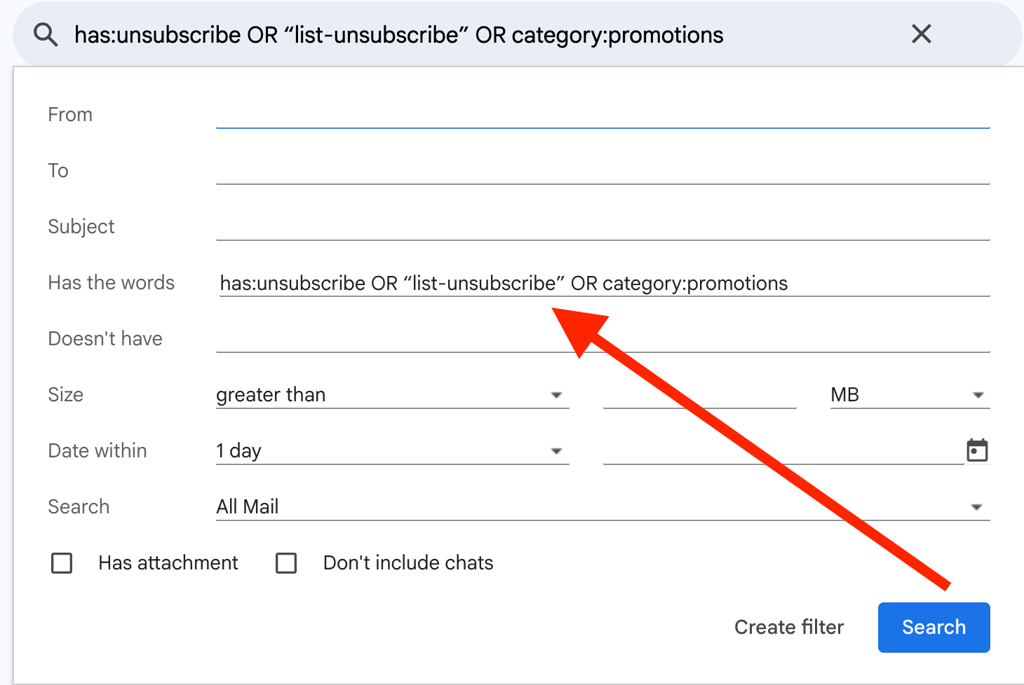
Most of the promotional emails end up in the “Promotions” section in Gmail’s inbox. However, some slip through. You could use this query in the search bar to catch them all:
has:unsubscribe OR “list-unsubscribe” OR category:promotions
This query will locate all emails that have an “Unsubscribe” link. Once you have them in front of your eyes, click on the unwanted newsletters and unsubscribe one by one.
Create a filter to archive all the promo emails
A smarter way to remove promotional emails from your inbox in bulk is to create filters that can delete unwanted emails once they arrive and retrospectively delete all old ones.Start by using the same query to catch the promotional emails:
“has:unsubscribe OR “list-unsubscribe” OR category:promotions”
- Click the search options icon (sliders) on the right of the search bar.
- In the panel, your query will appear in “Has the words.”
- Pick the time frame from which day you want to filter. You can choose up to a year.
- Click “Create filter.”
- Once you press create, you will see another panel, asking what to do with the filtered emails. You can choose actions, such as “Archive it” or “Delete it.” To test how filters work, better start safely and not pick delete options straight away.
- Optionally tick “Also apply filter to matching conversations.” This immediately applies the chosen actions to all current matches.
- Click again “Create filter.”
- You can edit your filters later here: https://mail.google.com/mail/u/0/#settings/filters


Write a script to “unsubscribe”
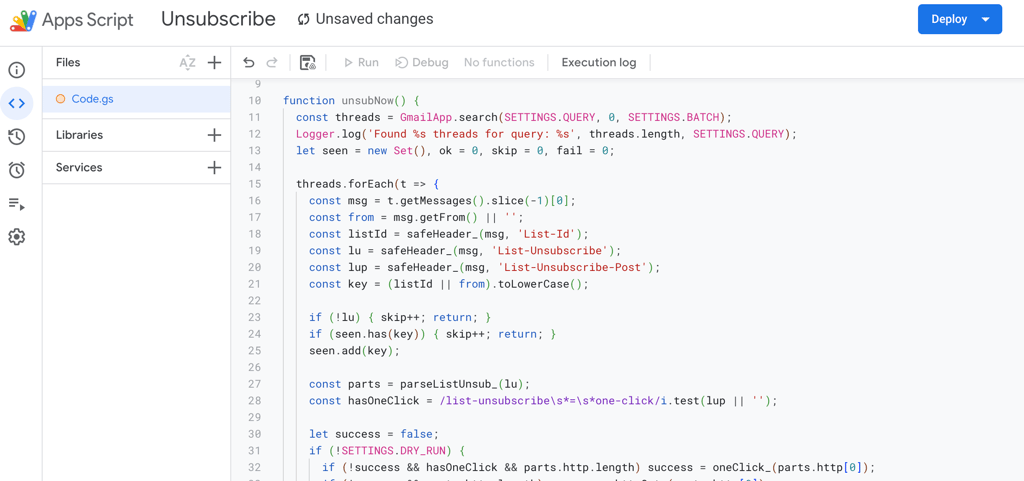
If you’re more tech-savvy and want to say goodbye to promotional emails by unsubscribing to them all, you could also try writing a script.
A script can scan your inbox for messages that contain the standard “unsubscribe” link hidden in email headers, automatically click that link, and then label and archive the thread so you never see it again.
Most people build this in Google Apps Script (using Gmail’s built-in tools like GmailApp and UrlFetchApp) or through the Gmail API. The script logic usually works like this:
- Script searches your inbox for messages with “unsubscribe” links (try Gmail searches like has:unsubscribe or category:promotions).
- Script uses the easiest unsubscribe method first (the one-click standard, RFC 8058). If that fails, fall back to a regular HTTPS link or send a mailto unsubscribe request.
- The script also needs guardrails to whitelist important senders and ignore sketchy body links. This is important to avoid automatically clicking on a phishing link.
If you’re ready to go down that lane, there are plenty of examples and copy-paste snippets on GitHub and Stack Overflow, plus official guides from Google Apps Script and the Gmail API. The heavy reading is in the RFC docs (RFC 2369 and RFC 8058), but you don’t have to reinvent the wheel.
You could always tune into vibe coding and just trust AI to write such a script. With precautions, of course.
The lazy solution – use a third-party service
There are third-party tools in the market that offer to clean up your inbox for a fee. There are services like:
- Clean Email
- Leave Me Alone
- SaneBox
- Mailstrom
The applications have features to clean up and sort your inbox, as well as unsubscribe from promotional emails in bulk.
However, to use one of these services, you’ll have to grant access to your inbox. So you should really check the privacy conditions that each company has, read the reviews, and make a decision if you’re willing to trust your data to a third-party company.




Unlock more exclusive Cybernews content on YouTube.