Klap AI review 2026: a hands-on test of this AI video-clipping tool
Being behind major reports like The Mother of All Breaches and RockYou2024, our in-house cybersecurity experts and journalists provide unbiased, real-world testing and in-depth analysis.
We maintain complete transparency by openly sharing our testing methodologies with our audience.
Learn more

Klap AI is an AI tool that claims to quickly turn long videos like YouTube videos, podcasts, and interviews into short clips for TikTok, YouTube Shorts, and Instagram Reels. This Klap AI review covers how well it performs, focusing on quality, accuracy, ease of use, pricing, and value.
In short, after testing, I found it produces clips fast and is simple to use, but issues with frame detection, editor speed, export options, and clip quality limit its real-time savings. Keep reading to see what happened during testing and whether it’s a good fit for creators and marketers.
What is Klap AI? AI-powered video repurposing explained
Klap AI is a browser-based AI tool that clips and generates short videos from long-form content. Whether you upload your own files or paste YouTube links, Klap AI analyzes the content and automatically extracts engaging snippets optimized for vertical platforms like TikTok, YouTube Shorts, and Instagram Reels.
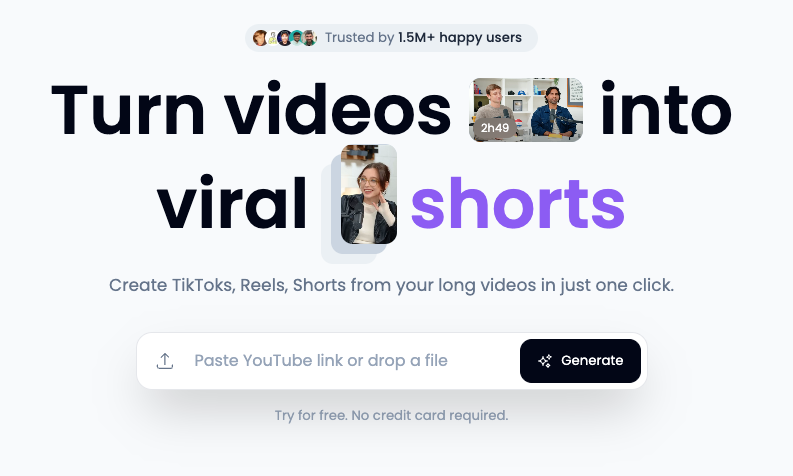
In theory, the main idea is to automate the tedious process of turning long videos into short, shareable clips using artificial intelligence (AI) that finds highlights, adds captions, and reformats footage. This should save time and effort, but whether it actually does depends on how accurate and usable the results are in real-world use. I tested exactly that to find out.
My Klap AI experience: clip quality, accuracy, and usability
Using Klap AI, my overall experience depended a lot on the type of video being analyzed. For example, in tutorial-style videos, the AI struggled to find natural breaks. Clips often ended abruptly or combined multiple topics in ways that felt awkward.
In one instance, the video “How to choose Squarespace apps without killing your site's loading speed” illustrates this well. Even after the main advice was given, at the 0:22 mark, the clip continued past the visual transition, completely derailing the video's main title. This happened every single time without exception with tutorial videos.
Screen content was also often cropped poorly, making some details hard to follow. As a result, these clips required more manual editing to make them coherent, which slowed down the workflow somewhat.

In contrast, Klap performed much better with interviews or talking-head videos. For example, in a split-screen Cybernews interview, the AI effectively tracked both faces and even correctly reframed them vertically, creating clips that were visually balanced and immediately usable.
Plus, during interviews, it seemed to identify important moments more accurately and cut them properly. While small edits were still necessary, the interface made trimming and correcting clips easy.

One area to note is that generation can sometimes stall, especially with longer videos. In my experience, the process paused near the end before completing all clips, which was a bit frustrating.
Overall, Klap AI is strongest for narrative-driven or interview content, producing clips that are both visually and contextually coherent. For tutorials or videos with lots of on-screen action, it can still be useful, but expect to spend more time editing. The interface is easy for beginners, though experienced editors will have to deal with long delays and fewer controls than in typical editors.
Core features and capabilities: what Klap AI actually offers
Below, I break down the main features and how they performed during my testing.
Automatic short-form clip generation
When you feed Klap AI a long video, it tries to automatically find moments it considers engaging and generates multiple shorts per upload. In my Squarespace video tutorial test, from the 15:02 video, Klap generated 19 clips in about 14 minutes.

Even though I selected a 1-minute target length, the clips ranged from roughly 30 seconds to 1 minute 30 seconds. At first glance, it might seem that it’s a mistake, but I actually liked that behavior. Instead of forcing every clip to hit an exact duration, Klap let ideas run as long as they needed to make sense.
With that said, at least for a video tutorial, clip boundary detection was really inconsistent. Klap AI usually found workable topics but always either stretched or cut too soon, resulting in awkward derailments or unfinished ideas. Out of 19 shorts from the Squarespace test:
- None were perfect without editing
- 7 were easily editable to match the intended heading
- 5 needed major edits, but looked salvageable
- 1 was usable but had a mismatched headline
- 6 were unusable
Even so, out of the 7 clips that seemed to match the heading, the actual topics were often questionable. For tutorials, it works better as an idea generator than a finished solution.
AI captions and subtitles
Klap automatically generates captions and gives you a lot of control over how they look. You can change fonts, colors, size, highlights, and drop shadows and switch between one-word captions and full sentences. Emojis can be added, removed, and repositioned directly in the caption editor. Changes apply instantly while the editor is open, which makes styling fast.
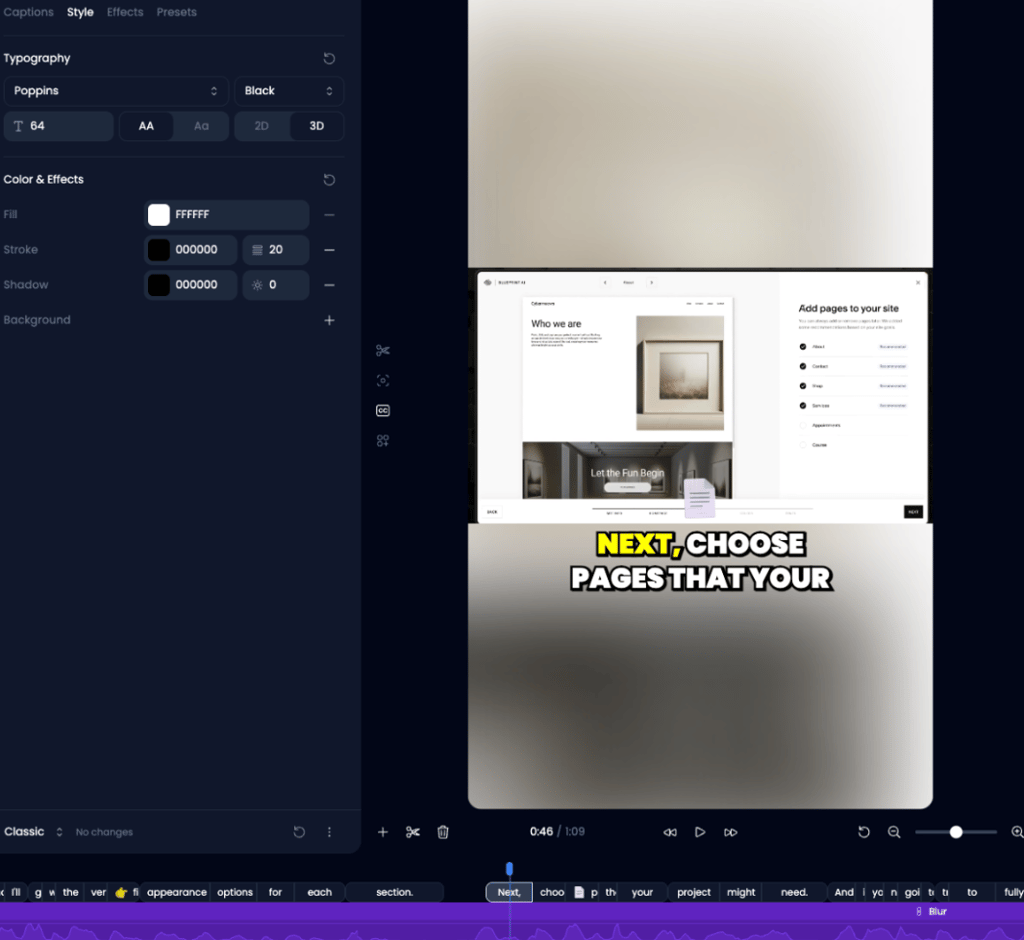
One limitation is timing control. Editing the caption text does not automatically resync the audio or pacing. If captions feel rushed or lag behind speech, you need to manually adjust the clip in the timeline. Klap does not offer advanced caption timeline controls, so fine-tuning takes longer than it would in a professional editor.
Social-ready formatting
Klap formats clips for vertical platforms like TikTok, YouTube Shorts, and Instagram Reels by reframing horizontal footage. You can choose from centered full-screen, blurred background, or split-screen layouts. For talking-head videos, this works reasonably well with minimal effort.
Problems appear when the source video includes screen recordings or horizontal visuals. In my Squarespace tutorial test, Klap kept screenshots centered, which sometimes obscured the subjects of the captions. Fixing this required manual reframing for each clip.
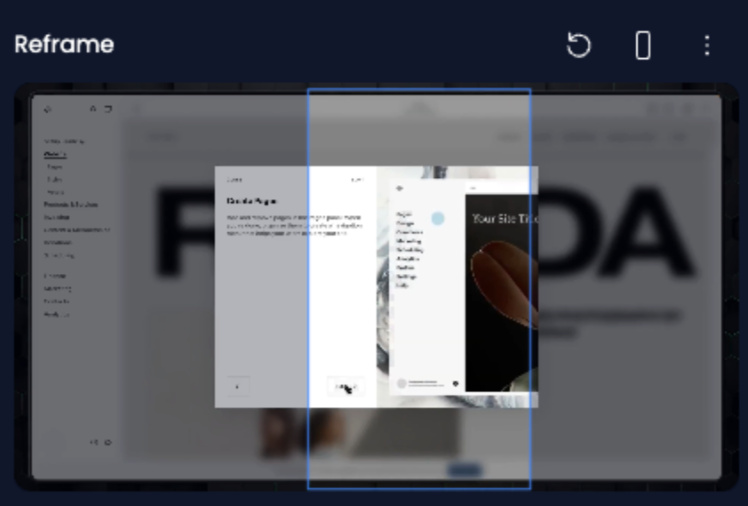
Split-screen options are available, but they are basic. You can place clips side by side, but you cannot layer or sequence multiple visuals in a dynamic way.
Only one layer is visible at a time. Compared to manual editing in Premiere Pro or DaVinci Resolve, Klap’s formatting tools feel restrictive, especially if your content relies on on-screen details.
Ease of use and processing speed
Getting started with Klap was easy. After logging in with my email and paying for the subscription, I simply pasted the URL and clicked the Generate button.
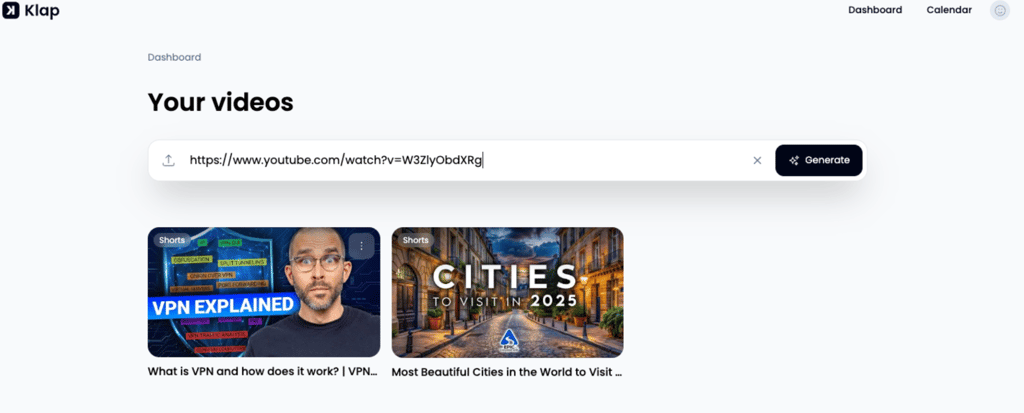
After that, a simple settings screen appeared with a few content options. These included whether to add captions, emojis, or an intro title and whether to reframe the video for vertical viewing.
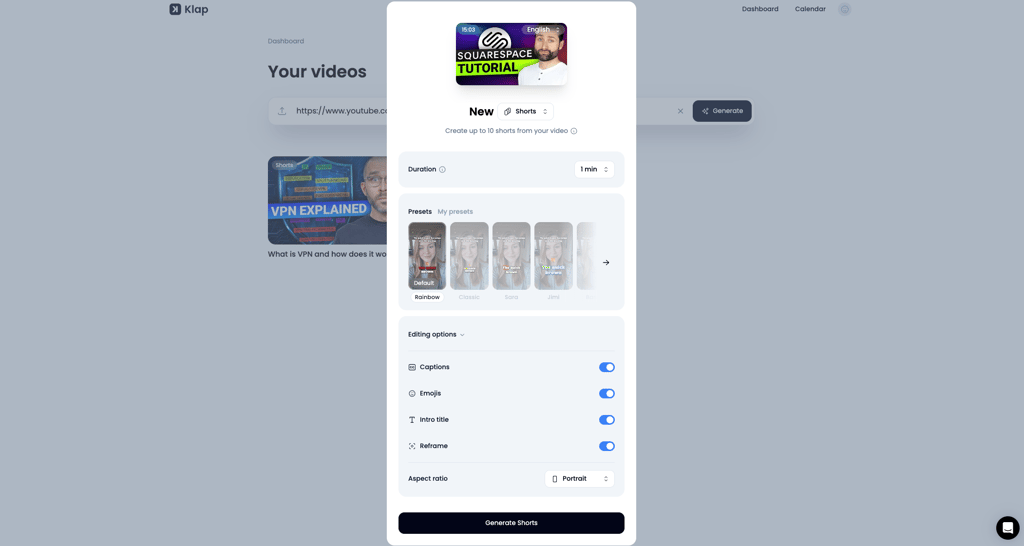
After selecting the Generate Shorts button, Klap AI takes its time to generate the clips. Generally, shorter videos take a shorter time to extract.
I had to wait about 1 minute for each minute of the video. When I tried a longer 40-minute video, it actually failed to process completely, so you might have to be patient with it sometimes.
Besides that, the editor itself is clean and easy enough to use, especially for beginners like me. But I noticed that making edits, like changing the clip length, was slower than I expected.
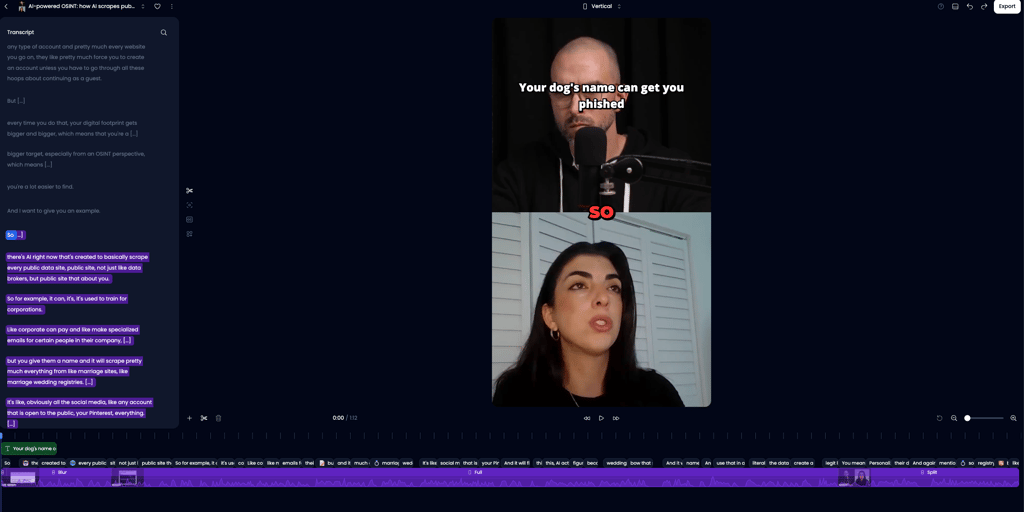
Every time I made a change to the video, I had to wait about 30 seconds to see the preview, which is not ideal. Overall, generation is fast and easy, but editing is less efficient.
Export options and watermarking
Exporting clips from Klap is simple, but the available options depend on your plan. On paid plans, you can download clips in HD or 4K quality. Klap lets you publish videos directly to connected social media accounts using a built-in scheduling calendar.
One important thing to know is that, unlike some competitors, such as OpusClip, Klap AI doesn’t give you access to your project file (XML), which you can open in a professional editor to adjust your cuts, caption tracks, or clip order. In other words, you only get the final video but not the editable instructions that go with it.
Because Klap does not export XML or similar project files, you cannot import an editable timeline into a non-linear editor. If you want to do detailed polishing in, for example, Premiere, you will need to rebuild the sequence and reapply captions and timing manually after exporting from Klap.
Additionally, it’s worth noting that Klap AI has a free version too, but it comes with a major tradeoff. It only allows one generated video and adds watermarks.
Klap AI pros and cons
Klap AI pricing and value: is it worth the cost?
Klap offers multiple tiers and a free trial option. Here are the key plan offerings:
| Plan | Price | Features |
| Free | Free | Basic trial to test Klap. Generates one clip at lower quality, watermarked. Good for experimenting and seeing how the AI works. |
| Klap (starter) | $29.00/month or $17.00/month (yearly) | Suitable for solo creators who occasionally post social clips. Enough capacity for a few projects, with HD quality and simple editing. |
| Klap Pro | $79.00/month or $47.00/month (yearly) | Designed for regular creators or podcasters. Handles larger projects, offers multi-language dubbing, and higher-quality exports. Ideal if you publish frequently. |
| Klap Pro+ | $189.00/month or $113.00/month (yearly) | For high-volume creators or small teams. Supports many videos and large projects. Best if you need quick, polished clips at scale. |
Klap’s pricing plans vary by tier, with higher plans offering features like 4K downloads, AI dubbing into multiple languages, and more uploads. Exact limits depend on plan and billing cycle, so check the site for current details.
At the end of the day, Klap will benefit different creators differently:
- Solo creators or small channels will benefit from quickly turning long videos into social-ready clips without heavy editing. The time saved should outweigh the cost in the long run.
- Podcasters or interviewers will benefit from captions and AI dubbing, though very long episodes will drain the budget fast.
- Marketing teams might benefit as a supplemental tool, since Klap doesn’t export fully editable projects. Complex workflows still require traditional NLEs.
Klap AI vs other AI video-clipping tools
When comparing Klap AI with other AI video-clipping tools, it helps to see how it stacks up on features, pricing, and usability. Here’s a quick comparison of Klap AI and OpusClip:
| Feature | Klap AI | OpusClip |
| Automatic clip generation | ✅ Yes | ✅ Yes |
| Caption customization | ✅ Yes | ✅ Yes |
| Direct social publishing | ✅ Yes | ✅ Yes |
| AI dubbing/translation | ✅ Yes (29 languages on higher tiers) | ❌ Limited |
| 4K downloads | ✅ Yes (on higher tiers) | ✅ Yes (on higher tiers) |
| XML export | ❌ Not available | ✅ Available |
| Multi-source import | Limited | Supports YouTube, Drive, Zoom, etc. |
| Ease of use | ✅ Beginner-friendly, slower edits | ✅ Quick edits, simpler interface |
| Pricing | From $17.00/month | From $15.00/month |
| Best use cases | Interviews, talking-heads, polished shorts | Quick social clips, team workflows |
Klap is strong for caption styling, built-in dubbing, and easy scheduling/publishing. Opus Clip (and similar tools) are better if you need professional-level editing, thanks to XML export for fine-tuning in Premiere or Resolve. Klap shines when you want to create ready-to-post clips entirely in-browser without moving to another editor.
FAQ
Is Klap AI free to use?
Yes, Klap offers a free trial and allows a single free generated video. Paid plans unlock higher upload and generation limits, HD/4K downloads, and more features.
Does Klap AI work with YouTube videos?
Yes, Klap AI works directly with YouTube videos. You can rip any video you want, paste the URL into Klap AI, and instantly generate short-form vertical clips without downloading anything. Each uploaded link counts toward your monthly upload limit, but you can generate as many clips as you are willing to pay for.
Is Klap AI better than OpusClip?
It depends your needs. Klap AI excels at a minimal UX and quick, polished shorts, while OpusClip gives you more export control (XML) and team features. If you need final editing in Premiere Pro or DaVinci Resolve, OpusClip is the better choice.
Can Klap AI create TikTok-ready videos?
Yes. Klap AI can generate videos specifically for vertical platforms and offers settings tailored for TikTok. However, you may need to adjust framing manually for screenshots and to fix abrupt clip ends.