How to avoid ClickFix malware scams

You might not even suspect that the page you’re on is a carefully designed trap of a ClickFix malware scam. Google’s “Aw, Snap!”, Cloudflare's Turnstile, or even social media landing pages are commonly targeted by this scam. If at first everything seems normal, but in a moment the page displays urgent instructions asking you to copy and execute commands to verify your device or fix an issue, that's the main sign it's a ClickFix scam.
Understanding how to avoid ClickFix malware scams is becoming increasingly important as these fake security prompts spread across compromised websites and ads. In this guide, I explain how ClickFix attacks work, the warning signs to watch for, the best ways to stay protected, and how to remove ClickFix malware from your computer.

What is the ClickFix scam?
ClickFix is a social engineering malware scam that tricks users into manually executing malicious commands. This type of scam poses as fake system errors or browser security checks, tricking users into running PowerShell or opening terminal commands that install malware.
The first ClickFix scams were observed back in 2023, and since then, this type of scam has exploded in popularity. What’s particularly dangerous about ClickFix is that it tricks users into willingly executing harmful code.
Once the command is successfully executed, the consequences are pretty dire. The malware used by the ClickFix scam can steal your personal data, passwords, and cryptocurrency wallet credentials. It might even include remote access tools that allow control of your computer.
Below, I summarize ClickFix malware scams based on the devices they target most, the symptoms, and the damage they cause.
| Type | Social engineering scam, malware delivery attack |
| Devices | Mainly Windows but also targets macOS, Android, Linux, and browser-based environments |
| Symptoms | Fake CAPTCHA or security alerts, prompts to copy and run commands, unexpected PowerShell or Terminal activity, browser redirects, and suspicious downloads |
| Damage | Credential theft, banking data compromise, malware infection, ransomware deployment, remote access takeover, data exfiltration, financial loss |
How ClickFix scams work
Typically, ClickFix attacks start with malicious hackers using compromised websites, malvertisements, and phishing emails that lead unsuspecting users to a visual lure. It’s usually a landing page, where users are presented with fake CAPTCHA checks, software update prompts, or login issues.
This visual lure serves as a trap, tricking users into executing malicious commands themselves. It persuades them to copy and run commands using tools such as PowerShell or the Run dialog. Once the sequence is complete, various types of malware are installed on your computer, including infostealers, trojans, ransomware, and remote access tools (RATs).
ClickFix mimics various well-known landing pages, such as Google’s “Aw, Snap!” crash error, Google’s reCAPTCHA, and Cloudflare’s Turnstile. To broaden their reach of potential targets, malicious hackers also mimic popular social platforms, such as Discord.
How did I encounter a ClickFix scam?
Because of its nature, the ClickFix scam is easy to encounter. It uses various distribution methods that are aimed at finding targets. ClickFix can be sent to you as phishing emails or spam messages.
Also, ClickFix is known for using visual lures, meaning it disguises itself as fake CAPTCHA pages, browser redirects, fake software prompts, or even malvertising. Malicious hackers that work behind the ClickFix also use typosquatting – a strategy when cybercriminals register domains similar to popular websites (e.g., gogle.com), relying on user typos to lure visitors to fake, malicious sites.
How to avoid ClickFix malware scams
The best way to avoid ClickFix malware is prevention. Here are a few simple steps that can help you avoid ClickFix malware scams:
- Don’t execute commands from websites
- Avoid copy-paste instructions
- Always verify sources
- Avoid suspicious CAPTCHA prompts
- Use antivirus software to protect your computer
- Keep your operating system updated
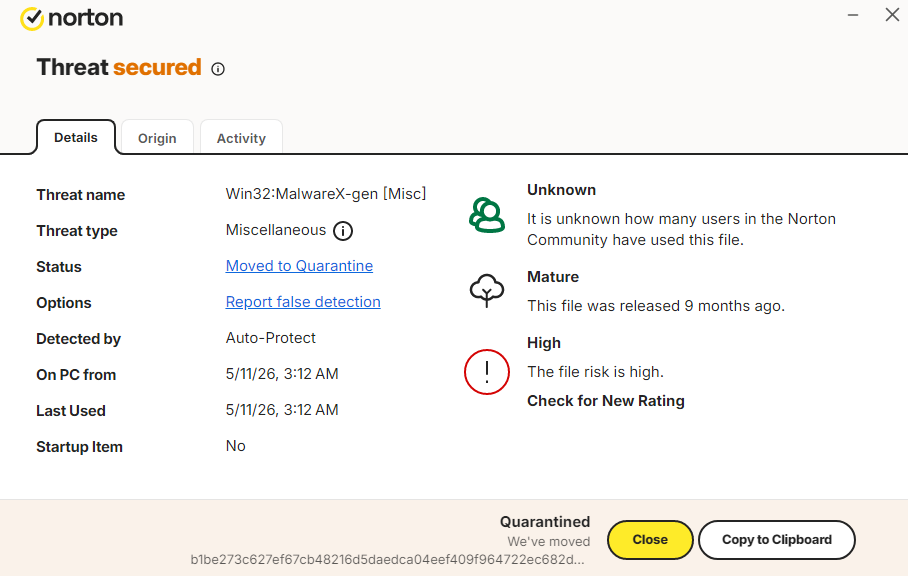
Prevention is not only the most effective way, but it’s also really simple. By practicing cautious online behavior and using preventative tools, such as Norton 360 antivirus, you can ensure the safety of your device and data. Additionally, I recommend running regular scans with Norton 360 antivirus for Windows to automatically eliminate infiltrated malware.
How to remove ClickFix malware
If you accidentally fell for the ClickFix scam or simply suspect something has been passed onto your computer, there are several actionable steps you can take. Below, I suggest three ways of removing ClickFix malware from your computer.
Antivirus scan
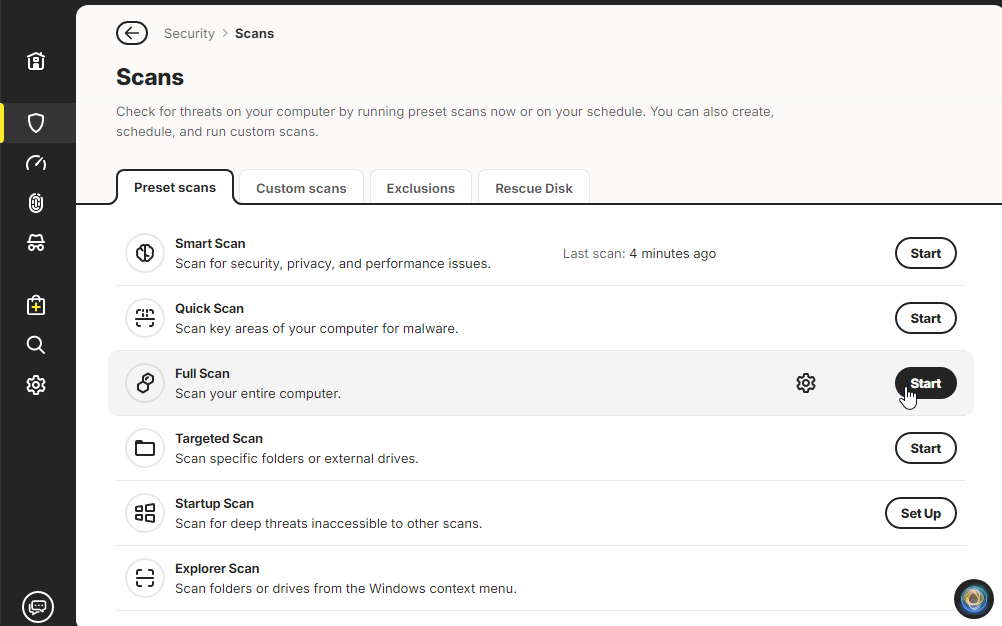
If you suspect a malware infection, run a full scan on the Norton app. Go to the home page of your Norton app, select Security, then click on Scans, and choose Full Scan.
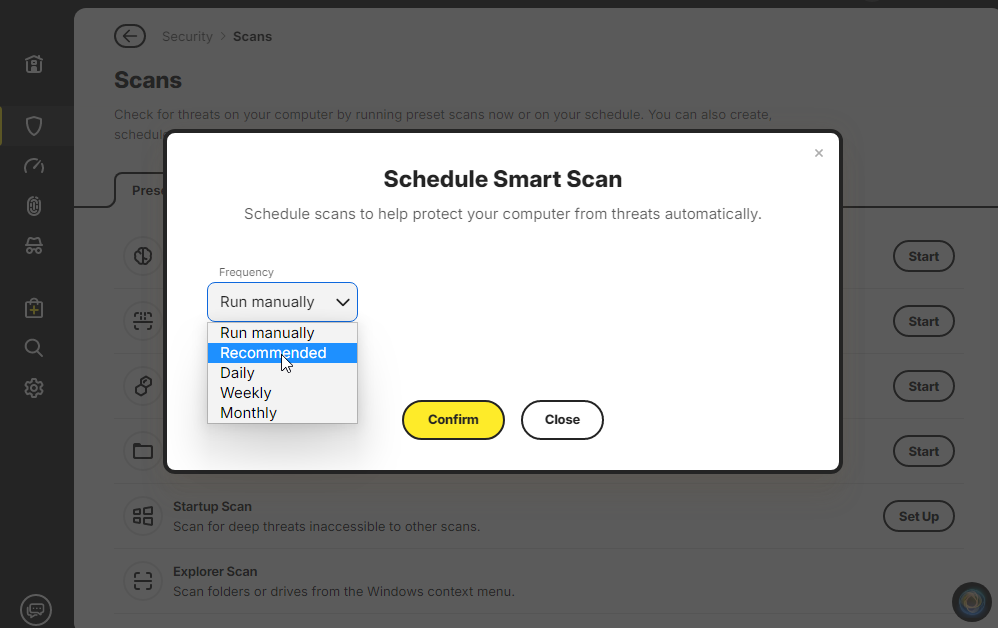
After the scan is completed, I recommend setting up automated malware scanning. For that, in the Norton app’s Scans section, click on the Settings icon next to Smart Scan, and then set the scan frequency to Recommended.
Manual checks
You can also manually check for any suspicious apps that might have been installed on your computer by ClickFix malware. To do that, head to the PC settings (Windows key + i), navigate to Apps, and click on Installed apps.
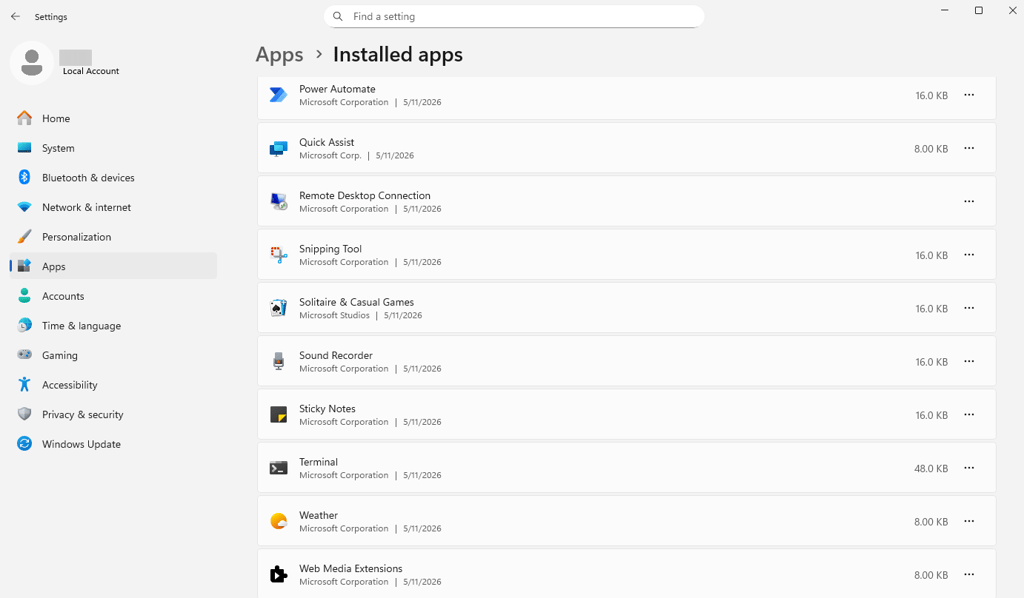
Go through all the installed applications. If you find any apps that are suspicious or you don’t remember installing, click the three dots and select Uninstall.
Browser cleanup
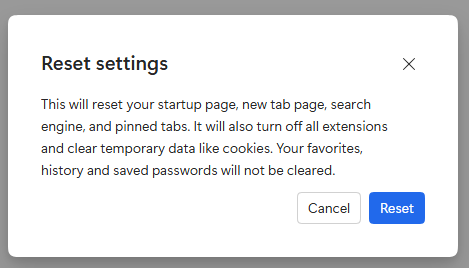
Lastly, to remove any ClickFix malware, you might want to perform a browser’s cleanup. On Chromium browsers:
-
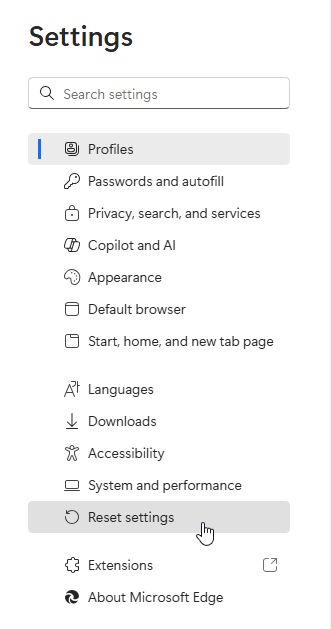
Go to Settings

-
Locate and select Reset settings
-
Click on Reset
If you’re using a Firefox browser, follow these steps:
- Click on the Settings (burger icon)
-
Select Help
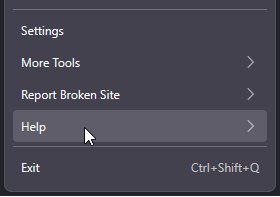
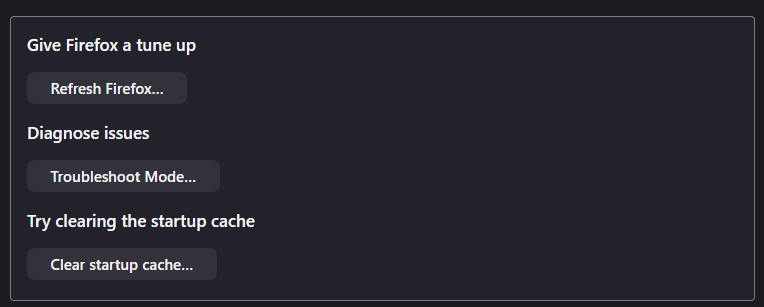
- Then, click on More troubleshooting information
-
Select Refresh Firefox
How to protect your device in the future
Like with other types of malware, there are a few simple steps that you can take to protect your device against threats:
- Enable PowerShell script block logging. This allows detecting and analyzing obfuscated or encoded commands, providing visibility into malicious script execution.
- Restrict the use of the Run dialog and the clipboard. Use Group Policy Objects (GPOs) to limit or disable access to the Windows Run dialog (Win + R) and restrict clipboard functionality to prevent unauthorized commands.
- Install antivirus software. Use an antivirus with a strong security suite that is able to identify and protect against ClickFix malware scams.
- Look for the signs it’s a scam. If a legitimate-looking site asks you to open a Run dialog or a command prompt to prove your identity, it’s definitely a scam.
- Keep your system up to date. Ensure that your operating system, software, and applications are kept up to date with the latest security patches.
Conclusion
ClickFix scams mark a shift in malware delivery. Attackers use fake CAPTCHA, browser errors, and security checks to trick users into running harmful commands. Once activated, these scams can cause credential theft, spyware infections, ransomware attacks, or remote access to your device.
Because ClickFix pages often mimic legitimate websites, spotting suspicious prompts is critical. No real website will ask you to open PowerShell or the Run dialog to verify your identity or fix a problem.
Although antivirus tools and browser cleanup may remove infections, prevention is the best defense. Avoid running website commands, keep software up to date, and use trusted security software with real-time protection, such as Norton 360.
FAQ
Why are ClickFix scams dangerous?
ClickFix scams are dangerous because they trick users into installing malware themselves. Users may unknowingly give attackers access to passwords, banking data, browser sessions, or company networks. These attacks can lead to identity theft, financial loss, ransomware infections, and long-term device compromise.
How can I tell if a ClickFix prompt is fake?
Fake ClickFix prompts often ask users to copy and paste commands into PowerShell, Command Prompt, or the Run dialog. Legitimate websites and CAPTCHA systems never require users to execute system-level commands
Can ClickFix malware steal passwords and personal data?
Yes, many ClickFix campaigns deliver infostealers, remote access trojans (RATs), or spyware designed to steal passwords, banking details, browser cookies, and other sensitive information.
Which devices and operating systems are targeted by ClickFix scams?
ClickFix scams mainly target Windows users because the attack often relies on PowerShell or Run dialog commands. However, similar social engineering tactics can also affect macOS and Linux users.
How can I protect myself from ClickFix malware attacks?
To protect your device from ClickFix scams, use a reliable antivirus software like Norton 360, use browser security protections, and be cautious of unexpected verification prompts or fake error messages online.