How to remove a Trojan spyware alert


Did you see a Trojan spyware alert on your device? Don’t panic — it’s usually a scam designed to scare you. These warnings try to make you believe your computer is infected with a Trojan and urge you to call a “support” number. If you do, you’ll be connected to scammers who may ask for remote access, steal personal information, or even access your bank accounts.
In this guide, I show you how to remove a Trojan spyware alert safely, recognize common scam tactics, and protect your device from future threats. I share some practical tips to stay secure while browsing online.

What is a Trojan spyware alert?
The Trojan spyware alert is a variant of the technical support scam that pretends to be from Microsoft or Apple. It aims to trick users into thinking their computer has been infected with a virus and tries to scare them into calling a number provided to resolve the issue.

The pop-up will typically be styled as an official warning from Microsoft or Apple, with the familiar color scheme, font, and brand logo, to gain the user’s trust. It may also use audio to pressure users into calling. You likely won’t be able to close the window, so your browser will be effectively locked.
If you call the number, the scammer will usually ask you to download and install a program that will provide them with remote access to your machine. They will then be able to access your computer. The scammers will also attempt to persuade you to pay for completely unnecessary support services. And if you pay for anything with them, they can steal your credit card information.
| Name | Trojan spyware alert |
| Type | Technical support scam |
| Device | Windows PC or Mac |
| Symptoms | Pop-up errors, fake error messages, system warnings, and hoax computer scans |
| Damage | Loss of sensitive private information, stolen payment details, identity theft, and potential malware infections |
Why am I seeing the Trojan spyware fake alert on my PC?
If you see a Trojan spyware fake alert on your computer, it could be because your device has become infected with malware.
Alternatively, it could be because you’ve visited a website that has redirected your browser to a malicious site. Unfortunately, there are plenty of disreputable sites that display ads that will redirect to a tech support scam as a means of generating advertising revenue.
If you’ve been redirected to a Trojan spyware fake alert, close the page immediately and install an ad blocker to protect you from any other potentially harmful ads.
If, on the other hand, you haven’t clicked on any suspicious ads but you're continuously seeing a Trojan spyware fake alert that you can’t close, your computer has likely been infected with a malicious program.
Whatever you do, don’t call the number on the pop-up. Instead, download antivirus software and perform a scan so you can identify and remove the malware.
How to remove a Trojan spyware alert scam
If your computer has been infected with a Trojan spyware alert, do not call the number on the pop-up. Scammers encourage users to call so they can then trick them into paying for software they don’t need or granting remote access to their machines. This would mean that the scammers could steal your sensitive data, including payment details.
But there’s no need to panic because there are steps you can take to safely remove the malware yourself and minimize any risk in the future. Here, I’ve pulled together some helpful step-by-step guides to walk you through exactly how to do this on Windows and Mac.
Let’s begin with a quick guide on how to remove a Trojan spyware alert scam:
- Close your browser immediately
- Clear your browser data
- Reset your browser settings and relaunch the browser
- Uninstall any suspicious apps (more information on how to do this is provided below)
- Perform an antivirus scan – I recommend getting TotalAV, which excels in Trojan protection and will provide you with robust security and alert you about any viruses
If you need more information on how to perform each step, follow the detailed instructions below.
How to remove a Trojan spyware alert on Windows
Let's go through detailed steps on how to remove a Trojan spyware alert on Windows.
Step 1. Shut down the site
Sadly, many sites generate revenue by linking to sites that contain Trojan spyware alerts. So if you’ve just noticed the pop-up for the first time and it’s limited to your browser, it might well be that you’ve been redirected to a malicious site. If this is the case for you, close the site immediately. This could well be enough to eradicate the threat.
Step 2. Clear your browser data
If step one doesn’t get rid of the spyware alert, or if you’re in any way still concerned, you might want to consider clearing the cache of your browser. Steps will be similar in every operating system. My example is on Chrome browser:
- Click on the three dots on your browser (or three lines, depending on your browser)
-
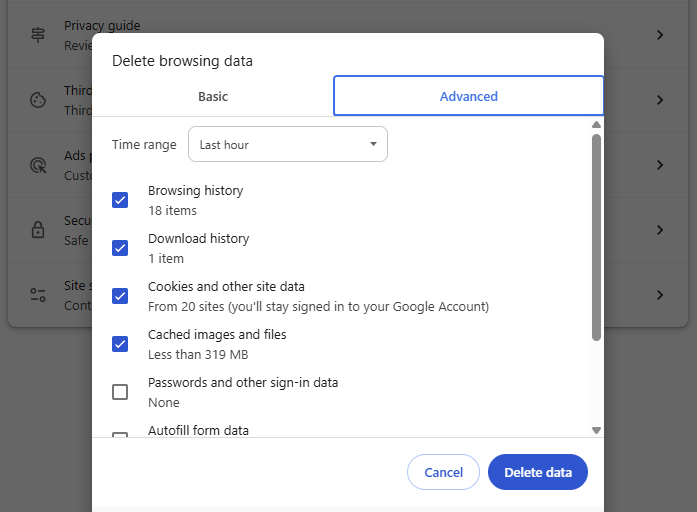
Navigate to Delete browsing data, or alternatively, this can be achieved with a shortcut
on your keyboard: Ctrl+Shift+Del
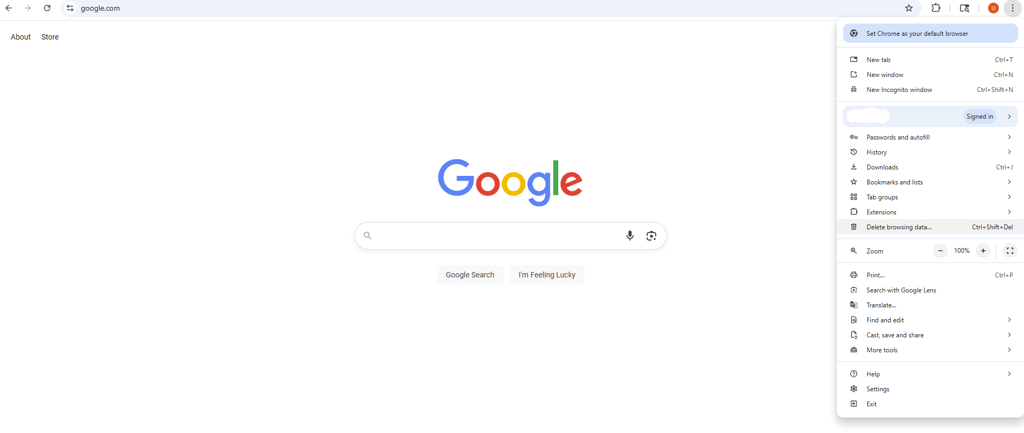
- Click on it and choose Advanced at the top
-
Tick all the options apart from Passwords, and press Delete data
Step 3. Reset your browser settings
If you’ve cleared your data cache and the fake alert hasn’t gone, the next thing to try is resetting your browser settings. Here’s how to do it on Chrome:
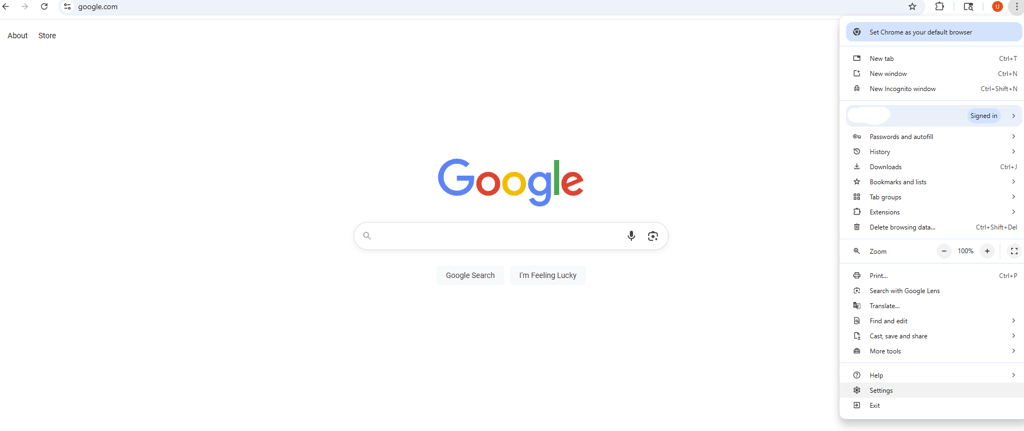
- Click the same three dots or three lines at the top-right corner as you did to clear your data
-
Select Settings
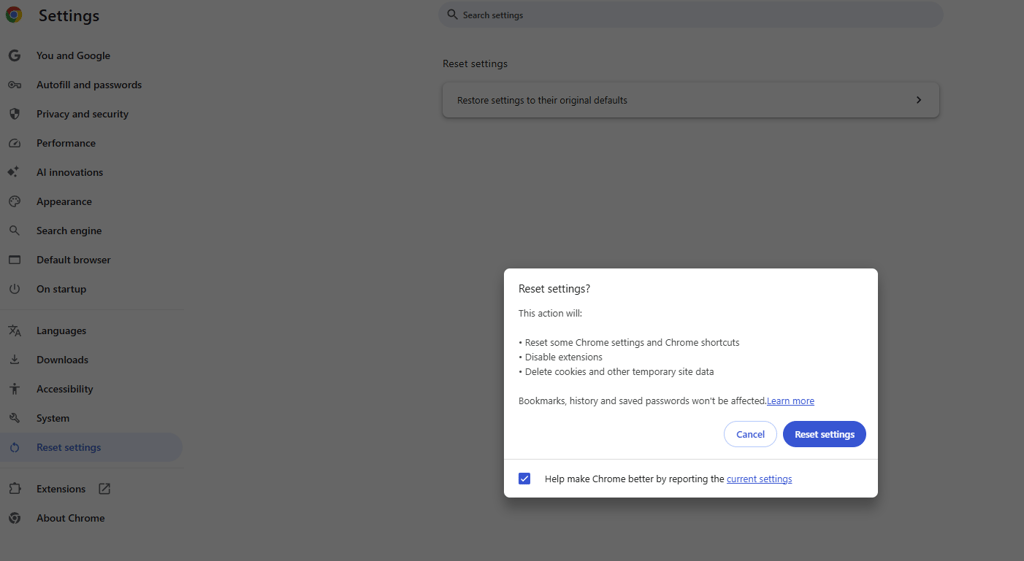
- In the left menu, find Reset settings or something like that on a different browser than Chrome
-
Choose Restore settings to their original defaults and confirm it
- Relaunch the browser
Step 4. Uninstall any suspicious apps
If you’ve tried these steps and the problem still persists or the pop-up comes back, it might be that your computer has become infected with malware. This could be a potentially unwanted application (PUA) or scareware.
If this has happened to you, the first thing to do is to uninstall any apps that you’ve recently downloaded that could be malicious. You should be particularly suspicious of any free apps that may have been pirated, such as an MP3 converter.
To uninstall a suspicious app on your Windows computer:
- Go to Start or click on the search bar
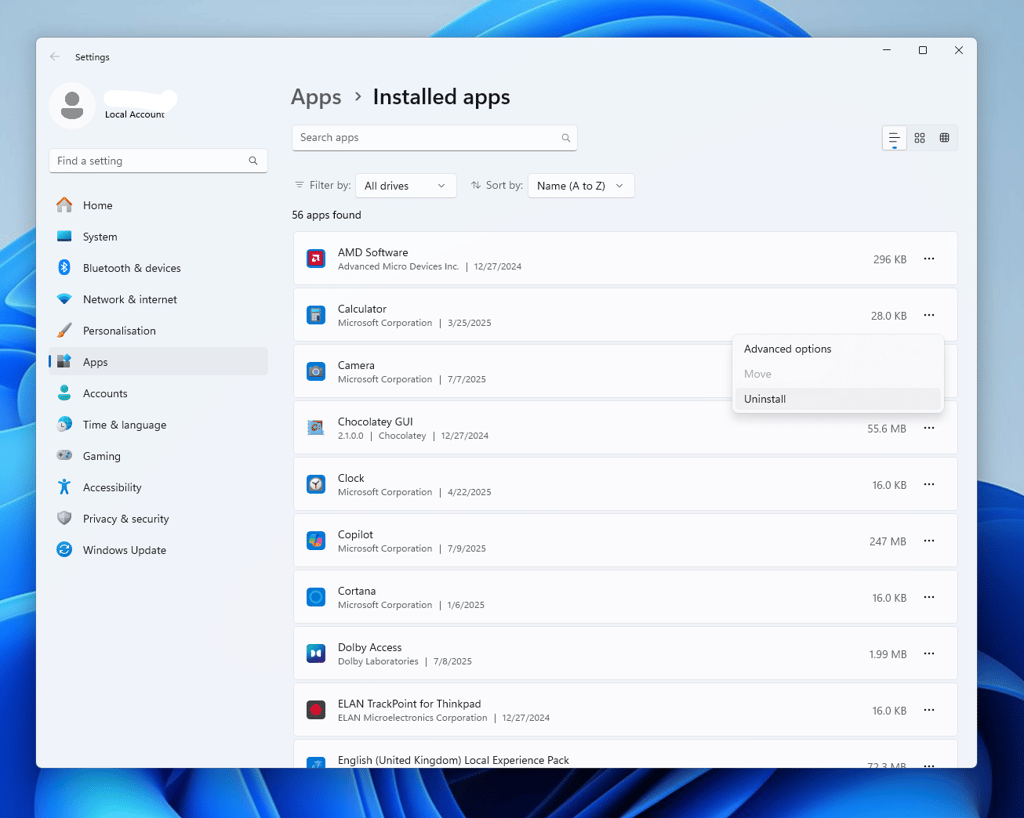
- Start typing Programs and click on Add or remove programs
-
Look for suspicious applications and uninstall them
Step 5. Perform an antivirus scan
If you’ve uninstalled any apps that could be malicious and you’re still being plagued with Trojan spyware alerts, that means the malware is still infecting your machine. Therefore, the only thing to it is to perform an antivirus scan to help you detect and remove the problem.
Luckily, there are several options to help you do this. Windows has built-in antivirus software. But if you want more robust protection, I recommend downloading strong antivirus software, such as TotalAV.
Windows 10 and 11 have Microsoft Defender or Windows Defender built in to give your PC extra protection against malware. Although it’s better to use a dedicated antivirus program, such as TotalAV, here’s how to perform an antivirus scan using the built-in Windows software:
- Click on Start and select Settings
- Hit Privacy & security and find Windows Security
- Choose Virus & threat protection
- Look under Current threats and choose either Quick Scan or Threat History.
- Click on Scan Now and wait for the software to identify any security threats
How to remove a Trojan spyware alert on Mac
Removing a Trojan spyware alert on Mac won't be as challenging when following our detailed steps.
Step 1. Shut down the site
If you’ve noticed a fake Trojan spyware alert for the first time, it’s likely that you’ve been redirected to a scam site. Close down the site straight away and see if that resolves the issue.
Step 2. Clear your data on Safari
If you shut down the website and you still see a fake alert, the next step is to clear your data on your browser. Here’s how to do this on Safari:
- Expand the Safari menu and select Settings
- Select the Advanced tab and enable the Show features for web developers option
-
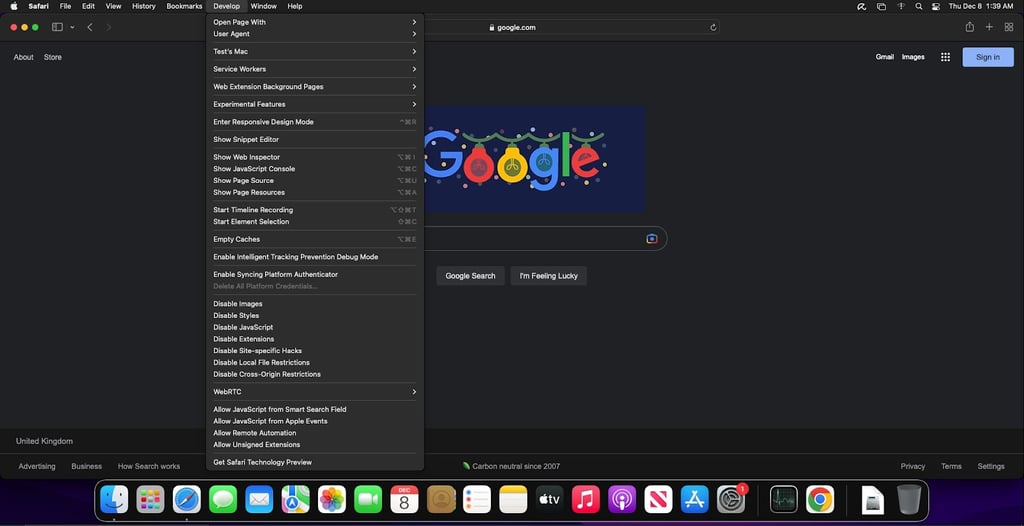
In the browser’s menu, expand the Develop and click on Empty Caches
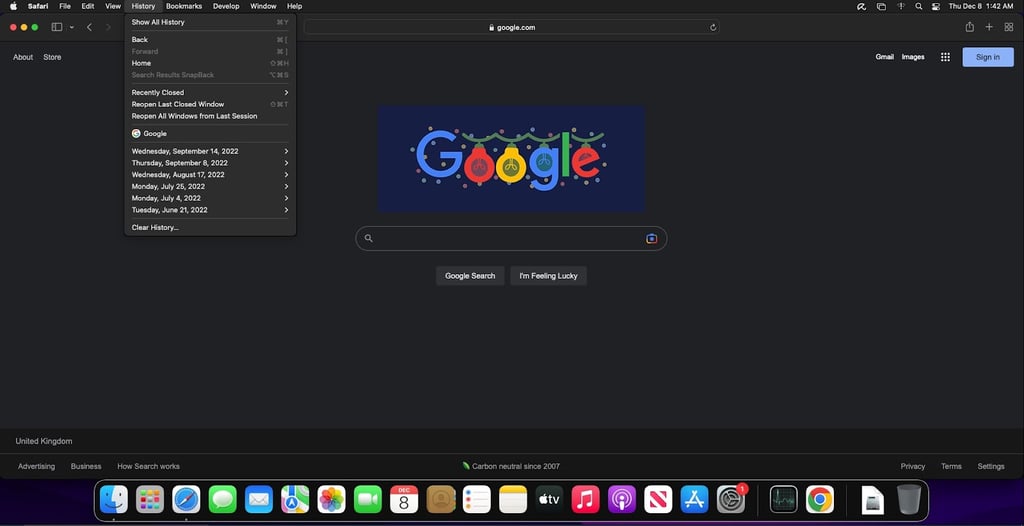
- Now in the browser’s menu, expand History and click Clear History
-
Select All History and confirm by clicking Clear History again
Step 3. Reset your browser settings on Safari
If you’re still getting fake Trojan spyware alerts on your Mac, the next step is to reset your browser settings by following these simple steps:
- Go to Safari Settings and open the Privacy tab
- Click on Manage Website Data. You will see the list of websites that have stored data about your Internet activities
- Click on the Remove All button
- Choose Remove Now in the dialogue box and click Done
- Restart Safari browser
Step 4. Uninstall any suspicious apps on Mac
To get rid of an app that has infected your Mac computer, just follow these quick steps:
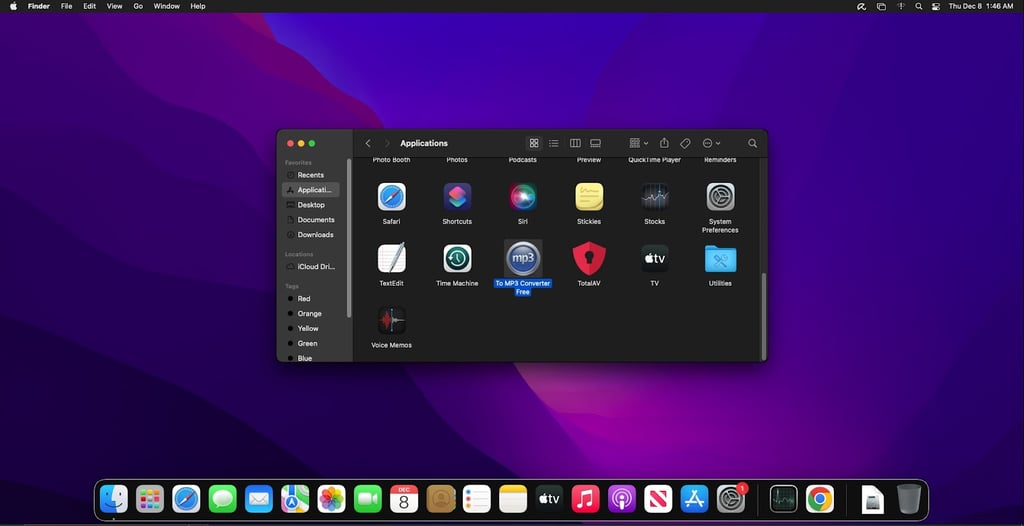
- Click on the Finder icon and choose Applications
-
Look for the suspicious app and remove it by dragging it to the Trash
Step 5. Perform an antivirus scan on Mac
Like Windows, Macs have built-in antivirus software. Having said that, it’s not as sophisticated as the protection you’d get from a dedicated antivirus provider. But if you just want to use Apple’s offering, here’s what you need to do to identify potential malware on your Mac:
- Go to Finder, select the Applications folder, and choose Utilities
- Launch the Activity Monitor and click the % CPU column to sort from high to low
- Look for any processes and apps that have particularly high CPU use and quit those by hitting the X button in the top-left corner
- If you notice any other suspicious processes, google them to see if they could be malware
How can I protect my PC against viruses?
To avoid technical support scams or any other viruses, you should start taking precautions to protect your PC. To help you do this, I put together a list of useful tips to help you keep your computer free from malware:
- Never click on suspicious ads. The sad fact is that some less reputable sites make money by redirecting users to technical support scams or other malicious sites that could lead to your machine becoming infected. To be safe, avoid clicking on any pop-ups unless you’re completely sure they’re reliable.
- Do not open dubious email attachments. One of the quickest ways for malware to be distributed en masse is with malicious email campaigns. The perpetrators attach infected files and send them out to unsuspecting users. Therefore, you should never open files or emails unless you’re sure you know the sender.
- Do not click on questionable links on social platforms. Once a social media account has been hacked, it’s very easy for malware to spread throughout that person’s friend or follower list. So it’s vital to make sure that your friend’s account hasn’t been hacked before you click on any potentially risky links.
- Perform regular updates for your OS and apps. Updates for apps and operating systems often include security patches that can stop cybercriminals from taking advantage of vulnerabilities. By making sure you’re on the latest version of your apps and OS, you have a better chance of avoiding malware.
- Protect your device with antivirus software. If you want complete real-time protection from malware, download strong antivirus software, such as TotalAV. It works by monitoring for potential threats so it can prevent malware attacks.
Wrapping up
A Trojan spyware alert is designed to cause panic and make rash decisions. It will usually look like a genuine security alert from Windows or Apple and will urge you to call a number to remove malware from your machine. Scammers then rely on users to phone this number, so they can convince them to pay for unnecessary programs or gain remote access to the caller’s computer.
Luckily, if you get a Trojan spyware alert, you can usually remove it yourself quickly and easily. Often, closing your browser or deleting a suspicious app should be enough to resolve the problem. And if this doesn’t work, you may need to run an antivirus scan to detect and remove the threat.
Overall, it’s important to use reputable antivirus software to help you avoid malware. I recommend TotalAV, as it offers real-time protection, anti-phishing capabilities, and data breach monitoring to keep your device safe from viruses.
More malware removal guides from Cybernews
How to get rid of the “Congratulations You Won” pop-up virus: step-by-step instructions
How to remove 'You've Made The 5-billionth Search' scam: easy to follow guide
FAQ
Is a Trojan spyware alert legitimate?
No, a Trojan spyware alert is a pop-up that aims to trick users into believing it’s legitimate by pretending to be Windows or Apple. It asks you to call a number to remove the threat, so you can pay for unnecessary software or grant remote access to your laptop. Follow our guide to remove a Trojan spyware alert scam.
What is a Trojan spyware alert on Mac?
A Trojan spyware alert on your Mac is a fake error message that pretends to be from Microsoft or Apple. It tries to trick users into calling a help number so that the scammers can scare people into buying unnecessary software or granting them remote access to their computers.
Can Trojan spyware steal your information?
Yes, unfortunately, Trojan spyware viruses can steal your personal information. They can also disrupt your machine’s performance, steal files that are saved on your device, or even give malicious hackers the means to control your device remotely. This can lead to cybercriminals turning on your camera and microphone.