New Brave update turns it into the ultimate productivity hack: multiple accounts in one browser
Brave now allows users to completely isolate tabs from one another in containers, with separate cookies and storage.
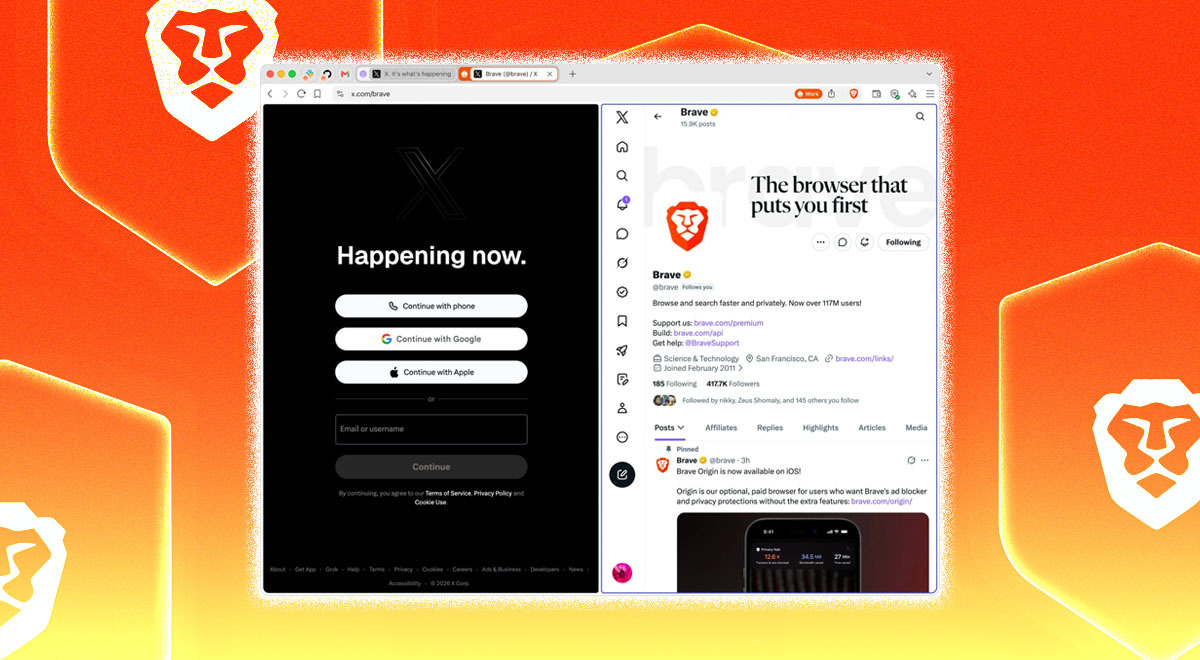
Image by Cybernews.

 Follow us
- Brave rolls out a new Containers feature that lets users log in to multiple accounts on a single site simultaneously.
- Tabs use separate cookies and storage to ensure complete isolation from other containers. They can be viewed in split view or separate windows.
- The feature can be enabled on all desktop platforms.
A new Brave browser update has brought a long-awaited feature: the ability to isolate browsing sessions across separate tabs. This means users can use two or more Facebook or YouTube accounts simultaneously.
When you log in to your Instagram account, for example, the same cookies carry over to other tabs. When you open Instagram, you access the same account across all tabs. This means that if you want to log in to another account, you’ll have to log off from the original first.
Brave Browser now solves this nuisance with Containers. It’s like having multiple browsers in one: tabs can have separate cookies and storage that can’t be accessed by tabs in other containers.
Brave is rolling out the new version 1.92 in phases over the next few days.






“Containers are a way for users to isolate tabs from one another so that their cookies and storage are not shared outside of the container, even when visiting the same site,” Brave said in a blog post.
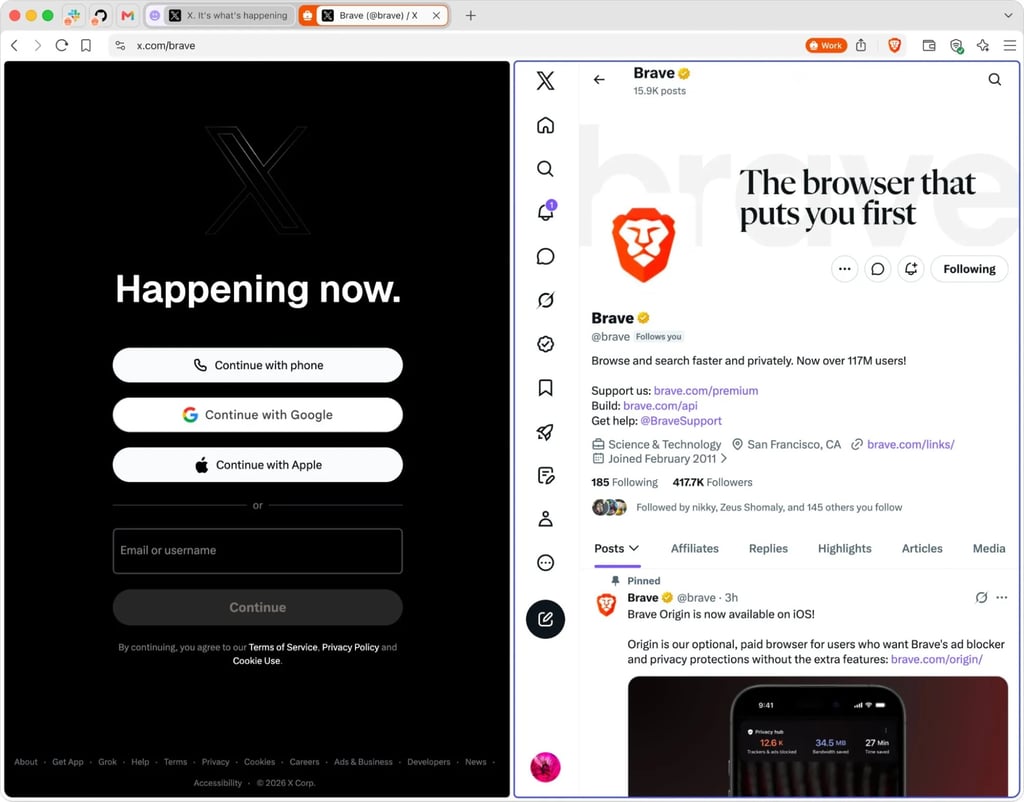
The new feature potentially has many use cases:
- A marketing manager can log in to multiple social media accounts simultaneously on the same site.
- A developer can test an app with one tab logged in as an administrator and another as a regular user.
- Employees can keep corporate and personal YouTube accounts in separate containers and ensure their viewing history isn’t linked.
Stronger isolation also has privacy benefits and further restricts cross-site tracking. However, Brave assures that this was already solved with storage partitioning, isolating each site and third-party requests.
“Containers are best understood as a convenience feature to present different identities to a site and as a basic building block for specific workflows,” the blog post reads.
The Brave slides demonstrate an account that has four containers: personal, work, social, and school, but users can add more containers. The user can add more containers of their choice, then open tabs in separate containers, and even view the same site with different accounts side by side in a split-view.
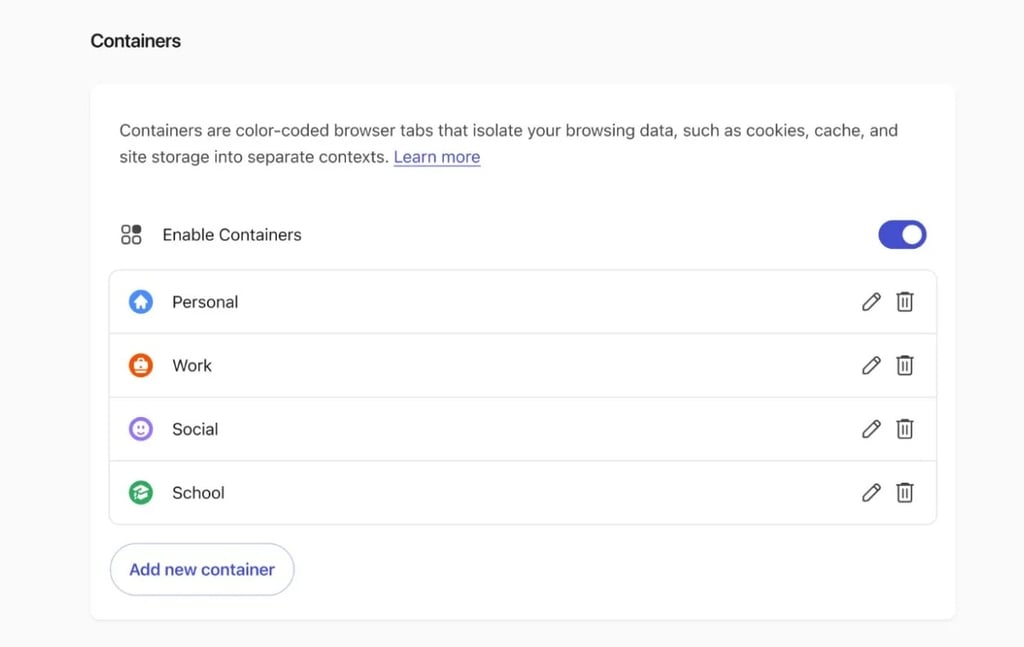
To use Containers, users must enable them first. To get started, go to Brave settings and click on “Enable Containers.”
Right-clicking a tab gives the option to select “Open in container” and choose which one.
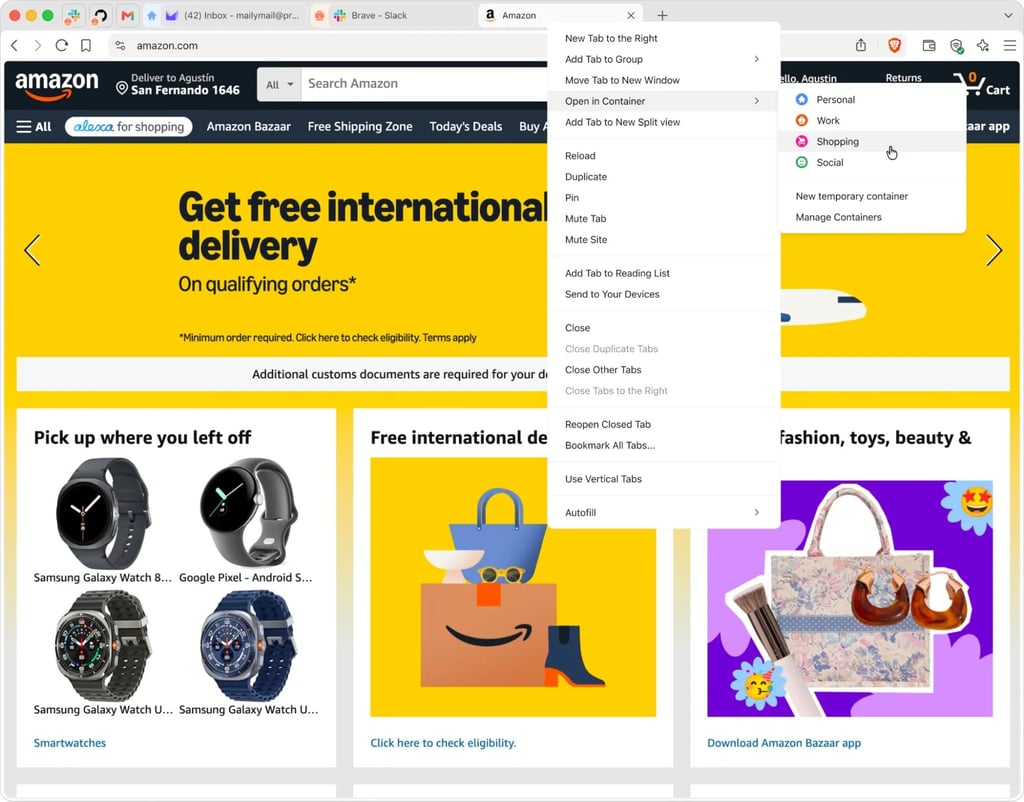
Containers after an update work on all desktop platforms, including Windows, macOS, and Linux, with no extensions or add-ons needed.