Wondershare Filmora review 2026: is it still the best beginner-friendly video editor?


If you’ve spent any time searching for an easy video editor, you’ve definitely seen Wondershare Filmora pop up. It’s marketed as that sweet middle ground between too basic to be useful and so advanced you need a YouTube degree to operate it.
At its core, Filmora claims to solve one of the biggest issues in video editing: making polished videos without drowning in complex timelines, plugins, or pro-level workflows. Most people who consider Filmora fall into three buckets: beginners creating YouTube or TikTok content, small business owners making marketing clips, and casual editors who want cinematic effects without paying Adobe-level prices.
But here are the real questions everyone has: is Filmora actually reliable? Does it justify the cost? And is it more than a starter editor once your skills improve? These are the friction points I dug into.
After diving deep into real user feedback, long-term performance notes, and my own experience with the software, here’s the short version: Filmora works well for everyday editing, shines in ease of use and built-in effects, but still has limitations if you're pushing into advanced, pro-grade projects. This review breaks down exactly where Filmora excels – and where it doesn’t – so you know what to expect before buying.
Quick overview of Wondershare Filmora
Before we unpack everything else, here’s a quick snapshot of Filmora: what it is, what it costs, and what you actually get.
| ⭐️ Overall rating: | |
| 🎯 Best for: | Ideal for beginners and intermediates, YouTubers, small creators, marketers, casual editors |
| 💻 Platform support: | Windows, macOS, iOS, Android |
| 📈 Learning curve: | Very low – ultra beginner-friendly |
| 🧩 Key features: | Drag-and-drop editor, AI tools, motion tracking, color correction, audio denoise, screen recording, templates, effects library |
| 🤖 AI features: | Auto-captioning, AI audio stretch, AI background removal, AI portrait tools |
| 📤 Export options: | Up to 4K, multiple aspect ratios, direct publishing to YouTube/Vimeo |
| 💰 Pricing: | From $49.99/year. Subscription or perpetual license; typically cheaper than Adobe/Premiere |
| 💪 Notable strength: | Massive sound/effects library + simple workflow |
| ⚠️ Notable weakness: | Limited for heavy VFX and advanced color grading workflows |
Pros and cons of Wondershare Filmora
What is Wondershare Filmora and how does it work?
Wondershare Filmora is an entry-to-mid-level video editing software designed to help you create polished videos without the complexity of pro editors like Premiere Pro or DaVinci Resolve.
At its core, Filmora works by giving you a drag-and-drop interface where you can trim clips, add transitions, apply effects, clean up audio, and export in the resolution you need.

What sets Filmora apart is how quickly you can go from raw footage to a finished video. The built-in effect packs, templates, and AI assistants remove a lot of the manual work beginners usually struggle with.
It sits comfortably in the space between casual editing apps and full professional suites – meaning it’s powerful enough for YouTube, tutorials, marketing videos, and travel edits, but still simple enough that you won’t feel overwhelmed. For most creators, that’s exactly why it’s worth considering.
Core Filmora features and what stands out
Filmora has always positioned itself as the approachable powerhouse of video editing – easy for beginners, but surprisingly capable once you dig in. Some features genuinely shine in real use, while others feel like training wheels compared to pro-grade editors.
Below are the features that matter most and how they actually work when you’re editing day-to-day.
Intuitive timeline editing and drag-and-drop workflow
One of Filmora’s biggest strengths is how natural the timeline feels from the moment you jump in. You don’t need to fight your way through dozens of panels or memorize keyboard shortcuts just to make a simple cut – dragging clips around, trimming, splitting, and rearranging everything is as effortless as organizing files on your desktop.

What I like is that the timeline gives beginners confidence while still offering enough depth for more polished edits. Ripple delete, track locking, audio scrubbing, speed ramping – all those video editing essentials are right there, but never overwhelming. It’s the kind of workflow where you can take a messy folder of clips and turn them into a structured story in minutes.
In practice, this simplicity is exactly why Filmora works so well for YouTubers, small business owners, and anyone who just wants clean results without a steep learning curve.
Massive built-in effects library, templates, and presets
Filmora is often described as the effects playground, and honestly, that’s pretty accurate. It comes loaded with transitions, filters, LUTs, titles, overlays, animations, and full drag-and-drop templates. For people who don’t want to build everything from scratch, this is where Filmora becomes incredibly fun.
Most editing tools force you to tweak dozens of sliders just to get a cinematic look – Filmora lets you drop in a preset and customize only if you want to. Need a YouTube intro? A lower third? A color grading preset? Motion graphics? You’ll find something ready to use.

In real use, this library saves huge amounts of time. It’s especially appealing for creators who want to publish quickly and consistently.
Is everything perfect? Not quite – some effects look a bit templatey if overused, and the best ones sometimes sit behind Filmora’s add-on libraries. But as a starting point, the creative toolbox is kind of unbeatable for the price.
AI-powered tools: auto-enhance, object removal, and smart cutting
Filmora leans heavily into AI – and not in the gimmicky way a lot of software does. The AI tools actually solve annoying editing problems. Auto-enhance can rescue dull footage without manual color grading. AI object removal wipes out unwanted background distractions. Smart cutting tools help you isolate subjects or remove silence in talking-head videos.
You also get AI text-based editing where you literally edit video by editing a transcript, AI-powered silence trimming, and auto scene detection that breaks long clips into usable chunks.
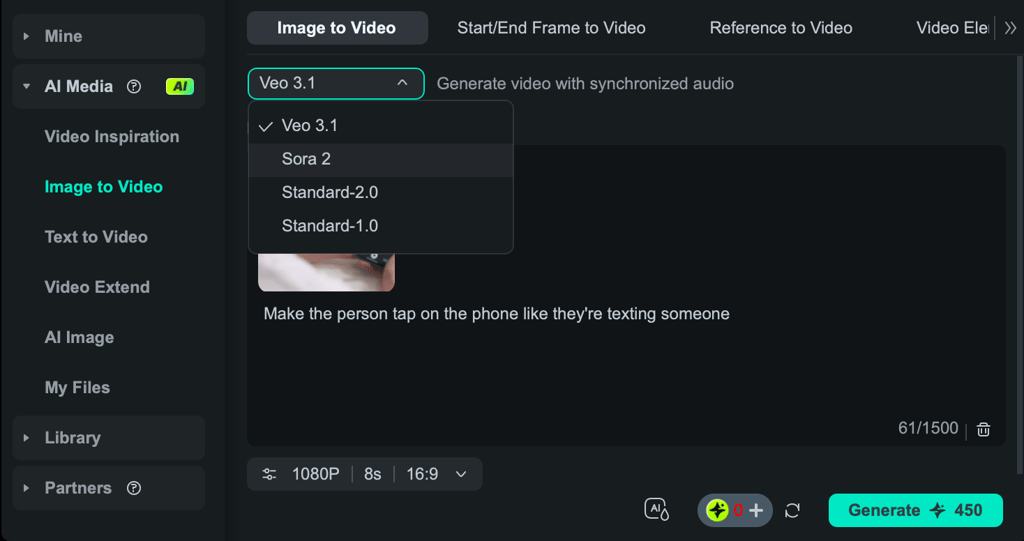
On top of that, Filmora’s content generation tools are surprisingly strong for a consumer editor: text-to-video using models like Sora 2 and Veo 3.1, image-to-video animation, AI thumbnail creator, AI portrait effects, stylized painting modes, and animated title generators.
Audio also gets major upgrades – AI Music Generator for royalty-free tracks, Vocal Remover, Audio Denoise, Audio Stretch, Speech-to-Text, Text-to-Speech, voice cloning, and even AI translation with lip-sync correction.
And then there’s AI Mate, Filmora’s built-in editing copilot. It can generate scripts, automate multi-step edits, recommend cuts or effects based on your intent, and even respond to text or voice prompts right inside the timeline – essentially acting like an integrated AI assistant for your entire editing workflow.
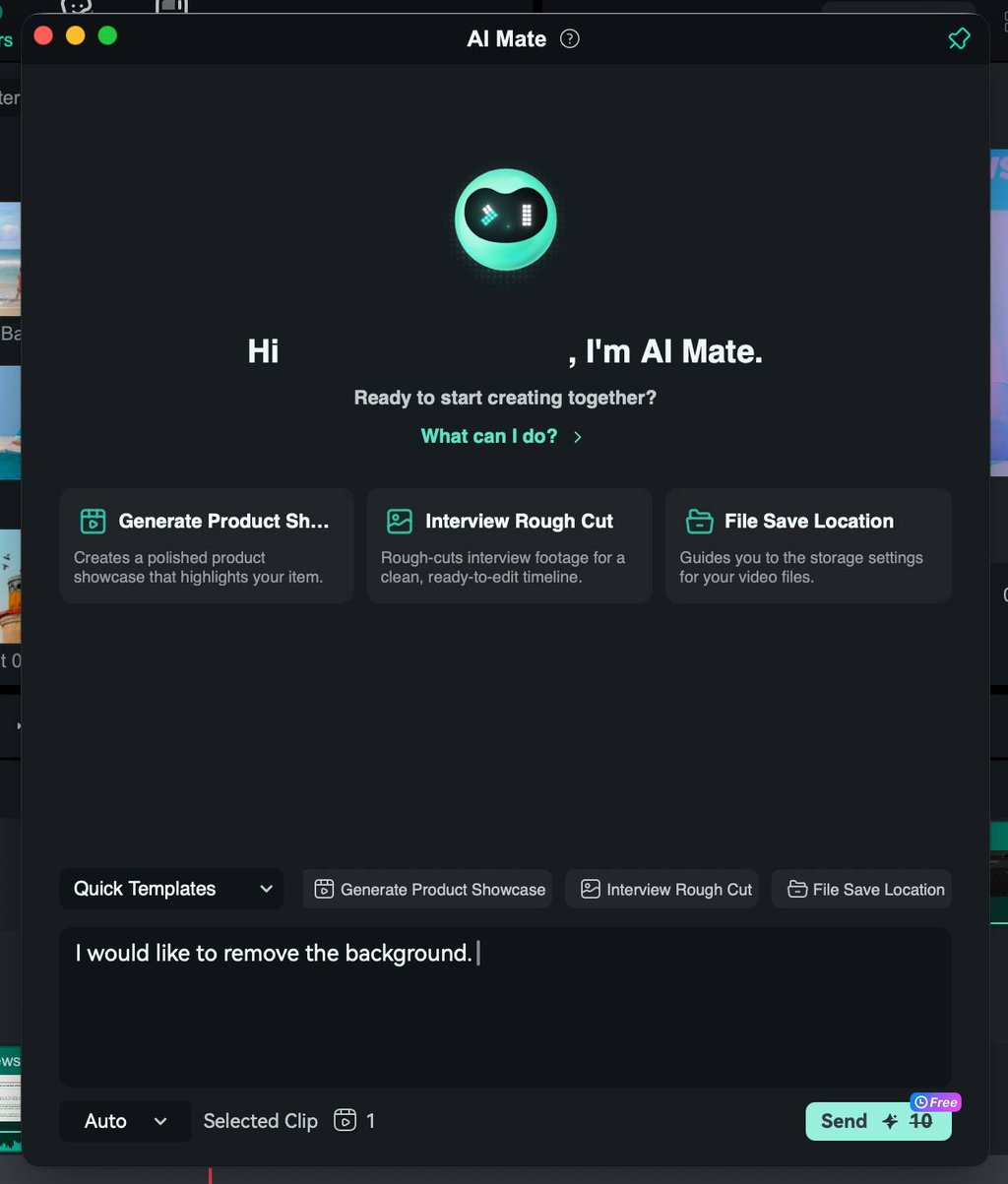
Are these tools flawless? No. But they’re shockingly good enough for everyday creators. I’ve used the AI enhancer on washed-out camera footage, and it genuinely brought the image to life with zero effort. The object removal works best on simple backgrounds but can struggle with busy scenes – still, it saves tons of cleanup time.
Overall, Filmora’s AI feels like the assistant editor you wish you had: not perfect, but incredibly helpful when you just want things to look better, faster.
Advanced audio controls and built-in sound tools
Audio is where beginners usually struggle, and Filmora takes a lot of the pain out of the process. Noise reduction, audio ducking, EQ presets, reverb, volume automation – all the essentials are built-in and easy to understand.
One thing I personally appreciate is audio ducking. With one toggle, Filmora automatically lowers background music whenever speech is detected. It feels like magic the first time you try it, especially for YouTube-style content.
The software also includes beat detection, sound effects, royalty-free music, and tools for syncing audio with video. No hunting for plugins or external apps – everything you need is in the box.
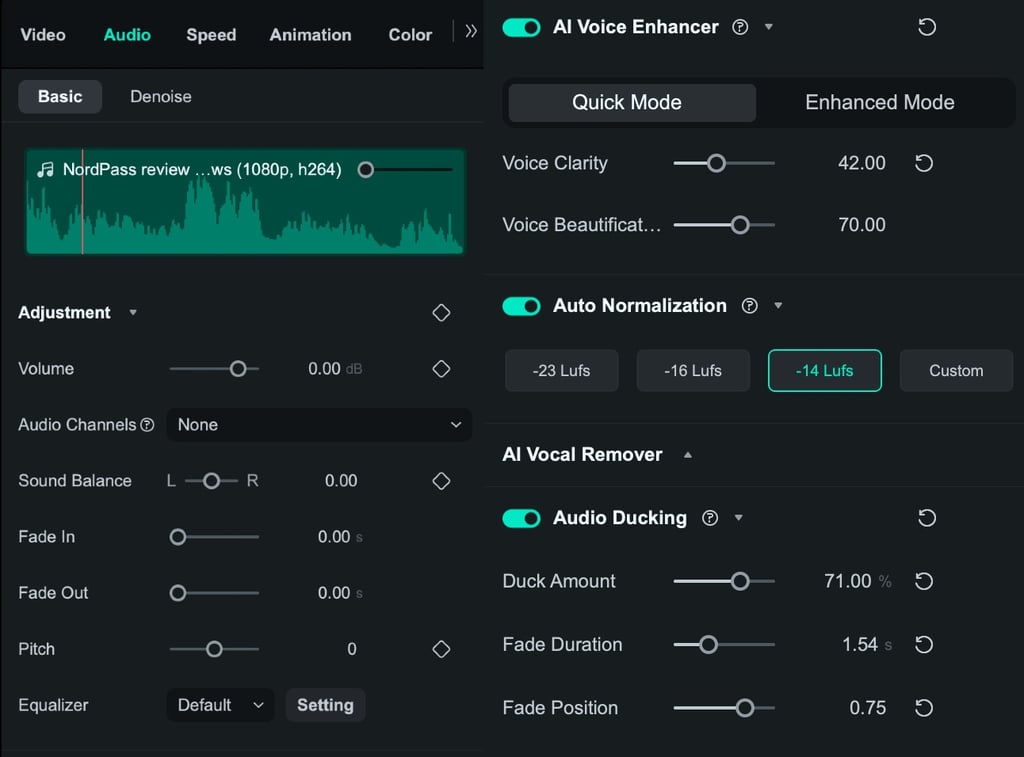
If you’re doing heavy sound design or multi-track mixing, you may hit limitations. But for 90% of creators, Filmora’s audio toolkit is more than enough, and far easier to learn than pro tools like Adobe Audition.
Color correction and grading tools that stay beginner-friendly
Color grading is one of those areas where editors either get excited or terrified. Filmora strikes a nice balance – you can tweak color temperature, contrast, HSL, curves, and exposure like a pro, or you can slap on a LUT and call it a day. Both approaches work.
Filmora’s strength lies in how approachable the interface feels. Nothing is buried, nothing feels cryptic. The real-time preview makes experimenting painless, and the built-in presets help you learn what good color looks like without advanced knowledge.
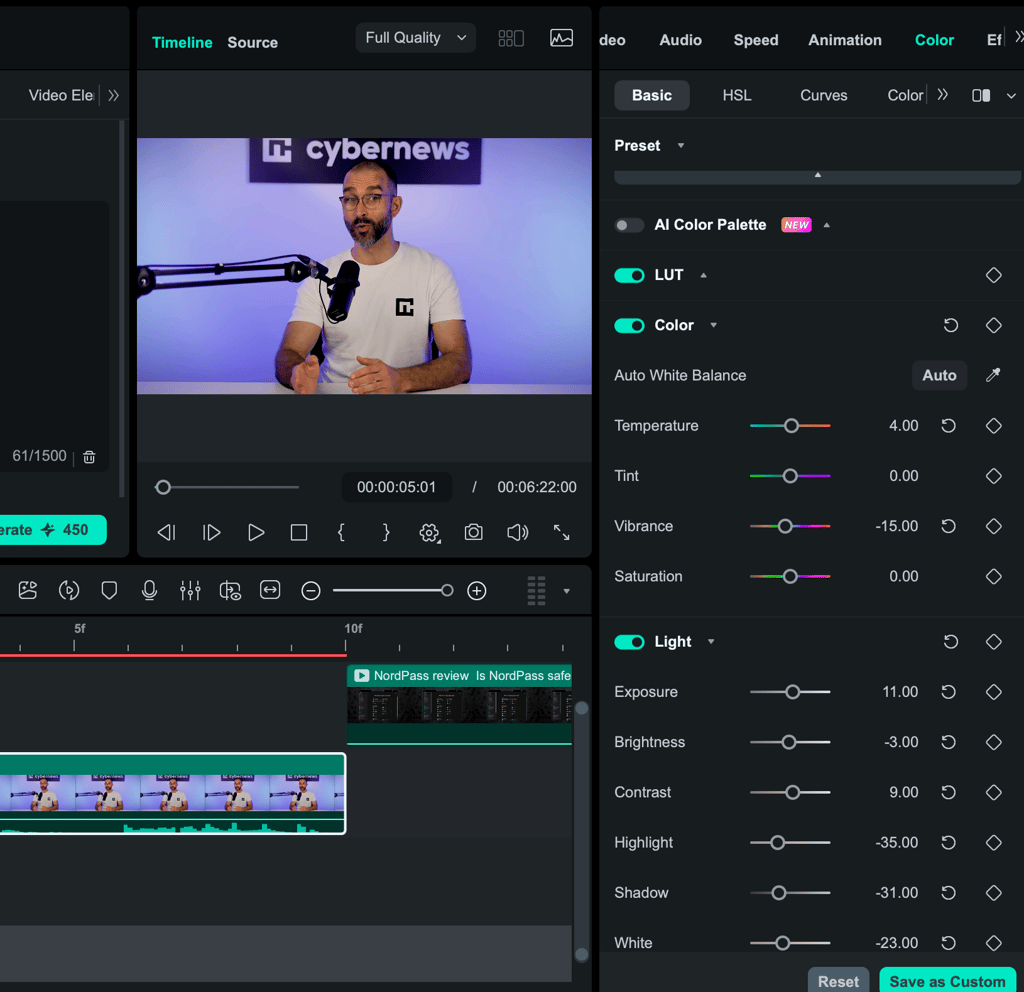
For creators who want cinematic looks without the DaVinci Resolve learning curve, Filmora’s grading tools hit the sweet spot. They’re not as deep as pro suites, but they deliver impressive results for everyday video projects.
Screen recording, webcam capture, and voiceover tools for creators
Filmora isn’t just an editor – it’s a mini production studio. You can record your screen, capture webcam footage, and narrate voiceovers directly inside the app.
For educators, gamers, tutorial creators, or businesses making onboarding videos, this is a huge convenience. No separate recording software, no imported files – you hit record, and everything goes straight to the timeline.
It’s unbelievably efficient when you're producing repeatable content or want a simple workflow. The tools aren’t as advanced as specialty screen recorders, but they’re integrated so smoothly that most users will find them more than enough.
Pricing breakdown: is Wondershare Filmora worth the cost?
If you’re trying to figure out whether Filmora’s pricing makes sense for your workflow, you’re not alone. I’ve dug through every plan, license type, and bundle, and here’s the breakdown in a way that actually makes sense for real users – not just marketing pages.
| Plan | Price (yearly) | Cloud storage | AI credits | Creative assets | Key limitations | Best for |
| Free | $0 | None | None | Limited | Watermark on exports, no updates | Absolute beginners testing Filmora |
| Basic | $49.99/year | 1GB | None | Limited selection | No AI credits, fewer effects/assets | Casual editors who don’t need AI |
| Advanced | $59.99/year | 10GB | 1000 credits/mo | Access to 2.9M+ via trial | Fewer assets than Premium | Most users wanting full features + AI |
| Premium | $99.99/year | 100GB | 2000 credits/mo | 2.9M+ Creative Assets included | Highest price | Heavy creators using AI + cloud + assets |
Filmora’s pricing is generally worth it, but the value depends heavily on how you edit. The free tier is fine for testing, though the watermark makes it unusable for any real publishing.
The Basic plan is affordable but lacks AI credits, so it feels more like a traditional editor than the smart experience Filmora advertises. The Advanced plan is the real sweet spot for most creators – $59.99/year for updates, 1000 AI credits, and enough cloud storage to work comfortably. Premium mainly benefits heavy users who rely on Filmora’s creative assets and need the jump from 10GB to 100GB storage.
The biggest difference between free and paid plans isn’t the feature list – it’s output. Paid plans remove the watermark and unlock AI tools that dramatically speed up editing, which is why most users upgrade almost immediately.
Costs scale based on how many AI features you use, how much cloud storage you need, and whether you rely on Filmora’s asset library. Common complaints include credits running out quickly, higher Premium pricing, and perpetual licenses only covering Filmora 12.
Against competitors, Filmora sits in a comfortable middle ground: easier than Premiere, smarter and more capable than CapCut, and far cheaper long-term than Final Cut Pro.
What real users say about Wondershare Filmora
Across Trustpilot, Reddit, YouTube reviews, and user reports in the uploaded documents, the overall sentiment toward Wondershare Filmora is mixed, but predictably so.
Most creators praise Filmora for the exact things it markets well: it’s easy to learn, surprisingly powerful for the price, and packed with effects that help beginners feel confident right away. Many mention how features like drag-and-drop editing, auto-captioning, and AI tools genuinely speed up workflow rather than complicating it.
The complaints, however, show consistent patterns across platforms. Heavy editors say Filmora can feel sluggish with complex timelines, and AI tools sometimes behave inconsistently – especially transcription, masking, and text-to-video generation.
Some users express frustration over increasing reliance on subscriptions and AI credits. Long-time Filmora fans also note that certain new features don't always outperform older tools built into previous versions.
The general pattern is clear: beginners love it, intermediates appreciate it with caveats, and advanced editors eventually outgrow it.
How we tested Wondershare Filmora
To evaluate Filmora properly, I didn’t just skim through the interface – I edited real videos, recreated common creator workflows, and pushed the software with multi-layer timelines, color adjustments, and AI tools.
I also compared Filmora’s output and performance with other editors I use regularly. Alongside that, I reviewed documentation, pricing tiers, and hundreds of user reviews to understand long-term reliability.
Here are the weighted criteria I used:
- Editing features and AI capabilities (30%). I tested Filmora’s full toolset, including trimming, transitions, audio repair, AI background removal, speech-to-text, and color tools. I looked at how much these features actually help speed up editing versus how much feels like gimmickry. I also checked whether AI tools maintain quality or introduce noticeable artifacts.
- Ease of setup and usability (20%). I evaluated how quickly a new user can get comfortable, whether the layout feels intuitive, and how many steps common edits require. Filmora markets itself as beginner-friendly, so I paid extra attention to how forgiving the interface is. I also tested how well tooltips, presets, and templates guide less experienced editors.
- Performance and stability (20%). This includes timeline responsiveness, playback smoothness, and render/export speeds on different hardware. I intentionally added multiple tracks, effects, and AI tools to see where Filmora starts to struggle. I also noted any crashes, freezes, or inconsistent behavior.
- Pricing and scalability (15%). I compared each plan’s value based on included features, AI credits, cloud storage, and update policies. I looked at how costs rise for heavier workflows and whether upgrades feel justified. Then, I benchmarked Filmora’s pricing against rival editors to see if it holds up.
- User feedback and reliability (15%). Beyond my own testing, I analyzed recurring sentiment from Reddit, YouTube editors, Trustpilot, and app store reviews. I looked for consistent issues like bugs, credit limits, or pricing increases. This helped validate whether my experience matched what long-term users report.
Final verdict: should you use Wondershare Filmora?
If you’re a beginner, casual creator, or someone who wants to edit quickly without climbing a massive learning curve, Wondershare Filmora is absolutely worth it. It hits that sweet spot where editing feels smooth, fun, and approachable – without burying you in pro-level complexity.
In my opinion, it’s still one of the best entry-level editors in 2026, especially now that AI tools can automate so many tedious steps like cutting pauses, cleaning audio, or syncing clips.
That said, Filmora does become limiting once you start pushing into advanced color grading, heavy multi-track timelines, or cinematic workflows. At that point, the pricing can feel steep compared to DaVinci Resolve or Final Cut, which offer more power for the same – or lower – long-term cost.
But for creators who just want fast results, polished exports, and a tool that won’t fight them every step of the way, Filmora delivers. If ease, speed, and simplicity are your priorities, this is the editor I’d recommend every time.
FAQ
Does Wondershare Filmora have a free version?
Yes, Wondershare Filmora has a free version, but the free version includes a watermark on exported videos. If you need clean, professional exports, the free Filmora version won’t be enough – you’ll need one of the paid plans.
Is Wondershare Filmora good for beginners?
Yes, Wondershare Filmora is good for beginners. Filmora stands out because its drag-and-drop workflow, presets, and AI tools make editing intuitive even for first-time users. If you want an editor that’s easy to learn without sacrificing capability, Filmora is one of the best beginner choices.
Is Wondershare Filmora worth paying for?
Yes, Wondershare Filmora is worth paying for if you need watermark-free exports, AI editing tools, stock assets, and long-term project flexibility. The paid Filmora plans unlock the features that make the software truly useful for YouTubers, freelancers, and casual creators.
Does Wondershare Filmora support 4K video editing?
Yes, Wondershare Filmora supports 4K video editing. Filmora can edit, export, and render 4K footage smoothly, though extremely heavy timelines may perform better on high-end systems or pro editors like Premiere Pro.
Does Wondershare Filmora require an internet connection?
No, Wondershare Filmora does not require an internet connection for basic editing. Internet is only needed for activation, updates, AI features, cloud storage, and downloading stock media.
Can Filmora handle professional video editing projects?
Yes, Filmora can handle professional projects, but only up to a point. For advanced color grading, complex timelines, or industry workflows, Filmora falls short compared to Premiere Pro or DaVinci Resolve.