How to remove malware from a Chrome browser


Is your Chrome browser displaying constant disruptive ads? Did some suspicious browser extension get installed without your permission? Does the homepage change to Yahoo Search instead of Google? Have your browser settings changed?
If you answered yes to any of these questions, chances are that your Chrome browser has been hijacked, infected with malware, adware, or otherwise compromised. But worry not because there’s a way to fix this.
In this article, we’ll explain how to remove malware from Chrome and suggest ways to protect your device and browser from future malware infections. Keep on reading.

How do I know my Chrome browser is infected with malware?
If anything happens to your Chrome browser, you will most likely notice it at once. However, it can sometimes be difficult to recognize if what you’re seeing is a result of a bug or malfunction or if it’s actually a malware infection. So here are the most prominent signs that your Chrome browser has been hijacked:
- The homepage keeps changing. For example, once you open the Chrome app, instead of the Google homepage, you get redirected to Yahoo or another search engine, which you definitely haven’t set up on your device.
- Frequent permission pop-ups. These pop-ups usually ask to know your location, show notifications, or install browser extensions.
- Unwanted and annoying ads. We’ve all seen our fair share of annoying ads pop up once in a while, but if your Chrome browser has been infected with malware, such as viceice.com, these ads will appear every couple of seconds and will often contain explicit content and/or urge you to buy or install something.
- Redirects to insecure websites. This can happen when you’re visiting a trusted page, but instead of that, the browser randomly redirects you to an insecure (HTTP) and suspicious website. These websites usually are badly designed and persistently suggest you download or buy something.
- Suspicious browser extensions. If you notice any browser extensions that you yourself haven’t installed, and especially if they keep getting installed after you’ve removed them – chances are that your browser has been hijacked.
How to get rid of the Google Chrome virus?
If your Chrome browser has been hijacked, don’t worry too much – there are steps you can take to get rid of the virus and have your normal browsing experience back.
Step 1. Remove Google Chrome virus with antivirus software
If your browsing experience has been hijacked by unwanted pop-ups, redirects, or suspicious behavior, it's time to take action to get rid of it and secure your devices. In this guide, we'll explore the steps to rid your Google Chrome browser of virus using reliable antivirus software, ensuring a smoother and safer online journey. Our recommendation is to choose trustworthy antivirus software. I recommend TotalAV, now 80% off.
Step 2. Run an antivirus scan
Running a TotalAV antivirus scan can help identify and remove any malware that may be present in your browser, restoring your browsing experience to a safe and secure state. Here’s where to start:
- Open TotalAV on your desktop or taskbar to launch the app
- On the TotalAV dashboard, click the Scan button
-
Select the System Scan option to perform a thorough scan of your entire computer, including Google Chrome

-
The scan progress will be displayed on the screen. TotalAV will scan all files and folders on your computer, including browser data and extensions

- Once the scan is complete, TotalAV will display the results. If any malware is detected, TotalAV will prompt you to take action to remove it
- Follow the on-screen instructions to quarantine or remove any detected malware
What is the Google Chrome virus?
The Google Chrome virus is a browser hijacker (a type of malware) that changes the browser’s settings and configuration without permission from the user. This leads to pop-up ads, redirects to suspicious websites, homepage changes, and certain browser settings being deleted.

The malware is most often used to scare users into giving away personal information, downloading malicious files, and installing suspicious browser extensions and other malware. It is usually also accompanied by adware – malicious software created to display unwanted and annoying pop-up ads.
| Name | The Google Chrome virus |
| Threat type | Scareware/ adware/ hijacker |
| Devices | Any device that has Google Chrome |
| Symptoms | Redirects to suspicious websites, pop-up ads, persistent unwanted browser extensions, changes to homepage |
| Damage | Tracking, installation of unwanted apps. Can also scare into giving away personal information, downloading malicious files. |
Why do pop-up ads keep appearing on Chrome?
Pop-up ads on Chrome most likely keep appearing because the browser has been infected with malware. It can be either a browser hijacker, which changes the browser settings, or adware. In the latter case, pop-up ads appear not only on your browser but also while using the device in general.
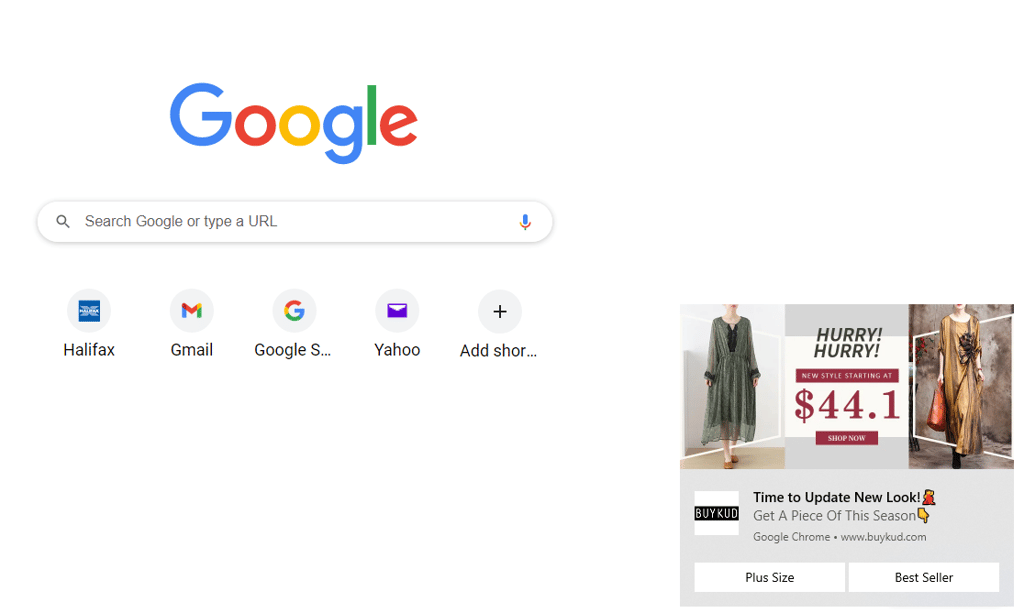
However, sometimes pop-up ads or redirects can be a result of other websites trying to earn money from ads. For example, a free streaming website will display ads that cover your screen, or redirect to another website when you’re trying to play a video. For each ad or redirect, they earn money.
Remove unwanted applications from your device
Here’s how to remove adware and unwanted suspicious programs from Windows, Mac, iOS, and Android devices:
Download and install reliable antivirus software, scan your device, and follow antivirus recommendations. You can also remove malware from Windows manually and take these steps:
- Click the Windows key and type in Control panel, then press enter
-
Select Uninstall a program under Programs at the bottom

- Find a questionable application that appeared right before redirects or other suspicious activity started. Sort apps by date for easier lookup
-
Right-click on it and click Uninstall, then confirm it

Download and install a trustworthy antivirus software and run a scan. Follow the recommendations.
You can also remove viruses from your Mac by yourself:
-
Open “Finder” and go to the “Applications” folder

-
Scroll through the list of apps

-
Detect and delete any applications that you don’t recognize

-
Empty the trash. Any remains left from a program can restore the program itself and continue spreading malware.

If your iOS or Android device has been infected, our guide on how to remove viruses from your phone can help. Also, here are some steps you can take right now:
- Install an antivirus program, run a scan, and follow recommendations to remove any suspicious apps.
- You can also look through the apps you have on your device and remove the ones that you don’t recognize.
- For Android, use the Google Play store scanner to scan for any suspicious apps.
If you did everything that’s been recommended, but Chrome is still not working properly, and ads still pop up, a factory settings reset might be necessary.
Remove Google Chrome adware from your browser
Here are the steps you need to take to remove the Google Chrome virus and adware from your browser:
Step 1. Reset browser settings
-
Open Chrome and click on the three dots in the upper right corner

-
Click on Reset settings

-
Choose Restore settings to their original defaults

Step 2. Change default ads permissions
- Go to Chrome settings
-
Go to Privacy and Security > Site settings

-
Click on pop-ups and redirects and select “don’t allow sites to send pop-ups or use redirects”

- Go back to Site settings > Additional content settings
-
Click on Intrusive ads and choose “Ads are blocked on sites known to show intrusive or misleading ads”

Step 3. Remove unwanted browser extensions
- Open Chrome and click on the three dots at the top right of the browser
-
Select Extensions and click on Manage Extensions

-
Find the unwanted extension and click on Remove
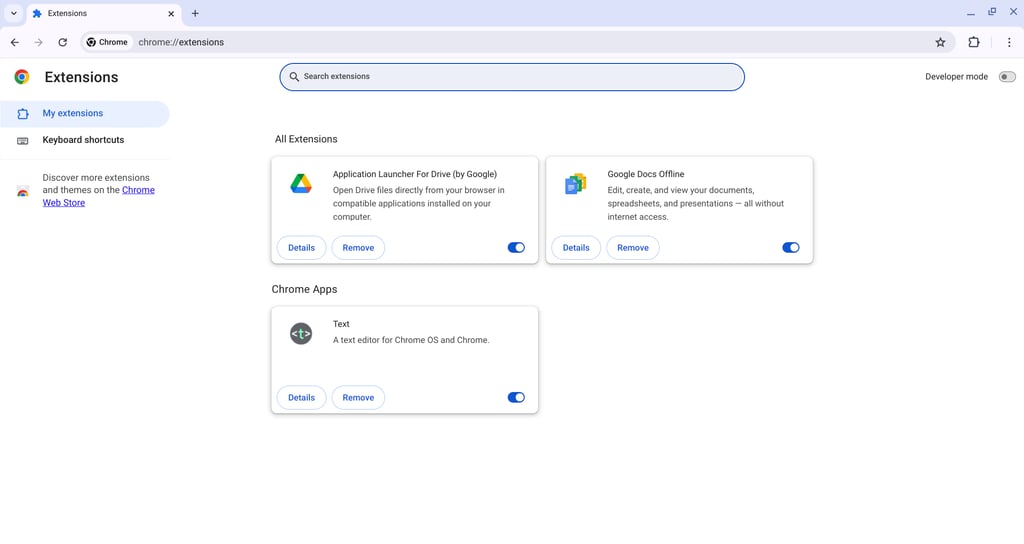
- Confirm by clicking Remove again
How can I protect my PC from viruses?
Getting a virus on your device or browser is no fun. Luckily, there are some things you can do to avoid it. Here are some actions you can take to protect your PC from malware:
- Use antivirus software. Good antivirus software will scan every file on your device, recommend actions to take in case of malware infections and provide all-around device protection. Our favorite antivirus is TotalAV.
- Avoid untrustworthy websites. Suspicious websites may contain malicious links or pop-up messages saying your device has been infected with malware when it, in fact, hasn’t.
- Download files and programs only from official sources. Files downloaded from pirating websites or other unofficial sources often contain malware. For example, a malicious browser extension known as the 'Bottle extension' is typically encountered when downloading files from pirating sites. Thus, downloading files from legitimate sites is the best way to go.
- Don’t click on suspicious links. They can lead to malicious websites, download and install malware, or otherwise compromise your device and/or browser.
- Don’t open suspicious emails. Phishing attacks are among the most common and the most dangerous online threats. If you get an email that you weren’t expecting, especially one that promises limited deals or asks for immediate action – report it as spam and block the sender without opening it or attached files. If it was sent to a corporate email account, let your security team know.
- Scan files and documents before downloading. Install an antivirus browser extension and scan every file you want to download. That way, you will avoid accidentally downloading malware.
Video tutorial
Check out the step-by-step guide in a video format:
Bottom line
While getting your browser infected with malware is sometimes scary and oftentimes annoying, there are ways to fix the problem. You can do that by resetting browser settings, removing unwanted apps manually, and/or using a quality antivirus such as TotalAV. The latter option will also help you avoid malware in the future and ensure the utmost safety of your device.
What’s more, you can take action to protect your computer, phone, or tablet right this minute. Simply avoiding clicking on suspicious links or downloading files from unknown sources will get you a long way in dealing with scammers and bad actors while browsing.
More antivirus guides from Cybernews:
Remove spyware from your iPhone: protect your device from any data leak
How to remove a virus from your phone: the best security for your phone
Best ad blockers in 2026: learn how to protect your devices from malicious ads
How to get rid of the “Congratulations You Won” pop-up virus: step-by-step instructions
How to get rid of a computer virus: get to know how to remove virus from your PC
FAQ
How do I get rid of a browser hijacker in Chrome?
To get rid of a browser hijacker in Chrome, you’ll need to reset browser settings, uninstall unwanted and suspicious applications from your device, and remove unwanted and malicious browser extensions.
Is the Chrome browser safe?
Yes, the Google Chrome browser is completely safe to use. However, because it is so popular, scammers tend to target the users of Chrome the most, so you have to be careful and avoid clicking on suspicious links, opening emails, or downloading files from unknown sources. Also, you shouldn't visit untrustworthy sites.
Will reinstalling Chrome remove malware?
After you uninstall and install Chrome again and log into your Google account, it will restore any settings, extensions, and potentially malware from the cloud backup. So if resetting browser settings and removing extensions didn’t help, reinstalling Chrome won’t remove malware either.